Microsoft Purview collects mountains of data about how information flows through your organization – audit logs, activity explorer data, content explorer insights, dashboards, and countless other metrics. These metrics help track how your content is used and protected. It’s comprehensive and powerful, giving you visibility into nearly every aspect of your information security landscape.
But here’s the challenge: all that data doesn’t automatically translate into answers. Questions like ‘Are our policies actually working?’ or ‘Where are we most vulnerable?’ shouldn’t require hours of mining through logs and dashboards.
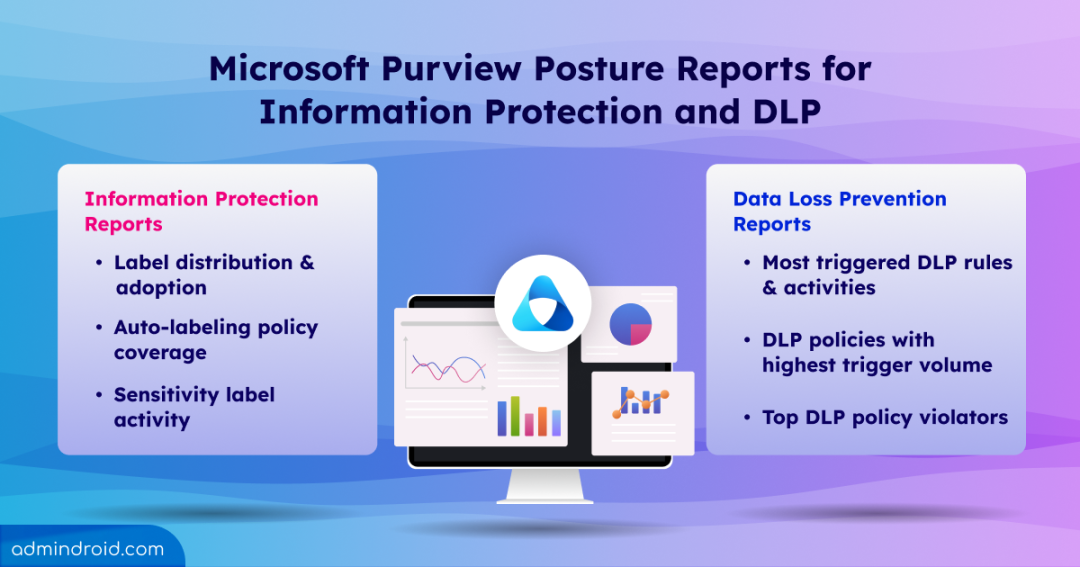
That’s why Microsoft introduced Posture Reports for Information Protection and Data Loss Prevention. These reports transform raw data into pre-built, actionable insights. Let’s take a quick look at what’s included in these reports.
What Are Posture Reports in Microsoft Purview?
Posture Reports in Microsoft Purview are ready-made reports that help you see how well your organization is protecting its data. They show how sensitivity labels and policies are being used, what protections are applied to files and emails, and which activities happen most often. Posture Reports are rolling out in early February 2026 and are expected to be available across tenants by mid-February 2026.
UPDATE MAR 2026: Microsoft Purview Posture Reports are now generally available.
You’ll find these insights across core solutions such as:
These reports pull information from Microsoft 365 services like Exchange, SharePoint, and OneDrive, as well as other sources.
Key Insights Available in the Posture Reports
With Purview Posture Reports, you can quickly see key information like:
- Protection policy data (preview)
- Most-detected trainable classifiers across cloud platforms
- Volume and types of sensitive information classifications
- Most-detected Sensitive Information Types across your environment
- Top applied sensitivity labels and related activities
- User activity summaries on sensitive content
- Locations of sensitive and retained data
- Email encryption overview
Prerequisites to Access Microsoft Purview Posture Reports
Access to Microsoft Purview Posture Reports can be granted using the following Microsoft 365 admin roles:
- Compliance Administrator
- Security Administrator
- Compliance Data Administrator
- Global Administrator
While these built-in Microsoft 365 admin roles do provide access to Posture Reports, they also grant broad administrative permissions across the Microsoft 365 environment. This level of access is often more than what’s required for users who only need visibility into compliance and posture reporting.
As a best practice, access to Posture Reports should be granted using Microsoft Purview built-in roles or role groups, which provide more granular and controlled permissions.
Microsoft Purview Roles:
- Information Protection Admin
- Information Protection Analyst
- Information Protection Investigator
- Information Protection Reader
Microsoft Purview Role Groups:
- Information Protection
- Information Protection Admins
- Information Protection Analysts
- Information Protection Investigators
- Information Protection Readers
Information Protection Posture Reports
These reports help you see how your organization is protecting sensitive information. The reports use a 30-day rolling window, giving you a current view of your information protection status.
To access the Information Protection posture reports,
Go to the Microsoft Purview portal -> Information Protection -> Reports -> Posture reports
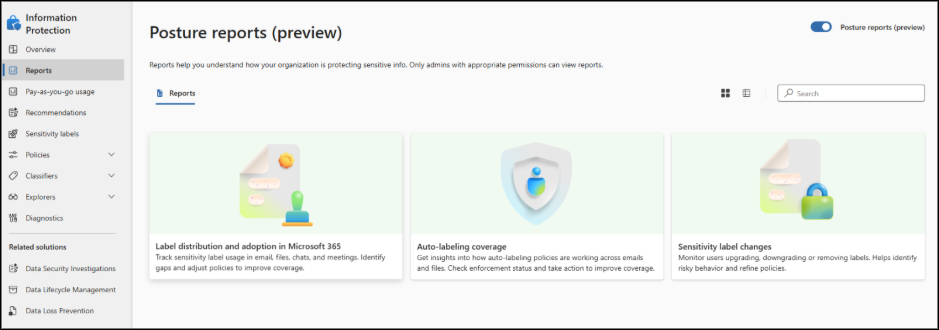
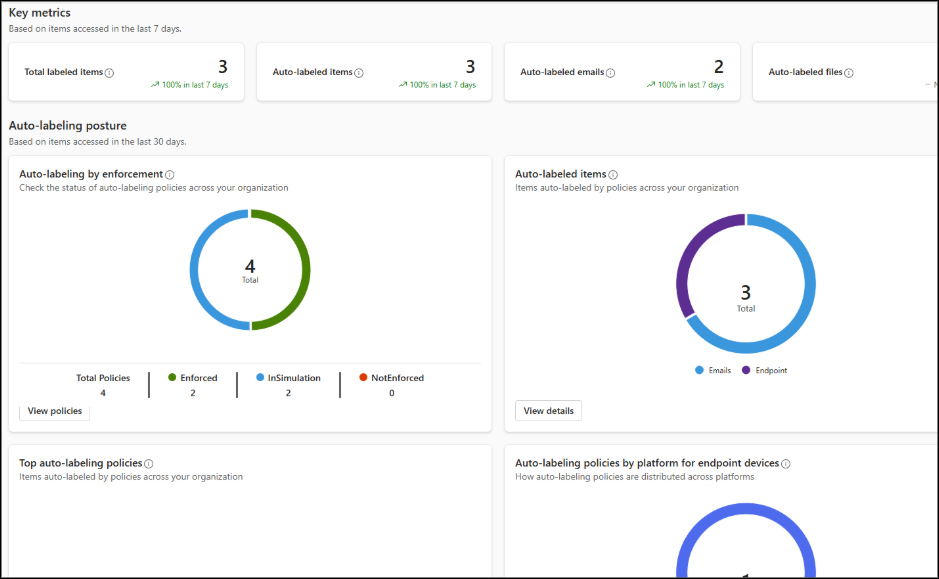
Each report highlights key metrics for the past 7 days, while other posture data is presented using a 30-day rolling window.
Available Information Protection Posture Reports:
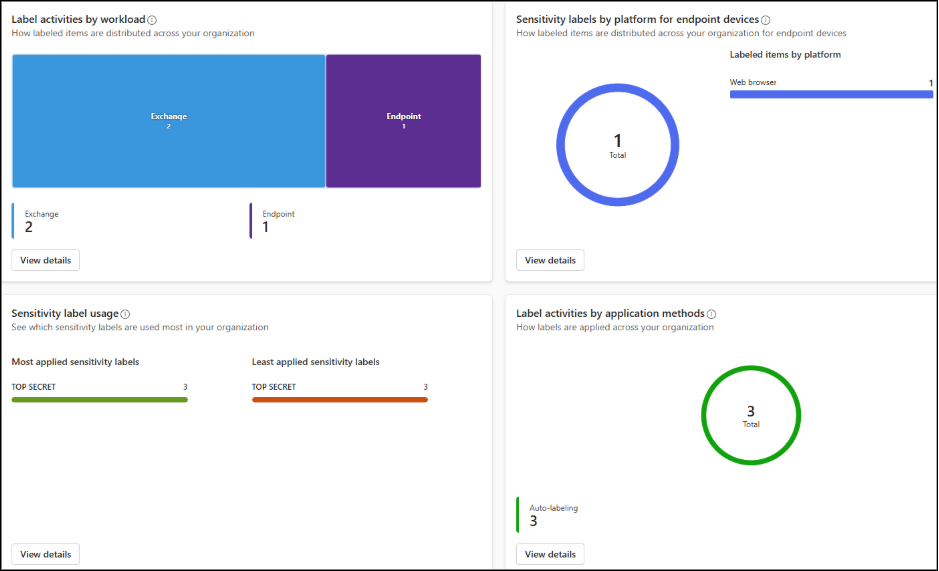
- Label Distribution and Adoption: This report shows how sensitivity labels are applied across emails, files, chats, endpoint devices, and meetings. It helps you identify gaps and adjust policies to improve coverage.
- Auto-Labeling Policy Coverage: This report provides insights into how auto-labeling policies are being applied across emails, files, endpoints, and more. The report also highlights the enforcement status of your auto-labeling policies and lists the top policies in use, helping you quickly see what’s applied and what may need attention.
- Sensitivity Label Activity: This report lets you monitor when users upgrade, downgrade, or remove labels. It helps you identify risky behavior and refine your policies.
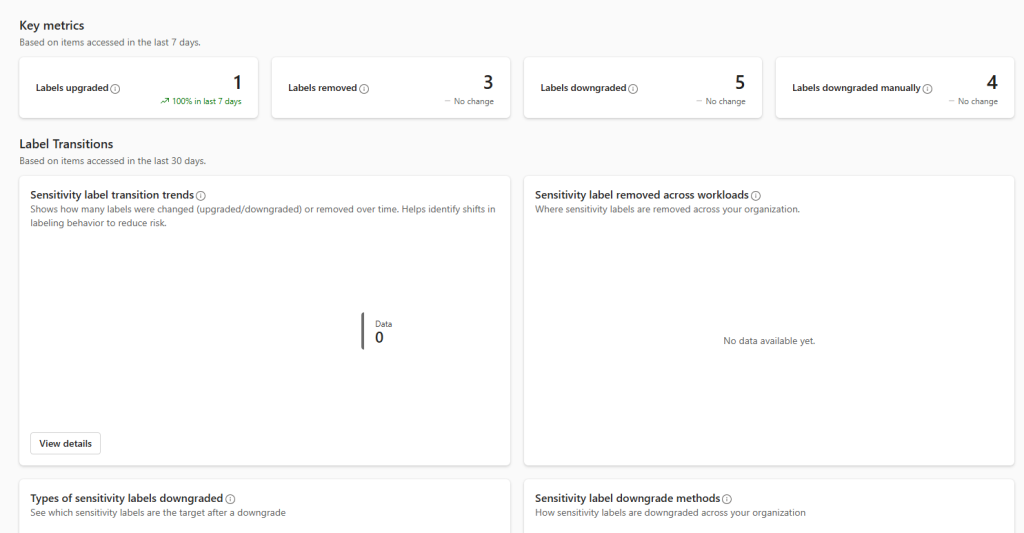
Tip: If you want to keep a report for the long term, export it as a PDF because the data keeps updating. You can also save your filter settings to make future reports quicker to generate.
Data Loss Prevention Posture Reports
These reports show how your organization’s Data Loss Prevention (DLP) policies are working across different workloads and data sources. They help you see which rules are triggered most often, understand user activity, and improve your DLP strategy to protect sensitive information more effectively. The reports are organized into three tabs: rule events, policy events, and user risks.
Like the Information Protection reports, DLP Posture Reports use a 30-day rolling window.
To access the Data Loss Prevention posture reports,
Go to the Microsoft Purview portal → Data Loss Prevention → Posture Reports.
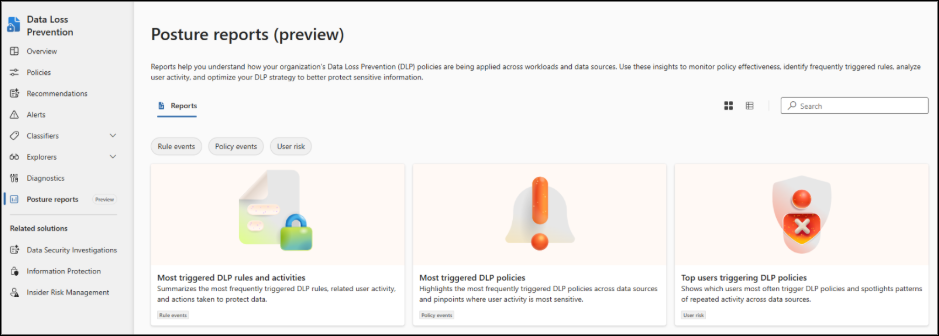
Available Data Loss Prevention Posture Reports:
- Most Triggered DLP Rules and Activities: This report summarizes the DLP rules that are triggered most often, along with related user device activity. It shows what actions are being taken to protect sensitive data.
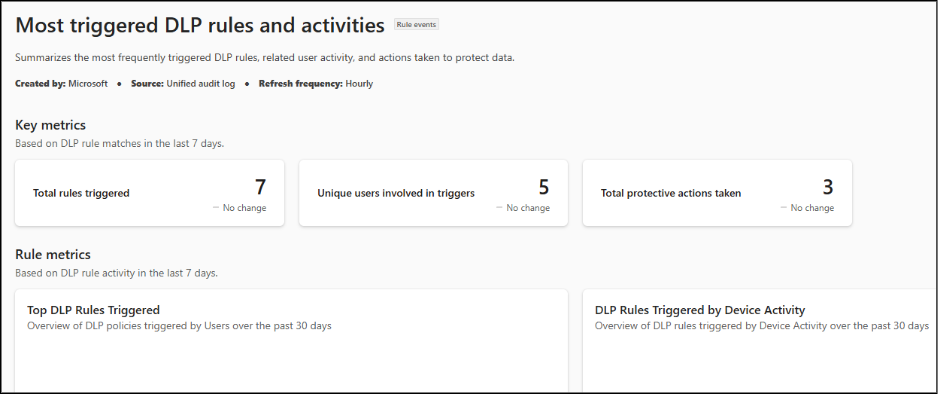
- DLP Policies with Highest Trigger Volume: This report highlights the DLP policies that are triggered most frequently across your data sources. It helps pinpoint where user activity involves the most sensitive information.

- Top DLP Policy Violators: This report identifies the users who most often trigger DLP policies. It also reveals patterns of repeated activity across different data sources.
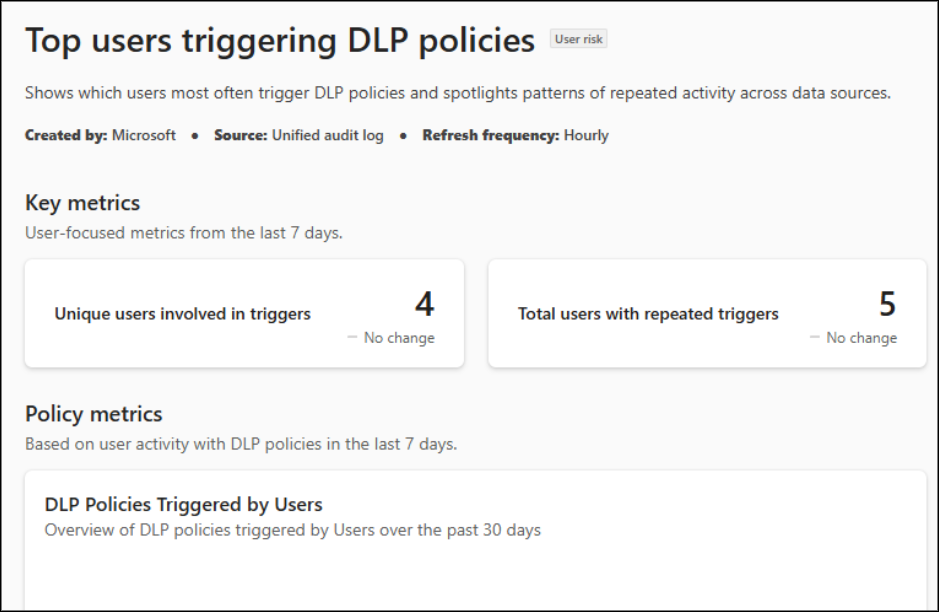
Note: DLP policies that are running in simulation mode will not appear in Posture Reports.
We hope this blog has helped you understand how these reports work and how they can simplify monitoring and decision-making. Thanks for reading! For any questions or further queries, feel free to reach out.