For the past couple of years, AI meeting assistants have been booming well. Tools like “Meeting Notetaker,” “AI Assistant,” and “Read.ai Bot” became popular for generating transcripts, summarizing discussions, and helping people manage meeting fatigue.
Yeah, useful stuff, in the right context. But for many Teams’ admins and organizers, this has also become a frustrating and oddly persistent issue!
The core problem is that these bots enter meetings through third-party integrations connected by participants, not the organizer. That means a bot could potentially record sensitive conversations while the meeting host is completely unaware. 👎
Because of that, one of the most common questions appearing in Reddit threads and admin forums has been:
- How do I prevent external AI bots from joining my Teams meetings?
- How can we block third-party AI note-taking apps from entering meetings?
- Is it possible to stop AI notetakers from joining?
- How do I prevent users from allowing AI apps into meetings?
To answer these questions, Teams provides native controls to manage external AI meeting bots, with options to allow, require organizer approval, or automatically block them from joining meetings.
Before diving into this native control, let’s look at the workarounds that admins have traditionally used. That will help us understand why this new capability makes such a big difference.
The List of Workarounds to Block 3rd Party AI Assistants in Teams Meetings
This problem wasn’t new, so admins had to rely on a mix of workarounds to limit unwanted AI bots from joining Teams meetings. Some of the common approaches included:
- CAPTCHA verification for external participants — Added a verification step for external participants but could introduce friction for legitimate guests. Microsoft is retiring CAPTCHA verifications for meeting joins by August 2026. Instead, Teams will automatically detect meeting bots by default.
- Email OTP verification — Required external participants to verify their email using OTP before joining. It could block some unwanted participants but could also affect legitimate guests.
- Lobby controls — This kept external participants wait in the lobby for review but relied on organizers to review and manually remove unwanted bots themselves.
- Additional technical restrictions — Admins also use controls such as restricting anonymous join clients, blocking user consent for third-party apps, or disabling sign-in for enterprise app registrations altogether. These could reduce exposure but were broader controls rather than dedicated bot management.
These workarounds could help reduce unwanted access, but they often involved extra steps, limitations, or broader restrictions rather than dedicated bot management. Therefore, Microsoft has introduced native controls specifically designed to detect and manage external AI meeting bots. Let’s look at these controls!
How to Manage Teams Meeting Policy to Control External AI Bots
Microsoft Teams provides granular meeting policy controls to identify and manage external meeting bots that attempt to join meetings.
Admins can manage external meeting bot settings from the Microsoft Teams admin center or configure them using PowerShell with the ExternalBotAccessMode cmdlet.
To configure these settings in the Teams admin center, follow the navigation steps below:
- Open the Microsoft Teams admin center.
- Select Settings and Policies.
- Under Global settings tab, go to Meetings & events section, and select Meetings.
- Under Meeting join & lobby section, select Manage external bots and their access to meeting to configure the available controls.

The Manage external bots and their access to meetings setting provides three options for controlling external meeting bots:
- Do not detect bots (ExternalBotAccessMode: AllowAllBots): Turns off external meeting bot detection.
- When detected, require approval before joining (ExternalBotAccessMode: RequireApprovalWhenDetected): This is the default configuration that detects external meeting bots and lets the organizer decide whether they can join.
- Block detected bots – New (ExternalBotAccessMode: BlockDetectedBots):
Detects and automatically blocks external bots from joining Teams meetings.
How to Identify and Manage External AI Bots in Microsoft Teams Using PowerShell
Teams uses a combination of infrastructure and behavioural signals collected during the meeting join process to identify external bots. Once Teams identifies a participant as a bot, it marks the participant and applies the action defined by the organization’s meeting policy.
Admins can manage external AI meeting bots using the ExternalBotAccessMode parameter in the Set-CsTeamsMeetingPolicy PowerShell cmdlet. By default, detected external bots require organizer approval before they can join. With the new Block detected bots option, admins can automatically prevent detected external bots from joining meetings.
New Update: Automatically Block Detected External Bots in Microsoft Teams
Microsoft is now introducing a new meeting protection policy option that extends the existing bot-detection control a step further by automatically blocking identified external meeting bots.
The “Block detected bots” option will be added to the existing Manage external bots meeting protection settings. It is rolling out now, with General Availability expected by late September 2026.
Unlike the default approval-based experience, automatic blocking is an opt-in capability. Admins can configure it for the Global meeting policy to apply the control tenant-wide or configure a custom meeting policy and assign it to specific users or groups. This gives organizations a more granular way to enforce their meeting security requirements without relying on organizers to manually review every detected bot.
The Block detected bots option isn’t currently available as a selectable control in the Teams admin center. Admins can only configure it using the ExternalBotAccessMode parameter of the Set-CsTeamsMeetingPolicy PowerShell cmdlet.
Before running the cmdlet, connect to Microsoft Teams PowerShell. Also, ensure you’re using MicrosoftTeams PowerShell module version 7.9.0, which supports the ExternalBotAccessMode parameter.
|
1 |
Connect-MicrosoftTeams |
To enable Block detected bots at the organization level, run the Set–CsTeamsMeetingPolicy cmdlet with BlockDetectedBots param:
|
1 |
Set-CsTeamsMeetingPolicy -Identity Global -ExternalBotAccessMode BlockDetectedBots |
To enable it for a specific meeting policy, replace <policy name> with the name of the custom meeting policy and then run the cmdlet:
|
1 |
Set-CsTeamsMeetingPolicy -Identity "<policy name>" -ExternalBotAccessMode BlockDetectedBots |
After configuring the policy, assign it to the required users or groups. To verify the configured value, admins can use Get-CsTeamsMeetingPolicy cmdlet:
|
1 |
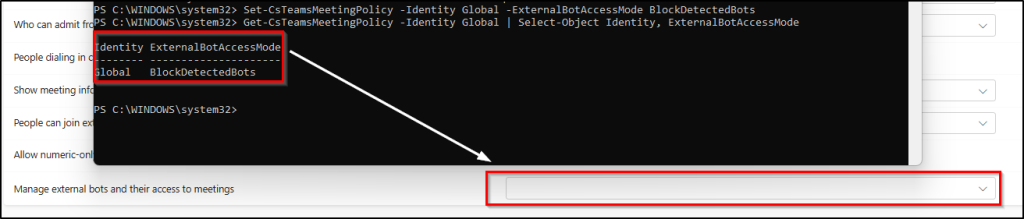
Get-CsTeamsMeetingPolicy -Identity Global | Select-Object Identity, ExternalBotAccessMode |
When an external meeting bot is blocked via PowerShell, the corresponding option may appear blank in the Teams admin center as shown below. This is expected because the new option is not yet available in the admin center. Once the rollout is complete in September 2026, the setting will be displayed as “Block detected bots”.
Note: If you want to disable external bot detection and allow all bots, run Set-CsTeamsMeetingPolicy cmdlet with the -ExternalBotAccessMode AllowAllBots param.
Restore the Default Organizer Approval Behavior Using PowerShell
If you later want to restore the default behavior and require organizer approval for detected bots, run:
|
1 |
Set-CsTeamsMeetingPolicy -Identity Global -ExternalBotAccessMode RequireApprovalWhenDetected |
To configure this setting for a specific meeting policy, run the following cmdlet. Replace <policy name> with the name of the meeting policy you want to configure.
|
1 |
Set-CsTeamsMeetingPolicy -Identity "<policy name>" -ExternalBotAccessMode RequireApprovalWhenDetected |

What Happens When Automatic Blocking is Enabled?
When Block detected bots is configured via PowerShell, Teams changes how an identified external bot is handled:
- An external meeting bot attempts to join a Teams meeting.
- Teams analyzes signals from the joining process to determine whether the participant is a bot.
- Teams identifies the participant as an external bot.
- The meeting policy automatically blocks the bot instead of sending it to the lobby for approval.
- The organizer does not need to manually review or reject the detected bot.
This removes the manual admission step and can reduce the risk of a detected bot being accidentally allowed into a meeting. It can be particularly useful for organizations that don’t permit third-party meeting assistants in sensitive or confidential meetings.
How Teams Detects and Handles External Meeting Bots in the Lobby
So, how does Teams identify an external meeting assistant in the first place? Here’s the detection flow in action, for meetings still running on the default (or approval-first) policy.
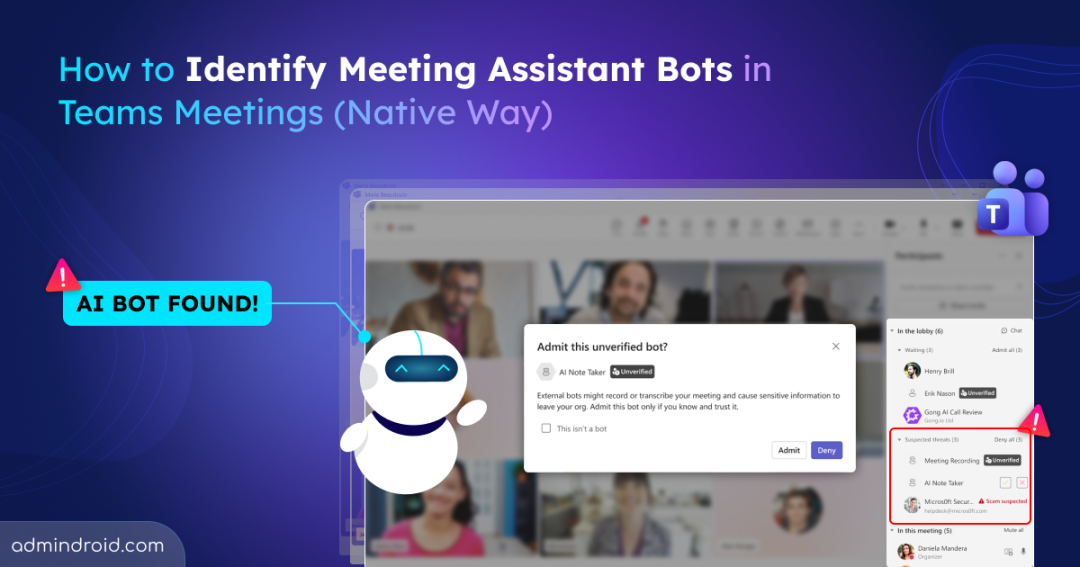
→ Flagged bots show up in the Suspected threats section of the lobby, labeled “Unverified.”
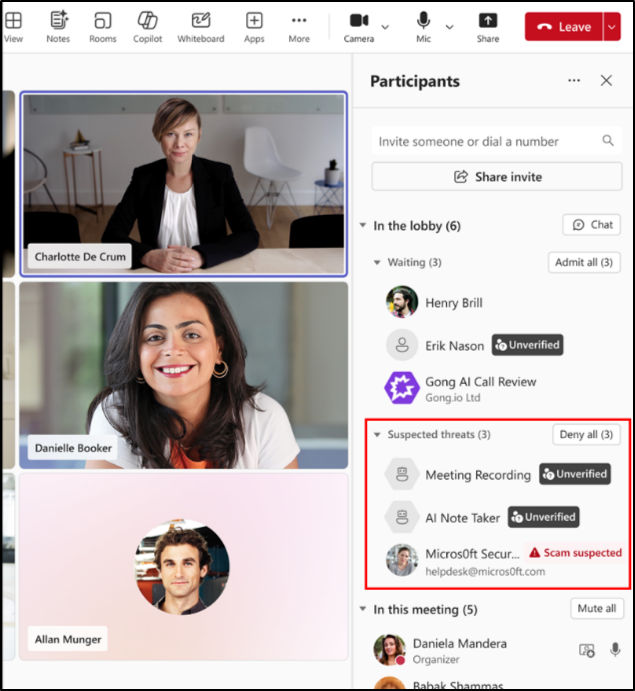
Here’s how it plays out:
- When a third-party AI-powered assistant bot tries to join a meeting hosted in your tenant, Teams detects it and flags it in the lobby under “Suspected threats.”
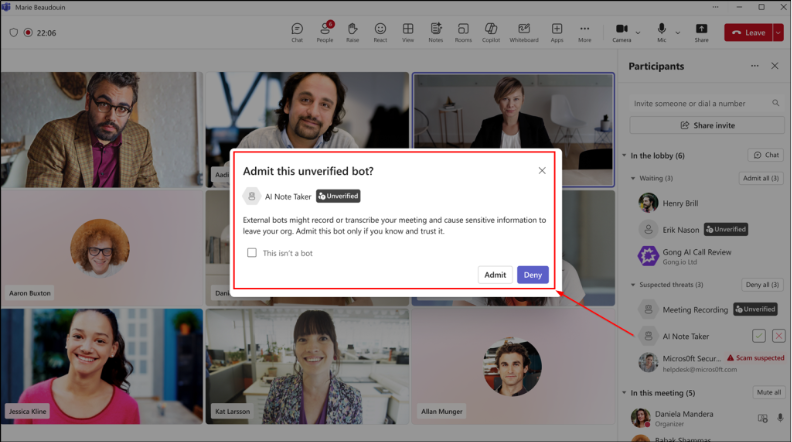
- Microsoft marks these anonymous participants with the “unverified” trust indicator. Selecting the meeting assistant opens a pop-up with its details and available actions.
- From there, the organizer can approve the bot to join, deny the request, or remove it during the meeting if they catch it a little too late.
With the approval-based policy, detected bots are flagged in the lobby for the organizer to review. But with the new option, you don’t need this review screen at all, the bot is blocked as soon as Teams detects it.
Is this the Perfect Solution?
Yes, it’s a big step forward!
Admins can finally move from simply detecting external bots to automatically blocking them with the new “Block detected bots” option. While organizer approval remains the default, admins can opt in to automatic blocking when stronger meeting protection is needed.
That said, detection isn’t perfect. Some bots may still go undetected based on their behavior. Microsoft encourages users to report undetected bots directly from the meeting or app, to help improve its detection capabilities.
Even better, this is now a native Teams capability, with no Teams Premium license required! 🎉