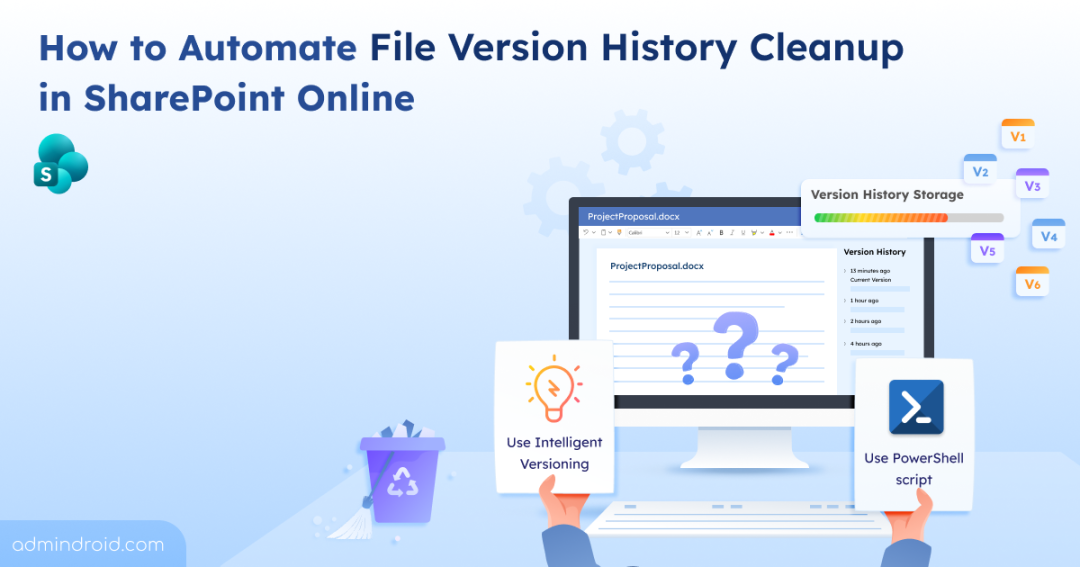
Version history in SharePoint is an essential document management feature that allows users to track changes and access previous file versions. However, it’s also one of the biggest storage space eaters in your SharePoint environment. Each version of a document counts toward your overall SharePoint storage quota, and as versions accumulate across thousands of files, they can quickly consume a significant portion of your available storages.
Without proper monitoring and cleanup, version history can silently drain your storage until you’re facing quota alerts or, worse, sites going into read-only mode. This is why automating version history cleanup is critical for efficient SPO storage management.
In this guide, we’ll walk you through various methods to delete version history in SharePoint Online.
How to View File Version History in SharePoint?
Before jumping into deleting versions, it’s important to first understand what versions are available for each file – including both major and minor versions and the storage each consumes. Major versions are stored as full copies of the file, while minor versions also consume space, which can accumulate quickly even for small edits.
This visibility is essential for making informed cleanup decisions. Without this insight, you cannot identify which files are consuming excessive storage or confidently remove versions without risking the loss of important document iterations.
For this, you can use our dedicated script to retrieve file version details efficiently. This PowerShell script streamlines the process for Microsoft 365 admins by exporting version details of all files from SharePoint Online into a comprehensive CSV report.
Download Script from GitHub: GetFileVersionHistoryReport
Sample Output:

For more detailed insights into storage monitoring, you can check out AdminDroid’s SharePoint Storage Explorer, which lets you easily visualize storage usage, identify large files and version-heavy documents, and take informed actions.
How to Delete File Versions in SharePoint Online?
Now that we have an idea about the version history, let’s check the various methods available to clean up version history in SharePoint Online:
- Delete version history per file in SharePoint
- Delete file versions at the document library level
- Use Intelligent versioning
- Delete version history using PowerShell cmdlet
- Automate version history cleanup using PowerShell script (Recommended)
1. Delete Version History Per File in SharePoint
To clean up version history for a specific file in SharePoint, follow the steps given below:
- Go to the SharePoint site that contains the file.
- Click the ellipsis (…) next to the file.
- Select Version history. A dialog opens showing details like version number, modified date, modified by, etc.
- Under the Modified column, click on the date of the version you want to remove.
- From the dropdown, select Delete.
You can also use ‘Delete all versions’ or ‘Delete minor versions’ to remove multiple versions at once. The latest version of a file (that is version 0.7 in the above screenshot) cannot be deleted.
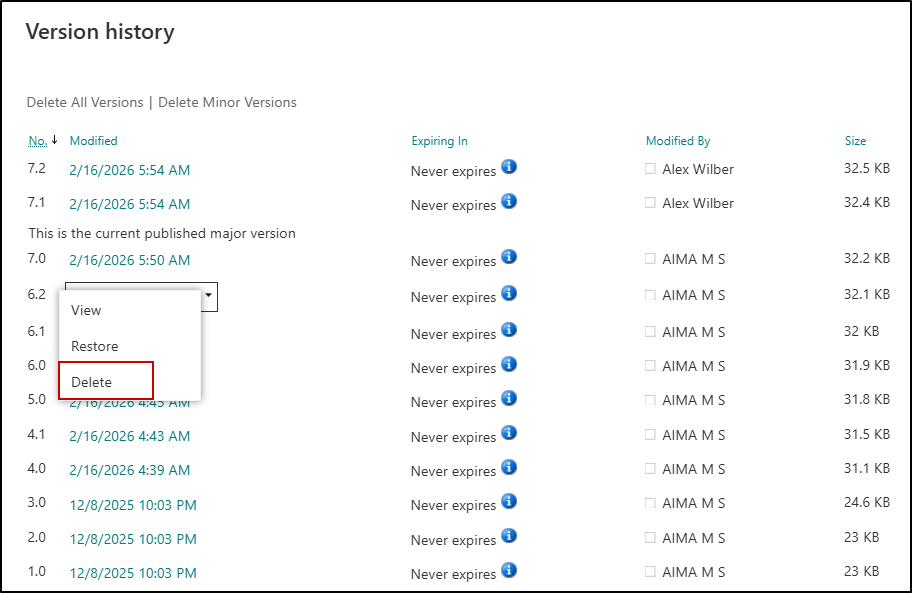
While this method works, it can quickly become cumbersome in real-world scenarios, as you must open each file individually and repeat the same steps across the site to clean up versions. This makes it impractical for large libraries or sites with many files.
2. Delete File Versions at the Document Library Level
If you want to control version history for all files in a document library, you can configure the library’s versioning settings. To set version limits and automatically delete older versions in a document library, follow the steps below:
- Navigate to the document library where you want to control versioning.
- Click the Settings →Library settings.
- Under General Settings, click Versioning settings.
- Configure the required limits:
- Set a Version time limit (No time limit, Automatic, or Manual with specific days).
- Set a Version count limit (number of major versions and draft versions to retain).
- Click OK to apply the changes.
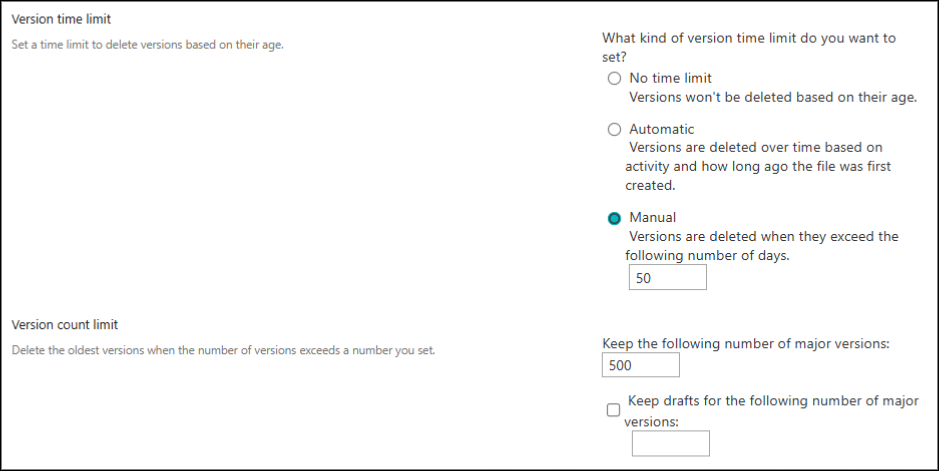
Once configured, older versions are automatically and permanently deleted when they exceed the defined age or count thresholds (they bypass the Recycle Bin). This approach offers no flexibility for exceptions or conditional logic – it strictly enforces deletion based on the configured time or count limits.
3. Use Intelligent Versioning to Automate Version Cleanup in SharePoint
SharePoint intelligent versioning allows admins to define organization-wide version limits in SharePoint Online. Instead of storing every single version, intelligent versioning focuses on retaining the most useful versions while automatically removing older ones.
To enable intelligent versioning in SharePoint,
- Sign in to the SharePoint admin center
- Navigate to Settings → Version history limits
- Select Automatically to enable intelligent versioning for SharePoint and OneDrive
- Click Save, then Confirm to apply the changes
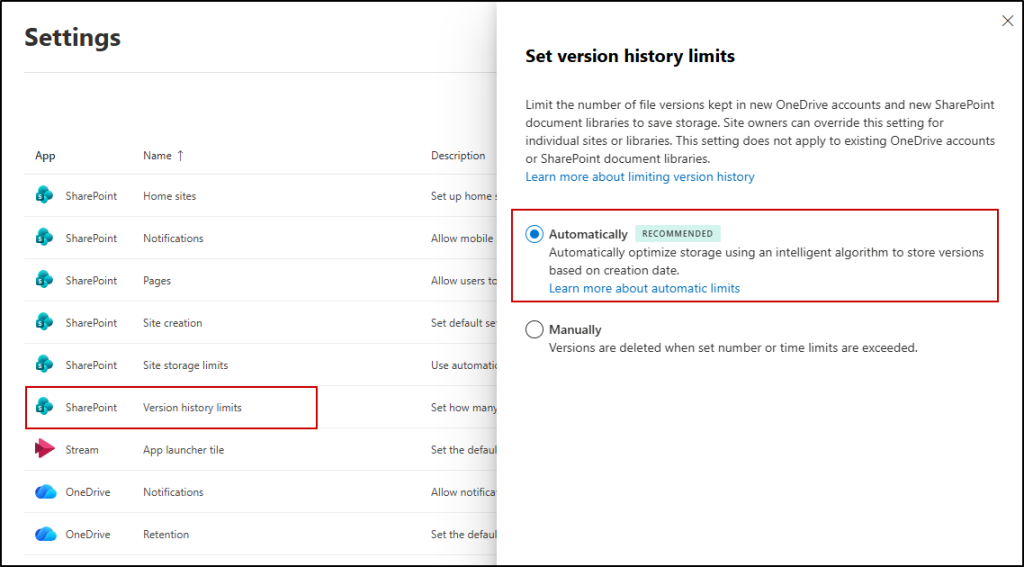
Once enabled, SharePoint dynamically adjusts version limits and removes unnecessary versions based on factors like version age.
Limitations of Intelligent Versioning
However, Intelligent versioning in SharePoint comes with several limitations:
- Version history of non-Office files like PDFs, images, and ZIPs consume more storage per version as full copies are stored rather than deltas.
- Once enabled, the maximum version limit is fixed at 500, and this value cannot be customized.
- By default, intelligent versioning only applies automatically to new sites and new document libraries in existing sites. Existing libraries retain their current version settings unless administrators explicitly enable version history controls at library level.
- When existing library files are trimmed, they are permanently deleted and cannot be recovered from the Recycle Bin.
4. Delete File Version History Using PowerShell Cmdlet
You can use PowerShell cmdlets such as Remove-PnPFileVersion and New-PnPSiteFileVersionBatchDeleteJob to clean up SharePoint file version history. However, these approaches come with practical limitations:
New-PnPSiteFileVersionBatchDeleteJob:
The New-PnPSiteFileVersionBatchDeleteJob cmdlet initiates a background batch process to trim file versions across the site collection, bypassing the Recycle Bin.
|
1 |
New-PnPSiteFileVersionBatchDeleteJob -MajorVersionLimit 30 |
The given format keeps up to 30 major versions and permanently deletes versions exceeding this limit. It enforces strict count-based trimming across the site collection without supporting granular conditions or exceptions.
Remove-PnPFileVersion:
The Remove-PnPFileVersion cmdlet is used to delete all versions or a specific version of a file in SharePoint Online.
|
1 |
Remove-PnPFileVersion -Url "Documents/MyDocument.docx" -Identity "Version 1.0" |
The above format deletes the specific version (Version1.0) of the file “Mydocument.docx”.
However, this cmdlet requires you to target files individually. In real-world environments, this often means looping through files one by one, which makes the script more time-consuming to write.
5. Automate SharePoint Version History Cleanup Using PowerShell Script
To overcome these limitations, we’ve developed a PowerShell script that provides flexible and granular control over version cleanup in SharePoint Online.
| ➡️ This script supports deleting version history for any file type and allows admins to target versions based on libraries, folders, files, dates, users, version counts, and more. You can also choose to hard delete versions permanently or soft delete by moving them to the Recycle Bin. |
Download the script: CleanupVersionHistoryInSPO.ps1
Script Highlights:
The script supports removal of SharePoint Online version history using 10+ flexible filtering criteria:
- SiteLevel – Remove versions across the entire site when performing large-scale storage cleanup.
- LibraryName – Clean up versions from a specific document library when only one library is consuming excessive storage.
- FolderPath – Delete versions for all files inside a folder when a project or department folder needs cleanup.
- FilePath – Target a single file when a specific document has accumulated too many versions.
- KeepTopVersionCount – Retain only the latest N versions to control version growth while keeping recent edits.
- KeepMajorCount – Limit stored major versions when published versions are increasing storage usage.
- KeepMinorCount – Remove draft/minor versions when they are no longer required for collaboration.
- DeleteDateFrom & -DeleteDateTo – Delete versions created within a specific period, useful for clearing outdated historical versions.
- SpecificVersionsToDelete – Remove selected version numbers when only certain iterations are unnecessary.
- SpecificVersionsToKeep – Preserve critical versions while deleting all others for compliance or audit needs.
- VersionsCreatedBy – Delete versions created by specific users, helpful in cases like bulk uploads or testing activity cleanup.
- HardDelete – Permanently remove versions instead of sending them to the recycle bin when immediate storage recovery is required (By default, deleted versions are moved to the Recycle Bin).
You can also combine parameters to achieve more granular and controlled version cleanup based on your organization’s storage strategy.
Sample Output Log File: Delete Versions at the Library Level

This script automates version history cleanup in SharePoint Online while capturing key attributes such as CleanUp Time, File Name, File Path, Total Versions Count, Deleted Versions Count, Remaining Versions Available Count, Retained Major Versions Count, Retained Minor Versions Count, Deletion Type, Status, and Error Details.
Script Execution Methods
- Download the script.
- Start the Windows PowerShell.
- Select any of the methods provided to execute the script.
Note: Since the script uses PnP PowerShell, it requires an Entra ID app registration to support both interactive and non-interactive logins. Ensure you register an app in Entra ID for PnP PowerShell and granted the Sites.ReadWrite.All permission to delete file versions.
Method 1: Execute the script with an MFA or non-MFA account.
|
1 |
.\CleanupVersionHistoryInSPO.ps1 |
This method prompts you to provide the Site URL, file path, number of versions to retain, and the Client ID of your Entra ID app. Once specified, it generates an output log file detailing the deleted versions.
Method 2: Execute the script by explicitly mentioning the credentials.
|
1 |
.\CleanupVersionHistoryInSPO.ps1 -AdminName <AdminUPN> -Password <Password> -ClientId <ClientId> |
⚠️ This method works only for non-MFA accounts and is not recommended. For accounts with MFA, you’d need to disable MFA based on the Conditional Access policy make it work.
Method 3: Execute the script using certificate-based authentication.
|
1 |
.\CleanupVersionHistoryInSPO.ps1 -TenantId <TenantId> -ClientId <ClientId> -CertificateThumbprint <CertThumprint> -FilePath <FilePath> -KeepTopVersionCount <VersionCount> |
The above method is scheduler friendly. You can schedule the script using the Task scheduler or Azure Automation.
Points to Remember:
- The script automatically installs the required PnP PowerShell module, with your confirmation, if it is not already installed.
- This script requires PowerShell 7 or higher, as the latest PnP PowerShell versions are only supported on PowerShell 7+.
- During interactive sign-in, if you are not an owner of certain sites, the script will be unable to delete version history for those sites. These sites will be skipped, and you’ll see a warning like: Attempted to perform an unauthorized operation.
- To clean up version histories across all sites, regardless of site ownership, use Method 3 (certificate-based authentication). Ensure the app registration has the required application permissions; otherwise, you may encounter errors such as “Either scp or roles claim need to be present in the token.”
- During the connection process, the script connects to the specified SharePoint site using the -SiteUrl parameter. All operations will be performed only within that connected site.
- The script will not delete versions if the specified number of retained versions is not available for a file.
- The script never deletes the current version of any file.
- The script will not delete versions of files that have retention policies.
Configuring the Script for Your Needs
Below are key scenarios where the script proves especially effective:
- Remove version history for files from a specific SharePoint site
- Delete version history for files from a specific library
- Delete version history for all files in a folder
- Delete version history for a single file
- Keep only the most recent file versions
- Retain only the latest N major versions
- Retain only the latest N minor versions
- Delete versions for a specific period
- Delete selected file versions
- Keep selected file versions
- Delete versions created by specific users
- Delete file versions permanently
- Combine parameters for granular cleanup
1. Remove Version History for Files from a Specific SharePoint Site
To delete version history for all files across a SharePoint site while retaining a specific number of recent versions, use the -SiteLevel switch:
|
1 |
./CleanupVersionHistoryInSPO.ps1 -SiteLevel |
This command keeps only the number of recent versions you specify and removes older versions from all document libraries within the connected SharePoint site.
Supported Additional Parameters:
-KeepTopVersionCount, -KeepMajorCount, -KeepMinorCount, -DeleteDateFrom, -DeleteDateTo, -SpecificVersionsToDelete, -SpecificVersionsToKeep, -VersionsCreatedBy, -HardDelete
2. Delete Version History for Files from a Specific Library
When you want to delete versions from a specific document library in SharePoint, you can use the –LibraryName parameter as follows:
|
1 |
./CleanupVersionHistoryInSPO.ps1 -SiteUrl "https://contoso.sharepoint.com/sites/Finance" -LibraryName "Documents" |
This command connects to the specified SharePoint site “Finance” and targets the “Documents” library for version cleanup. During execution, you will be prompted to enter the number of versions to retain. Based on the value you provide, the script will remove all older versions exceeding that limit within the selected document library.
Supported Additional Parameters:
-KeepTopVersionCount, -KeepMajorCount, -KeepMinorCount, -DeleteDateFrom, -DeleteDateTo, -SpecificVersionsToDelete, -SpecificVersionsToKeep, -VersionsCreatedBy, -HardDelete
3. Delete Version History for All Files in a Folder
To delete versions for all files inside a particular folder, use -FolderPath:
|
1 |
./CleanupVersionHistoryInSPO.ps1 -FolderPath "/Shared Documents/Reports" |
This command targets all files within the specified folder (Reports) without affecting files in other folders or the entire library.
Supported Additional Parameters:
-KeepTopVersionCount, -KeepMajorCount, -KeepMinorCount, -DeleteDateFrom, -DeleteDateTo, -SpecificVersionsToDelete, -SpecificVersionsToKeep, -VersionsCreatedBy, -HardDelete
4. Delete Version History for a Single File
To clean up versions for a specific file, use the -FilePath parameter:
|
1 |
./CleanupVersionHistoryInSPO.ps1 -FilePath "/Shared Documents/Reports/QuarterlyReport.docx" |
This command deletes version history only for the specified file (QuarterlyReport.docx), keeping only the number of recent versions you specify during execution.
Supported Additional Parameters:
-KeepTopVersionCount, -KeepMajorCount, -KeepMinorCount, -DeleteDateFrom, -DeleteDateTo, -SpecificVersionsToDelete, -SpecificVersionsToKeep, -VersionsCreatedBy, -HardDelete
5. Keep Only the Most Recent File Versions
To retain only the most recent versions of each file, use -KeepTopVersionCount:
|
1 |
./CleanupVersionHistoryInSPO.ps1 -KeepTopVersionCount 2 |
This keeps the latest version and the next two previous versions (including both major and minor) and deletes everything older than that.
Supported Additional Parameters:
-SiteLevel, -LibraryName, -FolderPath, -FilePath, -DeleteDateFrom, -DeleteDateTo, -VersionsCreatedBy, -HardDelete
6. Retain Only the Latest Major Versions
To limit stored major versions, use -KeepMajorCount:
|
1 |
./CleanupVersionHistoryInSPO.ps1 -KeepMajorCount 2 |
This preserves the current version, retains the two most recent major versions below it, and deletes all other versions.
Supported Additional Parameters:
-SiteLevel, -LibraryName, -FolderPath, -FilePath, -KeepMinorCount, -DeleteDateFrom, -DeleteDateTo, -VersionsCreatedBy, -HardDelete
7. Retain Only the Latest Minor Versions
To keep only the most recent minor versions of files while cleaning up older versions, use the -KeepMinorCount parameter:
|
1 |
./CleanupVersionHistoryInSPO.ps1 -LibraryName "Documents" -KeepMinorCount 1 |
This command retains the current version and the specified number of most recent minor versions. All other versions, including major versions, will be deleted.
Supported Additional Parameters:
-SiteLevel, -LibraryName, -FolderPath, -FilePath, -KeepMajorCount, -VersionsCreatedBy, -HardDelete
8. Delete File Versions for a Specific Period
To delete versions created within a certain date range, use -DeleteDateFrom and -DeleteDateTo:
|
1 |
./CleanupVersionHistoryInSPO.ps1 -LibraryName "Documents" -DeleteDateFrom "2024-01-01" -DeleteDateTo "2024-12-31" |
This command permanently deletes all versions created between January 1, 2024, and December 31, 2024 in the specified library ‘Documents’.
Supported Additional Parameters:
-SiteLevel, -LibraryName, -FolderPath, -FilePath, -KeepTopVersionCount, -KeepMajorCount, -KeepMinorCount, -VersionsCreatedBy, -HardDelete
9. Delete Specific Versions of the File
To remove particular version numbers of a file, use the -SpecificVersionsToDelete parameter as follows:
|
1 |
./CleanupVersionHistoryInSPO.ps1 -FilePath "/Shared Documents/Reports/QuarterlyReport.docx" -SpecificVersionsToDelete "3.0","4.0" |
This command deletes only the specified versions (3.0 and 4.0) of the selected file, leaving all other versions intact.
Supported Additional Parameters:
-SiteLevel, -LibraryName, -FolderPath, -FilePath, -HardDelete
10. Keep Specific Versions of the File
To retain only certain file versions and delete the rest, use -SpecificVersionsToKeep:
|
1 |
./CleanupVersionHistoryInSPO.ps1 -FilePath "/Shared Documents/Reports/QuarterlyReport.docx" -SpecificVersionsToKeep "1.0","5.0" |
This command keeps only the specified versions (1.0 and 5.0) of the selected file and deletes all other versions.
Supported Additional Parameters:
-SiteLevel, -LibraryName, -FolderPath, -FilePath, -HardDelete
11. Delete Versions Created by Specific Users
If multiple people collaborate on a document, a separate version is created for each user who makes changes. Using the parameter -VersionsCreatedBy allows you to target versions authored by specific collaborators without affecting versions created by others.
|
1 |
./CleanupVersionHistoryInSPO.ps1 -LibraryName "Documents" -VersionsCreatedBy "john@contoso.com","zara@contoso.com" |
This command removes versions authored by the specified users (john@contoso.com and zara@contoso.com) across all files in the selected document library ‘Documents’.
Supported Additional Parameters:
-SiteLevel, -LibraryName, -FolderPath, -FilePath -KeepTopVersionCount, -KeepMajorCount, -KeepMinorCount, -DeleteDateFrom, -DeleteDateTo, -HardDelete
12. Delete Versions Permanently
By default, deleted versions from all the methods above are sent to the Recycle Bin. To permanently delete versions, use the -HardDelete switch:
|
1 |
./CleanupVersionHistoryInSPO.ps1 -LibraryName "Documents" -HardDelete |
This bypasses the recycle bin and permanently removes the versions in the specified document library ‘Documents’.
Supported Additional Parameters:
-SiteLevel, -LibraryName, -FolderPath, -FilePath -KeepTopVersionCount, -KeepMajorCount, -KeepMinorCount, -DeleteDateFrom, -DeleteDateTo, -VersionsCreatedBy, -SpecificVersionsToKeep, -SpecificVersionsToDelete
13. Combine Parameters for Granular Cleanup
You can also combine multiple parameters to perform more granular version cleanup based on your requirements.
For example, to clean up versions in a specific library, keep only the latest 5 versions, and permanently delete the rest:
|
1 |
./CleanupVersionHistoryInSPO.ps1 -LibraryName "Documents" -KeepTopVersionCount 5 -HardDelete |
This gives you precise control over how version history is managed in your SharePoint environment.
We hope this blog has helped you understand how to manage and clean up file version history in SharePoint Online. Thank you for reading! If you have any questions, feel free to leave them in the comments section.