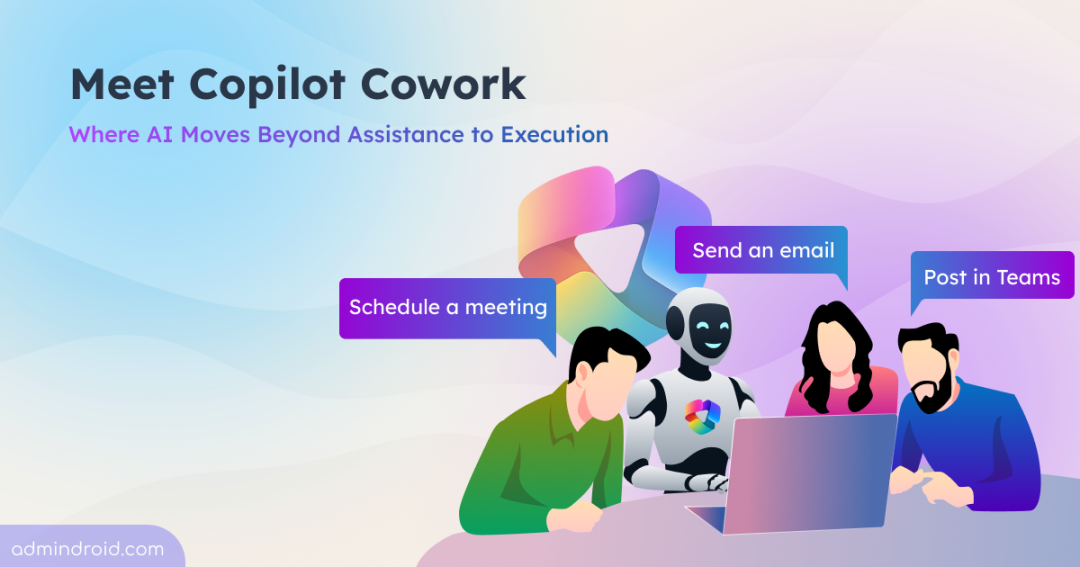
Microsoft has taken another major step in redefining productivity with the launch of Copilot Cowork in Frontier (experimental feature). This new capability transforms how work gets done in Microsoft 365. As part of Microsoft 365 Copilot Wave 3, this reflects a broader shift in AI, from AI as a passive assistant to AI as an active collaborator.
Instead of simply responding to prompts, Copilot Cowork is designed to take action. It moves beyond answering questions and steps into executing tasks, coordinating workflows, and managing outcomes across applications. Let’s explore what Copilot Cowork is, what it can do today, and where it still has room to grow.
What is Copilot Cowork in Microsoft 365?
Copilot Cowork represents a shift from AI assistance → AI execution. Built in collaboration with Anthropic and powered by Work IQ, Copilot Cowork provides intelligent, context-aware capabilities. It eliminates the need to switch between apps, enabling users to orchestrate complex workflows across Outlook, Teams, Word, and PowerPoint from a single interface.
Once a user defines a goal, Copilot Cowork automatically generates a structured plan grounded in their Microsoft 365 context, while keeping users in control through approvals and progress tracking. Users can pause, modify, or stop tasks anytime, and review or edit results later.
The real significance of Copilot Cowork lies in its interaction model. It moves away from the traditional “ask and respond” approach and introduces a system where users define goals and allow AI to execute them.
What Can Copilot Cowork Do in Microsoft 365
Copilot Cowork carries out tasks on your behalf across the Microsoft 365 environment, helping you move from intent to execution seamlessly. Here’s a glimpse of what it can do:
- Drafts, replies, forwards, and sends email messages in Outlook.
- Schedules meeting events, adds attendees, and organizes your calendar.
- Creates Word docs, Excel sheets, PowerPoint decks, and PDFs.
- Posts messages in Teams chats and channels.
- Searches across your organization’s data and resources.
- Displays each step so you can track what it’s doing in real time.
For example, you could naturally say:
“Organize my week and prepare me for upcoming meetings.”
Microsoft Copilot Cowork will: Understand your schedule and priorities, by analyzing your calendar, emails, and upcoming meeting details across Microsoft Outlook. Then create a clear weekly plan with meeting prep and key insights. It can also gather relevant information from Microsoft Teams conversations, documents stored in Microsoft OneDrive, and SharePoint. Based on that context, it may suggest improvements, prepare draft content or organize supporting data before asking for your approval before taking any action.
In simple terms: You ask → It plans → It executes → You review and approve → Your work gets done.
What makes this powerful is that multiple tasks can run in parallel, and because it operates in the cloud, everything continues seamlessly across apps and devices without interruption. It will also ask your permission before taking actions.
Note: As mentioned earlier, Copilot Cowork is still in Frontier, so its availability and capabilities may evolve over time.
Prerequisites to Access Cowork in Microsoft 365 Copilot
To use Copilot Cowork, certain prerequisites must be met at the tenant level.
- Users must be part of the Frontier preview program to access Copilot Cowork. Frontier provides early access to Microsoft’s latest AI capabilities, which may continue to evolve over time.
- An active Microsoft 365 Copilot (Premium) license must be assigned, and Copilot Cowork should be enabled within the environment.
- A modern browser such as Microsoft Edge or Google Chrome is recommended for the best experience.
- Additionally, Anthropic must be enabled as a subprocessor for Copilot Cowork to work. If it is disabled by default in your region, your organization can opt in to enable Anthropic’s models.
Important – For tenants operating within the European Union, Copilot Cowork is disabled by default due to EU Data Boundary requirements and must be explicitly enabled by administrators.
How to Access Copilot Cowork in Microsoft 365
Copilot Cowork is available in your browser at m365.cloud.microsoft, within Outlook and Teams, and in the Microsoft 365 Copilot desktop app for Windows and Mac.
Follow the steps below to open the Cowork in Microsoft 365 Copilot.
- Open Microsoft 365 Copilot.
- Click on Cowork. If it’s not visible, go to the Agent Store, install Copilot Cowork, and pin it to the left rail for quick access.
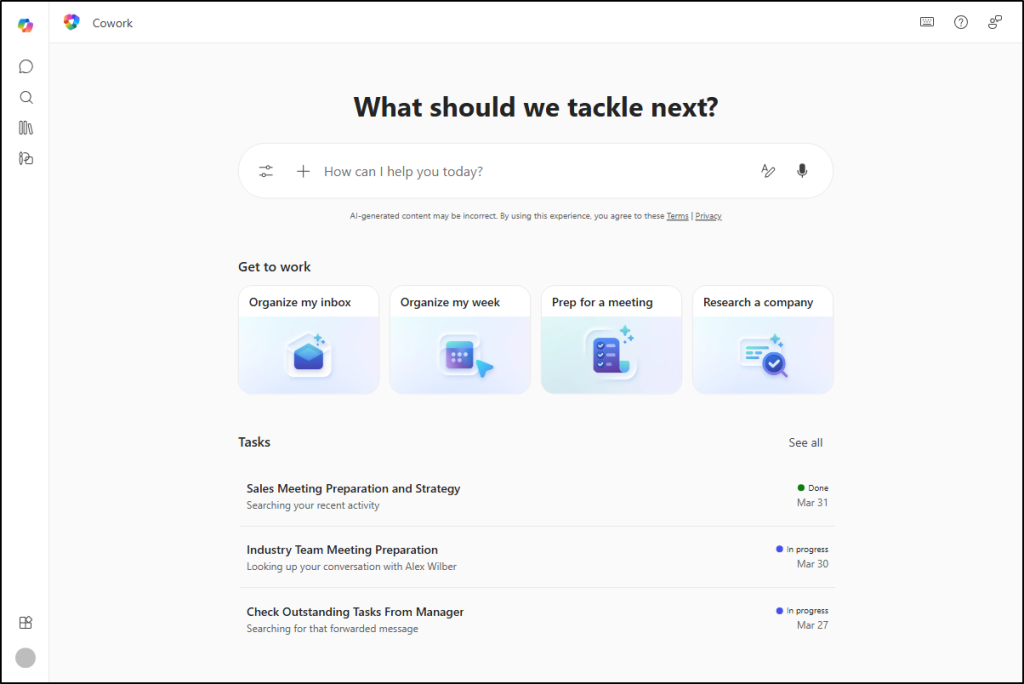
The Cowork home screen will open, showing a chat box to enter your request and your recent tasks to continue from where you left off.
The Anthropic Collaboration: What’s Under the Hood
Copilot Cowork is built in collaboration with Anthropic and uses Claude’s reasoning capabilities. This partnership is expanding, with Claude now integrating with Microsoft 365 through pre-built connectors to access M365 data directly.
However, there’s a key architectural difference:
- Copilot Cowork – Runs in the cloud within your Microsoft 365 tenant.
- Claude Cowork – Runs locally on your device.
This distinction is not just technical; it is strategic. By keeping execution inside the tenant boundary, Microsoft ensures that existing enterprise controls, permissions, and compliance policies are automatically enforced.
Important: There is only limited clarity around licensing & availability. While the Microsoft 365 E7 Frontier Suite ($99/user/month) includes E5, Copilot, Agent 365, and Entra Suite, it’s not yet confirmed if Copilot Cowork will be part of standard Copilot plans. It is also unclear whether it will require E7 or remain limited to the Frontier preview.
Copilot Cowork signals a broader direction for enterprise AI and clearly points toward a future where AI systems do more than assist. With Copilot Cowork still in the Frontier stage and no general availability date announced yet, what features are you most looking forward to, and how do you think it could reshape productivity in your daily work? Leave your thoughts below, and stay tuned for more updates!