Another year in the books, and here we are again with our annual tradition. 🌟 It’s time to pause and look back at what this year meant for Microsoft 365 admins.
2025 has been transformative! 🎯 AI integration dominated the Microsoft 365 landscape, and we’ve been right there with you – delivering timely updates, hands-on guides, and admin-focused blogs to help you keep pace with fast-moving changes.
This year’s roundup brings together blogs that supported admins in their day-to-day work, from simplifying complex topics to providing detailed, step-by-step configuration guidance.
So, without stretching it further, let’s jump into the Microsoft 365 admin highlights of 2025:
- Cybersecurity awareness month highlights
- Control gen AI access in M365 environments
- Top feature updates of 2025
- Major M365 announcements of the year
- Microsoft 365 security best practices
- Efficient M365 administration through automation
- Active Directory essentials for admins
🔒 Cybersecurity Awareness Month Highlights: Our 31-Day Blog Series
October 2025 brought another Cybersecurity Awareness Month, and this year we went all in. We knew a single-theme approach wouldn’t cut it. So we designed a comprehensive series covering everything from legacy infrastructure hardening to emerging AI risks: 31 days of actionable insights spanning the entire security spectrum.
Our commitment? Bust myths, address real-world vulnerabilities, and deliver practical solutions admins can implement without any doubts.
While every post offered valuable takeaways, these four articles resonated most with our community and tackled some of the toughest security challenges admins face:
1. Why Setting Office IP as a Trusted Location in Conditional Access is Risky
Many organizations mark their office IP ranges as trusted locations in Conditional Access policies, assuming this streamlines access without compromising security. However, this convenience creates significant blind spots through compromised network trust, weakened risk detection, VPN bypasses, shared IP vulnerabilities, and zero-trust misalignment.
▶ Discover why trusting office IPs in Conditional Access is risky and misaligned with zero-trust principles.
2. How DSPM in Microsoft Purview Helps Protect Sensitive Information
As data expands across cloud platforms and collaboration tools, organizations struggle to maintain visibility over their sensitive information. Data Security Posture Management (DSPM) in Microsoft Purview addresses this challenge through continuous monitoring, automated classification, and risk-based remediation guidance.
▶ Learn how DSPM in Microsoft Purview helps security teams identify shadow data and exposure risks before they escalate into breaches.
3. Restrict OneDrive External Sharing to Specific Groups
External sharing enables seamless collaboration but without proper governance, it becomes a primary vector for data leakage. For example, your Sales team may need to share brochures, drafts, videos, and documents with external partners. If you enable tenant-wide external sharing, everyone gains the ability to share OneDrive files externally, significantly increasing the risk of accidental data leaks.
The solution is implementing granular controls through security groups. This ensures only members of the specified security groups can share OneDrive files externally.
▶ Find out how to restrict OneDrive external sharing to specific groups and strike the perfect balance between collaboration and data governance.
4. Export All Enterprise Apps and Their Assigned Permissions in Microsoft Entra
Permission sprawl is one of the most overlooked security risks in Entra ID. Applications with excessive API permissions sit dormant, exposing your organization to data theft. Without visibility into which apps hold what access, your organization could be vulnerable to tenant compromise. Reviewing an app permission report helps identify and manage these risky permissions effectively.
▶ Discover how to export all enterprise apps and their assigned permissions to identify and remediate permission risks.
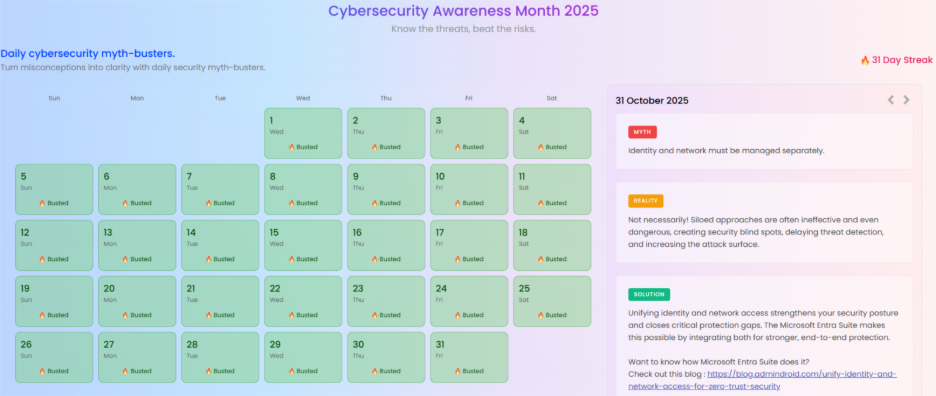
This year, we complemented our in-depth articles with something extra – daily cybersecurity myth-busters. Every morning throughout October, we tackled a new myth, delivering quick, actionable insights to keep security top of mind.
One of the myths we tackled: ‘Break glass accounts can’t fail’ – 30 more inside! Catch up on all 31 myth-busting moments on our Cybersecurity Awareness Month 2025 page.
🚨 Control Generative AI Access in Microsoft 365 Environments
We’re living in the AI era🤖, and generative AI tools have become part of everyday work, just like email and collaboration platforms. While these technologies unlock remarkable productivity gains, they also introduce significant security and data governance challenges that can’t be ignored.
That’s why we invested considerable time this year, creating a comprehensive series on generative AI access control. Each blog in this collection was meticulously configured and tested in real-world environments to ensure accuracy and reliability.
We didn’t just theorize – we built, tested, and validated every configuration step so you can implement these controls with confidence.
Here are the essential guides that every admin should have in their security playbook:
1. Block Gen AI Using Web Content Filtering in Microsoft Entra
As generative AI platforms multiply, blocking each one individually is no longer practical. A better strategy is enabling AI access where it delivers value while preventing it in high-risk environments. Microsoft Entra Internet Access web content filtering acts as a secure web gateway, letting you specify which AI platforms users can reach based on their department and sensitivity level. This ensures AI usage stays within regulatory boundaries.
▶ Learn how to block generative AI platforms using web content filtering to establish organization-wide guardrails against unauthorized AI tool usage.
2. Prevent Users from Uploading Sensitive Data to ChatGPT
One of the most pressing risks with generative AI is inadvertent data leakage – employees using sensitive information into AI chatbots without realizing the implications.
For advanced data protection, organizations can integrate Microsoft Global Secure Access with third-party SSE solutions like Netskope. This allows real-time inspection of encrypted traffic to AI platforms, enforcing DLP and ATP policies before sensitive data leaves your environment
▶ Discover how to prevent users from uploading sensitive data to ChatGPT and protect your organization from accidental data exposure.
3. Grant Just-in-Time Access to Generative AI Apps Using Access Packages
Not all users need permanent access to AI tools. Many scenarios require temporary, project-based access instead. Entitlement Management access packages enable just-in-time provisioning with automatic expiration, ensuring users get the AI access they need without creating persistent security risks. This guide demonstrates how to configure time-bound access workflows that balance productivity with security.
️▶ Explore how to grant just-in-time access to generative AI apps through automated access packages that expire when the business need ends.
4. Configure Conditional Access Policy to Protect Generative AI Apps
Copilot is embedded across Microsoft 365 environments, helping employees draft communications, analyze datasets, and generate insights at unprecedented speed. But what happens when an attacker compromises a user account? Without proper safeguards, Copilot becomes a direct pathway to exfiltrate confidential data through carefully crafted prompts.
The solution? Apply Conditional Access policies that evaluates user risk, device compliance, and location before granting AI tool access.
▶ Check how to configure Conditional Access policies for generative AI apps that enforce strong authentication and block risky users.
5. Block Risky AI Apps Across Microsoft 365 Managed Devices
While cloud controls are essential, endpoint protection adds a crucial layer against risks like data leaks, credential theft, phishing, and malware. Microsoft Intune lets you block risky AI apps on managed devices, using strategies such as enabling network protection and managing BYOD devices.
▶ Find out how to block risky AI apps across managed devices and extend your AI governance to the endpoint level.
6. Find AI Interactions with Communication Compliance Policy in Microsoft Purview
Understanding how employees interact with AI tools is crucial for both security and compliance. Communication Compliance in Microsoft Purview can monitor and flag AI-related interactions that violate organizational policies or regulatory requirements.
▶ See how to find AI interactions using Communication Compliance policies and gain visibility into how generative AI is being used across your organization.
✨ Top Feature Updates of 2025 Every Admin Should Know
Microsoft 365 evolved rapidly throughout 2025, introducing features that fundamentally changed how admins manage identity, security, compliance, and collaboration. We tracked every significant release and distilled them into practical guides covering what changed, why it matters, and how to implement it.
Here are the standout feature updates from 2025:
1. Microsoft Entra Adds Soft Deletion and Restoration for Cloud Security Groups
Accidental deletion of security groups has historically meant permanent loss of memberships and permissions. The new soft deletion capability in Entra provides a 30-day recovery window before permanent deletion, giving admins a crucial safety net to protect against disruptive accidental deletions.
2. Baseline Security Mode in Microsoft 365 Admin Center
Security configuration can overwhelm organizations without dedicated security teams. The new Baseline Security Mode (BSM), introduced as part of the Secure Future Initiative, automatically applies essential protection settings across your tenant. This ensures that every organization starts with a strong security foundation by default.
BSM includes 20 baseline policies across 5 major Microsoft services, blocking outdated behaviors, and enabling critical protections many organizations still miss.
3. Reject Direct Send in Microsoft 365
Direct Send has been a common workaround for sending emails on behalf of applications, but its simplicity makes it dangerously exploitable. The protocol requires no authentication, meaning attackers don’t need credentials to send mail that appears legitimate.
That’s why Microsoft introduced the Reject Direct Send feature, which disables this protocol entirely, forcing authenticated submission methods and significantly reducing email-based attack surfaces.
4. QR Code Authentication Method in Microsoft Entra
Frontline workers face a critical problem: they need fast access to systems during emergencies, but traditional authentication creates dangerous delays. This friction can make users bypass security or fall prey to MFA fatigue.
Microsoft introduced QR code authentication to solve this. Users simply scan their personalized QR code with Microsoft Authenticator and enter a short PIN. This passwordless method delivers both security and speedy access.
5. Auto-Archiving in Exchange Online
Mailbox size management has been a persistent challenge as users hit storage quotas. Traditional time-based archiving policies only activate after a set period, meaning mailboxes can still fill up rapidly.
That’s why Microsoft introduced auto-archiving in Exchange Online. It automatically moves older emails to archive mailboxes when storage thresholds are reached. This keeps primary mailboxes performant while preserving all content with seamless access.
6. Microsoft OneDrive File Transfers for Departing Employees
Departing employees’ OneDrive content might contain critical business information that needs to remain accessible after offboarding. Traditionally, admins face a manual scramble to identify important files, transfer ownership, preserve sharing permissions, and notify the right people before accounts are deleted.
The new OneDrive file transfer feature solves this. When a user account is removed, OneDrive access is automatically assigned to the manager or designated secondary owner. The system now includes improved cleanup alerts, faster file discovery with new filters, and bulk transfer capabilities.
7. Cross-Tenant Orchestrated User Data Migration in Microsoft 365
Mergers and acquisitions often require moving users between tenants—traditionally complex and risky. Cross-tenant orchestrated migration provides Microsoft-native tools to move users with their mailboxes, OneDrive, Teams data, and permissions, minimizing data loss risks during tenant consolidation.
8. Microsoft MCP Server for Enterprise
How many inactive users do we have? Which admins don’t have MFA enabled? These are simple questions, but getting answers traditionally requires writing Graph queries, digging through logs, or navigating multiple admin portals.
The MCP Server for Enterprise simplifies this by acting as a secure bridge between AI models and Microsoft Graph, letting admins ask in plain language. It selects the right API, runs the request securely, and returns clear, compliant answers.
Beyond these features, Microsoft releases dozens of updates monthly. Check out our Quick M365 Updates section for concise summaries of the latest changes across the Microsoft 365 ecosystem.
📢 Major Microsoft 365 Announcements of the Year
2025 brought several significant announcements affecting licensing strategies, compliance requirements, and product retirements.
Here’s what you need to know about the year’s most impactful announcements:
1. Microsoft 365 Prices Are Increasing in 2026
Microsoft announced price increases across multiple Microsoft 365 licensing tiers taking effect in 2026, but the story goes beyond simple price hikes. The changes include significant value additions:
- Intune Plan 2 becomes part of Microsoft 365 E3.
- Advanced Intune capabilities like Endpoint Privilege Management move into E5.
- Security Copilot will be included in E5 at no additional cost.
Organizations need to evaluate whether these bundled capabilities offset the increased costs and adjust budgets accordingly.
2. Microsoft 365 Business Premium Gets New Security and Compliance Add-Ons
Small and medium businesses previously faced an awkward gap: Business Premium lacked certain advanced security features, but jumping to Enterprise licensing was cost prohibitive. Microsoft addressed this by introducing security and compliance add-ons for Business Premium:
- Microsoft Defender Suite at $10/user/month
- Microsoft Purview Suite at $10/user/month
- Microsoft Defender and Purview Suites combined at $15/user/month
This modular approach delivers enterprise-grade security and compliance capabilities without requiring full Enterprise licensing.
3. Microsoft Entra ID Free Subscription
Keeping track of tenant ownership can be tricky, especially with staff changes, lost access, or multiple untracked tenants.
Microsoft’s major new offering, the Entra ID Free subscription, changes this by automatically tracking all tenants under the same billing account. It offers tenant inventory, ownership proof, admin recovery, and basic reporting across linked Microsoft 365 tenants—completely free!
4. SharePoint Alerts Retirement in Microsoft 365
After years of service, SharePoint Alerts are being retired, forcing organizations to migrate to modern alternatives like Power Automate flows and Microsoft 365 notifications. While SharePoint Alerts were simple and familiar, the modern replacements offer more flexibility and integration options. Organizations need to identify dependencies on SharePoint Alerts and plan migration strategies before the retirement date.
To help you stay prepared for upcoming retirements like these, we’ve created a dedicated blog highlighting the 2025 End-of-Support Milestones in Microsoft 365, covering key products and features reaching their end-of-support this year.
Alongside licensing and compliance updates, Ignite 2025 also delivered one of the year’s most significant announcements. It introduced new AI agents across Microsoft 365, including Intune Agent, Teams Channel Agent, SharePoint Knowledge Agent, and more. These agents simplify daily tasks and provide in-context assistance across M365 apps.
Bonus: For staying ahead of Microsoft 365 updates, product changes, and end-of-support milestones, bookmark this blog and revisit it regularly.
🔗 https://blog.admindroid.com/microsoft-365-end-of-support-milestones/
We’re committed to keeping this resource up to date with the most recent information.
🛡️ Microsoft 365 Security: Best Practices for Admins
Security isn’t a one-time configuration – it’s an ongoing practice built on layered defenses, continuous monitoring, and adherence to proven principles. Throughout 2025, we published comprehensive guides that help M365 admins manage their environments more confidently and efficiently.
Here are the critical security practices every admin should have in place:
- Securely store passwords for automated PowerShell scripts – Use tools like PowerShell Vault, Azure Key Vault, SecretStore, HSMs, and secure strings to safely store and manage passwords for automated scripts.
- Set up break glass access application for admin recovery – Establish emergency access procedures with properly monitored break glass accounts to regain control during policy lockouts.
- Implement key Microsoft 365 settings – Use this checklist to quickly identify which Microsoft 365 security settings to turn on or off in your environment to enhance security.
- Run the Microsoft Zero Trust Assessment tool – Evaluate your security posture against Zero Trust principles and receive prioritized recommendations for architectural improvements.
- Restrict remote PowerShell access to non-admins – Prevent unauthorized command execution and data exfiltration by limiting remote PowerShell capabilities to approved administrative accounts.
- Disable Microsoft Teams new chat with anyone – Microsoft introduced the ‘Chat with Anyone’ feature to let Teams users connect with external contacts via email, making collaboration smoother and faster. However, this convenience can create security risks like phishing, malware, and accidental data exposure. So, admins can safely disable this feature to protect organizational data and maintain compliance.
- Secure admin accounts in hybrid environment – Protect privileged accounts across on-premises and cloud infrastructures with coordinated security controls that prevent cross-environment exploitation.
⚙️ Efficient Microsoft 365 Administration Through Automation
Manual administration doesn’t always scale. As Microsoft 365 environments grow in complexity, spanning thousands of users, multiple workloads, and countless daily tasks, automation becomes essential rather than optional.
Here are the automation guides that transform how you manage Microsoft 365:
1. Automate Microsoft 365 Administration Tasks
Managing Microsoft 365 manually can be time-consuming and error prone. From adding new users to managing licenses, and security settings, admins often spend hours on repetitive tasks. Automating these tasks can save time, reduce mistakes, and improve security.
You can automate Microsoft 365 administration using:
- PowerShell scripts – Automate tasks like user offboarding, license management, email alerts, and inactive account cleanup. Pre-built scripts make it easy to get started.
- Power Automate workflows – Create no-code flows for tasks, such as sending password expiry reminders, saving email attachments to SharePoint, or onboarding new users automatically.
- Specialized tools – Tools like DCToolbox, Microsoft365DSC, Maester, Entra Exporter, and AdminDroid help automate policies, security checks, configuration backups, and overall Microsoft 365 management from one place.
▶ Read more: https://blog.admindroid.com/automate-microsoft-365-administration-tasks/
2. Run MS Graph Scripts Unattended Using Azure Automation
Imagine you need to notify all users about upcoming password expirations every week. Doing it manually is time consuming and easy to forget. Instead, you set up your Microsoft Graph script in Azure Automation to run on its own. Now, the notifications are sent automatically, group memberships are checked regularly, and your Microsoft 365 environment stays up to date – all without you lifting a finger.
▶ Read more: https://blog.admindroid.com/run-ms-graph-scripts-unattended-using-azure-automation/
3. Onboard External Users Through an Access Package in Microsoft Entra ID
Manual external user onboarding creates bottlenecks and inconsistent access provisioning. Access packages automate the entire external collaboration lifecycle – from invitation through approval workflows, resource assignment, time-bound access, and automatic removal when access expires.
▶ Read more: https://blog.admindroid.com/onboard-external-users-through-an-access-package-in-microsoft-entra-id/
4. Automate External User Invitations Using Power Automate Adaptive Cards
Granting guest access to SharePoint sites can be a slow, manual process. Managers have to check details, send invitations manually, update records, and make sure the right permissions are given.
To make this easier, we developed a Power Automate flow from scratch. Managers just fill out a request form with the external user’s details. The flow automatically finds the right approver from the pre-configured list and sends an Adaptive Card in Teams. It then checks if the user exists in the directory and either adds them to the SharePoint group or sends an external invitation. After approval, the SharePoint list is updated. This makes the whole process fast and simple without any manual admin work.
▶ Read more: https://blog.admindroid.com/automate-external-user-invitations-using-power-automate-adaptive-cards/
🛠️ Active Directory Essentials for Admins
Active Directory remains the backbone of enterprise identity infrastructure, and understanding its fundamentals is essential for modern IT professionals. This year, we launched a foundational Active Directory blog series designed to help admins master AD from the ground up.
Whether you’re new to Active Directory or looking to strengthen your understanding of critical security concepts, we’ve covered the essentials that every admin needs to know.
Here are the key Active Directory guides from 2025:
1. Reset KRBTGT Account Password in Active Directory
The KRBTGT account is one of Active Directory’s most critical security components, used to sign all Kerberos tickets in your domain. A compromised KRBTGT password enables attackers to forge Golden Tickets and maintain persistent domain access. This guide covers why, when, and how to safely reset the KRBTGT password without disrupting authentication services.
▶ Learn how to reset the KRBTGT account password and protect your domain from Golden Ticket attacks and unauthorized persistence.
2. Configure Managed Service Accounts in Active Directory
Using static passwords for service accounts creates security risks and can disrupt services when passwords expire. Managed Service Accounts (MSAs) and Group Managed Service Accounts (gMSAs) eliminate these issues through automatic password management and simplified service principal name (SPN) administration.
▶ Discover how to configure Managed Service Accounts and eliminate the operational overhead and security risks of traditional service accounts.
3. Identify and Block Unconstrained Delegation in Active Directory
Unconstrained delegation is a legacy configuration that allows servers to impersonate users to any service, a capability attackers actively exploit for privilege escalation and lateral movement. Most organizations have unconstrained delegation enabled on servers where it’s no longer necessary, creating exploitable security gaps. This guide helps you identify these dangerous configurations and transition to constrained delegation or resource-based constrained delegation.
▶ Find out how to identify and block unconstrained delegation before attackers leverage it for domain compromise.
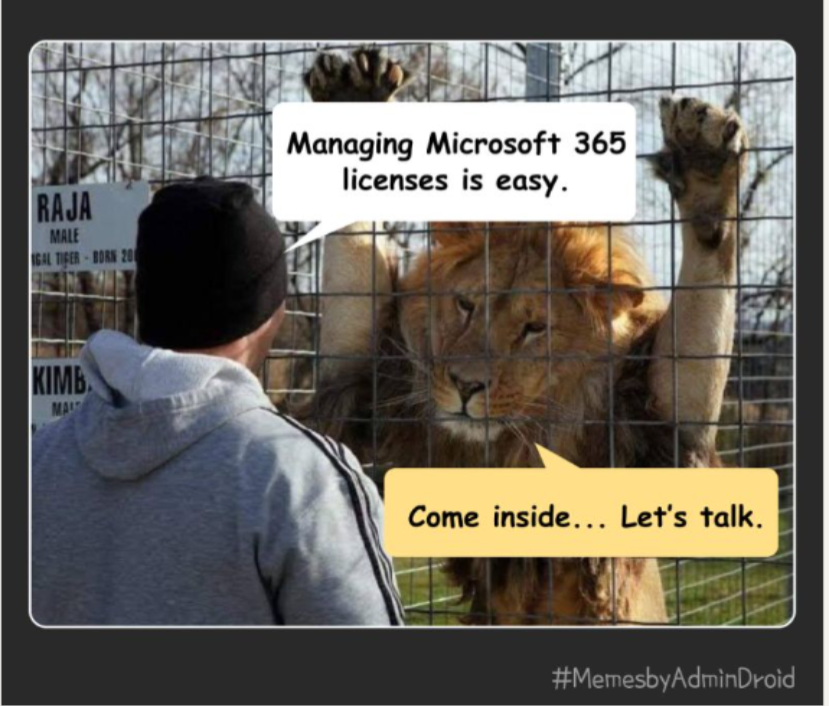
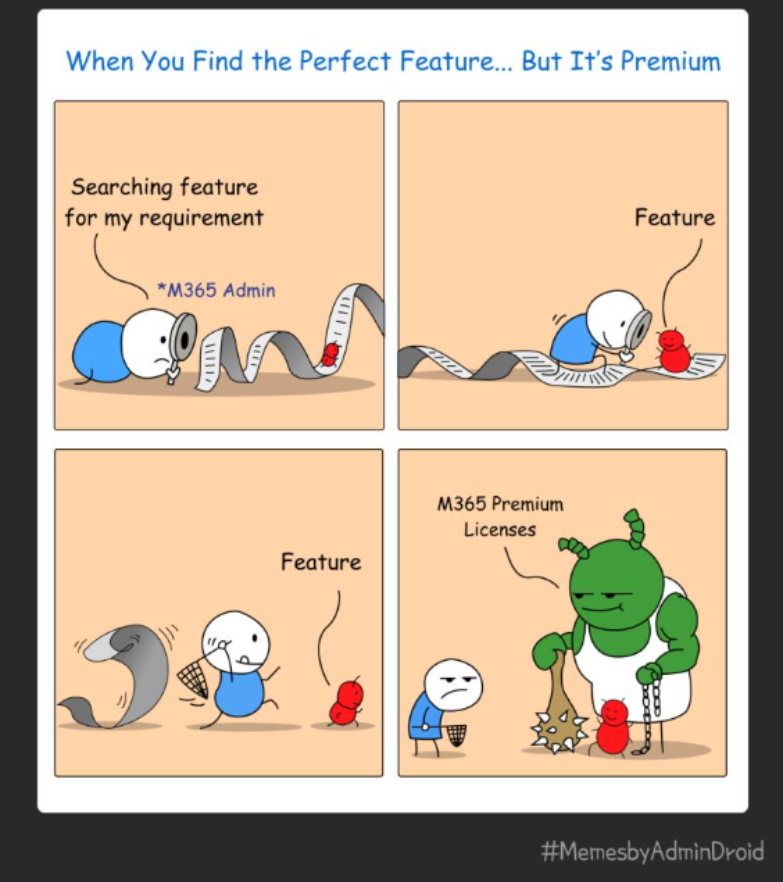
Admin Reality Check: Microsoft 365 Memes
If you’ve ever wanted to laugh-cry at the absurdity of it all, this section is for you!
Let’s be honest – Microsoft 365 administration isn’t all about PowerShell glory and security wins. Sometimes it’s explaining for the hundredth time that deleted emails don’t just vanish into the void or watching Microsoft rename a product for the fifth time this year. 😖
That’s why we post admin-relatable memes every week that perfectly capture the chaos, confusion, and occasional comedy of life as a Microsoft 365 admin.
We’ll let the memes do the talking because if you’ve lived it, you already know. 😌
Posting the best of our collection here:

We hope this roundup helped you revisit the key Microsoft 365 updates, security best practices, and admin-focused solutions that mattered this year. Thanks for being part of the journey and staying with us through every update and change.
We’ll continue delivering practical, reliable Microsoft 365 content in 2026 and in the years ahead to help admins stay informed and prepared. 💪
Also read: 2024 recap, 2023 recap, 2022 recap.