Threats today look very different from what they were even a year ago. Attackers are using AI to craft smarter phishing attempts, break into accounts faster, and bypass defenses more easily. The latest Microsoft Digital Defense Report shows a 32% rise in identity-based attacks, making it essential to maintain a consistent security baseline.
To support this, Microsoft promotes the Zero Trust model, a security framework built on the principle of “never trust, always verify”. This approach helps secure identities, devices, apps, and data across a tenant. Building on this foundation, Microsoft has introduced the Microsoft Zero Trust Assessment Tool. This solution is designed to help organizations assess policy configurations and strengthen their security posture in alignment with Zero Trust principles.
In this blog, let’s explore what this new assessment tool is and how it helps you operationalize Zero Trust in your environment.
What is the Zero Trust Assessment Tool in Microsoft 365
Each Microsoft 365 tenant includes hundreds of security configurations, and manually checking them against security standards is both time-consuming and error-prone. That’s where the Microsoft Zero Trust Assessment comes in.
This PowerShell cmdlet tool automates the evaluation of key policy configurations aligned with the Microsoft Secure Future Initiative (SFI) and Zero Trust pillars. It tests various settings, flags any gaps or noncompliant configurations, and provides clear remediation steps to help you operationalize Zero Trust principles.
Currently, the assessment focuses on configurations related to the Identity, Device, Network, and Data pillars of Zero Trust. Support for other pillars, like AI, will be available soon.
In simple terms, the Zero Trust Assessment tool helps you evaluate your security baseline, spot misconfigurations, and strengthen your overall security posture.
How to Run the Zero Trust Assessment Tool
The Zero Trust Assessment tool is designed to be simple and fast to use. Running it involves just three steps:
- Install the Zero Trust Assessment module
- Connect to the Microsoft Graph and Azure modules
- Execute the assessment tool
Prerequisites to Run the Zero Trust Assessment Tool
- Make sure PowerShell 7 is installed on your system.
- Global Administrator permissions are required for the first run to grant the necessary consents.
- For all subsequent runs, you can use the Global Reader role.
- If you have already installed the previous version of the assessment module, uninstall it before proceeding to avoid conflicts.
1. Install the Zero Trust Assessment Module
Open a PowerShell 7 window and run the following cmdlet to install the Zero Trust Assessment module.
|
1 |
Install-Module ZeroTrustAssessment -Scope CurrentUser |
2. Connect to the Microsoft Graph and Microsoft Azure Modules
Run the cmdlet below to sign in to the Microsoft Graph and Microsoft Azure as a Global Admin.
|
1 |
Connect-ZtAssessment |
When connecting to Microsoft Graph, you’ll be prompted to grant required permissions for identity, devices, policies, and audit logs. After approving permissions, a second window appears asking you to sign in to Microsoft Azure.
If you don’t have Azure, close the window without signing in. You can ignore the warning message in the PowerShell window. The tool will automatically skip all Azure-dependent tests.
3. Execute the Zero Trust Assessment Tool
Use the following cmdlet to run the assessment tool in your Microsoft 365 tenant.
|
1 |
Invoke-ZtAssessment |
Note: The assessment may take longer depending on the size of your organization. Do not interrupt the process, even if you see warnings or errors in the PowerShell window.
The Zero Trust Assessment is read-only, so it won’t change any settings in your environment. All collected data is saved locally in your current working directory. Once the assessment is complete, a detailed report opens in your default browser.
To save the results in a custom location, replace the <AssessmentOutputPath> with the folder path where you want to save the file, and run the cmdlet below.
|
1 |
Invoke-ZtAssessment -Path "<AssessmentOutputPath>" |
What’s Inside Your Zero Trust Assessment Report
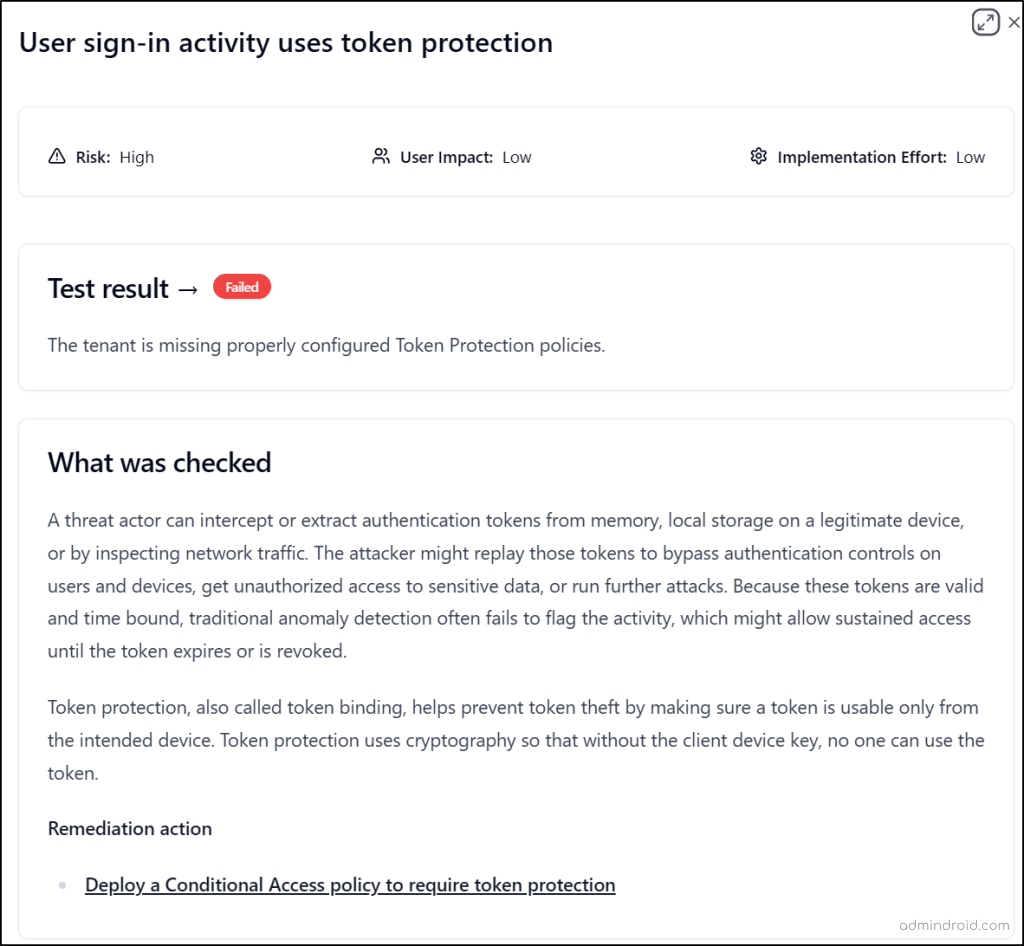
When the assessment finishes, you’ll receive a comprehensive report that examines your tenant’s policy configurations and highlights exactly where your security posture stands. For every setting, the report explains why a test passed or failed, what the configuration means, and how to apply the recommended secure setting.
The report is organized into the following key sections.
With ongoing development to expand coverage across all Zero Trust pillars.
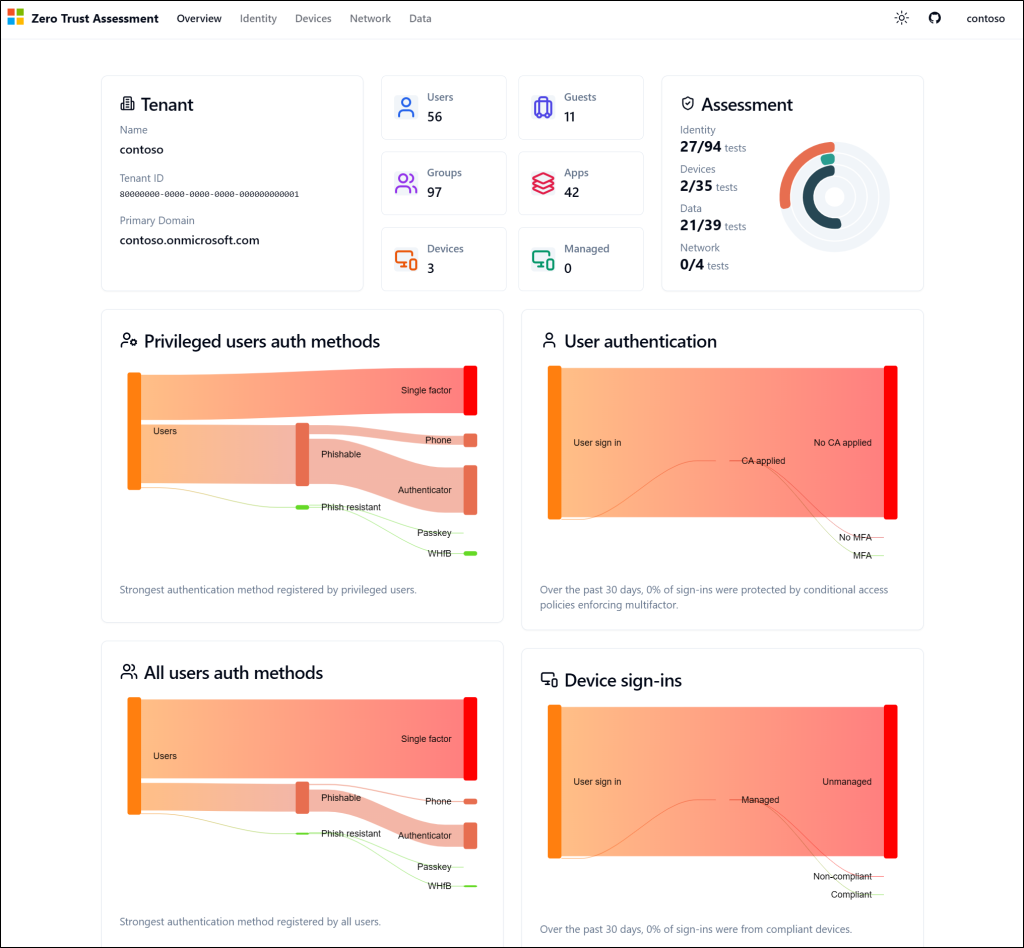
Zero Trust Assessment Overview
The Overview page provides a high-level snapshot of your organization’s security health and helps you immediately spot the areas that need your attention. Here, you’ll see:
- Tenant overview
- Number of users, groups, guests, apps, and devices
- Assessment score of Identity and Devices
- Authentication methods registered by privileged users
- User authentication
- All users’ authentication methods
- Device sign-ins pattern, etc.
Identity Assessment Details
The Identity page shows the detailed assessment results for all settings evaluated against the Zero Trust Identity pillar. For each configuration, you can see the test result, the exact policies or objects that were evaluated, the associated risk level, user impact, and more. This page also provides built-in filters that let you sort results by policy name, risk level, status, SFI pillar, and other attributes.
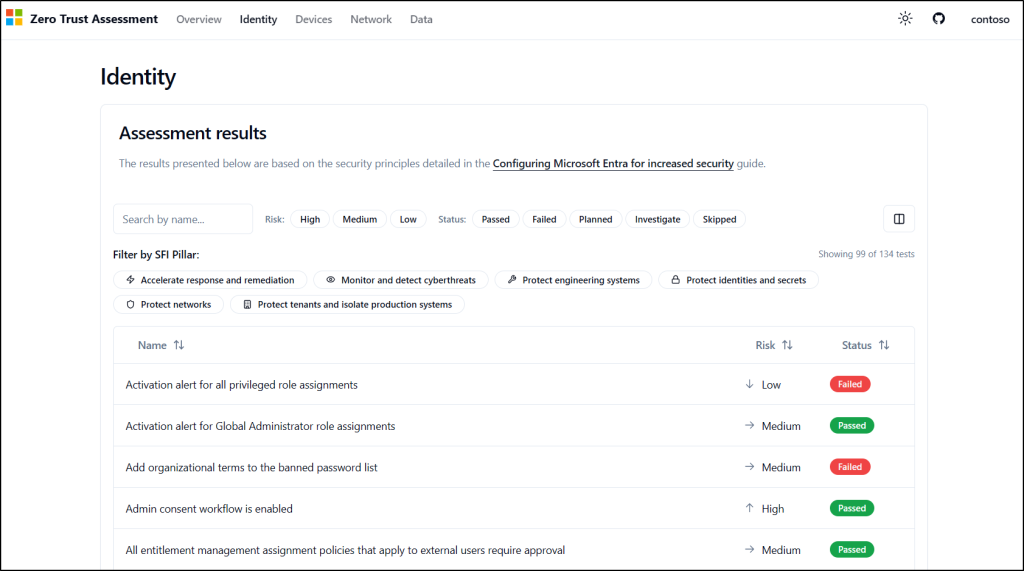
Each test is assigned a status based on the assessment result:
- Passed – Your configuration aligns with the recommended security baseline.
- Failed or Investigate – The assessment identified a potential security gap. Review the guidance provided in the report and implement the recommended changes to strengthen your Zero Trust posture.
- Skipped – The test could not be evaluated due to missing prerequisites, insufficient permissions, or an unsupported configuration.
- Planned – The recommendation exists, but the corresponding assessment or enforcement capability is planned for a future release or roadmap phase and is not currently evaluated by the tool.
Device Assessment Insights
The Devices page works the same way as the Identity page and includes two tabs: Assessment results and Config.
- Assessment results
This tab mirrors the Identity assessment layout. It provides a detailed breakdown of every device-related test the tool performed, showing the test result, the evaluated policies or objects, risk level, and impact.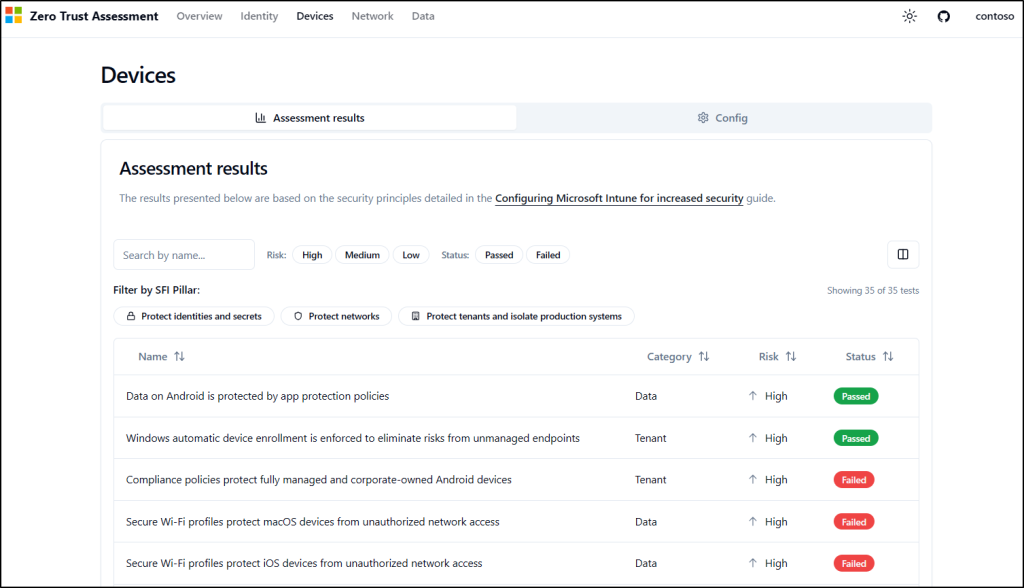
- Config
This tab summarizes all device-related configuration settings within your tenant, such as Windows automatic enrollment, device platform restrictions, device compliance policies, and app protection policies.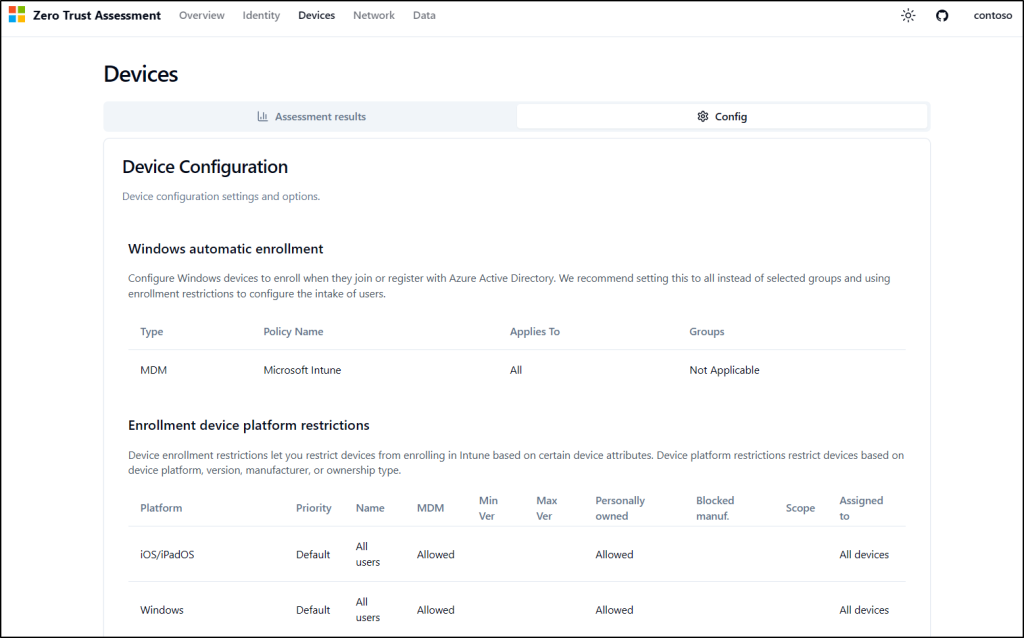
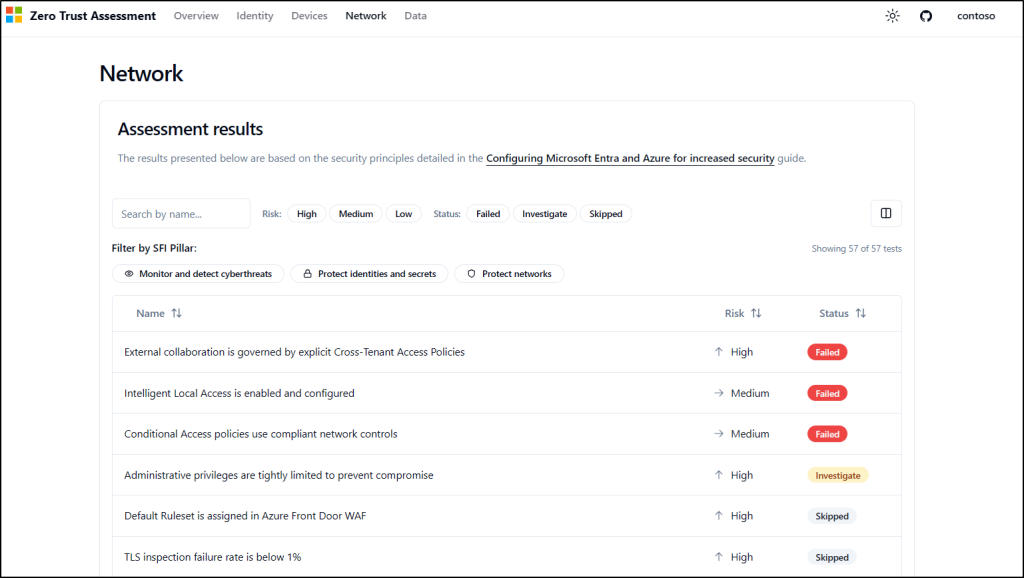
Network Pillar Assessment Report
The Network pillar in Microsoft Zero Trust Assessment tool helps you assess and strengthen your Azure network security posture. It evaluates key network security controls and provides a detailed breakdown of every test the tool performed, highlighting the test outcome, evaluated configurations, risk severity, user impact, etc.
Some of the assessments included in the Network pillar cover:
- Azure DDoS Protection to safeguard public-facing resources from distributed denial-of-service (DDoS) attacks.
- Azure Firewall to verify network security policy enforcement and secure virtual network traffic.
- Application Gateway WAF to ensure Web Application Firewall (WAF) is properly configured to protect against common web exploits and vulnerabilities.
- Azure Front Door WAF to secure web applications at the network edge.
- Global Secure Access and other network security controls that support a Zero Trust architecture.
Data Pillar Assessment Details
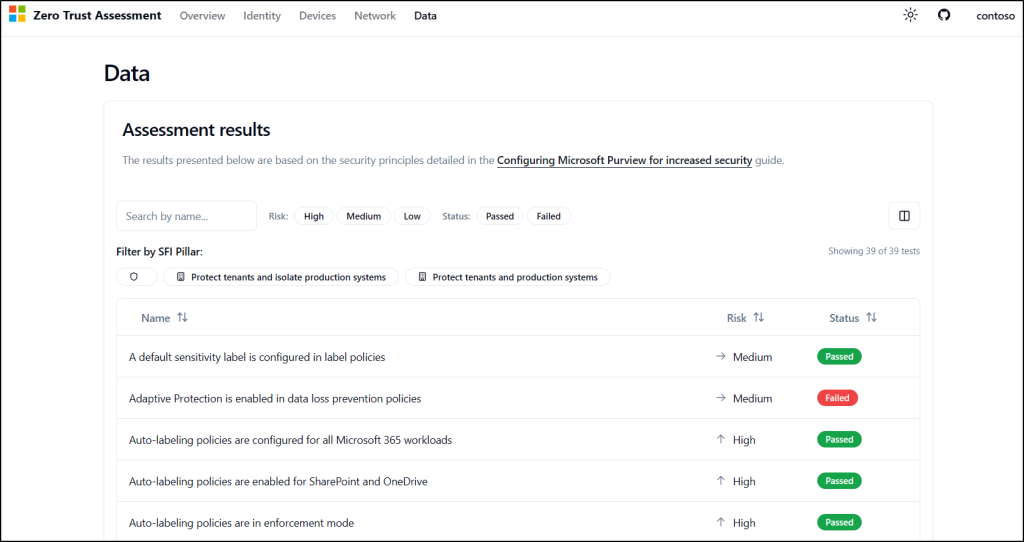
The Data pillar focuses on protecting organizational data through proper encryption, classification, governance, and compliance controls. These settings assessments help ensure that sensitive data remains secure regardless of where it resides, how it is accessed, or where it travels.
Currently, this pillar includes assessments for controls such as:
- Double Key Encryption
- Sensitivity Labels
- Email Retention Policies
- Data Loss Prevention (DLP)
- Auto-Labeling Policies
- Insider Risk Management Policies
You can filter assessments by Name, Risk, and Status to quickly locate specific tests. For failed assessments, review the recommendations provided in the report and implement the suggested remediation steps to improve your Zero Trust posture.
At the end of the day, security isn’t just about knowing your risks — it’s about acting on them. The Zero Trust Assessment tool doesn’t just highlight issues; it gives you a clear path forward. It transforms complex security data into practical, actionable insights, helping you uncover blind spots, prioritize what matters, and strengthen your defenses with confidence. With this tool in hand, organizations can move from simply knowing their risks to actually fixing them, faster and more effectively.
We hope this blog gave you a helpful walkthrough of the tool and inspired you to take the next step in your Zero Trust journey. Have questions, feedback, or something to add? Drop them in the comments, we’re always here to support you!