Every Active Directory administrator eventually runs into problems that don’t point to an obvious cause. When this happens, core operations including schema updates, user provisioning, time synchronization, and password replication can become unreliable.
In many cases, the root cause traces back to Flexible Single Master Operations (FSMO – pronounced as ‘Fiz-mo’) roles in Active Directory. When they are unavailable, misconfigured, or stuck on a failing domain controller, the impact spreads quickly across the domain. Knowing where FSMO roles are hosted and when to transfer or seize them is essential for maintaining a stable Active Directory.
Therefore, in this blog, we’ll explore everything you need to know about the important AD concept – FSMO roles, including:
- What are FSMO roles
- Types of FSMO Roles
- Reasons to Transfer FSMO Roles
- Find all FSMO Role Holders
- Transfer or Seize FSMO Roles
What are FSMO Roles in Active Directory?
Active Directory is a multi-master directory service. This means changes to directory objects can be made on any domain controller (or using RSAT tools) and then replicated across the environment. This works well for most day-to-day operations.
Think of a busy road intersection with multiple traffic lights. Cars can move in many directions, but the traffic signal must be controlled by one system at a time. If multiple signals tried to change independently, accidents would happen.
Some Active Directory tasks work the same way. Critical operations such as schema updates, domain creation, and security ID assignments must be handled by one designated domain controller to prevent conflicts.
That’s where Flexible Single Master Operations roles (Operation Master roles) come in. FSMO roles assign these sensitive tasks to specific domain controllers, ensuring consistency while the rest of the environment continues to operate in a multi-master setup.
To clearly understand why FSMO roles exist, a brief look at the history of directory services helps.
From Single-Master to Multi-Master: Why FSMO Was Needed
Before Active Directory, Windows NT domains followed a single-master model, where only one server, the primary domain controller (PDC), was allowed to process changes. While this approach prevented conflicts, it created a serious limitation: the PDC became a single point of failure. If it went offline, administrative changes across the domain could not be made.
With the introduction of Active Directory Domain Services (AD DS) in Windows 2000, Microsoft moved to a multi-master model. In this model, multiple domain controllers can accept changes simultaneously, and replication mechanisms are used to keep data consistent. When multiple DCs update the same object, Active Directory resolves conflicts by determining which change occurred last. This shift greatly improved scalability, availability, and resilience.
However, some operations were too critical to rely on conflict resolution after replication. To prevent these high-impact conflicts, the FSMO model was introduced. It combines the flexibility of multi-master replication with the safety of single-master control. This ensures consistency and stability while allowing the rest of Active Directory to operate as a multi-master directory.
Types of FSMO Roles in Active Directory
An Active Directory environment has five FSMO roles. Each role handles a specific set of critical operations that must be managed by a single domain controller. These roles are divided into forest-level and domain-level roles, based on their scope and responsibility.
Note: A read-only domain controller (RODC) cannot act as an operations master (FSMO) role holder.
Forest-Level FSMO Roles
Two of the FSMO roles are forest-wide, which can only be held by a single domain controller in the entire forest at any given time.
1. Schema Master
There is only one Schema Master role holder per forest that controls all changes to the Active Directory schema. It defines all object types and attributes in Active Directory. Any schema modification, for example running ‘Setup /PrepareSchema’ during a Microsoft Exchange deployment, must be processed by the Schema Master.
All other DCs refer to this Schema Master domain controller to validate and replicate schema updates. This is why it should be hosted on a reliable writable domain controller in the forest root domain, commonly alongside the Domain Naming Master.
2. Domain Naming Master
The Domain Naming Master manages changes to the forest namespace by controlling the creation and removal of domains. It ensures that new domains or name changes do not conflict with existing domain names in the forest.
It also manages application partition replicas on additional domain controllers, cross-directory references for external directories, and prepares the forest for domain rename operations. When a new domain is created or an existing domain is removed, the request is validated by the Domain Naming Master to ensure namespace consistency. For this reason, the role is typically placed on a domain controller in the forest root domain, often co-located with the Schema Master.
Domain-Level FSMO Roles
The other three are domain-wide roles, which can only be held by one domain controller per domain at a time.
3. RID Master
The RID Master is the domain controller responsible for assigning blocks of Relative IDs (RID pools) to other domain controllers. These RIDs are used when creating security principals, such as users, groups, and computer accounts.
Each domain controller receives its own pool of RIDs and uses them when creating new objects. When a domain controller is close to running out of RIDs, it automatically requests additional RIDs from the RID Master. The role holder then assigns a new block from the domain’s available RID pool. This process ensures that every security principal in the domain receives a unique SID.
4. PDC Emulator
The PDC Emulator performs several critical functions in a domain. It acts as the authoritative time source, handles password change conflicts, and provides backward compatibility for legacy Windows NT 4.0 backup domain controllers. When a password is changed, the PDC Emulator ensures the update is immediately recognized across the domain. It also plays a key role in account lockouts and Group Policy processing.
Since the PDC Emulator handles password validations and lockout processing, it is the DC that records and reflects account lockouts. Admins frequently rely on it to trace the lockout source computer for further analysis.
Because of its heavy usage and impact on authentication, this role should reside on the most reliable and well-connected domain controller in the domain. Preferably, one is located close to the majority of users.
5. Infrastructure Master
The Infrastructure Master is responsible for maintaining references to objects in other domains. It updates cross-domain group memberships and ensures that object references, such as the object’s GUID, distinguished name, and SID, remain accurate across the domain. These updates are applied locally and then replicated to other domain controllers.
This role is particularly important in multi-domain environments, where object references frequently change. For example, when a user in one domain is included in a group from another domain, the Infra Master updates the cross-domain reference to avoid stale membership data. In a single-domain forest, the Infrastructure Master has minimal impact. It is typically placed on a domain controller that is not a Global Catalog server.
Note: If all domain controllers in a domain are also Global Catalog servers or if AD Recycle Bin is enabled, all DCs already have up-to-date information for all forest objects. In this scenario, the placement of the Infrastructure Master role is not significant.
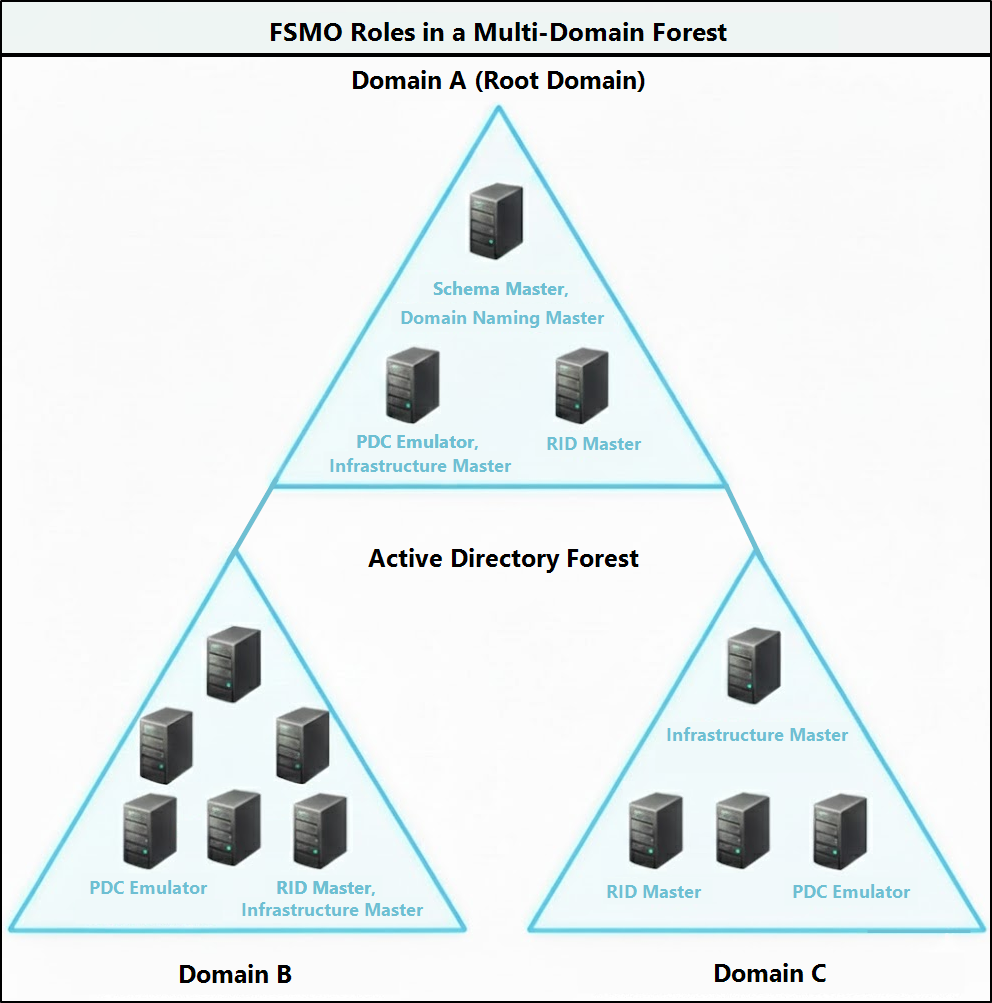
Here’s a table summarizing the purpose, scope, failure of cause, placing consideration of all FSMO roles for a quick glance.
| Role | Scope | What it does | Impact if unavailable | Recommended placement |
| Schema Master | Forest-wide | Controls all schema changes, including updates from ADPREP, Exchange, and other AD-integrated applications | Schema updates fail; no impact on daily authentication | PDC of the forest root domain |
| Domain Naming Master | Forest-wide | Manages adding or removing domains and application directory partitions in the forest | New domains or application partitions cannot be added in the forest | PDC of the forest root domain; can be co-located with the Schema Master |
| RID Master | Domain-wide | Allocates RID pools to DCs for creating users, groups, and computers | New objects cannot be created once RID pools are exhausted | Stable DC with good replication; can be co-located with PDC Emulator |
| PDC Emulator | Domain-wide | Handles time synchronization, password changes, account lockouts, and legacy compatibility | Password delays, access failures, GPO problems, and time discrepancies across DCs | Most reliable and well-connected DC close to the majority of users |
| Infrastructure Master | Domain-wide | Updates cross-domain object references using Global Catalog data | Cross-domain group memberships may become outdated | DC that is not a GC. Not required when all DCs in the domain are GCs or when the Recycle Bin is enabled. |
Reasons to Transfer or Seize FSMO Roles in Active Directory
When an Active Directory environment is first created, the initial domain controller automatically holds all five FSMO roles. Similarly, when a new domain is added to an existing forest, the first domain controller in that domain holds the three domain-wide Operation Master roles by default.
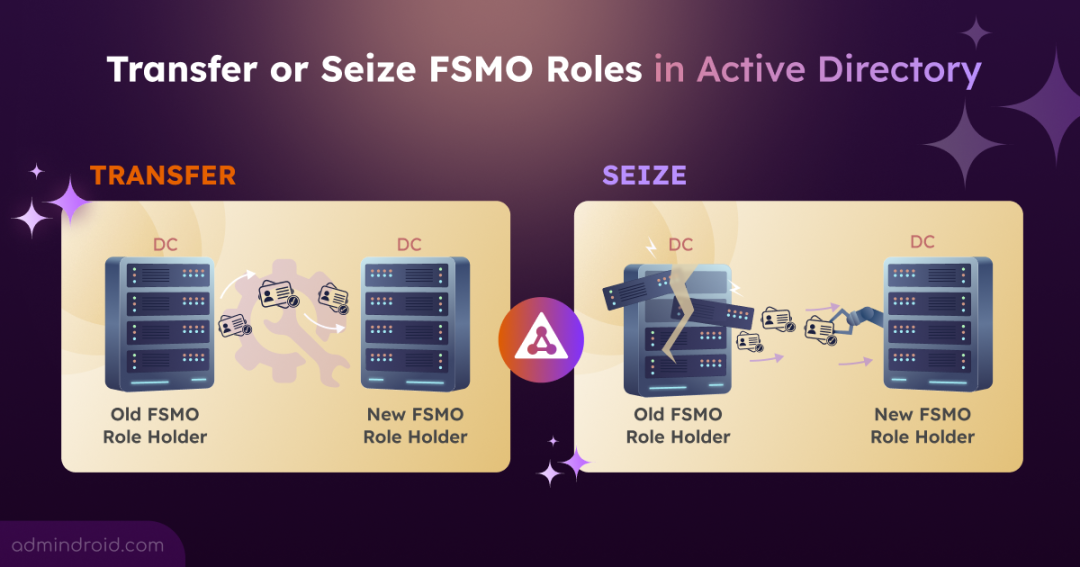
At first glance, this setup may seem sufficient when everything is functioning normally. However, as your environments grow, change, or experience failures, situations may arise where FSMO roles must be transferred or seized to maintain stability and integrity. Here’s the difference between seize and transfer FSMO roles in AD.
FSMO Role Transfer: This is a planned and safe operation. During a transfer, the current FSMO role holder must be online and reachable, allowing the role to be gracefully handed over to another domain controller without any risk.
FSMO Role Seizure: This is an emergency operation performed only when the current FSMO role holder is permanently unavailable. The role is forcefully assigned to another domain controller, with the assumption that the original role holder will never return online. The original role holder domain controller must be removed from the domain to prevent severe Active Directory issues if it reappears.
The following scenarios highlight when and why Operation Master roles in Active Directory must be transferred or seized, depending on the condition of the existing role holder.
Operation Master Role Transfer Scenarios
- Before demoting or retiring a domain controller, FSMO roles must be transferred to another writable DC to prevent service disruption.
- During planned hardware maintenance or operating system upgrades, roles are transferred to ensure Active Directory remains fully functional.
- During forest or domain restructuring activities, FSMO roles are transferred to support changes such as domain consolidation or forest redesign.
- In large or growing environments, transferring FSMO roles helps distribute workload and improve overall performance.
- After site, network, or replication topology changes, FSMO roles may be moved to domain controllers with better connectivity.
Operation Master Role Seizure Scenarios
- When the original role holder is permanently unavailable due to DC failure, FSMO roles must be seized to restore functionality.
- The FSMO roles must be seized when a domain controller is improperly removed or forcefully decommissioned from the domain.
- When the current role holder is experiencing errors that prevent Operation Master–dependent tasks from completing, the roles can be seized.
Note: To transfer or seize a domain-wide FSMO role, you must have Domain Admin privileges in the respective domain. For forest-wide FSMO role, moving the role requires Schema Admin privileges.
How to View All FSMO Role Holders in Active Directory
Before you transfer or seize FSMO roles in Active Directory, it is essential to identify which domain controllers currently hold FSMO roles across the forest and domains. This provides a clear picture of your existing FSMO placement and helps avoid accidental misconfigurations or service disruptions.
Admins can view and transfer FSMO roles from any DC or from a workstation or member server that has the Remote Server Administration Tools (RSAT) installed.
Depending on your preference, you can use any of the following methods to find all the current FSMO role holders:
Note: You can also view FSMO roles using tools, such as Active Directory Domains and Trusts, Active Directory Users and Computers, and the Active Directory Schema snap-in. However, there is no single console to view or manage all FSMO roles. Domain-wide roles and each forest-wide role require different consoles to manage them.
1. Get All FSMO Role Holders Using PowerShell
PowerShell provides the most efficient and reliable method to view FSMO role holders using simple cmdlets, without the need for repeated navigation through graphical tools.
To identify the DCs that currently hold the domain-wide FSMO roles (RID Master, PDC Emulator, and Infrastructure Master), import the Active Directory module and run the following cmdlet.
|
1 |
Get-ADDomain -Identity <DomainName> | Select-Object RIDMaster, PDCEmulator, InfrastructureMaster |

To find the domain controllers holding the forest-wide FSMO roles, such as the Schema Master and Domain Naming Master, use the command below:
|
1 |
Get-ADForest | Select-Object SchemaMaster, DomainNamingMaster |

2. Query FSMO Roles Using the Netdom Utility
Netdom is a command-line utility used to manage Active Directory domains, computer accounts, and trust relationships. This legacy but still useful method can also be used to list all domain controllers holding FSMO roles.
Run the following command from an elevated Command Prompt, replacing <DomainName> with your domain name:
|
1 |
netdom query /domain:<DomainName> fsmo |
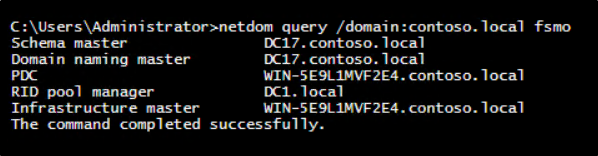
This single command returns a consolidated list of all five FSMO roles along with their current domain controller assignments.
How to Transfer or Seize FSMO Roles in Active Directory
Once you have identified the current FSMO role holders, the next step is to transfer or seize the FSMO roles as required. Here’s a various method to transfer or seize FSMO roles in Active Directory
- PowerShell method for FSMO role transfer or seizure
- Seize or transfer FSMO roles using the command line
- View and transfer FSMO roles via GUI tools
1. Transfer or Seize FSMO Roles Using PowerShell
PowerShell provides a fast and reliable way to transfer FSMO roles between domain controllers. You can use a single cmdlet to transfer one or multiple FSMO roles. In failure scenarios, PowerShell can also be used to force a role transfer (seizure).
To transfer FSMO roles, run the Move-ADDirectoryServerOperationMasterRole as mentioned below. Replace <TargetDC> with the name of the domain controller that will receive the role, and <Role> with one or more of the following values:
- SchemaMaster
- DomainNamingMaster
- PDCEmulator
- RIDMaster
- InfrastructureMaster
|
1 |
Move-ADDirectoryServerOperationMasterRole -Identity "<TargetDC>" -OperationMasterRole "<Role>" |
Example 1: Transfer a Specific FSMO Role
The following command transfers the RID Master role to the domain controller DC1 after confirmation.
|
1 |
Move-ADDirectoryServerOperationMasterRole -Identity "DC1" -OperationMasterRole RIDMaster |
Example 2: Transfer Multiple Operation Master Roles in One Command
The execution of this cmdlet will transfer RID Master and PDC Emulator roles to the domain controller DC2 after confirmation.
|
1 |
Move-ADDirectoryServerOperationMasterRole -Identity "DC2" -OperationMasterRole RIDMaster,PDCEmulator |
Example 3: Transfer a FSMO Role Without Confirmation Prompt
The following command transfers the Schema Master role to the domain controller DC3 without prompting for confirmation.
|
1 |
Move-ADDirectoryServerOperationMasterRole -Identity "DC3" -OperationMasterRole SchemaMaster -Confirm:$false |
Example 4: Seize a FSMO Role to a Healthy Domain Controller
The following command forcefully transfers (seizes) the Domain Naming Master role to the domain controller DC4. The -Force parameter bypasses communication with the current role holder and converts the operation into a forced transfer (seizure).
|
1 |
Move-ADDirectoryServerOperationMasterRole -Identity "DC4" -OperationMasterRole DomainNamingMaster -Force |
2. Transfer or Seize FSMO Roles Using NTDSUtil
NTDSUtil is a built-in command-line utility used to manage Active Directory metadata and FSMO roles. It is commonly used in recovery and disaster scenarios, especially when GUI tools or PowerShell cannot communicate with the existing FSMO role holder.
NTDSUtil supports both FSMO role transfer and FSMO role seizure, depending on the availability of the current role holder. To do seize or transfer, follow the steps here.
- Open Command Prompt as Administrator and run the following command to launch NTDSUtil.
1ntdsutil
- Enter FSMO maintenance mode by running:
1roles
- Open the connection context to specify which domain controller will receive the FSMO role:
1connections
- Connect NTDSUtil to the target domain controller that will become the new FSMO role holder:
1connect to server <TargetDC>
- Exit the connection context and return to FSMO maintenance mode:
1q
- If the current FSMO role holder is online, use the transfer command below and accept the confirmation prompt. For the <RoleName> placeholder, refer to the table below.
1transfer <RoleName>
Operation Master Role NTDSUtil Role Name Schema Master schema master Domain Naming Master naming master RID Master rid master PDC Emulator pdc Infrastructure Master infrastructure master
- If the current FSMO role holder is offline or permanently unavailable, use the seize command instead:
1seize <RoleName>
- Exit the FSMO maintenance context and close NTDSUtil by entering q twice to return to the command prompt.

3. Seize or Transfer FSMO Roles Using GUI Tools
Active Directory provides built-in graphical tools to view and transfer FSMO role holders, with each console displaying specific roles.
a. Transfer or Seize FSMO Roles Using Active Directory Users and Computers
The ADUC console allows you to view and move domain-wide FSMO roles, such as the RID Master, PDC Emulator, and Infrastructure Master. Follow the steps below to transfer or seize these roles.
- Open Active Directory Users and Computers (Win + R → dsa.msc).
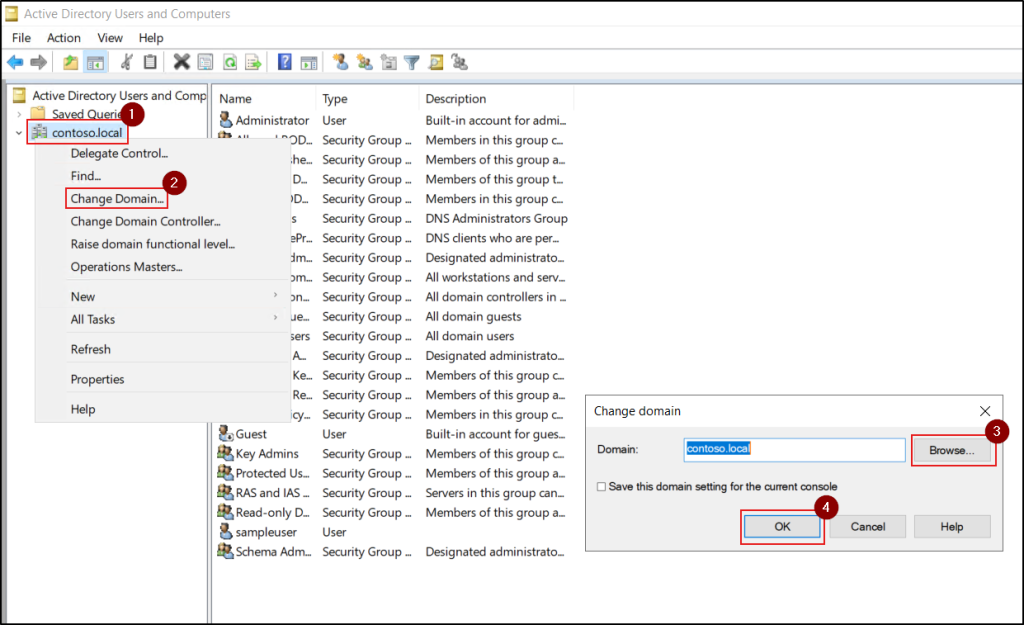
- If required, right-click the domain name and select Change Domain to choose the appropriate domain where the target domain controller resides.
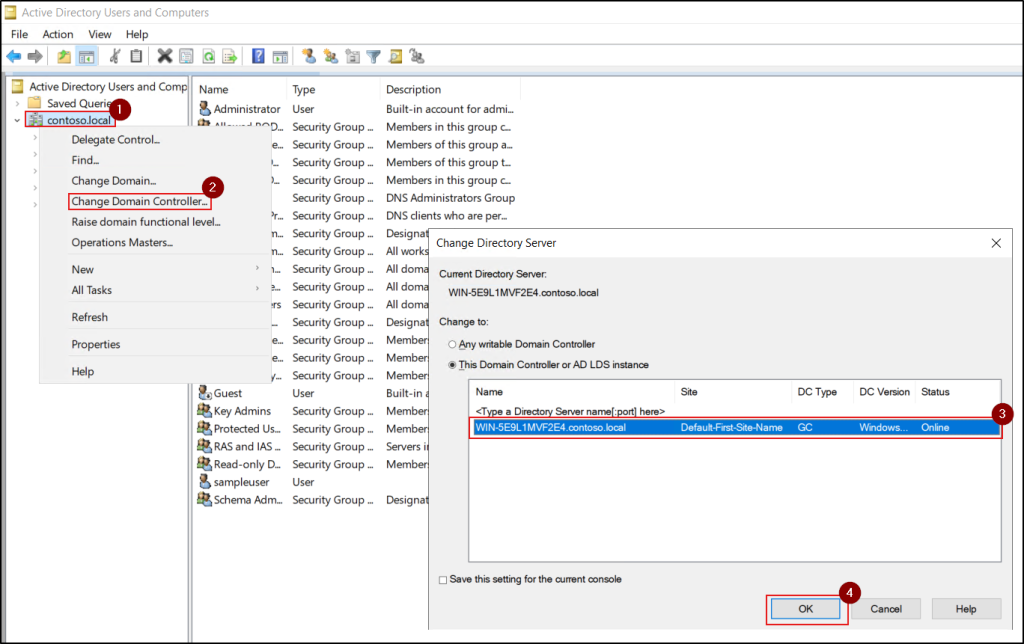
- Right-click the domain name again and select Change Domain Controller to connect to the domain controller that will receive the FSMO role.
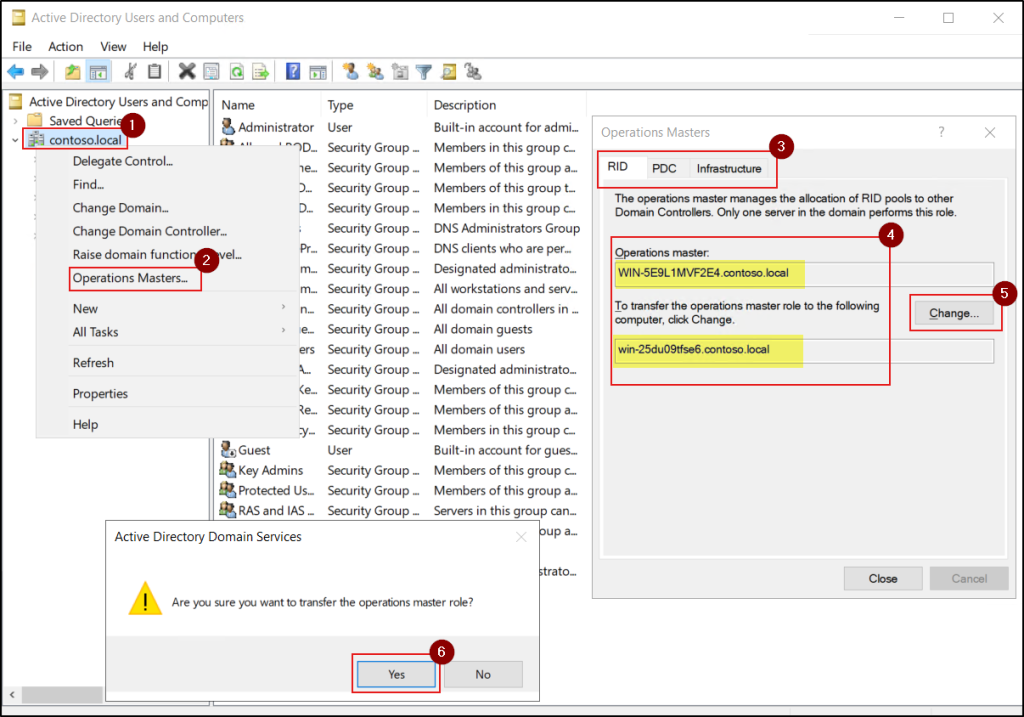
- Again, right-click the domain name and select Operations Masters.
- Navigate through the RID, PDC, and Infrastructure tabs to view the current role holder and initiate the transfer.
- The current FSMO role holder is displayed in the Operations master field, and the connected domain controller appears in the lower field. Click Change to transfer or seize the FSMO role to the connected domain controller.
- Transfer scenario: If the current FSMO role holder is reachable, you will see the prompt: “Are you sure you want to transfer the operations master role?”. Click Yes to proceed with the transfer.
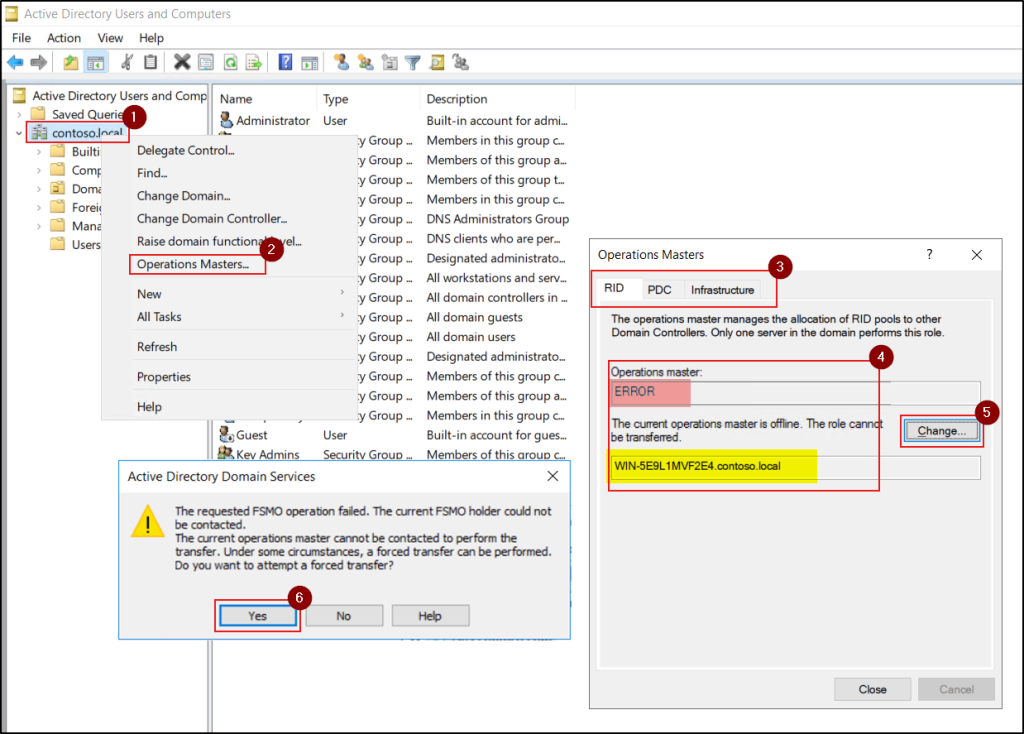
- Seizure scenario: If the current FSMO role holder cannot be contacted, you may see the prompt: “The current operations master cannot be contacted to perform the transfer. Under some circumstances, a forced transfer can be performed. Do you want to attempt a forced transfer?”. Click Yes to proceed with the seizure.
- Transfer scenario: If the current FSMO role holder is reachable, you will see the prompt: “Are you sure you want to transfer the operations master role?”. Click Yes to proceed with the transfer.
- Finally, click OK to complete the operation.
b. Move the Domain Naming Master Role Using Active Directory Domains and Trusts
The Active Directory Domains and Trusts console is used to view and move the Domain Naming Master, which is a forest-wide FSMO role.
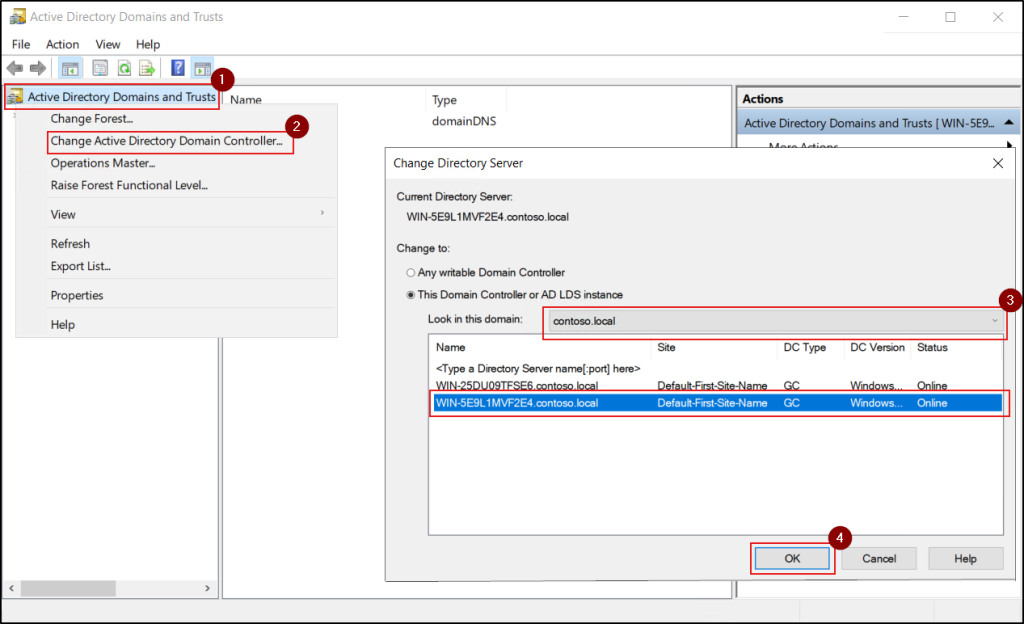
- Open the Active Directory Domains and Trusts console (Win+R → domain.msc).
- Right-click Active Directory Domains and Trusts and choose the Change Active Directory Domain Controller option. Then select the required domain and domain controller.
- Right-click Active Directory Domains and Trusts in the console tree and select Operations Master.
- The current Domain Naming Master is shown in the top field, and the connected domain controller appears in the lower field. Click Change to transfer or seize the role to the connected domain controller.
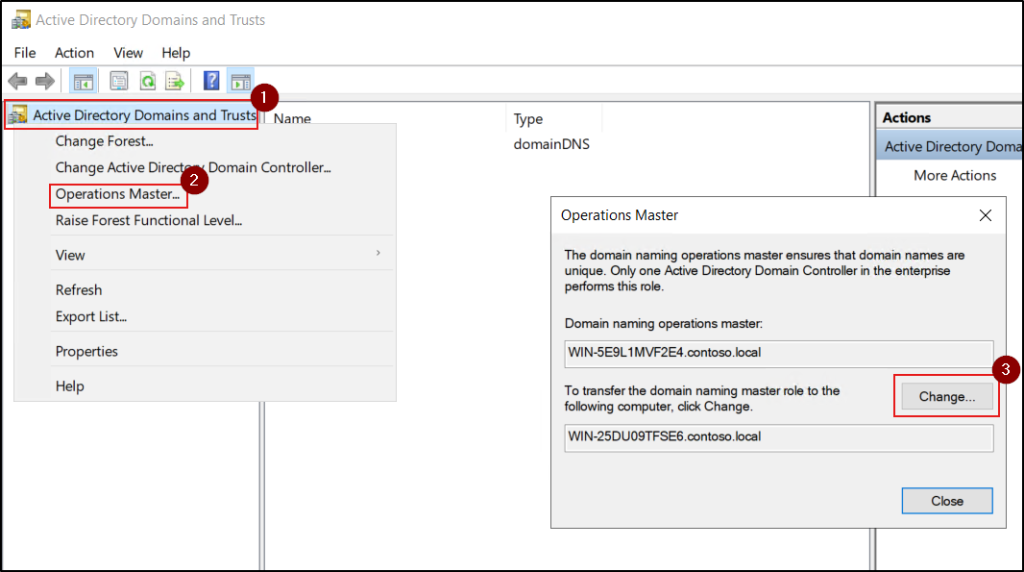
- Finally, click OK to complete the operation.
c. Transfer or Seize the Schema Master Using the Active Directory Schema Snap-in
To view or transfer the Schema Master role, the Active Directory Schema snap-in must be registered on the domain controller. Follow the steps below to register the schema snap-in and view the Schema Master role holder. If the snap-in is already registered, you can skip the first step.
- Register the schema snap-in by running the following command from the Run dialog or Command Prompt:
1regsvr32 schmmgmt.dll
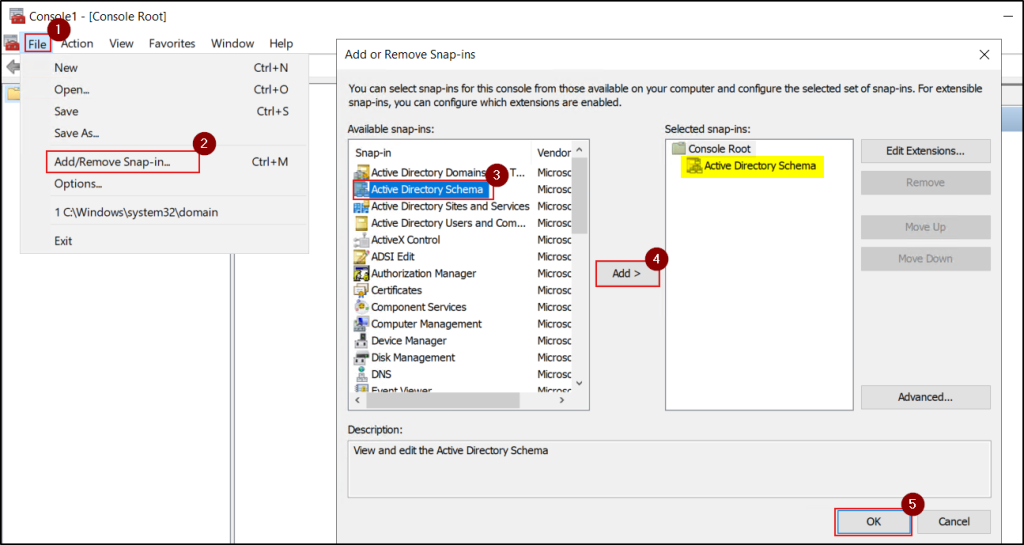
- Open the Microsoft Management Console (MMC) by running ‘mmc’ in the run console.
- From the File menu, select Add/Remove Snap-in, choose Active Directory Schema, click Add, and then click OK.
- Right-click Active Directory Schema and select Change Active Directory Domain Controller to connect to the target domain controller.
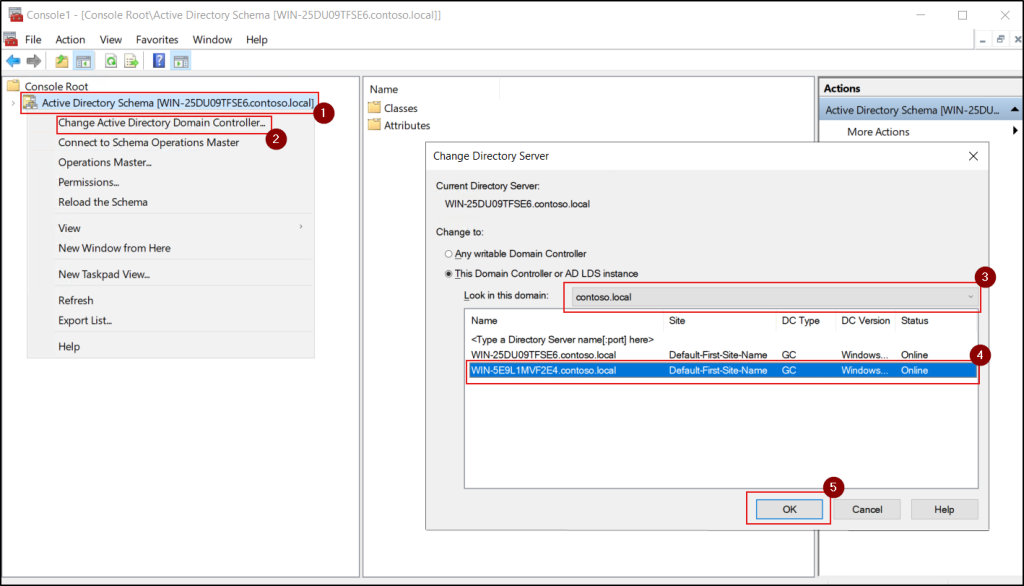
- Right-click Active Directory Schema again and select Operations Master.
- The current Schema Master is displayed in the top field, and the connected domain controller appears in the lower field. Click Change to transfer or seize the Schema Master role.
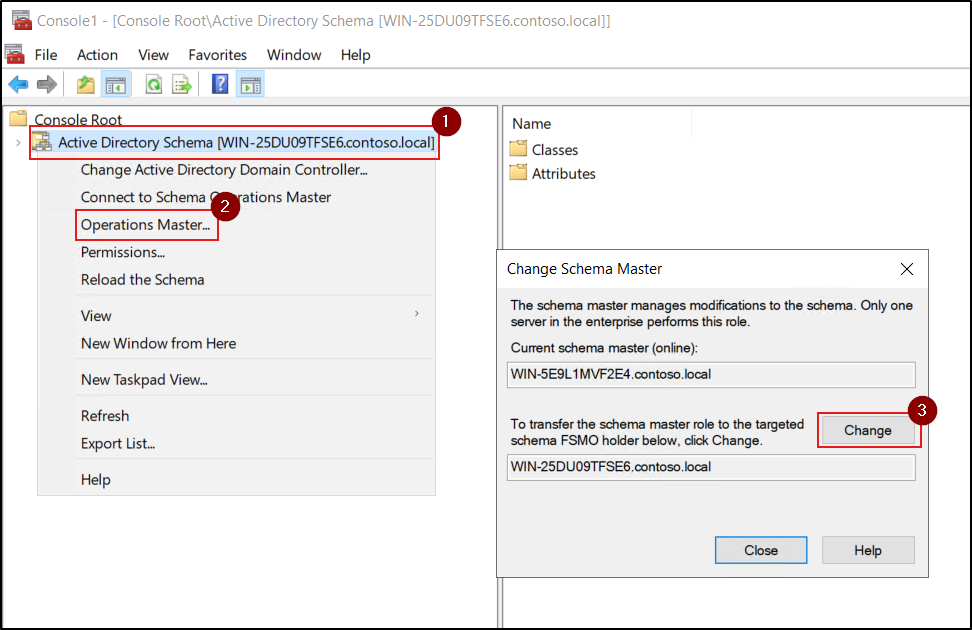
- Finally, click OK to complete the operation.
Important Points to Remember After Transferring or Seizing Operation Master Roles
- Always verify FSMO role ownership after a transfer or seizure to confirm that the roles have moved as expected.
- FSMO role transfers are immediate, while FSMO role seizures may take several minutes to complete.
- A seized FSMO role holder must never be brought back online, as doing so can cause serious Active Directory inconsistencies. The failed domain controller’s meta data must be cleaned up from Active Directory.
- After a transfer or seizure, the new FSMO role holder does not act instantly; it behaves like a restarted role holder. The new role holder waits for a successful inbound replication cycle of the relevant naming context before becoming fully active.
- Update internal documentation and monitoring tools to reflect the new FSMO role placements and avoid future confusion.
Common FSMO Role Transfer Errors and Troubleshooting Guidance
1. Error: The transfer of the operations master role cannot be performed because the role owner attribute could not be read.
Cause: Active Directory could not resolve the FSMO role owner due to replication inconsistencies or stale directory metadata, leaving the current role holder unreadable.
Fix: Ensure replication is healthy, resolve any DNS conflicts, raise the forest/domain functional level if required, retry the FSMO transfer, and then force replication using:
|
1 |
repadmin /syncall /AdeP |
2. Error: The current Domain Controller is the operations master. To transfer the operations master role to another computer, you must first connect to it.
Cause: The FSMO management console is connected to the current role holder, not the target domain controller. FSMO roles can only be transferred from the target DC, not from the existing owner.
Fix: Connect to the domain controller that should receive the FSMO role, then retry the FSMO role transfer.
3. Error: The requested FSMO operation failed. The current FSMO holder could not be contacted. (Win32 error 0x20af, LDAP error 52 – Unavailable)
Cause: The domain controller holding the FSMO role is offline or unreachable due to DNS issues, replication failure, or network connectivity problems.
Fix: Verify that the current FSMO role holder is online and reachable (DNS, network, AD DS running). If the role holder cannot be brought back online or repaired, seize the FSMO role to a healthy domain controller using NTDSUTIL.
4. Error: Move-ADDirectoryServerOperationMasterRole : Access is denied
Cause: The command was run using an account that does not have sufficient privileges to transfer Operation Master roles. FSMO operations require specific administrative rights depending on the role being moved.
Fix: Run the command using an account with the required permissions and ensure it is executed from an elevated PowerShell session.
- Schema Admin membership is needed to transfer the Schema Master and Domain Naming Master roles.
- Domain Admin membership is needed to move the PDC Emulator, RID Master, and Infrastructure Master roles.
We hope this blog has helped you gain a clear understanding of FSMO roles—their purpose, types, when they are needed, and how to transfer or seize them safely. If you have any questions or feedback, feel free to share them in the comments. Stay tuned for more Active Directory insights!