Conditional Access policies provide secure access by evaluating sign-in conditions and enforcing controls such as requiring MFA, device compliance, sign-in risks, and more. But what happens when Windows, macOS, iOS, and Android each need different access checks? Admins may end up creating multiple policies with the same user assignments and emergency access exclusions, leading to policy sprawl and more work to manage them.
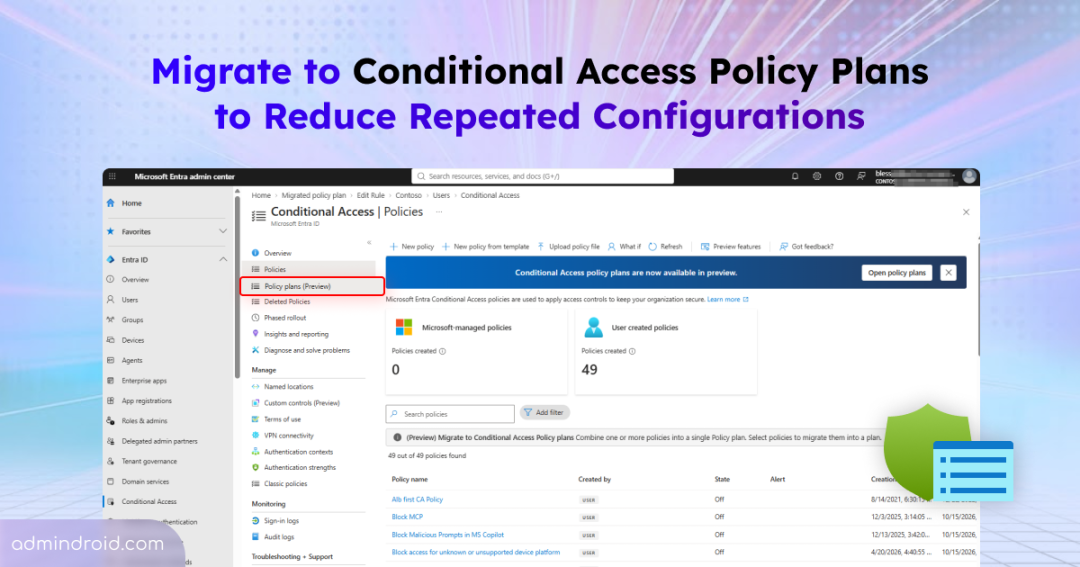
To simplify this, Microsoft introduces Conditional Access policy plans in Entra ID, now in public preview. They let admins group related access requirements under shared conditions, reducing repeated configurations. In this blog, we’ll explore how Conditional Access policy plans work, how to create them, and how they interact with existing Conditional Access policies.
What are Conditional Access Policy Plans in Entra ID?
Conditional Access policy plans in Entra ID help admins manage multiple access requirements without repeating the same configurations. They do this through two key features: shared targeting and rules.
- Shared targeting: Define who the policies apply to, which resources they protect, and which accounts to exclude. These settings are shared across the plan, so admins don’t have to configure them repeatedly.
- Rules: Create separate rules for different security requirements, such as requiring MFA or compliant devices. Each rule uses the shared targeting but enforces its own access controls.
This lets admins manage multiple rules under one plan without repeating the same targeting settings in every Conditional Access policy.
For example, suppose you have separate Conditional Access policies for Windows, macOS, iOS, and Android. Each policy targets the same group of employees and excludes the same emergency access accounts, but applies different security settings for each platform. If an employee group or emergency access exclusion changes, you may need to update every policy separately.
With a policy plan, you can define the common targeting settings once and reuse them across all the platform-specific requirements. When those shared settings change, you can update them in one place instead of editing each policy individually.
Now, let’s look at the key benefits of using Conditional Access policy plans.
Benefits of Using Conditional Access Policy Plans
Policy plans help admins simplify how they organize and manage related access requirements. With Conditional Access policy plans, admins can:
- Avoid repeated exclusions: Configure exclusions for emergency access accounts, trusted service accounts, and privileged workstations at the plan level to avoid inconsistent exclusions across rules.
- Manage Global Secure Access rules more easily: Global Secure Access may require multiple network-scoped rules for the same users and applications. Policy plans let you define shared targeting once, while each rule covers a specific network scope.
- Apply consistent controls to agent activity: Define shared conditions, such as high agent risk, and use separate rules to protect agent users and autonomous agents without repeating the same conditions across standalone policies.
How Do Conditional Access Policy Plans Work with Existing Conditional Access Policies?
At this point, you might be wondering what happens to your existing Conditional Access policies in Entra ID.
Conditional Access policy plans don’t replace existing policies. They provide a new way to organize and manage related access requirements. Existing policies continue to work alongside policy plans.
During sign-in, Entra ID combines each rule’s conditions with the plan’s shared conditions to determine its targeting. It then evaluates each rule independently, just as it evaluates a standalone Conditional Access policy. Access is granted only when all applicable Conditional Access policies and policy-plan rules are satisfied. Each rule also appears separately in the sign-in logs.
Here’s how policy plans compare with existing Conditional Access policies:
| Capability | Existing policies | Policy plans and rules |
| Targeting | Configure targeting separately in each policy. | Define shared targeting once at the plan level or configure it for individual rules. |
| Change management | Update each policy individually. | Update shared conditions once to apply the changes across all rules in the plan. |
| Policy templates | Apply one template per policy. | Combine multiple templates into one plan or use a single template for a plan. |
Now that we understand how policy plans work alongside existing Conditional Access policies, let’s see how to create a policy plan in Entra ID.
How to Create a Conditional Access Policy Plan in Entra ID?
Before creating a Conditional Access policy plan, ensure you have a Microsoft Entra ID Premium P1 or P2 license and the Conditional Access Administrator role. To manage agents, you also need a Microsoft Agent 365 or Microsoft 365 E7 license.
Once these prerequisites are met, follow the steps below to create a custom policy plan in Entra ID.
Step 1: Create a policy plan
- Sign in to the Microsoft Entra admin center.
- Navigate to Entra ID > Conditional Access > Policy plans (Preview).
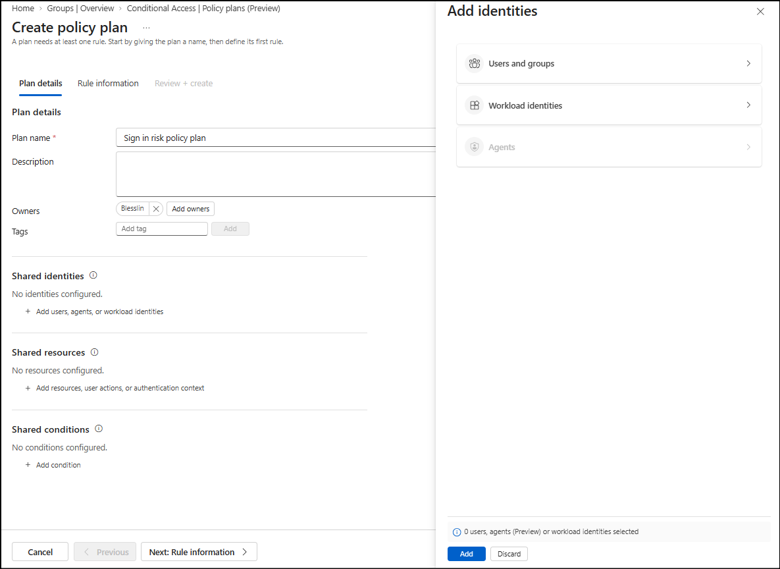
- Click + Create plan. Enter a name for the policy plan and configure the owner and tags.
Now, define the settings that should be common across all rules under shared settings. You can then add separate rules to configure additional settings for specific access requirements.
Step 2: Configure shared identities
Under Shared identities, click + Add users, agents, or workload identities. In the Add identities pane, select the identity type you want to target.
- Users and groups: Include or exclude users, groups, guest or external users, and users based on directory roles.
- Workload identities: Include or exclude workload identities, such as service principals. You can also use attributes to determine which identities to include or exclude.
- Agents: Select the agents you want to include or exclude. Ensure you have the required licensing to manage agents.
Once you’ve configured the required inclusions and exclusions, click Add to apply them to the plan.
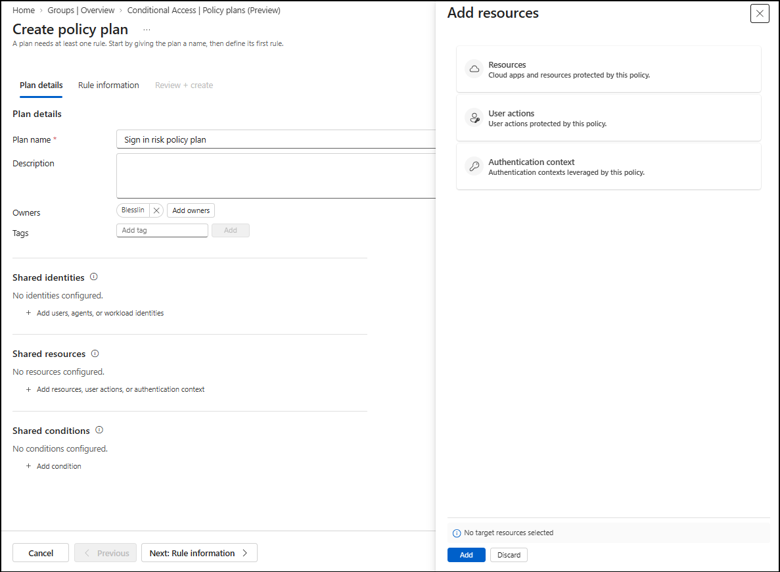
Step 3: Configure shared resources
Under Shared resources, click Add resources, user actions, or authentication context. In the Add resources pane, select the resources you want to target.
- Resources: Select specific resources, such as enterprise applications, agent blueprint principals, and agent identities.
- User actions: Select actions such as registering security information or registering or joining devices.
- Authentication context: Select the authentication contexts available in your environment, such as those used to protect sensitive sites or privileged actions.
Once selected, click Apply to save your selections.
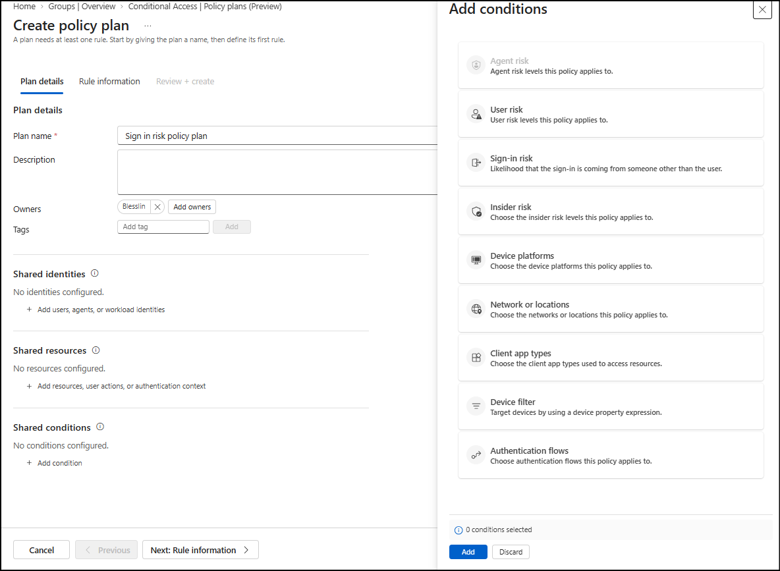
Step 4: Configure shared conditions
Under Shared conditions, click + Add condition and configure the conditions that should apply across the plan’s rules. Depending on your requirements, you can configure conditions such as user risk and sign-in risk levels, insider risk levels, device platforms, network or locations, client app types, device filters, and authentication flows. risk and sign-in risk levels.
Click Add to apply the selected conditions.
Note: During the preview, policy plans that target users with a location condition receive one-hour access tokens without immediate IP enforcement checks.
Click Next: Rule information to continue.
Step 5: Configure a rule for the policy plan
After configuring the shared settings, you can create a rule that defines the specific access requirements for a scenario.
- Under the Rule information tab, enter a rule name and configure the rule state.
- Review the targeting and conditions inherited from the shared settings. If needed, you can further customize the rule by configuring its identities, resources, and conditions.
- Under Grant and session controls, click + Add control and configure the required grant controls, such as requiring MFA or a compliant device, or blocking access. Configure these controls separately for each rule based on its specific access requirements. Configure session controls if needed.
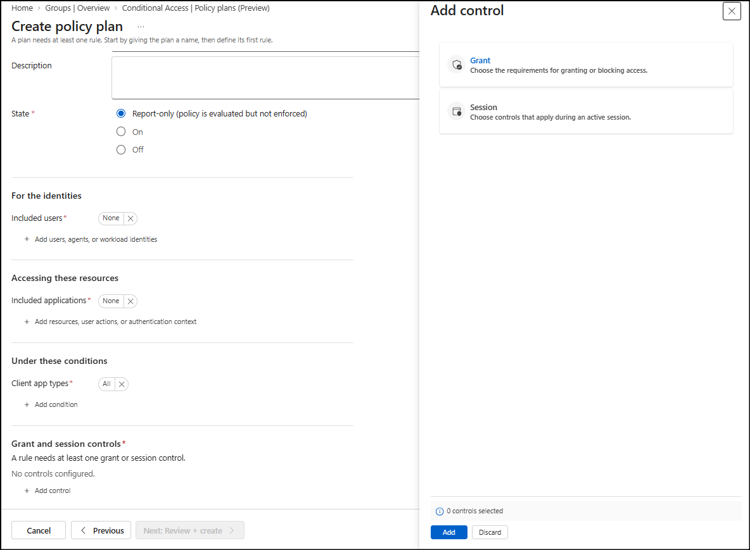
The rule inherits the shared identities, resources, and conditions defined at the plan level. You can add rule-specific settings to address the requirements of the individual scenario.
Step 6: Review and create the policy plan
- Once all the required configurations are done, click Review & Create.
- Review the policy plan’s shared settings and rule configuration.
- Click Create to create the policy plan.
Once created, the policy plan appears on the Policy plans (Preview) page. To manage it later, click on a policy plan and choose the required action to edit the plan, add or edit rules, or delete the plan.
You can also use the built-in Conditional Access policy templates to create policy plans with predefined security configurations. Entra ID provides 15+ templates that you can use as a starting point and customize to meet your organization’s requirements.
How to Migrate Existing Conditional Access Policies to a Policy Plan
If you already have Conditional Access policies that serve the same security purpose, you can migrate them into a policy plan instead of creating one from scratch.
Follow these steps to migrate existing CA policies into a policy plan.
- Navigate to Conditional Access > Policies in the Microsoft Entra admin center.
- In the Migrate to Conditional Access Policy Plans banner, select Get started.
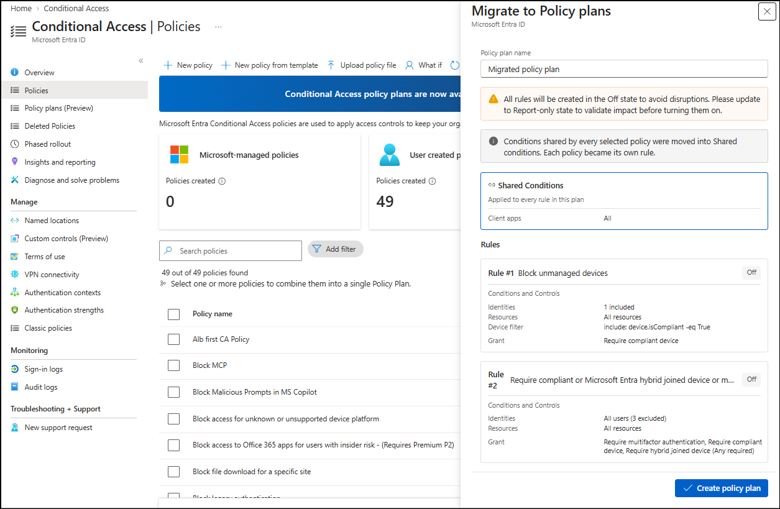
- Select the policies that share the same security intent and click Merge into plan. By default, all rules are set to Off to prevent them from being enforced before you review the configuration.
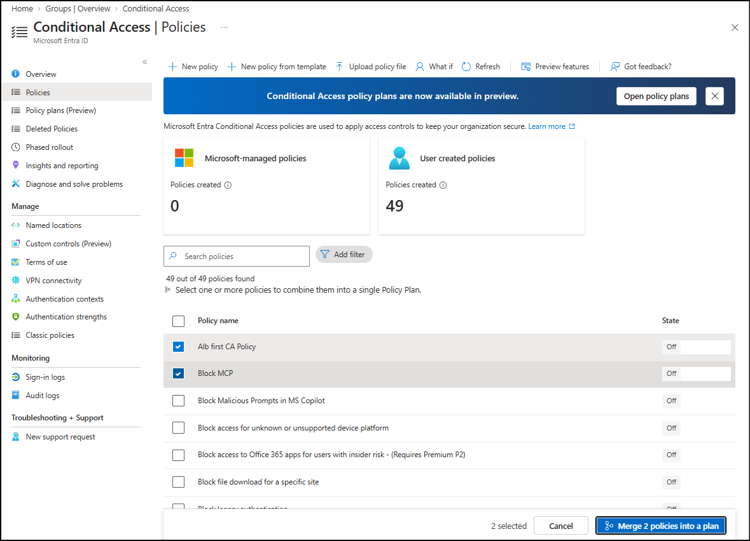
- Select Create policy plan to complete the migration.
During migration, conditions shared by all selected policies are moved to Shared conditions, and each selected policy becomes a separate rule in the plan. This helps you group related policies into a plan and manage their shared targeting settings more easily.
Now that we’ve covered configurations, let’s look at a few important considerations admins should keep in mind when using this feature.
Key Things Admins Should Know Before Using Conditional Access Policy Plans
Here are some important points to consider before using policy plans in your environment:
- No automatic grouping suggestions: Entra ID doesn’t automatically identify policies with similar purposes. You need to review your existing policies and select the ones that belong together in a policy plan.
- Targeting is inherited: The users and resources selected in a plan automatically apply to every rule in it. For example, if a plan targets Group A, all its rules target Group A too. You can exclude additional users in a rule, but you can’t change the rule to target a different group. If you want a rule to target all users, set that targeting in the rule itself instead of the plan.
- Keep identity types separate in shared targeting: Shared targeting in a policy plan supports either users or agents, not both together. If your plan needs to cover both identity types, set the identity targeting within the individual rules instead of at the plan level. This lets you use separate rules to address the access requirements for users and agents.
- Exclusions apply across the plan: Any groups excluded at the plan level are automatically excluded from every rule and can’t be removed by individual rules. For example, if the plan excludes Groups A and B and a rule excludes Group C, that rule excludes all three groups.
Wrapping Up
That’s all! We hope this blog helped you understand Conditional Access policy plans in Entra ID and how they simplify Conditional Access management. Since the feature is still in public preview, test it in a non-production environment before using it to manage critical access controls. If you have any experiences, questions, or doubts, feel free to share them in the comments below! We’d love to hear from you. Stay tuned for more blogs!