When users switch roles or leave the organization, they don’t just hand over their responsibilities; they often leave behind a calendar full of meetings they still “own.” For admins, managing recurring meetings owned by inactive organizers can quickly become a major challenge.
These meetings hold more than schedules: attendance reports, shared history, and Loop-based notes. And in Microsoft 365, there simply hasn’t been a supported way to change the organizer of an existing meeting.
Until now, admins have been forced to rely on disruptive workarounds like:
- Cancelling and recreating meetings under a new organizer,
- Letting important meetings continue under inactive accounts,
- Scheduling critical sessions through shared mailboxes for continuity.
Now, Microsoft is finally closing this long-standing gap with a new Exchange Online PowerShell cmdlet that allows admins to change meeting organizer. Let’s take a closer look at what this update brings!
Why Transferring an Existing or Recurring Meeting Ownership Matters
Let’s start by understanding why transferring a meeting organizer is so important in Microsoft 365. Transferring meeting ownership helps ensure recurring meetings remain accessible and manageable when the original organizer is no longer available. It is particularly important in the following scenarios:
- Orphaned Meetings After User Offboarding: Prevent meetings from becoming orphaned when the existing organizer leaves the organization, ensuring recurring meetings remain manageable.
- Maintaining Momentum During Leadership Changes: Transfer meeting ownership to a new organizer to keep projects, training sessions, and governance meetings running without disruption.
- Preserving Records for Compliance and Audits: Retain access to attendance reports, recordings, and Loop components for compliance, audits, and future reference.
- Keeping Recurring Cross-Functional Meetings on Track: Ensures recurring meetings continue seamlessly with an active organizer who can manage schedules and participants.
Overview of the Invoke-ChangeMeetingOrganizer PowerShell Cmdlet in Exchange Online
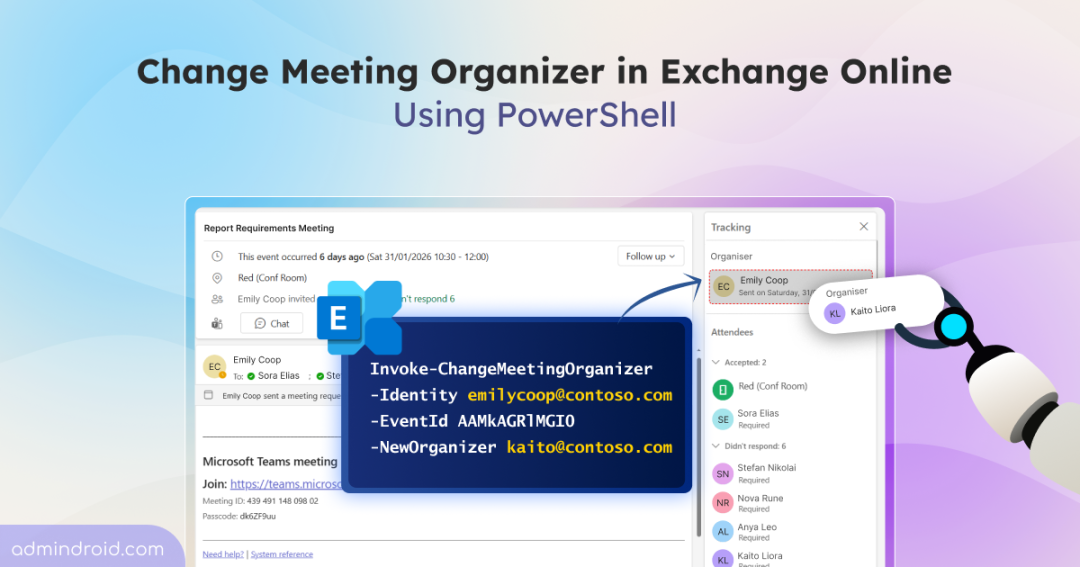
Admins can use the new Invoke-ChangeMeetingOrganizer cmdlet to change the organizer of a meeting without recreating the meeting. This cmdlet allows admins to transfer existing or recurring meetings ownership to any user in the organization. It makes transferring meeting ownership seamless, keeping schedules intact when the organizer’s role changes or offboards.
Admins can update meeting organizers using either the meeting’s Subject line or its unique Event ID. Before running the cmdlet, ensure your account has the required Exchange Online permissions, as access to certain parameters may depend on your assigned administrative role.
Let’s now see how the Invoke-ChangeMeetingOrganizer cmdlet works in Microsoft 365.
Transfer an Existing or Recurring Meeting Organizer by Subject
To change the organizer of a meetings in Exchange Online using the meeting subject, run the following cmdlet.
|
1 |
Invoke-ChangeMeetingOrganizer -Identity <OldOrganizer> -Subject "<MeetingSubject>" -NewOrganizer <NewOrganizer> |
Ensure to replace the following placeholders with the appropriate values:
- <OldOrganizer> – Email address of the current meeting organizer.
- <MeetingSubject> – Subject of the meeting to transfer.
- <NewOrganizer> – Email address of the user who will become the new meeting organizer.
Note: By default, recurring meeting ownership transfer starts from the next occurrence in the meeting series. If you’d rather the change take effect from a specific future date instead, you can add the optional -TransferSeriesStartDate parameter.
The -TransferSeriesStartDate parameter is optional and must be a future date, formatted according to the short date setting in the Regional Options of the machine running the command.
Transfer a Meeting Organizer by Event ID
When using the -Subject parameter, the specified subject must uniquely identify a single meeting. If multiple meetings share the same subject, the organizer transfer won’t be performed. In such cases, use the -EventId parameter to identify the exact meeting and transfer its ownership.
Replace the placeholders with the appropriate values and run the following cmdlet.
|
1 |
Invoke-ChangeMeetingOrganizer -Identity <OldOrganizer> -EventId <EventID> -NewOrganizer <NewOrganizer> |
If you do not know the Event ID, you can easily retrieve it by running the Get-CalendarDiagnosticObjects cmdlet against the old organizer’s mailbox:
|
1 |
Get-CalendarDiagnosticObjects -Identity "<OldOrganizer>" -Subject "<MeetingSubject>" -ExactMatch $true |
⚠️ Note: The Invoke-ChangeMeetingOrganizer cmdlet is currently rolling out across supported tenants and is expected to be available to all tenants by August 2026. Until the rollout reaches your tenant, you may receive the “Transfer meeting action disabled“ error.
Key Limitations of the New Invoke-ChangeMeetingOrganizer Cmdlet
Here are a few restrictions that admins face when trying to change the organizer of a meeting:
- The new organizer must belong to the same Exchange Online organization as the existing organizer. Cross-tenant or external ownership transfers are not supported.
- Only meetings stored in the organizer’s default calendar can be transferred.
- Meetings in shared mailboxes and Microsoft 365 Group mailboxes can’t be transferred. If you need another user to manage these meetings, grant them the appropriate permissions to access and manage the mailbox calendar.
- For Teams-enabled meetings, the associated Teams meeting organizer isn’t updated automatically. The new organizer must manually update the meeting series with the new Teams meeting information to join and manage the online meeting.
- For recurring meetings, admins can’t transfer the portion of the meeting series that remains on the original organizer’s calendar after a transfer. However, future instances in the transferred series can be transferred again from the new organizer’s calendar to another organizer, if required.
What Happens When an Admin Changes a Meeting Organizer?
When an admin transfers meeting ownership using the Invoke-ChangeMeetingOrganizer cmdlet, Exchange Online moves the meeting from the current organizer to the new organizer. Depending on the parameters used, the transfer takes effect from the next occurrence of the meeting series or from a specified future date. Once the transfer is complete, the previous organizer is removed from the meeting and is not automatically retained as an attendee. If they still need to participate, the new organizer must invite them again.
Below are the key outcomes that occur when an admin transfers the meeting organizer:
- Full control for the new meeting organizer
- Teams and OneDrive permissions aren’t transferred automatically
- Seamless experience for internal attendees
- Meeting transfer notification for external participants
- Continuous access to meeting history and artifacts
Full Control for the New Meeting Organizer
The new organizer gains full control of the transferred meetings, ensuring they continue without disruption. After the transfer, the new organizer of the Microsoft Teams meeting can perform the following actions:
- Modify recurrence patterns,
- Update the meeting description,
- Add or remove attendees,
- Manage meeting options and meeting details, etc.
Teams and OneDrive Permissions aren’t Transferred Automatically
If the meeting includes Microsoft Teams online meeting information, the new organizer might not have permission to join or manage the existing online meeting. In such cases, the new organizer should update the meeting to generate new online meeting information.
Similarly, if the meeting contains OneDrive attachments or sharing links owned by the previous organizer, the new organizer might not have permission to access those files. To restore access, the new organizer should remove the existing attachments or links and reattach files they own.
Seamless Experience for Internal Attendees
When the meeting organizer is modified, attendees within the tenant do not need to re-RSVP. In other words, users don’t need to accept or decline the meeting invite again. The existing meetings on their calendars are silently updated with the new organizer information, ensuring internal meetings remain seamless and disruption-free.
Meeting Transfer Notification for External Participants
When a meeting’s ownership is transferred and it includes external users, the updates are clearly notified to avoid confusion. The external meeting participants will receive the below two meeting messages:
- One message ending the meeting series from the previous organizer.
- A new meeting invitation for the series starting with the new organizer.
External attendees must accept the new invitation to continue attending meeting series.
Continuous Access to Meeting History and Artifacts
Long-running meetings, such as those associated with compliance reviews, audits, or ongoing projects, often need to retain their context even when the organizer changes. When ownership is transferred, the meeting and its existing settings are preserved, allowing the meeting series to continue with minimal disruption. Meeting properties such as Reminder, Category, Show As (Free, Tentative, Busy, or Out of Office), and Private remain unchanged and are carried over to the new organizer’s calendar.
Note on User-Initiated Organizer Changes (Coming Later)
Soon, users will be able to transfer meeting organizer directly from the Modern Calendar in Outlook on the web, the new Outlook, and Teams. Unlike admin-initiated transfers via PowerShell, the user-initiated transfer will only take effect after the new organizer accepts the meeting.
That’s all on this update! Get ready to test the new PowerShell cmdlet once it becomes generally available. Keep an eye on this blog for updates and hands-on details as soon as it rolls out! 🚀 If you have any questions or feedback, feel free to leave a comment below. We’re happy to help!