In Active Directory environments, cyberattacks evolve every day and passwords are often the first thing attackers go after. With techniques like password spraying, credential stuffing, etc., accounts fall easily when users reuse old passwords or change them too frequently with simple patterns.
This is exactly where password policies in Active Directory become critical. They act as the rulebook to define standards that enforces stronger passwords and shuts down these common attack paths. In this blog, we’ll explore:
- What is a password policy in Active Directory
- Manage domain password policy in Active Directory
- Fine-grained password policy in Active Directory
- Best practices for Active Directory password policies
- Common reasons why password policies fail
What Is a Password Policy in Active Directory?
An Active Directory password policy is a set of rules that controls how strong a password must be and how it can be used over time. It defines things like minimum password length, complexity requirements, how often a password must be reused or changed, and more.
Before diving into configuring the password policy, it’s important to understand the password settings it is built on.
Password Policy Settings in Active Directory
Active Directory provides 8 essential password policy settings that govern password behaviour. These settings form the core of the policy and determines how they behave. Therefore, it is essential to understand these settings for tuning the policy according to your organization’s security requirements. Let’s look at each setting.
Enforce Password History
This setting controls how many unique passwords a user must use before they are allowed to reuse the old one. It prevents users from reusing old passwords frequently. You can set the value from 1 to 24. By default, Active Directory is configured to remember the last 24 passwords and prevent them being reused. Even if member servers have their own local setting, they inherit the password history setting from the domain controllers (i.e., remember last 24 passwords).
Maximum Password Age
This setting determines the maximum time period a password can be used before the system requires the user to change it. By default, its value is set to 42 days. But you can set this value from 1 to 999 days or set to 0 if you want passwords to never expire.
Minimum Password Age
This setting determines the minimum amount of time a password must be used before it can be changed again. This prevents users from changing their password repeatedly within a short period of time. By default, its value is set to 1 day in Active Directory. You can set this value from 0 to 998 days.
If its value is set to 0, users can change their passwords repeatedly until they return to their old favourite one. For example, if the ‘Maximum password age’ is set to 14 days, users could change their passwords 14 times and cycle back to their preferred password. Therefore, it’s better not to set the value to 0.
Note: The minimum password age must always be less than the maximum password age, unless the maximum password age is set to 0 (i.e., when passwords never expire).
Minimum Password Length
This setting controls the minimum number of characters required for a password. By default, Active Directory enforces a minimum password length with 7 characters. You can set the value from 0 to 14 characters. To increase the minimum password length beyond 14 characters if the ‘Relax minimum password length limits’ setting is enabled and defined.
Password Must Meet Complexity Requirements
This setting enforces strong password rules. When it is enabled, users must create passwords that follow these requirements. If a password does not meet them, the system will reject it. The password must:
- Not contain the user’s account name or parts of the full name longer than two consecutive characters.
- Be at least 6 characters long.
- Include English uppercase letters (A–Z), English lowercase letters (a–z), numbers (0–9) and special characters (for example: !, @, #, $).
By default, password complexity rules are enforced by the built-in Windows password filter passfilt.dll and cannot be modified directly. Custom password complexity rules can be enforced by installing and registering a password filter DLL on all domain controllers.
Store Passwords Using Reversible Encryption
This setting determines whether Windows stores user passwords using reversible encryption, which means the original password can be retrieved if required. This is effectively equivalent to storing passwords in plain text and poses a significant security risk. By default, this setting is disabled in Active Directory. It is required for some legacy authentication methods such as Challenge-Handshake Authentication Protocol (CHAP) and Digest Authentication in Internet Information Services (IIS).
Relax Minimum Password Length Limits
This is a newer setting available in recent Windows versions. This setting controls whether you can increase the minimum password length beyond 14 characters. When this setting is enabled, admins can configure the ‘minimum password length’ setting to up to 128 characters for domain accounts.
This option is mainly used to support stronger passwords while still checking for compatibility with older or legacy systems. Some legacy applications cannot handle very long passwords, so this setting helps you decide whether it is safe to enforce longer passwords in your environment.
Minimum Password Length Audit
This is also a newer setting available in recent Windows versions. It is used to evaluate the impact of increasing the minimum password length before enforcing it. You can configure a value between 0 and 128 characters. When enabled, this setting does not block users. Instead, it logs warning events when a password shorter than the configured length is used.
| Minimum Password Audit Setting | Audit Events Generation |
| Not defined | No audit events are generated. |
| Defined and lesser than or equal to minimum password length | Audit events are generated only when the configuration is changed. |
| Defined, greater than minimum password length, and greater than the length of a new password | In addition to configuration change events, Event ID 16978 is triggered each time a password change occurs. |
With this understanding, let’s look at domain password policy in detail and how to configure it effectively. 🔐
Manage Default Domain Password Policy in Active Directory
The Active Directory default domain password policy controls how passwords behave across your entire domain. It is configured using Group Policy Object and is always linked to the root domain.
By design, Active Directory applies the default password policy to all users in a domain. Unlike other Group Policy settings, password policies linked to individual Organizational Units (OUs) do not apply to the objects. Even if you configure a different password policy to an OU, it will not take effect, and the Default Domain Policy always takes precedence.
To manage the default domain password policy, you must meet the following prerequisites:
- You must be a member of Domain Admins or Enterprise Admins, or have Edit settings delegated permission on the Default Domain Policy GPO.
- Make sure you have access to a domain controller or a computer with Group Policy management tools installed.
- In case of a workstation, install RSAT: Group Policy Management Tools.
- In case of a member server, install the Group Policy Management feature.
Once these prerequisites are in place, you can configure and manage the default domain password policy using the following methods.
1. Configure and Manage Default Domain Password Policy Using GPO
To configure the password settings through Group Policy, follow the steps below:
- Open the Group Policy Management Console (GPMC).
- In the left navigation tree, expand your domain, right-click Default Domain Policy and select Edit.
- In the Group Policy Management Editor, navigate to Computer Configuration → Policies → Windows settings → Security Settings → Account Policies → Password Policy.
- You’ll find all the password policy settings along with their current configurations.
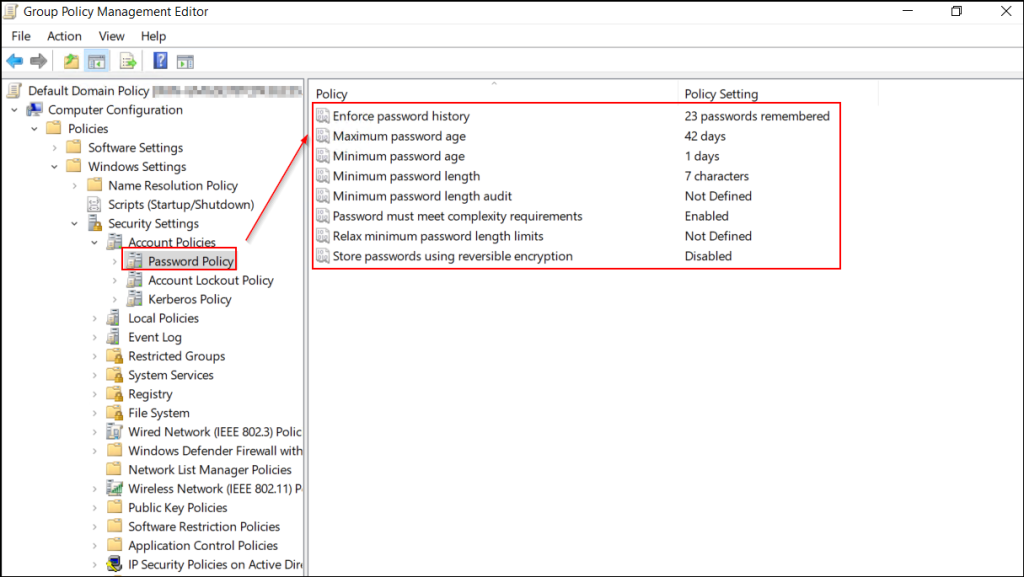
- To configure or modify a setting, right-click the policy and select Properties.
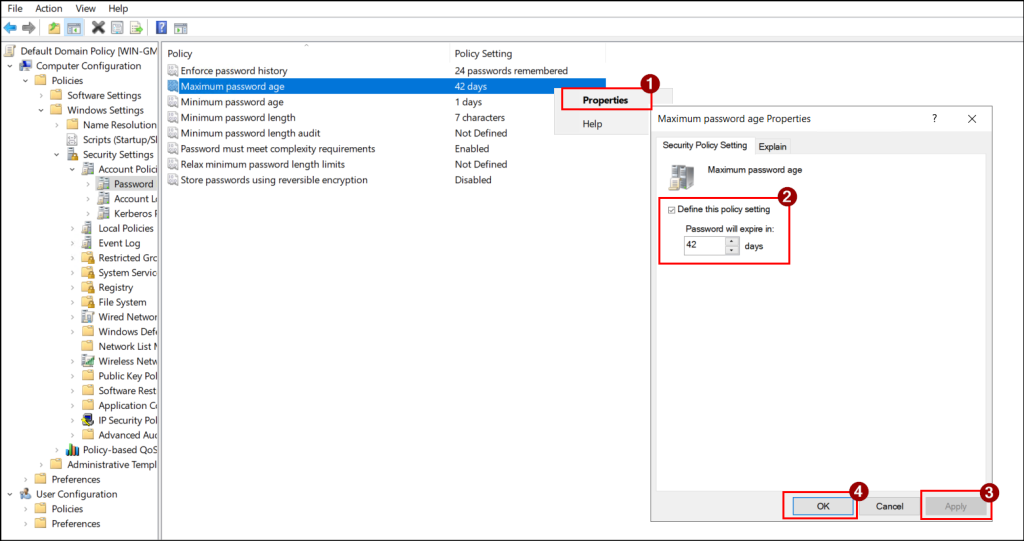
- Set the desired number or choose the required value (Enabled or Disabled), then click Apply and OK to save the changes.
2. Manage Domain Password Policy Using PowerShell
Instead of manually configuring each setting in the Group Policy Editor, you can manage the default domain password policy quickly using the following cmdlets. One major advantage of PowerShell over GPO is the time precision. While the Group Policy allows you to configure values only in days, PowerShell lets you define them in days, hours, minutes, and even in seconds.
Get the Default Password Policy for An Active Directory Domain
To check the password settings of default password policy for a specific domain, use the cmdlet below:
|
1 |
Get-ADDefaultDomainPasswordPolicy -Identity <DomainName> |
Replace <DomainName> with the name of the target domain for which you need to get the default password policy.
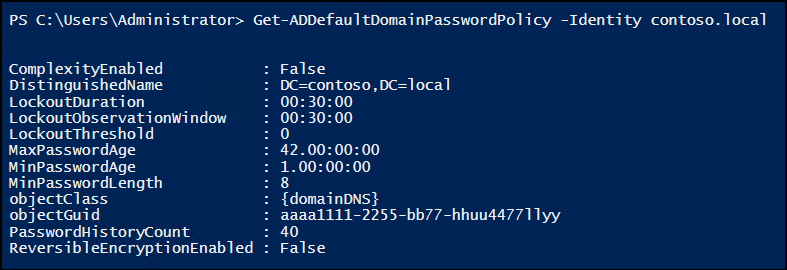
Modify Default Password Policy in Active Directory
To change the default domain password policy settings for a specific domain, use the cmdlet below.
|
1 |
Set-ADDefaultDomainPasswordPolicy -Identity <DomainName> -MaxPasswordAge <DD.HH:MM:SS> -MinPasswordAge <DD.HH:MM:SS> -MinPasswordLength <MinPwdLength> -PasswordHistoryCount <Integer> -ComplexityEnabled <Boolean> -ReversibleEncryptionEnabled <Boolean> |
Here’s the breakdown of the parameters:
- Identity – Specifies the name of your domain.
- ComplexityEnabled – Enables or disables password complexity requirements.
- MaxPasswordAge – Determines how long a user can keep a password. After this period expires, the user is required to create a new password.
- MinPasswordAge – Specifies the minimum length of time before a password can be changed. During this period, the user cannot change the password.
- MinPasswordLength – Specifies the minimum number of characters allowed for a password.
- PasswordHistoryCount – Defines the number of previous passwords that are remembered and cannot be reused. Once this value is reached, older passwords are removed from history and may be reused.
- ReversibleEncryptionEnabled – Specifies whether the directory is allowed to store passwords in the reverse encryption.
Note: The ‘Minimum password length audit’ and ‘Relax minimum password length limits’ can only be configured through the GPO console and cannot be managed through PowerShell.
Here’s an example that configures the default domain password policy for the domain ‘Contoso.local’.
|
1 |
Set-ADDefaultDomainPasswordPolicy -Identity Contoso.local -ComplexityEnabled $true -MaxPasswordAge 60.00:00:00 -MinPasswordAge 1.00:00:00 –MinPasswordLength 8 -PasswordHistoryCount 10 -ReversibleEncryptionEnabled $false |
This cmdlet enforces password complexity, forces password to expire after 60 days, allow user to change password after 1 day, and prevents reusing the last 10 passwords.
In the Set-ADDefaultDomainPasswordPolicy cmdlet, you can also configure LockoutDuration, LockoutObservationWindow, and LockoutThreshold parameters. These parameters help you manage account lockout policy, which helps protect accounts when too many incorrect password attempts are made.
Fine-Grained Password Policy in Active Directory
As discussed earlier, the domain password policy applies to all users in the domain because it is configured at the domain level under Computer Configuration. However, in some cases, you may need stronger or more customized password rules for specific users or global security groups to meet security or compliance requirements.
This is where Fine-Grained Password Policies (FGPP) comes in. These policies allow you to define and apply different password settings for specific users or groups. For users or groups assigned a fine-grained password policy, that policy overrides the default domain password policy. In such cases, only the fine-grained password policy applies.
Although FGPP allows individual password policies, it can be applied only to user objects or global security groups. It does not natively support dynamic assignment based on attributes such as department, job title, or Organizational Unit (OU). This design works well for privileged accounts or well-defined groups of users, but it falls short when administrators expect policies to automatically follow changes in OUs or user attributes.
Apply Fine-Grained Password Policy Based on User Attributes in Active Directory
Many administrators expect FGPP to apply a stronger password policy to all users in a specific OU, all users in a specific department, and more. However, this cannot be achieved directly using ADAC or FGPP itself.
What can be done is, you can use PowerShell to filter users based on attributes, and assign FGPP to those users. Let’s see how to filter users based on attribute and apply the fine-grained password policy.
⚠️ Important limitation: This approach is not dynamic. If users later move to a different OU, their attribute changes, etc., the FGPP will not automatically update unless you manually mange the respective users for the policy.
Step 1: Filter Users Based on Attributes
First, identify the users who should receive the custom password policy. This can be based on attributes such as, department, job title, office, OU location, etc. Here are some examples to filter the users.
- To apply a stricter password policy to users in the IT Department, filter the users with the cmdlet below:
1$TargetUsers = Get-ADUser -Filter "Department -eq 'IT'"
- To enforce a more complex password requirement for users who have been inactive for 30 days in Active Directory, you can use the following cmdlet:
1$TargetUsers = Get-ADUser -Filter "Title -eq 'Developer'"
- To assign a customized password policy to the members of a specific OU, you can use the following cmdlet:
1$TargetUsers = Get-ADUser -Filter 'Enabled -eq $true' -SearchBase "<OUDistinguishedName>"
Replace <OUDistinguishedName> with the distinguished name of the target OU.
Step 2: Create the Fine-Grained Password Policy
Next, create a fine-grained password policy that defines the required password and lockout rules. Here is an example cmdlet to create a fine-grained password policy.
|
1 |
New-ADFineGrainedPasswordPolicy -Name "IT-Users-PasswordPolicy" -Precedence 10 -MinPasswordLength 14 -PasswordHistoryCount 24 -MaxPasswordAge 60.00:00:00 -ComplexityEnabled $true -LockoutThreshold 5 -LockoutDuration 00:30:00-LockoutObservationWindow 00:30:00 |
Step 3: Apply the Fine-Grained Password Policy
Finally, apply the created password policy to the targeted filtered users using the following cmdlet:
|
1 |
Add-ADFineGrainedPasswordPolicySubject –Identity ITUsersPasswordPolicy -Subjects $TargetUsers |
Best Practices for Active Directory Password Policies
Microsoft recommends the following best practices for password policies in Active Directory:
- Set the minimum password length of 8 characters.
- Do not set the password history value to 0. This lets users to reuse the same password, and if it is compromised, an attacker can keep accessing the account for a long time.
- Always set the minimum password age to a value greater than 0 (for example, 1 day). This ensures that password history works effectively and prevents users from changing their password multiple times in a row and reuse an old password.
- It is recommended to set the maximum password age between 30 and 90 days. It is essential to enforce regular password changes and reduce the risk of long-term password exposure.
- You can configure the minimum password length to more than 14 characters. It is essential to enable ‘Minimum password length audit’ setting before enforcement to assess the potential impact on users and applications.
- Keep ‘Store passwords using reversible encryption‘ setting as disabled unless a specific application requires it and there is no safer alternative.
Common Reasons Why Password Policies Fail in Active Directory
Sometimes, even after configuring password policies, it may seem that the settings haven’t been applied. At such times, you might wonder: “Why is the password policy not applied?”. Even when policies are configured correctly, it’s important to understand the password policy enforcement in Active Directory and the possible misconfigurations that can occur. Here are the common reasons why a password policy might fail:
- OU-linked policies are not enforced:
Password policies applied to an Organizational Unit (OU) are not inherited. Active Directory only processes the default domain password policy or fine-grained password policies (FGPP) for users. Any password policies set directly on an OU exist but do not take effect. - FGPP overrides the domain policy:
If a fine-grained password policy is configured for specific users, it will override the expiration setting in the default domain password policy. For example, if an FGPP sets a user’s password to never expire, it will take effect even if the default domain password policy defines a password expiration period.
Also, if a user is assigned to multiple FGPPs, the policy with the highest priority (lowest precedence value) takes effect. Therefore, to enforce a specific policy, make sure it has the highest priority. - Block Policy Inheritance is enabled:
If Block Policy Inheritance is enabled on the domain controllers OU, required settings may not be applied as expected, causing confusion in policy enforcement. - Policies apply only during password change or expiration:
Password rules are enforced when a user changes their password or when admin resets them. So, existing passwords are not affected immediately. However, the ‘Minimum password age’ and ‘Maximum password age’ settings still work in the background, and their enforcement continues independently until they are explicitly changed. - User-specific setting dependency:
Password policies are not enforced if a user account has explicit password settings. For example, if a user account is set to “Password Never Expires” while the domain policy or FGPP defines an expiration period, the user-specific setting (never expires) takes effect.
Closing Lines
That’s all! We hope that this blog helped you understand how to configure and manage password policies in Active Directory. If you have any questions or experiences to share, feel free to leave them in the comment section below. We’d love to hear from you! Stay tuned for more administration blogs.