The AI revolution in Microsoft 365 has moved beyond the “cool party trick” phase. What started with Copilot has now become a core part of how people work every day. Whether you’re drafting emails in Outlook or catching up on Teams, AI is already there, quietly saving you hours of work.
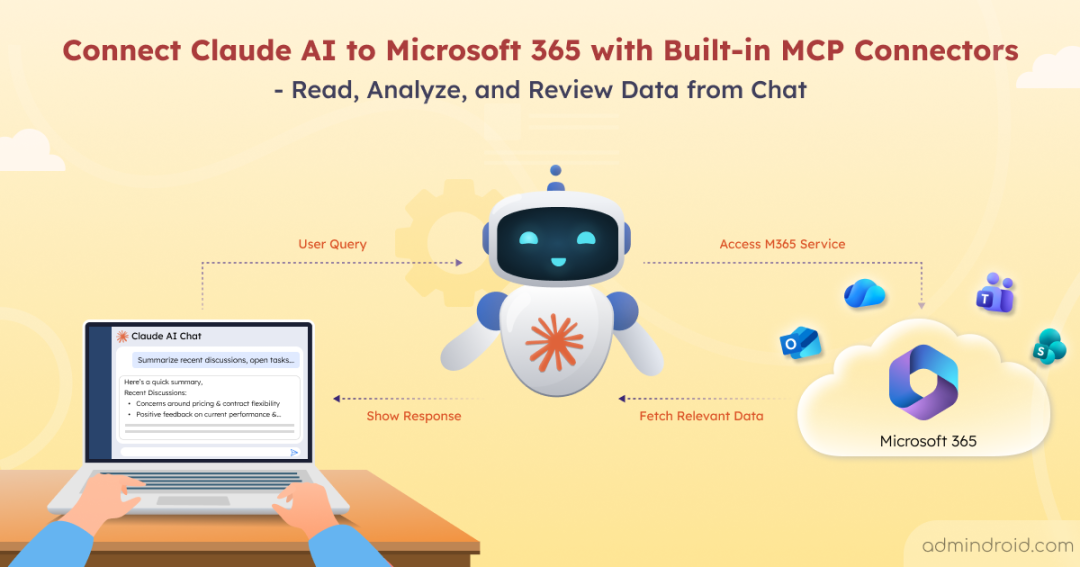
Now, this evolution is expanding further. Anthropic has announced the integration of Claude AI with Microsoft 365 services through pre-built connectors. This lets users interact with their Microsoft 365 data directly from the Claude chat.
In this blog, we’ll explore more about this integration and how you can connect Claude to Microsoft 365 to streamline data access:
- Microsoft 365 connector for Claude AI
- Difference between Claude and Copilot in Microsoft 365
- Security and privacy in Claude’s Microsoft 365 connector
- Understanding Microsoft 365 connector permissions for Claude AI
- How to enable and use Microsoft 365 connector for Claude AI
- How Claude AI works across different Microsoft 365 services
- FAQs on Microsoft 365 connector for Claude
Microsoft 365 Connector for Claude AI
Anthropic is expanding Claude’s ability to work with organizational data by introducing the Microsoft 365 connector. This built-in connector enables Claude to securely access Microsoft 365 services and bring relevant work content directly into conversations. Previously limited to Team and Enterprise plans, this capability is now available across all Claude plans, including Free, Pro, and Max.
With this integration, users can ground Claude’s reasoning in their own work environment. By connecting Microsoft 365 to Claude using the built-in connector, users can access content across SharePoint, OneDrive, Outlook, and Teams in one place.
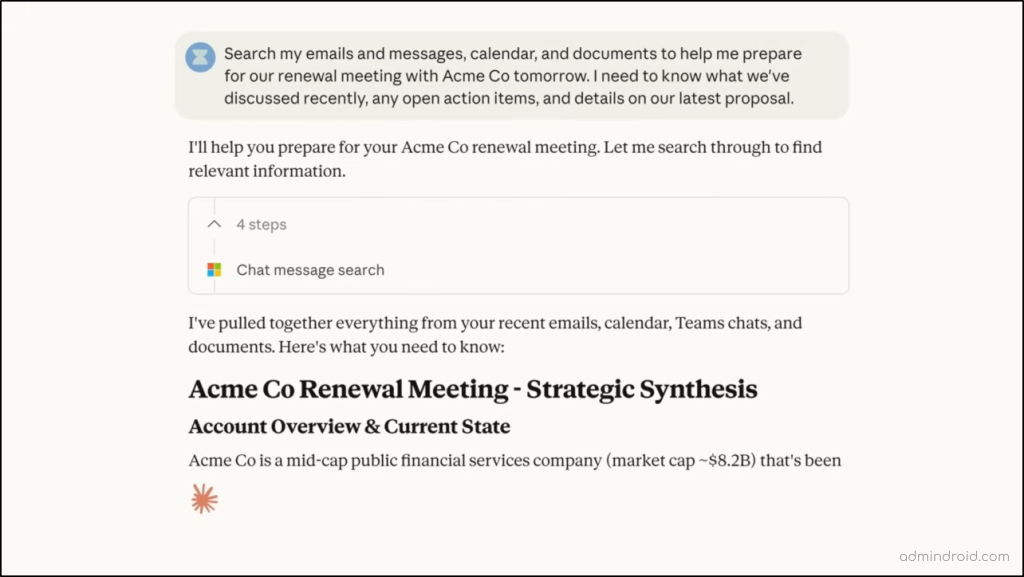
This eliminates the need to manually upload files or toggle between different Microsoft apps. The image below illustrates how Claude surfaces Microsoft 365 data within a conversation.
The integration is designed with strong security and access controls, such as:
- Read-only access: Claude can view and analyze Microsoft 365 data, but cannot edit, delete, or make changes.
- No data storage: Claude doesn’t keep your data; it fetches it, processes the answer, and moves on.
- Permission-based access: If a user doesn’t have access to a folder in SharePoint, Claude won’t see it either. Your organization’s security fence stays iron-clad.
This ensures that your data remains within your tenant and is accessed based on the user permissions.
Prerequisites to Connect Claude AI to Microsoft 365 Services
Before connecting Claude to Microsoft 365, make sure you have the following in place:
- Users must use the work or school Microsoft 365 account tied to a Microsoft Entra ID tenant.
- A Microsoft Entra Global Administrator must provide one-time tenant-wide consent to allow the Claude application to access with your organization’s data.
- For Team and Enterprise plans, a Workspace Owner must enable the connector before members can link their accounts.
Difference Between Claude and Copilot in Microsoft 365
With Claude AI now connected to Microsoft 365, organizations now have another option alongside Microsoft’s native AI, Copilot. While both bring AI into the workplace, they work in different ways. Here are the key differences between Claude and Copilot.
| Feature | Claude AI | Microsoft Copilot |
| Integration Type | Connected via pre-built MCP connectors or third-party | Natively integrated into Microsoft 365 apps |
| Access to Data | Read-only access to Microsoft 365 data | Full access based on user permissions |
| Content Creation | Cannot directly create/edit files in Microsoft 365 | Can create, edit, and remove Microsoft 365 files |
| Supported Services | SharePoint, Microsoft Teams, Outlook, and OneDrive | Deep integration across Microsoft 365 services like Word, Excel, PowerPoint, Outlook, Teams, etc |
| User Interaction Style | Chat-based, external interface | Embedded within Microsoft 365 apps (inline AI assistance) |
| Use Case Focus | Read, review, analyze, and summarize data from Microsoft 365 services | Productivity enhancement, content generation, task execution, and automation |
| Supported Account Types | Accounts tied to the Microsoft Entra tenant only (Work accounts) | Supports both work and personal Microsoft accounts |
| Context Window | Massive (200k to 1M tokens) Best for huge files/long threads | Standard (64k to 128k tokens) |
| Pricing Accessibility | Anthropic Claude plan pricing (Free, $20 Pro, $30 Team, etc.) | Requires Microsoft 365 Copilot add-on (~$30/user/month) license |
| Data Training Usage | Free/Pro/Max: May train on data unless you opt out in settings. Team/Enterprise: Data is never used for training by default. | Does not use your Microsoft 365 data to train foundation models |
Security and Privacy in Claude’s Microsoft 365 Connector
When integrating an AI like Claude with your corporate data, it’s natural to have questions about where that data goes and who can see it. Because Claude is hosted by Anthropic (outside the Azure boundary), the security measures are even more vital.
Let’s take a closer look at how security and privacy are handled in this integration.
1. Data Training
According to Anthropic’s data training policy for enterprise and commercial plans, customers have control over whether their data is used for model training. By keeping data sharing turned off, your organizational data is not used to train Claude models.
2. No-Cache Retrieval
The Microsoft 365 connector processes your prompt and retrieves data only when a request is made. It does not cache or store file content. This ensures that your documents, emails, and files always remain within your Microsoft 365 tenant.
3. Secure Authentication via MCP
The MCP server does not store or manage your Microsoft passwords. Authentication happens via Microsoft Entra ID, ensuring Claude only ever sees what the specific logged-in user is allowed to see.
4. Centralized Admin Control
Users cannot “shadow IT” this integration. It requires a two-step approval process: A owner to enable the connector within the Claude Organization settings and a global admin to consent to permissions. Admins can also restrict the connector to specific users or security groups using Application Assignment in the Entra admin center.
5. Full Auditability & Logging
Visibility is key for compliance. Every single request made to the Microsoft Graph API by the Claude connector is logged. You can find these logs in the Microsoft Purview audit logs. You can see exactly who accessed what resource, the timestamp of the request, the specific operation performed, etc.
6. Industry-Standard Certifications
Anthropic maintains a rigorous security posture to meet enterprise requirements. Their platform and the M365 connector are backed by SOC 2 Type II, ISO 27001, GDPR Compliance, and the Microsoft publisher-verified application.
7. Conditional Access & MFA
One of the most powerful security features of the Microsoft 365 connector is that it doesn’t bypass your existing security policies; it inherits them. Microsoft Entra security policies like MFA, device compliance, and Conditional Access remain fully enforced.
This means users must meet the same security requirements as usual, ensuring your organization’s protection stays intact.
Understanding Microsoft 365 Connector Permissions for Claude AI
When an admin grants consent for the Claude AI Microsoft 365 Connector, it requests a set of permissions (scopes) to access Microsoft 365 services. These permissions allow Claude to function as a workplace assistant while still respecting user access boundaries. The permissions include:
- Basic Profile: User.Read, openid, profile (Essentials for secure sign-in and read the user’s basic identity).
- Mail: Mail.Read, Mail.ReadBasic, MailboxFolder.Read (Allows Claude to summarize threads, find specific messages, and track follow-ups).
- Calendar: Calendars.Read, Calendars.Read.Shared (Used to check your schedule and help you prepare for upcoming meetings).
- Files & Sites: Files.Read.All, Sites.Read.All (Necessary for Claude to search your OneDrive and SharePoint libraries for relevant documents).
While Sites.Selected is the commonly used Microsoft permission for such integration, the Claude connector relies on tenant-wide search for effective results. As a result, Sites.Read.All is typically needed to ensure it can locate the files you request. - Teams & Meetings: Chat.Read, ChannelMessage.Read.All, OnlineMeetingTranscript.Read.All (Enables Claude to catch you up on missed discussions and meeting action items).
Grant Only Required Permission for the Microsoft 365 Connector
If you need to limit the resource the connector can access, you can revoke the application permission directly in the Entra admin center. Follow the steps below to revoke app permissions:
- Sign in to the Microsoft Entra admin center.
- Navigate to Entra ID → Enterprise apps and select the M365 MCP Server for Claude application.
- Click Permissions under Security, then click the breadcrumbs button (…) next to the permission you would like to revoke.
- Select Revoke permissions and click ‘Yes, revoke’ in the confirmation prompt to remove the app permission.
When any user attempts to access a resource with a revoked permission, they will encounter the error “Failed to call tool <ResourceName>”.
Now that you have an overview of the integration, let’s walk through how to set up and start using the Microsoft 365 connector with Claude AI.
How to Enable and Use the Microsoft 365 Connector for Claude AI
The Microsoft 365 connector setup is straightforward and involves three key steps:
- Enable the connector for your organization
- Grant admin consent for permissions
- Complete setup and connect Claude to Microsoft 365
Enable the Microsoft 365 Connector for an Organization (For Team/Enterprise Plans Only)
If you’re using Team or Enterprise plans, the owner needs to enable the connector at the organization level. Follow the steps below to enable the Microsoft 365 connector:
- Sign in to Claude and go to Organization settings → Connectors.
- Click Add and find Microsoft 365.
- Then, click Add to your team to enable it in your organization
Once enabled, the connector becomes available for users in your organization. If you are using other plans like Free, Pro, or Max, you can skip this step and start by granting admin consent.
Grant Admin Consent for Claude Permissions
Before users can start using the connector, a Microsoft Entra global admin must approve the required permissions. The global admin can grant consent for the application in the following ways.
Connect to Microsoft 365 Using the Claude Account
- Sign in to the Claude AI using the global admin credentials
- Go to Settings → Connectors and find “Microsoft 365” from the list.
- Click Connect and authenticate with the Microsoft 365 credentials.
- Check the box to grant access on behalf of the organization and accept the requested permissions.
Connect to Microsoft 365 Using Graph Explorer
If the Global Admin does not use Claude, they can authorize the app directly in the Microsoft environment:
- Sign in to Microsoft Graph Explorer and set the request method to POST.
- Enter the following API query in the HTTP request.
|
1 |
https://graph.microsoft.com/v1.0/servicePrincipals |
- In the Request Body, enter the following query to create the service principal “M365 MCP Client for Claude”.
|
1 2 3 |
{ "appId":"08ad6f98-a4f8-4635-bb8d-f1a3044760f0" } |
- Finally, run the query to create the client service principal.
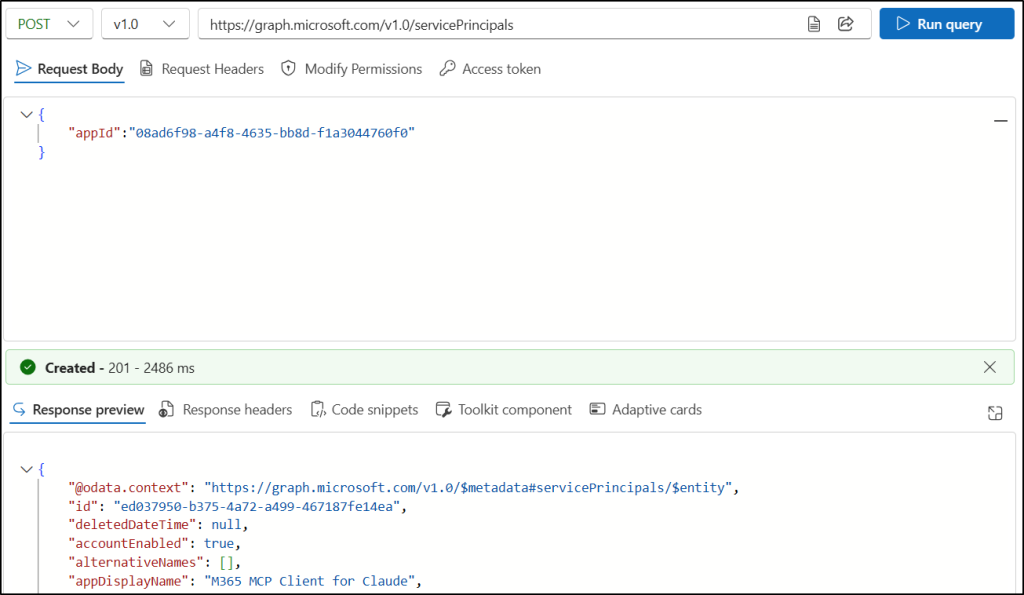
This method returns a 201 Created response code if the service principal is created successfully.
Repeat the above step with the following Server ID in the Request Body to create the “M365 MCP Server for Claude” app.
|
1 2 3 |
{ "appId":"07c030f6-5743-41b7-ba00-0a6e85f37c17" } |
Once all the required service principals are created, the Global Admin need to visit each of the URLs below. Make sure to replace {your-tenant-id} with the respective tenant ID before opening the links.
- M365 MCP Client for Claude
https://login.microsoftonline.com/{your-tenant-id}/adminconsent?client_id=08ad6f98-a4f8-4635-bb8d-f1a3044760f0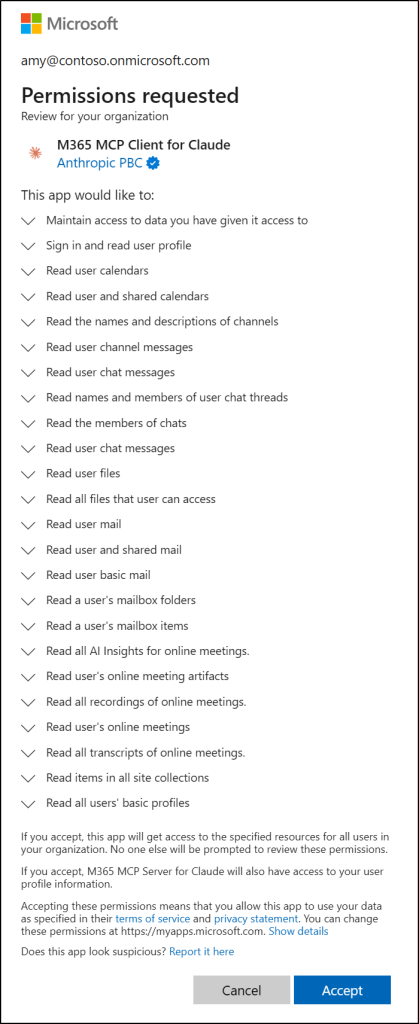
- M365 MCP Server for Claude
https://login.microsoftonline.com/{your-tenant-id}/adminconsent?client_id=07c030f6-5743-41b7-ba00-0a6e85f37c17
The admin will be prompted to grant consent for the required delegated permissions on behalf of the organization.
Complete Setup and Connect Claude to Microsoft 365
After completing the required setup, users can follow the steps below to connect Claude to Microsoft 365:
- Sign in to Claude.
- Navigate to Settings → Connectors.
- Select Microsoft 365 and click Connect.
Once connected, users can start accessing Microsoft 365 data directly from the Claude chat interface.
How Claude AI Works Across Different Microsoft Services
Once users have connected Claude with Microsoft 365, they can interact with their data using natural language. Here’s how Claude AI helps across different services:
SharePoint – Search and understand documents across SharePoint sites and libraries. Claude helps you quickly find files across multiple sites, summarize large documents, and compare content with ease. Example:
“Search the Engineering site for our latest architecture documents and tell me the 3 main changes.”
OneDrive – Access and analyze personal files without uploading them manually. Users can summarize files, extract key insights, and review content quickly with Claude AI. Example:
“Summarize the sales report I uploaded to OneDrive yesterday.”
Outlook – Search and understand emails and conversations with ease. Users can easily filter and find emails by sender, topic, or date, summarize threads, and track decisions or follow-ups. Example:
“Find emails from the last week about the Q4 budget.”
Teams – Catch up on chats and channel discussions without scrolling through long conversations. Easily review discussions, identify decisions, and track action items across Teams chats. Example:
“Show me Teams discussions with Sarah about the product roadmap.”
FAQs on Microsoft 365 Connector for Claude
Does Claude access private Team channels?
Yes, Claude can access all Teams content that a user has permission to view in Microsoft 365. If the signed-in user is a member of a private channel, Claude can access its content.
What happens when a user tries to connect before a global admin grants tenant-wide permission?
The connect attempt will fail, and the user will receive an error message stating that an admin must grant app permissions before they can use the connector.
Can we revoke Claude integration after enabling it across the organization?
Yes, there are a few revocation methods to remove the Microsoft 365 connector.
- User level: Users can disconnect the connector at any time through Claude → Customize → Connectors.
- Organization level: On Teams and Enterprise Claude plans, owners can disable the connector through Claude à Organization settings à Connectors.
- Permission level: Admins can revoke all permissions for the app in the Microsoft Entra admin center to prevent Claude from accessing organization data.
Final Thoughts
Bringing Claude AI into Microsoft 365 changes how users interact with their data—from manually searching across apps to simply asking and getting answers in seconds. It creates a more connected and intuitive way to work across SharePoint, OneDrive, Outlook, and Teams.
At the same time, with read-only access, permission-based controls, and no data storage, the integration ensures that security and compliance are never compromised. This makes it a practical and safe way to extend AI capabilities within the Microsoft 365 environment.
We hope this blog helped you understand how Claude integration with Microsoft 365 works and how to connect it. If you have any questions or feedback, feel free to share—we’re happy to help!