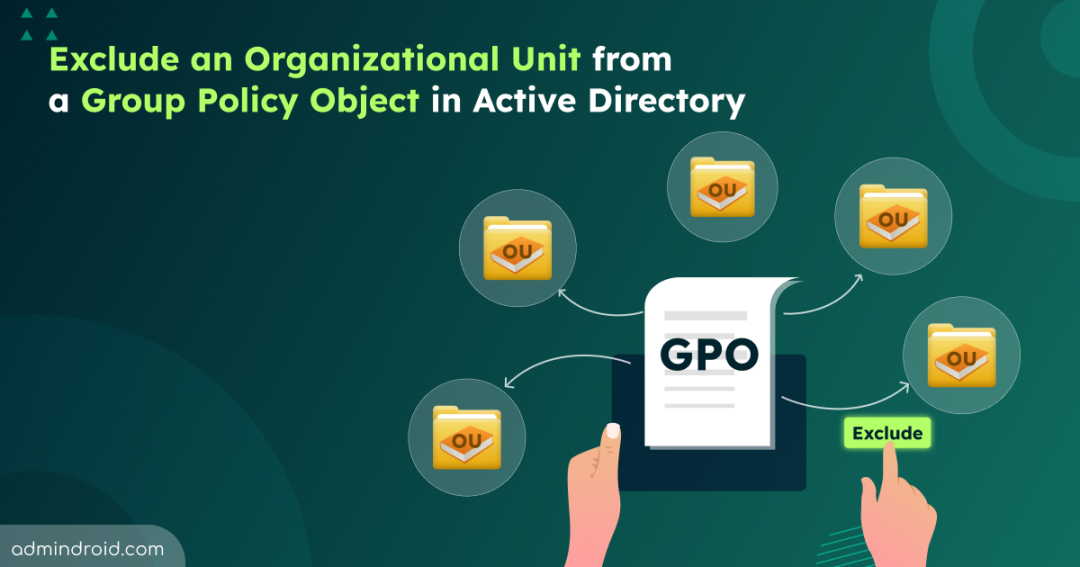
Group Policy is one of the Active Directory features that an admin works with the most. It is the mechanism through which settings are enforced, security is standardized, and domains stay manageable as they grow. On paper, creating Group Policy Objects (GPO) seems to involve just three steps: define the rules, apply them to the required objects, and move on. But in reality, it rarely works that way. A legacy system cannot handle the new setting. A pilot group or test OUs needs flexibility to validate changes. Admin accounts shouldn’t be treated the same way as everyone else.
This is where the real problem appears. You need the GPO applied across the domain, but you also need a clean way to keep it away from a few specific objects. Not because the GPO itself is flawed, but because the Active Directory environment is not uniform and never will be. That is the problem this blog focuses on. Let’s walk through the supported ways to exclude specific OUs from GPOs in Active Directory to handle real-world exceptions.
How Group Policy Objects Work in Active Directory
A Group Policy Object is a collection of policy settings that control how systems behave and how users interact with their devices. To understand how GPOs work, it’s important to recognize that each GPO contains two configuration sections: Computer Configuration and User Configuration. This separation allows admins to control system and user behavior independently, even within the same policy.
Computer configuration settings apply when a system starts, while user configuration settings apply when a user signs in. By default, Group Policy refreshes automatically in the background every 90 minutes, with a random offset of up to 30 minutes added to the refresh interval to prevent all GPOs from refreshing at the same time.
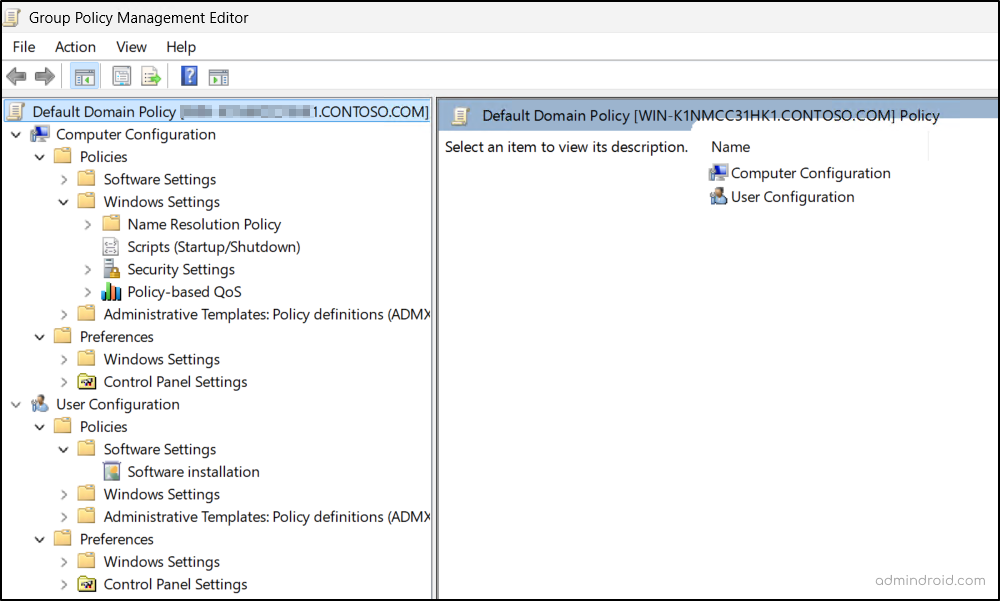
Once created, a GPO must be applied to a scope. In Active Directory, GPOs can be linked at the site, domain, or organizational unit (OU) level. When a GPO is linked to one of these containers, it is automatically applied to all users and computers within that container.
This inheritance model is what makes Group Policy powerful. Policies are applied automatically as objects are added, moved, or removed within Active Directory, ensuring consistent configuration without manual intervention.
At the same time, this same model is what makes exceptions unavoidable in an Active Directory domain. Not every system, user, or OU should be treated the same. As a result, admins often need to intentionally prevent certain GPOs from applying to specific Organizational Units (OUs).
Why You Need to Exclude Organizational Units from GPO in Active Directory
By this point, you understand how GPOs are processed in Active Directory. With that context, it becomes clear why admins purposefully make GPOs not apply to certain OUs. Below are some of the most common and valid reasons admins deliberately exclude OUs from Group Policy Objects.
Granular Control: Different roles require different policies. Applying the same GPO to all OUs breaks best practices, especially for admin accounts, which need stricter security. Excluding admin OUs from general user GPOs and applying hardened policies is essential.
Special-Purpose OUs: Some OUs exist for very specific functions, like service account OUs, Domain Controller OUs, etc. Enforcing general GPOs can break or disrupt services. In these cases, exclusion is necessary to protect stability and reliability.
Pilot OUs: Every well-managed environment needs safe place to experiment changes. Pilot Organizational Units in Active Directory allow safe testing of new GPOs on limited users or devices before full deployment. If they inherit production policies, there’s no controlled way to test changes in a domain.
Quarantine OUs: Many organizations use quarantine OUs to hold inactive users, suspicious accounts, or compromised objects under investigation with highly restrictive policies. Allowing standard GPOs to apply can grant access to the domain, defeating the purpose of quarantine.
Emergency Accounts: Break-glass accounts are designed to bypass certain controls and ensure access during emergencies. Applying standard GPOs to these accounts can unintentionally block them when they are needed most. For this reason, break-glass accounts are placed in a dedicated OU and excluded from selected GPOs.
Legacy Systems and Application Compatibility: Older operating systems and legacy applications often do not behave well with modern security or hardening policies. Rather than weakening security across the entire domain, admins isolate these systems in a dedicated OU and exclude them from incompatible GPOs.
Temporary Operational Exceptions: Not all exclusions are permanent in Active Directory. In some scenarios, like migrations, incident response, or troubleshooting, admins may need to exclude an OU temporarily to stabilize the environment.
With the reasons clear, let’s move on to the practical methods for excluding an OU from a GPO in Active Directory.
Prerequisites to Exclude a Group Policy from Applying to an OU
Before configuring any method to exclude an OU from a GPO, ensure the following prerequisites are met:
- You need access to a domain controller or a workstation/member server with Group Policy management tools installed. On workstations, this is done by installing RSAT: Group Policy Management Tools. On servers, the Group Policy Management feature can be installed through ‘Server Manager’.
- By default, members of the Domain Admins or Enterprise Admins groups have the required permissions. Otherwise, you must be explicitly delegated permission to edit GPOs or modify Organizational Units.
How to Exclude a GPO from Applying to an OU in Active Directory
There are multiple ways to control whether a GPO applies to objects within an OU. Each approach comes with its own pros and cons, so choosing the right one depends on the situation. Below are the commonly used methods to exclude an OU from GPO application.
- Break Group Policy inheritance
- Delegate GPO to exclude an OU
- Override Group Policy Objects
- Apply WMI filters for the GPO
- Enable item-level targeting
1. Block Group Policy Inheritance in Active Directory
Breaking inheritance in AD is the most direct way to prevent higher-level GPOs from applying to a specific OU. Once inheritance is blocked, the OU stops processing any GPOs linked at the site, domain, or parent OU level. Only GPOs explicitly linked to that OU and GPOs enforced at the higher levels continue to apply. This makes the method useful when an OU needs to operate independently from the broader policy structure.
How to Break Inheritance in an Organizational Unit
Blocking Group Policy Object inheritance is the easiest method and can be done directly from Group Policy Management console. Follow the steps below to block GPO inheritance on an OU.
- Open Server Manager and navigate to Tools → Group Policy Management.
- Expand the forest and your domain, then locate the OU you want to exclude from GPO.
- If you want to exclude a child OU from GPO, expand the parent OU and locate it.
- Right-click the OU and select Block Inheritance to disable group policy inheritance.

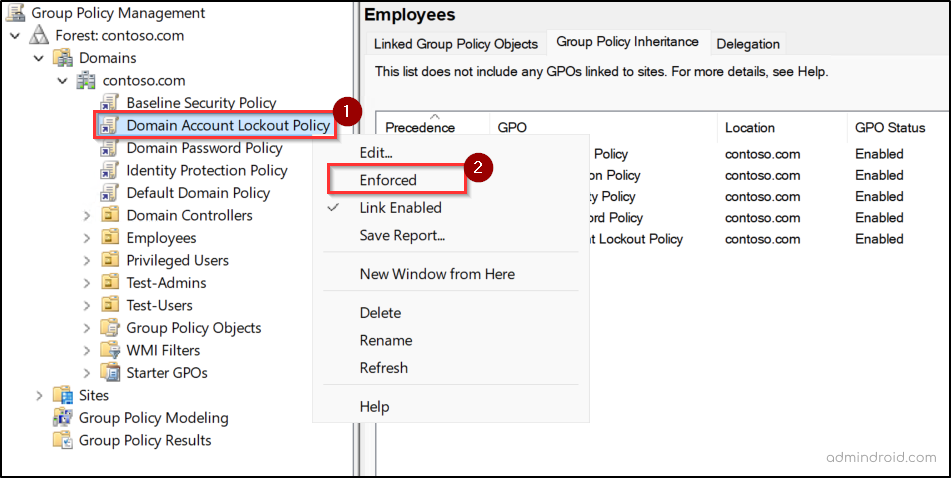
This change takes effect immediately on the OU. You can validate it by selecting the OU and reviewing the linked GPOs in the Group Policy Inheritance tab in the right pane.
After blocking inheritance, you may still see some policies listed as applying to the OU. This is expected behavior when higher-level GPOs are marked as Enforced (No Override) in Active Directory. Even when inheritance is blocked, enforced GPOs at higher levels will continue to apply. The Enforced (No Override) and Block Inheritance options cannot be configured on local GPOs.
Key Limitations of Blocking Group Policy Inheritance on OU
While simple, blocking inheritance is an all-or-nothing approach and comes with important limitations.
- All GPOs are blocked: Blocking inheritance prevents every GPO linked at higher levels, such as the site or domain, from applying to an OU. As a result, admins often need to re-link required GPOs directly at the OU level, which can become time-consuming and harder to maintain.
- Impact on child OUs: When inheritance is blocked on a parent OU, all child OUs beneath it also stop inheriting higher-level GPOs. However, any GPOs linked directly to the parent OU will still apply to its child OUs unless inheritance is blocked at the child level as well.
Because of these limitations, block inheritance is best suited for OUs that are intentionally isolated, such as test environments or containers with tightly controlled configurations.
2. Exclude an OU from a GPO Using Delegation
Delegation is often overlooked when excluding an OU from a GPO because it is commonly associated only with managing who can edit or manage a GPO. However, delegation can also be used to control which users or computers are allowed to apply a GPO.
This approach works by denying the “Apply Group Policy” permission to a user or security group. When Group Policy is processed, any object that has an explicit Deny permission for Apply Group Policy will not receive the GPO. This makes delegation one of the most commonly used methods to exclude users or computers from a GPO. The same concept can be extended to exclude an entire OU from group policy.
This method overrides other scope-based settings, meaning that objects denied Apply Group Policy will not receive the GPO even if they are included through inheritance or direct links.
Block GPO from Applying to Specific OU Using Delegation in Active Directory
Before proceeding, create a security group in your domain to represent all objects in the desired OU you want to exclude.
|
1 2 3 4 5 6 7 8 9 10 11 12 13 14 |
$DesiredGroupName = "<DesiredGroupName>" $OUPath = "<OUPath>" $OUUsers = Get-ADUser -Filter * -SearchBase $OUPath $GroupMembers = Get-ADGroupMember -Identity $DesiredGroupName -Recursive | Where-Object { $_.objectClass -eq 'user' } $OUUsers | Where-Object { $GroupMembers.SamAccountName -notcontains $_.SamAccountName } | ForEach-Object { Add-ADGroupMember -Identity $DesiredGroupName -Members $_ -ErrorAction SilentlyContinue } $GroupMembers | Where-Object { $_.DistinguishedName -notlike "$OUPath" } | ForEach-Object { Remove-ADGroupMember -Identity $DesiredGroupName -Members $_ -Confirm:$false } |
Replace <DesiredGroupName> with the group you created and <OUPath> with the distinguished name of the OU you want to exclude from GPO.
Note: To keep membership updated automatically, schedule this script to run daily or hourly, depending on how often OU membership changes in your environment.
Once the group is created, follow the steps below to apply the delegation-based exclusions.
- Open Group Policy Management console and select the GPO you want to exclude the OU from.
- Go to the Delegation tab and click “Advanced”.
- Click Add and select the security group you created for the OU objects.
- Scroll down to locate Apply Group Policy and check Deny. Then click ‘OK’.
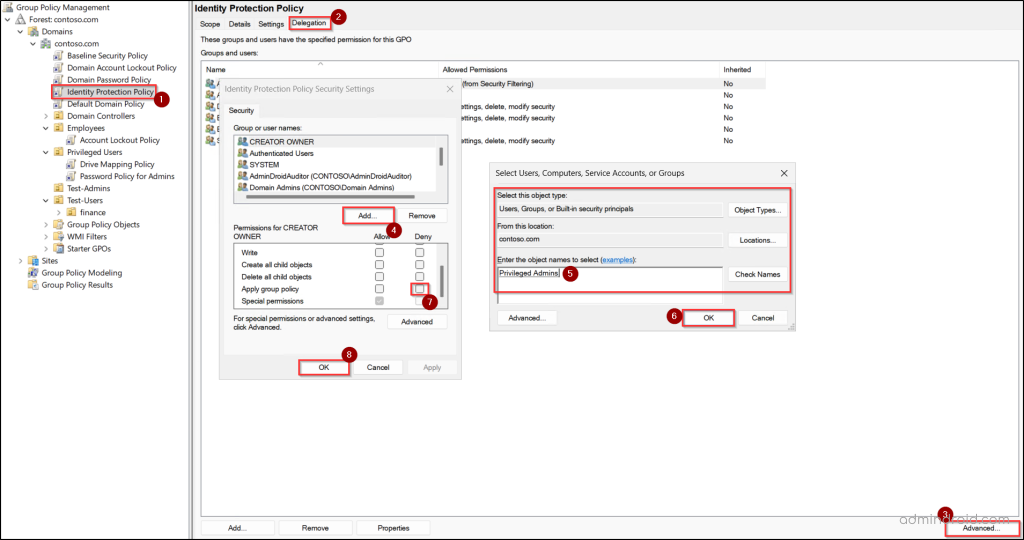
This immediately prevents GPO from applying to all objects in the OU. However, objects added to the OU between script runs may briefly receive the GPO until the next scheduled run.
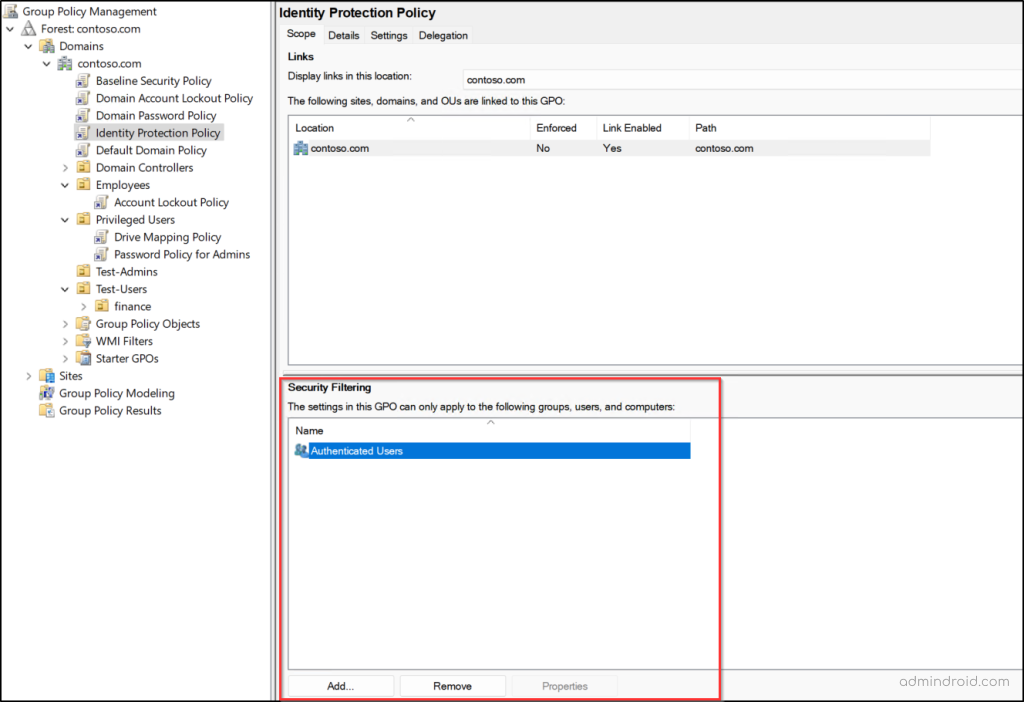
Handy Tip: Instead of blocking one OU (groups, users, or computers) from receiving the GPO, you can also allow only a specific set of objects to receive the settings through delegation.
To do so, go to the respective GPO → Scope → Security Filtering, add the relevant object (security group representing the OU), and remove Authenticated Users.
Limitations and Key Considerations of GPO Delegation
While delegation-based exclusions are powerful, they come with the following limitations.
- Deny always wins: If a user or computer is a member of multiple security groups and any one of them has Deny – Apply Group Policy, the GPO will not apply.
- Maintenance overhead: This method requires ongoing group membership management, either manually or through automation.
- Script timing gap: New objects may briefly receive the GPO before the group sync runs.
- Not OU-native: This does not truly exclude an OU; it excludes objects represented by a group, which can be misleading if not documented properly.
3. Override Group Policy Objects in Active Directory to Exclude OUs
Not every exclusion requires blocking inheritance or filtering scope. In some cases, administrators exclude an OU from a GPO by overriding its settings at a lower level. This method relies on GPO precedence, the order in which Group Policy settings are applied. When multiple GPOs configure the same setting, the one processed last takes precedence and determines the final result. In Active Directory, policies are processed in this order:
Local → Site → Domain → OU
That means a GPO linked directly to an OU can override conflicting settings from GPOs linked at the domain, site, or parent OU level.
Override a GPO for a Specific OU
To override a higher-level GPO for a specific OU, first identify the settings in the higher-level GPO that you do not want to apply to the OU. Then follow the steps below.
- Open the Group Policy Management snap-in.
- Right-click the target OU and select ‘Create a GPO in this domain, and Link it here’.
- Give the new GPO a clear, descriptive name and click OK.
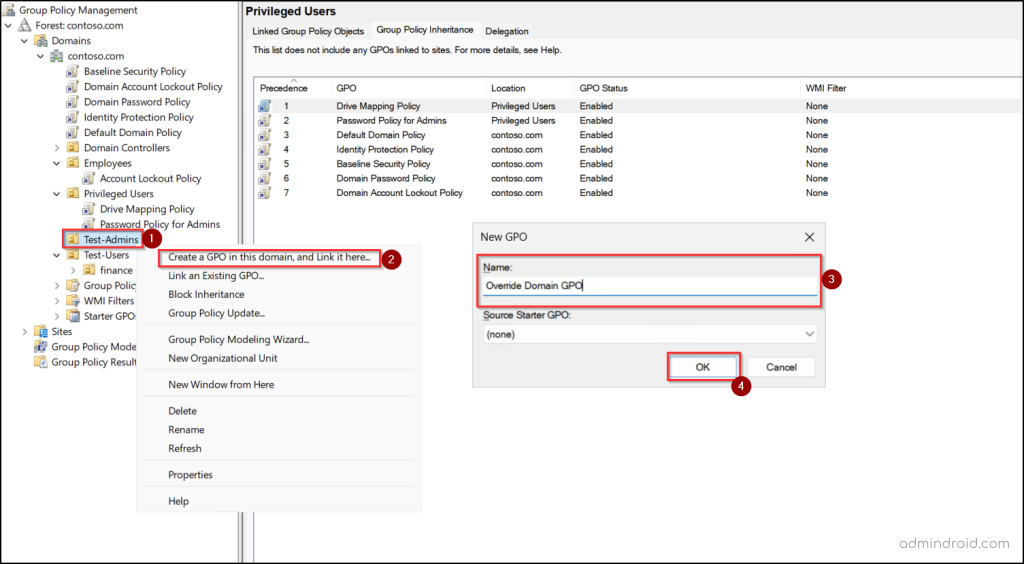
- Right-click the new GPO and select Edit.
- Configure the settings to counteract the higher-level GPO (for example, disable settings that are enabled at the higher level).
Once applied, the OU-level GPO takes precedence and overrides the conflicting settings from higher levels.
Important Constraints to Understand
Overriding GPOs can be simple, but they introduce important constraints that must be carefully considered in Active Directory environments.
- Untouched settings still apply: If a setting is not reconfigured in the OU-level GPO, the higher-level setting continues to apply.
- Enforced GPO overrides: If the higher-level GPO is marked as Enforced, its settings will apply regardless of OU-level overrides.
- Increase complexity: Over time, multiple override GPOs can make policy behavior harder to understand, troubleshoot, and maintain.
Overall, override-based exclusion is not a replacement for true exclusion methods, but a practical alternative in controlled scenarios.
4. Use WMI Filters to Exclude a Computer OU from a GPO
In many Active Directory environments, certain OUs are dedicated exclusively to computer objects, such as kiosk machines, servers, or special-purpose systems. In scenarios where you want to prevent a GPO from applying computer configurations to those computers, WMI filtering can be used as a conditional control mechanism.
Windows Management Instrumentation (WMI) filtering is another supported way to control where a GPO applies, but it works very differently from inheritance-based methods. Instead of stopping GPO inheritance at the OU level, WMI filters evaluate conditions during policy processing. The WMI filter uses Windows Query Language (WQL) to dynamically target computer objects. If the query evaluates to true, the GPO applies to the object. If it evaluates to false, the GPO is skipped.
This makes WMI filtering useful when you want to exclude a specific OU without blocking inheritance. However, there is an important constraint to remember that a single GPO can use only one WMI-based condition at a time.
Create a WMI Filter in Active Directory
To exclude a computer OU using WMI filtering, you first need to create the filter in Group Policy Management.
- Open the Group Policy Management console.
- In the left pane, right-click WMI Filters and select ‘New’.
- Enter a name and an optional description for the filter.
- Click Add, choose root\CIMv2 as the Namespace, and enter the following WQL query:
SELECT * FROM RSOP_Session WHERE NOT SOM = ‘<OUPath>’
Replace the with the distinguished name of the OU you want to exclude. - Click OK, then Save.
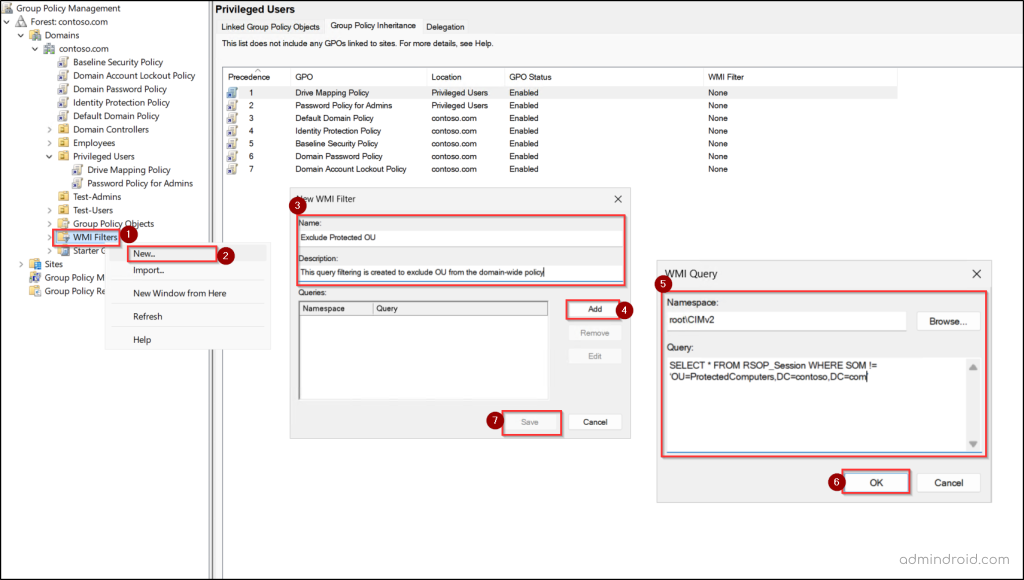
This query ensures that all computers in the specific OU do not receive the GPO.
Link the WMI Filter to the GPO
Once the WMI filter is created, it must be linked to the GPO you want to control.
- Select the target GPO in the Group Policy Management console.
- In the right pane, open the Scope tab.
- At the bottom of the page, locate the WMI Filtering section.
- Click the “This GPO is linked to the following WMI filter” input field and select the WMI filter you created.
- Click Yes to confirm the association.
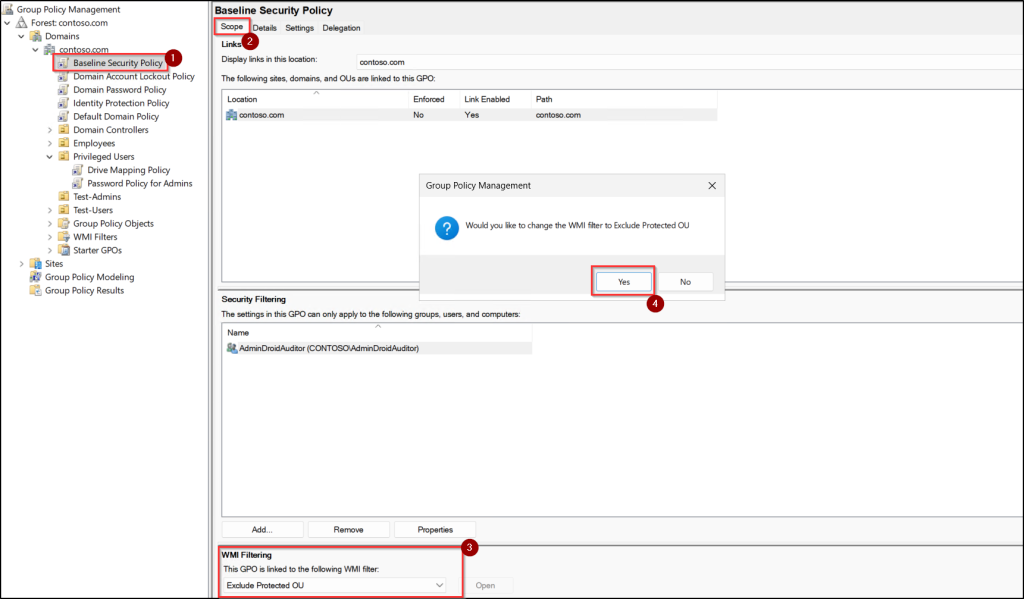
After this, the GPO will no longer affect objects that match the exclusion logic defined in the WMI query.
Key Considerations and Limitations of WMI Filtering
Although WMI filtering provides flexibility, it’s not always the best choice in Active Directory due to the following reasons.
- Processing overhead: Because WMI queries are evaluated on every policy refresh, they introduce additional processing during logon and background updates.
- Does not control user-side policy application: WMI filters are evaluated only on the computer, not the user. If a GPO contains user configuration settings, those settings will still apply to users.
- Single WMI Filter per GPO: A GPO can be linked to only one WMI filter. While a single WMI filter can technically contain multiple queries, all of them are evaluated using AND logic. Stacking multiple queries in one filter quickly reduces readability, complicates troubleshooting, and is generally not recommended for long-term maintainability.
- Lack of visibility: WMI-based exclusions are not immediately obvious when reviewing a GPO. This makes clear documentation essential, especially in domains with multiple admins.
5. Exclude an OU Using Item-Level Targeting in Group Policy
Not every GPO setting needs to behave like a strictly enforced policy. In many cases, admins use Group Policy Preferences instead of traditional policy settings. This opens the door to a more flexible GPO exclusion method: Item-Level Targeting.
Group Policy Preferences are additional configuration options that go beyond standard policy settings. Common examples include mapping network drives, setting a default homepage, creating scheduled tasks, or configuring registry values that users are still allowed to change.
The key difference between policy and preference lies in enforcement. When a policy setting is applied to a domain, users cannot change it. When the same setting is applied as a preference, Windows treats it as a remembered configuration. Users can modify it, and their changes remain until the next Group Policy refresh.
When your requirement involves preferences rather than enforced policies, Item-Level Targeting provides a clean and precise way to exclude specific OUs. Multiple targeting conditions can be combined using logical operators, making this method highly flexible.
Apply Item-Level Targeting to Exclude an OU
To exclude an OU using Item-Level Targeting, follow these steps:
- Open the Group Policy Management console.
- Right-click the GPO that contains the preference settings and select Edit.
- Navigate to the relevant Preferences section under either Computer Configuration or User Configuration, depending on your setup.
- Locate the preference item you want to control, right-click it, and select Properties.
- Go to the ‘Common’ tab and check Item-level targeting, then click ‘Targeting’.
- Click New Item and choose Organizational Unit.

- Click Item Options and select Is Not.
- Use the ellipses (…) associated with the Organizational Unit field to browse and select the OU you want to exclude.
- Choose ‘User in OU’ or ‘Computer in OU’, based on the configuration type.
- Select Direct member only if you want the exclusion to apply strictly to that OU. Leave it unchecked if child OUs should also be included.
- You can click New Item again and follow the steps above to add multiple OUs to the filter.
- Click OK, then Apply, and finally OK again to save the changes.
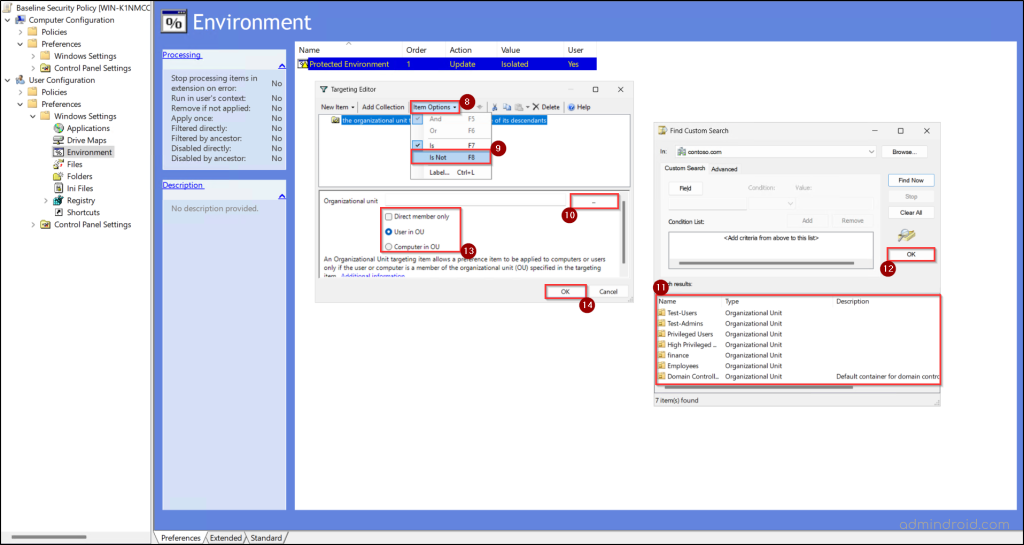
After this, the selected preference item will no longer apply to objects in the excluded OU.
Important Limitations of Item-level Targeting
Item-level targeting provides granular control, but it comes with practical limitations that admins should understand before relying on it.
- Works only with Group Policy Preferences: Item-level targeting applies exclusively to Group Policy Preferences and cannot be used with standard policy settings.
- Increase workload: Each preference item must be configured and targeted individually, which increases administrative effort.
- Harder to troubleshoot: Complex targeting conditions can become difficult to understand and troubleshoot if not clearly documented.
Points to Remember When Working with Group Policy in Active Directory
Here are a few things that will be helpful while excluding an OU from a GPO in Active Directory.
- After updating a GPO, always force a policy update using gpupdate /force in the command prompt to ensure the latest settings are applied immediately.
- You can troubleshoot GPOs with the Group Policy Results Wizard, which shows applied and denied policies for a specific user and computer, including the winning GPO and denial reasons.
- Use gpresult /r in the command prompt to quickly verify which GPOs are applied to the signed-in user and the logged-in computer. For specific user, you can use the following cmdlet.
|
1 |
gpresult /r /user <DOMAIN NAME\username> |
- For a detailed report, run gpresult /h result.html from the command prompt.
- Always review Security Filtering and WMI Filtering on the GPO before assuming inheritance-related issues. Because both operate at the object level and can prevent the GPO from applying even when inheritance is configured correctly.
- When both Security Filtering and a WMI filter are applied to the same GPO, Security Filtering is evaluated first. Only computer objects that pass Security Filtering are then evaluated by the WMI filter.
- If multiple GPOs are linked at the same level, check the Link Order in Group Policy Management. The GPO with the highest link order number has the highest precedence because it is processed last.
- Document the changes and exceptions properly to avoid confusion as the number of GPOs grows over time.
Overall, excluding an OU from a GPO isn’t about avoiding policy, it’s about applying it with intent. Active Directory offers multiple ways to handle exceptions, and choosing the right method depends on what you’re trying to control and why. When exclusions are deliberate and documented, GPO behavior stays predictable and manageable.
If you have any doubts or comments, feel free to share them in the comments. We’d love to hear how you handle OU exclusions in your environment.