Organizations don’t stick to a single Microsoft tenant for long. A new project needs one, a team spins one up for testing, or something comes in through an acquisition and suddenly, there are multiple tenants in play.
Of these tenants, the riskiest ones are the ones you didn’t create – “shadow IT” tenants. These tenants often run without basic security: no MFA, no Conditional Access, no policies, nothing keeping them in check. That’s where the real problem starts.
Microsoft Entra Tenant Governance is built to fix this. It brings all your tenants into one view, making management simple. In this blog, let’s take a quick look at what it offers.
What is Microsoft Entra Tenant Governance?
Microsoft Entra Tenant Governance provides a clear view of all your tenants and helps you maintain consistent security and compliance across them. This includes:
- Tenants you actively manage
- Shadow IT tenants that introduce security risks
- New tenants created by users for projects or testing
With this, you can handle tenant sprawl, manage mergers and acquisitions, navigate complex partner scenarios, and simplify cross-tenant administration. This feature is currently in public preview.
Where to access it:
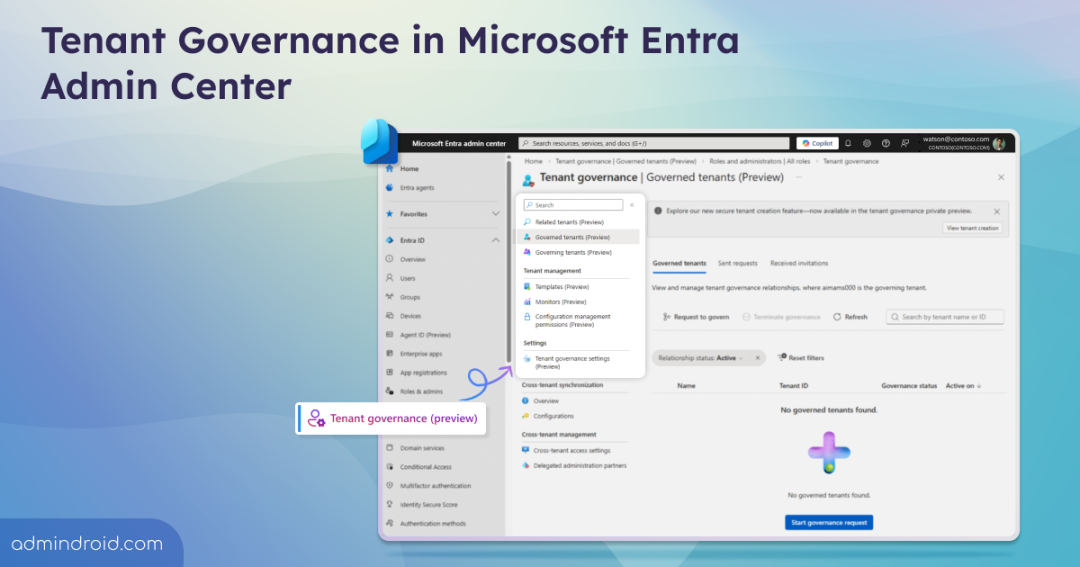
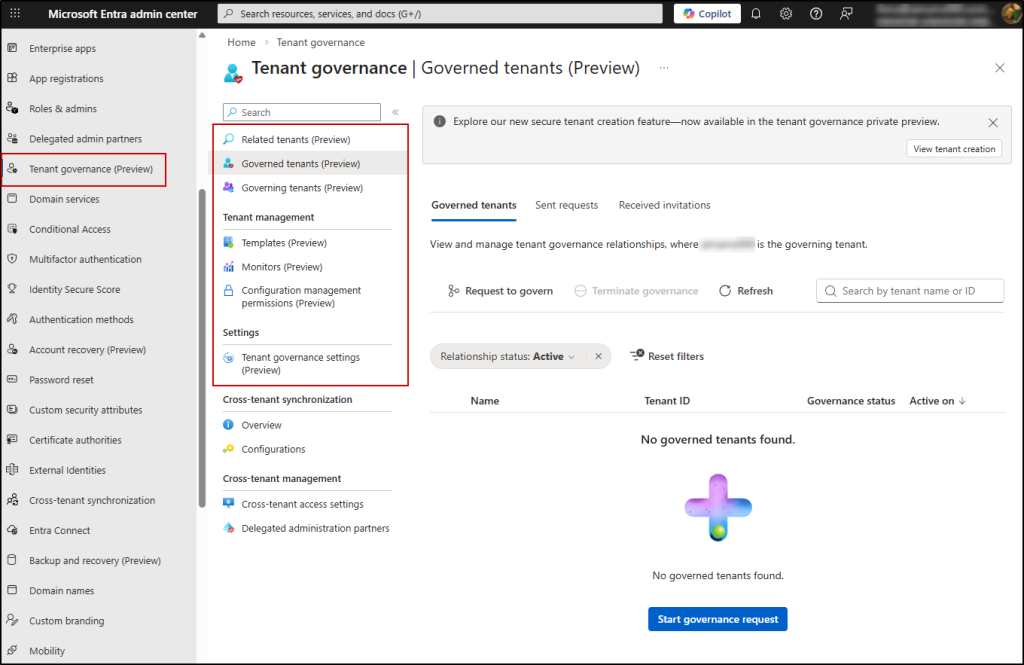
You can access Microsoft Entra Tenant Governance from the Microsoft Entra admin center → Entra ID → Tenant governance (Preview).
Note: To set up Tenant Governance, you need the Tenant Governance Administrator role.
What Comes with Microsoft Entra Tenant Governance?
Microsoft Entra Tenant Governance brings together a set of capabilities that help you discover, manage, and secure multiple tenants from one place. It is organized into the following key areas:
- Related tenants
- Governed and Governing tenants
- Tenant governance settings
- Configuration management permissions
- Secure tenant creation
Related Tenants
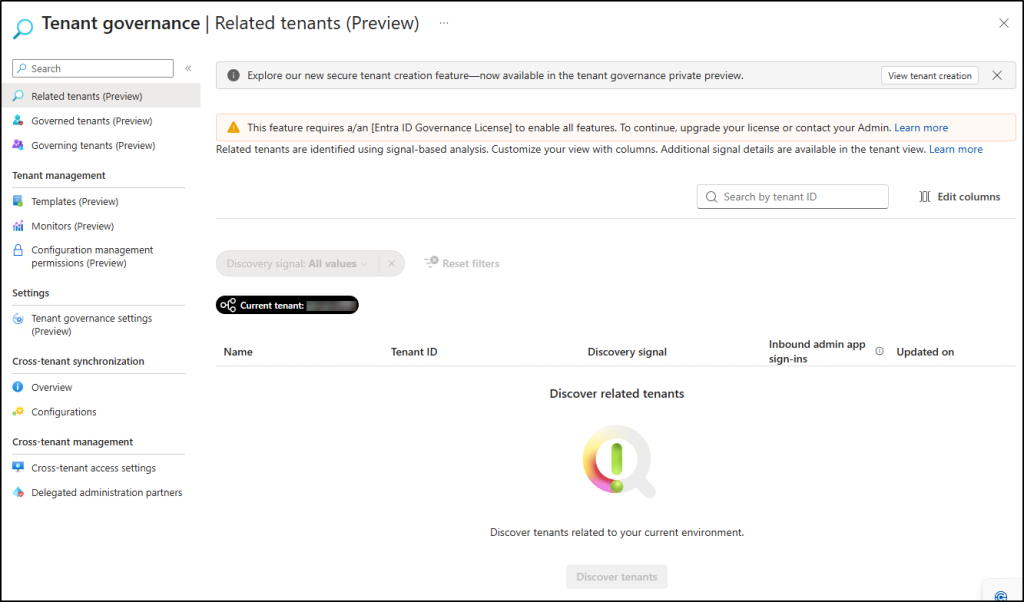
The Related tenants page helps you discover and manage tenants connected to your environment using signal-based analysis. It lets you:
- Identify tenants linked to your organization based on signals like B2B access, multi-tenant apps, and billing relationships.
- Drill down into each tenant to get additional signal details and understand the level of interaction or risk.
Note: Related tenants can only be viewed with an Entra ID Governance license.
Governed Tenants
In Microsoft Entra Tenant Governance, a governance relationship is a directional connection between two tenants — one tenant (the governing tenant) takes administrative oversight over another tenant (the governed tenant). This relationship is established by mutual agreement between tenant administrators.
Let’s take an example: imagine your organization is Zava. With governance relationships in place, Zava becomes the governing tenant.
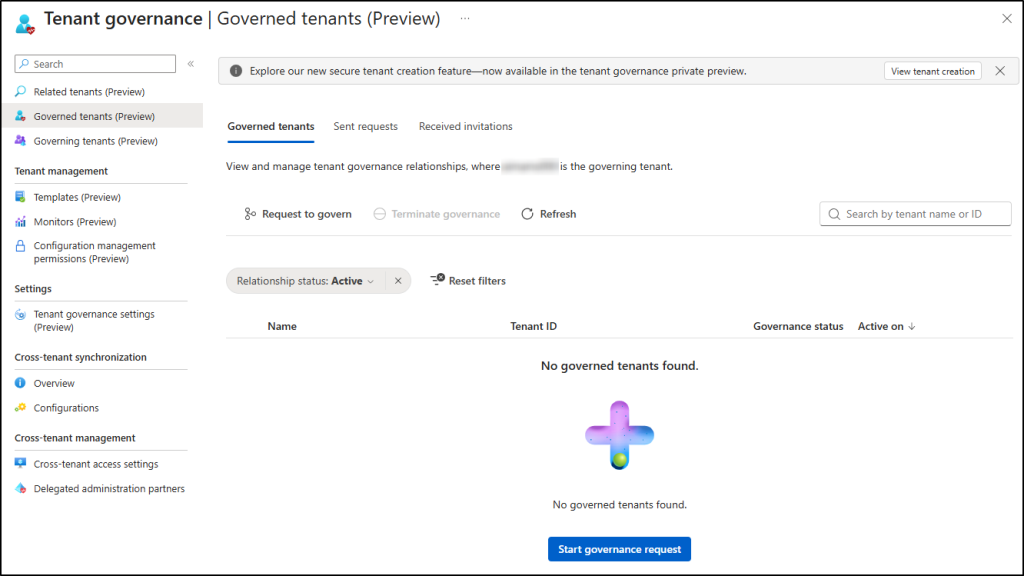
On this Governed Tenants page, you can:
- View and manage tenants that Zava governs. You can also request to govern a tenant by selecting the tenant, applying a governance policy template, and completing the request.
- The Sent Requests page lets you view and manage governance requests that Zava has sent to other tenants.
- From the Received Invitations page, you can view governance invitations from other tenants.
Governing Tenants
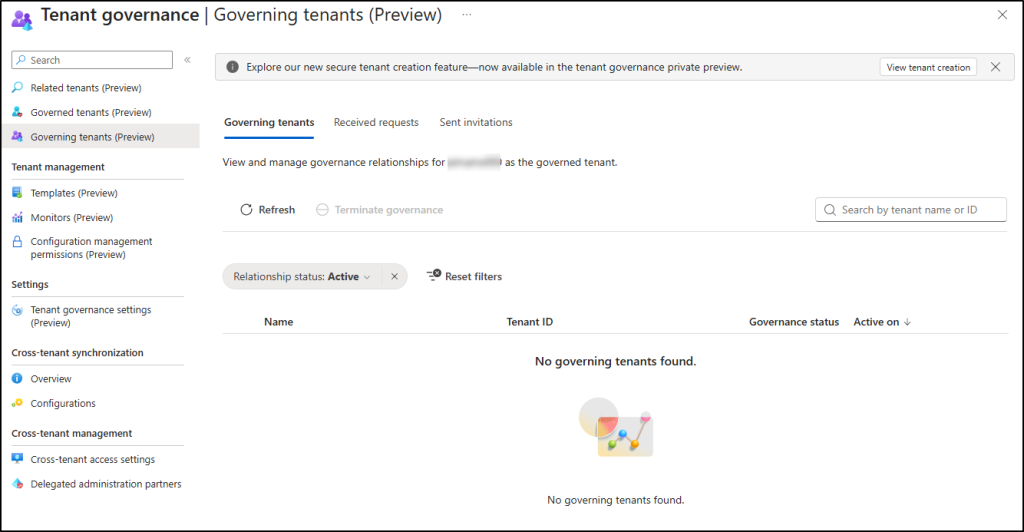
On this page, you can view and manage tenants that govern Zava.
- Received Requests: See requests from other tenants. Select a request to review its details and either accept or reject it.
- Sent Invitations: View and send invitations to allow another tenant to govern Zava.
Tenant Governance Settings
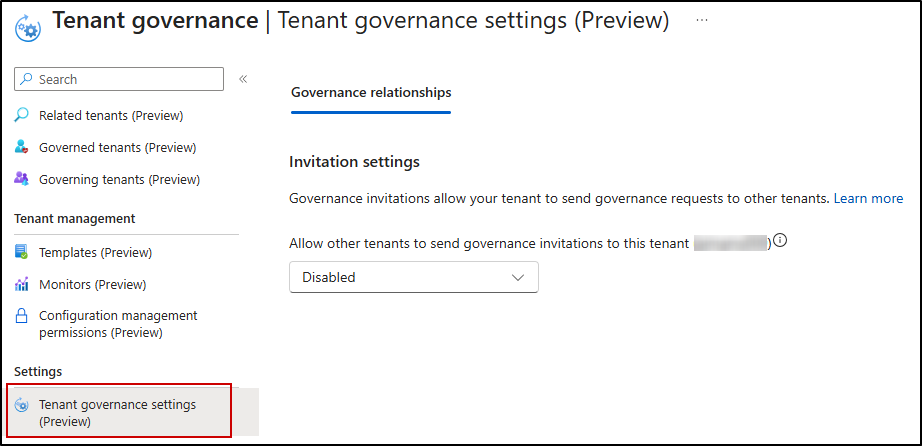
The Tenant Governance Settings page controls how your tenant participates in governance relationships. Once you’ve identified a tenant that needs governing, you send a formal governance invitation.
Under Governance Relationships, the Invitation Settings section has one key toggle: whether to allow other tenants to send governance invitations to your tenant. By default, this is disabled — meaning your tenant won’t receive any incoming governance requests unless you explicitly turn it on.
When enabled, other tenants can send your tenant a governance invitation, which then unlocks the ability for your tenant to subsequently send governance requests back.
Configuration Management Permissions
Configuration management lets you keep an eye on the setup of all your tenants from a single, unified view. You define a configuration baseline in JSON, showing how you want your resources to be set up. Then you create a Monitor that automatically checks every 6 hours if the actual setup matches your JSON configuration baseline.
If anything is off, it’s flagged as a configuration drift, giving your team a clear view of compliance across all governed tenants. This works for Entra ID, Intune, Exchange Online, Teams, Purview, and Defender — over 200 resource types in total.
Before you start monitoring, you need to do a one-time setup on the Configuration Management Permissions page:
- Application Permissions – Give the configuration management service the API permissions it needs to check resources in Intune, and Entra. For example, to monitor conditional access policies, the configuration management service needs the Policy.Read.All application permission.
- Entra Roles – Since Microsoft Teams doesn’t support granular app permissions, you need to assign the Teams Reader role. This allows the configuration management service to monitor Teams resources across your tenants.
- Exchange, Security, and Compliance (Purview and Defender) – Assign permissions locally within the admin interfaces of those services.
Once this is done, you can use the Monitors page to manage monitoring across tenants and the Templates page to create reusable Governance Policy Templates.
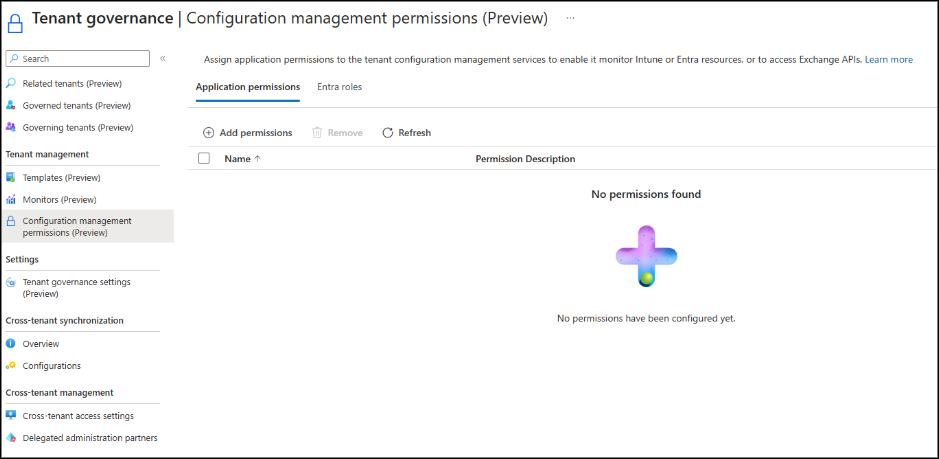
Together, Unified Tenant Configuration Management and Tenant Governance create a convenient solution to manage configurations across multiple Microsoft 365 tenants.
Secure Tenant Creation
Secure tenant creation helps manage who can create new add-on tenants, set up governance relationships automatically, and maintain admin access.
This option appears as a banner on the Related Tenants, Governed Tenants, and Governing Tenants pages via the View Tenant Creation button.

When creating a new tenant, the Create a New Tenant wizard guides you through a simple form:
- Tenant Name – Enter the name for the new tenant.
- Domain Name – Auto-generates as <domainname>.onmicrosoft.com.
- Country/Region – Determines where Microsoft Entra stores your directory data.
- Subscription & Resource Group – Link the new tenant to an existing subscription and resource group.
Once filled in, you review and create the tenant.
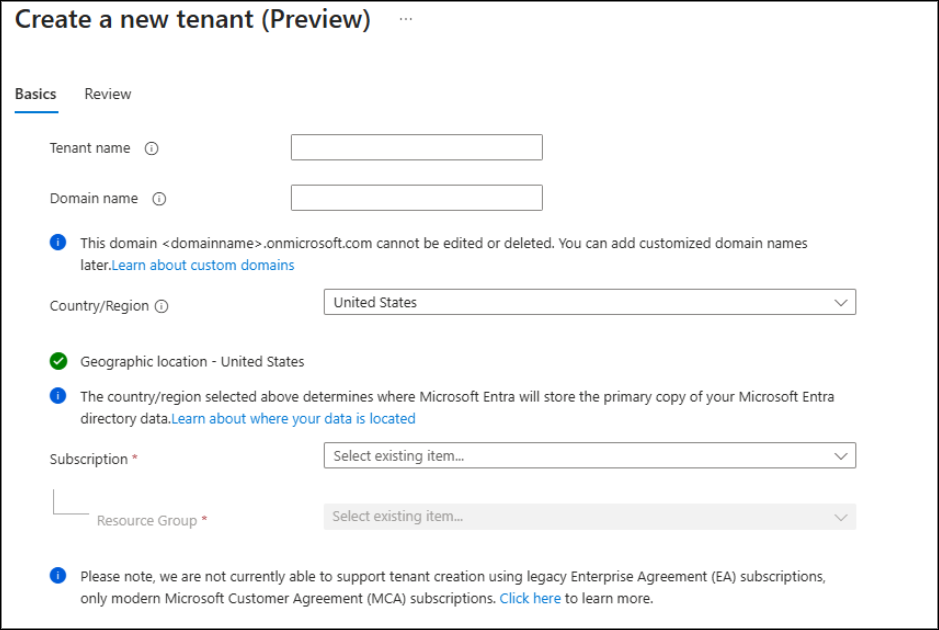
After creation, the governance relationship is automatically established.
License Requirements for Microsoft Entra Tenant Governance
Access to Tenant Governance features varies based on your Entra license, as shown in the table below:
| Category & Capability | Free | Entra P1 / P2 (Basic) | Entra ID Governance (Premium) |
| Configuration Management – Drift monitoring | ❌ | ✅ Up to 30 monitors, 800 resources/day | ✅ Up to 30 monitors, 800 resources/day |
| Configuration Management – Snapshots | ❌ | ✅ Up to 20,000 resources/month, 12 active snapshot jobs | ✅ Up to 20,000 resources/month, 12 active snapshot jobs |
| Governance Relationships – Cross-tenant access (GDAP) | ❌ | ✅ | ✅ |
| Governance Relationships – Custom multi-tenant app governance | ❌ | ❌ | ✅ |
| Related Tenants – Discover related tenants (B2B, apps, billing) | ❌ | ❌ | ✅ |
| Secure Tenant Creation – Create tenant with governance setup | ✅ | ✅ | ✅ |
This wraps up a brief overview of Microsoft Entra Tenant Governance. As the feature is in public preview, expect additional improvements before general availability. Thanks for reading. Share your questions or insights in the comments below.