Microsoft Teams has become the go-to collaboration platform for organizations worldwide. With millions of messages and calls happening daily, it’s no surprise that security concerns pop up regularly.
To help users address potential threats, Microsoft already introduced features to report calls and flag messages. These user-initiated reports help identify potential malicious activity and strengthen your organization’s security posture.
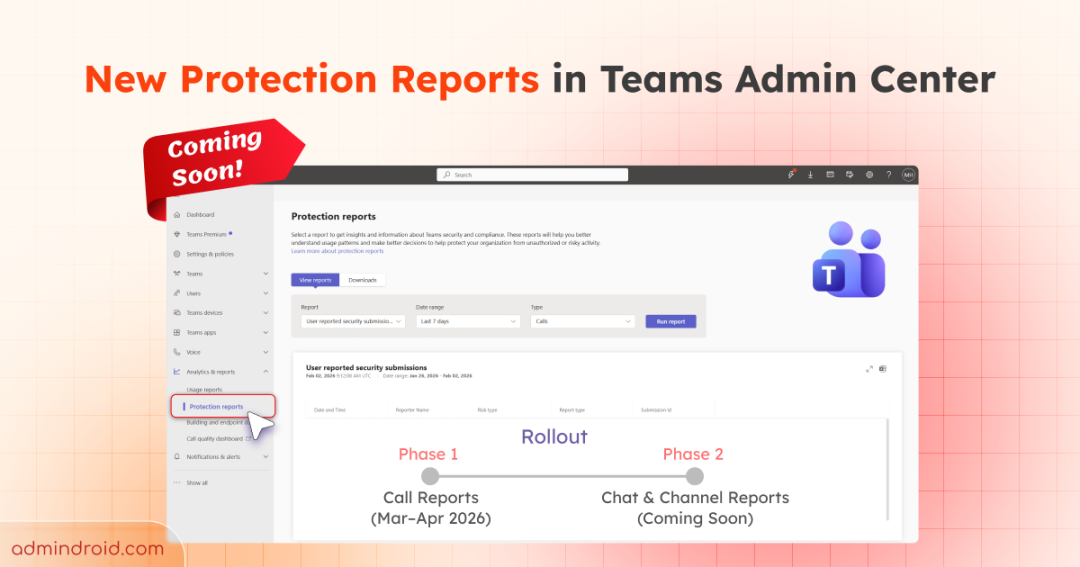
Now, for monitoring those issues submitted by users, Microsoft is introducing a centralized Protection reports in the Teams admin center. In this blog, we will take a quick look at what’s new, how to access it, and what you need to do to prepare.
New Protection Reports in Teams Admin Center
The new Protection reports in Teams admin center allow admins to review and export user-reported security submissions directly from one centralized location. This includes reports from user-reported:
- Calls
- Chats
- Channels
Microsoft has planned a phased rollout for this feature, and the rollout timeline is as below:
| Phase | Feature | Rollout Timeline |
| Phase 1 | User-reported call data | Targeted Release: Mid to late March 2026 General Availability: Mid to late April 2026 |
| Phase 2 | User-reported chats and channels data | Coming soon (Microsoft is yet to announce the rollout timeline) |
Reported interactions will start appearing in the dashboard as soon as users begin submitting reports. Admins can filter and view these reports across three timeframes: 1-day, 7-day, and 30-day windows for better trend analysis.
This change alters how existing customer data is accessed because it surfaces reported calls, messages, and detections for investigation.
Prerequisites
To ensure reporting data is available when the rollout begins, you need to enable user reporting settings in the Teams admin center. This allows users to report calls or messages, ensuring that the reports are populated with relevant data.
Enable Report a Call
- Go to Teams admin center → Settings & policies → Voice → Calling.
- Turn on Report a call.
Note: This feature will be generally available by mid-April and will be enabled by default once available.
Enable Message Reporting
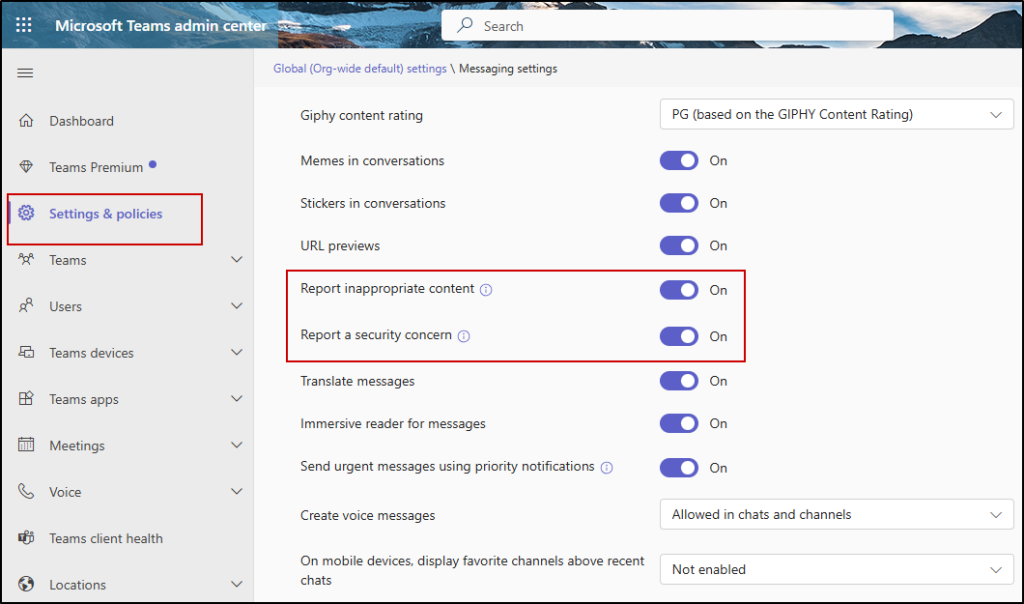
- Go to Teams admin center → Settings & policies.
- Under the Messaging settings, enable “Report inappropriate content” and “Report a security concern”.
3. Under Messaging safety, enable Report incorrect security detections.
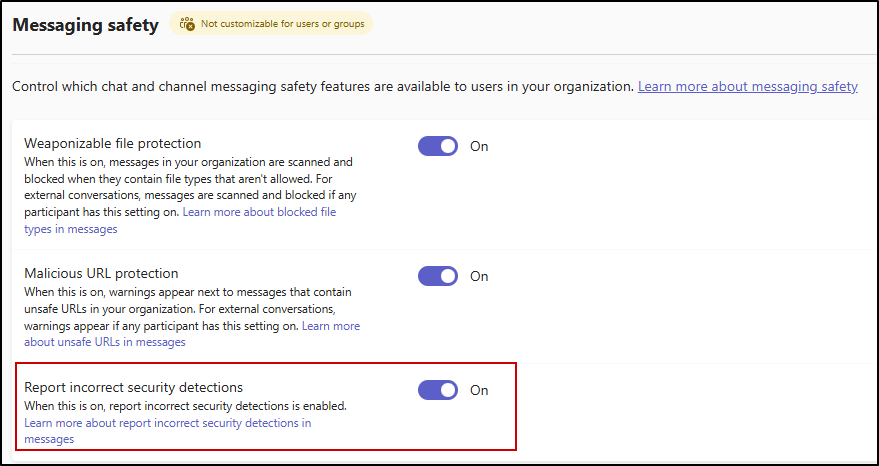
Note: Messaging safety settings were enabled by default starting January 2026.
Where to Access the User-Reported Security Submission Reports
The new Protection reports section is available under Analytics and reports, giving admins unified visibility into user-reported calls, chats, and channels.
To access:
- Open Teams admin center → Analytics and reports.
- Select Protection reports → User-reported security submissions.
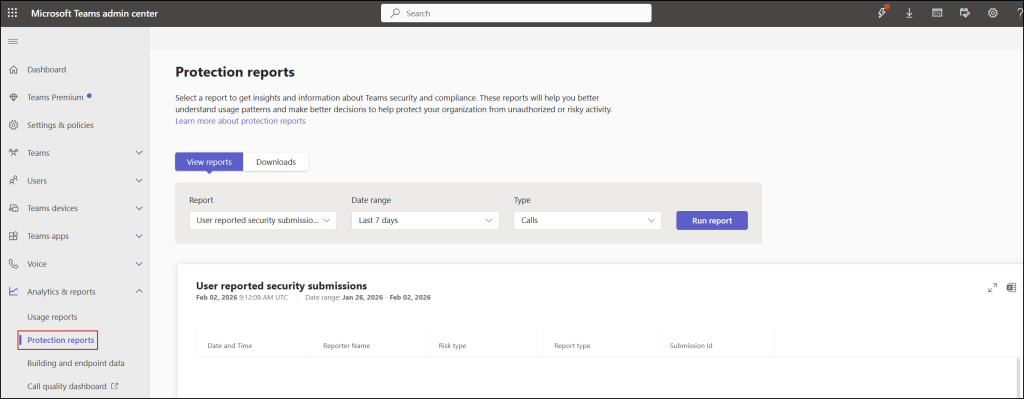
The report includes the following columns:
- Date and time – Shows when the security report was submitted.
- Reporter name – Identifies the user who submitted the report.
- Risk type – Indicates the type of security risk reported.
- Report type – Specifies whether the report relates to a call, chat, or channel.
- Submission ID – Provides a unique identifier for tracking the report.
With these insights, the new Protection reports feature provides Teams’ admins with centralized visibility to effectively monitor and manage security concerns. By enabling the required settings in advance, you’ll be ready to take full advantage of this capability as soon as it becomes available in your tenant.
We hope this blog provided a helpful overview of Protection reports in the Teams Admin Center. Thanks for reading. For any queries, feel free to reach out through the comments section.