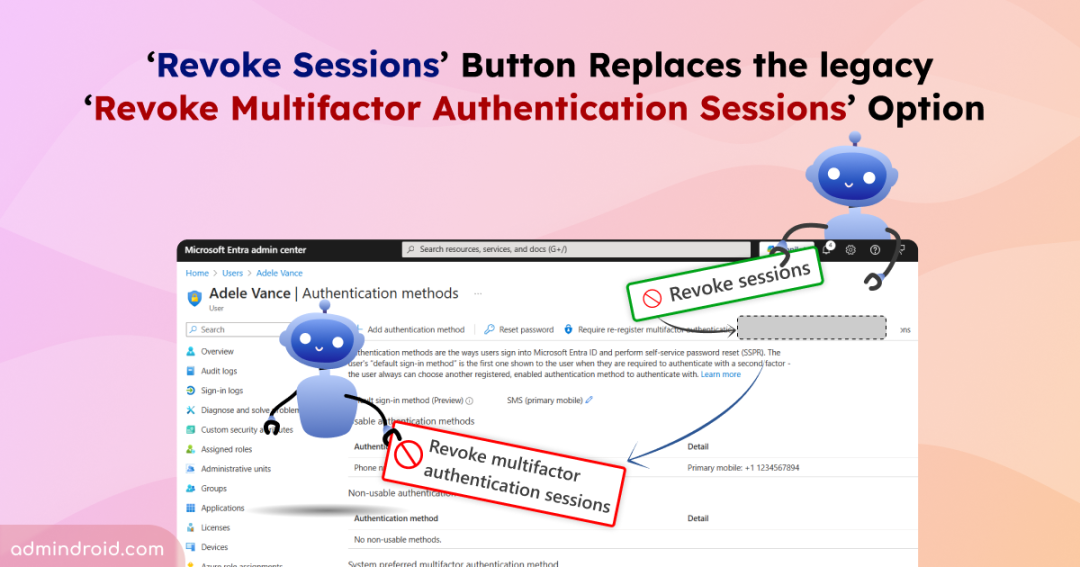
When responding to suspicious MFA sessions, compromised accounts, or device loss, most admins instinctively go for revoking MFA sessions. However, what’s often misunderstood is how this action actually works. The “Revoke MFA sessions” option only clears per-user MFA sessions created through per-user MFA. It does not revoke MFA claims issued through Conditional Access (CA) policies. This distinction has long caused confusion among administrators. 😮
To address this gap, Microsoft is introducing an update to replace the legacy “revoke multifactor session” option with the new “Revoke sessions” button in Entra ID. In this blog, we’ll explore what this update is, when it’s rolling out, and how it impacts identity protection.
An Overview of “Revoke MFA Session” Update in Microsoft Entra ID
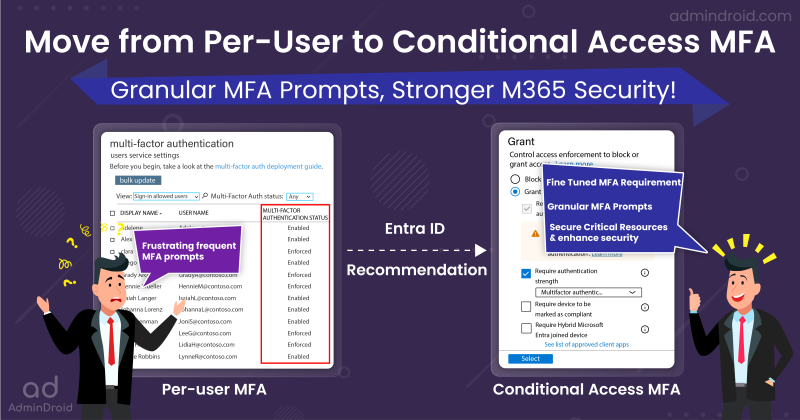
The scope of “Revoke MFA sessions” action in the Microsoft Entra portal is limited. It was built for the older per-user MFA model, where MFA validation lived as a separate session that administrators could explicitly clear.
As Microsoft Entra ID evolved, Conditional Access became the default and recommended mechanism for enforcing MFA. In this model, MFA is no longer tracked as an independent session. Instead, it is enforced as part of the authentication flow and token issuance process. Because of this architectural shift, the legacy Revoke MFA sessions option cannot invalidate MFA enforced through Conditional Access policies.
This limitation is the primary reason Microsoft introduced the Revoke sessions control as a replacement for revoking MFA sessions in modern tenants. This built-in control resets all active user sessions, signing the user out from every device and application. This also removes all MFA sessions, including Conditional Access policies MFA and per-user MFA settings.
With this unified option, admins can sign users out of every active session in one action, offering a more comprehensive and streamlined approach to session security across the organization.
Where to Find the New “Revoke Sessions” Button in Microsoft Entra Admin Center?
You can access the ‘Revoke Sessions’ option in Entra admin center by following the steps below:
- Sign in to the Microsoft Entra admin center.
- From the left pane, go to Entra ID → Users.
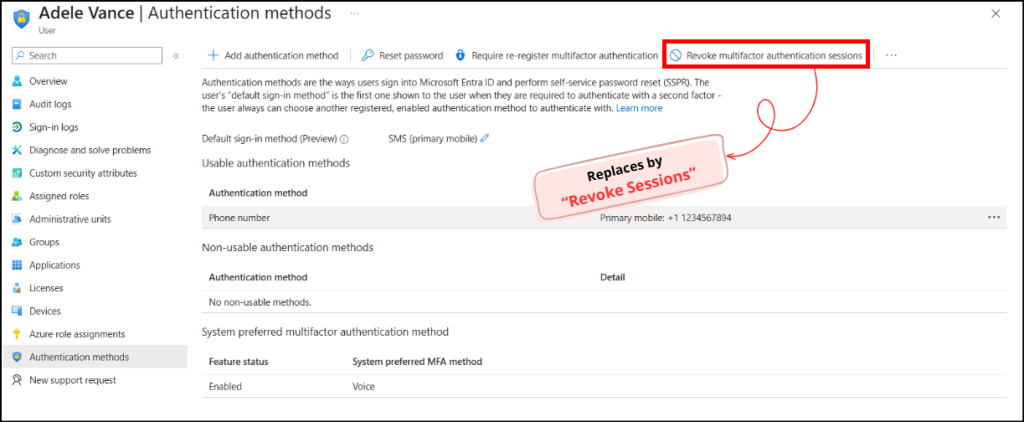
- Select a user account and choose Authentication methods.
- You will see the “Revoke multifactor authentication sessions” option. Once the rollout is complete, you can find the new “Revoke Sessions” on this page.
What You Need to Know About the ‘Revoke MFA Sessions’ Update in Entra ID?
- 🗓️ The rollout of the ‘Revoke Sessions’ button in the Microsoft Entra portal is scheduled to begin in February 2026. Once rolled out, the old “Revoke MFA sessions” button will be removed from the Entra portal and replaced with the new unified option.
- You do not need to perform any setup or configuration. The update will appear automatically as part of Microsoft’s regular rollout process.
Even though this feature is added automatically, it is still important to stay updated on current session practices and understand how this improvement affects your environment. This helps strengthen identity protection and ensures your organization is ready for this upcoming change. 😎
And that’s a wrap! We hope this blog helped you understand the update to ‘Revoke Multifactor Authentication Session’ option in Entra ID. If you have any doubts or queries, drop them below. We’d love to hear from you. Stay tuned for more updates and upcoming blogs! 😊