For a long time, Microsoft Teams supported blocking external users only from the Teams admin center, offering limited control for security teams. Key limitations includes:
- Blocking was limited by caps on the number of external users that could be added.
- There was no centralized remediation available in the Defender portal.
- Slower response to phishing, compromised accounts, and risky external chats.
Now, Microsoft allows security teams to block external users directly from the Defender portal using the Tenant Allow/Block List (TABL) feature.
This centralized control enables security teams to act immediately in Defender without waiting for a Teams admin to make changes or switching between portals, ensuring faster, security-first response. Let’s take a closer look at how this update improves external access management!
Why Blocking External Users Directly from Defender Matters?
Microsoft Teams recently added “Chat with anyone” feature which makes external collaboration easy, but it also creates a new attack path. External attackers can appear as legitimate external accounts in Teams to send unsolicited chats, impersonate trusted users, or share malicious links.
While Microsoft Defender can monitor and flag such suspicious activity, blocking these users previously required switching to the Teams admin center, creating a fragmented workflow that slowed response during active attacks.
Introducing a game-changer for Teams security! With the new blocking, security teams can now detect and immediately block abusive external users directly from Microsoft Defender. This closes the gap between alert and action, allowing chat-based threats to be stopped faster than ever.
The New Way: Block External Teams Users from Microsoft Defender
Security teams should consider the below points to understand the full benefits and capabilities of the new feature.
- Immediate impact: Once a user’s UPN or email address is blocked, Teams prevents new chats (1-on-1 and group), channel messages, meetings, meeting invitations, and audio/video calls. Existing communications with that blocked party are deleted automatically.
- Scope: Block entries apply to all Teams clients and the Defender XDR web portal.
- Duration: Blocked users never expire. Entries should become active within 24 hours.
- Precision blocking: You can block individual email addresses for surgical control, up to 200 addresses.
- Bulk limits: Add up to 20 domains at a time, with a maximum of 4,000 total domain entries.
- Audit & compliance: Actions taken to block domains or emails are tracked in audit logs for compliance monitoring.
- Existing configurations: Current federation settings and domain blocks in the Teams admin center remain unaffected.
Rollout Timeline: The rollout for this feature will occur worldwide from mid to end-February 2026.
Pre-requisites to Manage Allow/Block Lists in Defender Portal
- Licenses: Microsoft Defender for Office 365 Plan 1 or Plan 2.
- Roles:
- Full access (add, modify, delete entries): Global Administrator, Teams Administrator, Security Administrator or Security Operator.
- Read-only access: Global Reader or Security Reader
Can’t Block External Users in Teams?
If you’ve ever struggled to block risky external users, it’s likely because certain settings in Teams weren’t enabled. To allow security teams to manage external users directly from Microsoft Defender, your Teams admin must configure specific settings first.
- Navigate to Teams admin center → Users → External access → Organization settings tab.
- Toggle on:
- “Block specific users from communicating with people in my organization”.
- “Allow my security team to manage blocked domains and blocked users”.
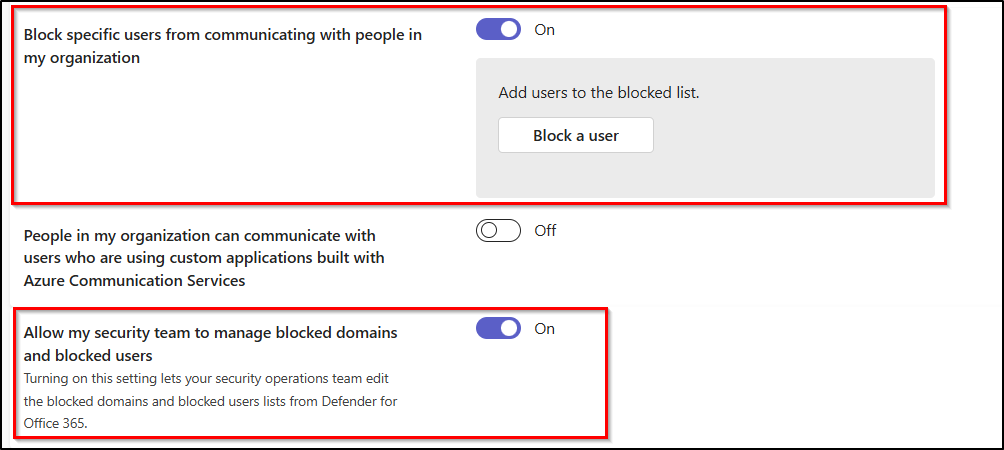
Important: If these settings aren’t configured, the Teams senders tab will not appear in Defender’s Tenant Allow/Block List (TABL).
How to Manage Tenant-Wide Allow/Block List in Microsoft Defender
After enabling the required options in the Teams admin center, a new Teams senders tab appears under the Tenant Allow/Block List (TABL). This lets security admins create, view, and remove domain or user entries directly from Defender.
1. How to Block External Users in Defender
During a cross-company collaboration, a partner employee’s account is flagged by threat intelligence for suspicious behaviour, such as attempting to access multiple Teams channels beyond their project scope.
Even though the external domain is trusted, this specific user poses a risk. In such situations, the security team can use the Tenant Allow/Block List to block a specific external user. This immediately stops their participation in chats, channels, and meetings, preventing potential data leaks or lateral attacks while leaving other partner users unaffected. Let’s explore the steps on how to configure it!
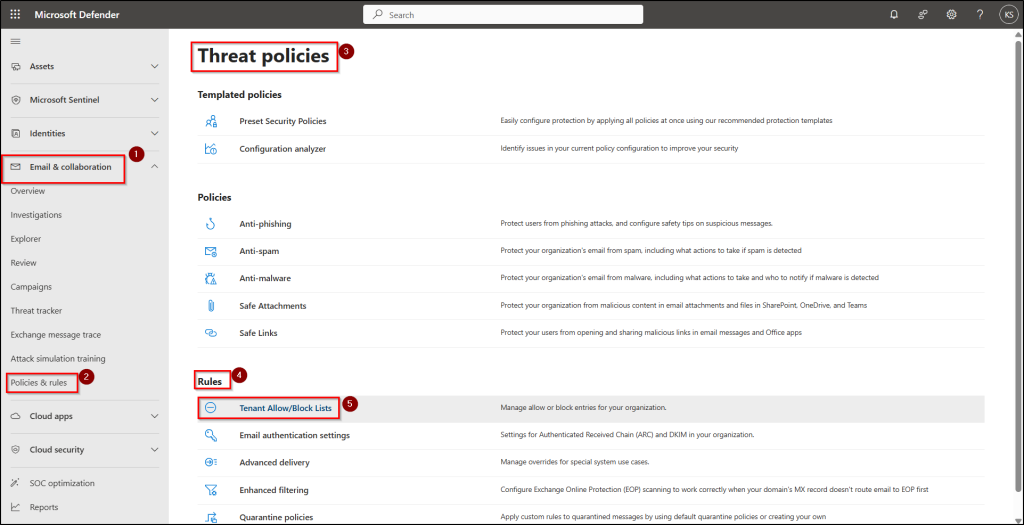
- Navigate to the Defender portal → Email & collaboration → Policies & rules → Threat policies, under Rules, click Tenant Allow/Block Lists.
- Select the Teams senders tab.
- Click ‘+ Block’, add the external users you want to block, and then select Add to save the changes.
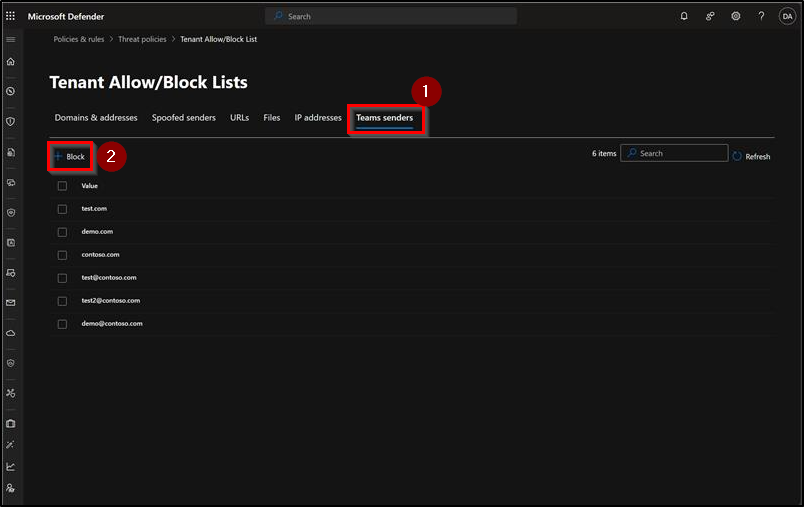
The blocked users will appear on the Teams senders tab. After a few minutes, they also show under Organization settings → External access in the Teams admin center.
2. How to Remove Blocked External Users in Defender
If a previously blocked user is now trusted or no longer poses a risk, your security team can quickly remove it from Teams using TABL, restoring access without affecting other Microsoft 365 services. Follow the steps below to remove the blocked domain from the list.
- Navigate to the Defender portal → Email & collaboration → Policies & rules → Threat policies, under Rules, select Tenant Allow/Block Lists.
- Select the Teams senders tab.
- Select the user(s) you want to remove by checking the box next to each entry.
- Click Delete and confirm by selecting Delete in the warning dialog.
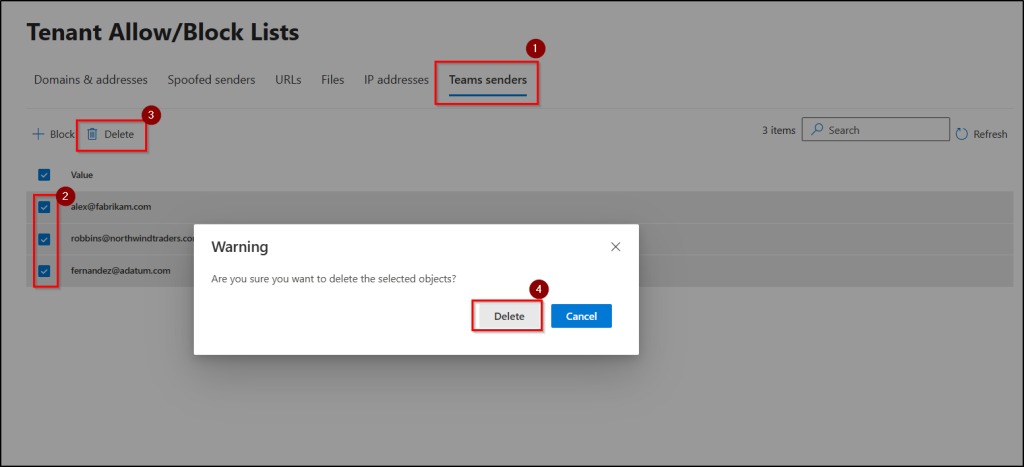
After a few minutes, the removed users will also disappear from Organization settings → External access in the Teams admin center.
Bringing Teams external users management into the Defender portal gives security teams a centralized way to control external access. Hope this blog helps you understand how to manage blocked external users efficiently using TABL.