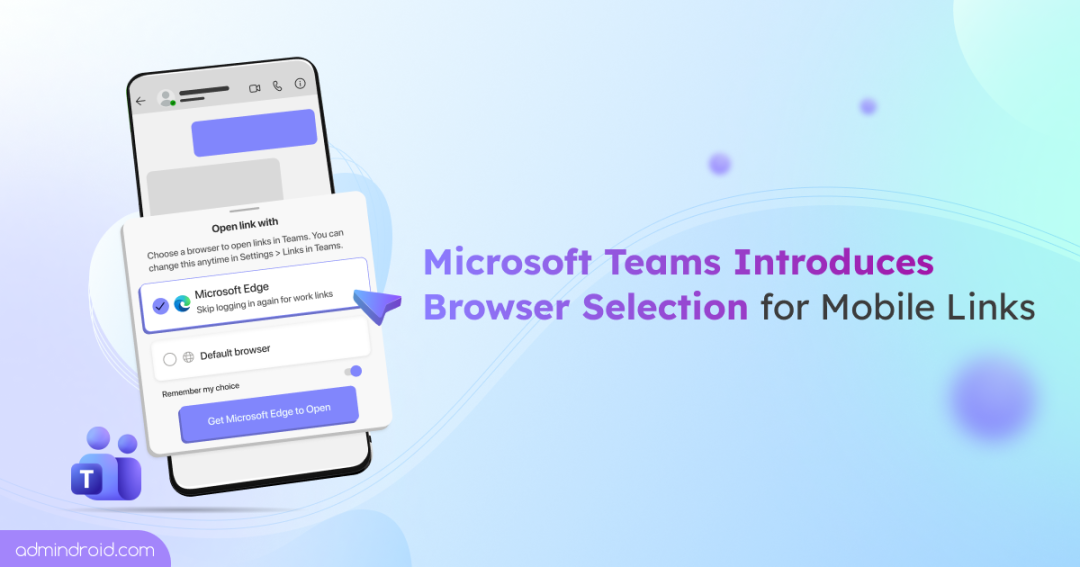
Microsoft previously took a firm stance by forcing Microsoft Edge as the default browser for opening web links from Microsoft Teams. That decision sparked notable user feedback, particularly from organizations seeking greater flexibility. Now, Microsoft is revising its strategy, not by stepping away from Edge promotion, but by introducing a browser selection prompt instead of automatic enforcement.
With this new update, Teams Mobile users who tap on non-Office links or PDFs will see a browser choice screen rather than being redirected instantly. While the experience restores users’ choice, Edge remains prominently positioned within the prompt. The rollout has already begun and is expected to finish by late February 2026.
What Exactly Is Changing with the Teams Mobile Link Experience?
Previously, the experience was simple. A user tapped a link from Teams Mobile on Android or iOS, and it opened directly in the system’s default browser. There was no intermediate step, no decision prompt, and no additional friction. That is the standard behavior users expect across most mobile applications.
With this update, when a user taps a non-Office link or a PDF link inside Microsoft Teams Mobile, the link no longer opens immediately in the device’s default browser. Instead, a bottom-sheet prompt appears asking the user to choose which browser should open the link. Users can choose their default browser, but Edge is deliberately highlighted in the prompt. Microsoft justifies this preference by pointing to SSO support, Microsoft 365 Copilot integration, and enhanced security benefits.
If Edge is not installed and the user selects it, they are prompted to download it. This behavior applies to all users of Teams Mobile across commercial, DoD, GCC, and GCCH environments.
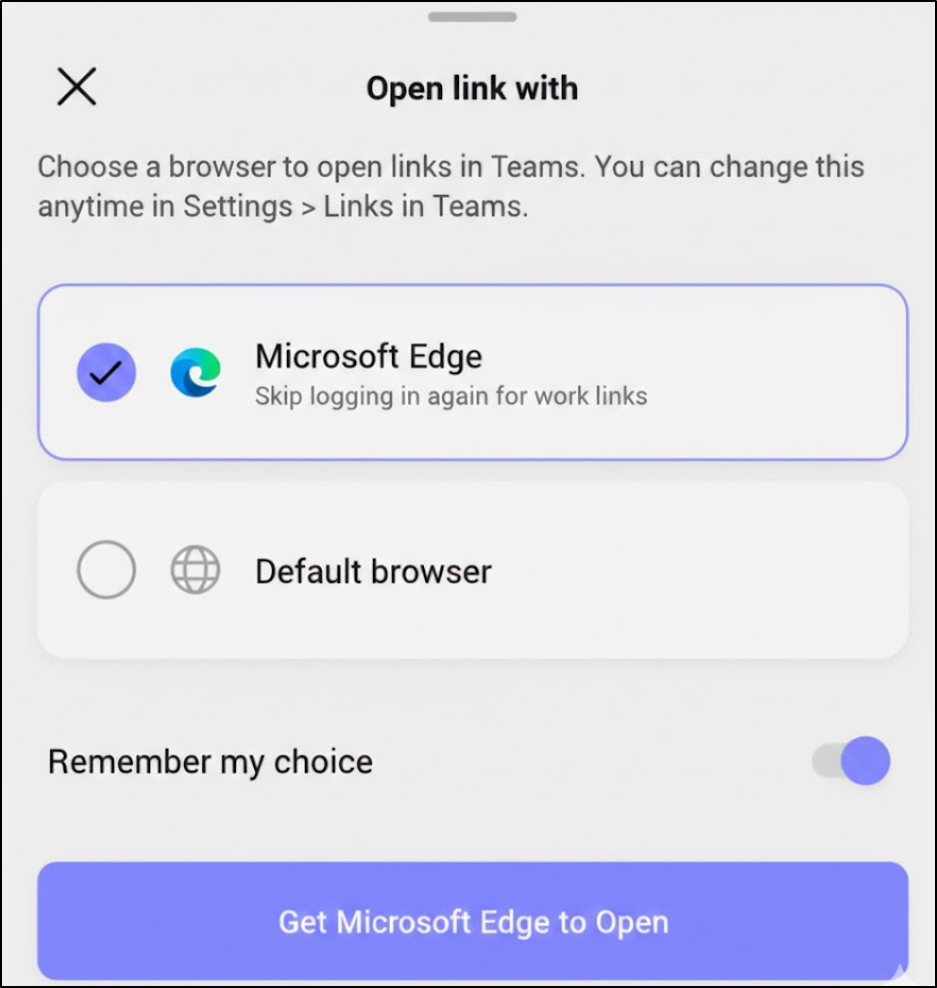
If the “Remember my choice” option is deselected by mistake, users will be prompted to choose a browser every single time they open a non-Office link in Teams Mobile. Over time, this can lead to repeated prompts and added friction.
Tip: What are non-Office links? In Microsoft terminology, non-Office links refer to URLs that do not open directly in Microsoft 365 apps but instead require a web browser. These include website links, PDFs, third-party apps, SharePoint pages, and links to Word, Excel, or PowerPoint files that open in the browser.
How to Disable Different Browser Selection for Teams Mobile Links at Tenant-Level
For organizations that prefer the previous seamless experience, Microsoft does provide a way to revert the behavior at a tenant-wide level. This is particularly useful for tenants that do not want the Microsoft Edge promotion embedded in the new link-opening flow.
The different browser selection behavior in Teams Mobile is enabled by default and governed
by the Teams Mobility Policy using the –LinksInTeams parameter.
To disable browser selection for links in Teams Mobile, connect to the Microsoft Teams PowerShell module and run the following cmdlet.
|
1 |
Set-CsTeamsMobilityPolicy -Identity "<PolicyName>" -LinksInTeams UseSystemDefaults |
Replace the <PolicyName> with the custom policy name. By explicitly setting –LinksInTeams to UseSystemDefaults, organizations can eliminate the additional step and remove the MS Edge promotion.
To re-enable browser selection in Teams Mobile, run the same cmdlet and set the -LinksInTeams parameter to OfferBrowserOptions.
Run the below cmdlet to verify the current configuration of browser selection in Teams Mobile.
|
1 |
Get-CsTeamsMobilityPolicy -Identity “<Global>” | Select-Object Identity, LinksInTeams |
User-Level Control in Teams Mobile Browser Selection
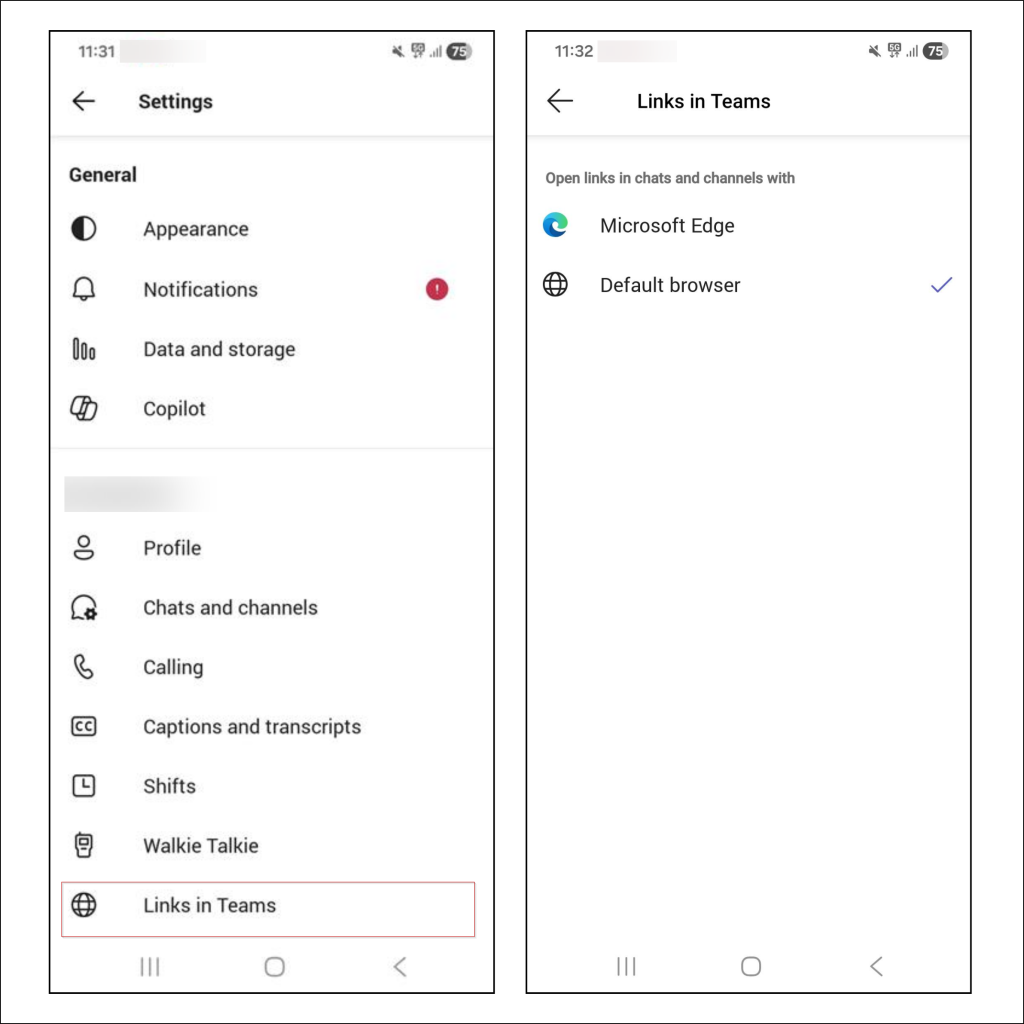
Apart from admin-level settings, Teams Mobile now includes a new option called “Links in Teams.” This setting allows users to change how non-Office and PDF links open from Teams Mobile.
For end users who want to manage the behavior independently without any admin intervention, navigate to:
Teams Mobile App → Settings → Links in Teams
From this section, users can choose whether links should open in Microsoft Edge or the device’s default browser. This gives users control over their preferred browsing experience.
This update aligns with Microsoft’s broader emphasis on integration, security, and ecosystem continuity. As Microsoft tracks user sentiment and Edge adoption metrics during rollout, the long-term direction will likely depend on how users respond.
In the meantime, the takeaway is simple. For organizations that prioritize simplicity, predictability, and minimal interruption in mobile workflows, reviewing this change, and potentially disabling it, is the most pragmatic approach!