Organizations don’t stick to a single Microsoft tenant for long. A new project needs one, a team spins one up for testing, or something comes in through an acquisition and suddenly, there are multiple tenants in play.
Of these tenants, the riskiest ones are the ones you didn’t create – “shadow IT” tenants. These tenants often run without basic security: no MFA, no Conditional Access, no policies, nothing keeping them in check. That’s where the real problem starts.
Microsoft Entra Tenant Governance is built to fix this. It brings all your tenants into one view, making management simple. In this blog, let’s take a quick look at what it offers.
What is Microsoft Entra Tenant Governance?
Microsoft Entra Tenant Governance provides a clear view of all your tenants and helps you maintain consistent security and compliance across them. This includes:
- Tenants you actively manage
- Shadow IT tenants that introduce security risks
- New tenants created by users for projects or testing
With this, you can handle tenant sprawl, manage mergers and acquisitions, navigate complex partner scenarios, and simplify cross-tenant administration. This feature is currently in public preview.
Where to access it:
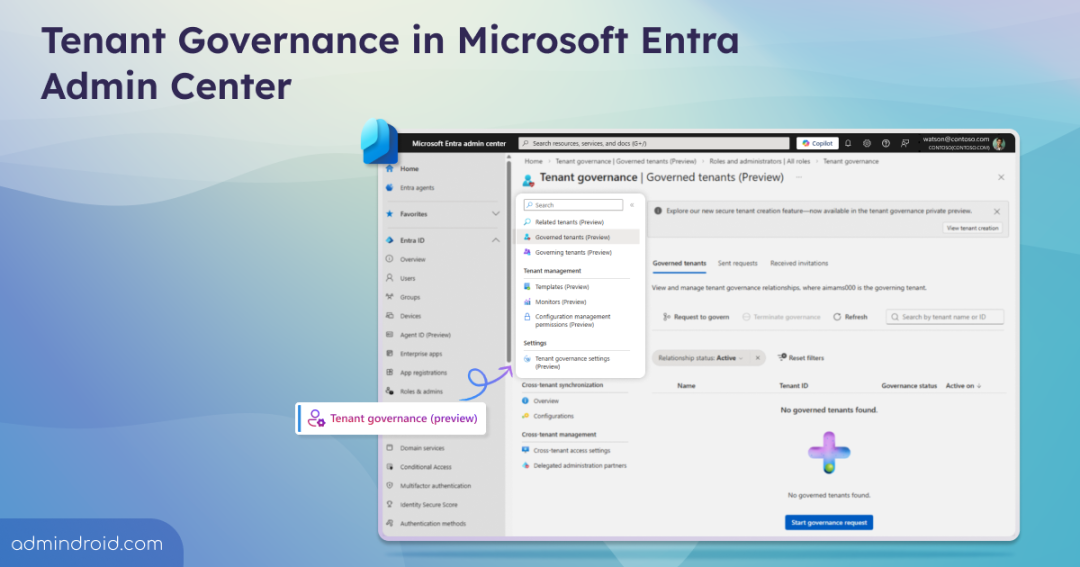
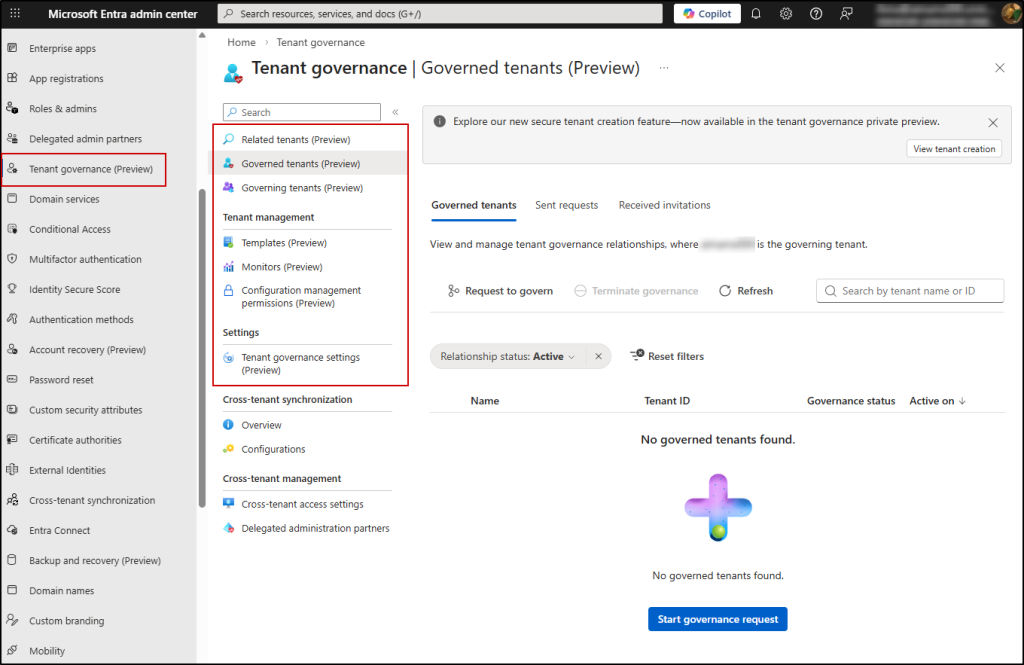
You can access Microsoft Entra Tenant Governance from the Microsoft Entra admin center → Entra ID → Tenant governance (Preview).
Note: To set up Tenant Governance, you need the Tenant Governance Administrator role.
What Comes with Microsoft Entra Tenant Governance?
Microsoft Entra Tenant Governance brings together a set of capabilities that help you discover, manage, and secure multiple tenants from one place. It is organized into the following key areas:
- Related tenants
- Governed and Governing tenants
- Tenant management
- Tenant governance settings
- Secure tenant creation
Related Tenants
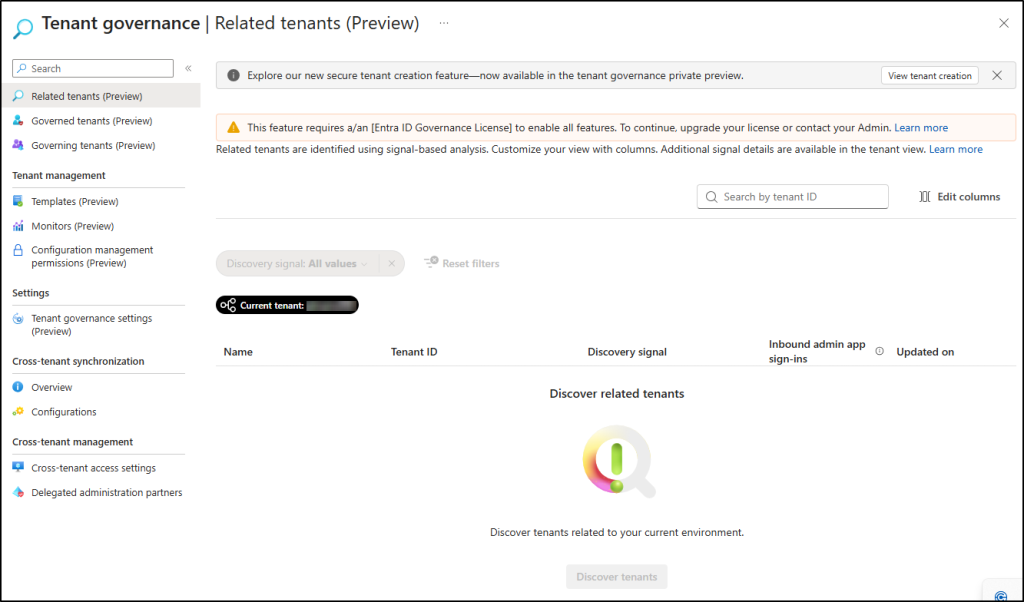
The Related tenants page helps you discover and manage tenants connected to your environment using signal-based analysis. It lets you:
- Identify tenants linked to your organization based on signals like B2B access, multi-tenant apps, and billing relationships.
- Drill down into each tenant to get additional signal details and understand the level of interaction or risk.
Note: Related tenants can only be viewed with an Entra ID Governance license.
Governed Tenants
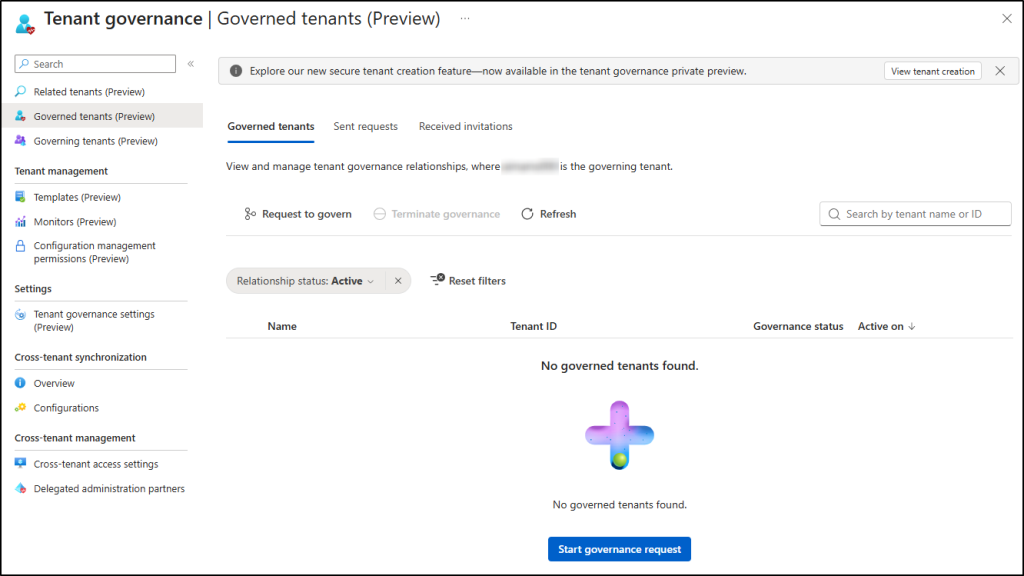
In Microsoft Entra Tenant Governance, a governance relationship is a directional connection between two tenants — one tenant (the governing tenant) takes administrative oversight over another tenant (the governed tenant). This relationship is established by mutual agreement between tenant administrators.
Let’s take an example: imagine your organization is Zava. With governance relationships in place, Zava becomes the governing tenant.
On this Governed Tenants page, you can:
- View and manage tenants that Zava governs. You can also request to govern a tenant by selecting the tenant, applying a governance policy template, and completing the request.
- The Sent Requests page lets you view and manage governance requests that Zava has sent to other tenants.
- From the Received Invitations page, you can view governance invitations from other tenants.
Governing Tenants
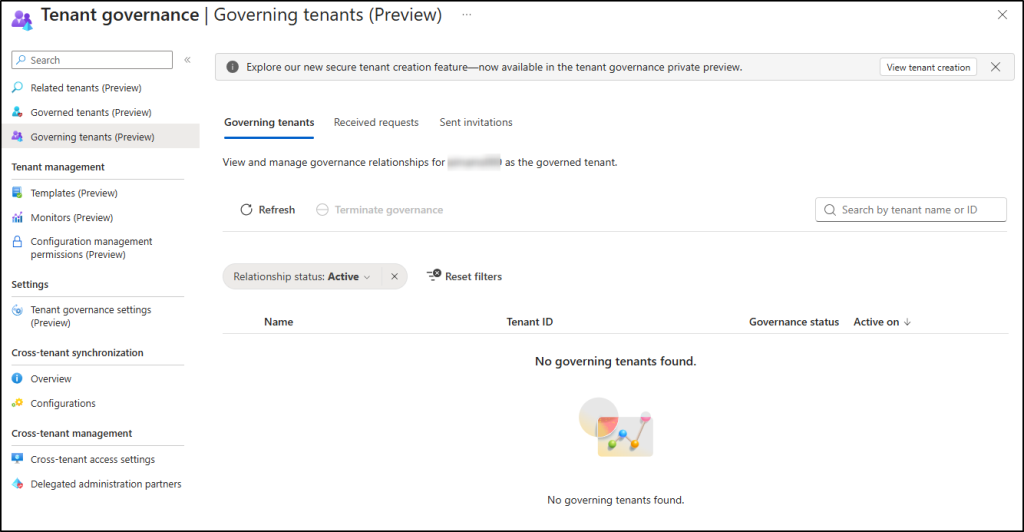
On this page, you can view and manage tenants that govern Zava.
- Received Requests: See requests from other tenants. Select a request to review its details and either accept or reject it.
- Sent Invitations: View and send invitations to allow another tenant to govern Zava.
Tenant Management
Tenant configuration management in Microsoft Entra Tenant Governance is a configuration-as-code capability that helps administrators capture, standardize, deploy, and monitor tenant configurations across multiple Microsoft tenants. It supports both the home tenant and other tenants connected through governance relationships.
The configuration management capabilities include:
Templates
- Governance Policy Templates: A Governance Policy Template is a reusable blueprint that defines the access and permissions for a governance relationship between Microsoft Entra tenants. It specifies cross-tenant delegated administration roles and the custom multitenant applications that can be managed across tenants.
- Configuration Baseline Templates (Preview): A Configuration Baseline Template is a reusable definition of the desired settings for selected tenant resources. Administrators can reuse these templates when creating monitors and deployments, ensuring consistent configuration definitions across tenants.
Configuration Snapshots and Snapshot Jobs
A configuration snapshot is a JSON representation of the current configuration of selected tenant resources. Administrators can generate snapshots to capture existing settings and use them as a starting point for creating configuration baselines, templates, deployments, or monitors.
A snapshot job is an asynchronous process that collects the selected resource configurations and generates the snapshot. Once the job completes, it provides a status and a resourceLocation URL to download the generated JSON file.
Monitors
A monitor is a scheduled process that evaluates a tenant’s current configuration against a defined configuration baseline. It helps administrators identify configuration drifts and track whether tenant settings continue to match the desired state.
Each monitor includes a name, description, schedule frequency, and configuration mode that specifies the actions to perform when drifts are detected.
Cross-Tenant Monitors (Preview)
A cross-tenant monitor is a monitor configured to evaluate the configuration of a governed tenant through an established governance relationship. It allows administrators to monitor configurations in other connected tenants alongside their home tenant.
Monitoring Results
A monitoring result is a record generated each time a scheduled monitor runs. It provides details about the execution duration, status, and number of configuration drifts detected.
Administrators can use tenant filters to distinguish results from the home tenant and governed tenants. The results indicate whether configuration drifts were detected, while the associated drift records provide details about the affected resources and properties.
Configuration Drifts
A configuration drift is a difference between a tenant resource’s current settings and the values defined in its configuration baseline. Drift records identify the affected resource and the specific properties whose values don’t match the baseline.
After an administrator fixes a drift, the next monitor execution checks the resource again and marks the drift as fixed if its configuration matches the baseline.
Configuration Deployments (Preview)
A configuration deployment is a process that applies the settings defined in a configuration baseline to a target tenant. Administrators can use deployments to apply standardized configurations to their home tenant or governed tenants.
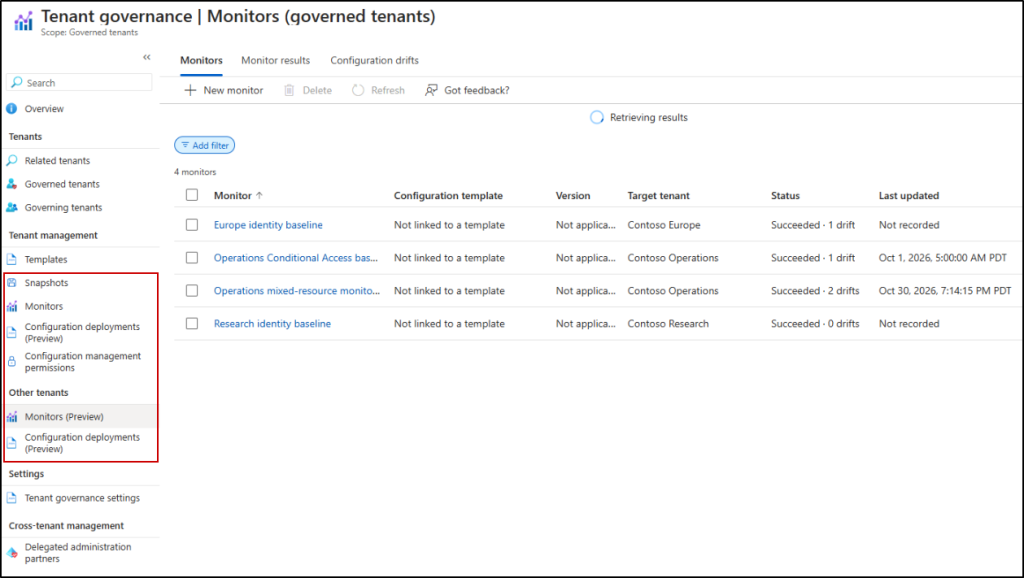
These capabilities support hundreds of resource types across Microsoft Entra ID, Intune, Exchange Online, Teams, Purview, and Defender.
Configuration Management Permissions
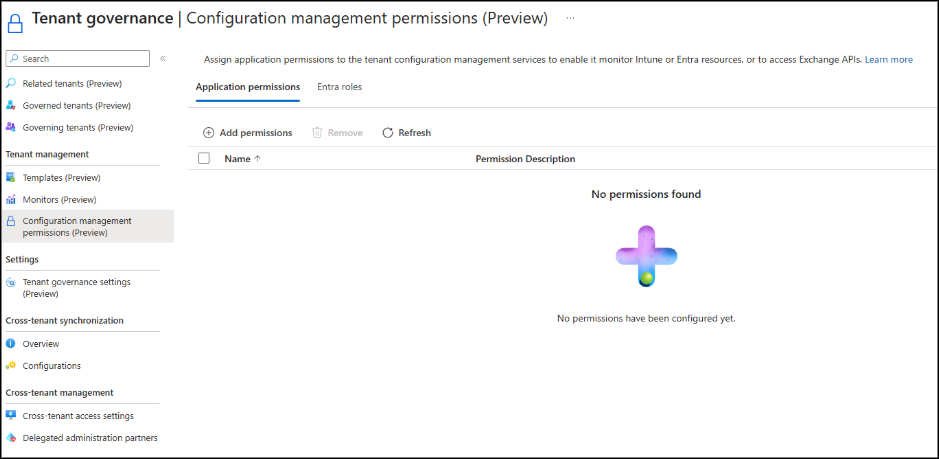
Before using Configuration Management, you need to do a one-time setup on the Configuration Management Permissions page:
- Application Permissions – Give the configuration management service the API permissions it needs to check resources in Intune and Entra. For example, to monitor conditional access policies, the configuration management service needs the Policy.Read.All application permission.
- Entra Roles – Since Microsoft Teams doesn’t support granular app permissions, you need to assign the Teams Reader role. This allows the configuration management service to monitor Teams resources across your tenants.
- Exchange, Security, and Compliance (Purview and Defender) – Assign permissions locally within the admin interfaces of those services.
For cross-tenant configuration management, administrators must also configure the required delegated permissions and workload access in the governed tenant. A governance relationship alone does not automatically grant all the permissions needed for these operations.
Together, Unified Tenant Configuration Management and Tenant Governance create a convenient solution to manage configurations across multiple Microsoft 365 tenants.
Tenant Governance Settings
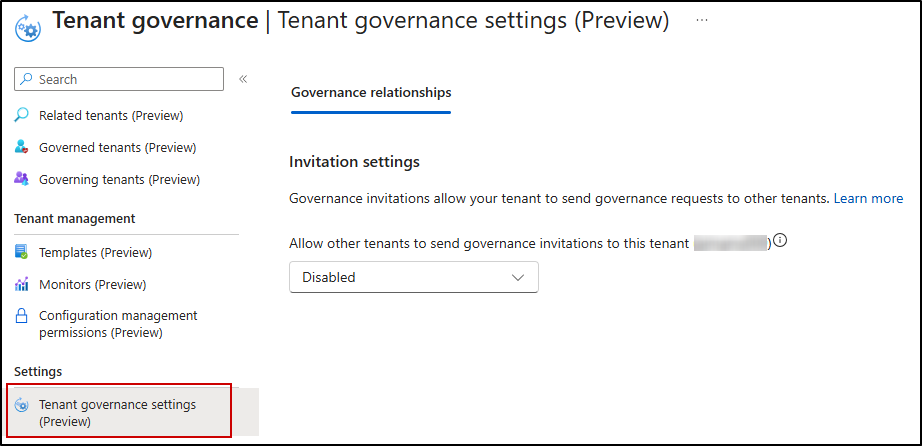
The Tenant Governance Settings page controls how your tenant participates in governance relationships. Once you’ve identified a tenant that needs governing, you send a formal governance invitation.
Under Governance Relationships, the Invitation Settings section has one key toggle: whether to allow other tenants to send governance invitations to your tenant. By default, this is disabled — meaning your tenant won’t receive any incoming governance requests unless you explicitly turn it on.
When enabled, other tenants can send your tenant a governance invitation, which then unlocks the ability for your tenant to subsequently send governance requests back.
Secure Tenant Creation
Secure tenant creation helps manage who can create new add-on tenants, set up governance relationships automatically, and maintain admin access.
This option appears as a banner on the Related Tenants, Governed Tenants, and Governing Tenants pages via the View Tenant Creation button.

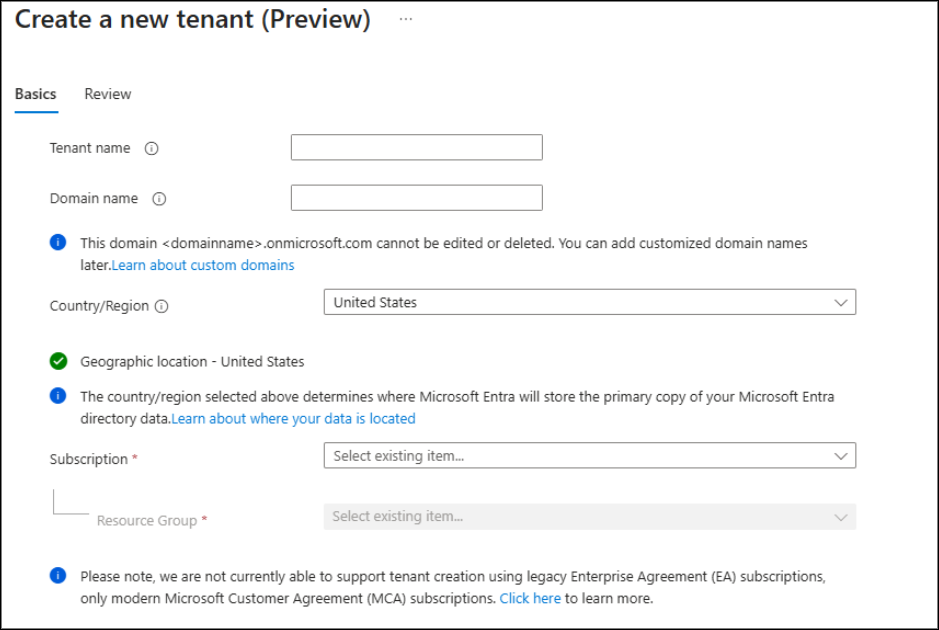
When creating a new tenant, the Create a New Tenant wizard guides you through a simple form:
- Tenant Name – Enter the name for the new tenant.
- Domain Name – Auto-generates as <domainname>.onmicrosoft.com.
- Country/Region – Determines where Microsoft Entra stores your directory data.
- Subscription & Resource Group – Link the new tenant to an existing subscription and resource group.
Once filled in, you review and create the tenant.
After creation, the governance relationship is automatically established.
License Requirements for Microsoft Entra Tenant Governance
Access to Tenant Governance features varies based on your Entra license, as shown in the table below:
| Category & Capability | Free | Entra P1 / P2 (Basic) | Entra ID Governance (Premium) |
| Configuration Management – Drift monitoring | ❌ | ✅ Up to 30 monitors, 800 resources/day | ✅ Up to 30 monitors, 800 resources/day |
| Configuration Management – Snapshots | ❌ | ✅ Up to 20,000 resources/month, 12 active snapshot jobs | ✅ Up to 20,000 resources/month, 12 active snapshot jobs |
| Governance Relationships – Cross-tenant access (GDAP) | ❌ | ✅ | ✅ |
| Governance Relationships – Custom multi-tenant app governance | ❌ | ❌ | ✅ |
| Related Tenants – Discover related tenants (B2B, apps, billing) | ❌ | ❌ | ✅ |
| Secure Tenant Creation – Create tenant with governance setup | ✅ | ✅ | ✅ |
This wraps up a brief overview of Microsoft Entra Tenant Governance. As the feature is in public preview, expect additional improvements before general availability. Thanks for reading. Share your questions or insights in the comments below.