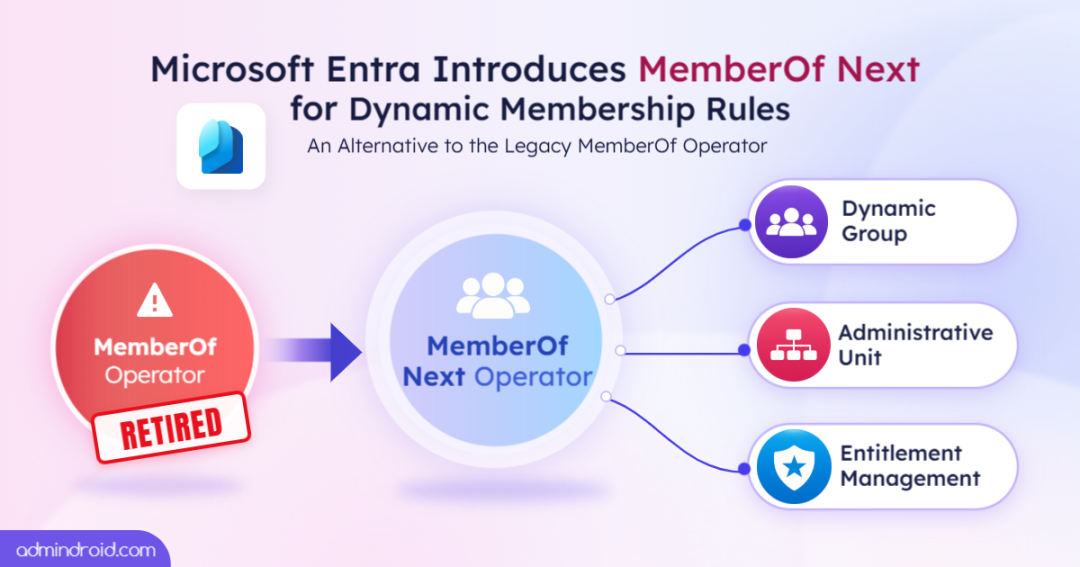
After years in public preview, Microsoft officially deprecated the memberOf rule operator on November 3, 2026. However, Microsoft has granted a grace period exclusively to Microsoft Entra ID Governance customers, who can continue using their existing configurations until March 31, 2027.
But here’s the interesting twist! Just as the existing MemberOf operator approaches retirement, Microsoft has introduced MemberOf Next, a new version of the MemberOf capability, now available in preview at Microsoft Ignite.
That’s not all! Microsoft also introduced Transitive Reports To, a new operator that extends membership beyond a manager’s direct reports to include employees across the entire reporting hierarchy.
So, without further delay, let’s explore these new advancements and see how they compare with existing functionality!
Introducing MemberOf Next: The New Alternative to the MemberOf Operator in Microsoft Entra
The legacy memberOf rule operator allowed administrators to create dynamic membership rules using members of existing groups rather than relying solely on individual user or device attributes. It made it easier to consolidate members from multiple groups into a single dynamic group, particularly in scenarios where nested group memberships weren’t supported.
However, the operator never moved beyond public preview due to performance and scalability concerns. Microsoft found that even a single memberOf-based rule could slow down dynamic membership processing across the tenant, leading to its retirement.
MemberOf Next addresses this scalability challenge with a completely new processing architecture.
How Does MemberOf Next Work in Dynamic Membership Rules?
Unlike the legacy operator, MemberOf Next uses a dedicated processing architecture with a predictable schedule. Membership updates occur twice a day, keeping its workload separate from other dynamic groups and helping prevent tenant-wide processing delays. This redesigned architecture also enables Microsoft Entra to support larger tenants.
Additionally, Microsoft Entra flattens the membership of selected source groups, adding their actual users or devices to the target group rather than adding the source groups themselves.
Key Considerations of MemberOf Next in Microsoft Entra
Before configuring MemberOf Next, administrators should understand these important considerations:
- Standard Priority Is Mandatory: Microsoft Entra evaluates MemberOf Next rules twice a day to detect and apply source group membership changes. Groups must have Standard priority to be included in this schedule. Otherwise, their membership won’t be processed or updated.
- Same Operator Name and Syntax: MemberOf Next retains the existing MemberOf operator name and rule syntax. Administrators can migrate eligible existing groups without rewriting their rules by switching their priority to Standard.
- Assigned Membership Only: Source groups must have assigned membership. Dynamic membership groups cannot be used as source groups. Each rule supports up to 50 source groups.
- User and Device Support: MemberOf Next supports both users and devices. For users, it supports security and Microsoft 365 groups, while device memberships support security groups only.
- Combine MemberOf Next with Other Conditions: Administrators can combine the MemberOf operator with other supported rule conditions in one rule to create more refined dynamic membership rules.
- Duplicate Members Are Handled: A user or device belonging to multiple source groups appears only once in the target group.
- Direct Members Only: Members of nested groups within source groups aren’t included.
- Tenant-Wide Limit: During public preview, a maximum of 1,000 groups and administrative units can use MemberOf Next and Transitive Reports To combined. This limit counts toward the overall 15,000 dynamic membership group limit.
- Not for Immediate Access Changes: Membership updates occur twice a day, so don’t use MemberOf Next when access must be granted or revoked immediately.
- Source Group Deletion Handling: If a source group is deleted, the target group’s membership updates are paused. Microsoft Entra retries processing at each scheduled update until the issue is resolved.
MemberOf Next also addresses several limitations of the legacy operator through its updated implementation. Let’s compare both capabilities to understand what’s changed.
Key Differences Between MemberOf and MemberOf Next in Microsoft Entra
Here’s a detailed comparison of the legacy MemberOf operator and MemberOf Next, highlighting the key changes in functionality, processing, and supported capabilities.
| Comparison | Legacy MemberOf Operator | MemberOf Next |
| Availability | Public preview ended November 3, 2026 | Public preview introduced at Microsoft Ignite |
| Processing Architecture | Shared processing with other dynamic membership groups | Separate processing architecture designed for large tenants |
| Tenant-Wide Impact | Could slow down dynamic membership processing across the tenant | Isolated processing prevents impact on other dynamic groups |
| Membership Updates | No predictable dedicated update schedule | Scheduled updates twice a day |
| Group Priority | High (default) | Standard (mandatory) |
| Rule Syntax | MemberOf operator with standalone rule expressions | Same MemberOf syntax |
| Rule Builder | Rule syntax box only | Supports the rule builder |
| Licensing | Microsoft Entra ID P1 | Microsoft Entra ID Governance |
| Tenant-Wide Limit | 500 groups | 1,000 groups, shared with Transitive Reports To |
| Combining Rule Conditions | The memberOf attribute couldn’t be combined with other conditions or operators. | Can be combined with other supported conditions using the rule syntax editor. |
| Cloud Support | Public preview ended | Available only in the Microsoft Entra public cloud; not supported in national clouds. |
Now that we’ve compared both operators, let’s explore how administrators can migrate their existing MemberOf configurations to MemberOf Next.
Move Existing MemberOf Groups to MemberOf Next in Entra
While MemberOf Next introduces a new processing architecture, migrating existing MemberOf configurations is relatively straightforward. The operator name and rule syntax remain unchanged, so administrators don’t need to recreate their groups or rewrite their membership rules.
However, changing the group’s priority to Standard is essential to enable MemberOf Next processing. Before proceeding, ensure you meet the following requirements:
- Role Requirements: One of the following Microsoft Entra roles: Groups Administrator, User Administrator, Intune Administrator (for security groups only), or Global Administrator.
- License Requirements: Microsoft Entra ID Governance licenses covering:
- Each unique member user in dynamic groups using MemberOf Next.
- Each administrator who creates or configures these groups.
Licenses are counted once per unique user and do not need to be individually assigned.
How to Migrate Existing MemberOf Configurations
Migrating the memberOf rule operator retirement involves a two-step process:
- Identify memberOf configurations using PowerShell script
- Review and switch groups to Standard priority
Find MemberOf Configurations in Entra ID Using PowerShell Script
Before migrating, you need to identify all configurations that use the MemberOf rule operator, including dynamic groups, administrative units, and entitlement management policies. Microsoft Entra doesn’t provide a centralized view of all affected configurations, making manual checks time-consuming in large environments.
To simplify this process, we’ve created a PowerShell script that scans your tenant and generates separate CSV reports of supported MemberOf configurations.
Download: MemberOfRuleDeprecationReport.ps1
Run the script using the following command to identify all MemberOf-based configurations in your tenant:
|
1 |
.\MemberOfRuleDeprecationReport.ps1 |
The script supports both interactive sign-in and certificate-based authentication, including unattended execution.
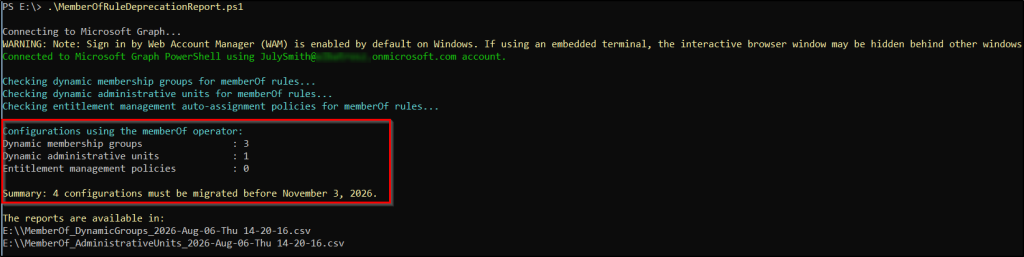
By default, the script scans all supported configuration types. To scan specific types separately, use the built-in parameters: -DynamicGroups, -AdministrativeUnits, or -AutoAssignmentPolicies.
The script generates separate reports for affected configurations, such as:
Dynamic Membership Groups:

Administrative Units:

Review and Switch MemberOf Groups to Standard Priority
Once you have identified all MemberOf groups, change their Group priority to Standard to enable the new update schedule while retaining their existing membership rules and members.
Before changing the priority, verify that all source groups referenced in each membership rule still exist. If a source group has been deleted, remove its object ID from the rule. Otherwise, the group won’t update. You can update the group priority using either of the following methods:
- Change group priority using Microsoft Entra admin center
- Update group priority in bulk using PowerShell
1. Change Group Priority Using Microsoft Entra Admin Center
Follow these steps individually for each dynamic membership group:
- Navigate to Microsoft Entra admin center > Entra ID > Groups > All groups.
- Select the required dynamic membership group.
- Go to Properties. Under Group priority, select Standard.
- Select Save.
Note: You can also update individual groups using the following Microsoft Graph API.
|
1 2 3 4 5 |
PATCH https://graph.microsoft.com/beta/groups/{group-id} Content-Type: application/json { "dynamicMembershipPriority": "Standard" } |
2. Update Group Priority in Bulk Using PowerShell
If you have multiple MemberOf groups, use the following Microsoft Graph PowerShell script to identify and update all matching dynamic membership groups in your tenant in bulk.
Prerequisites:
- Microsoft Graph Authentication and Groups PowerShell modules version 2.41.2 or later.
- Group.ReadWrite.All permission.
Replace <tenant-id> in the script with your actual tenant ID before execution.
|
1 2 3 4 5 6 7 8 9 10 11 12 13 14 |
Import-Module Microsoft.Graph.Authentication -MinimumVersion 2.41.2 -ErrorAction Stop Import-Module Microsoft.Graph.Groups -MinimumVersion 2.41.2 -ErrorAction Stop Connect-MgGraph -TenantId "<tenant-id>" -Scopes "Group.ReadWrite.All" -ErrorAction Stop $groups = @(Get-MgGroup -All -Filter "groupTypes/any(c:c eq 'DynamicMembership')" -Property Id,DisplayName,MembershipRule -ErrorAction Stop | Where-Object { $_.MembershipRule -match 'memberOf' }) Write-Host "Target groups: $($groups.Count)" foreach ($group in $groups) { Invoke-MgGraphRequest -Method PATCH -Uri "https://graph.microsoft.com/beta/groups/$($group.Id)" -Body @{ dynamicMembershipPriority = "Standard" } -ErrorAction Stop } foreach ($group in $groups) { Invoke-MgGraphRequest -Method GET -Uri "https://graph.microsoft.com/beta/groups/$($group.Id)?`$select=id,displayName,dynamicMembershipPriority" -ErrorAction Stop | ConvertTo-Json -Depth 5 } |
Now that we’ve explored how to migrate existing MemberOf groups, let’s look at another key addition: the Transitive Reports To operator.
New Transitive Reports To Operator in Dynamic Membership Rules
The Transitive Reports To operator extends dynamic membership rules in Microsoft Entra ID by allowing administrators to identify users across an entire management hierarchy, rather than limiting the evaluation to users who directly report to a specific manager.
Unlike the existing manager property, which evaluates only the direct reporting relationship, this operator considers indirect reporting relationships as well.
This makes it easier to create dynamic groups based on the complete reporting hierarchy without manually adding users at different management levels
Key Things to Know About Transitive Reports To Operator
Here are its key capabilities and considerations:
- Includes the entire reporting hierarchy: Automatically includes the selected manager and all direct and indirect reports, up to 99 levels below the manager.
- Eliminates manual group management: No need to create separate groups for each reporting level or use scripts to consolidate employees.
- Automatically adjusts membership: When employees join, leave, or change managers, group membership is updated during the next scheduled evaluation.
- Supports additional conditions: You can combine Transitive Reports To with other user attributes to narrow down group membership.
- User-based membership only: This operator supports dynamic user groups, not device membership.
- Standard priority is mandatory: Groups using this operator must have Standard priority and are updated twice daily, rather than immediately.
- Preview limitations: Transitive Reports To is currently in public preview and shares the 1,000-group and administrative-unit limit with MemberOf Next.
Now that we’ve covered its key capabilities and limitations, let’s walk through the steps to create a dynamic group using the Transitive Reports To operator.
How to Create a Dynamic Group Using the Transitive Reports To Operator
You can create a dynamic membership group using the Transitive Reports To operator in the Microsoft Entra admin center. This allows you to automatically include all users who report directly or indirectly to a specified manager.
- Navigate to Microsoft Entra admin center > Entra ID > Groups > All groups.
- Select New group. Set Group type to Security or Microsoft 365.
- Enter a group name and description.
- Under Membership type, select Dynamic User.
- Set Group priority to Standard.
- Select Add dynamic query.
- In the rule builder, select TransitiveReportsTo from the Operator list. Enter the manager’s object ID in the Value field. This rule follows the syntax below:
|
1 |
Transitive Reports To {objectID_of_manager} |
8. Save the membership rule and select Save to create the group.
Conclusion
Microsoft Entra’s new MemberOf Next and Transitive Reports To capabilities make dynamic group management more flexible and scalable. While MemberOf Next simplifies membership management by consolidating users or devices from existing groups, Transitive Reports To automates group creation based on an organization’s complete reporting hierarchy.
Together, these capabilities reduce manual group maintenance and help administrators simplify identity governance, access management, and lifecycle automation. However, remember that both capabilities require Microsoft Entra ID Governance licensing and Standard priority, with membership updates scheduled twice daily.