An application approved years ago might still have tenant-wide permissions, even if it only needs access to a few SharePoint sites. The same applies to backup tools, AI agents, and custom applications that retain more access than their current tasks require.
But how can admins identify these applications and determine whether they’re actually accessing organizational content?
At Ignite 2026, Microsoft introduced App Intelligence for SharePoint and OneDrive to help admins assess non-Microsoft application permissions, review activity evidence, and identify applications that need closer investigation.
What Is App Intelligence in SharePoint and OneDrive?
App Intelligence is a new security and governance capability that helps administrators assess non-Microsoft applications accessing SharePoint and OneDrive content. These include third-party SaaS applications, custom-built applications, automation tools, and agents.
Instead of manually reviewing application permissions and activity reports, admins can use App Intelligence to identify applications that deserve closer investigation. It examines factors such as:
- Application permissions: Whether an application has broad or tenant-wide access.
- Access type: Whether it uses app-only permissions.
- Resource reach: Which SharePoint sites the application can access, including sensitive sites.
- Observed activity: Whether the application accessed or modified organizational content during the assessment period.
Based on the available evidence, App Intelligence prioritizes applications for review and explains why they were flagged. It’s an advisory capability and doesn’t automatically revoke permissions or block applications.
How to Assess Application Access Using App Intelligence
Administrators can access App Intelligence through the SharePoint admin center.
Before you start: App Intelligence uses activity data from App Insights, a SharePoint Advanced Management feature. App Insights requires one-time data collection enablement, retains data for 28 days, and pauses collection if no report is generated for three months.
- Open the SharePoint admin center.
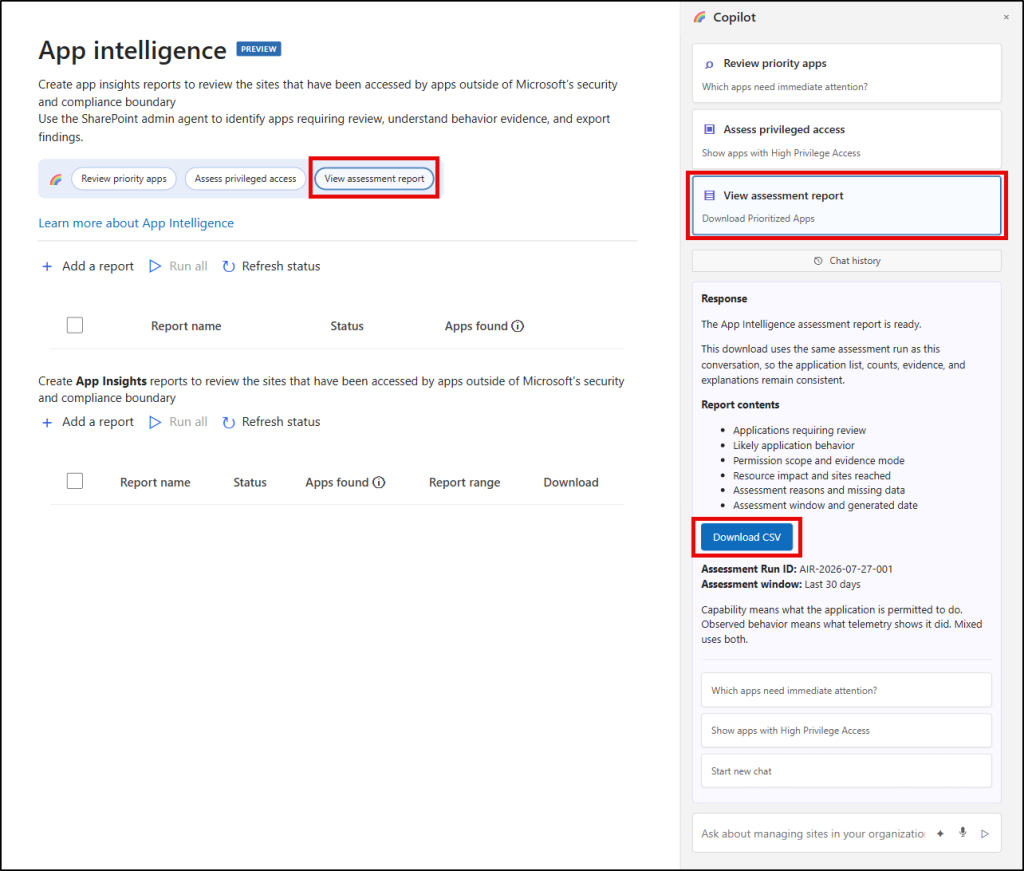
- Navigate to App Intelligence and open the Copilot pane.
- Choose one of the following assessment options:
- Review priority apps: Identifies applications that may need attention and explains why they were flagged.
- Assess privileged access: Focuses on applications with broad permissions, app-only access, or access to sensitive sites.
- Review the application assessments and their supporting evidence.
- Select View assessment report to examine the results.
- Use Download CSV to export the assessment for further investigation.
How to Interpret App Intelligence Assessment Results
App Intelligence evaluates application permissions, resource reach, and available activity evidence to identify applications requiring attention.
Each assessment includes two key details:
- Resource Impact (High, Medium, Low, and Needs Data), which helps prioritize applications for review.
- Evidence Mode (Capability only, Observed behavior, and Mixed), which explains whether the finding is based on granted permissions, observed activity, or both.
| Resource Impact | Evidence Mode | What It Means | Recommended Action |
| High / Medium / Low | Capability only | The app has permissions that allow access to resources, but the finding isn’t supported by observed activity evidence. | Review permissions and restrict unnecessary access based on priority. |
| High | Observed behavior / Mixed | Recorded activity or combined evidence indicates access involving multiple or sensitive resources. | Prioritize investigation, verify the business purpose, and restrict unjustified access. |
| Medium / Low | Observed behavior / Mixed | Activity or combined evidence indicates lower assessed resource impact. | Verify the application’s purpose and review its access as needed. |
| Needs Data | Any | Available evidence is insufficient or outdated to complete the assessment. | Check data availability and reassess when sufficient information is available. |
Two applications may receive a High impact classification for different reasons. One might have broad permissions to access SharePoint sites, while another has recorded activity involving sensitive organizational content.
The supporting evidence helps admins understand whether an application needs a permission review, further activity investigation, or access restrictions.
Note: Resource impact indicates review priority rather than confirming malicious behavior. For findings marked Needs Data, check whether sufficient evidence is available before drawing conclusions.
What to Do When App Intelligence Flags an Application
Not every flagged application needs to be blocked. Administrators should first understand its business purpose, assigned permissions, and recorded activity.
1. Contact the Application Owner
Use Notify App Owner to draft an email to the application’s owners and clarify why the app requires its current level of access. Ask them to confirm whether the application is still needed and whether its permissions are appropriate for its intended purpose.
2. Restrict Excessive Application Permissions
If an application only needs specific SharePoint sites, consider replacing broad access with the Sites.Selected permission model and granting the appropriate site-level permissions. This helps enforce least-privilege access without unnecessarily disrupting business operations.
3. Block Unnecessary or Untrusted Applications
If an application has no legitimate reason to access SharePoint and OneDrive content, administrators can add its application ID to the Application Restrictions deny list using SharePoint Online PowerShell.
To add the application ID to the deny list, run the below cmdlet
|
1 |
Set-SPOTenantRestrictedAppAccessControlList -AddRestrictedAppIds <applicationId> |
Note: The tenant deny list supports a maximum of 100 application IDs, and Microsoft first-party applications cannot be added.
Verify the configured policy:
|
1 |
Get-SPOTenantRestrictedAppAccessControl |
To restrict an application from accessing specific SharePoint sites instead of the entire tenant, use Set-SPOSiteRestrictedAppAccessControlList.
Adding an application to the deny list doesn’t automatically block it. If tenant-wide enforcement is disabled, no restrictions take effect until enforcement is enabled separately.
Preview the changes before enabling enforcement:
|
1 |
Enable-SPOTenantRestrictedAppAccessControl -WhatIf |
Then enable enforcement:
|
1 |
Enable-SPOTenantRestrictedAppAccessControl |
Enabling tenant-wide enforcement also activates existing site-level Application Restrictions policies already marked as Enabled. Review these policies before proceeding to avoid unintended access disruptions.
Where Should Your First App Intelligence Review Start?
Start with Review priority apps in App Intelligence to identify applications that need attention. Examine their permissions, resource reach, and activity evidence to understand the findings. If an application has excessive access, verify its business purpose with the app owner before deciding whether to restrict or block it. Regularly reviewing application access is one way to improve Microsoft 365 security and reduce unnecessary exposure.