Microsoft 365 Copilot is becoming the work buddy employees turn to for everything from summarizing emails to getting the gist of a lengthy report. But in the rush to get quick answers, employees might paste confidential details straight into a prompt, potentially compromising data security.
This leads to a crucial question: how can organizations encourage Copilot adoption without compromising data security?
Microsoft Purview Data Loss Prevention (DLP) provides a way to address this. In this blog, let’s see how to configure a DLP policy to block Copilot from processing prompts that contain sensitive information.
Microsoft Purview DLP for Microsoft 365 Copilot
Microsoft 365 Copilot helps users work with organizational data, but not every piece of information should be handled in the same way. Organizations need controls to identify sensitive information in Copilot prompts and determine how Copilot processes it.
Microsoft Purview Data Loss Prevention (DLP) provides a way to protect this information through sensitive information types (SITs). These built-in or custom classifiers help identify sensitive data, such as credit card numbers, passport numbers, physical addresses, and other types of confidential information.
Depending on the level of restriction needed, admins can configure DLP policies in two ways:
- Restrict external web searches: Copilot can still use internal organizational data to respond to prompts containing sensitive information, but it can’t search the web for those prompts.
- Block prompt processing: Copilot can’t process prompts containing sensitive information or generate responses to them.
For this blog, we’ll focus on configuring a DLP policy to block Copilot from returning a response when prompts contain sensitive data.
Block Prompt Processing in Microsoft 365 Copilot
The block prompt processing option in Microsoft Purview Data Loss Prevention (DLP) allows admins to prevent Copilot from processing prompts that contain specified sensitive information types. This feature is rolling out in preview to tenants with Microsoft 365 Copilot and Copilot Chat access.
The following Copilot experiences are supported:
- Microsoft 365 Copilot
- Copilot Chat
- Copilot Cowork
- Copilot in Word
- Copilot in Excel
- Copilot in PowerPoint
During the preview, users in Word, Excel, and PowerPoint, users might not see a clear explanation that the block was triggered by their organization’s DLP policy. Copilot will still block the prompt and won’t generate a response.
Prerequisites to Create a DLP Policy for Microsoft 365 Copilot Prompts
Before creating the policy for blocking sensitive data in Copilot prompts, make sure you have the required permissions and licenses.
Roles required:
Accounts assigned one of the following roles or role groups can create or edit DLP policies for Microsoft 365 Copilot and Copilot Chat:
- Microsoft Entra AI Administrator
- Purview Data Security AI Admin / Purview Data Security AI Admins role group
- Purview Compliance Administrator / Purview Compliance Data Administrator
- Purview Information Protection / Purview Information Protection Admin
- Purview Security Administrator
- Microsoft Entra Global Administrator
Microsoft recommends using the least-privileged role that provides the permissions required for the task.
License requirements:
Users must be assigned one of the following eligible licenses to create a DLP policy for Copilot:
- Microsoft 365 E5/A5/G5/E3/A3/G3
- Microsoft 365 Business Premium
- Office 365 E5/A5/G5/E3/A3/G3
- Microsoft 365 E5/A5/G5/F5 Compliance or F5 Security & Compliance
- Microsoft 365 E5/A5/F5/G5 Information Protection and Governance
How to Block Sensitive Prompts in Microsoft 365 Copilot Using DLP?
Once the prerequisites are in place, follow these steps to create a DLP policy that detects specific SITs in prompts and prevents Copilot from generating a response.
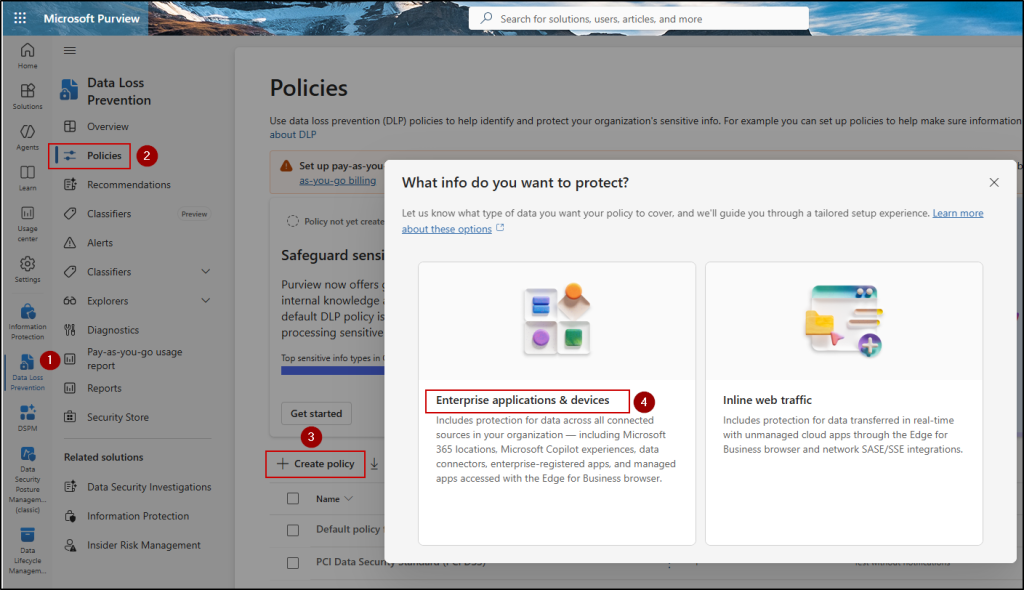
- Sign in to the Microsoft Purview portal and navigate to Data Loss Prevention.
- From the left navigation pane, select Policies –> Create policy –> Enterprise applications & devices.
- Under Categories, select Custom –> Custom policy and click Next. Enter a name for the policy and proceed.
- In the next step, optionally add administrative units to limit the scope of policy management.
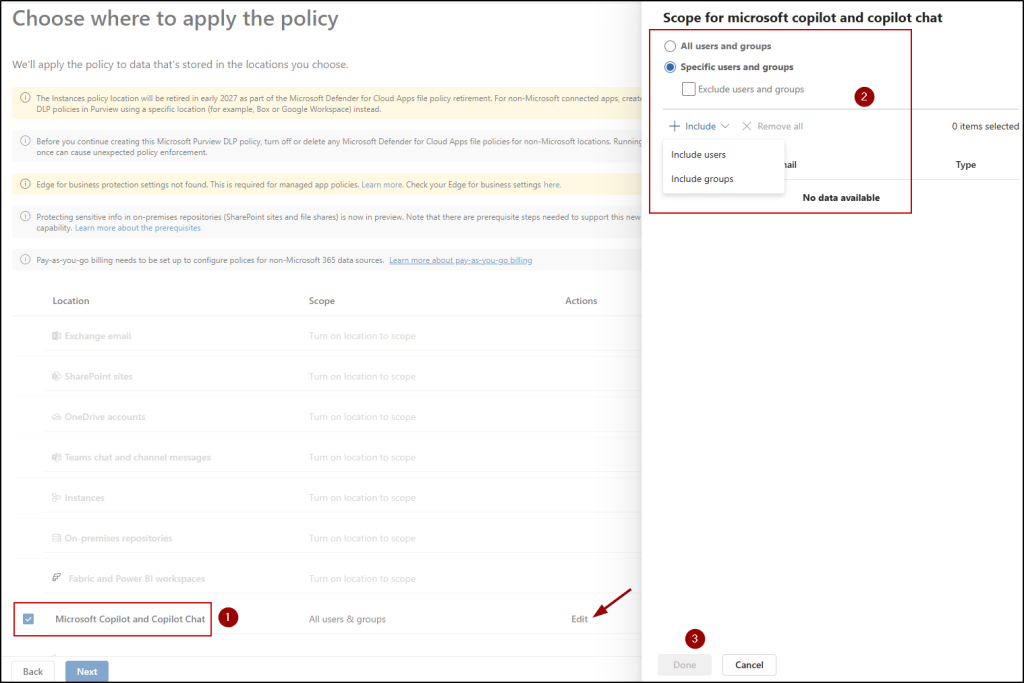
- On the Choose where to apply the policy page, select Microsoft Copilot and Copilot Chat. Selecting this location disables the other locations, as you can configure only one location at a time in this policy.
- Select Edit to include or exclude specific users and groups within the policy scope for Microsoft Copilot and Copilot Chat. Click Done.
- On the Define policy settings page, Create or customize advanced DLP rules will be selected by default. Keep this option selected and proceed.
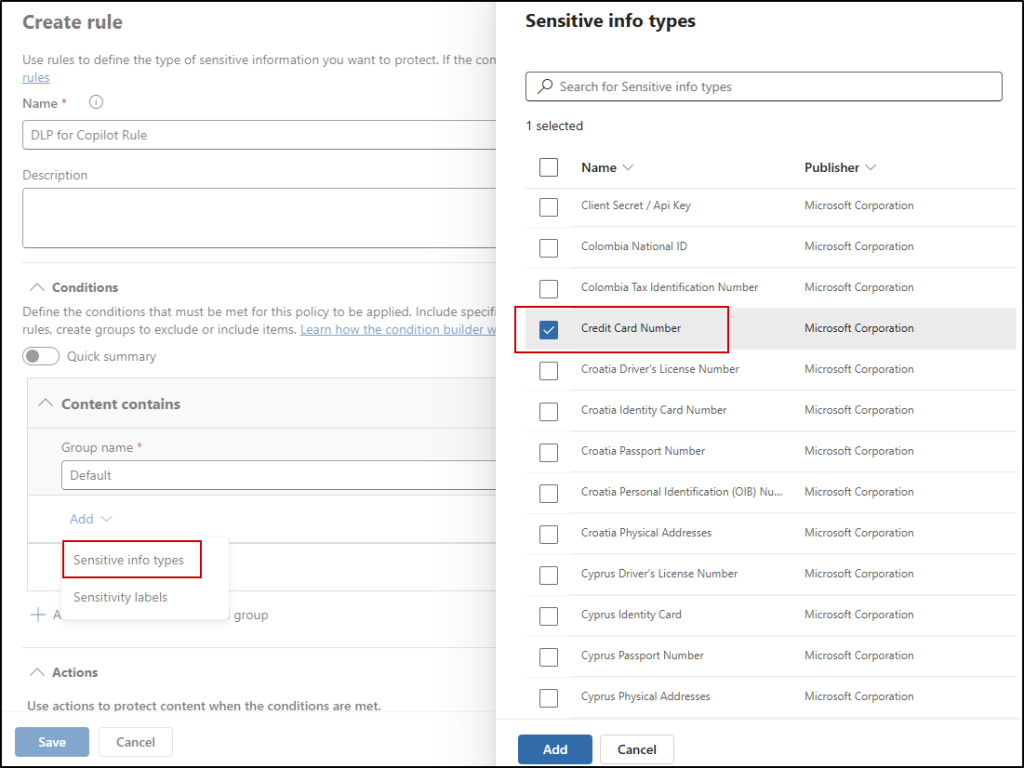
- On the Customize advanced DLP rules page, select Create rule. Enter a rule name.
- Under Conditions, select Add condition –> Content contains. From the Add dropdown, select Sensitive info types and choose one or more sensitive information types to protect. For this example, we will select only Credit Card Number. Configure the confidence level and instance count for each type.
Note: Only built-in and custom sensitive information types are currently available for Copilot prompt protection.
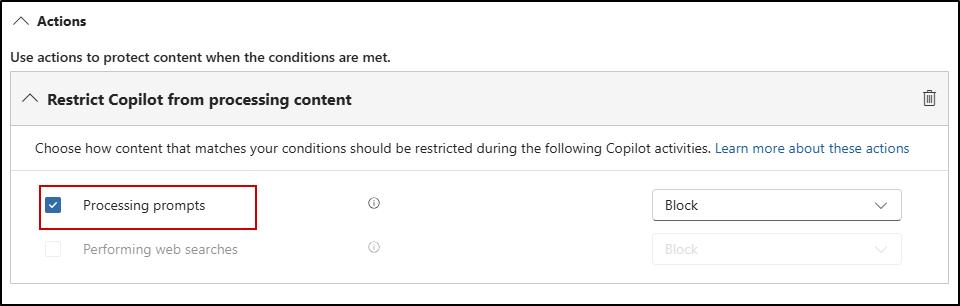
10. Under Actions, select Add an action –> Restrict Copilot from processing content.
11. Select Processing prompts and choose Block. You can also see the Performing web searches option here, but you can enable only one option at a time. You can’t enable both simultaneously.
12. Select Save to save the rule.
13. On the Policy mode page, choose whether to run the policy in simulation mode or turn it on.
14. Review your configuration and select Submit to create the policy.
Note: It may take between 1 and 24 hours for the DLP policy to take effect.
End-User Experience: What Do Users See When a Prompt Is Blocked?
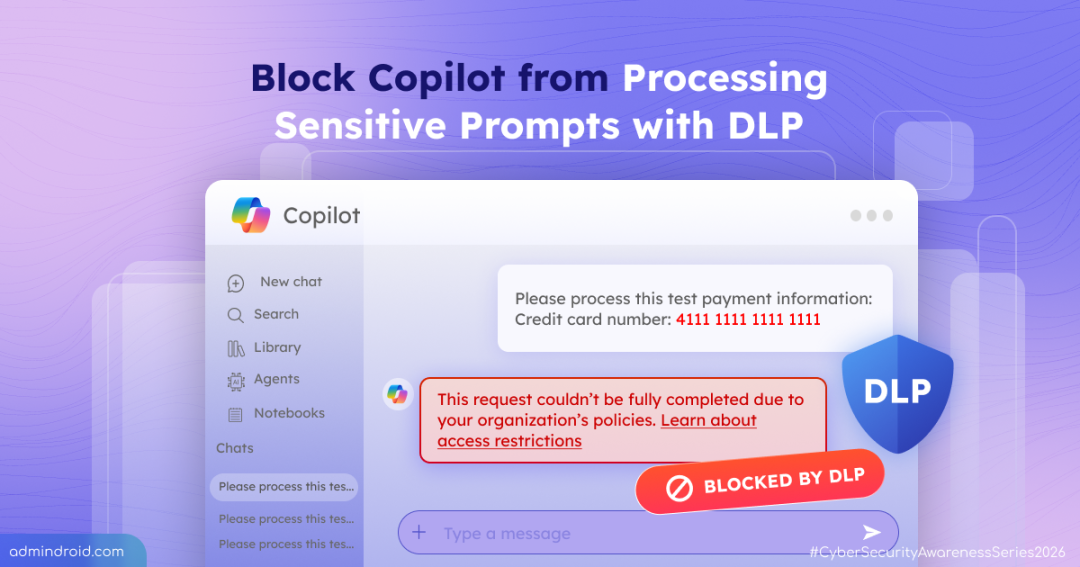
Now, let’s see what happens when a user within the policy scope enters a prompt containing a credit card number in Copilot.
We can see the following error message:
“This request couldn’t be fully completed due to your organization’s policies. Learn about access restrictions”.
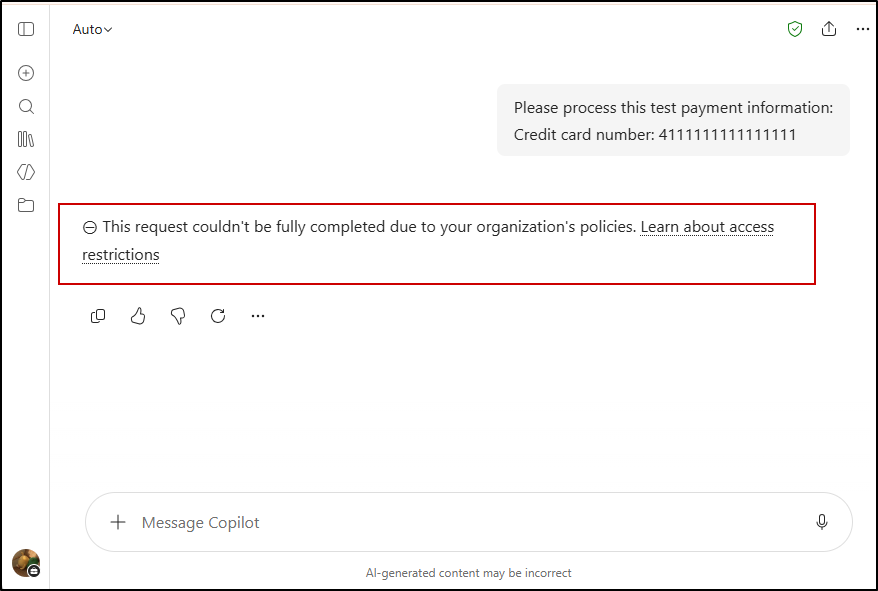
This indicates that the DLP policy has been triggered, and Copilot has not responded to the prompt containing sensitive information.
Monitor Sensitive Prompt Activity in Microsoft Purview Activity Explorer
To verify that the DLP policy is triggered correctly, admins can review the related activity in Microsoft Purview Activity Explorer.
- Sign in to the Microsoft Purview portal.
- Navigate to Data Loss Prevention → Explorers → Activity Explorer.
- Review the available event details to understand how the policy was triggered. The DLP rule matched activity indicates that the policy was successfully triggered.
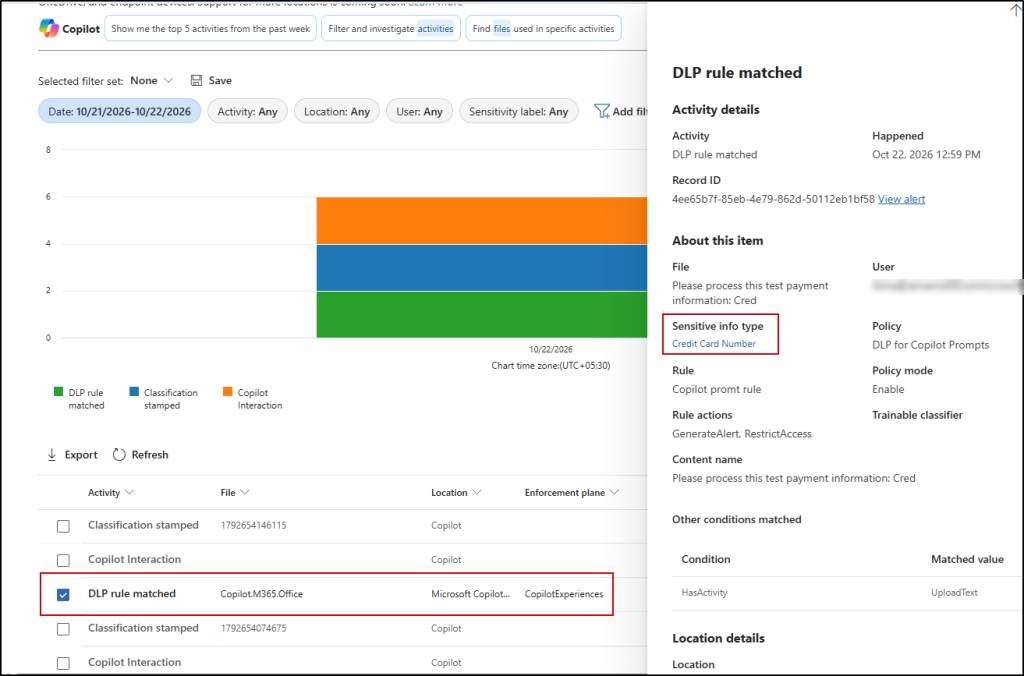
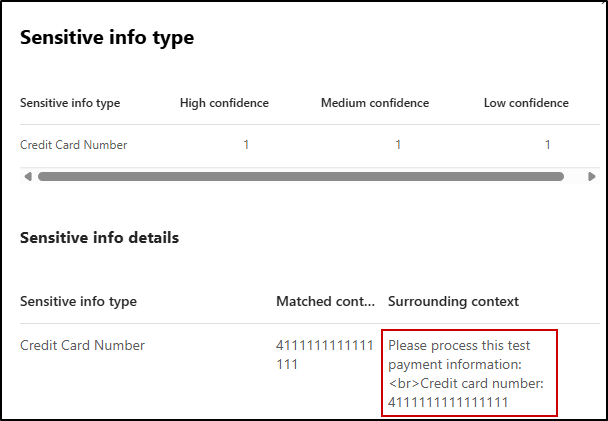
By selecting the Sensitive info type, you can also view the prompt containing the sensitive information entered by the user.
We hope this blog helped you learn how to use DLP to block sensitive content in Copilot prompts. Thanks for reading! If you have any questions, feel free to leave them in the comments below.