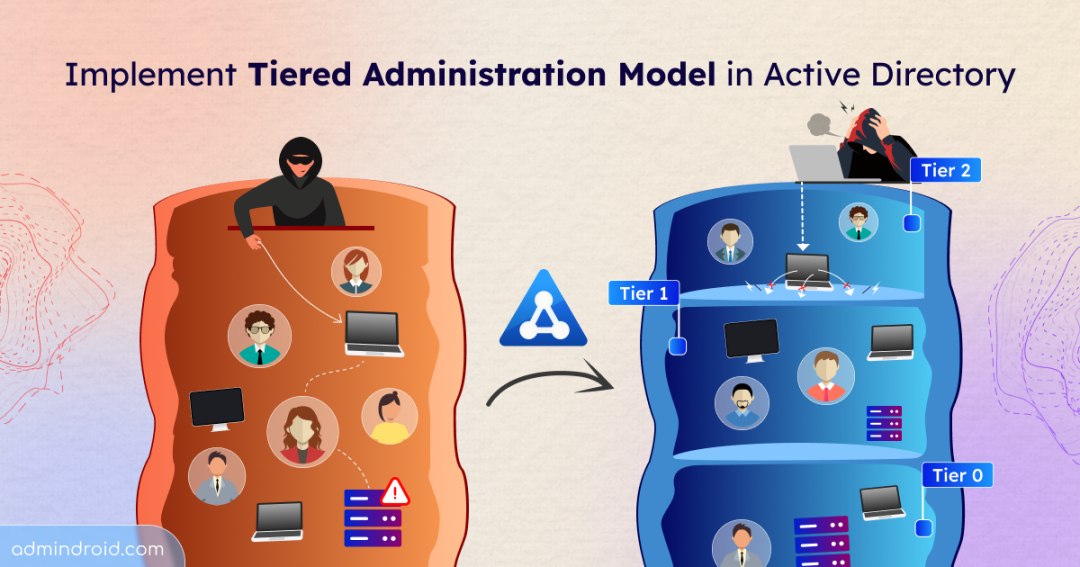
Not all attacks start with the Active Directory domain controller. They start small — a compromised workstation, a stolen helpdesk credential, or a phishing click. From there, attackers move laterally, escalate privileges, and quietly work their way up until they control your entire Active Directory domain.
Active Directory tiered administration, a conceptual security model, was created to break that attack chain. It separates administrative access into tiers to prevent high-privilege credentials from being exposed to lower-trust systems. Let‘s dive into the AD tiering model and explore how to implement it effectively to contain credential exposure within your domain.
In this blog, we’ll explore:
- What is Active Directory tiering model?
- Critical considerations in tiered administration
- How to implement the tier model in Active Directory
- Best practices for tiered administration
- Enterprise Access Model in Active Directory
What is Active Directory Tiering Model?
In a traditional administrative structure, privileged accounts can log in almost anywhere — workstations, servers, applications, and domain controllers. While this may seem operationally convenient, it creates a serious security weakness.
Every time a privileged account logs into a system, its credentials may be cached or stored in memory. Over time, those credentials spread across multiple machines inside the environment. This means administrator-level access is no longer confined to secure systems — it is indirectly exposed to lower-security endpoints.
Now, a low-level workstation compromise can quickly turn into full domain control. This is exactly the security risk that the tiered administration model is designed to eliminate. It is built on the Zero Trust principles, like least privilege and assume breach.
Instead of treating all systems as part of one large space, the AD tiering model separates them based on sensitivity and impact. Each boundary is treated as a distinct security zone, and administrative accounts are then aligned with these zones. The result is containment. If one layer is breached, the entire domain does not fall with it.
Although commonly described as a three-tier structure, the model itself is conceptual. So, organizations can design additional tiers depending on their size, regulatory requirements, or operational complexity. What matters is not the number of tiers — but the separation of privilege between them.
Let’s understand the commonly adopted three-tier structure of Active Directory tiering model.
Tier 0 – The Control Plane
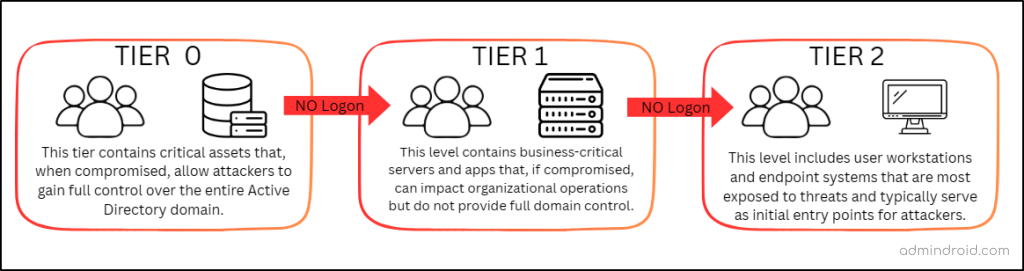
- Tier 0 represents the highest level of privilege in the environment. It should contain the systems and accounts that directly or indirectly control identity and security within the domain. If this tier is compromised, the attacker effectively owns the entire Active Directory.
- This layer includes domain controllers, AD FS, PKI, Backup servers, and highly privileged administrative accounts such as Domain Admins and Enterprise Admins.
- Tier 0 accounts are allowed to access only Tier 0 systems. They should never be used on servers or workstations, or for day-to-day activities like email or browsing.
Tier 0 is the foundation of your security posture. If it remains protected, the domain remains defensible.
To strengthen protection, organizations are recommended to use Privileged Access Workstations (PAWs) for performing high-privilege administrative tasks within the domain.
| A PAW is a dedicated and hardened workstation used exclusively for high-privilege administrative activities. It is isolated from regular user operations to significantly reduce the risk of credential exposure, with no internet or email access. Each administrative account should have a dedicated PAW for privileged tasks. PAWs must always run the latest supported and secure operating system versions. They should follow strict Windows security baselines, including restricted software installation and limited administrative access. By minimizing its attack surface and restricting its usage, the PAW becomes a controlled and secure entry point for privileged access. |
Tier 1 – The Data Plane
- Tier 1 contains business-critical servers and applications. These systems store and process important organizational data but do not directly control identity infrastructure.
- This tier includes assets such as application servers, file servers, and database servers. Admins assigned to Tier 1 are responsible for managing these server environments.
- They cannot log in to Tier 0 or lower-tier systems such as user workstations. This ensures that server-level credentials are not exposed to less secure environments.
- This tier users can still use services provided by the higher tiers.
This controlled separation helps maintain security boundaries between identity infrastructure, business servers, and endpoint systems.
Tier 2 – The User Plane
- Tier 2 includes user-facing systems such as users, workstations, and helpdesk-managed devices.
- These machines interact with email, web browsers, downloads, and external content every day. As a result, they represent the most exposed layer in the environment.
- Users in this tier do not have access to servers or domain controllers. Likewise, higher-tier administrative accounts should never log into these systems.
- These users can also use services provided by the higher tiers.
Since most attacks begin at the endpoint level, isolating Tier 2 prevents attackers from using compromised workstations as a stepping stone toward higher privilege levels.
Here’s a visual diagram to help you understand the tiering model and the relationship between each tier.
Critical Considerations in Tiered Administration
When implementing tiered administration, separation of accounts is critical. The model is only effective if administrative boundaries are enforced consistently.
- If an administrator needs access across multiple tiers, separate accounts must be created for each tier, each with distinct credentials.
- Consider both direct and indirect control when assigning a user to a tier. For example, a user with permission to manage domain admin accounts must be classified as Tier 0, since they can control domain admins and indirectly gain access to the domain controller.
- When adding a group to a tier, ensure that all members of that group belong to the same tier to avoid breaking the security boundary.
- Each computer’s local administrators group must include only accounts from its own tier, as adding members from other tiers creates unintended privilege escalation paths.
- Maintain a secure emergency “break-glass” account for disaster recovery. This account should not be part of the tier model, and its credentials must be stored securely to avoid exposure.
- Before introducing tiered administration, review existing configurations, remove legacy scripts with hardcoded credentials, and clean up overly permissive access.
It’s important to understand one key point: Tiered administration is not a fixed Microsoft template but a flexible security approach. The number of tiers and their design vary based on your organization’s size, complexity, and risk needs. Now that the core concept is clear, let’s move from theory to implementing tiered administration in your Active Directory environment.
How to Implement the Tier Model in Active Directory
Imagine you are managing a mid-sized organization running a domain called contoso.com. Amy, a junior administrator, uses her domain admin account to manage the domain controllers. When something breaks on the application servers, she logs in there as well. And when an urgent issue arises on workstations, she sometimes signs in directly to fix it.
Katy manages the member servers, but she also accesses user machines when needed. Mia works daily from a workstation, unaware of how administrative credentials move behind the scenes.
On the surface, everything functions normally — but there are no enforced security boundaries. Now, let’s follow the steps below and apply tiered administration to this environment.
- Understand the Active Directory domain
- Design a tier-based OU structure
- Identify and classify AD objects
- Move objects into tier-specific OUs
- Create security groups for each OU
- Configure logon restrictions on objects
- Audit and maintain the tiered administration model
1. Review and Understand the Active Directory Domain
If you are building a brand-new domain today, you are in a strong position — you can design tiered administration into the foundation from day one. But contoso is an active production environment. And in a live domain, introducing tiered administration is a controlled transition. You cannot simply block cross-tier logons overnight without understanding how the current environment operates.
Let’s begin by analyzing how access control flows across the domain.
If you examine the contoso domain, you will notice that the domain controller and Amy’s domain admin account have the authority to manage the entire domain. They control authentication, directory configuration, and overall security. If either is compromised, the entire domain is at risk. These assets represent the highest trust boundary — Tier 0.
Next, the member server hosts business-critical applications and data. Katy has administrative control over that server. While important, this level of access does not grant control over the identity infrastructure. This forms a separate trust boundary — Tier 1.
From there, consider the remaining systems. Workstations and users like Mia operate in day-to-day environments. These objects interact with email, browsers, and external content. They do not control servers or identity services. This forms another boundary — Tier 2.
Now pause and observe what happened. You did not begin by declaring, “Let’s create three tiers.” Instead, you analyzed how authority, exposure, and operational control are distributed across the domain — and three natural trust boundaries revealed themselves.
In contoso, that results in three tiers. In another organization, the same review might uncover additional boundaries.
Handy Tip: Before enforcing the tier model, create an Active Directory test environment to replicate your domain and validate the configuration. Once confirmed, introduce the tiered model gradually into your production domain to avoid disrupting critical services or administrative access.
2. Design a Tiered OU Structure in Active Directory
Now that contoso’s environment has been divided into three clear trust boundaries, the next step is to reflect that structure inside Active Directory itself. You can create dedicated Organizational Units for each tier to logically separate users, systems, and other objects.
- Open the Active Directory Users and Computers console.
- Right-click the domain name and select New → Organizational Unit.
- Enter a name and click OK to create an OU in Active Directory.
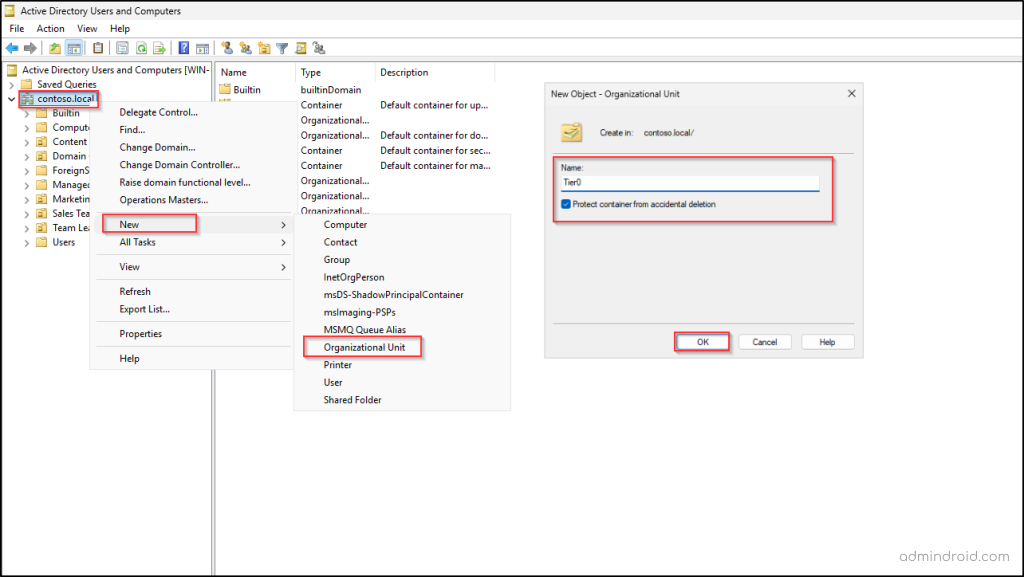
Repeat the same process until you have a separate OU for each tier (Tier0, Tier1, Tier2). Alternatively, you can use PowerShell to create the OUs in Active Directory. Replace the placeholder values with the appropriate details and run the following cmdlet.
|
1 |
New-ADOrganizationalUnit -Name "<OUName>" -Path "<OUPath>" |
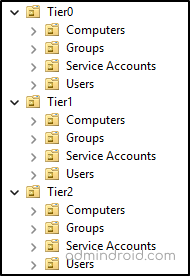
At this stage, you could simply move all objects directly into their respective tier OUs. But as the environment grows, that structure quickly becomes difficult to manage. A better approach is to create sub-OUs within each tier to separate accounts, computers, groups, and service identities. This keeps the structure clean and makes policy enforcement easier later.
3. Identify and Classify Active Directory Objects
With the tier structure in place, the next step is to examine every object, like user, computer, and group, in the domain and determine where it truly belongs. As you evaluate objects, pay close attention to indirect permissions. An account may not be a member of the domain admins group, but if it can modify privileged groups, reset administrative passwords, or control identity-related objects, it effectively holds Tier 0 influence. In a clean trust model, indirect control is treated the same as direct control.
In the contoso domain, Amy’s domain admin account is currently being used to access the member server and workstation, increasing credential exposure. A better approach is to create a separate account with different credentials for her to access systems within the appropriate tier. That account should have only the permissions required for that specific layer. The same principle applies to Katy to access the workstation.
Also review what’s running in the background on each system. Check services, scheduled tasks, batch jobs, and applications to see which accounts they use, including service accounts and gMSAs. Any account used by a system should match that system’s tier to avoid exposing privileged credentials through automation or background processes.
4. Move Objects into Tier-Specific OUs
Once every object has been classified, the next step is to place them into their respective tier-based OUs. For individual objects such as a user, group, or computer, simply right-click the object, select Move, choose the appropriate tier container, and click OK. When dealing with multiple objects, you can filter and select them in bulk using Control or Shift and move them together.
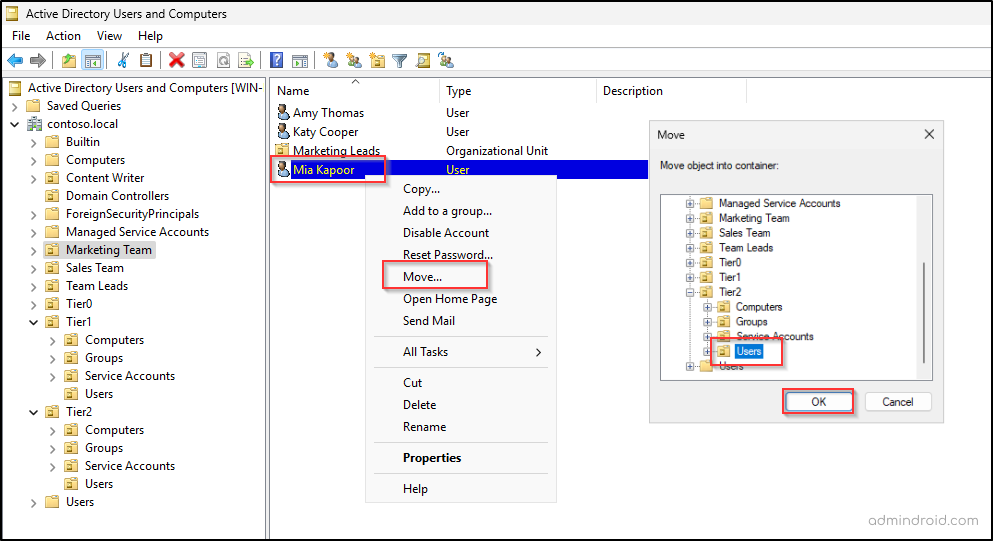
You can also use the following cmdlet to move an object in Active Directory using PowerShell.
|
1 |
Move-ADObject -Identity “<ObjectDistinguishedName>” -TargetPath “<NewOUPath>” |
However, moving objects is not just a mechanical step. Before relocating them, review the existing Access Control Entries (ACEs) on the current OUs and on the objects themselves. Delegated permissions or inherited rights may unintentionally cross tier boundaries or break application functionality.
As objects shift into new OUs, Group Policy inheritance and security settings may also change. Some policies may no longer apply, while new ones may take effect. Therefore, review and resolve any permission or policy conflicts before fully enforcing the tier model.
5. Create Security Groups for Each Tier
The next step is to create a dedicated security group for each tier — for example, Tier0 Group, Tier1 Group, and Tier2 Group. Then, add the appropriate users from each tier into their respective security group. These groups will later be used to enforce logon restrictions and prevent accounts from accessing systems in other tiers.
As the environment evolves, objects may move between tiers. To maintain accuracy and reduce manual effort, manage the security group membership dynamically based on OU location.
This ensures that whenever a user is added to or removed from a tier OU, the corresponding group membership is automatically updated. Tier enforcement depends heavily on clean and consistent group membership — so keeping these groups aligned with the OU structure is essential.
6. Configure Logon Restrictions on Active Directory Objects
We’ve built the fortress walls by creating our tier-based OUs and placing accounts into their respective boundaries. But right now, the gates are still open.
Even though Amy’s account sits in the Tier 0 OU, nothing technically prevents her from signing in to a Tier 2 Active Directory Windows server. The OU structure organizes objects, but it does not enforce access. To make our tiered model real, we need to enforce logon restrictions. This ensures that Amy stays in Tier 0, Katy stays in Tier 1, and Mia stays in Tier 2. You can follow the steps below to lock these doors.
- Restrict cross-tier logons using Group Policy Objects
- Enforce tier boundaries with authentication policies
Restrict Cross-Tier Logons Using Group Policy Objects
Group Policy is the most common and practical way to restrict logons across tiers. It allows you to explicitly deny accounts from one tier from signing in to systems in another. Within Group Policy, five User Rights Assignment settings are typically used to control logon behavior:
- Deny access to this computer from the network
- Deny log on as a batch job
- Deny log on as a service
- Deny log on locally
- Deny log on through Remote Desktop Services
Let’s start by restricting logon on Tier 0 objects and blocking Katy and Mia from accessing them.
- Go to Group Policy Management, right-click the Tier 0 OU, and select Create a GPO in this domain, and Link it here option.
- Enter a name for the GPO and click OK to create a new Group Policy Object.
- Then right-click the newly created GPO and select Edit to open the Group Policy Management Editor.
- Navigate to the following path: Computer Configuration → Policies → Windows Settings → Security Settings → Local Policies → User Rights Assignment.
- Locate the “Deny access to this computer from the network” policy setting and double-click it.
- Select Define these policy settings, then click ‘Add User or Group’.
- Add the Tier 1 and Tier 2 security groups, then click OK.
- Click Apply, then OK to save the configuration.
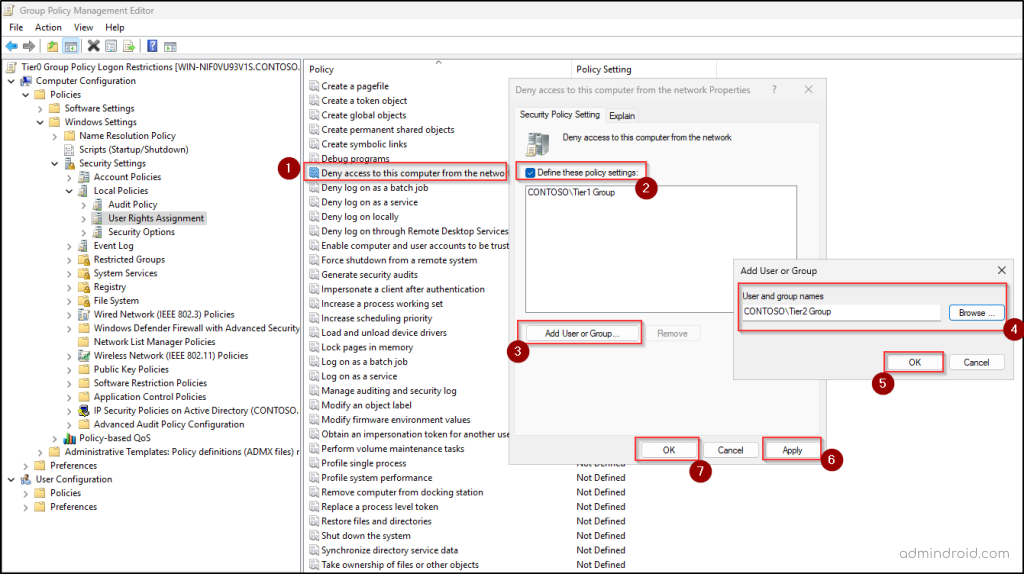
Repeat the same steps for the remaining four deny logon settings. Once completed, Katy and Mia can no longer log in to Tier 0 systems. Follow the same approach for Tier 1 and Tier 2. For each tier, include the other two tier groups in the deny policies to enforce proper logon restrictions.
After configuring the policies, update the GPO across systems using the following syntax in PowerShell.
|
1 |
gpupdate /force |
Important: Implement these changes gradually rather than all at once. Apply and validate the restrictions tier by tier to avoid unexpected access issues or operational disruptions.
Enforce Tier Boundaries with Active Directory Authentication Policies
Once you have limited logons through Group Policy, the next step is to “power up” your protection using Authentication Policies. While GPOs act as a local barrier on the server, Authentication Policies enforce restrictions at the Kerberos authentication level itself.
| An Authentication Policy defines authentication control conditions for user, computer, or service accounts. It ensures that only approved systems can request Kerberos tickets (TGTs) for a user, computer, or service account. This can be used to prevent privileged credentials from being used outside their designated tier. It can also be used to restrict NTLM authentication and enforce TGT lifetime restrictions. |
Prerequisites for Using Authentication Policies in Active Directory
Before implementing Authentication Policies as part of your tiered administration model, a few foundational requirements must be met.
- The domain functional level must be Windows Server 2012 R2 or higher.
- Authentication Policies depend on Kerberos claims and compound authentication, so Kerberos armoring must be enabled across the domain Windows systems. To enable this, create a new GPO or update the domain-wide GPO to configure the following settings.
- Navigate to Computer Configuration → Administrative Templates → System → KDC.
- Open the policy setting “KDC support for claims, compound authentication, and Kerberos armoring”, set it to Enabled, and click OK.
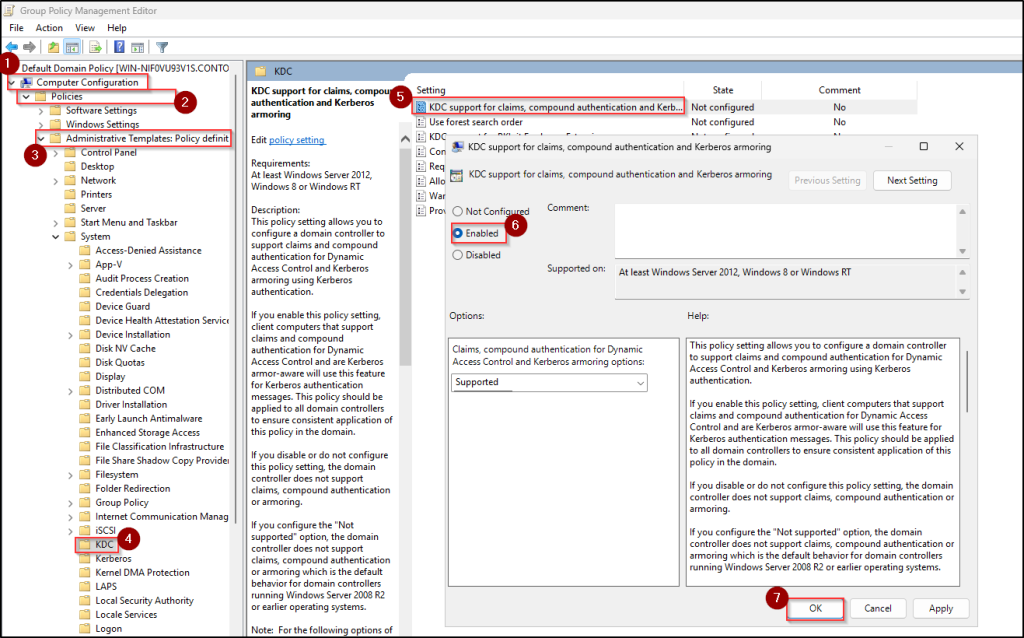
- Similarly, go to the Kerberos folder under ‘Administrative Templates’, double-click the policy setting “Kerberos client support for claims, compound authentication, and Kerberos armoring”, choose Enable, and click OK.
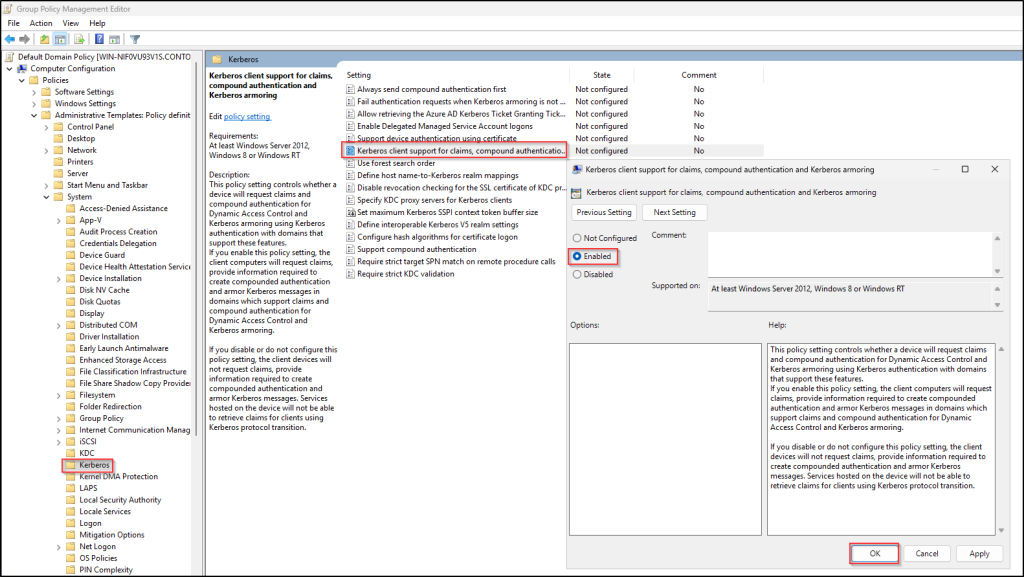
Once these settings are applied and replicated across all domain controllers, follow the steps below to set up the authentication policy in the domain.
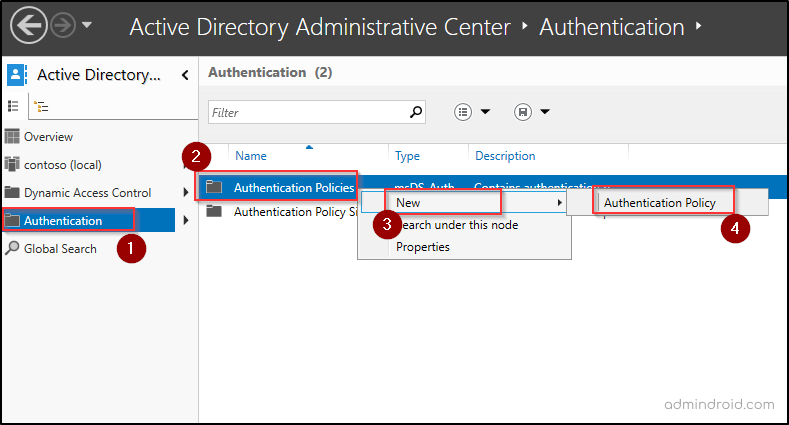
- Open the Active Directory Administrative Center console.
- In the left pane, click Authentication.
- Right-click Authentication Policies and select New → Authentication Policy.
- Enter a name for the policy and select Enforce policy restrictions.
- Under the Accounts section, click Add and select the systems in the Tier 0 OU. It is recommended not to include domain controllers in the authentication policy.
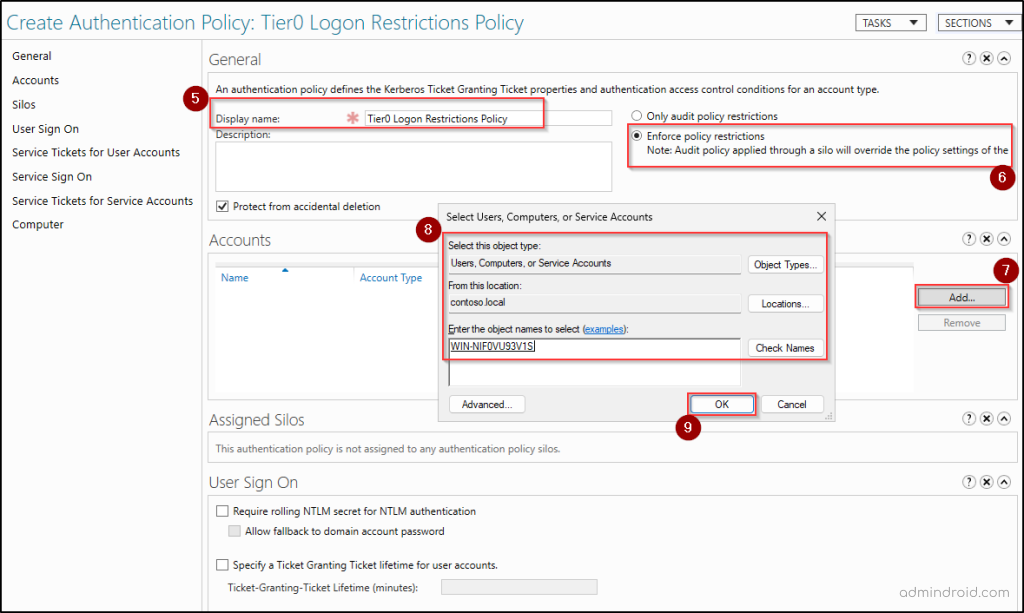
- Click OK and then click Computer in the left pane.
- Click Edit on the Conditions tab, hit Add a condition, and choose the Tier0 Group as in the image below.
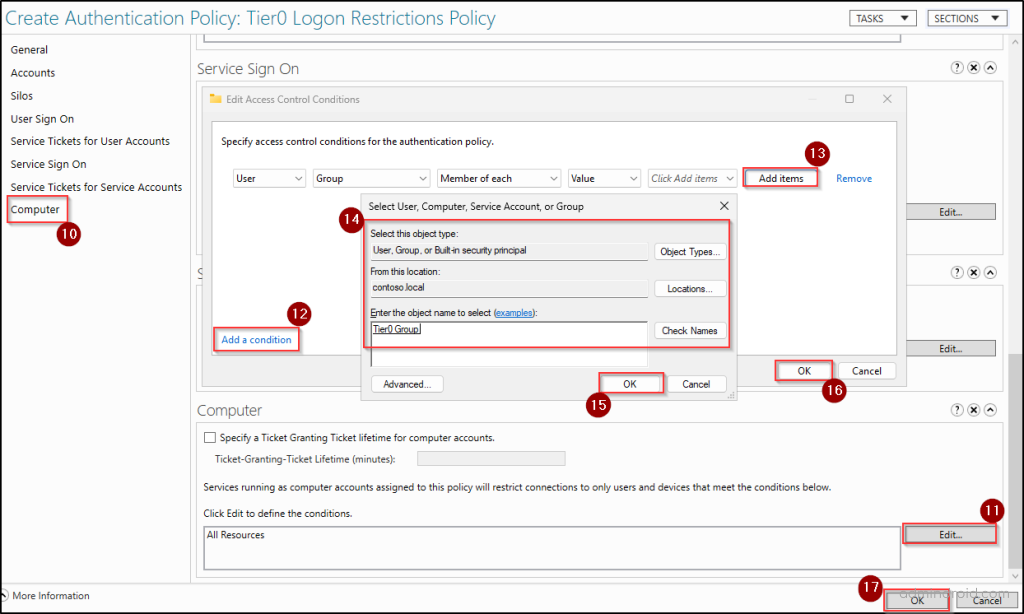
- Click OK twice to save the Authentication Policy.
- Then, reboot all clients and DCs to ensure the policy is applied successfully.
This configuration ensures that Amy, as a member of the Tier 0 group, can authenticate only to the Tier 0 computer that was added to the policy. If there are multiple Tier 0 systems in the domain, all of them should be added under the Accounts section of the policy to ensure proper restriction.
As a result, Katy and Mia will not be able to authenticate to the domain controller or any other Tier 0 system. Repeat the same configuration process for Tier 1 and Tier 2, applying the respective computers and groups to restrict users to their designated tier systems.
7. Audit and Maintain the Tiered Administration Model
While tiered administration significantly reduces credential exposure and lateral movement risks, its effectiveness depends on how well it is implemented and maintained. As roles change, new servers are introduced, and administrators take on new responsibilities, objects may need to move between tiers.
Without continuous review, the model can slowly drift back into a flat administrative structure. Regularly audit changes to privileged groups, authentication policies, and OU structures to ensure the model remains intact.
Building a tiered administration model is one of the most effective ways to stop credential theft and lateral movement in an Active Directory environment. By separating users, systems, and other objects into their respective tiers and locking the doors, you’ve ensured that even if one tier is compromised, the “Keys to the Kingdom” in Tier 0 remain out of reach.
Best Practices for Tiered Administration in Active Directory
Consider the following best practices to strengthen your model.
- Enable Windows Defender Credential Guard to ensure credentials and credential derivatives are never exposed to the target system.
- Administrative accounts should never be used for routine activities such as internet browsing, email, or document access.
- Restrict who can create, edit, or link GPOs that enforce tier boundaries. Limit GPO management rights to a minimal set of trusted administrators.
- Implement Just-In-Time (JIT) access so privileged group membership is temporary and removed automatically after use.
- Use hardened Jump servers or bastion hosts protected with multifactor authentication (MFA) for accessing sensitive systems.
- Use managed service accounts (gMSA) where possible instead of traditional service accounts to reduce credential exposure through automatic password management.
- Protect and monitor break-glass accounts in Active Directory. Store the credentials securely and alert on any usage of the emergency account.
- Disable NTLM where possible to enforce Kerberos-based authentication and stop relay attacks.
- Treat the hypervisor and storage hosting Tier 0 VMs as Tier 0 assets to prevent offline NTDS.dit theft.
- Conduct continuous audits in Active Directory to identify and remediate breached or weak passwords.
- Enforce strong domain password policy across all accounts, especially privileged ones, to prevent weak or reused credentials in your domain.
- Assign every new AD object to its appropriate Tiered OU at the moment of creation to avoid security drift.
- Review Active Directory delegated permissions, nested group memberships, etc., to detect indirect privilege escalation paths.
Enterprise Access Model in Active Directory
The Active Directory tiering model was designed primarily for traditional on-premises environments, which are largely on-premises. However, many modern organizations no longer operate solely within these boundaries. Modern environments span cloud platforms, SaaS applications, hybrid identity systems, and remote management services.
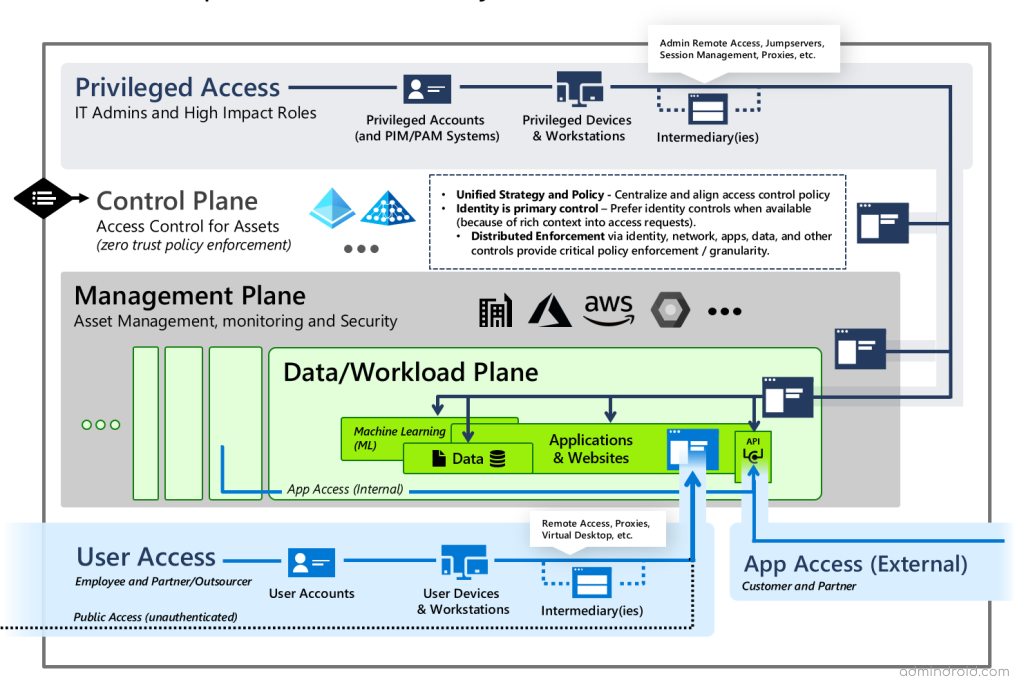
To address the broader security challenges of hybrid and cloud-first infrastructures, Microsoft introduced the Enterprise Access Model (EAM). The core principle remains the same as tiering — enforce privilege separation to prevent credential exposure and lateral movement.
Unlike the tiered model, which typically organizes access into three infrastructure-based layers (such as workstations, servers, and domain controllers), EAM expands this approach into five control planes. Instead of focusing only on where access happens, it emphasizes what level of control an identity has — including identity systems, management platforms, applications, and business data.
Final Thoughts
Tiered administration is not just a technical design — it’s a mindset shift. By separating access based on trust and control, you reduce risk, contain breaches, and protect what matters most. It brings clarity to privilege and discipline to administration. When maintained with care, it turns Active Directory from a flat trust model into a resilient security foundation.
If you have any questions or comments, feel free to share them below. We’re always happy to help.