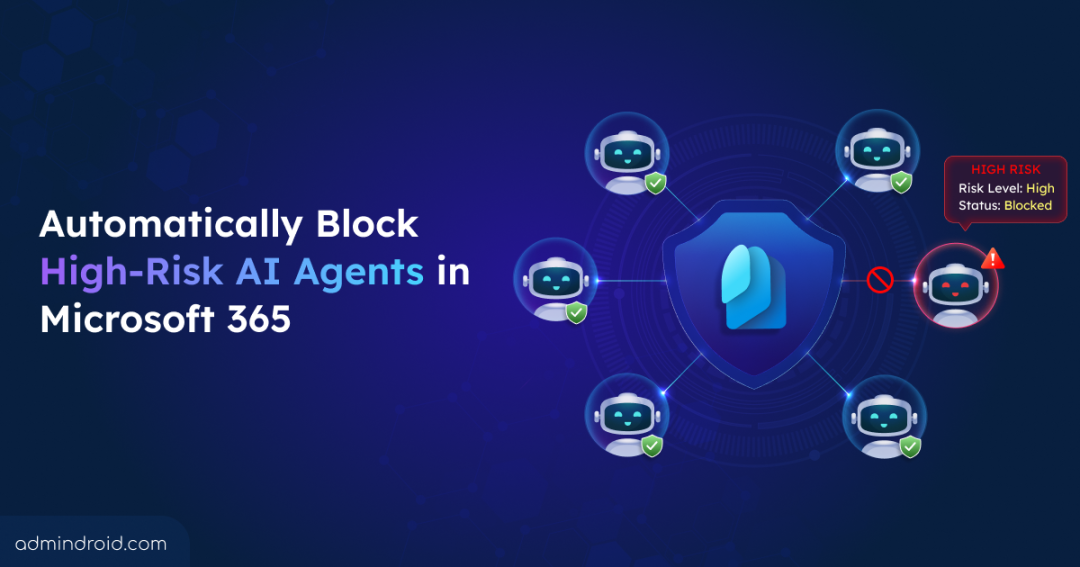
Not every AI agent in Microsoft 365 is a security risk, but any agent can become one if it’s misconfigured, compromised, or misused.
Because these risks are difficult to predict, some organizations choose to block AI agents entirely or block specific agents. While that may seem like the safer option, it limits the automation and productivity benefits AI agents provide.
A better approach is to make access decisions based on live risk signals from Entra ID. Organizations should track agent behavior and restrict access only when an active agent displays suspicious activity.
This blog walks you through how to automatically detect high-risk AI agents in Entra and block their access in real time.
How AI Agents Become High-Risk in Microsoft 365
AI agents don’t become high risk on their own. They are classified as high risk when their identity is compromised, their credentials are misused, or their behavior indicates potential malicious activity. Because they can operate autonomously across multiple Microsoft 365 services, a compromised AI agent can continue performing actions until the risk is detected and access is restricted.
Here are some of the most common ways an AI agent can become high-risk:
Prompt Injection Attacks: A trusted agent can be manipulated through malicious instructions hidden in data or user inputs. This doesn’t grant new permissions, but it can trick the agent into misusing the ones it already has, exposing sensitive data or triggering unauthorized actions.
Identity and Token Compromise: Agents authenticate using identities and access tokens managed through Entra ID. If these are stolen, an attacker can impersonate the agent and reach every resource it’s authorized to use.
Abnormal Behavioral Patterns: AI agents generally follow consistent, predictable operational routines. An agent that suddenly requests an unusual volume of tokens, pulls data from unfamiliar repositories, or connects to services it has never used before often signals a compromise.
High-Speed Automated Actions: Agents execute tasks at a scale and speed humans cannot match. When compromised, an agent can exfiltrate massive amounts of data, alter configurations, or run harmful automated scripts across multiple services within seconds.
These are some of the common ways an AI agent can become high-risk. That’s why securing AI agents isn’t a one-time task. Continuous monitoring is essential to detect suspicious activity early and respond before it can impact your Microsoft 365 environment.
How to Detect and Block High-Risk Agents in Microsoft 365
Detecting a high-risk AI agent is only part of the solution. To protect your Microsoft 365 environment, you also need to block its access as soon as it’s identified. Microsoft Entra provides this through two capabilities:
- Identity Protection for Agents detects suspicious behavior and classifies AI agents based on their risk level.
- Conditional Access for Agents uses those risk signals to automatically block high-risk AI agents from accessing protected resources.
The following sections first cover how to identify risky AI agents using Identity Protection for Agents and then configure risk-based Conditional Access to block them automatically. Before you begin, ensure the following requirements are met.
To use Identity Protection for Agents and Conditional Access for Agents, your organization must meet the following licensing requirements.
- If you have Microsoft 365 E7 (which includes Microsoft Agent 365 and Microsoft Entra Suite) or Microsoft 365 E5 with a Microsoft Agent 365 license, no additional Microsoft Entra licensing is required for these capabilities.
- If you don’t have Microsoft 365 E5 or E7, you’ll need Microsoft Agent 365 together with the following Microsoft Entra licenses:
- Identity Protection for Agents: Entra ID P2 license along with the Security Administrator or Global Administrator role.
- Conditional Access for Agents: Entra ID P1 license.
Note: If you’ve already configured the preview versions of ID Protection for Agents or CA for Agents, your existing configurations will continue to work. The licensing transition doesn’t require you to recreate, modify, or re-verify any active policies.
How to Detect Risky Agents with Entra Identity Protection
AI agents can become high-risk at any time due to compromised identities, stolen tokens, or suspicious behavior.
Microsoft Entra Identity Protection for Agents continuously monitors AI agents by analyzing behavioral patterns, threat intelligence, and other risk signals. When suspicious activity is detected, the agent is flagged as risky and assigned one of the following risk levels:
- High: Strong confidence that the agent has been compromised or is exhibiting highly suspicious behavior.
- Medium: Suspicious activity has been detected, but there isn’t enough evidence to confirm compromise.
- Low: Minor deviations from the agent’s typical behavior have been observed.
Once an agent is classified as risky, administrators can review the detection details and decide how to respond.
View Risky Agents Report in Entra Admin Center
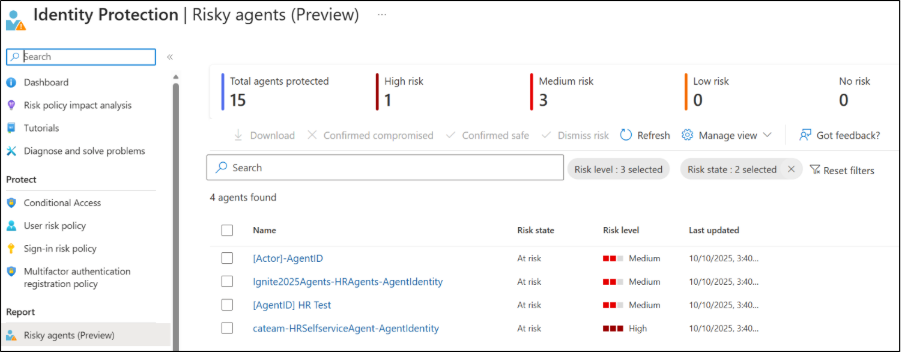
Every agent that gets flagged shows up in the Risky Agents (Preview) report in Entra admin center. To access the report:
- Sign in to the Entra admin center, and then click the ID Protection drop-down menu.
- Select Risky agents from the left pane to review the detected risky agents.
The report displays key information for each detected agent, including its display name, risk level, current risk state, and the time the risk was last updated. Admins can use this report to review, investigate, and respond to potential threats.
How to Review and Respond to Risky AI Agents
Selecting an agent from the report opens the Risky agent details pane, where administrators can review the detected risk and take manual remediation actions.
The available actions include:
- Confirm compromised: Mark the agent as compromised to increase confidence in the detected risk.
- Confirm safe: Clear the agent’s risk status once you’ve verified the activity was legitimate.
- Dismiss risk: Remove the current risk state if the investigation determines that no further action is required.
- Revoke sessions: Immediately terminate all active sessions associated with the agent.
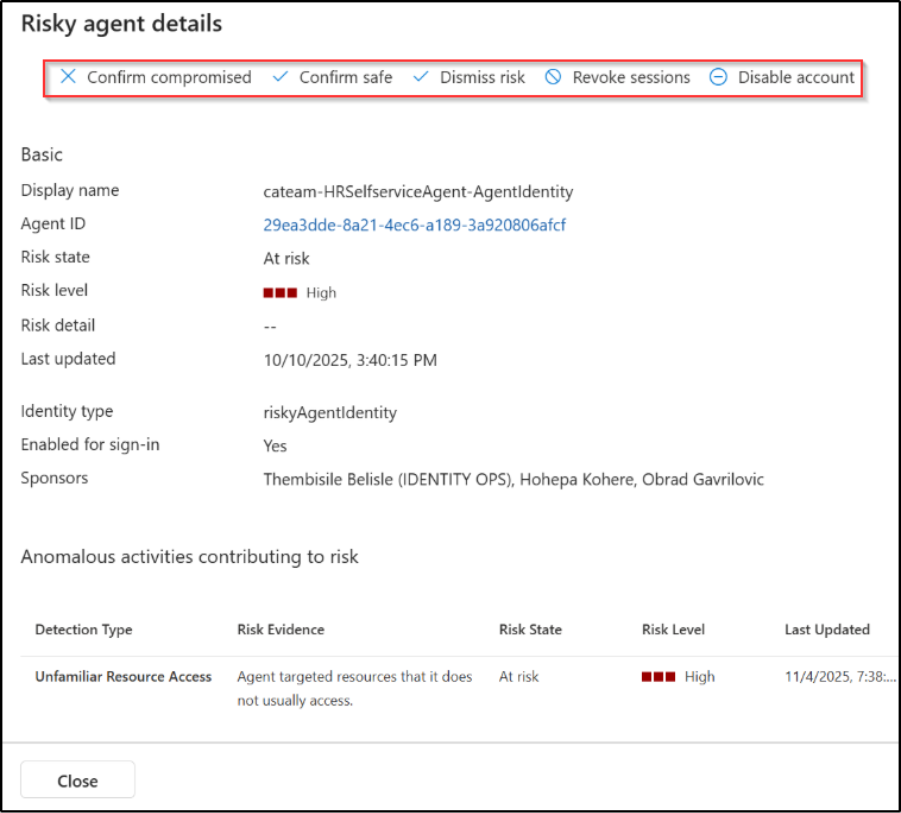
These actions help administrators investigate and contain individual incidents. However, they still require someone to review the report and take action manually! In environments where AI agents run continuously, this can delay the response and allow risks to persist longer than necessary.
The next section covers how to bridge this gap by tying Entra ID risk signals directly to automatic, real-time blocking policies using Conditional Access.
How to Automatically Block High-Risk Agents Using Conditional Access
After identifying risky AI agents, the next step is to prevent them from accessing Microsoft 365 resources. While administrators can respond manually from the Risky agents report, that approach doesn’t scale as the number of AI agents grows!
Microsoft Entra solves this by combining Identity Protection for Agents with Conditional Access. When an agent is classified as High risk, a Conditional Access policy can be configured to automatically block its access in real-time.
Rather than creating a policy from scratch, Microsoft provides a built-in Conditional Access template specifically for high-risk AI agents.
Deploy the Conditional Access Policy Template to Block High-Risk Agents
The pre-built Conditional Access policy template that blocks high-risk AI agent identities is the fastest and most reliable way to implement risk-based protection.
To deploy the template, follow the steps below:
- Sign in to the Entra admin center and go to Entra ID → Conditional Access.
- Select Create new policy from templates.
- Under the “AI Agents” category, choose Block high-risk agent identities from accessing resources.
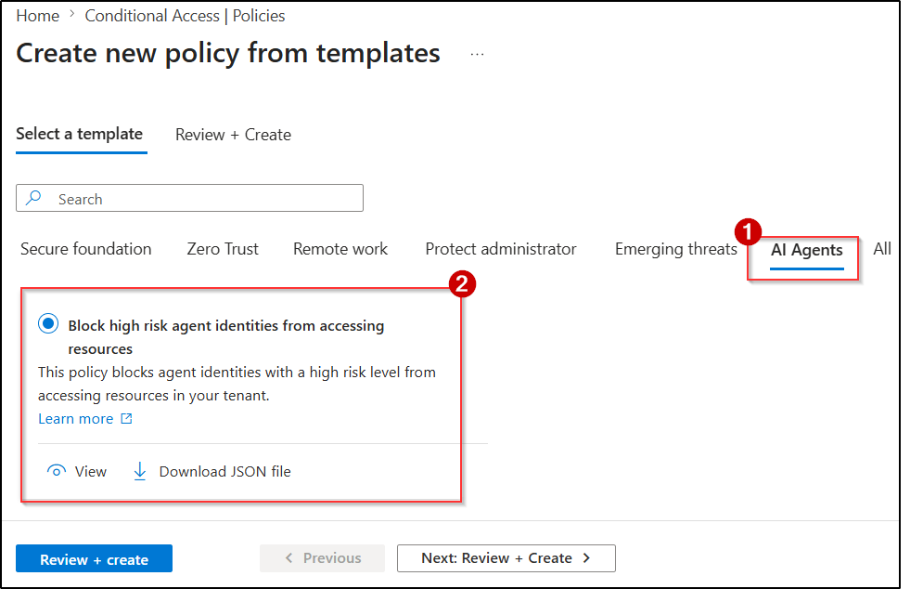
4. Click View to verify the configuration, then select Create to deploy the template to your tenant.
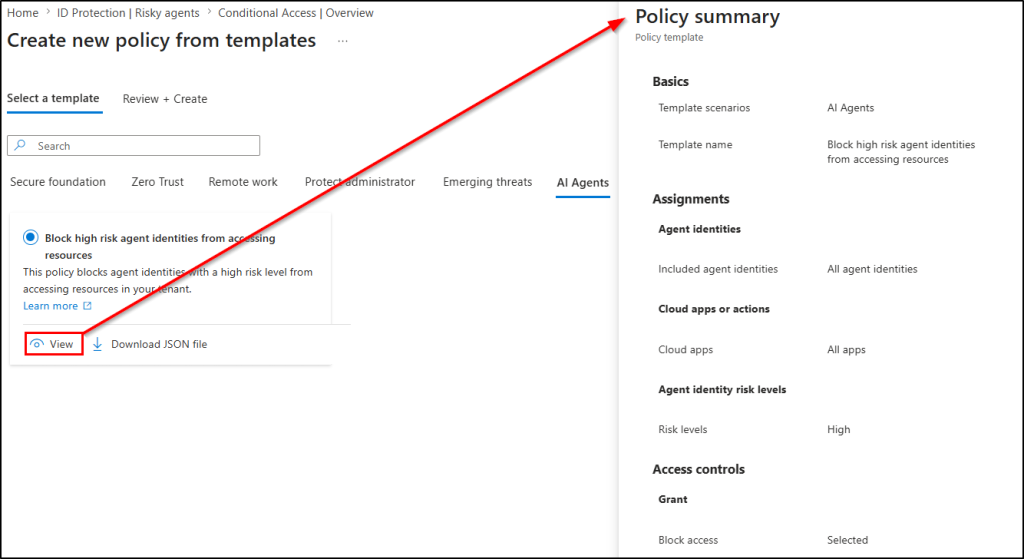
The policy is created in Report-only mode by default. Once you’re ready, change the policy state to On to enforce automatic blocking. By default, the template is configured as follows:
| Setting | Default Value | Explanation |
| Assignments | All Agent Identities | Applies to every agent identity registered in your Entra tenant. |
| Cloud apps or actions | All apps | Covers all supported cloud resources. |
| Agent identity risk levels | High | Triggers exclusively when an identity reaches a high-risk classification. |
| Access control | Block access | High-risk agent identities are blocked from protected resources. |
One important limitation of the built-in template is its scope. By default, it protects Agent Identities only. It doesn’t include Agent User Accounts, even when they’re associated with the same AI agent.
If your organization uses Agent User Accounts, update the deployed CA policy to include these accounts. Otherwise, only Agent Identities will be evaluated and blocked when classified as high risk.
How Identity Protection and Conditional Access Work Together
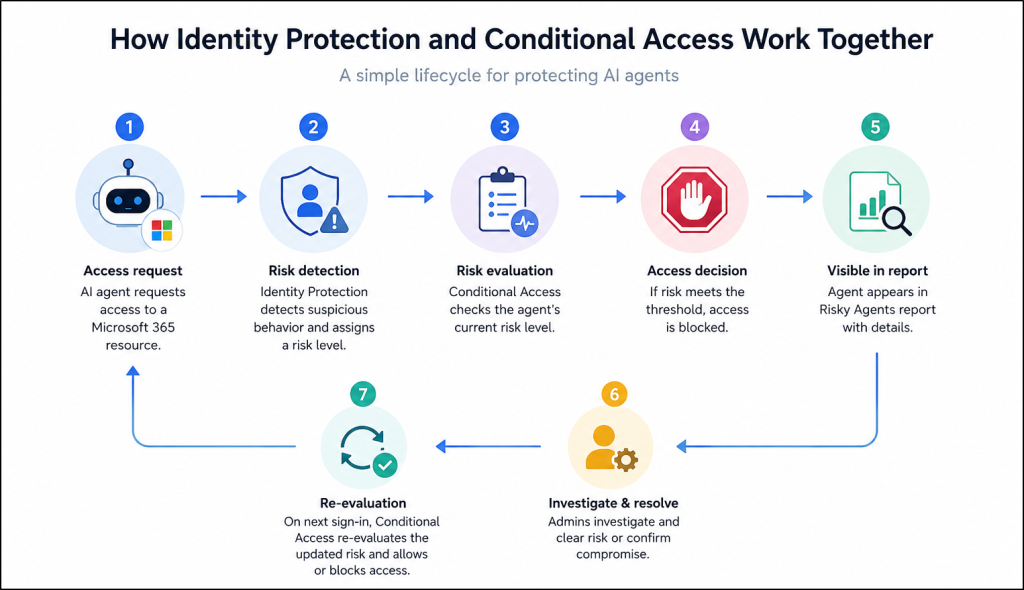
Entra Identity Protection for Agents and Conditional Access are separate services, but they work together as a continuous protection lifecycle.
To put simple, Identity Protection detects and evaluates suspicious activity, while Conditional Access uses those risk signals to enforce access decisions automatically.
The following workflow shows how an AI agent is monitored, how risk is assessed, and how access is automatically enforced throughout the protection lifecycle.
Best Practices Beyond Conditional Access for AI Agents
Blocking risky agents through Conditional Access is a critical control, but stopping agents from turning risky in the first place takes more than that. These practices help reduce the attack surface and strengthen agent security across their lifecycle.
1. Follow the Principle of Least Privilege: Grant AI agents only the minimum API permissions required for their tasks. Avoid assigning broad tenant-wide read or write permissions unless necessary.
2. Protect the App Blueprints: Since Agent Identities authenticate through a blueprint rather than holding credentials directly, that blueprint access needs tight control. Rotate certificates and client secrets regularly and revoke them immediately if you suspect compromise.
3. Use Dedicated Agent Identities: Don’t let multiple AI tools share a single service account or Enterprise Application registration. Dedicated identities isolate failures, keep audit logs clear, and let admins disable a single agent without affecting others.
4. Govern the Grounding Data: An agent is only as secure as the data it relies on. Protect the SharePoint sites, databases, and document repositories used for retrieval-augmented generation (RAG). I f these data sources are tampered with, attackers can influence the agent’s responses even when its identity remains secure.
Secure the Automation Era
The organizations that handle this well won’t be the ones blocking agents outright or hoping nothing goes wrong. They’ll be the ones with detection and enforcement running continuously in the background, catching a compromised agent within one authentication cycle instead of one incident report.
Pair Identity Protection for Agents with risk-based Conditional Access and enforce real-time protection against high-risk AI agents.
If you run into something different in your own tenant, or have questions, drop them in the comments. Happy to hear how this plays out elsewhere.