Managing Microsoft 365 has become far more demanding than simply creating users and assigning licenses. Microsoft continuously introduces new features, security recommendations, and configuration changes across various M365 services. Keeping up with M365 changes while maintaining a secure and well-managed environment is becoming increasingly challenging.
Although Microsoft 365 provides powerful admin centers, everyday administrative tasks still require specialized tools. Configuration backup, drift detection, Conditional Access deployment, tenant security assessments, advanced reporting, automation and troubleshooting are just a few examples where native capabilities may not be enough.
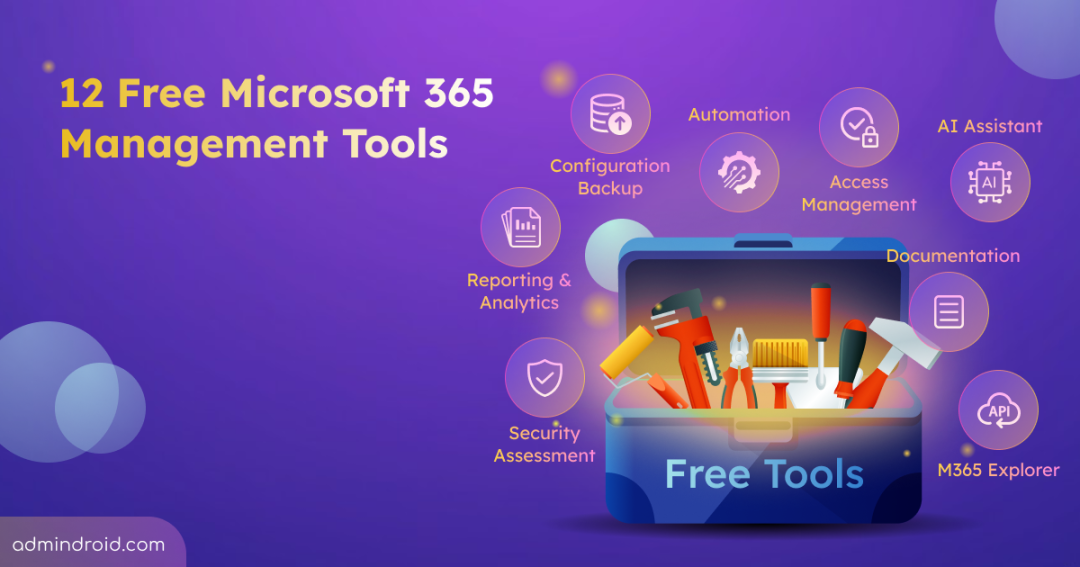
That’s why we have compiled 12 genuinely free Microsoft 365 management tools that help you across every stage of administration. Some extend Microsoft’s native capabilities, while others solve challenges the admin centers weren’t designed to address.
Let’s dive in.
1. Microsoft Zero Trust Assessment Tool: Evaluate Your Zero Trust Readiness
Many organizations believe they’re following Zero Trust principles until they actually assess their environment. In reality, evaluating Zero Trust readiness manually is difficult because the required security settings are spread across multiple Microsoft 365 services.
That’s exactly what Microsoft Zero Trust Assessment tool was built to solve.
How it Works:
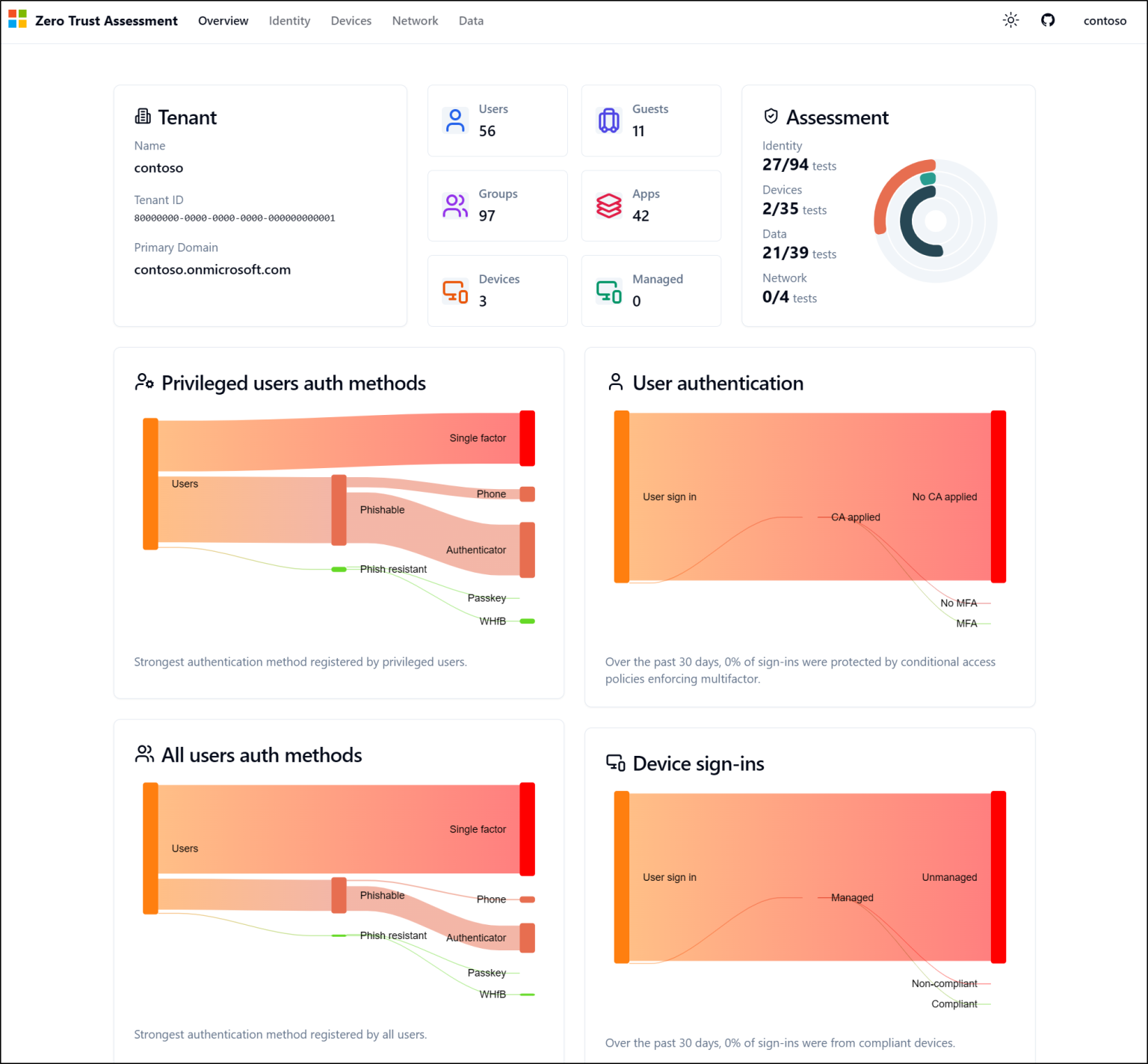
Zero Trust Assessment Tool is a free PowerShell-based tool developed by Microsoft that helps organizations evaluate how closely their Microsoft 365 environment aligns with Microsoft’s Zero Trust and Secure Future Initiative (SFI) guidance. The tool analyzes your environment across key security pillars, including Identity, Devices, Network, and Data. It then generates an easy-to-read Microsoft tenant security assessment report highlighting security gaps, risks, and recommended actions.
Unlike Microsoft Secure Score, which primarily measures your security posture through a points-based scoring system, the Zero Trust Assessment evaluates your organization’s Zero Trust implementation maturity and identifies the next steps to strengthen your Zero Trust posture.
Another valuable companion is the Zero Trust Workshop. It transforms your assessment results into a phased implementation roadmap, helping you prioritize improvements instead of tackling dozens of recommendations at once.
Key Capabilities
- Evaluates your Microsoft 365 tenant against Microsoft’s Zero Trust and SFI guidance.
- Assesses identities, devices, endpoints, applications, workloads, networks, and data.
- Identifies configuration gaps and prioritizes security improvements.
- Generates a detailed HTML report with actionable recommendations.
- Maps findings to Microsoft’s implementation guidance for each recommendation.
- Converts assessment results into a phased Zero Trust implementation roadmap.
Ready to evaluate your organization’s Zero Trust maturity? Explore Microsoft’s Zero Trust Assessment Tool
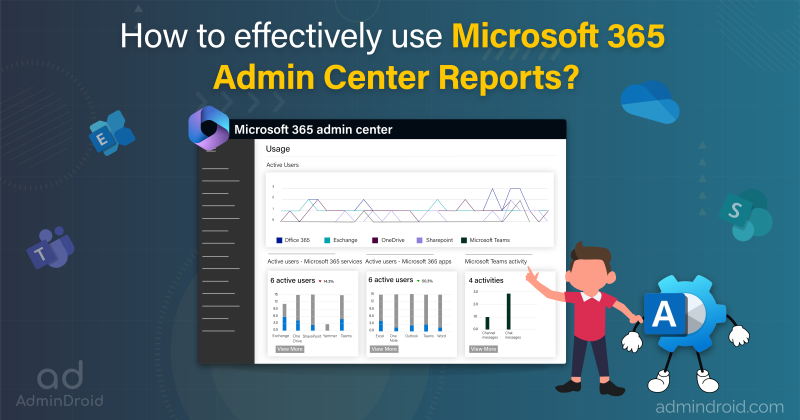
2. AdminDroid Free Version: Access & Schedule 120+ Reports and Perform 60+ Management Actions
The Microsoft 365 admin center includes built-in reports, but many of them are difficult to use and lack export and scheduling capabilities. In addition, administrators often have to switch between multiple admin portals to complete everyday reporting, auditing, and management tasks.
That’s where AdminDroid Free Version comes in.
How it Works:
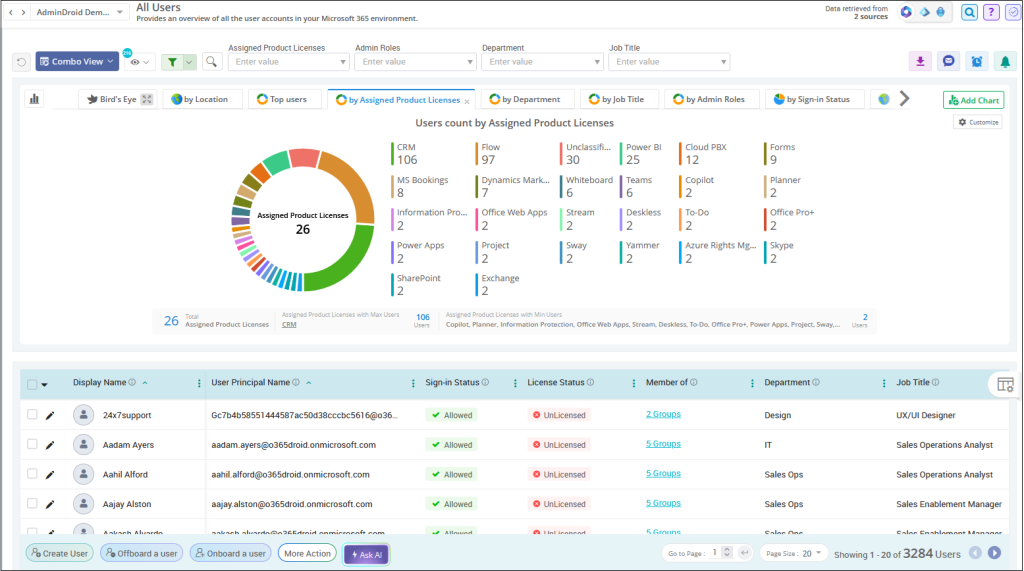
AdminDroid’s free Microsoft 365 reporting and management tool brings reporting, auditing, and management together in a single web console. The free version includes 120+ reports covering users, groups, group memberships, licenses, user sign-ins, password changes, MFA changes, Entra application operations, admin role changes, and more. It also supports 60+ essential management actions, including user and group lifecycle management, license management, MFA configuration, and more.
The best part is that you can export reports in multiple formats, including CSV, PDF, HTML, and XLSX. You can also schedule reports to run at regular intervals and have them delivered directly to your email inbox.
Key Capabilities
- 120+ Microsoft 365 reports
- 60+ Microsoft Entra ID management actions
- Export reports in CSV, PDF, HTML, XLSX, and other formats
- Schedule reports to run automatically and receive them via email
- Automate approval workflows with 15 free workflow executions included.
- Review license usage and reduce unnecessary licensing costs
- Monitor sign-in activity and account changes
- Lifetime free access with no tenant size limitations
Ready to gain deeper visibility into your Microsoft 365 environment? Explore AdminDroid free M365 reporting and management tool.
3. CISA ScubaGear: Validate Your Microsoft 365 Security Against CISA Baselines
Microsoft’s security recommendations are a great starting point, but many organizations also need to demonstrate compliance with an industry-recognized security baseline. That’s where ScubaGear comes in.
How it Works:
ScubaGear is an open-source assessment tool developed by the U.S. Cybersecurity and Infrastructure Security Agency (CISA). It evaluates your Microsoft 365 environment against the SCuBA (Secure Cloud Business Applications) security baselines. These baselines are aligned with NIST SP 800-53 security controls and the MITRE ATT&CK framework. This gives administrators the context to understand why a setting matters, which security objective it fulfills, and which attack techniques it helps mitigate.
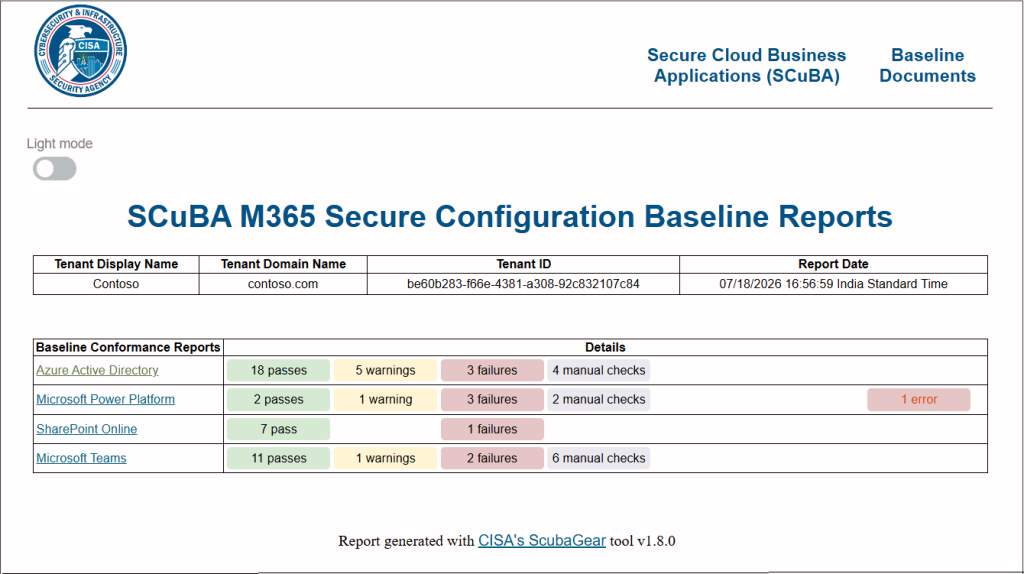
ScubaGear connects to your tenant and reviews configurations across seven major Microsoft 365 services. After the assessment, it generates a report showing which recommended settings pass, fail, or require further review. This makes it much easier to identify security gaps than manually comparing your tenant’s settings against lengthy security documentation.
Key Capabilities
- Validates Microsoft 365 security configurations against CISA SCuBA baselines
- Assesses Microsoft Entra ID, Exchange Online, Microsoft Defender, Microsoft Purview, Power Platform, SharePoint Online, and Microsoft Teams
- Generates detailed assessment reports in HTML, JSON, and CSV formats
- Highlights configuration deviations and recommended remediation actions
- Operates in read-only mode
Want to see how your tenant measures against the CISA SCuBA baselines? Install ScubaGear and get started with your first assessment.
Tip: Since ScubaGear evaluates your environment against CISA recommendations rather than Microsoft’s own guidance, it’s an excellent companion to the Zero Trust Assessment. Running both provides a more comprehensive picture of your security posture.
4. Maester: Continuously Validate Your Microsoft 365 Security Configuration
Security baselines provide a point-in-time snapshot of your Microsoft 365 environment. However, Microsoft 365 configurations change frequently. New Conditional Access policies are added, administrators modify settings, new services are enabled, and security recommendations continue to evolve. A tenant that was fully compliant last month can gradually drift away from security best practices without anyone noticing.
Instead of performing occasional security reviews, many organizations now prefer continuous security validation. That’s exactly what Maester provides.
How it Works:
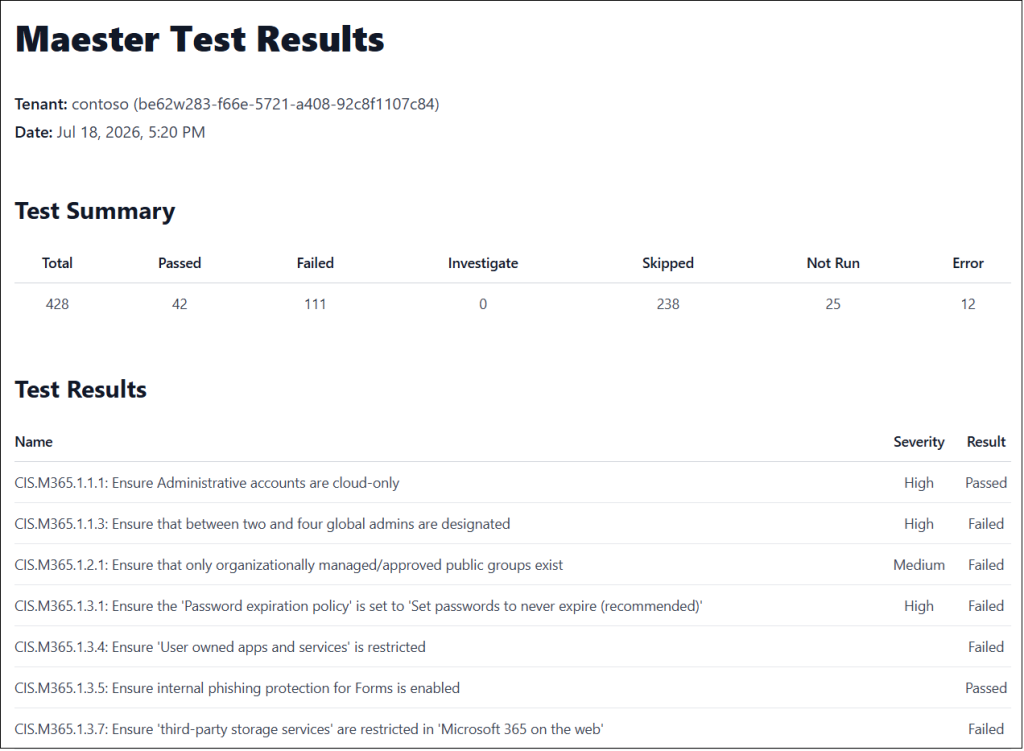
Maester is an open-source, PowerShell-based security testing framework that validates your Microsoft 365 security configuration. Rather than performing a one-time assessment, it allows administrators to run automated security tests at a scheduled interval through Task Scheduler or CI/CD pipeline. After each run, Maester generates a comprehensive HTML report containing every executed test, its result, and remediation guidance, making it easy to identify, prioritize, and fix security gaps.
Key Capabilities
- Includes 360+ security tests covering various M365 services.
- Allows to create custom security tests to assess configurations specific to your organization’s requirements.
- Maps test results to well-known security frameworks, including CISA SCuBA, CIS Benchmarks, EIDSCA, and ORCA.
- Sends a test result summary at the end of each monitoring cycle through email, Microsoft Teams, and Slack.
- Detects configuration drift before it becomes a security issue.
- Integrates security validation into CI/CD pipelines and scheduled automation.
- Runs test across multiple tenants and show results in single report with tenant selection option.
Looking to continuously validate your Microsoft 365 security configuration? Explore Maester to automate security testing and detect configuration drifts.
5. Advanced Graph Explorer: Simplify Microsoft Graph API Exploration
Microsoft Graph powers almost every Microsoft 365 service, making it an essential platform for automation, reporting, and custom integrations. While Microsoft provides its own Graph Explorer, many administrators find it developer-oriented, especially when working with large JSON responses or navigating paginated results.
AdminDroid Graph Explorer simplifies this experience.
How it Works:
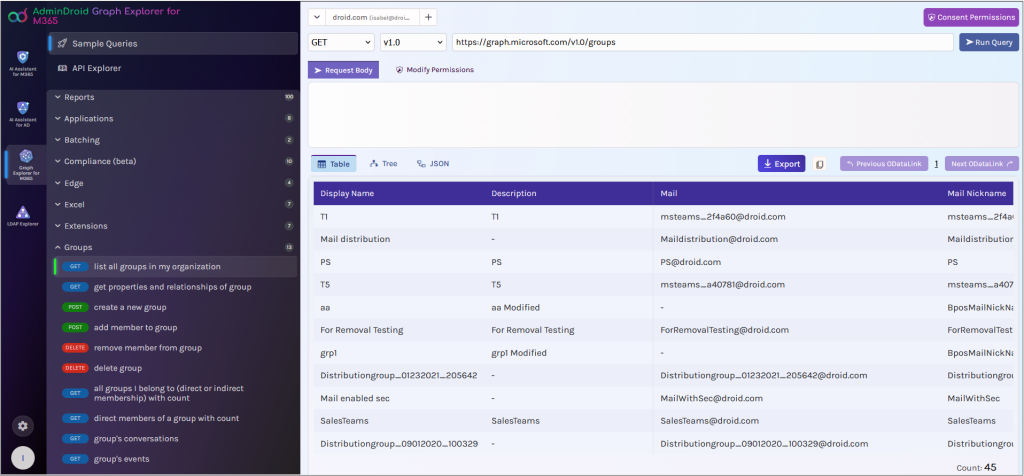
It’s a free, open-source Microsoft Graph Explorer that makes Graph API responses easier to understand and analyze. Instead of displaying only raw JSON, it lets you view Graph API results in multiple formats, including tables, tree views, and JSON, so you can choose the format that best fits your workflow. It also simplifies pagination with one-click navigation between result pages and includes several usability improvements over the native Graph Explorer.
Key Capabilities
- Shows Graph API responses as table, tree view, or JSON
- Expand nested objects using an intuitive tree view.
- Access a library of prebuilt Microsoft Graph API queries.
- Navigate paginated results with one-click Next and Previous controls.
- Functions as a multi-tenant management tool, enabling admins to switch between multiple M365 tenants from a single interface.
Want to simplify Microsoft Graph API exploration? Try AdminDroid Graph Explorer for M365 to run Microsoft Graph queries using an intuitive interface.
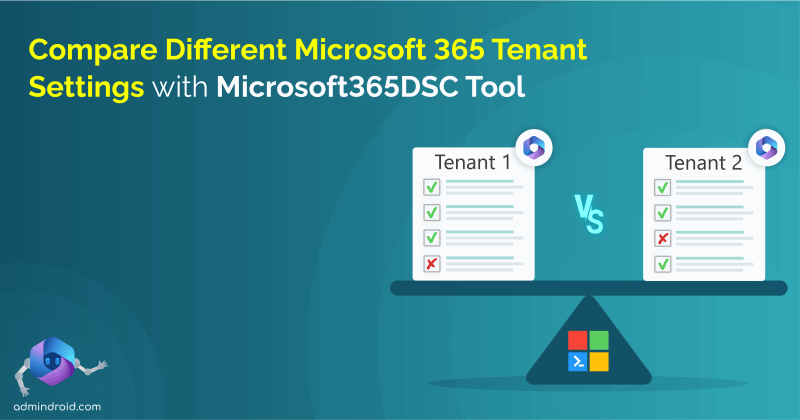
6. Microsoft365DSC: Manage, Back Up, and Standardize Your Microsoft 365 Configuration
Microsoft 365 configurations constantly evolve. Administrators create new Conditional Access policies, modify Exchange settings, update Intune configurations, and deploy new Teams policies. Over time, tracking changes, maintaining consistency across tenants, and recovering from configuration mistakes become increasingly challenging.
This is where Microsoft365DSC becomes invaluable.
How it Works:
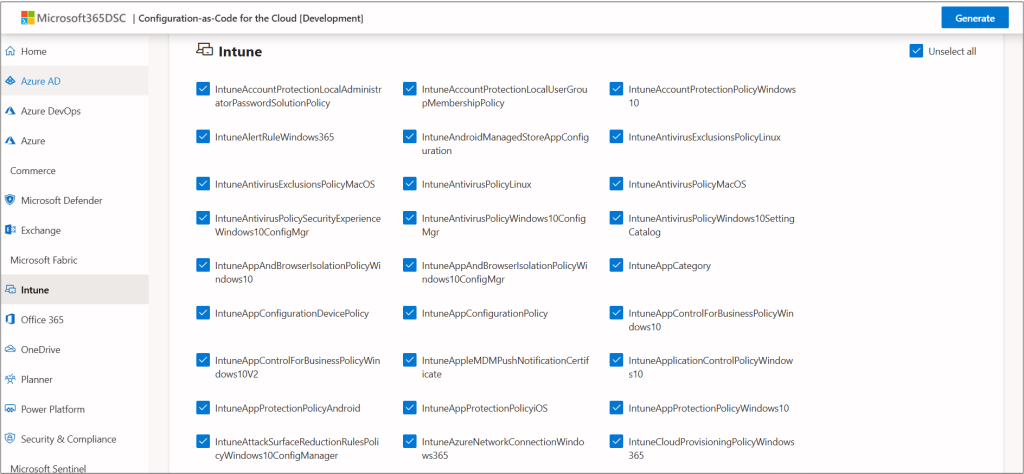
Microsoft365DSC (Desired State Configuration) is a free, open-source PowerShell framework that lets you manage your Microsoft 365 configuration as code. Instead of manually configuring and documenting settings, you can backup, compare, assess, deploy, and monitor tenant configuration changes from a single platform.
Key Capabilities
- Supports a wide range of Microsoft 365 workloads, including Microsoft Entra ID, Exchange Online, Microsoft Teams, SharePoint Online, OneDrive, Intune, Microsoft Purview, Power Platform, and more.
- Automates the deployment of Microsoft 365 tenant configurations.
- Exports and backs up Microsoft 365 configurations.
- Detects configuration drift by comparing configuration snapshots and tracks configuration changes over time.
- Helps to clone tenant settings in tenant-to-tenant migration
- Assesses configuration compliance against predefined baselines and generates discrepancy reports.
- Compares configuration settings between Microsoft 365 tenants.
- Helps standardize Microsoft 365 configurations across multiple tenants.
Want to safeguard your Microsoft 365 configuration before making changes? Explore Microsoft365DSC to simplify your tenant configuration management.
Note: Microsoft365DSC has a learning curve because it relies on PowerShell and Desired State Configuration concepts. However, the investment pays off for organizations that frequently manage complex Microsoft 365 environments.
7. Entra Exporter: Export Microsoft Entra ID Configuration for Version Control
Not every administrator needs a complete Microsoft 365 configuration backup. Sometimes, the biggest concern is simply Microsoft Entra ID. While Microsoft365DSC covers Entra ID along with many other services, some administrators prefer a lightweight tool dedicated solely to identity configuration.
That’s exactly what EntraExporter offers.
How it Works:
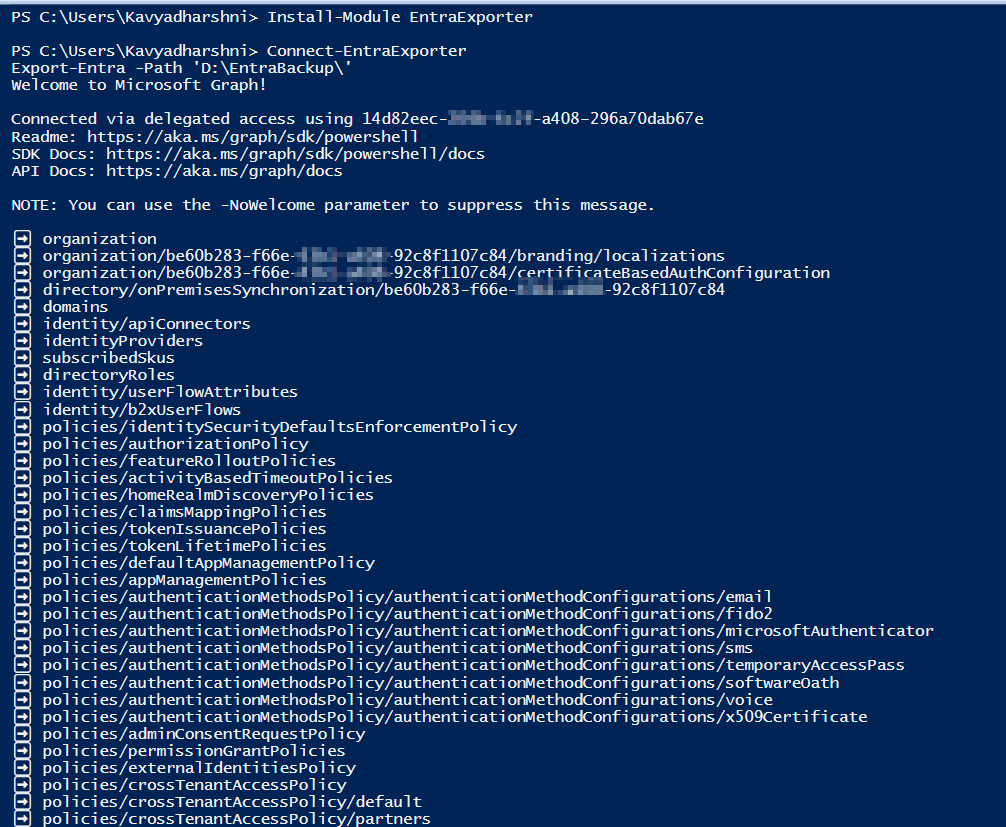
EntraExporter is a Microsoft-developed PowerShell tool that creates point-in-time snapshots of your Microsoft Entra ID and B2C configuration as structured JSON files. These exports can be archived, reviewed, compared over time, or used to understand how your Entra environment has evolved.
By comparing successive exports, you can quickly identify differences across users, groups, applications, administrative units, branding, policies, and many other directory objects. Since the exported files are JSON, they’re also ideal for storing in Git repositories to maintain a version history of your Entra ID configuration.
Key Capabilities
- Creates point-in-time snapshots of Microsoft Entra ID configurations.
- Tracks identity configuration changes over time.
- Stores configuration history in Git repositories.
- Supports change management and audit requirements.
Want version control for your Microsoft Entra ID configurations? Check out EntraExporter to document, track, and compare identity configuration changes.
Tip: Combine EntraExporter with a scheduled task or GitHub Actions workflow to automatically capture daily or weekly Entra ID snapshots without manual effort.
8. Secure AI Assistant for Microsoft 365: Manage Microsoft 365 Using Natural Language
AI is transforming the way administrators work, making it possible to generate reports, analyze data, and perform administrative tasks using natural language. However, many admins hesitate to use AI tools because they don’t want sensitive organizational data, such as user identities, IP addresses, or internal configuration details, to be exposed to AI models.
That’s exactly the problem AdminDroid AI Assistant for Microsoft 365 solves.
How it Works:
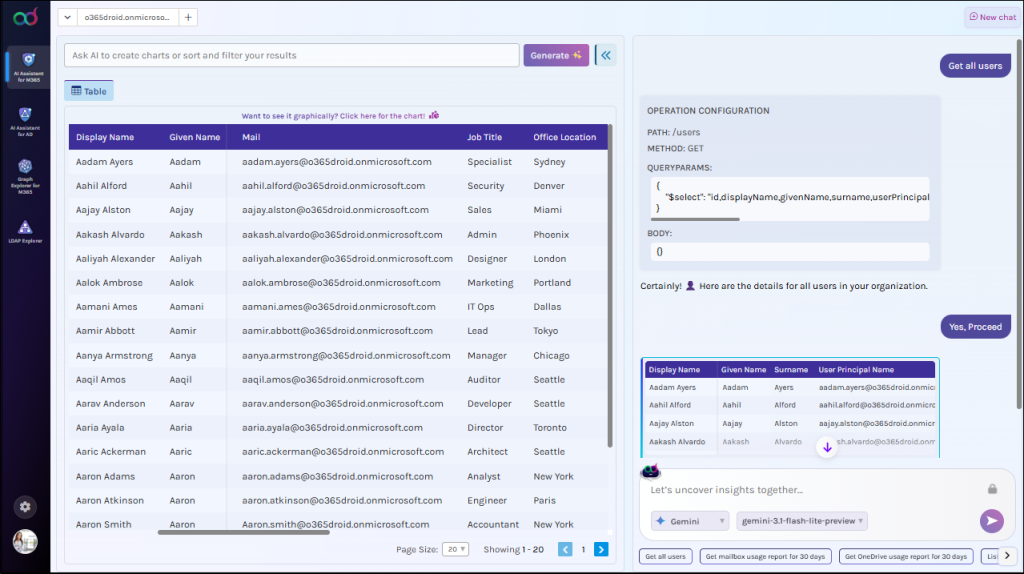
It’s a free, open-source AI assistant that lets you manage Microsoft 365 using plain English while protecting sensitive organizational data from AI. Before sending prompts to an AI model, the built-in data masking engine automatically replaces sensitive PII information. It also supports custom masking, giving administrators complete control over what information is shared.
You can generate reports or perform management actions by simply describing what you want in natural language. For example:
- Show users who haven’t signed in for the last 90 days.
- List all Microsoft 365 groups without owners.
- Disable user John@contoso.com
- Add user Mary@contoso.com to the security group “ITadmin”
Key Capabilities
- Privacy-aware AI with automatic sensitive data masking.
- Generate Microsoft 365 reports using natural language.
- Perform AI-powered Microsoft 365 management actions.
- Manage multiple Microsoft 365 tenants from a single interface.
- Generate charts and graphs through conversational prompts.
- Export reports and visualizations in multiple formats.
Looking for a secure way to use AI for Microsoft 365 administration? Explore AdminDroid AI Assistant for Microsoft 365 to manage your tenant using natural language.
9. DCToolbox: Deploy Conditional Access Baseline in Minutes
Conditional Access remains one of the most effective security controls in Microsoft 365, but it’s also one of the easiest places to make a costly mistake. Designing Conditional Access policies from scratch can be time-consuming. Administrators must decide which policies to create, configure the appropriate exclusions, follow Microsoft’s best practices, and carefully sequence deployments to avoid accidentally locking out users.
That’s where DCToolbox comes in.
How it Works:
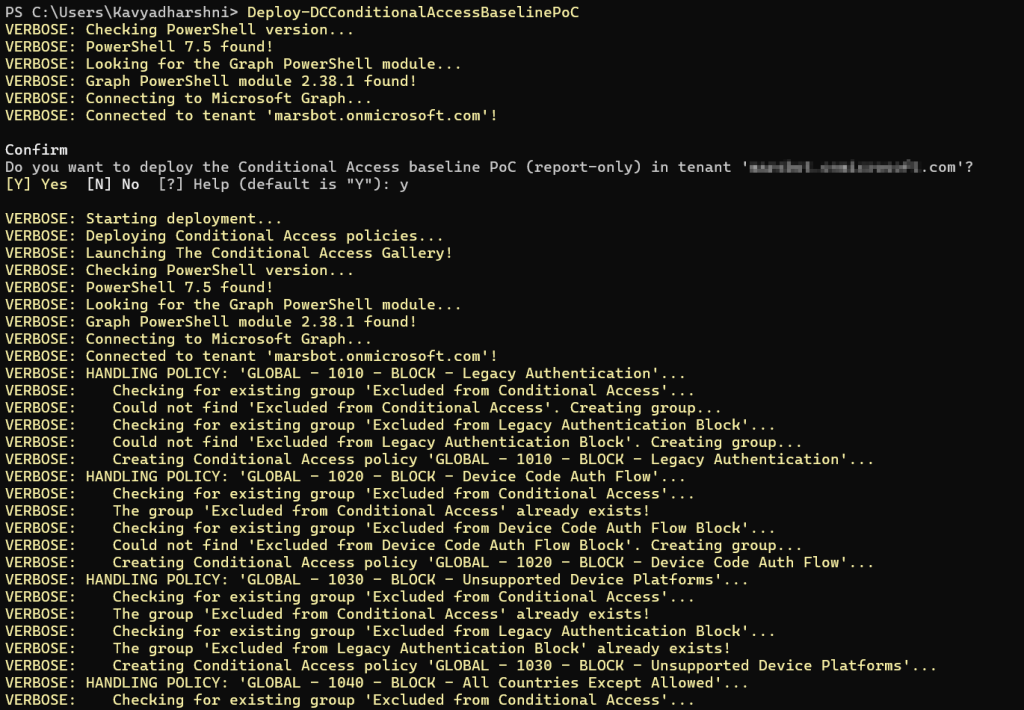
DCToolbox simplifies Conditional Access deployment by automating the implementation of Microsoft’s recommended baseline policies. Instead of building policies manually, administrators can deploy a well-structured baseline with the required supporting objects, reducing both deployment time and the risk of misconfiguration.
Before enforcing new policies, DCToolbox also lets you simulate their impact using report-only mode, helping you identify affected users and applications before moving policies into production.
Key Capabilities
- Deploys 18 Conditional Access baseline policies.
- Supports report-only deployments for safe evaluation.
- Automatically creates supporting objects, such as exclusion groups and named locations.
- Simulates policy impact before enabling enforcement.
- Promotes policies through report-only, pilot, and production stages
Want a faster way to implement Microsoft’s recommended Conditional Access policies? Explore DCToolbox to deploy a baseline with minimal manual effort.
Note: Although DCToolbox automates policy deployment, every organization has unique business requirements, exceptions, and authentication scenarios that may require policy customization.
10. IDPowerToys: Visualize and Document Your Conditional Access Policies
As your Microsoft 365 environment grows, Conditional Access policies become increasingly difficult to review, understand, and document. It’s common for organizations to have dozens of policies, each with multiple conditions, exclusions, grant controls, and authentication requirements. Reviewing or documenting these policies manually can quickly become time-consuming and difficult.
That’s where IDPowerToys comes in.
How it Works:
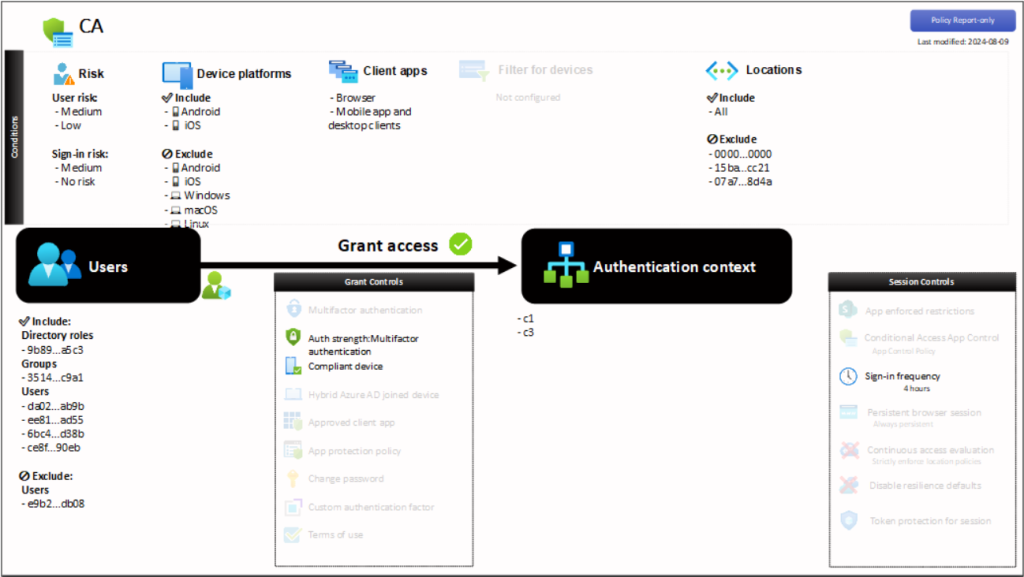
IDPowerToys is a free, web-based utility that automatically generates a visual PowerPoint presentation of your Conditional Access policies. Instead of reviewing complex policy configurations in the Microsoft Entra admin center, you get clear, presentation-ready diagrams. These visual representations are easier to review, share with stakeholders, and include in security reviews or audit documentation.
Key Capabilities
- Web-based tool with no installation required.
- Exports Conditional Access policies to PowerPoint presentations.
- Supports automatic policy retrieval by granting the application read-only access to your Conditional Access policies.
- Supports manual generation by pasting the JSON output of your Conditional Access policies.
Need visual documentation for your Conditional Access policies? Check out IDPowerToys to generate presentation-ready documentation in just a few clicks.
11. PowerShell Scripts & Power Automate Templates: Automate Everyday Administrative Tasks
No matter how capable the Microsoft 365 admin center becomes, repetitive administrative tasks remain part of every administrator’s day. User onboarding, license management, inactive account cleanup, mailbox reporting, guest user governance, and permission reviews can quickly consume valuable time when performed manually.
Instead of writing automation from scratch, you can take advantage of the AdminDroid Community’s growing collection of free PowerShell scripts and Power Automate templates built specifically for Microsoft 365 administration.
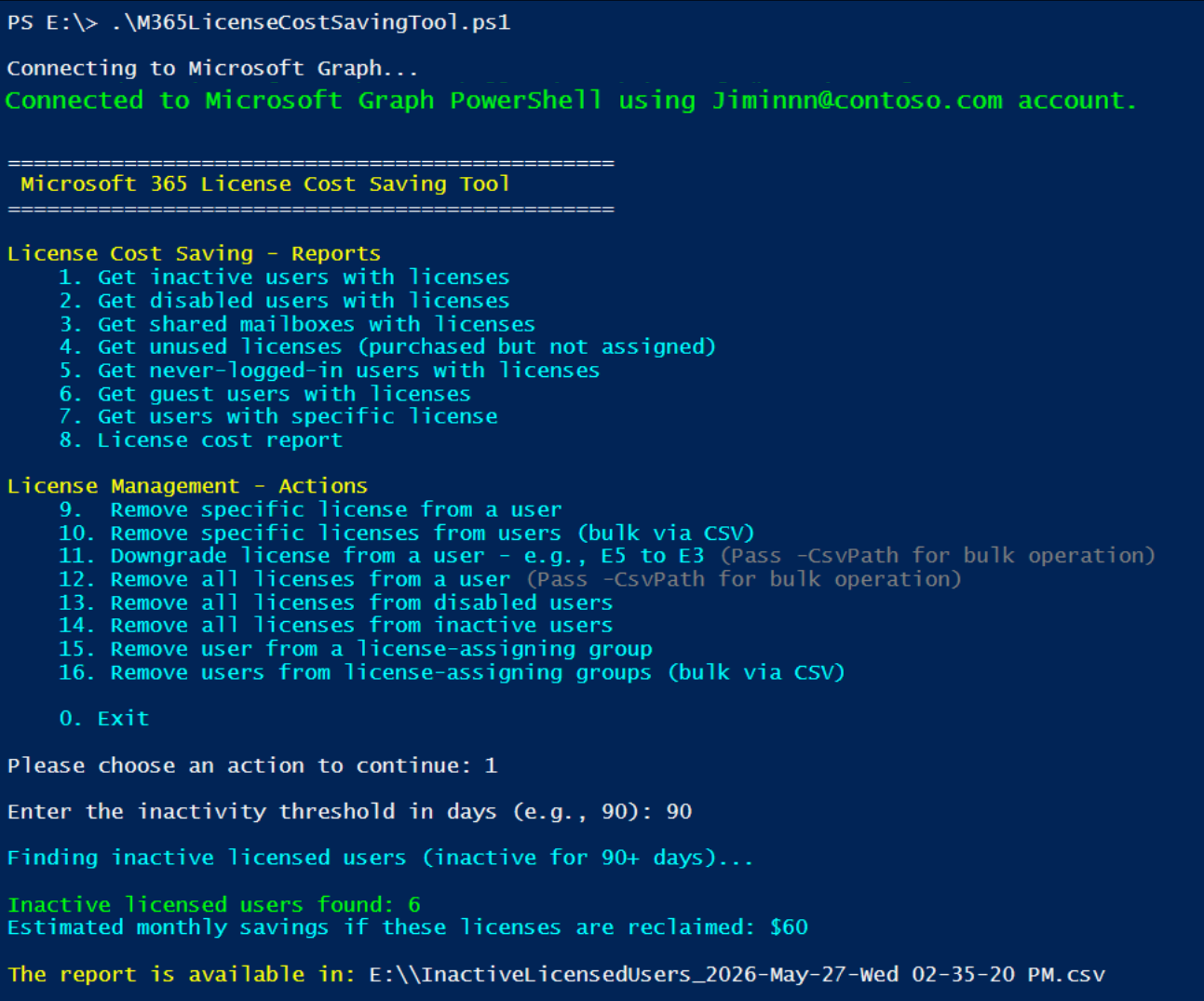
The community GitHub repository includes nearly 200 pre-built PowerShell scripts that automate common administrative, reporting, security, and compliance tasks. If you prefer a low-code approach, the ready-to-deploy Power Automate templates help you build and automate Microsoft 365 workflows with minimal effort.
Key Capabilities
- User onboarding and offboarding.
- License reporting and optimization.
- Inactive user cleanup.
- Guest user management.
- Exchange Online automation.
- Microsoft Teams administration.
- SharePoint and OneDrive reporting.
- Security reporting.
- Audit log analysis.
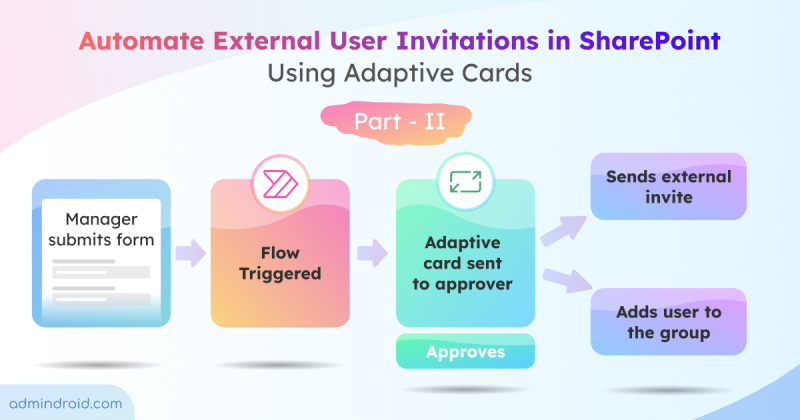
- Approval workflow with Power Automate.
- And much more.
Want to automate repetitive Microsoft 365 administration tasks? Explore the AdminDroid Community M365 PowerShell Scripts and Power Automate Templates to save time and reduce manual effort.
Note: Most Power Automate templates work with standard connectors. However, a few workflows require premium connectors and corresponding licenses.
12. Microsoft Remote Connectivity Analyzer: Troubleshoot Microsoft 365 Connectivity and Mail Flow Issues
Troubleshooting Microsoft 365 connectivity issues isn’t always straightforward. When Teams fail to sign-in, mobile devices stop syncing, or emails don’t reach recipients, the root cause could be your Microsoft 365 tenant, DNS configuration, mail flow, or network connectivity. Since most troubleshooting starts from inside your organization’s network, administrators often struggle to reproduce the same experience as external users.
Microsoft Remote Connectivity Analyzer helps bridge this gap by testing your Microsoft 365 services exactly as an internet client would.
How it Works:
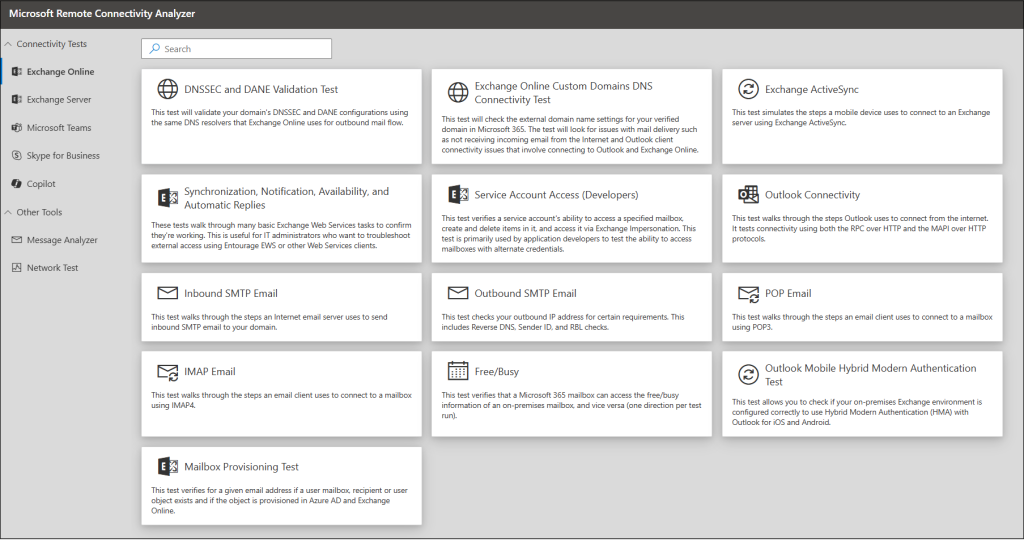
Microsoft Remote Connectivity Analyzer is a free web-based diagnostic tool that performs end-to-end connectivity tests against Exchange Online, Exchange Server, Microsoft Teams, Microsoft 365 Copilot, and Skype for Business Server
Each test walks through every stage of the connection process and reports pass, warning, or fail results with detailed diagnostics and troubleshooting guidance. Because the tests are initiated from Microsoft’s cloud infrastructure, they help identify external connectivity issues, DNS misconfigurations, certificate problems, authentication failures, and mail flow issues that are often difficult to diagnose internally.
Key Capabilities:
- Validates services such as Outlook connectivity, Autodiscover, Exchange ActiveSync, Exchange Web Services (EWS), inbound SMTP mail flow, and MS Teams.
- Includes a Message Header Analyzer to decode email headers and trace message routing, transport delays, and delivery failures.
- Simulates real client logon from the internet and returns pass, warning, or fail results with remediation guidance.
- Run diagnostics directly from your browser without installing any software.
Need a faster way to diagnose Microsoft 365 connectivity problems? Access the Microsoft Remote Connectivity Analyzer in your browser.
Which Tools Should You Add to Your Microsoft 365 Toolkit?
We’ve explored 12 free Microsoft 365 administration tools, each designed to simplify different aspects of tenant management. Whether your priority is security, automation, compliance, reporting, or identity management, the right combination of tools can help you manage your environment more efficiently.
If Active Directory is also part of your day-to-day administration, consider adding these valuable and completely free Active Directory management tools to your toolkit. They can complement your Microsoft 365 administration efforts and simplify common AD tasks in hybrid environments.
Start with the tools that address your biggest administrative challenges today, and expand your toolkit as your Microsoft 365 environment evolves.
Which tool are you planning to try first? Share your favorites in the comments—we’d love to hear what’s already part of your toolkit and what you’re excited to explore next.