As organizations continue enrolling more corporate and personal devices into Microsoft Intune, the list of managed devices can grow much faster than expected. Over time, the Intune admin center may start showing devices that are no longer actively used, creating clutter in reports and making device administration harder.
This usually happens because old device records remain even after employees leave, laptops are replaced with newer devices, short-term devices are no longer used, etc. To help with this, Microsoft Intune offers device cleanup rules, which automatically remove inactive device records, keeping the device list clean and focused on active endpoints.
In this blog, we’ll look at how device cleanup rules work and how to configure them to keep your device inventory clean and manageable.
What are Device Cleanup Rules in Microsoft Intune?
Device cleanup rules automatically remove inactive or unresponsive devices enrolled in Intune that haven’t checked in for a defined period, ranging from 30 to 270 days. Devices that are unable to complete the enrollment process (for example, due to user abandonment) are also cleaned up. This helps keep Intune records aligned with the actual active device inventory.
Importantly, cleanup rules remove only the management record stored in Intune. They do not wipe the device, retire it, remove company data, or trigger remote actions on the physical device.
Note: Device cleanup rules in Intune do not remove devices from Microsoft Entra ID. To remove them, you must clean up stale devices separately in Microsoft Entra ID.
Platforms That Support Device Cleanup Rules in Microsoft Intune
Cleanup rules are available for several major platform types managed through Microsoft Intune. The supported platforms options include:
- All platforms
- Android (AOSP)
- Android (fully managed/dedicated/corporate-owned work profile)
- Android (device administrator)
- Android (personally-owned work profile)
- ChromeOS
- iOS/iPadOS
- macOS
- Windows
- Windows Holographic
- visionOS
- tvOS
Only one rule can be created per platform type. If both an ‘All platforms’ rule and a specific platform rule are configured, the rule with the shorter inactivity period takes effect for that platform.
Note: Cleanup rules are not available for devices managed through Jamf.
How Device Cleanup Rules Work in Microsoft Intune
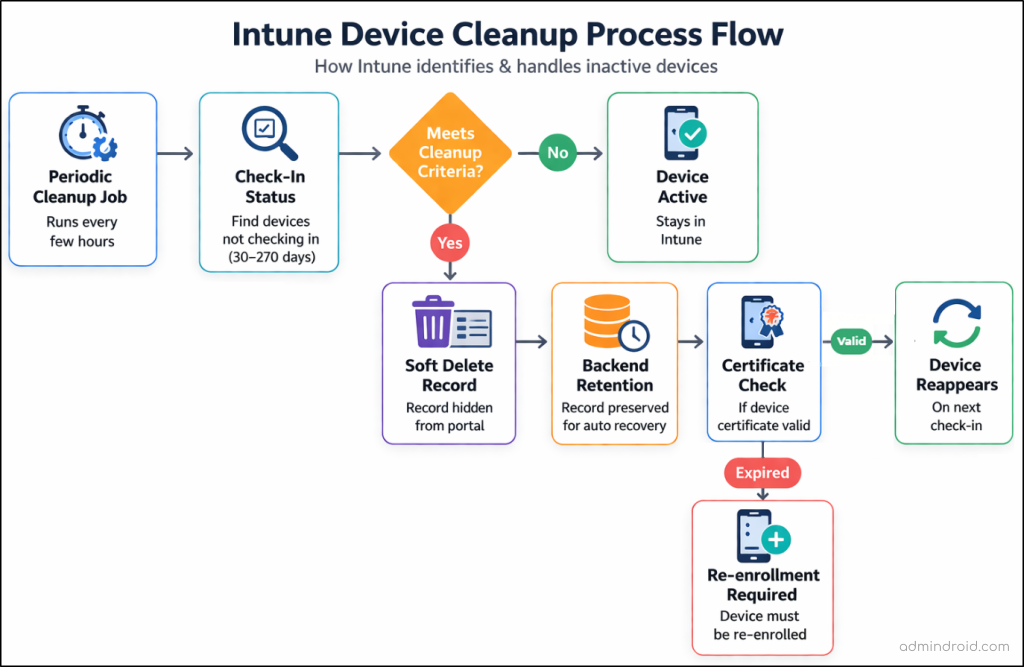
Microsoft Intune runs a background cleanup job periodically, usually every few hours, to identify devices that meet the configured cleanup conditions. Once detected, eligible stale device records are automatically hidden from the Intune admin center.
Even if a device remains fully compliant under device compliance policies in Intune, a cleanup rule can still hide it because cleanup decisions are based solely on inactivity duration.
When an inactivity condition is met:
- The device no longer appears in Intune reports, helping prevent stale entries from affecting reporting accuracy.
- The device record enters a soft-deleted state for up to 180 days, meaning it is temporarily preserved in the backend to support auto-recovery if needed.
Because of this soft-delete behavior, a cleaned-up device can reappear in Intune if it checks in again within 180 days and its MDM certificate issued during Intune enrollment is still valid. This is helpful for devices used by employees returning from extended leave, vacation, or maternity leave. Once the certificate expires, the device must be re-enrolled to appear again in Intune management.
For a better understanding of the complete process at a glance, refer to the flowchart below:
How Device Cleanup Differs from Wipe, Delete, and Retire in Intune
Many administrators confuse cleanup rules with other device actions, such as wipe, delete, and restore. However, each action has a different purpose. For better understanding, here’s a table that clearly distinguishes each action’s purpose.
| Action | Backend command behavior | Removes device from Intune records | Removes company data | Removes personal data | Factory reset |
| Cleanup rule | Removes only stale Intune record | Yes | No | No | No |
| Retire | Removes managed apps, policies, and profiles | Yes (after next check-in) | Yes | No | No |
| Wipe | Resets device to default state | Yes | Yes | Yes | Yes |
| Delete | Triggers Retire or Wipe depending on platform | Yes | Yes | Depends on platform | Depends on platform |
How to Set Up Device Cleanup Rules in Microsoft Intune
Once you understand how device cleanup rules work, the next step is configuring them based on your organization’s device lifecycle requirements. In this blog, we’ll look at two ways to configure device cleanup rules for automated management:
- Configure device cleanup rules using Intune admin center
- Set up device cleanup rules in Intune using PowerShell
Configure Device Cleanup Rules Using Intune Admin Center
Before proceeding, make sure you have at least the Intune Service Administrator role or a custom role that includes the following permissions:
- Managed Device Cleanup Rules → Update
- Managed Device Cleanup Settings → Update
- Managed Devices → Read
Once the required permissions are in place, you can create a new device cleanup rule through the Microsoft Intune admin center by following the steps below.
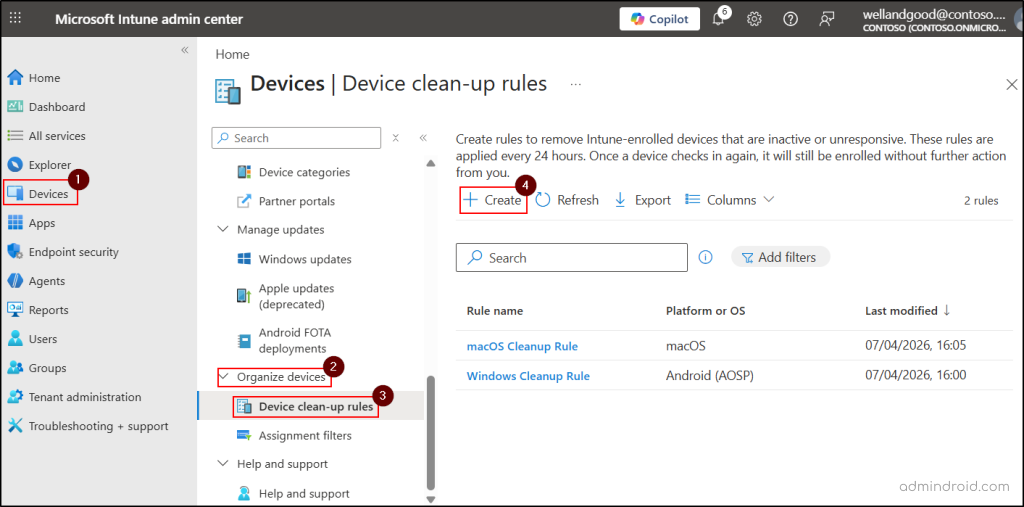
- Sign in to the Intune admin center and navigate to Devices → Organize devices → Device clean-up rules.
- On the Device clean-up rules page, click Create to add a new rule. Existing cleanup rules configured in your tenant will be listed here.
- On the Basics tab, enter a Name and add an optional Description for the rule.
- Select the required platform from the Platform drop-down menu, and then click Next.
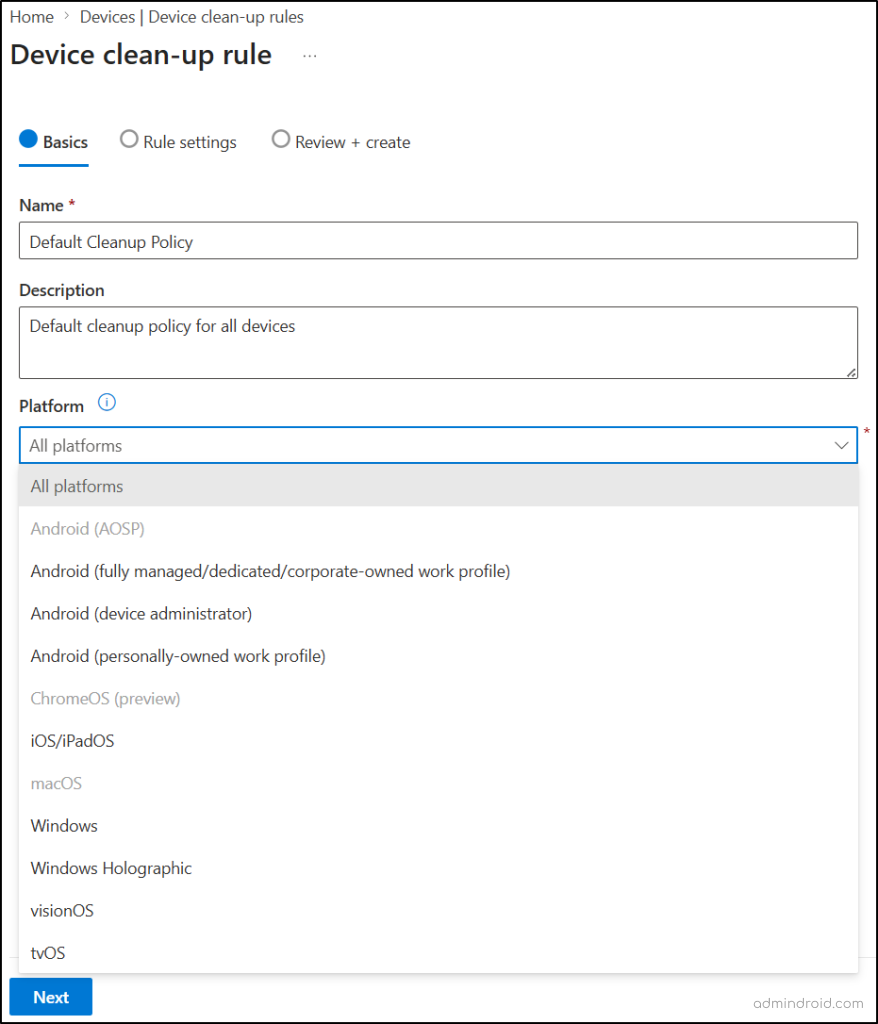
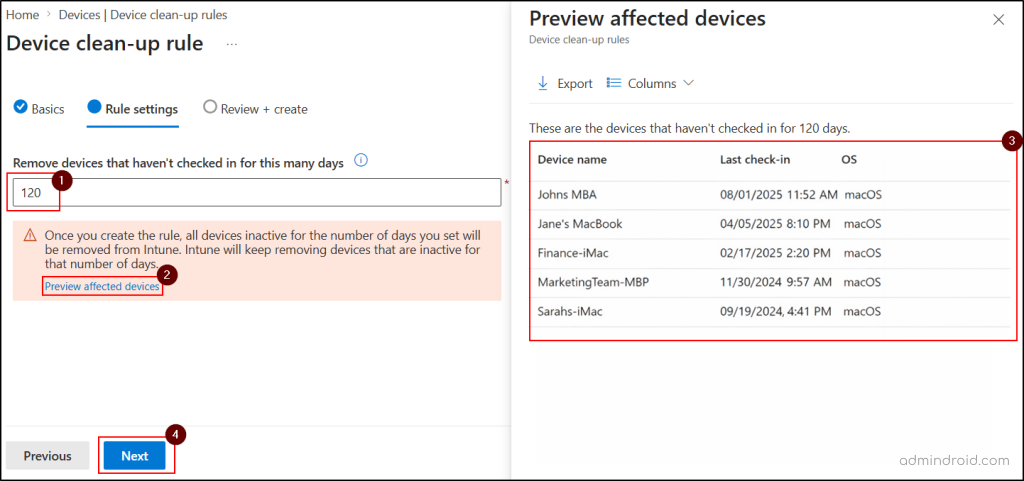
Note: If a platform appears grayed out, it means a cleanup rule already exists for that platform, since only one cleanup rule can be configured per platform. - On the Rule settings tab, enter the number of inactive days in the Remove devices that haven’t checked in for this many days field. You can specify a value between 30 and 270 days.
- Once you enter the number, a warning banner appears indicating that inactive devices will be removed from Intune. You can then use the Preview affected devices option to view devices that have not checked in for the entered number of days, then click Next.
- On the Review + create tab, verify the configuration and click Create to finish creating the rule.
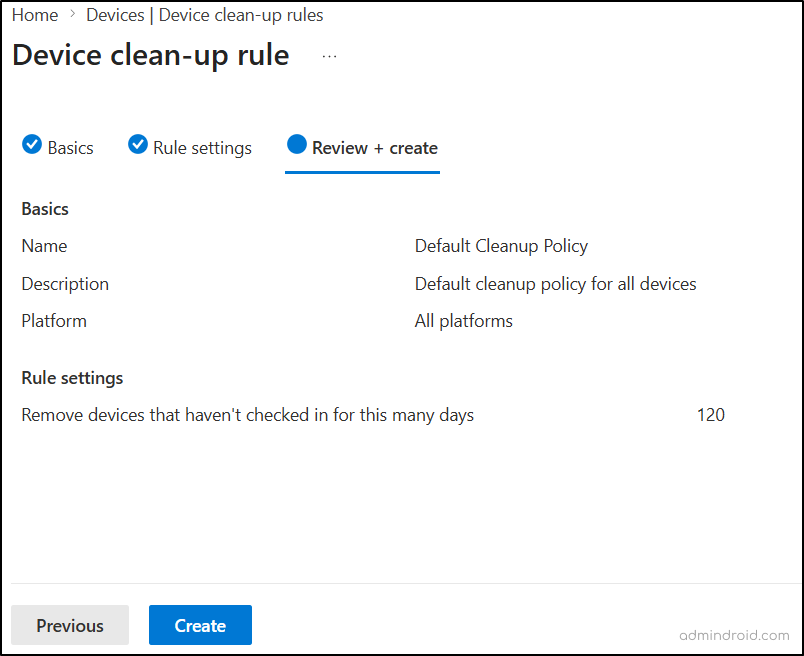
Once the rule is created, devices that remain inactive for the configured number of days will be removed from Intune. If you need to modify or remove a platform-specific cleanup rule later, you can do so directly from the Device clean-up rules page.
Set Up Device Cleanup Rules in Intune Using PowerShell
You can also manage device cleanup rules through PowerShell by using the Microsoft Graph PowerShell SDK.
Before proceeding to view, create, update, or remove device cleanup rules, connect to Microsoft Graph PowerShell with the ‘DeviceManagementManagedDevices.ReadWrite.All’ permission.
|
1 |
Connect-MgGraph -Scopes "DeviceManagementManagedDevices.ReadWrite.All" |
Get All Device Cleanup Rules
To view all currently configured device cleanup rules in Microsoft Intune using PowerShell, use the following cmdlet.
|
1 |
Get-MgBetaDeviceManagementManagedDeviceCleanupRule | Ft |

This data helps identify existing platform-specific rules before creating new ones.
Create a New Device Cleanup Rule
Use the following command to create a new cleanup rule for Intune devices using PowerShell.
|
1 |
New-MgBetaDeviceManagementManagedDeviceCleanupRule -DisplayName "<DisplayName>" -Description "<Description>" -DeviceCleanupRulePlatformType "<PlatformType>" -DeviceInactivityBeforeRetirementInDays "<InactiveDays>" |

Here, replace <DisplayName> = display name of the cleanup rule, <Description> = optional description, <PlatformType> = target platform type, and <InactiveDays> = inactivity threshold in days. You can adhere to the following table to select the appropriate platform value for ‘DeviceCleanupRulePlatformType’.
| Platform | DeviceCleanupRulePlatformType value |
| All platforms | all |
| Android (AOSP) | androidAOSP |
| Android (fully managed/dedicated/corporate-owned work profile) | androidDedicatedAndFullyManagedCorporateOwnedWorkProfile |
| Android (device administrator) | androidDeviceAdministrator |
| Android (personally-owned work profile) | androidPersonallyOwnedWorkProfile |
| ChromeOS | chromeOS |
| iOS / iPadOS | ios |
| macOS | macOS |
| Windows | windows |
| Windows Holographic | windowsHolographic |
| visionOS | visionOS |
| tvOS | tvOS |
Update an Existing Device Cleanup Rule
To modify an existing device cleanup rule using PowerShell, first note the rule ID and then run the following.
|
1 |
Update-MgBetaDeviceManagementManagedDeviceCleanupRule -ManagedDeviceCleanupRuleId "<RuleId>" -DisplayName "<DisplayName>" -Description "<Description>" -DeviceCleanupRulePlatformType "<PlatformType>" -DeviceInactivityBeforeRetirementInDays "<InactiveDays>" |
Make sure to replace <RuleId> with the ID of the respective cleanup rule and update the other placeholders with the required values accordingly.
Remove an Existing Cleanup Rule in Intune
To delete an existing cleanup rule in Intune using PowerShell, execute the following with the respective rule ID.
|
1 |
Remove-MgBetaDeviceManagementManagedDeviceCleanupRule -ManagedDeviceCleanupRuleId "<RuleId>" |
Replace <RuleId> with the ID of the respective cleanup rule.
Monitor Device Cleanup Rule Activity in Microsoft Intune
After device cleanup rules are configured, devices that do not check in within the specified inactivity period are automatically hidden from the Intune admin center. To verify cleanup activity, you can review the audit logs in Microsoft Intune. The audit logs record each device hidden by a cleanup rule along with the rule that triggered the action.
To find these entries,
- Navigate to Intune admin center → Tenant administration → Audit logs.
- Then search for the activity named ‘Device set to be hidden from admin by Device Cleanup Rule <RuleName>’ in the Activity name column.
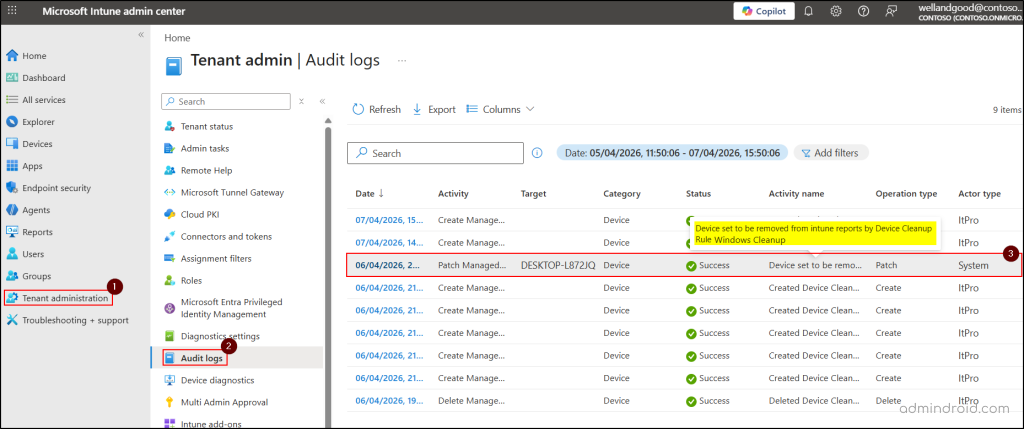
This helps identify which devices were affected and which cleanup rule triggered the action.
Wrapping Up
Choosing appropriate thresholds and understanding how cleanup differs from delete, retire, and wipe helps ensure that inactive records are removed without affecting active endpoints. We hope this blog has covered all the important aspects of device cleanup rules in Intune to help you manage stale device records effectively.
Stay tuned for more administration-focused blogs, and thanks for reading! 😊📘