In many organizations, registering a new application in Microsoft Entra ID is seen as a routine task to support development or integration needs. Developers often choose multi-tenant or personal account options “just in case” external access is needed later, or to maintain flexibility during testing.
The result? An application intended for internal use becomes accessible to external tenants and even personal Microsoft accounts. Until recently, admins had no easy way to restrict access for multi-tenant and publicly accessible apps.
Microsoft has now addressed this gap with audience restrictions. Once limited to Microsoft Graph, this property is now available in the Entra admin center as two app management policies: Block multi-tenant apps and Block consumer apps. Let’s explore what these policies are and how they help admins enforce stronger access boundaries.
Manual Configuration via Microsoft Graph
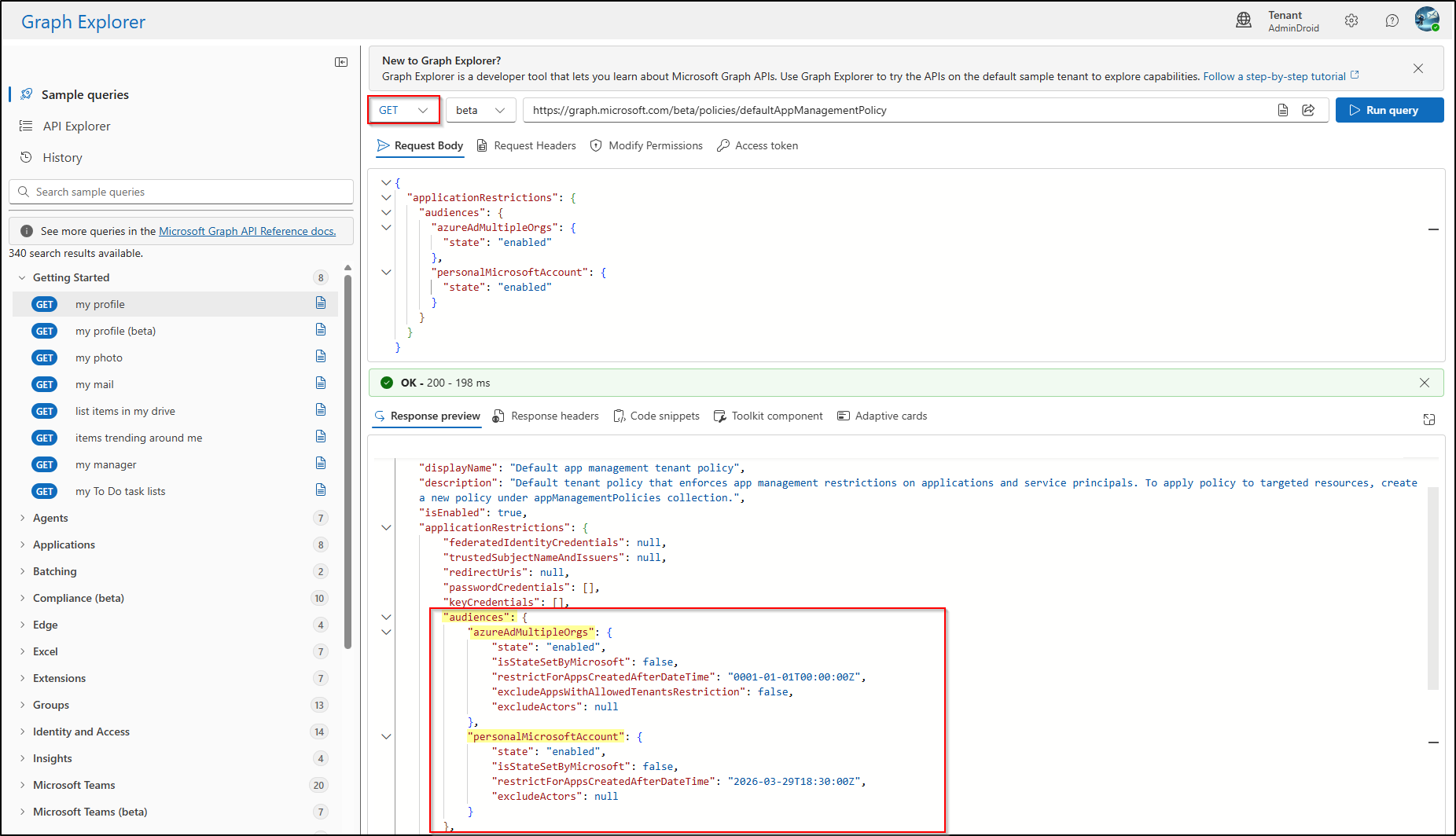
Historically, administrators controlled application boundaries by modifying the audiencesConfiguration resource type within the Microsoft Graph API. This resource is currently focused on two specific audience types: azureAdMultipleOrgs (Multi-tenant) and personalMicrosoftAccount (Consumer).
This configuration relies on the Microsoft Graph beta endpoint, which is subject to change and should not be used in production automation without proper validation. Here is how the Graph API is used to configure the audience property.
Restrict Sign in Audience for Entra Apps Using Graph API
To enable audience restrictions using Graph Explorer, you should issue a PATCH request to the following endpoint:
|
1 |
https://graph.microsoft.com/beta/policies/defaultAppManagementPolicy |
Required Permissions:
- Policy.ReadWrite.ApplicationConfiguration
- Policy.Read.All
Request Body:
|
1 2 3 4 5 6 7 8 9 10 11 12 |
{ "applicationRestrictions": { "audiences": { "azureAdMultipleOrgs": { "state": "enabled" }, "personalMicrosoftAccount": { "state": "enabled" } } } } |
A successful request returns a 204 No Content status. You must perform a GET request to the same endpoint afterward to verify that the changes were committed.
Challenges of the API-First Approach
While powerful, managing the audiencesConfiguration resource via API introduces significant operational friction. The property is often “hidden” from standard responses, requiring admins to use the $select operator just to confirm its status.
Furthermore, because the Entra portal traditionally lacked visual indicators for these backend settings, auditing a tenant’s security posture often meant relying on manual PowerShell scripts—a process that is both time-consuming and prone to oversight.
What’s New in Application Management Policies in Entra ID
Microsoft has now introduced stronger governance through the following application management policies in Entra ID.
- Block multitenant applications: This policy restricts the creation of new multi-tenant apps (AzureADMultipleOrgs) and prevents existing single-tenant apps from being promoted to multi-tenant.
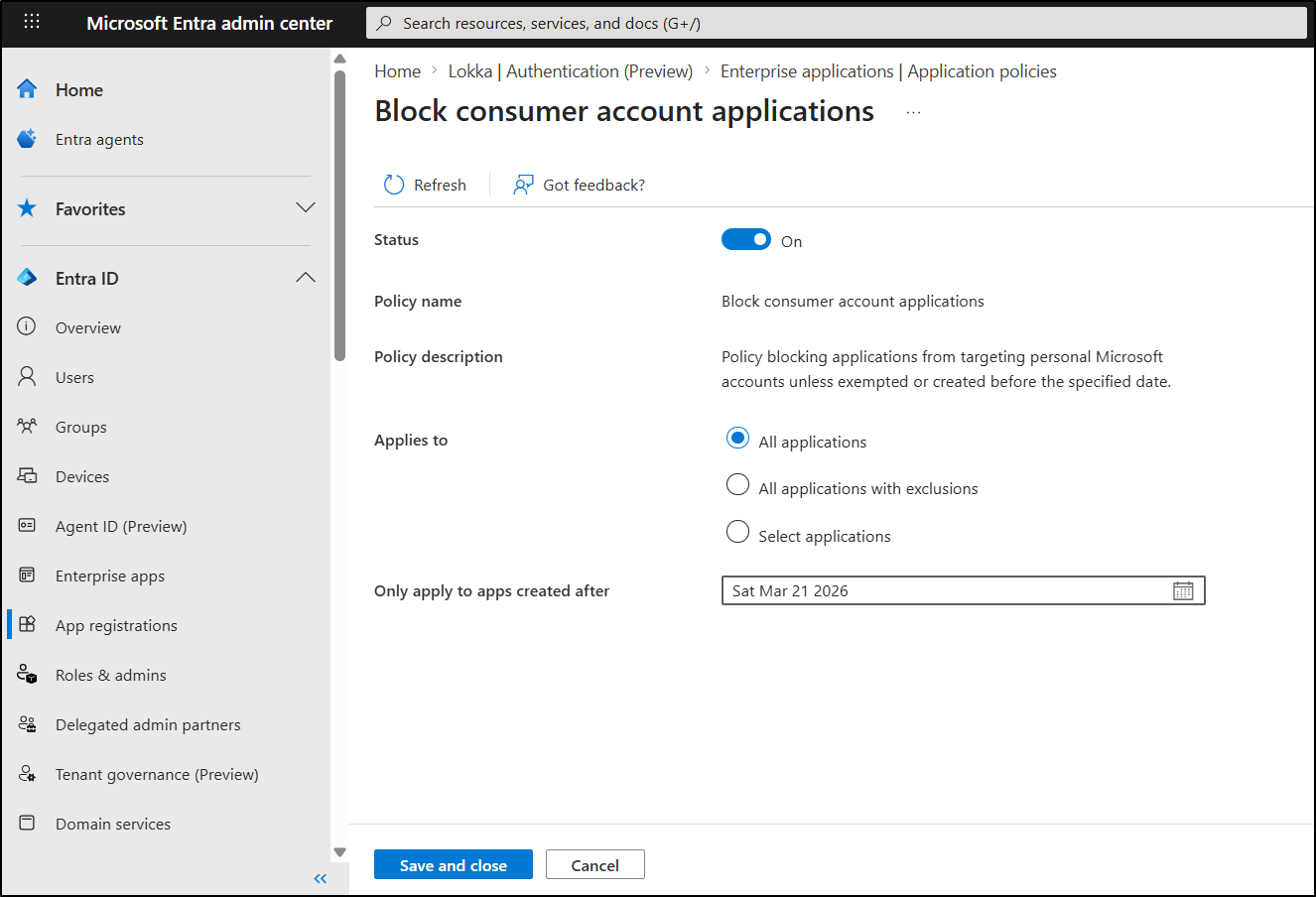
- Block consumer account applications: Blocks apps that allow personal Microsoft accounts (AzureADandPersonalMicrosoftAccount). This hard boundary prevents personal identities (Outlook, Xbox) from accessing enterprise resources, enforcing organizational-only access by default.
How to Configure App Restriction Policies in Entra Admin Center
You can setup these settings directly in the Entra portal without writing a single line of JSON or PowerShell.
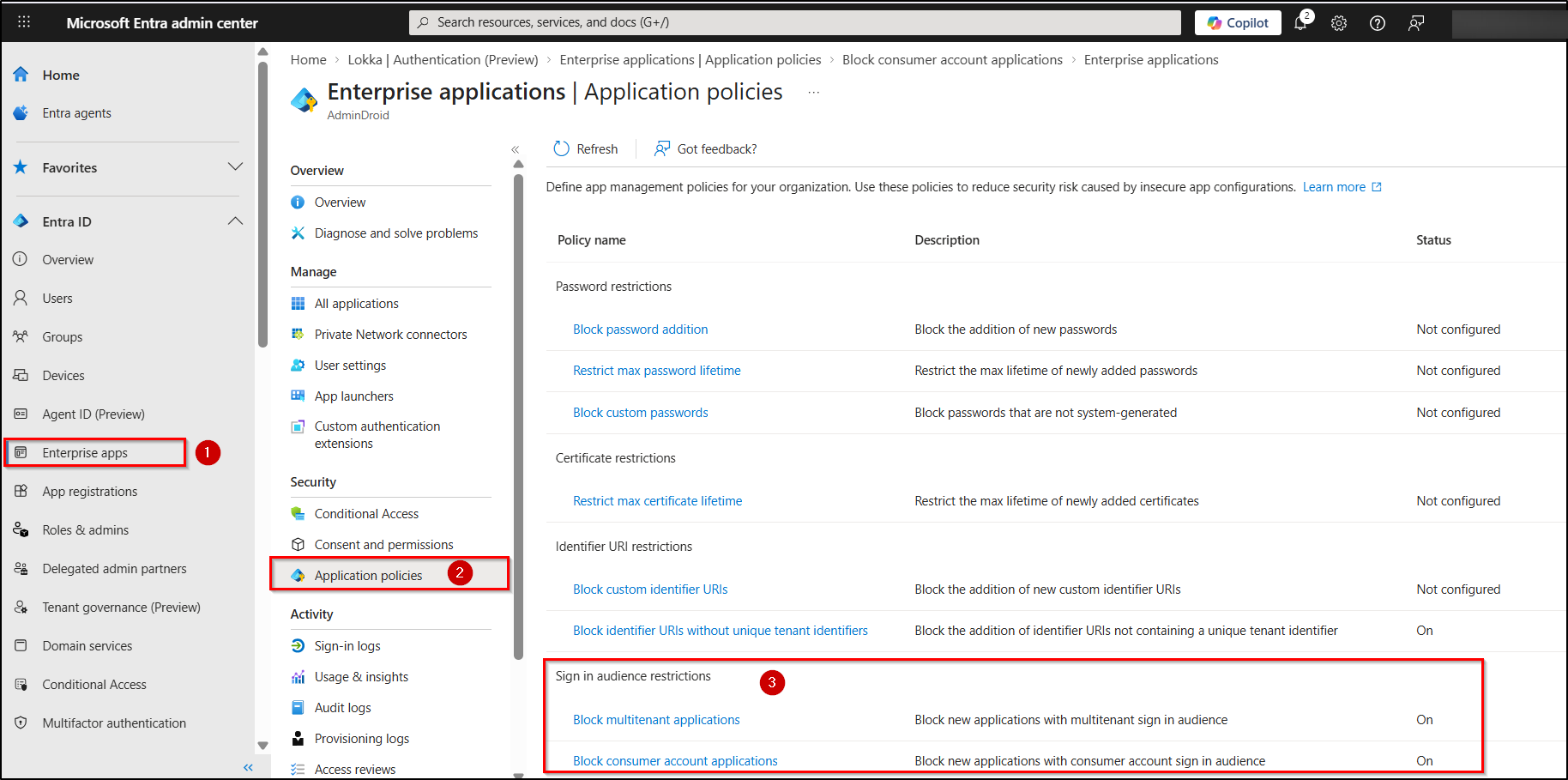
- Sign in to the Microsoft Entra admin center and navigate to Entra ID > Enterprise applications.
- Under the Security section in the left sidebar, select Application policies.
- Then, under Sign-in audience restrictions, the following policy options are available:
Let’s explore how to configure each application policy based on sign-in audience.
A. Block or Limit Multitenant Applications in Microsoft Entra
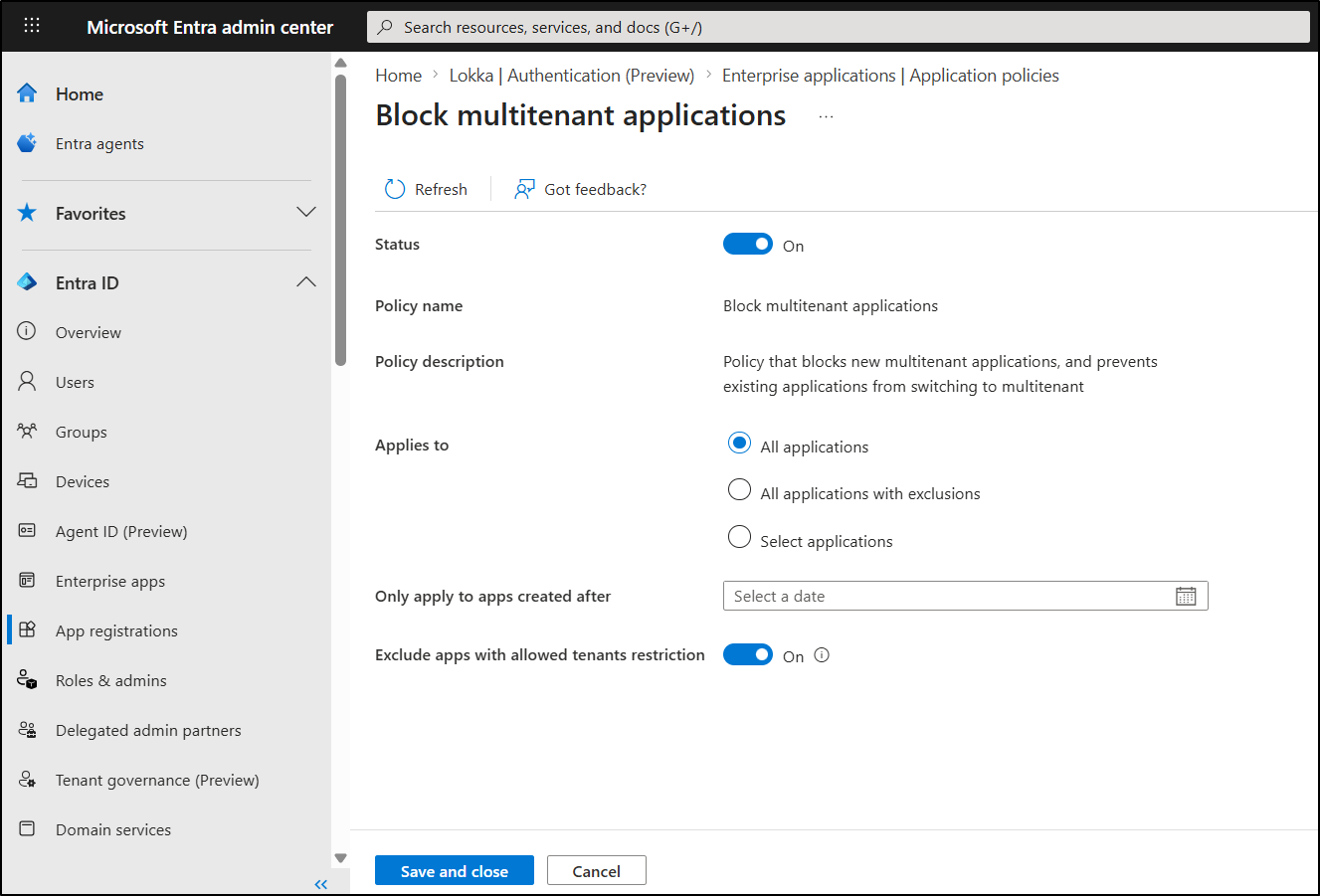
- In the Entra Application Policies page, select Block multitenant applications policy and switch the Status toggle from Off to On.
- Under Applies to, choose one of the following options:
- All applications – Blocks the creation of multi-tenant apps across all applications.
- All applications with exclusions – Retricts all applications, except those explicitly excluded.
- Select applications – Targets only chosen apps.
- If you have chosen the policy to apply to all applications, you can further refine the policy using:
- Only apply to apps created after – Limits enforcement to newly created applications
- Exclude apps with allowed tenants restriction – By default, this setting is turned off. When enabled, this setting allows only applications that use the “Allow only certain tenants (Preview)” feature. In other words, unrestricted multitenant apps are blocked. This ensures that only applications with explicitly defined trusted tenants can operate.
- Once configured, click Save and Close to apply the policy.
B. Block Consumer Account Applications in Microsoft Entra
- Select Block consumer account applications policy and enable the Status on the policy page.
- This policy blocks applications from targeting personal Microsoft accounts, with options to:
- All applications – Blocks all applications targeting personal accounts.
- All applications with exclusions – Restricts consumer account access across all applications, except for explicitly excluded apps. With exclusions, apps cannot be created directly as multi-tenant because the policy enforcement blocks it. Instead, the app must first be created as a single-tenant app, added to the exclusion list, and then updated to multi-tenant.
- Select applications – Limits consumer account access only for selected applications.
- If the policy is applied to all applications, it can be further refined by excluding specific applications using the “Only apply to apps created after” option.
- After making the changes, click Save and Close option.
Block Multi-tenant App Policy Enforcement in Action
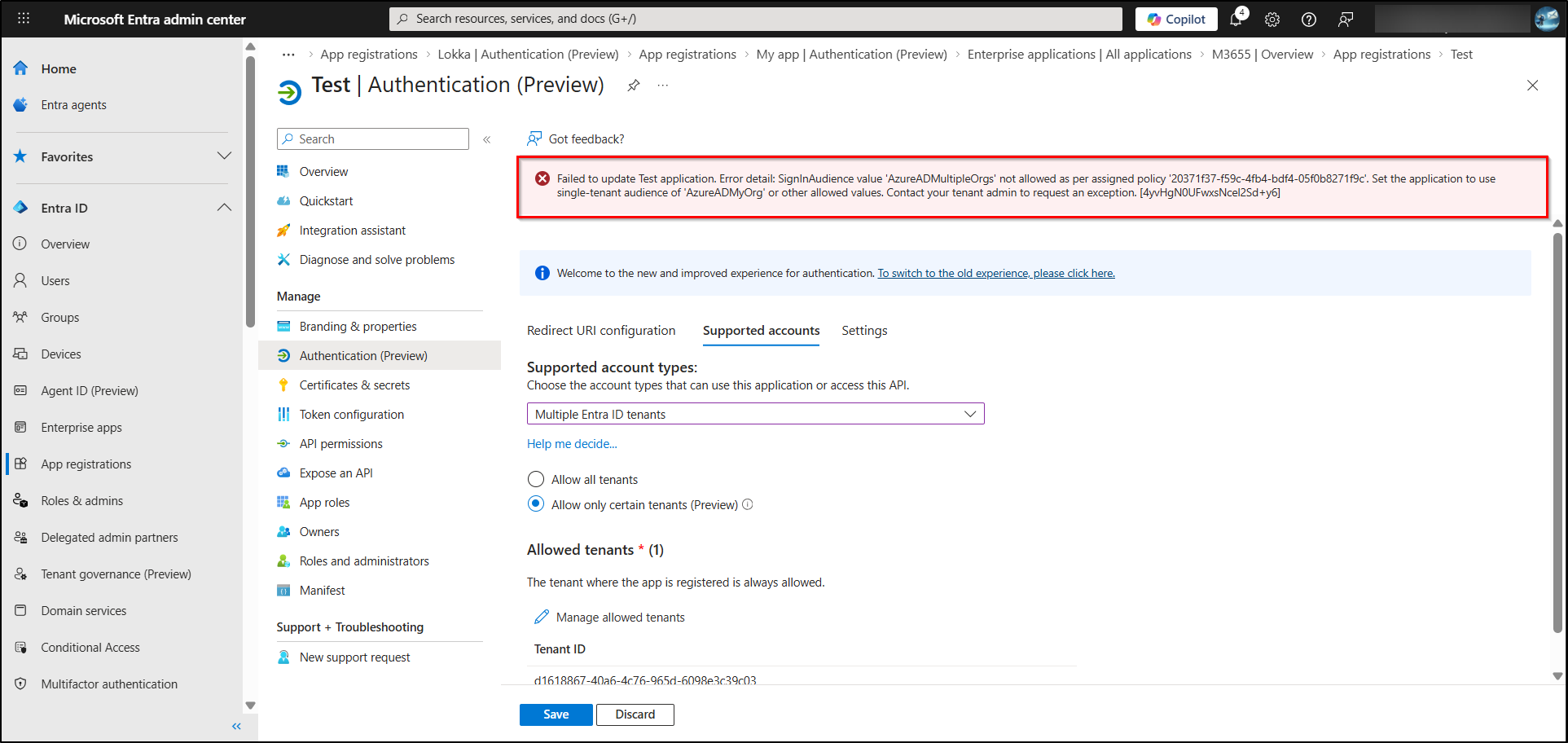
After enabling the policy, follow the steps below to test its behavior by converting an existing single-tenant application into a multi-tenant application.
- Navigate to Microsoft Entra ID > App registrations > All applications and select the specific single-tenant application.
- On the Overview page, click the My organization only link under Supported account types.
- Then, switch to the Supported account tabs on the Authentication (Preview) page.
- Choose Multiple Entra ID tenants in the Supported account types dropdown.
- Try adding an allowed tenant or allowing all tenants, then click Save.
With “Exclude apps with allowed tenants restriction” turned off in the Block multi-tenant applications policy, the operation will be blocked, and the following error will be returned.
Failed to update <Test> application. Error detail: SignInAudience value ‘AzureADMultipleOrgs’ not allowed as per assigned policy ‘20371f37-f59c-4fb4-bdf4-05f0b8271f9c’. Set the application to use single-tenant audience of ‘AzureADMyOrg’ or other allowed values. Contact your tenant admin to request an exception. [4yvHgN0UFwxsNcel2Sd+y6]
That’s it. Once configured, these multi-tenant and consumer app policies automatically enforce sign-in audience restrictions across your applications. With controls now built directly into Microsoft Entra ID, you no longer need to rely on Microsoft Graph for complex configurations.
By blocking multitenant and consumer applications and applying the right scope, you can quickly establish strong access boundaries and reduce unwanted exposure.