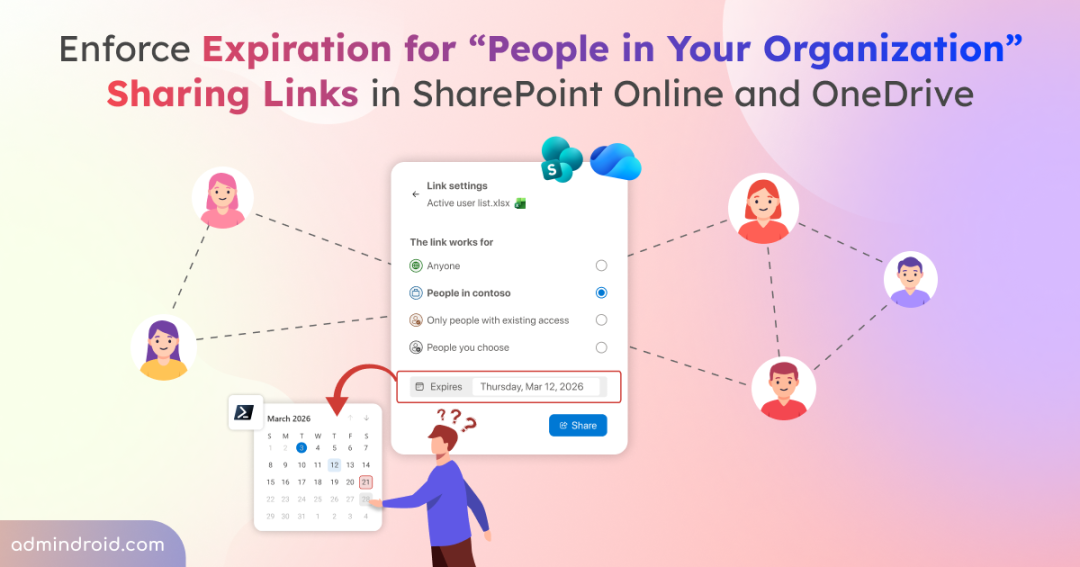
A while back, Microsoft introduced expiration dates for all sharing links in SharePoint Online and OneDrive. It allowed users to decide how long a shared link should remain active instead of leaving it open forever.
But let’s be honest—is everyone actually using it? 🤕 Most of the time, we’re in such a rush to share access that we just click share and send the link off, completely forgetting to set an expiry date. This leads to an accumulation of stale links that remain active indefinitely, allowing continued access across the organization.
To address this long-overdue security gap, Microsoft has introduced a better enhancement. You can now enforce expiration dates for all company links shared within your organization. Instead of allowing indefinite access, links now expire automatically after the period you define. This ensures internal sharing links do not remain active longer than necessary.
Let’s dive into how the organization sharing link expiration policy works and how you can set it up in your own tenant.
What’s New with Company Sharing Links in SharePoint Online and OneDrive?
With this latest update, Microsoft allows admins to set a mandatory expiration limit for links shared using ‘People in your organization’ in SharePoint Online and OneDrive for Business. Admins can set the expiration time anywhere between 7 and 720 days, based on the organization’s governance requirements. This strengthens data governance by automatically expiring inactive sharing links and removing access after the defined period.
Admins can configure two different values for SharePoint and OneDrive sharing links using PowerShell.
- Maximum Expiration Value: This is the fixed limit. A sharing link cannot stay active longer than this number of days. For instance, if an admin sets this to 90 days, no user can create a link that lasts for 91. This ensures internal company links never stay active indefinitely.
- Recommended Expiration Value: This acts as a default suggestion shown to users when they create a company sharing link. They can adjust it, but only up to the maximum limit. This encourages users to follow the best practices by default.
For example, if the recommended value is set to 30 days and the maximum is 90 days, new company sharing links will default to 30 days. Users can modify the expiration date, but they cannot set it beyond 90 days.
Company Sharing Link Expiration Policy Rollout Timeline
Microsoft will begin the rollout of the expiration policy for “People in your organization” sharing links as follows:
- For Worldwide environments– The rollout begins in mid-March 2026 and is expected to complete by late May 2026.
- For GCC, GCC High, and DoD environments – The rollout begins in mid-March 2026 and is expected to complete by late June 2026.
Key Insights About the Organization Sharing Links Expiration Policy
Before you flip the switch, here are a few important details about how the expiration policies for the “People in you organization” sharing links work.
- By default, People in your organization sharing links continue to have no expiration time. The infinite access only stops when an admin explicitly configures the enforcement policy.
- Admins can define maximum and recommended expiration values separately for SharePoint Online and OneDrive, allowing different expiration limits for each service.
- Existing links created before you configure this policy are usually not modified. However, the new expiration setting will apply the next time a user accesses these old links after the policy is enabled in your tenant. This ensures that even old sharing links eventually fall under your new security standards.
- Site-level or account-level settings override tenant-wide expiration settings. This allows you to keep a more flexible policy for general collaboration while applying stricter limits to sensitive sites or accounts.
How to Enforce Company Sharing Link Expiration Policy Using PowerShell
Microsoft has introduced new parameters in the Set-SPOTenant and Set-SPOSite cmdlets to manage expiration policies for “People in your organization” sharing links. These parameters allow admins to configure maximum and recommended expiration limits for organization sharing links in SharePoint Online and OneDrive.
To begin configuring the policy, first connect to the SharePoint Online Management Shell using the following cmdlet.
|
1 |
Connect-SPOService -Url "https://<yourtenantname>-admin.sharepoint.com" |
Then, use the following approaches to set expiration policies for company sharing links in your tenant.
Configure Tenant-Wide Maximum Expiration for Organization Sharing Links
The maximum expiration time value is your safety net. It ensures that no matter how much a user wants to keep a link active, it will automatically expire after the specified number of days.
To set the maximum expiration timeframe for sharing links across all SharePoint sites, run the following cmdlet after replacing <days> with a value between 7 and 720 based on your requirement.
|
1 |
Set-SPOTenant -CoreOrganizationSharingLinkMaxExpirationInDays <days> |
To configure the maximum expiration period for company sharing links created by all OneDrive accounts in your tenant, execute the cmdlet below.
|
1 |
Set-SPOTenant -OneDriveOrganizationSharingLinkMaxExpirationInDays <days> |
Note: To remove the expiration requirement for company sharing links, you can set the <days> value to 0.
Set Recommended Expiration Date for People in Your Organization Sharing Links
The recommended value for the expiration date automatically fills in the expiration date when a user creates a link. It encourages best practices by default while still allowing users to adjust the date, as long as they don’t exceed the organization’s maximum expiration value.
You can run the following cmdlet to set the recommended expiration period for SharePoint Online sharing links.
|
1 |
Set-SPOTenant -CoreOrganizationSharingLinkRecommendedExpirationInDays <days> |
Similarly, to configure the recommended value for all OneDrive accounts, run the cmdlet below.
|
1 |
Set-SPOTenant -OneDriveOrganizationSharingLinkRecommendedExpirationInDays <days> |
Note: While the technical range is 7 to 720 days, your recommendation value can never be higher than your maximum expiration limit. If you set the value to 0, the default suggestion is removed from the sharing settings.
Override Tenant-Wide Expiration Policy for Specific Sites
In any organization, one size doesn’t always fit all. You may have a sensitive site that requires a tighter window than the rest of the tenant. In these scenarios, you can override the tenant-level organization sharing link expiration policy for specific SharePoint sites or OneDrive accounts.
To override the maximum expiry limit for a specific SharePoint or OneDrive site, you can run the following cmdlet by replacing <days> and <SiteURL> with the required number of days.
|
1 |
Set-SPOSite -Identity <SiteURL> -OverrideTenantOrganizationSharingLinkExpirationPolicy $true -OrganizationSharingLinkMaxExpirationInDays <days> |
To override the recommended expiration date for a site, execute the cmdlet below.
|
1 |
Set-SPOSite -Identity <SiteURL> -OverrideTenantOrganizationSharingLinkExpirationPolicy $true -OrganizationSharingLinkRecommendedExpirationInDays <days> |
That’s it! By enforcing expiration dates on “People in my organization” sharing links, you are effectively closing one of the most common security gaps in Microsoft 365. You no longer have to worry about sensitive internal links floating around indefinitely in old emails or chat threads across your organization.
This update balance user flexibility with administrative control. The recommended value guides users toward best practices, while the maximum value ensures links don’t remain active indefinitely. It’s a simple PowerShell configuration that helps reduce stale links and strengthen overall governance.
We hope this blog helps you take full advantage of this new feature to strengthen your data governance. If you have any doubts or comments, feel free to share them in the comments section. We are happy to help!