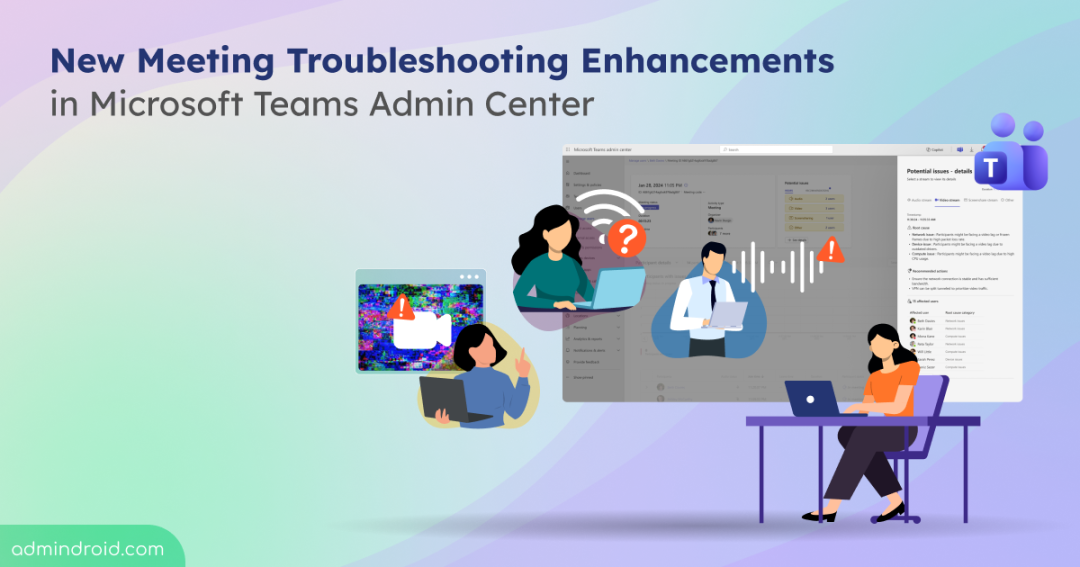
Meetings and calls in Microsoft Teams have become essential in today’s work-from-anywhere environment. Whether it is a daily check-in, a weekly review, a client discussion, or a project collaboration, Teams meetings and calls play a major role in keeping work moving. Yet finishing a meeting without screen sharing freezing, the network lagging, or someone saying “Can you hear me?” still feels rare.
For anyone who organizes or manages these meetings, these problems are more than small interruptions. They slow down conversations, break the flow, and make the entire meeting feel unproductive. This is why Microsoft’s latest update matters. They are introducing new enhancements to the meetings and call troubleshooting experience that make it easier for Teams admins to identify and fix issues faster.
In this blog, we’ll explore how Microsoft has enhanced the meetings troubleshooting to help admins diagnose meeting and call issues more efficiently.
Existing Meeting and Call Troubleshooting Experience in Teams Admin Center
Microsoft provides meeting and call quality insights in several ways to help administrators diagnose issues. These include the Call Quality Dashboard (CQD), Power BI reports, Graph API data, and the call analytics view in Teams admin center. Each option offers a different level of visibility, ranging from organization-wide trends to details about individual user sessions.
For day-to-day troubleshooting, admins rely heavily on the call analytics experience in the Teams admin center. Here’s how to access it:
Microsoft Teams Admin Center → Users → Manage users → Select User → Meetings & calls
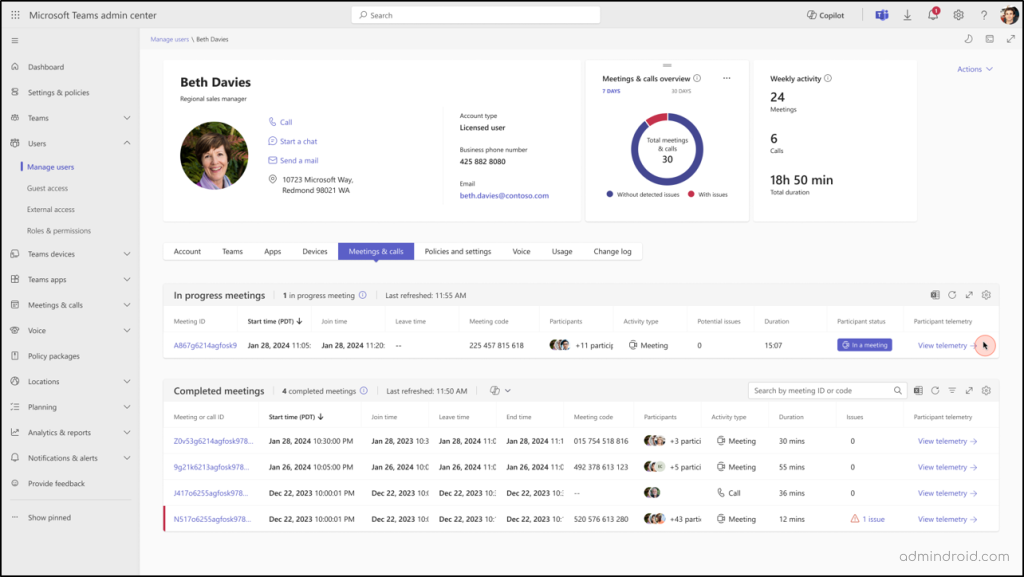
This section provides data for a user’s in-progress and completed calls and meetings from the last 30 days, including audio and video quality, network details, participation details for each meeting, etc. Although this data is useful, Teams admins still need to manually review metrics and correlate signals to figure out the root cause of the issue. This makes troubleshooting slow, especially when multiple users are reporting similar problems.
That’s why Microsoft now enhances the Teams meetings and calls troubleshooting experience. Let’s break down the new improvements and explore how they improve the meetings troubleshooting flow in the Teams admin center.
New Enhancements to Call Quality Metrics in Teams Admin Center
The new troubleshooting experience in Teams is designed to help admins identify issues during meetings and calls faster, understand the root cause more clearly, and take action with confidence. Here are the capabilities introduced to the meetings and calls quality data.
1. Automatic Issue Identification for Teams Meetings and Calls
Until now, admins had to interpret raw telemetry and guess what caused a poor meeting experience. With the new update, Teams automatically identifies the likely root issues across audio, video, and screen sharing. It also shows all affected participants in the meeting and highlights whether the problem is related to the network, device, or compute performance.
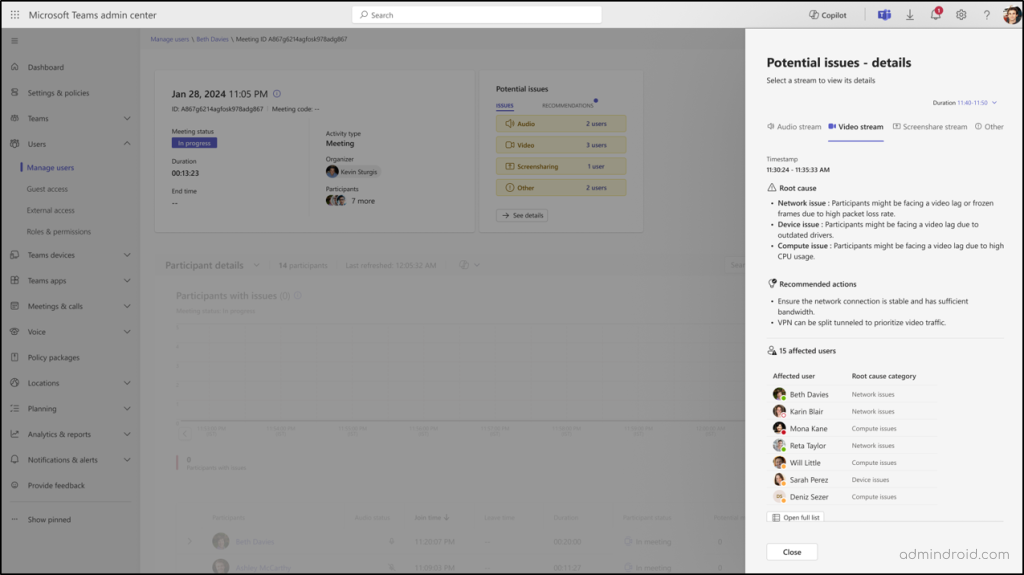
Teams also provides recommended actions to help admins understand what to do next and reduce the time spent digging through metrics.
2. Richer Participant Details for Teams Meetings Troubleshooting
Previously, the participant details available in the Meetings and Calls section were quite limited. Admins could only see basic information such as the meeting start time, duration, audio quality rating, and session type. With the new enhancements, Teams now provides a much richer and more intuitive participant view. The meeting analytics view also includes timeline-based signal charts for in-progress meetings, making it easier to visualize when audio, video, or screen-sharing issues occurred.
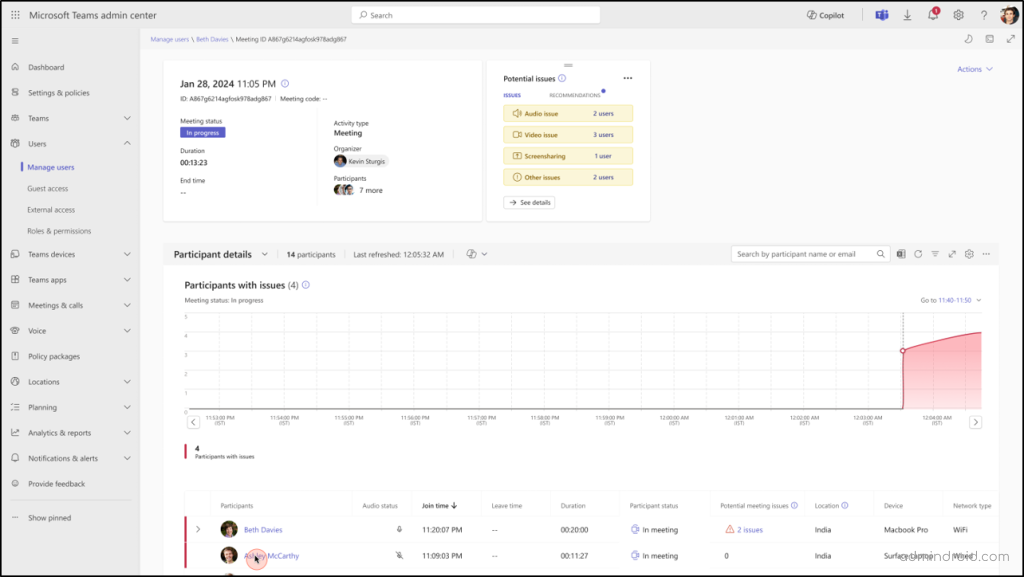
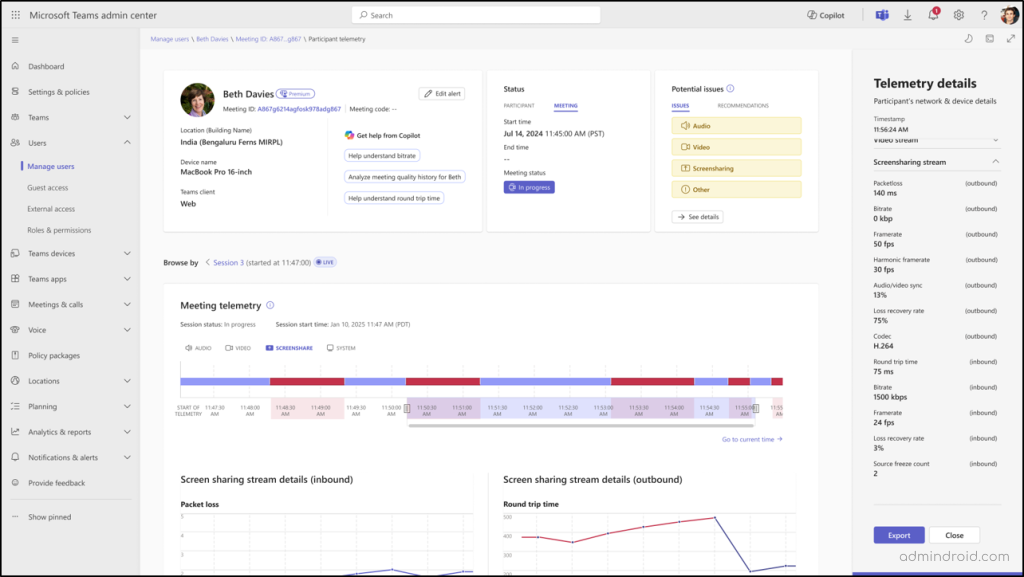
With this improved layout, admins can now view deeper insights for each participant, including the potential issue count for that user and clear indicators of where problems occurred during the meeting. When drilling down into a specific participant, admins can access detailed telemetry for audio performance, screen-sharing stream health, and video quality. Admins can easily export the report for offline or extended analysis.
3. Smarter Search and Filters in Enhanced Meetings Troubleshooting
With the new search and filtering tools, admins can now easily:
- Search for a meeting by its meeting ID or join code
- Filter meetings by issue type or activity
- Sort results by important timestamps
4. Microsoft 365 Copilot for Meeting Troubleshooting
After introducing several AI enhancements in 2025, Microsoft is expanding Copilot’s capabilities into Teams meeting and call diagnostics. With Copilot integrated directly into the Teams admin center, administrators can now troubleshoot meetings with far more clarity and speed. Copilot can help analyze meeting and call trends, identify similar issues across different users, and explain telemetry signals in plain, understandable language.
This is especially useful when admins come across technical metrics that are not immediately intuitive. For example, an admin can ask Copilot to analyze a user’s meeting quality history or explain telemetry values such as bit rate or round-trip time. Instead of searching documentation or guessing what caused an issue, admins get AI-powered explanations and insights instantly. This makes troubleshooting accessible even to admins who may not be deeply familiar with call-quality metrics.
Key Points About the Enhancements in Meeting and Call Diagnostics
- The general availability rollout for these enhancements begins in late January 2026 and is expected to be completed by mid-February 2026 across Worldwide and GCC environments.
- All existing functionalities in the per-user call analytics view remain intact.
- Once the rollout is complete, Microsoft Teams admins can start using the new meeting troubleshooting experience immediately.
- No configuration changes or additional setup are required. The updated tools, insights, and UI improvements will appear automatically in the Teams admin center.
Overall, the new enhancements to meeting troubleshooting in the Teams admin center seem like a much-needed upgrade to how administrators diagnose issues. Once the rollout begins, let’s explore these enhancements hands-on and see how effectively they help diagnose real meeting and call issues. Microsoft has also mentioned that updated documentation will be published before the rollout begins, so stay tuned. We’ll continue sharing updates as they arrive.