As Microsoft Teams becomes a primary communication platform, attackers are increasingly exploiting external chats and group conversations as entry points into organizations. Sudden spikes in external communication often signal phishing, spam, or compromised tenants, but without proper visibility, these warning signs are easy to miss.
Consider this scenario: an external domain that normally communicates occasionally with your finance team suddenly starts messaging multiple employees within a short period. A link appears in a group chat, followed by several 1:1 messages. At the first glance, it looks like routine collaboration. But in reality, the external domain has been compromised and is now being used to distribute malicious content. Without anomaly detection, this activity may go unnoticed until users click the link and sensitive data is exposed. 😥
To help you detect such risky interactions easily, Microsoft has introduced the external domains anomalies report in the Teams admin center. In this blog, we’ll look at how this report works, the insights it provides, and how it helps strengthen your Teams governance.
New External Domains Anomalies Report in Microsoft Teams
The external domains anomalies report in Microsoft Teams helps you quickly identify unusual communication pattern from external organizations and take action early. This report is now available as a preview feature in the Microsoft Teams admin center.
💡Most importantly, you can block a risky external domain within the report itself to prevent further communication and reduce potential security threats.
Rollout Timeline
📅 The External Domains Anomalies Report will be generally available to all tenants starting early April 2026 and is expected to complete rollout by mid-April 2026. Once the rollout is complete, the report will be automatically available in your tenant, without requiring any additional licenses or configuration.
Where to Find the Teams External Domains Anomalies Report?
To view this report, you must have a Teams Administrator role (or a higher administrative role) and your tenant must collaborate with external organizations.
Once these requirements are met, you can access the External Domains Anomalies Report in Microsoft Teams by following the steps below:
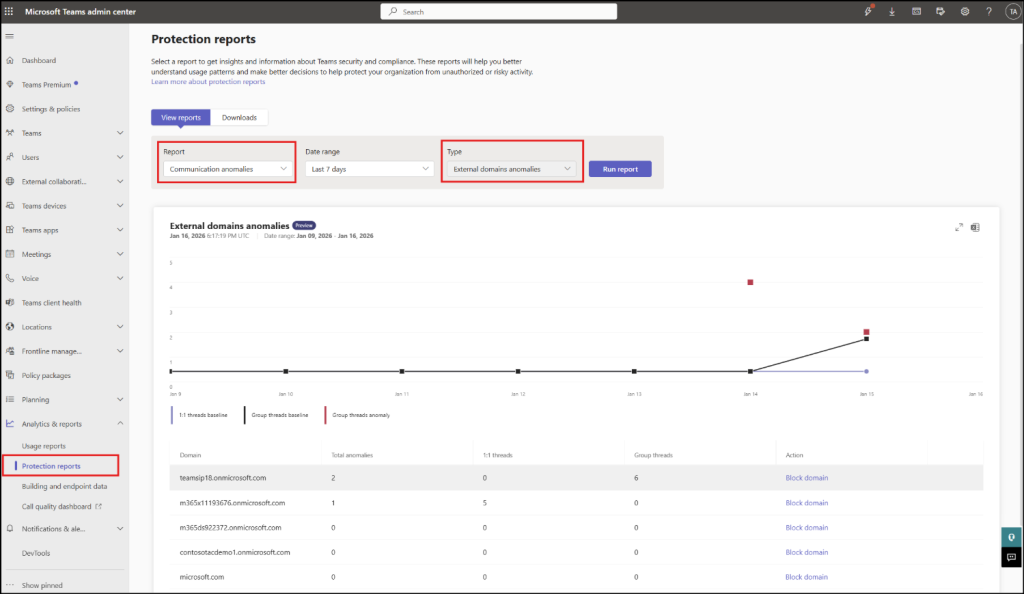
From the left navigation pane, go to Analytics & reports → Protection reports.
Choose the Report as Communication anomalies, select the required Date range, and set the Type as External domains anomalies.Below are the insights you get from the external domains anomalies report:
Graphical representation -Shows a graph of external domain communication anomalies for the selected time range. It compares normal communication patterns (baselines) with unusual activity (anomalies) across different conversation types:
1:1 threads baseline – Typical one-to-one conversations with external users.
Group threads baseline – Usual group conversations involving external users.
Group threads anomaly – Sudden or abnormal increases in group conversations with external domains. These insights make it easier to spot sudden spikes or suspicious activity from external organizations.
Domain – Displays the name of the external domain.
Total anomalies – Shows the total number of suspicious communication anomalies detected for the corresponding external domain.
1:1 threads – Indicates the number of one-to-one chat threads created by the external domain.
Group threads – Displays the number of group chat threads created by the external domain.
Action – Allows you to block an external domain to stop further collaboration.
Click Run report to view insights on unusual or risky interactions from external domains.
How to Receive External Domains Anomalies Alerts in Microsoft Teams?
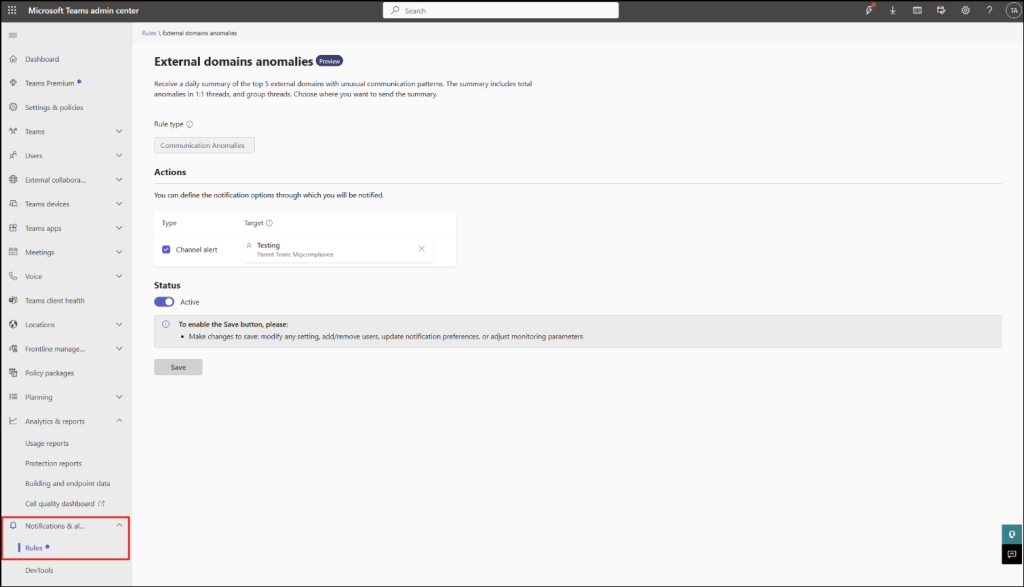
Along with monitoring, you can also create alerts for the External Domains Anomalies Report to enable faster response to suspicious activity. To create the external domains anomalies alerts, follow the steps below.
Sign in to the Microsoft Teams admin center.
From the left navigation pane, go to Notifications & alerts → Rules.
Select External domain anomalies.
Toggle the status to Active.
Specify the Teams channel where you want to receive notifications.
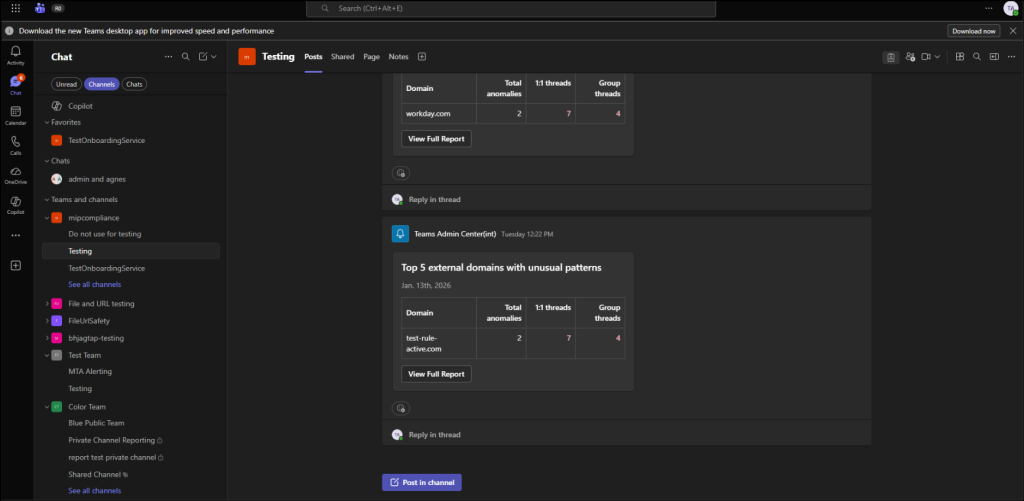
Once configured, you’ll receive a daily alert in the selected Teams channel. This alert summarizes the top 5 external domains with unusual activity, helping you stay informed and take action quickly.
And that’s a wrap! 🎉 We hope this blog helped you explore the new external domains anomalies report in Teams admin center. By using this report, you can quickly detect suspicious or risky communication patterns from external domains and take proactive steps to maintain your Teams security. If you have any questions or feedback, feel free to reach out through the comments below. Stay tuned for more upcoming blogs and updates!
Blesslin is a Microsoft 365 and Active Directory contributor focused on feature behavior analysis and investigation workflows, helping administrators connect platform changes with operational decisions.