Consider an Active Directory environment where each team configures systems slightly differently. One set of machines enforces strict rules, while another does not. Some users can install software freely, others cannot. Security settings vary depending on who last managed the system. Over time, this fragmented approach turns routine administration into a growing operational challenge.
As environments expand, managing user and computer settings individually across domain-joined systems quickly becomes impractical. Manual configuration increases operational effort, introduces configuration drift, and widens the attack surface.
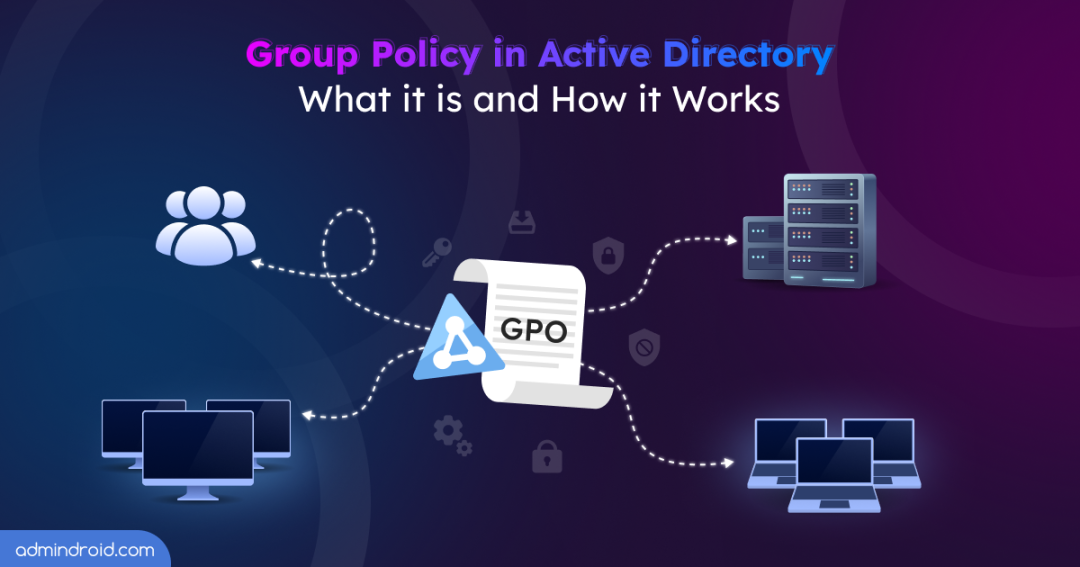
Group Policy Objects address this challenge by providing a centralized, policy-based approach to configuration management. By defining settings once and applying them consistently across Active Directory, administrators can maintain predictable behavior, reduce manual effort, and enforce standards at scale.
In this blog, we’ll explore,
- What is Group Policy
- How Group Policy works in AD
- How to configure a Group Policy Object
- How to identify the GPOs applied to an object
- Best practices for using Group Policy
- FAQs related to Group Policy
What is Group Policy?
Group Policy is a feature that allows administrators to define, manage, and apply configuration settings for users and computers across a domain. It controls security behavior, system configuration, user experience, and application management in a centralized manner.
Group Policy Object in Active Directory
Group Policy works through Group Policy Objects (GPOs), which are the actual containers that store these configuration settings. You can think of Group Policy as the framework, and a GPO as the policy package created within that framework. A GPO can contain policy settings, security settings, scripts, software deployment instructions, administrative template settings, and more.
GPOs can be linked to specific scopes of management, such as Active Directory sites, domains, and organizational units (OUs). This design allows admins to apply policies broadly across the domain or narrowly to specific users and computers, enabling precise and consistent control.
Active Directory includes the following default GPOs:
- Default Domain Policy: Applies at the domain level and is used to configure domain-wide settings such as password policy, account lockout policy, Kerberos policy, etc.
- Default Domain Controllers Policy – Applies to the Domain Controllers OU and is used to configure security and user-rights settings specific to domain controllers. This includes audit policies, logon rights, privileged user rights assignments, etc.
How Group Policy Applies in Windows Environments
After knowing what a GPO is, a common question arises: ‘Does Group Policy work on computers that are not joined to a domain?’
To answer this, it’s important to understand how Group Policy is implemented in Windows environments—both with and without Active Directory. Based on where the policy is stored and applied, Group Policy classified into two types: local and domain-based (non-local).
Local Group Policy
The Local Group Policy applies to a single computer and is stored locally on that system. It is primarily used on standalone or workgroup machines that are not joined to an Active Directory domain.
It is managed independently using the Local Group Policy Editor (gpedit.msc) and affects either the computer, local users, or both. While useful for individual systems, Local Group Policy does not scale well in larger environments.
Non-Local Group Policy (Domain-Based)
Domain-based Group Policy refers to GPOs created and managed within Active Directory. These policies are centrally stored in Active Directory and applied to multiple users and computers across the network.
They are managed using the Group Policy Management Console (GPMC) and support advanced capabilities suitable for enterprise environments.
Local Group Policy is mainly used on non–domain-joined systems, but domain-joined computers still process it unless overridden by applicable AD–based Group Policies.
Components of a Group Policy Object (GPO)
A Group Policy Object (GPO) is not a single entity stored in one place. Instead, it is composed of two tightly linked components that work together to deliver policy settings across an Active Directory environment.
1. Group Policy Container (GPC) – Active Directory Object
The Group Policy Container (GPC) is an object stored within the Active Directory. It contains the metadata required for Group Policy processing. In simple terms, the GPC defines what the policy is and where it applies.
The GPC includes:
- GPO name and unique GUID
- Version information (user and computer configuration versions)
- Status flags (enabled/disabled settings)
- Links to where the policy is applied (domain, site, or OU)
- Permissions and security filtering information
2. Group Policy Template (GPT) – SYSVOL File System
The Group Policy Template (GPT) is stored in the SYSVOL shared folder on domain controllers. The GPT defines how the policy behaves and what actions it enforces.
Key characteristics of GPT:
- Stored under \\<domain>\SYSVOL\<domain>\Policies\{GUID}
- Contains policy configuration files, scripts, and registry settings
- Replicated automatically to all domain controllers using DFS Replication (DFSR)
As a result, both the GPC and GPT work together for Group Policy to apply successfully on user and computers.
Configuration Sections Inside a GPO
Each Group Policy Object is logically divided into two major configuration nodes, allowing admins to target settings based on either the computer or the user.
1. Computer Configuration in GPO
Settings under Computer Configuration apply to the computer account, regardless of which user logs in. Typical use cases include security baselines, startup scripts, software installation, firewall, and BitLocker policies.
2. User Configuration in GPO
Settings under User Configuration apply to user accounts, regardless of which device they log on to. This includes limiting access to system features, preventing users from modifying critical settings, and enforcing user-level security measures.
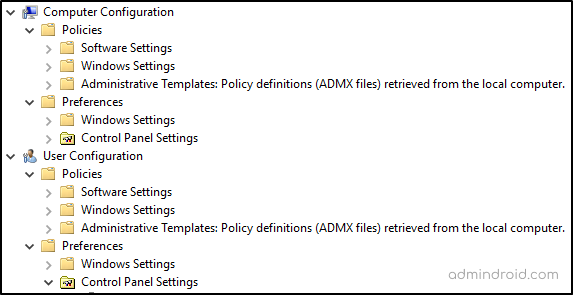
Within both Computer and User Configuration, settings are further divided into policies and preferences.
Policies: These are configurations set by admin to enforce strict settings which users cannot override, including:
- Software Settings – MSI-based application deployment.
- Windows Settings – Security settings, scripts, & account policies.
- Administrative Templates – Registry-based settings controlling OS and application behavior.
Preferences: These are flexible configuration options that users can modify. Preferences are not enforced and can be changed by users. When conflicts occur, policy settings take precedence and override preferences. Preferences in a GPO include:
- Windows settings – advanced configuration options: files, folders, registry keys, shortcuts, network drives, etc.
- Control Panel settings – classic control panel applet configuration: drives, printers, regional options, power options, etc.
Real-World Examples for Active Directory Group Policy
Group Policy is used every day in production environments to enforce consistency, security, and operational efficiency across the organization. Common use cases include:
- Strengthening Active Directory Security: Admins use Group Policy to define password length, complexity requirements, maximum password age, and account lockout thresholds. This ensures that users within the defined scope follow the same security standards and helps protect against brute-force and credential-based attacks.
- Controlling Data Access and Device Usage: Group Policy can be used to block or control access to USB drives and other removable media. This reduces the risk of data leakage, prevents unauthorized file transfers, and helps stop malware infections introduced through external devices.
- Application and Software Management: Using GPOs, applications can be deployed automatically to hundreds or thousands of computers during system startup or user logon. This eliminates the need for manual installation on each machine.
- Managing User and System Experience: Group Policy allows organizations to standardize and lock down system behavior. This includes restricting Control Panel access, disabling registry editing, enforcing screen timeout, hiding system settings, and preventing other configuration changes.
- Network Access Management: Group Policy can be used to configure proxy settings, deploy and manage VPN connectivity, and control network behavior based on network location (such as applying stricter firewall rules on public networks). This helps organizations regulate how devices connect to internal and external networks.
How Group Policy Works in Active Directory
By now, you might have a half-baked understanding of what Group Policy is and what it can do. But the real power of Group Policy lies in understanding how it is applied.
This section breaks down the core mechanics of Group Policy processing in Active Directory. Once you understand these fundamentals, troubleshooting and designing GPOs becomes far more predictable and controlled.
LSDOU Processing Order
One of the most fundamental concepts in Group Policy is the LSDOU precedence order. It defines the sequence in which Group Policy Objects are applied to a user or computer.
LSDOU stands for Local → Site → Domain → Organizational Unit (OU).
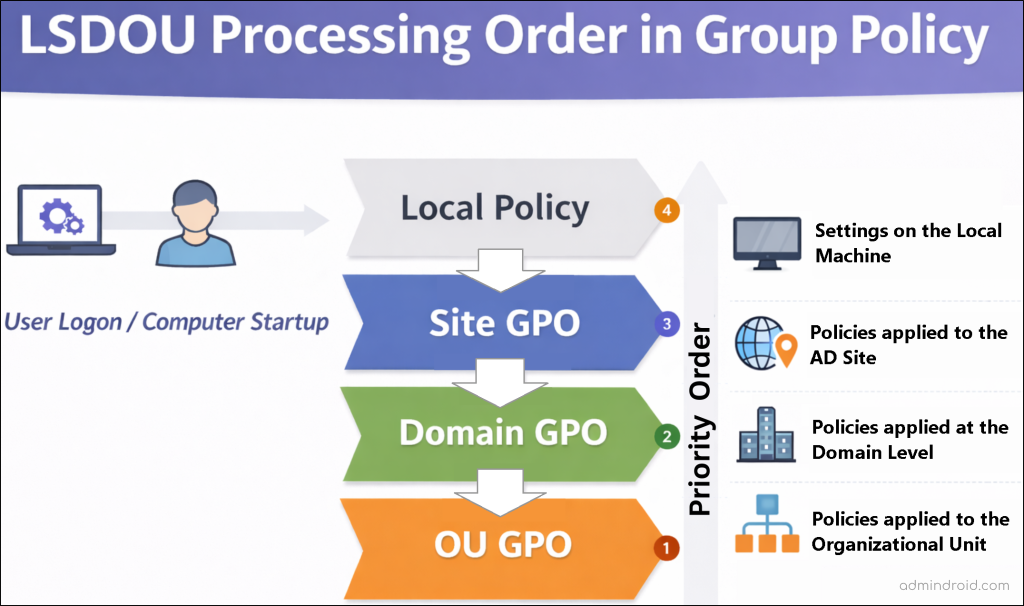
When a computer starts or a user logs on, Group Policy is processed in the following Group Policy hierarchy order. The processing order is important because settings applied later take precedence and can override settings applied earlier (higher precedence = applied last).
- Local Group Policy: Stored on the local machine and processed first for both user and computer settings. In a domain environment, it has the lowest priority, meaning its settings can be overridden if a conflict occurs with site, domain, or OU–based Group Policies.
- Site-Level GPOs: Applied based on the Active Directory site where the computer is located and processed after the local policy. Site-level GPOs have higher priority than local policies but can be overridden by domain- or OU-level GPOs.
- Domain-Level GPOs: Linked to the domain root and processed after site-level GPOs. These policies apply across the domain and are commonly used to define domain-wide security baselines. Domain-level GPOs can be overridden by OU-level GPOs.
- Organizational Unit (OU)-Level GPOs: Applied to objects within the OU hierarchy and processed last in the Group Policy processing order. GPOs are applied starting from the parent OU down to the child OU. The GPO linked to the OU closest to the object has the highest priority and takes precedence in case of conflicts.
Group Policy Precedence and Inheritance
Understanding precedence and inheritance is critical to controlling Group Policy behavior in complex Active Directory structures. By default, child objects inherit GPOs from their parent containers. For example,
- A GPO linked at the domain level automatically applies to all OUs under the domain.
- A GPO linked at a parent OU applies to all child OUs.
This inheritance simplifies management but can sometimes introduce unintended policy applications. When multiple GPOs configure the same setting, AD resolves the conflict using precedence rule; GPOs processed last in the processing order have higher precedence. It’s also important to note that the GPO link order within the same container also matters.
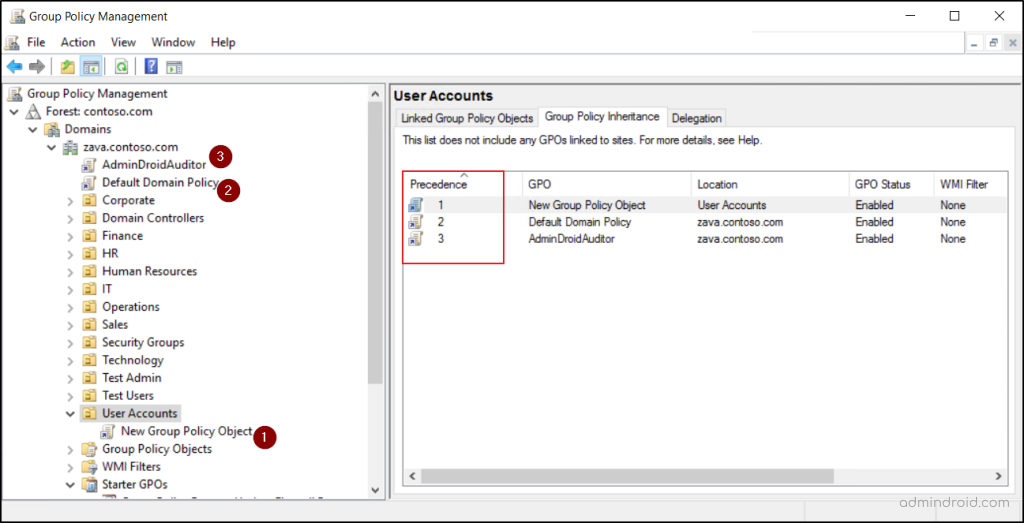
You can control precedence of GPOs within the same container by changing the GPO link order in Group Policy Management Console (GPMC). By default, GPOs are applied according to their link order unless one of the following options changes the behavior:
Block Inheritance: When an OU is configured to block inheritance, GPOs linked at parent containers (domain or parent OUs) do not apply to that OU, regardless of the normal precedence order.
Enforced (No Override): When a GPO linked at a higher level (domain or a parent OU) is set to Enforced, it applies to all child OUs even if inheritance is blocked. Enforced GPOs always take precedence over non-enforced GPOs.
Note: Both the block of inheritance and GPO enforcement do not apply to the local GPOs.
Group Policy Processing Behavior and Refresh
After linking the Group Policy Object to a scope, it gets applied by 60 minutes. This is then processed in two different processing modes, depending on system state.
Foreground Processing
Foreground processing occurs during Computer startup and User logon to ensure critical policies are applied before. During foreground processing, Group Policy runs synchronously, meaning the system waits until policy processing completes.
Certain policies require foreground processing, such as software installation, folder redirection, and drive mappings
Background Processing
Background processing occurs after the user has logged into the computer. This happens periodically without user disruption in an asynchronous manner. Background processing is mainly used for security setting changes and registry-based administrative templates.
By default, these background processing are applied every 90 minutes with a random offset of up to 30 minutes for both user and computer configuration. This randomized offset prevents all machines from contacting domain controllers simultaneously.
Note: However, for the case of DCs the policies are refreshed every 5 minutes.
How to Create and Apply a Group Policy Object in Active Directory
The real administrative skill lies in creating GPO correctly and applying it to the appropriate scope in Active Directory without unintended impact. Let’s understand this by creating a sample Group Policy that disables removable device (USB storage) usage on all domain-joined computers.
1. Core Essentials to Apply Group Policy in Active Directory
Enforcing Group Policy in an AD domain isn’t just about creating a policy; it requires the right tools, correct permissions, and a clear understanding of where those policies apply.
- Administrative Permissions: Creating and managing GPOs requires at least membership in the Group Policy Creator Owners group or equivalent delegated permissions.
- Group Policy Management Console (GPMC): This is the primary tool admins use to create, manage, and troubleshoot Group Policy Objects in an AD. While PowerShell natively supports Group Policy management, it requires a deeper understanding of cmdlets and scripting.
For managing a small number of GPOs, GPMC is sufficient and more intuitive. However, for bulk management, PowerShell is generally preferred. GPMC is available by default on domain controllers, but on member servers it should be installed by adding the Group Policy Management feature. On workstations, it can be enabled by installing RSAT: Group Policy Management.
2. Create a Group Policy Object Using Group Policy Management Console
Here’s how to create a Group Policy Object in Active Directory.
- Go to the Group Policy Management console (GPMC) by navigating through Server Manager → Tools → Group Policy Management. Alternatively, you can open the console by running ‘gpmc.msc’ from the Run dialog.
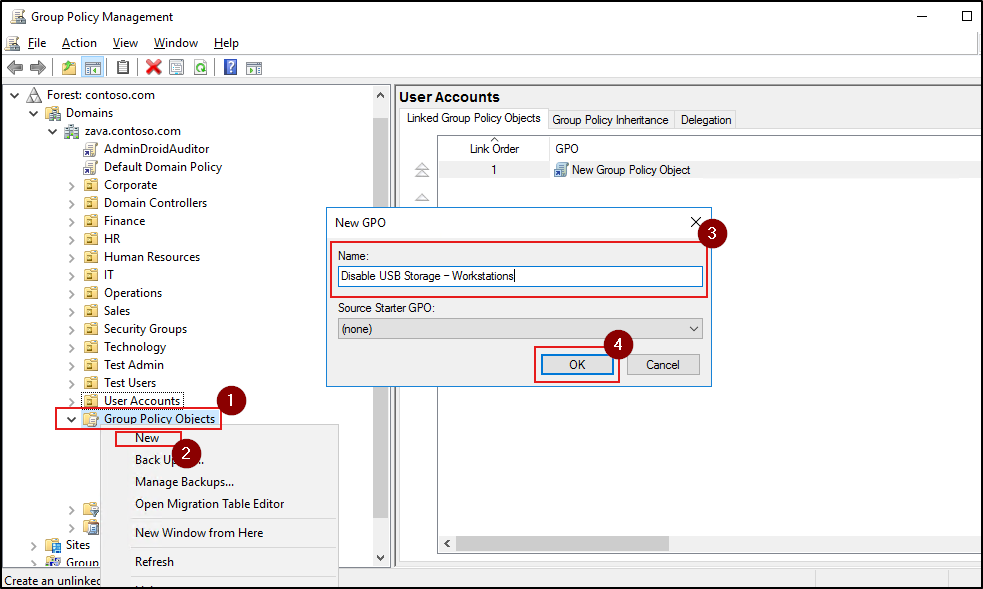
- Expand your domain, right-click Group Policy Objects, and select New.
- Enter a meaningful name, for example “Disable USB Storage – Workstations” and click OK to complete the GPO creation.
3. Configure Group Policy Settings to Disable USB Storage
Here, we define what the Group Policy Object actually does by configuring policy settings inside the GPO.
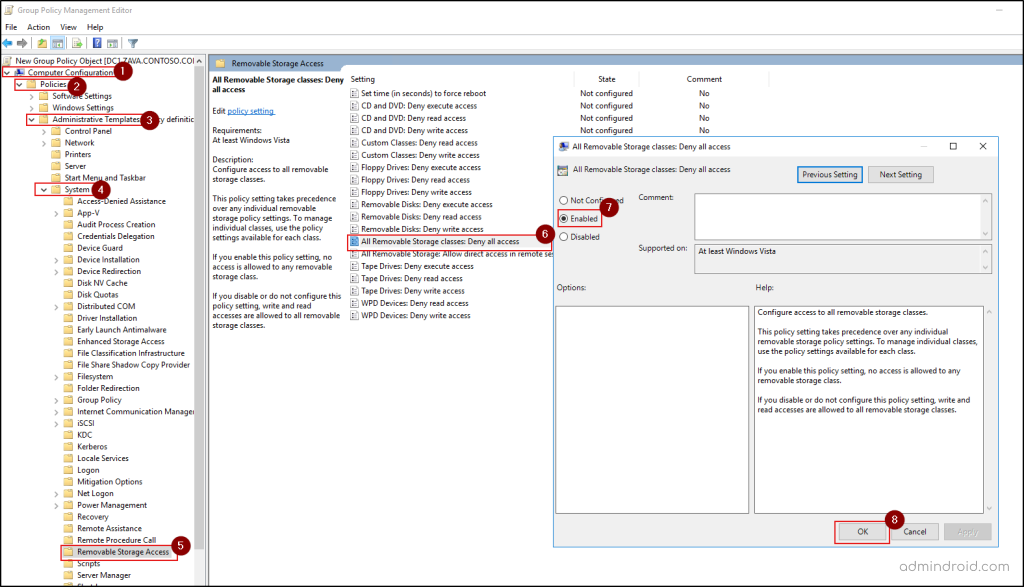
- Right-click the newly created GPO under the Group Policy Objects container and select Edit to open the Group Policy Management Editor.
- Navigate to the path Computer Configuration → Policies → Administrative Templates → System → Removable Storage Access.
- Open the ‘All Removable Storage classes: Deny all access’ setting by double clicking.
- Set the policy to Enabled, then click OK to configure and save the policy.
4. Link the Group Policy Object in Active Directory
Creating a GPO alone does not apply it. A GPO must be linked to a site, domain, or organizational unit (OU) to take effect.
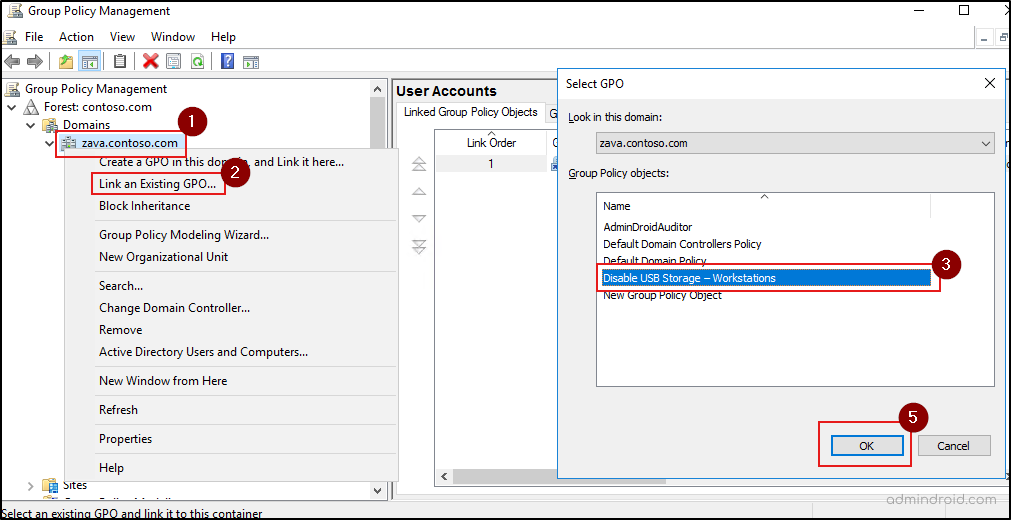
- Right-click the domain, then select Link an Existing GPO, as this policy needs to be applied to all computers in the domain.
- Choose the newly created GPO and click OK.
Group Policy Results Verification and Validation
After configuring a Group Policy Object, it is critical to verify whether the policy is successfully applied and targeting the intended users or computers. Proper validation ensures that Group Policy Object behavior matches expectations and helps quickly identify misconfigurations, conflicts, or scope issues. Admins can verify or validate the policy using any of the preferred methods below.
Group Policy Modeling (Planning Mode): Group Policy Modeling allows admins to simulate and test GPO before or after linking to a policy. This wizard predicts how policies would be applied based on conditions such as user location, security group membership, and OU placement. It is especially useful for testing GPO impact without affecting production systems and identifying potential policy conflicts or precedence issues.
Group Policy Results (Logging Mode): The Group Policy Results Wizard in Active Directory helps administrators troubleshoot GPO behavior by showing which policies were applied or denied for a specific user and computer. It generates the Resultant Set of Policy (RSoP) after considering inheritance, filtering, and precedence, and highlights the winning GPO for each setting applied.
Best Practices for Managing GPOs in Active Directory
Here’s a proven best practice every Active Directory admin should follow.
- Use the ‘gpupdate /force’ command during testing or urgent changes to immediately apply the asynchronous policy settings.
- Design GPOs with a single purpose or closely related settings. Also, keep OU and GPO structures simple and predictable.
- Follow clear and consistent GPO naming conventions and document every production Group Policy Object.
- Test GPOs in a simulation or test them in a Active Directory test environment before deploying to production.
- Regularly back up Group Policy Objects using GPMC or PowerShell.
- Leave Default Domain Policy and Default Domain Controllers Policy unchanged.
- Use Group Policy Loopback processing only on scenarios like kiosks or RDS, where user settings must be applied based on the computer rather than the user.
- To store and reuse a same collection of Administrative Template policy settings across multiple new GPOs, prefer creating starter GPOs.
Frequently Asked Questions About Group Policy Objects
1. What is the maximum number of GPOs in Active Directory?
There is no strict technical ceiling on Group Policy Objects. However, Active Directory enforces a maximum of 999 GPOs that can be processed by a single user or computer. This limit applies only to the number of GPOs evaluated, not to the total number of policy settings. The restriction exists to avoid performance degradation that could occur if too many GPOs were processed simultaneously.
2. Can a Group Policy Object be applied directly to a security group?
No, GPOs cannot be linked directly to security groups. However, you can control GPO application using Security Filtering to target security groups. In this case, the policy is applied only to users and computers that are members of the specified security group within the defined scope.
3. What happens if SYSVOL is down?
If SYSVOL is unavailable, it will bring replication issues. Clients cannot access Group Policy templates (GPT), which can result in:
- GPOs failing to apply
- Inconsistent policy behavior across domain controllers
- Group Policy processing errors in Event Viewer
4. How to test GPO impact safely before deploying it?
The safest way to test GPO impact is by using Group Policy Modeling (Simulation Wizard). It allows admins to simulate policy and detect conflicts without affecting users or computers.
We hope this blog helps you gain a clear and practical understanding of how Group Policy Objects work in Active Directory. Feel free to share your thoughts, questions, or experiences in the comments section below. Stay tuned for more in-depth administrative blogs.