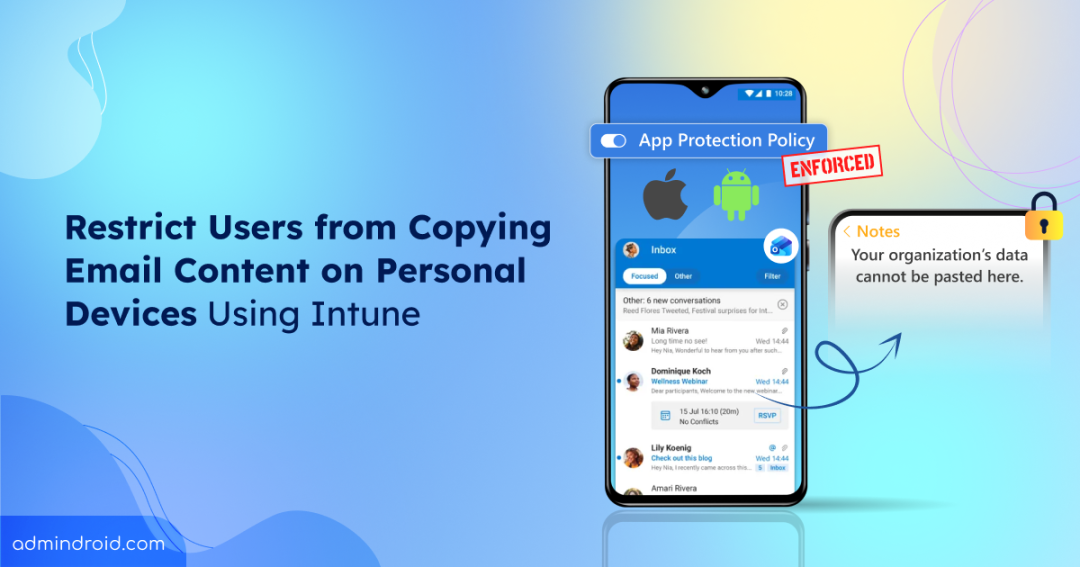
Checking work email on a personal phone has become second nature. A quick reply on the go, a calendar invite accepted from the couch; it all just happens. This flexibility can be great for productivity, but it also raises an important question: how do organizations protect organizational email when devices are not managed?
Not every user or contractor wants their personal device enrolled in company management, and honestly, that’s understandable. The good news is you don’t have to choose between productivity and security. Microsoft Intune helps you do this in a smart way by combining app protection policy with Conditional Access. You can make sure that only certain secure apps can access organizational email from devices that are not enrolled in Intune. This approach lets users use their personal devices safely while keeping company data secure. Below you will find a walkthrough on how to protect email data on unmanaged devices.
What are Unmanaged Devices in Microsoft 365
When discussing email security on unmanaged devices, it is important to have a clear understanding of BYOD and device management status. These two concepts are often confused.
BYOD (Bring Your Own Device) refers to an ownership model where users use their personal phones, tablets, or computers for work.
Device management status refers to whether a device is enrolled in and managed by the organization. A BYOD device can be:
- A device becomes managed when it is joined to an organization and controlled in Microsoft Intune or other third-party Mobile Device Management (MDM) solution. Once a device is enrolled in MDM, admins can remotely push security updates, enforce password policies, and wipe data if the device is lost.
- Unmanaged devices are those that accesses company resources like email or cloud storage without being registered in Mobile Device Management (MDM) system. While admins can still protect specific organizational data within apps using Mobile Application Management (MAM), they lack visibility and control over the device’s overall settings.
For example, User-A uses a personal mobile device to check work emails. This is considered an unmanaged device. If the organization requires the device to be enrolled in Intune and security profiles are installed, it becomes a managed BYOD device. If the user accesses email through the Outlook app without enrolling the device, it remains unmanaged.
Enrolling users’ personal devices into full management is often not ideal due to privacy concerns and user resistance. Instead of managing the device itself, organizations shift focus to protecting data within approved applications. This distinction is central to how Microsoft Intune secures email on personal devices, enabling strong email security while users retain full control over their devices.
Note: From a platform perspective, Intune determines unmanaged status differently. Android devices are treated as unmanaged when Intune MDM management is not detected, including devices managed by third-party MDM solutions. iOS/iPadOS devices are considered unmanaged when neither Intune MDM nor a third-party MDM/EMM provides the IntuneMAMUPN key.
Challenges of Unmanaged Devices in Microsoft 365
Unmanaged devices allow users to access organization email without oversight at the device level. This creates several security gaps:
- Organizational data may be accessed or compromised by untrusted applications on the device.
- Users can copy, forward, or save data to personal accounts and storage locations beyond organizational control.
- Device compliance and risk status remain unknown.
- Lost or stolen devices cannot be remotely wiped, leaving corporate data exposed.
- No encryption enforcement, allowing sensitive data to be stored in plain text on the device.
- Outdated or vulnerable operating systems and applications increase the risk of malware and exploits.
- Cached credentials and tokens may persist indefinitely without the ability to force logout or revoke access.
How Microsoft Intune Protects Organization’s Email Data on Unmanaged Devices
Microsoft Intune provides Mobile Application Management (MAM) capabilities that protect organizational data at the app level, regardless of whether the device is managed. This approach, often called MAM-WE (MAM Without Enrollment), allows you to secure email access on users’ personal devices. To make this work on unmanaged devices, Microsoft Intune brings together two essential controls that shape how email data is accessed and protected.
1️⃣ App protection policies in Intune are the cornerstone of protecting organizational data on unmanaged devices. These policies can protect Microsoft, third-party, and custom apps created on. They enforce security controls directly within apps like Outlook mobile, without requiring full device management. Data protection within APP allows you to control how organizational email data can be used within and across apps, preventing unauthorized data transfer to personal apps or services. It’s important to know that Intune app protection policies target a user’s identity.
2️⃣ By combining Intune app protection policy with Conditional Access, you can require users to access email only through approved apps that have app protection policies applied. This prevents access through unprotected mail apps.
Now that we understand the approach, let’s break down how to configure Microsoft Intune to protect email data on unmanaged devices.
- Create assignment filter to identify unmanaged devices in Microsoft Intune
- Create Intune app protection policy to protect email data on unmanaged devices
- Integrate Conditional Access policy with app protection policy
Prerequisites for Protecting Email on Unmanaged Devices Using MAM-WE
Before configuring app protection Policies and Conditional Access for unmanaged devices like iOS/Android, ensure the following are in place:
- To configure app protection Policies with Conditional Access, you need Microsoft Intune Plan 1 (or an equivalent license included with Microsoft 365 E3/E5 or EMS E3/E5), along with Microsoft Entra ID P1 or P2 for Conditional Access.
- Intune administrator for creating app protection policies; Conditional Access administrator or Global administrator for creating CA policies.
- Security group must contain users added as members to get targeted by the policies.
- Users must sign in using modern authentication.
Create Assignment Filter to Identify Unmanaged Devices in Microsoft Intune
In many environments, both managed and unmanaged devices coexist. Since Intune app protection Policies apply to both enrolled and unenrolled devices, the first task is to scope the policy so that it targets only unmanaged devices.
Applying an app protection policy broadly could cause unexpected behavior on fully managed devices. To avoid this, we are creating an Assignment filter that evaluates device properties before applying APP policy. By creating a filter, we can ensure the policy targets only devices that are not enrolled or controlled by Intune.
- Sign in to the Microsoft Intune admin center and navigate to Tenant administration ➜ Assignment filters.
- Click on + Create and give Managed apps. Give a meaningful Filter name and Description. (e.g., Unmanaged Devices)
- When creating an Assignment filter, you must choose the platform, such as iOS/iPadOS or Android, because app protection settings differ between operating systems.
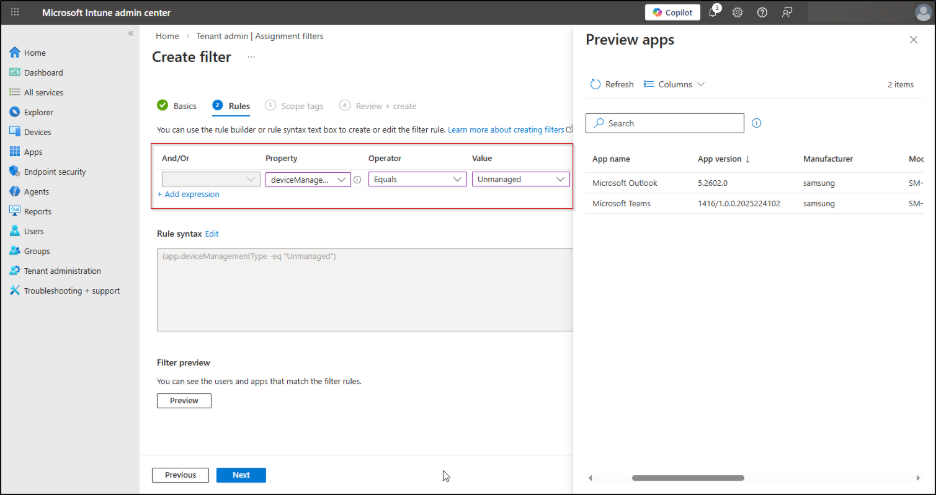
- In the Rules tab, set the Property to deviceManagementType, choose Equals as the Operator and select Unmanaged as the Value field. Click Preview to review the filter results, then select Next.
- Under Scope tags tab, you can apply this policy to a specific group such as only the Sales team or external contractors. Once done, click Create.
Once unmanaged devices are identified using the filter, the next step is to create the app protection Policy. Let’s see how to configure an app protection policy for unmanaged devices in Microsoft Intune.
Create Intune App Protection Policy to Protect Email Data on Unmanaged Devices
Before proceeding further, it’s important to know that Intune app protection policies target a user’s identity. Follow the steps below to safeguard email content on unmanaged devices using Microsoft Intune.
- Navigate to Apps ➜ Manage apps ➜ Protection ➜ + Create in the Intune admin portal and choose the required device platform (iOS/iPadOS or Android).
- Provide a clear Name and Description on the Basics page. Once done, click Next.
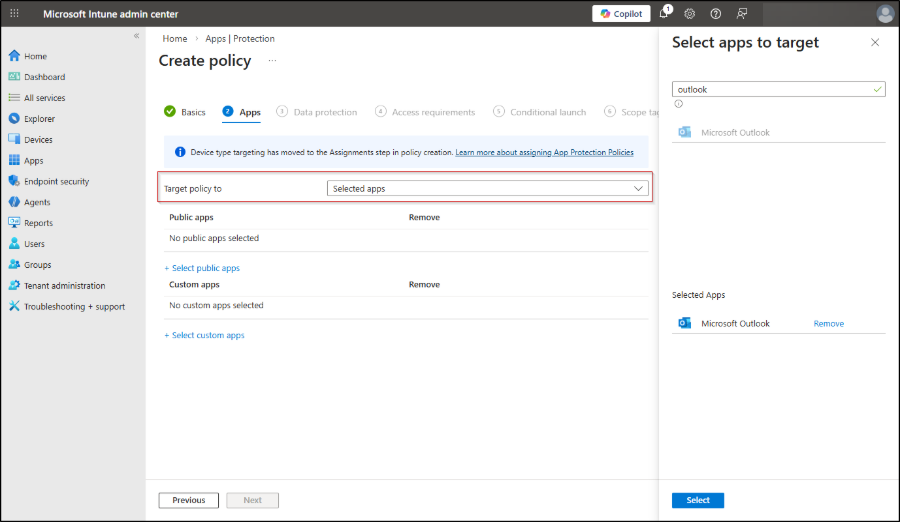
- To protect emails on Exchange Online, set the Target policy to Selected apps.
- Click +Select public apps, search and select the Microsoft Outlook, and click Select. Click Next.
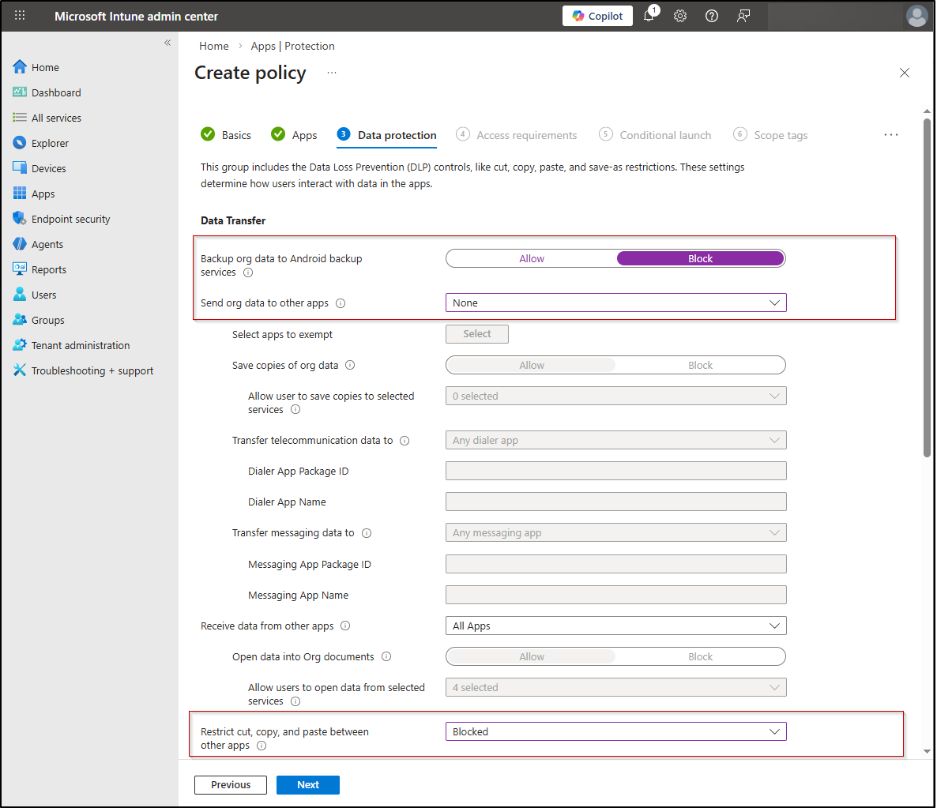
5. On the Data protection page, configure how users can interact with organizational data within the protected app. Under Data Transfer, configure the following settings and leave all others at their default values:
- Backup org data to Android back services: None
- Send org data to other apps: None
- Restrict cut, copy, and paste between other apps: Blocked
6. You can also include Encryption and Functionality functionalities. Select Next to continue.
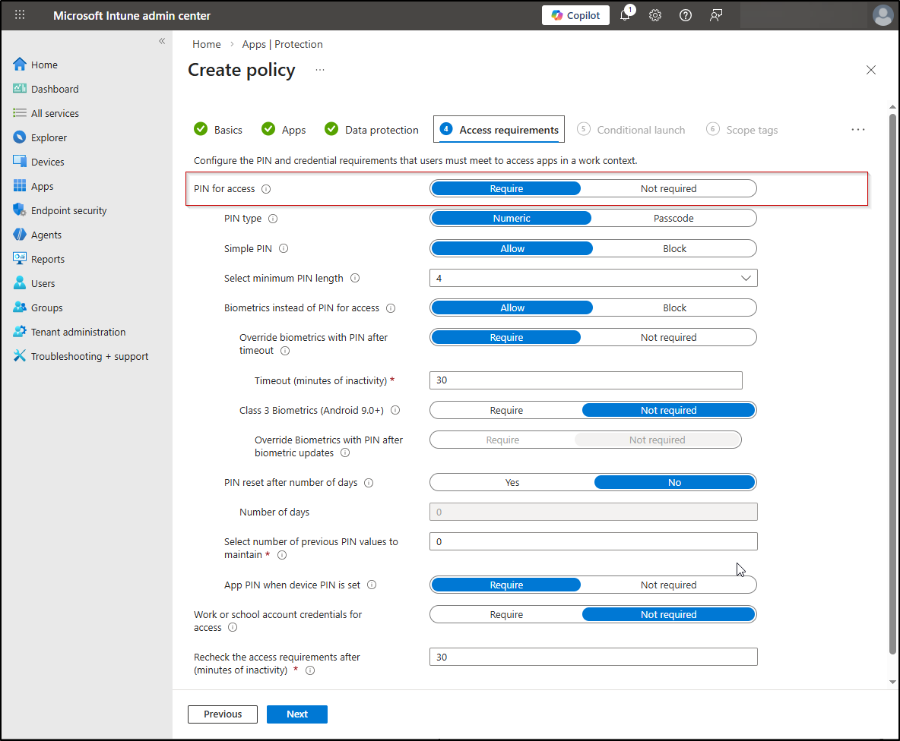
7. You can define PIN and credential requirements for accessing protected apps on the Access requirements page. Configure the following settings and leave the rest at their default values:
- PIN for access: Require
8. Apart from Pin, you can also set timeout and recheck the access requirements after minutes of inactivity settings. Select Next to continue.
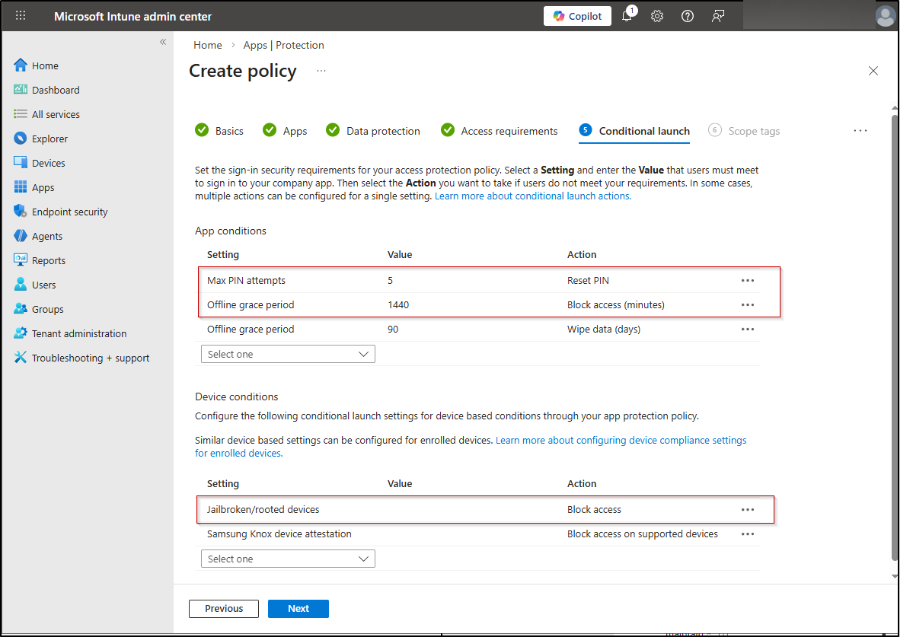
9. On the Conditional launch page, you can configure additional app and device security conditions like max PIN attempts, offline grace period (for block access and wipe data), Jailbroken device settings, and more.
- Next, you’ll see a Scope tags tab, where you can assign the created scope tags to control which admins can view or manage the policy.
- In the Assignments page, you must assign the app protection policy to a security group. After adding the security group, select Edit Filter ➜ Include filtered devices ➜ Unmanaged devices ➜ Select. Once done, click Next.
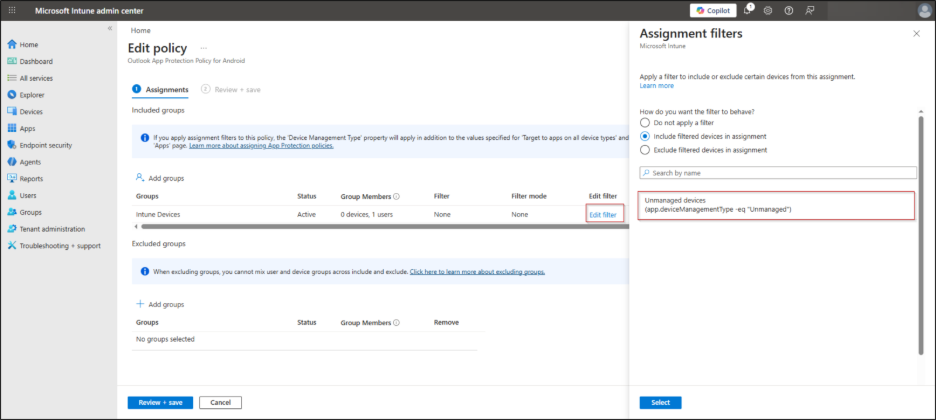
- Finally, review the policy configuration to ensure everything is correct, then click Create to deploy app protection policy in Microsoft Intune.
Note: This policy won’t be enforced for Outdated versions of Microsoft 365 services.
There are some important points to understand before moving to the next step.
| Important: An Intune app protection policy enforces data protection settings inside the Microsoft Outlook app. These settings can restrict actions such as copy and paste, saving data, or sharing content with personal apps. As long as users access email through Outlook, these protections work as intended. However, App Protection Policies apply only to the apps they target. They do not control how users access email outside those apps. Users can add their Outlook mailbox to another email client that does not include in app protection policy. In those apps, email protection restrictions no longer apply. To prevent this, Conditional Access must be used alongside App Protection Policies. Conditional Access can block email access from unapproved email clients. It ensures that organizational mailboxes can be accessed only through Microsoft Outlook. |
Now that the app protection policy is in place, the next stop users from adding their mailbox to other email apps. This is where Conditional Access becomes essential.
Integrate Conditional Access Policy with App Protection Policy to Protect Emails on Unmanaged Devices
Let’s see how to configure a CA policy to block email access on unapproved email clients.
- In the Intune admin center, navigate to Endpoint security ➜ Conditional access, then select Create new policy.
- Give Conditional Access policy a proper Name. Under Assignments, configure Users by selecting All users to ensure the policy applies broadly across the organization.
- Next, start configuring the Conditional Access settings by defining the Target resources. Set the policy to apply to resources ➜ Select specific resources and then search Office 365 Exchange Online to select Office 365 Exchange Online.
- Under Conditions, configure Device platforms by enabling the setting and including Android or iOS, ensuring the policy applies only to mobile devices.
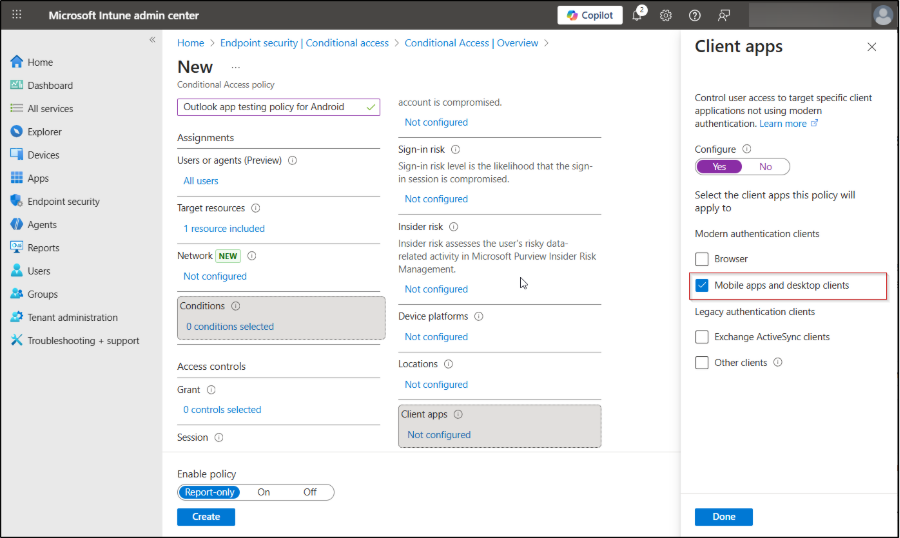
- While still under Conditions, configure Client apps by enabling the option and selecting Mobile apps and desktop clients.
6. Under Access controls, configure the Grant settings by choosing Grant access and enabling both Require multi-factor authentication and Require app protection policy. Set the control behavior to Require all the selected controls so that users must satisfy both conditions to access email.
7. Save the grant configuration, then enable the policy by setting the Enable policy option to On, and select Create to finalize it.
That’s it. The Conditional Access policy for Modern Authentication clients is successfully created.
Apart from Outlook, you can also prohibit unmanaged devices accessing SharePoint and OneDrive sites to prevent data exposure in the organization.
Since I have selected Android as the platform, real time validation is tested on an Android device as part of this walkthrough.
Testing App Protection Policies on Unmanaged Android Devices
After creating the policy, begin testing by removing any existing work or school accounts from the Microsoft Outlook app on the device. This ensures the policy is applied fresh during sign-in.
- Open Microsoft Outlook in your Android device and click Add Account. Enter the user credentials.
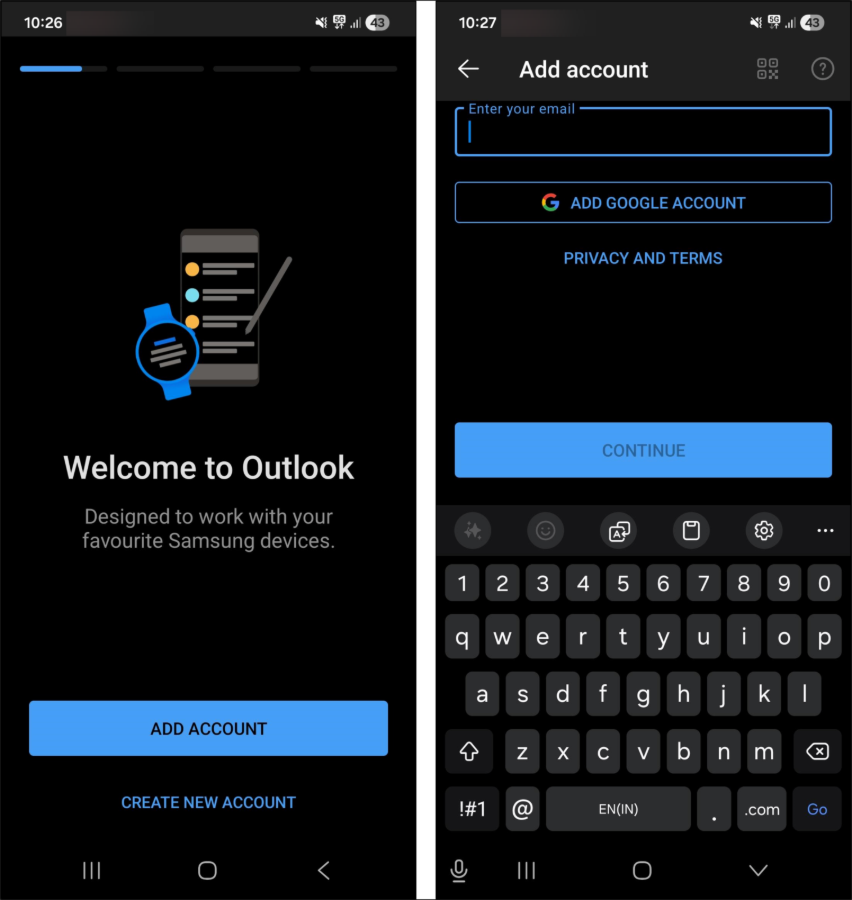
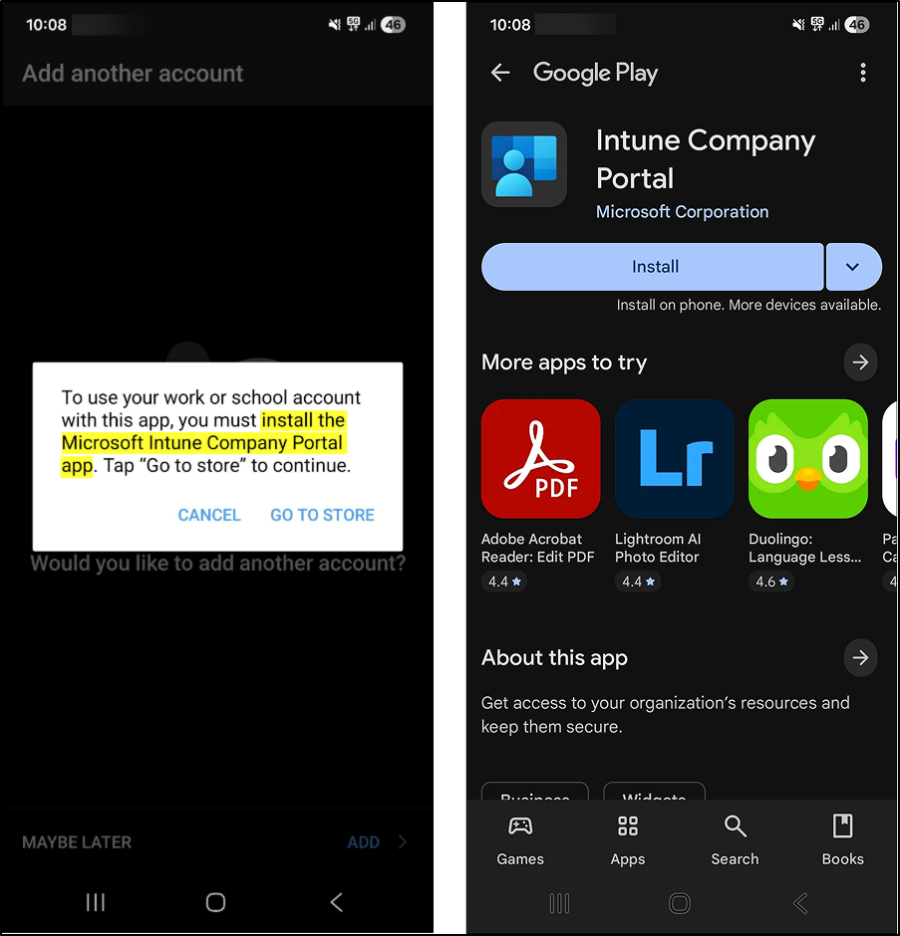
2. After entering the credentials, you will be prompted to install the Microsoft Intune Company Portal app. Install the app to proceed.
- Once the installation is complete, you will be redirected to the Get Access page. Click Continue.
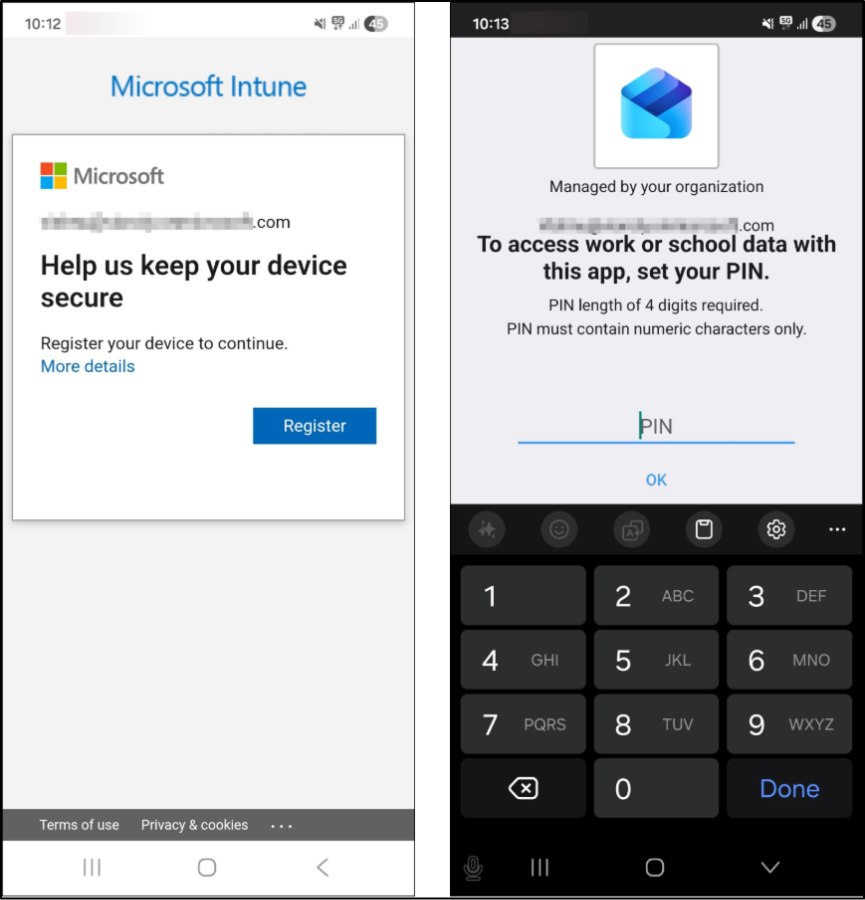
- Next, you will be asked to Register your device in the Microsoft Intune.
- During setup, you will be prompted to configure a PIN based on the conditions defined in the app protection policy.
After the setup is complete, open Microsoft Outlook. When you attempt to copy email content from Outlook and paste it into another app, the action will be blocked. Instead, you will see the following message: “Your organization’s data cannot be pasted here.”
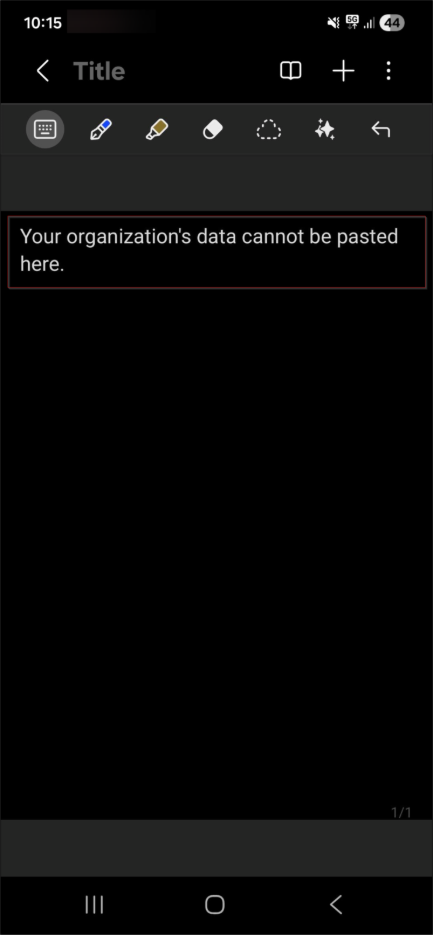
This confirms that the app protection policy is working as expected and organizational data is protected on the unmanaged device.
Validating Conditional Access Policy Behavior on Unmanaged Android Devices
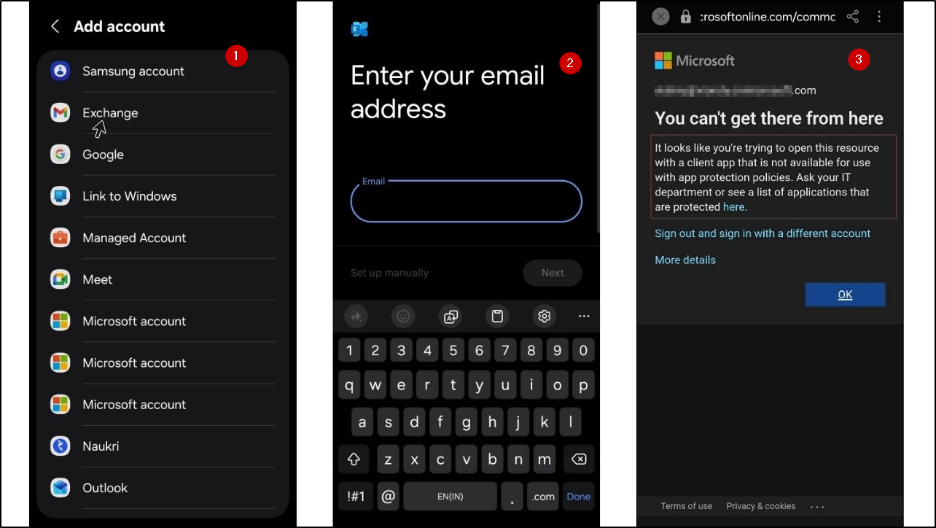
Now, when you try to add Exchange account in other email clients, like:
- To test on Android, go to Settings ➜ Accounts and backup ➜ Manage accounts.
- Click on + Add Account ➜ Exchange and enter the credentials.
You will not be able to perform sign-in, with the following error message: You can’t get there from here.
Securing organizational email on unmanaged devices doesn’t have to mean choosing between productivity and security. With Microsoft Intune’s app protection policies and Conditional Access working together, you can protect sensitive data while respecting user privacy and device ownership. This approach gives your organization the control it needs without the friction of full device management, making BYOD both practical and secure. Start with the steps outlined above, test thoroughly, and you’ll have a robust email security strategy that works for today’s mobile workforce.
Feel free to reach out if you have any queries.