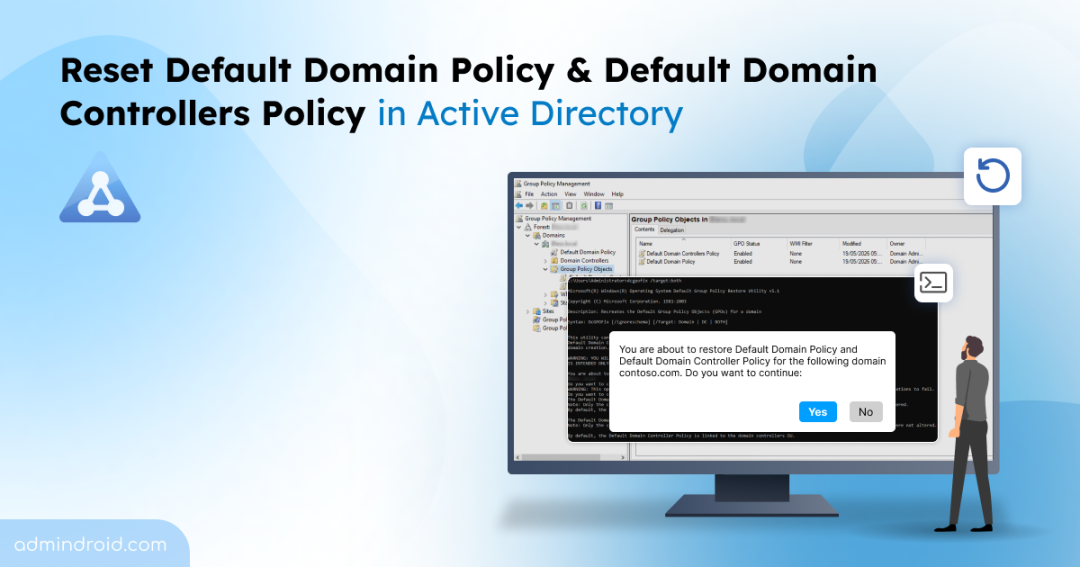
In Active Directory environment, when a new domain is created, two built-in Group Policy Objects (GPOs) are automatically generated: the Default Domain Policy and the Default Domain Controllers Policy. These apply domain-wide include core settings like password policies, account lockout policies, and other baseline security configurations. Microsoft does not recommend making major custom changes directly in both these policies.
However, in many environments, admins still modify them over time. As changes accumulate, it becomes difficult to track what was altered, and troubleshooting policy-related issues becomes challenging. In such cases, resetting the default GPOs is one of the most reliable ways to restore the original Active Directory security baseline settings. In this blog, let’s walk through how to safely reset the default GPOs in Active Directory by backing up the existing settings and restore back their original factory state.
When to Reset Default Domain and Default Domain Controllers GPOs in Active Directory
Before jumping into the reset process, let’s look at some common real-world scenarios where admins reset the Default Domain and Default Domain Controllers GPOs.
Resetting the default Group Policy Objects should always be treated as a last recovery step, not the first troubleshooting action. If the default GPOs have only minimal misconfigurations, correcting just those targeted settings is far less disruptive than a full reset.
Organizations also use additional GPOs linked to domains, OUs, or sites. If those policies take precedence over the default ones, the actual issue may exist in custom GPOs instead. So before performing a reset, review other linked GPOs and their inheritance or order settings carefully.
However, in environments that rely heavily on the default policies, resetting them may become necessary in situations like the following:
- Accumulated configuration changes: In minimally managed Active Directory environments, admins often configure most domain-wide settings directly inside the default GPOs instead of creating separate GPOs. Over time, these policies can become heavily modified, difficult to audit, and challenging to troubleshoot. In such cases, resetting the default policies can help restore a clean and manageable baseline.
- Security incidents: After a ransomware attack or insider threat, forensic review reveals the default GPOs was tampered with weakened password rules, disabled auditing, or excessive user rights on domain controllers. Here, resetting the default policies helps restore the original secure baseline configuration and removes unauthorized or risky changes.
- Policy corruption or SYSVOL issues: Corrupted GPO files or replication failures can cause inconsistent Group Policy behaviour across the domain, making a reset the cleanest path to recovery.
- After migrating to a new domain or environment: During domain migrations, upgrades, or Active Directory restructuring, default policies may be modified or improperly imported from older environments. Resetting them helps restore Microsoft’s recommended baseline configuration without the need of rebuilding custom policies separately.
Prerequisites to Restore Default Domain & Default Domain Controller GPOs in Windows Server
Before resetting the factory settings on your domain’s core GPOs, two requirements must be in place.
- Role requirement: You must be a member of the Domain Admins group or Enterprise Admins group (in a multi-domain forest) to perform the reset process.
- Supported platforms: Windows Server 2016/2019/2022/2025 or Windows 10/11, as these versions include the built-in GPO management tool (dcgpofix) required for this process.
- GPO backup: Before proceeding with any reset, back up the existing default policies to preserve any custom settings configured in them.
Back Up the Existing Default Domain and Default Domain Controller GPOs
Recommended: ⭐ Before rolling back to the default GPOs, always back up the existing policies, as previous configurations cannot be recovered later unless a backup exists. This allows you to recover custom configurations you have made previously, so you can then create a new GPO and incorporate those settings as needed.
To back up the existing domain policies, choose any one of the three backup methods below:
- Back up a Group Policy Object in Active Directory
- Copy and paste the GPO to preserve existing settings
- Export current GPO settings as an HTML report for reference
1. Back Up a Group Policy Object in Active Directory
Backing up GPOs in Active Directory stores policy configurations, security filters, and WMI filters in a local folder. The backed-up folder is saved to a location of your choice and can be restored whenever needed. While restoring a GPO preserves its settings, admins should still verify existing security filtering and WMI filters, and manually reconfigure links after restoration to ensure the policies apply correctly.
In case of importing to a new domain, where you need to reference users, groups, or UNC paths, you can use a migration table. It is an XML file that automatically maps these references from the source domain to the target domain during the import process.
For detailed configuration instructions, follow the guide to back up and restore GPOs.
2. Copy and Paste the GPOs to Preserve Existing Settings
Another approach of backing up is to copy and paste the Group Policy Objects and then disable their settings. This method is best suited to duplicate the existing policy configurations without rebuilding them from scratch. It keeps the GPO settings within the Group Policy Management Console itself, without requiring you to navigate to a local folder like the previous method.
This process simply creates a copy of each policy with the same configurations, including links, security filters, WMI filters, and policy settings. Since the copied GPO is not intended for active use, you can disable its settings so that it does not get applied in the environment. To copy UNC paths and security principals to a GPO in a different domain, you can use a migration table.
Follow the steps below to copy and paste the Default Group Policy Objects:
- Open the Group Policy Management Console.
- Expand Forest → Domain → Group Policy Objects, right-click Default Domain Controllers Policy, and click Copy.
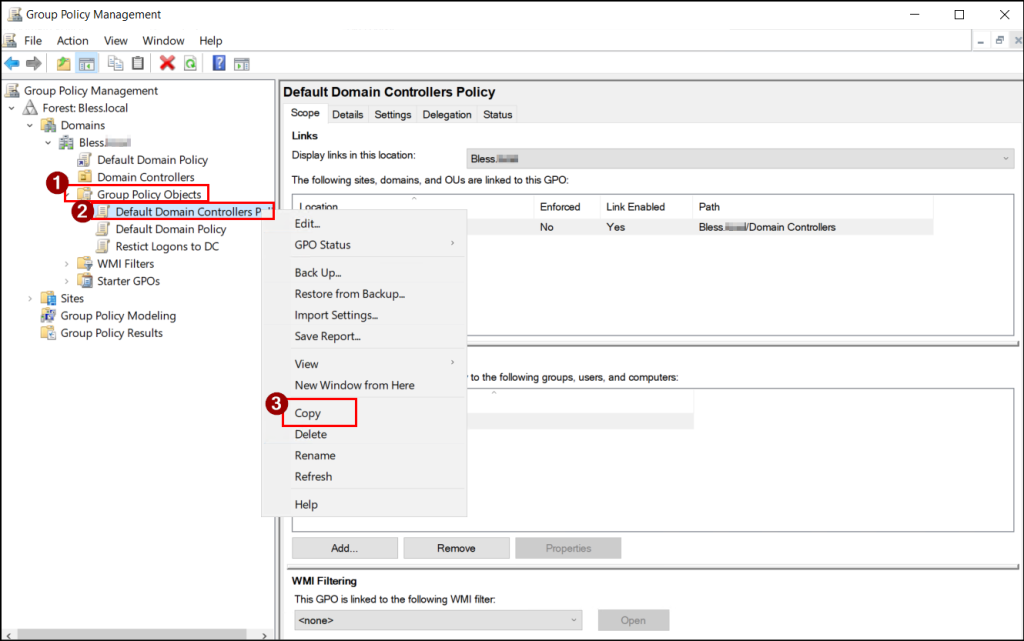
- Once copied, navigate to the target domain, right-click Group Policy Objects, and select Paste.
- Select Preserve the existing permissions to retain the same security filtering and permissions configured in existing GPO. Once the copy process is completed, click OK.
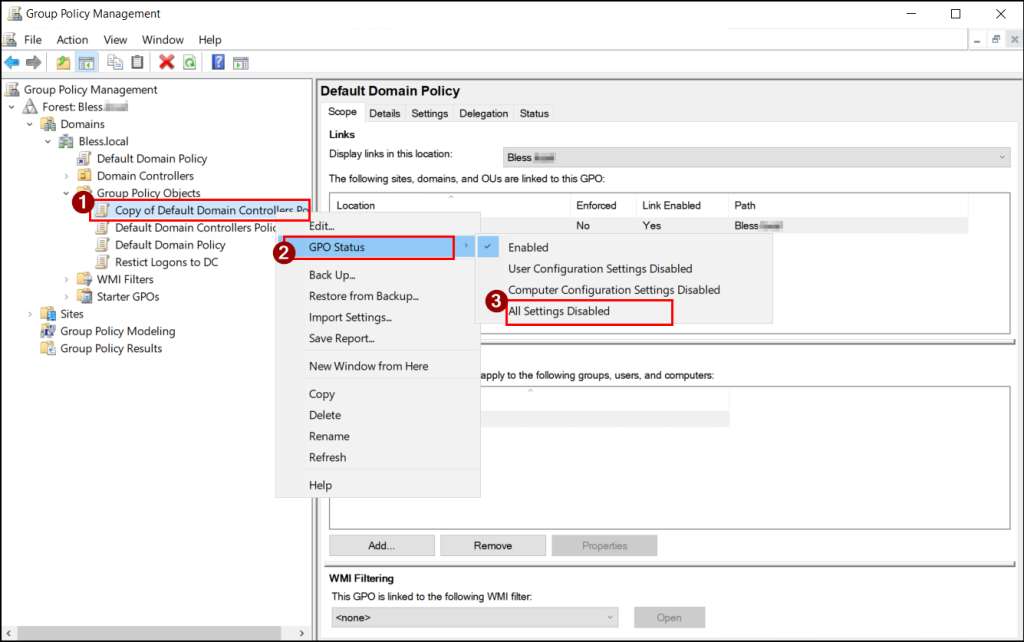
- The copied GPO will be created with the name Copy of Default Domain Controllers Policy.
- Next, to disable the settings, right-click the copied GPO, click GPO Status, and select All Settings Disabled.
- Repeat the same steps to copy and disable settings for the Default Domain Policy.
The copied policies will remain available in GPMC and can be re-enabled later whenever required.
3. Export Current GPO Settings as an HTML Report for Reference
The above two methods are suitable for handling complex configurations. However, after a malicious attack or GPO corruption, the existing settings may no longer be required for restoration. In such cases, you can export the current GPO configuration as an HTML report for documentation and review purposes.
This creates a snapshot of the current configuration, replicating the exact view seen in GPMC. This can help manually review policy settings, identify where changes are required, or cross-verify deviations between configurations.
Note that this is a less recommended approach since this method only generates an HTML report and cannot be restored or imported back into GPMC. Instead, admins would need to manually reconfigure GPO settings by referring to the report.
To save a report of the Default Domain and Default Domain Controllers policies, follow the steps below:
- Open the Group Policy Management Console.
- Expand Forest → Domain → Group Policy Objects and right-click Default Domain Controllers Policy.
- Click Save Report… and it will redirect to your local folder.
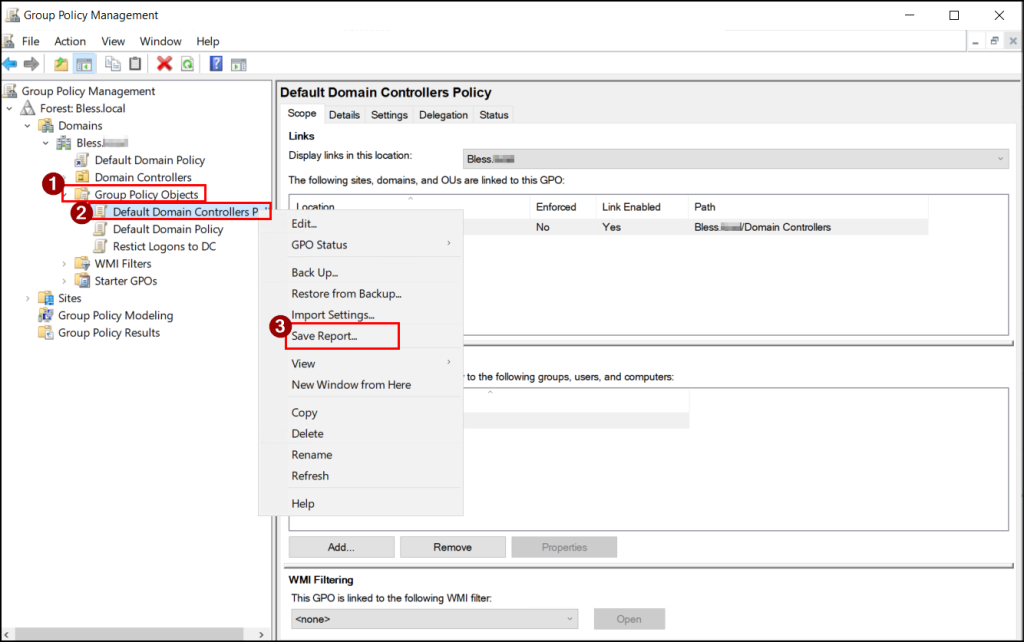
- Choose the destination location and click Save to save the HTML file.
- Repeat the same procedure for the Default Domain Policy to create a HTML report.
How to Reset the Default Domain Policy and Default Domain Controllers Policy
Once you have the required role permissions and the backup is ready, you can proceed to reset the GPOs using the dcgpofix command in the Command Prompt of a domain controller.
The dcgpofix command is a built-in disaster-recovery command-line tool included with Group Policy management functionality in Windows Server. When executed, it automatically restores the Default Domain Policy and Default Domain Controllers Policy settings to the original default settings defined by Microsoft for a newly promoted domain.
Note: The dcgpofix command works only when run on a domain controller where the restoration is being performed. It is not applicable for use on workstations or member servers.
You can use the dcgpofix command to reset the Default Domain Policy and the Default Domain Controllers Policy in three ways:
- Reset Default Domain Policy using Command Prompt
- Reset Default Domain Controllers Policy using dcgpofix command
- Reset both Default Domain Policy & Default Domain Controllers Policy using PowerShell
1. Reset Default Domain Policy Using Command Prompt
To reset only the Default Domain Policy to its factory settings, run the following command:
|
1 |
dcgpofix /target:domain |
Once executed, you will be prompted to confirm the reset process and the replacement of user rights assignments. After confirmation, the command runs successfully and restores the Default Domain Policy such as password policy, account lockout policy, etc., to Microsoft’s original default settings.
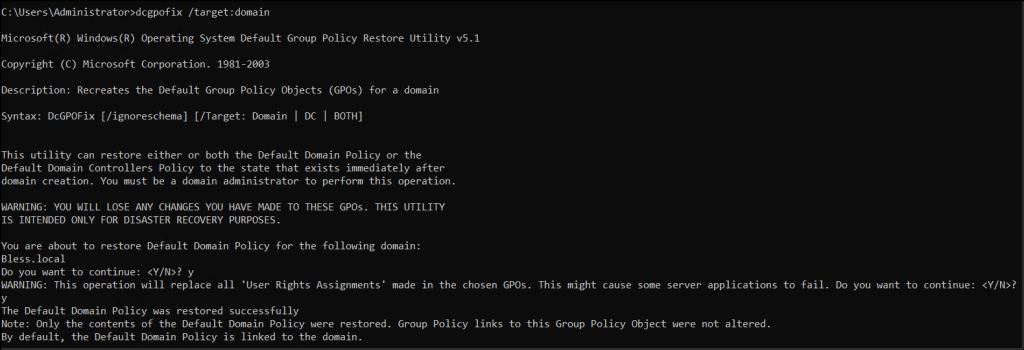
When you run this command, you may encounter the following error:

This occurs because dcgpofix checks the Active Directory schema version by default and expects it to match the Windows Server version of the tool itself. But in most real-world environments, the schema version may differ from the OS version on the domain controller you are running the command from.
To resolve this error, use the /ignoreschema parameter and run the command as below:
|
1 |
dcgpofix /ignoreschema /target:domain |
This bypasses the schema version check and completes the reset successfully.
After the reset completes, the GPO changes will be applied automatically during the next Group Policy refresh cycle. Alternatively, you can apply them immediately by running the gpupdate /force command.
Once updated, you can verify the applied settings using the Group Policy Results Wizard or by running gpresult /r to confirm whether the default settings have been successfully applied.
2. Reset Default Domain Controllers Policy Using Dcgpofix Command
If you need to reset only the Default Domain Controllers Policy, run the following command:
|
1 |
dcgpofix /target:dc |
When prompted, confirm all the reset actions, including the replacement of user rights assignments. Once confirmed, the command executes successfully.
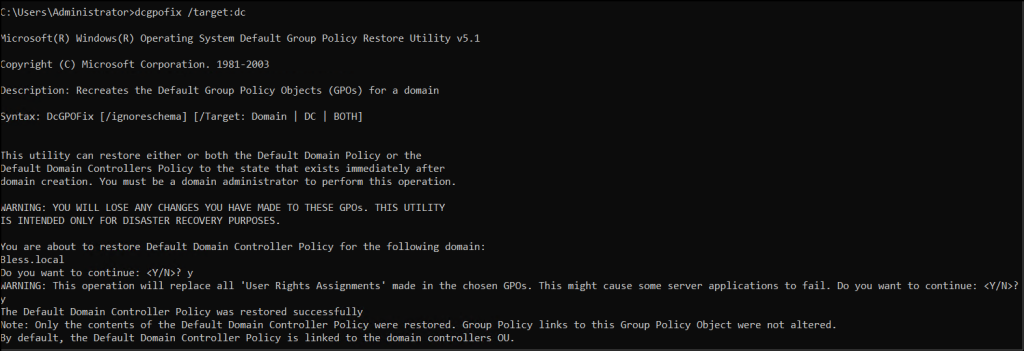
This restores the Default Domain Controllers Policy to its original factory state including user rights assignments, audit policies, etc.
If you encounter a schema version mismatch, you can use the /ignoreschema parameter here as described above. Once done, update Group Policy using the following command so that the changes are applied across the domain.
3. Reset Both Default Domain Policy and Default Domain Controllers Policy Using PowerShell
To reset both Default Domain Policy and Default Domain Controllers Policy to their factory settings simultaneously, you can execute the following command:
|
1 |
dcgpofix /target:both |
When prompted, confirm all reset actions, including the replacement of user rights assignments. Once confirmed, both the Default Domain Policy and the Default Domain Controllers Policy will be successfully restored to their default settings.
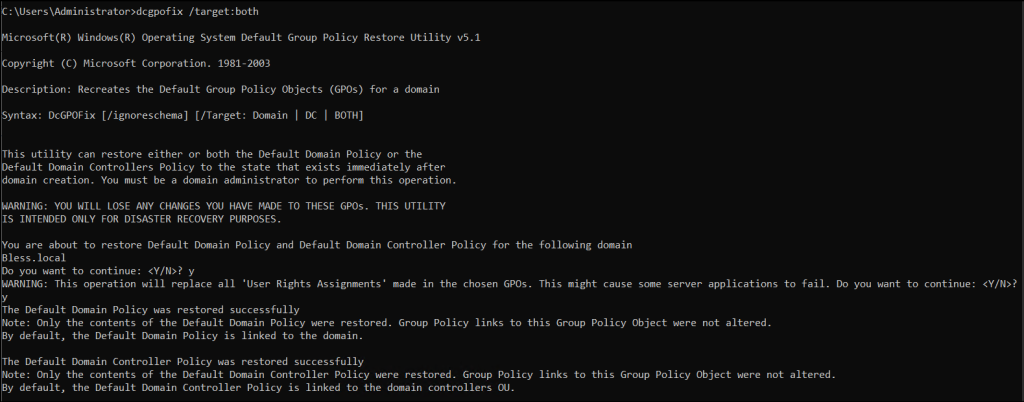
If your schema version differs, append the /ignoreschema parameter to the command as well. After the reset completes, propagate the changes across the domain by running gpupdate /force in Command Prompt.
How Resetting Default GPOs Affects Your Active Directory Environment
Once dcgpofix runs, the changes are applied when Group Policy refreshes across your domain. Therefore, it is important to clearly understand what gets restored and the status of the GPO settings after a reset. The table below explains some of the key GPO settings in detail.
| Affected GPO | Category | What Changes After Reset |
| Default Domain Policy | Password Policy | Minimum length, complexity requirement, password history, and maximum password age revert to Microsoft out-of-box defaults |
| Account Lockout Policy | Lockout threshold, duration, and observation window reset to defaults (no lockout threshold by default) | |
| Kerberos Policy | Ticket lifetimes and maximum clock skew tolerance restored to defaults (10-hour TGT lifetime, 5-minute clock skew) | |
| Default Domain Controller Policy | User Rights Assignments | All user rights on DCs (log on locally, shut down, manage audit log, etc.) revert to Microsoft defaults |
| Security Options on DCs | DC-specific security settings such as digitally sign communications and LAN Manager authentication level reset | |
| Audit Policy on DCs | Audit categories (logon events, object access, policy change, etc.) revert to default audit configuration |
Frequently Asked Questions
1. Can I run dcgpofix on multi-domain forest?
Yes. If you are working in a multi-domain forest, you must run the command on a domain controller within the specific domain you want to reset. Since the tool operates only for a specific domain, it will not affect the other domains in the forest during this reset.
2. Do I need to run gpupdate after Dcgpofix?
It depends on how quickly you want the restored policies to take effect. By default, Group Policy refreshes automatically every 90 – 120 minutes for domain-joined computers. However, if you need the reset to take effect immediately, it is recommended to run the gpupdate command. This forces both computer and user policies to refresh instantly.
3. What if I accidentally had important settings inside the Default GPOs?
To avoid such situations, it is strongly recommended to back up the existing default policies before running dcgpofix. From the backup, you can review the required settings and restore them later if needed.
However, it is generally not recommended to make major custom changes directly in the Default Domain Policy or Default Domain Controllers Policy.
4. Is it safe to use Dcgpofix in production?
Yes, dcgpofix is designed for production use and is safe to run when done properly. But before running it, back up the existing policies, and inform stakeholders about possible temporary policy inconsistencies. It is also recommended to first test in a lab environment to understand how the settings would change before proceeding in production.
5. What doesn’t dcgpofix recover in Active Directory?
When you run dcgpofix, only the Default Domain Policy and Default Domain Controllers Policy will be reset. Any configurations outside these two built-in GPOs remain unchanged, including:
- The AD schema, domain functional level, forest functional level, and replication topology are not touched.
- Custom settings placed in separate GPOs such as fine-grained password policies, software deployment, logon scripts, drive mappings, and Group Policy Preferences remain unchanged, along with their links and scope of management.
- Organizational Unit structure and any GPO links at the site, domain, or OU level are not modified.
Wrap Up
That’s it! We hope this blog helped you understand how to reset the Default Domain Policy and Default Domain Controllers Policy in Active Directory. If you have any questions or experiences to share, feel free to let us know in the comments section below. Stay tuned for more blogs!