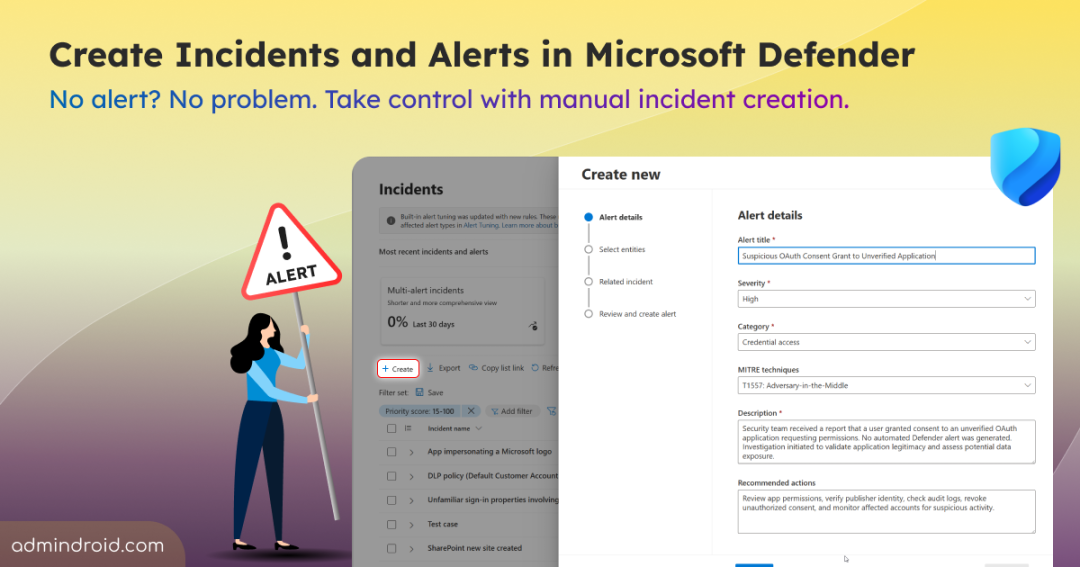
Imagine a user reports receiving repeated MFA approval requests they never initiated. The activity looks suspicious, but Microsoft Defender has not generated any alerts. How do you track the investigation, assign ownership, and document the findings?
Until now, security teams often had to manage such cases outside Defender using separate ticketing systems or other tools. This fragmented investigations across multiple platforms, making it harder to maintain visibility and respond quickly. To address this gap, Microsoft Defender recently introduced manual incident and alert creation in preview. This feature gives analysts a complete way to conduct investigations directly inside the Defender portal.
Without delay, let’s see what this update is all about and how to create alerts and incidents in Defender.
Common Scenarios for Manual Incident Creation in Defender Portal
While most Defender incidents originate from automated detections, many real-world investigations start with user reports, threat hunting results, or external alerts. Manual incident creation removes the dependency on automated system triggers, allowing analysts to create and manage investigations on demand whenever suspicious activity is identified.
Common scenarios include:
- User-reported threats: An employee reports a suspicious email, vishing call, or unexpected MFA prompt, but no alert is generated in Defender.
- Threat hunting findings: Security analysts discover suspicious activity during proactive threat hunting and want to formally track the investigation.
- External threat intelligence: A third-party security provider or threat intelligence feed shares indicators of compromise that require immediate investigation.
- Physical security incidents: Events such as unauthorized physical device access or facility breaches require a security investigation even though no digital alert exists.
- Training and workflow testing: SOC teams can create sample incidents and alerts to validate response processes, workflows, and integrations.
Instead of tracking these security events in separate systems, organizations can create incidents and alerts directly in Microsoft Defender. This helps document findings, track investigations, and keep all security events within a unified incident queue. As a result, teams gain better visibility into ongoing investigations and can respond more efficiently.
Key Capabilities of Manual Incident Creation
When you manually log an alert event, you aren’t just creating a static text note. Microsoft gives you the exact same granular control you have over automated Microsoft 365 alerts. During creation, you can:
- Control the Structure: Choose to create a brand-new incident with an initial alert, or attach the new alert directly to an existing incident.
- Add Detailed Context: Document comprehensive details, including custom titles, descriptions, severity levels, categories, specific MITRE ATT&CK techniques, impacted assets, and evidence for the incident.
- Determine Correlation: Decide whether you want the manual incident to participate in automated correlation loops, or lock it down as a standalone investigation.
- Keep Workflows Unified: Manual alerts are surfaced through the same portal experiences as system generated alerts. This means your existing reporting, automation, and ITSM integrations can continue to work without requiring separate processes for manually created alerts.
Before leveraging these powerful capabilities to centralize your threat tracking, your environment and team must meet a few basic requirements.
Prerequisites to Create Manual Alerts and Incidents in Microsoft Defender
This preview feature applies to Microsoft Defender XDR and Microsoft Sentinel. To use the creation wizard, you must meet these requirements:
- Required Permissions: You must hold at least one of these roles under the Microsoft Defender Unified RBAC framework:
- Detection tuning – Manage (or higher).
- Microsoft Sentinel Responder or Microsoft Sentinel Contributor.
- Asset Scope Limits: You can only attach assets (users, devices, or mailboxes) that fall within your assigned RBAC scope. If an asset is outside your scope, it will not appear in the entity picker.
How to Create Incidents and Alerts in Microsoft Defender
Once your team has the necessary permissions in place, setting up a manual alert is a straightforward process managed entirely within the security center. Follow the steps below to create an incident or alert in Microsoft 365:
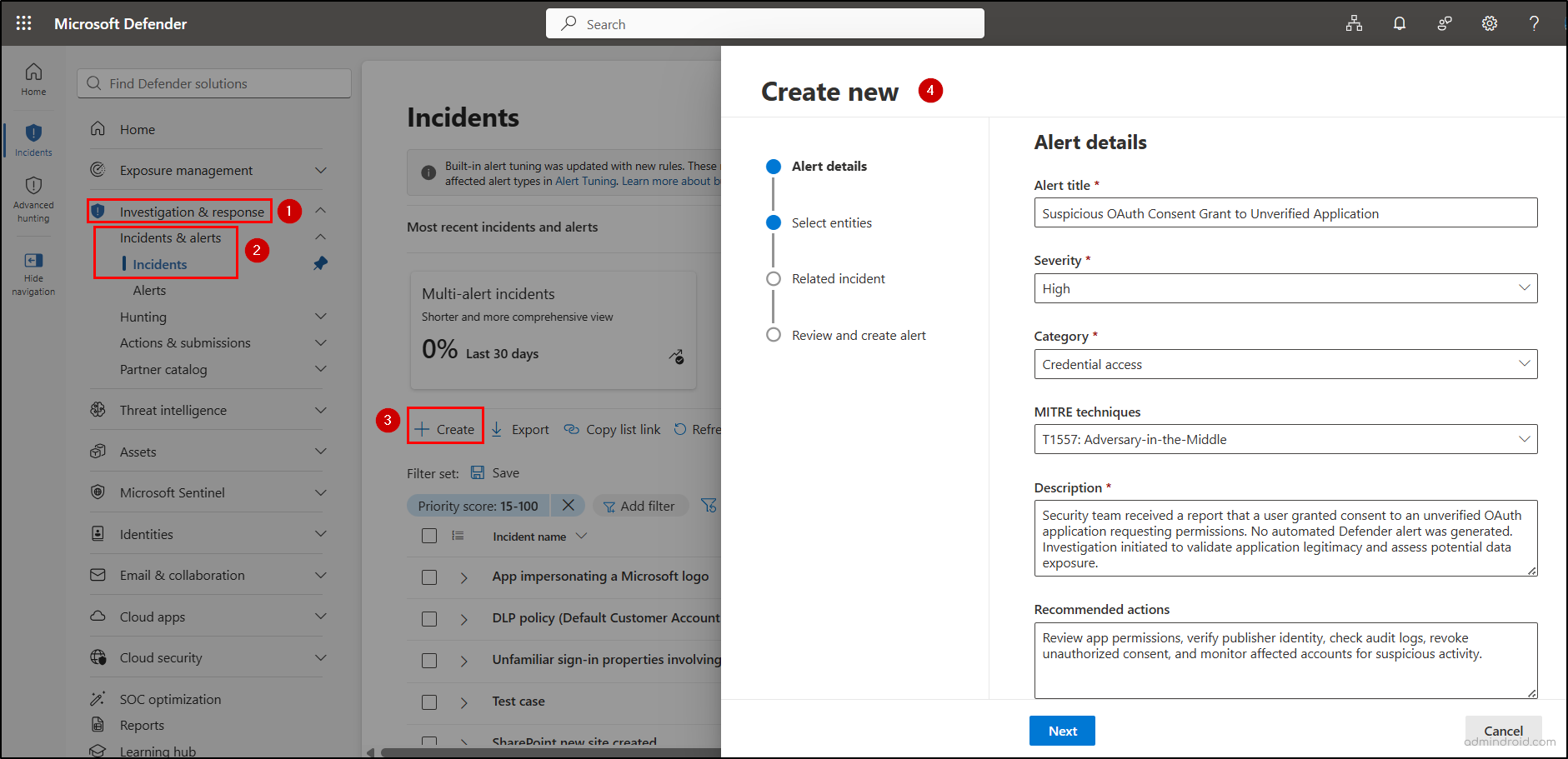
- Log into the Microsoft Defender portal and navigate to Investigation & response > Incidents & alerts.
- Open either the Incidents or Alerts page and select the Create button on the top toolbar.
- Note: If your organization integrates Microsoft Sentinel within the unified Defender portal, you will be prompted to select the specific Microsoft Sentinel workspace in the Preparation pane. If you don’t use Sentinel, the wizard will skip directly to the Alert details page.
- On the Alert details pane, enter the core metadata for the threat:
- Provide required details like Alert title, Description, Severity (High, Medium, Low, Informational), and select an official Defender Category taxonomy.
- Advanced Details (Optional): You can map specific MITRE ATT&CK techniques by selecting their IDs and add Recommended actions for the triage team.
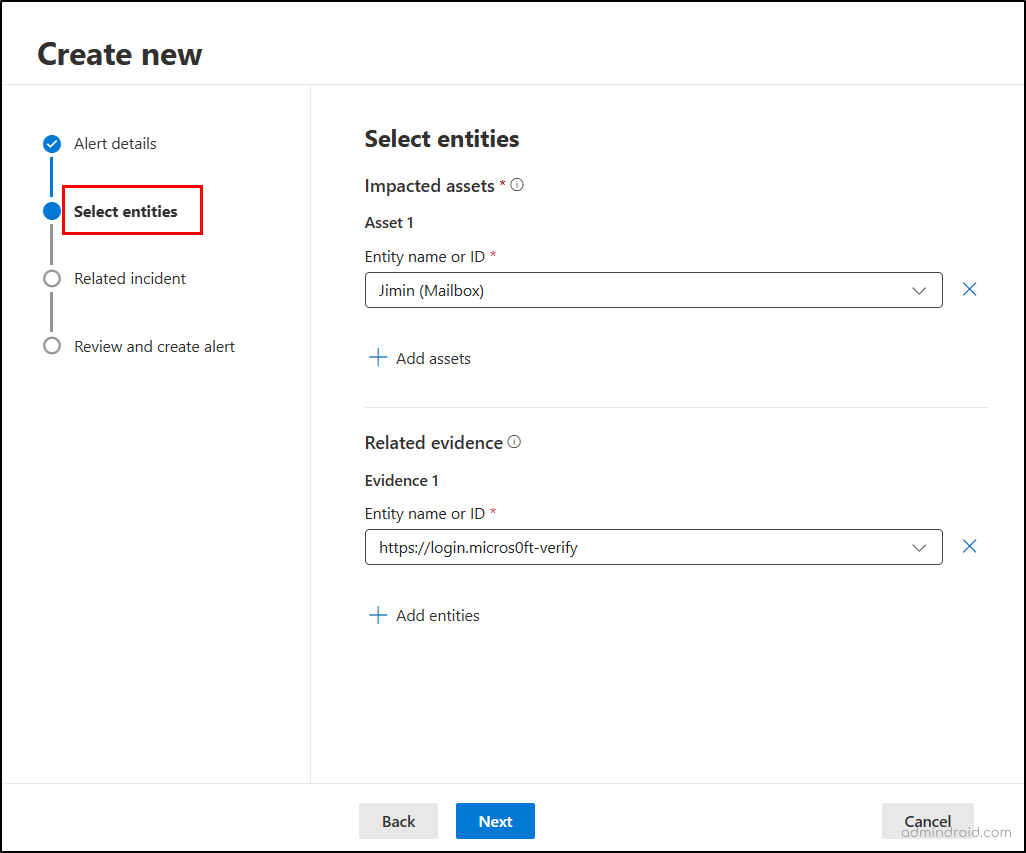
- On the Select entities pane, attach the real-world context to the investigation:
- Impacted assets (Required): Click ‘Add assets’ to add at least one asset to create the alert. Use the autocomplete search bar to quickly locate and add devices, user identities, mailboxes, or IP addresses.
- Related evidence (Optional): Attach secondary technical artifacts gathered from the report, such as specific file hashes, active processes, or malicious URLs connected to the incident.
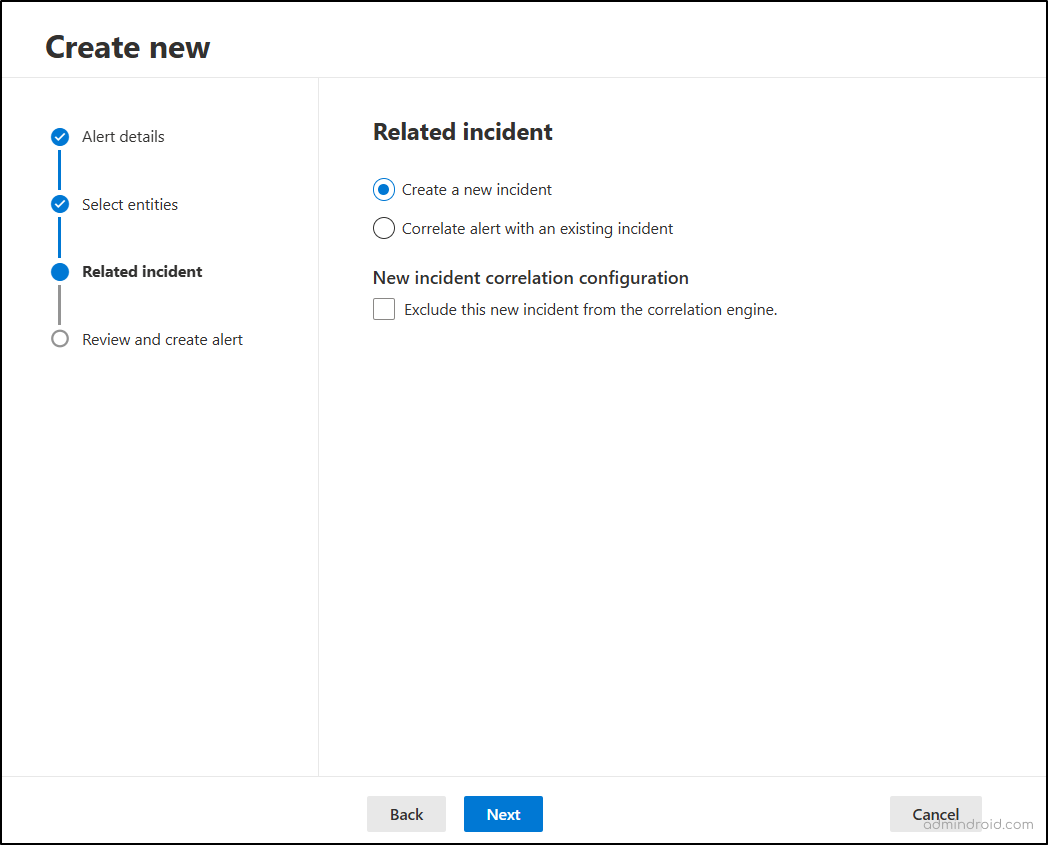
- On the Related incident pane, define how this alert interacts with your existing queue:
- Incident Linking: Choose whether to Create a new incident or Correlate alert with an existing incident to merge this alert into an ongoing investigation via its Incident ID.
- Correlation Checkbox: Decide whether to enable incident correlation. Leaving it unchecked allows Defender’s AI engines to automatically merge future matching automated alerts into this incident. Clear it to keep your investigation entirely standalone.
- On the Review pane, verify your settings and entities, then click Submit to push the incident live in your queue.
| Important: While Microsoft Sentinel also supports manual incident creation through the Azure portal, Azure Logic Apps, and the Sentinel API, Microsoft has announced that Sentinel in the Azure portal will be retired after March 31, 2027. Going forward, Microsoft recommends planning your transition to the Microsoft Defender portal, which will become the primary experience for Microsoft Sentinel. Additionally, once Microsoft Sentinel is onboarded to the Defender portal, manually created Sentinel incidents are not synchronized to Microsoft Defender. To maintain unified visibility across your environment, it is highly recommended to handle all manual incident creation directly within the Microsoft Defender portal. |
Manage Manually Created Incidents and Alerts in Defender
All manually created incidents and alerts appear alongside automatically generated incidents in Microsoft Defender. To view them:
- Navigate to the Incidents or Alerts page in the Microsoft Defender portal.
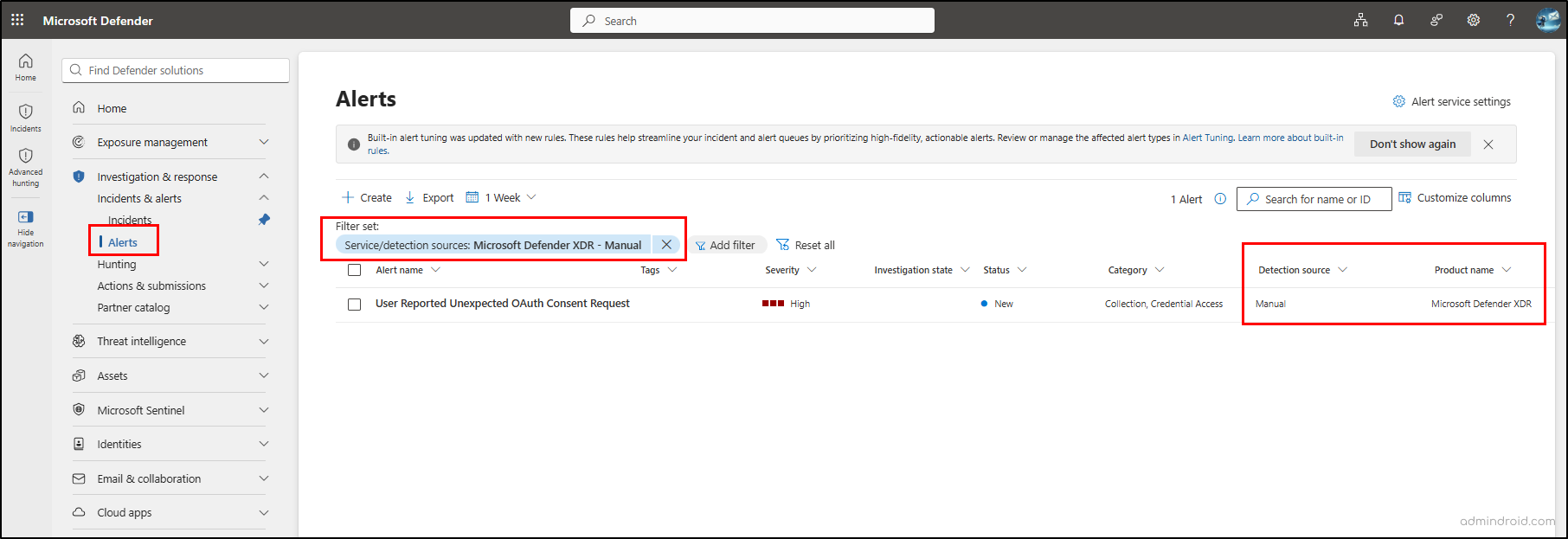
- To identify manually created alerts, filter for:
- Service/Detection Source: Select Manual under the Microsoft Defender XDR source filter.
- Product name: Microsoft Defender XDR
- Open the incident or alert to assign owners, add tags, update status, and manage the investigation.
You can apply the same identifiers in Advanced Hunting, APIs, and ITSM integrations to locate manually created alerts.
That’s it! Microsoft Defender’s new manual incident and alert creation feature closes an important gap in security operations. Security teams no longer need to rely on separate tools to track user reported threats, threat hunting discoveries, or external security findings that do not generate automated alerts.
While the feature is currently in preview, it already provides a centralized way to manage investigations that originate outside Defender’s detection engine. We’ll get a better picture of its full potential as Microsoft continues to enhance and roll it out.
Happy reading! If you have any questions, thoughts, or experiences with this feature, let us know in the comments below.