In the classic Teams experience, switching between different accounts felt almost impossible — and even explaining it was a challenge. The new Teams experience made things better by letting us view notifications through pop-out chats. However, those message notifications are easy to miss since they only appear briefly in Teams — and once they disappear, there’s no simple way to see everything you missed in one place.
The good news is, Microsoft is finally making this easier. With the new Activity in Other Accounts and Orgs panel, you can now view all missed notifications from multiple Teams accounts in one place, without constant switching. This feature is currently in public preview and is designed to simplify cross-tenant communication and reduce the chances of missing something important. In this blog, let’s explore more about this feature and learn how to view activity from multiple tenants using the panel.
What is the Activity in other Microsoft 365 Accounts and Orgs Panel
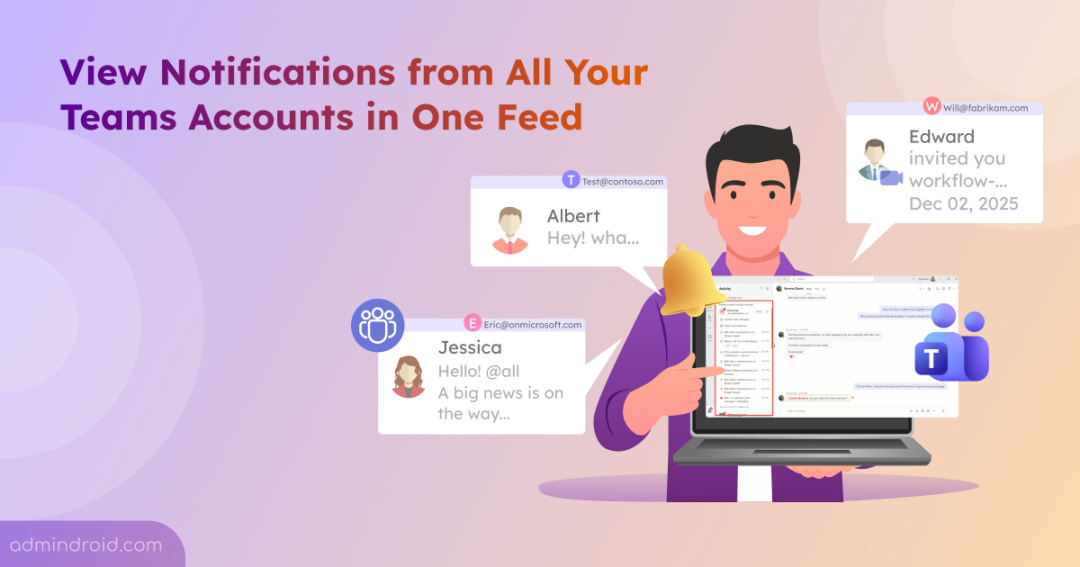
The Activity in Other Accounts and Orgs panel is a new notification hub in Microsoft Teams that aggregates missed activity from multiple signed-in accounts and tenants into a single view. It’s designed to make it easier to see notifications from your other Teams accounts while you’re actively working in one, without needing to switch profiles or tenants.
Instead of constantly switching accounts to check updates, Teams monitors all authenticated accounts in the background and surfaces unread notifications such as messages, mentions, and channel activity in one place. With a single click on the activity icon, you can instantly see everything you’ve missed across accounts.
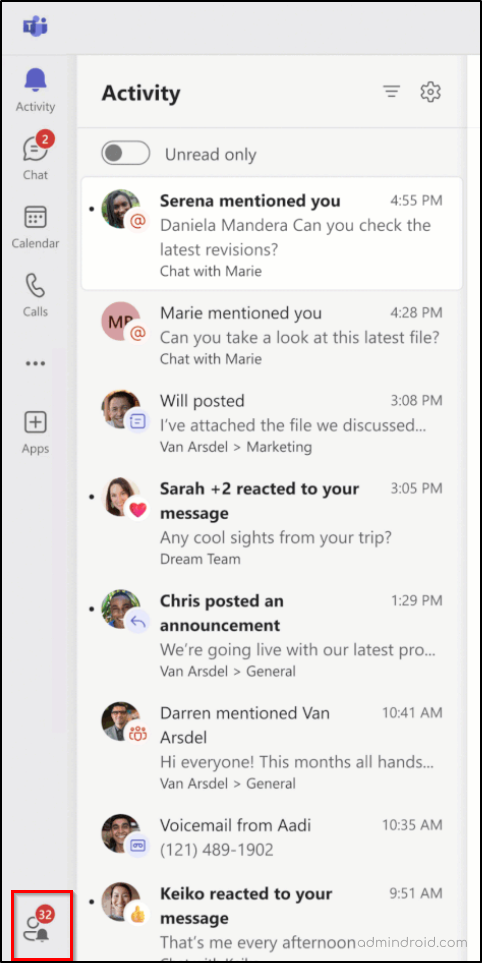
Key Things to Know About the Multi-Account Activity Panel in Microsoft Teams
- This feature is enabled by default for organizations where multiple accounts or tenants are supported.
- It also supports cross-cloud activity.
- The feature is currently available only in the Microsoft Teams desktop app on Windows and macOS.
Now that we’ve covered the basics of what this panel is, let’s walk through how it works and its capabilities in more detail.
How the Multi-Account Notification Panel Works in Microsoft Teams
Once you’re signed in with more than one Teams account, the Activity in Other Accounts and Orgs panel becomes visible in the Teams sidebar. It is a small user with a bell icon, making it easy to spot when there’s something new waiting in another account. If you’re using only one account, the panel remains hidden. This panel gives you multiple ways to view and manage notifications across accounts. The available views include:
- Standard Teams activity count
- Child (pop-out) view of a Teams activity
- Pinned tenants on the Teams sidebar
View Multiple Teams Account Notification in One Feed
When the panel is active, you’ll see a badge showing the number of unread notifications from your other accounts, helping you quickly see where attention is needed. Clicking the panel opens a breakdown of activity grouped by tenant or account. By default, the panel displays up to 10 notifications per tenant, with an option to expand and view more if needed.
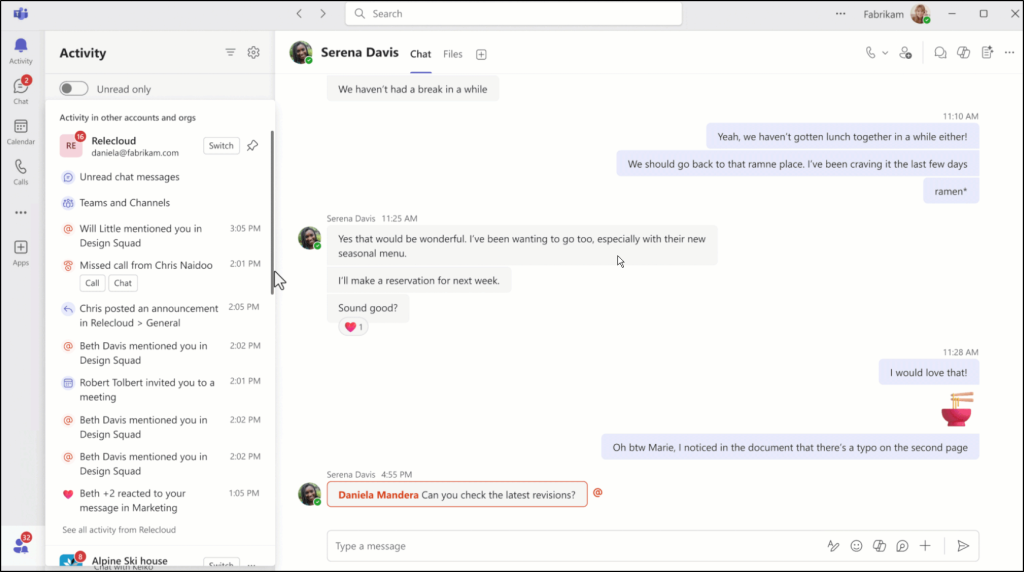
Handy Tip: You can switch to that account’s full Teams environment by selecting the Switch button next to the account name.
See Specific Microsoft Teams Activity Notifications in Pop-Up View
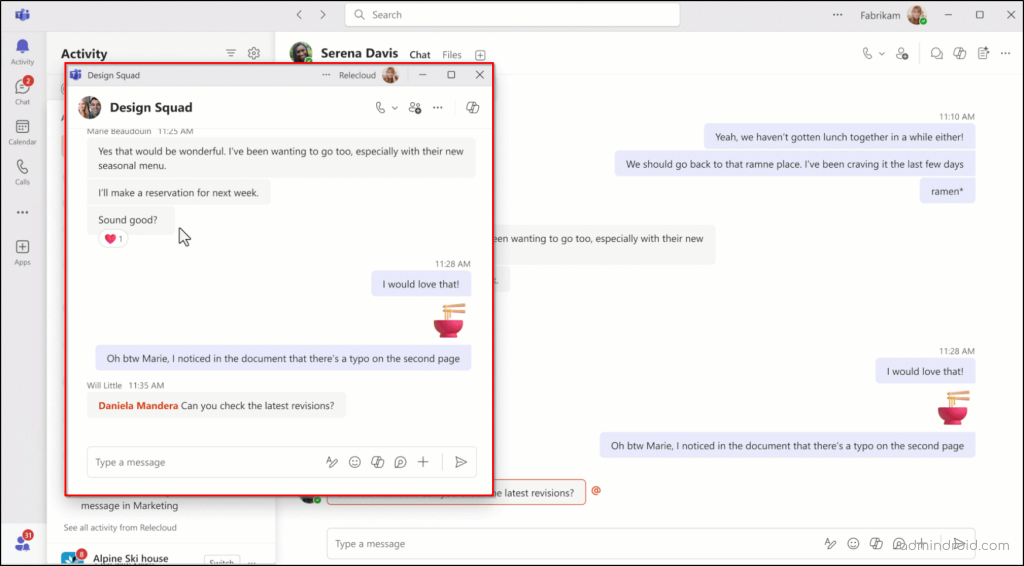
When you click a specific notification, Teams opens the related chat or channel in a separate pop-out window without switching tenants in the main app.
This makes it easy to respond or review activity without disrupting your current Teams session. The notification count on the activity panel remains until you interact with the message in the respective tenant’s main activity feed, ensuring nothing is accidentally dismissed.
Pinning Another Tenant on Teams Sidebar
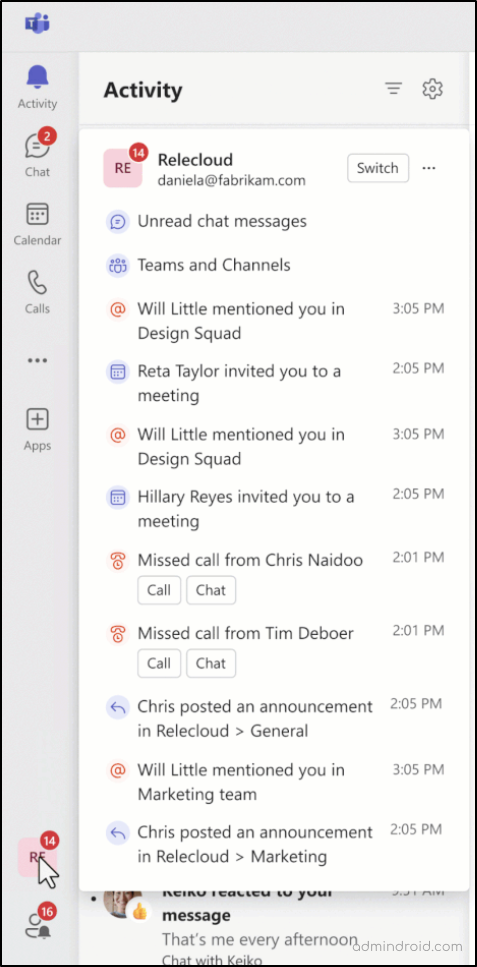
If there’s an account you use often, you don’t need to switch tenants every time—just pin it. Click the pin icon next to the account name in the activity panel, and Teams will automatically add that account to the sidebar with its own unread notification badge. From there, you can open it with one click and quickly check what’s new. You can pin up to 3 tenants to the Microsoft Teams left sidebar.
When you select a pinned tenant, Teams filters the view to show only the missed activity for that specific account. Since pinned accounts have their own space, their notifications no longer appear in the main activity panel, keeping everything organized and clutter-free.
Rollout Timeline for the New Teams Activity in the Other Account and Orgs Panel
Here’s a quick look at the schedule of the new activity panel release:
Targeted Release: The rollout was completed by November 20, 2025.
General Availability: Worldwide rollout will start worldwide in late January 2026 and is expected to finish by late February 2026. However, the rollout to government cloud environments will take a bit longer.
- For GCC and GCC High, the deployment is scheduled to start in early February 2026 and should finish by late February 2026.
- For DoD tenants, the rollout will begin in mid-February 2026 and is expected to be fully completed by mid-March 2026.
Overall, the multi-tenant Teams notification view is a valuable step toward improving the multi-tenant experience in Microsoft Teams. By keeping missed messages and activity visible in one place, it helps users stay organized, responsive, and focused without the hassle of constant tenant switching. It’s a small change with a big productivity impact — especially for those who work across multiple organizations or environments.