Organizations are rapidly moving toward passwordless authentication using passkeys in Microsoft Entra ID. This approach replaces traditional passwords with cryptographic credentials bound to a user’s device, enabling sign-ins that are secure and seamless. This prevents common credential-based attacks such as phishing, password spraying, and brute-force attempts.
Now, Microsoft is taking passwordless authentication a step further with the introduction of passkey profiles. To streamline this transition, Microsoft has announced the automatic enablement of Passkey Profiles in Entra ID. This shift ensures that every organization leverages more granular, group-based controls while maintaining its current security posture.
In this blog, let’s dive deep into the new Microsoft 365 Passkey Profiles and what the automatic transition means for your tenant to help accelerate your journey toward a truly passwordless future.
What are Passkey Profiles in Microsoft 365?
Before diving into auto-enablement, let’s quickly cover what Passkey Profiles are.
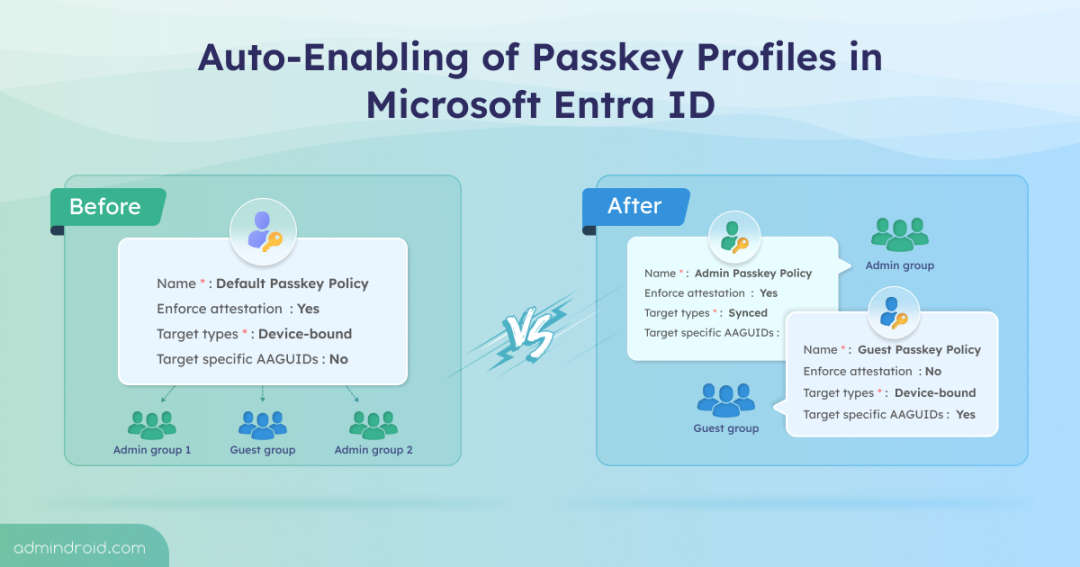
Earlier, passkey FIDO2 configuration in Microsoft 365 was fairly rigid. Admins could enable passkeys either tenant-wide or for specific groups. However, passkey configurations like attestation, authenticators, and key restrictions are applied uniformly, leaving no room for flexibility.
With the introduction of passkey profiles, Microsoft brings granular control to passkey management. Instead of relying on a single configuration, admins can now create multiple passkey profiles, each with its own set of rules, and assign them to different groups.
And this flexibility doesn’t stop here. Passkey profiles in Microsoft Entra also introduce a new passkeyType property, adding support for synced passkeys alongside the existing device-bound type. This gives admins greater control over how passkeys are stored and used.
Synced Passkey Type in Microsoft 365
Traditionally, passkeys in Microsoft 365 have been device-bound. While this approach provides strong security guarantees, it can be limiting for users who frequently switch devices.
With synced passkeys, Microsoft expands passkey support to better align with modern work patterns. This private key is securely stored in the passkey provider’s cloud and synchronized across the user’s devices, allowing seamless sign-ins without re-registering a passkey on each device. Common examples of synced passkey providers include Apple iCloud Keychain and Google Password Manager.
Whether synced passkeys can be used depends on your attestation settings of passkey profile. When attestation is enforced, only device-bound passkeys are allowed. If attestation is disabled, administrators can choose to allow device-bound passkeys, synced passkeys, or both.
Roll-out Timeline for Passkey Profile in Microsoft Entra
Microsoft is rolling out the general availability of passkey profiles in two phases.
- Worldwide tenants – Rollout begins in early March 2026 and is expected to be completed by late March 2026.
- GCC, GCC High, and DoD tenants – Rollout is scheduled to start in early April 2026 and complete by late April 2026.
If a tenant does not opt in to passkey profiles during this rollout window, Microsoft will automatically enable passkey profiles during the following periods:
- Worldwide tenants: early April 2026 – late May 2026.
- GCC, GCC High, and DoD tenants: early June 2026 – late June 2026.
Key Considerations in Microsoft Entra Passkey Profile Automatic Enablement
When Microsoft automatically enables Passkey Profiles in a tenant, certain configurations are updated behind the scenes.
- Existing passkey configurations are converted into the default passkey profile.
- The passkey type value is set automatically based on the attestation settings in your passkey configuration.
- Microsoft-managed registration campaigns begin targeting passkeys.
Let’s explore these configuration changes in detail.
Registration Campaign Behavior
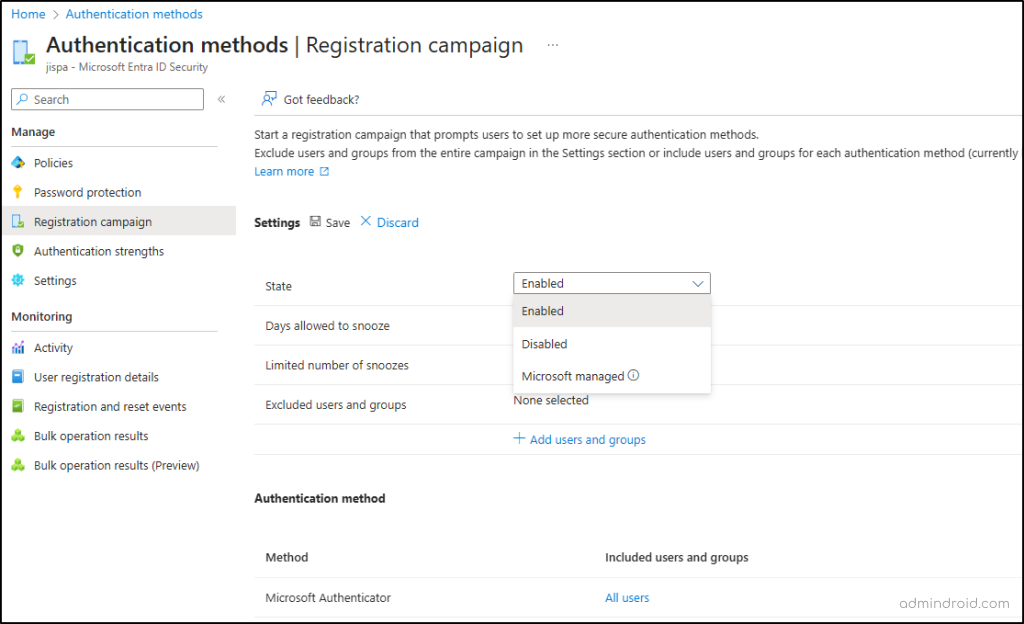
If the passkey type property is set to synced passkeys and the registration campaign is configured as Microsoft-managed, the target authentication method automatically shifts from Microsoft Authenticator to passkeys. This campaign applies only to users who are capable of multi-factor authentication.
In addition, registration controls, such as limiting the number of snoozes or the number of days a user can postpone registration, are no longer configurable. Instead, the campaign allows unlimited snoozes, with a daily reminder.
If you don’t want to target passkeys yet, you can either set the state to Enable and keep Microsoft Authenticator as the target method or Disable the campaign altogether.
Existing Passkey Settings Migration
During automatic enablement, all existing Passkey (FIDO2) settings, including key restrictions and user targeting, are migrated into a default passkey profile.
The passkey type property in this default profile is automatically populated based on your attestation configuration.
- If attestation is enforced, only device-bound passkeys are allowed.
- If attestation is disabled, both device-bound and synced passkeys are enabled by default.
While this automatic enablement ensures adoption, this automatic mapping may not always align with your organization’s intended security posture. To avoid unexpected behaviour or configuration changes, it’s strongly recommended to opt in to Passkey Profiles during the public preview. Opting in early gives you full control to review and adjust the default passkey profile, passkey types, and registration campaign behaviour.
We hope this blog helped you understand what Passkey Profiles in Microsoft Entra are, how they work, and what to expect during rollout and adoption. If you have any questions or comments, feel free to share them in the comments—we’re always happy to help.