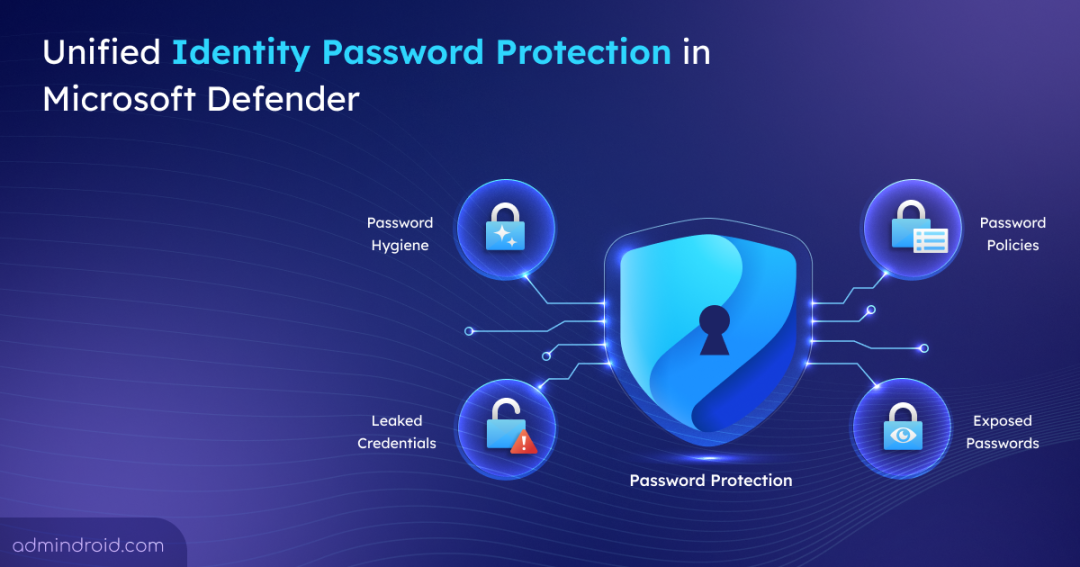
Most breaches don’t start with advanced attacks—they start with something much simpler: compromised passwords. Until now, investigating password risks such as weak, leaked, and exposed credentials meant switching between multiple tools and piecing together data from different sources.
To address this, Microsoft Defender has introduced the new Password Protection page in public preview. By consolidating account‑level and policy‑level insights, it reduces investigation effort and shifts identity security from reactive response to proactive defense. Let’s take a closer look at what this feature offers.
Overview of Identity Password Protection in Microsoft Defender
Microsoft Defender Password Protection is a centralized dashboard that helps organizations monitor and remediate password-related attacks. It consolidates insights from on‑prem Active Directory, Microsoft Entra, and non‑Microsoft sources like Okta. It provides organizations a single view of password hygiene, leaked credentials, exposed accounts, and policy gaps.
The Password Protection page centralizes password risk management with key characteristics like:
- Cross-Identity Risk Visibility: All risky passwords across identity sources are surfaced in one consolidated view, with built-in actionable recommendations. Thereby, eliminating the need to jump between portals or admin centers to correlate risk signals manually.
- Policy Alignment at a Glance: Password related policies can be evaluated across the environment and applications. This makes it easy to identify misalignments and validate adherence to modern security standards without manual cross-referencing.
- Built for Hybrid Identity Landscapes: Consistent protection spans Active Directory and Microsoft Entra ID, built for mixed identity setups where coverage gaps are not an option.
- Password Risk Visibility and Control: Whether managing password policies or monitoring password risks, this page delivers the right level of visibility and control for security teams, identity admins, and compliance officers.
- In-Place Remediation at Any Scale: You can remediate risks like leaked credentials by resetting passwords or disabling accounts, either individually or in bulk, directly from Defender.
Note: In addition, Defender tabs are powered by real-time data and APIs, so you can easily automate reports, integrate into workflows, and make password risk insights actionable.
Prerequisites to View Password Protection in Defender
To access the Identity Password Protection page, ensure the below requirements are in place:
- Licensing: You must have a Microsoft Defender for Identity license (standalone or included in Microsoft 365 E5) plus a separate Microsoft Entra ID Protection license.
- Permissions: At least Security Reader role is required to view the page.
How to Access Password Protection Page in Defender
To navigate to new Password Protection tab in Microsoft Defender portal,
- Go to the Microsoft Defender portal → Identities → Password protection.
- On the page, you’ll see four tabs: Password Hygiene, Password Risks, Leaked Credentials, Exposed Passwords. Select the tab you want to review.
- On each tab, you’ll find a source selector, where you can choose the identity environment to review except for Password Policies tab.
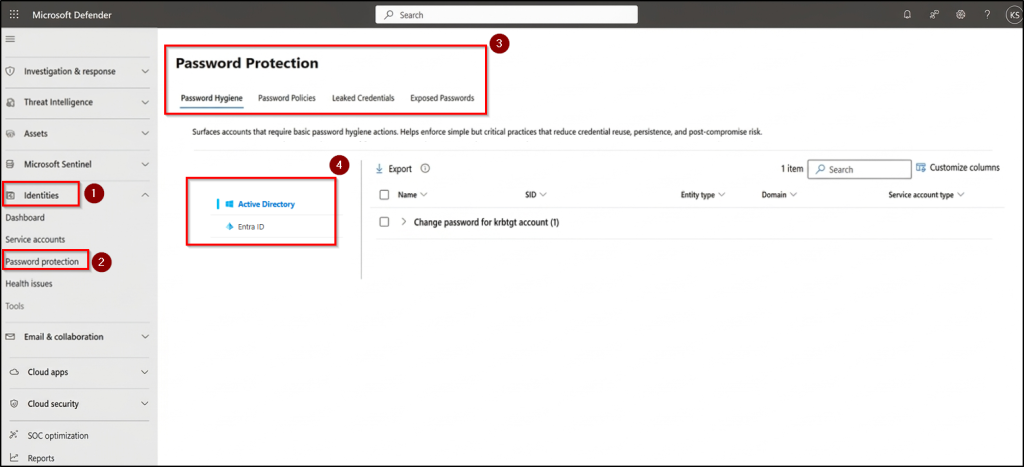
However, not every identity source is available across all tabs. Here’s the breakdown:
| Identity Source | Available Tabs |
| Active Directory | All four tabs |
| Microsoft Entra ID | Leaked Credentials only |
| Okta | Password Hygiene and Password Policies |
What’s Inside the New Password Protection Page?
The Password Protection page is organised into four tabs, each targeting a specific category of password risk. Here’s what each one covers:
1. Password Hygiene:
You can quickly identify accounts with weak password practices and get actionable fixes from this tab. Enforcing these simple controls helps cut down on password reuse, credential persistence, and post‑compromise movement in your organization.
2. Password Policies:
This Password Policies tab evaluates and displays password policies from all your identity providers, helping admins verify that policies are enforced and functioning as intended. Enforcing strong policies limits exposure to identity- based attacks such as brute force attack, password spraying attack, and weak credential enforcement.
This tab displays the policy-level details such as policy name, provider, maximum and minimum password age, password history length, complexity requirements, lockout threshold, and duration.
3. Leaked Credentials:
Flags accounts with valid passwords exposed outside your organization often shared on public sites and hidden online networks. These accounts are at immediate risk because attackers can log in using legitimate credentials. From this tab, admins can quickly reset or disable exposed accounts, either one at a time or in bulk.
If you’re working in cloud-only setup and need to surface leaked credentials in Entra ID, this is the primary tab you will use.
4. Exposed Passwords:
This tab highlights accounts or settings where passwords are stored or exposed insecurely such as clear‑text credentials in AD attributes or reversible passwords in Group Policy Objects. Monitoring and eliminating these weak storage practices cuts off attack pathways for lateral movement and strengthens defenses across your environment.
Note: Password Hygiene, Leaked Credentials, and Exposed Passwords tabs show account-level details such as display name, Security Identifier (SID), entity type (user, computer, or service account), domain, and service account type.
That’s it! Password Protection in Defender makes hidden risks visible and more importantly, gives you the control to act on them immediately in one place. If you want to stay ahead of attackers, this is a feature to start using today. It transforms password security from a blind spot into a proactive layer of defense in your identity strategy.