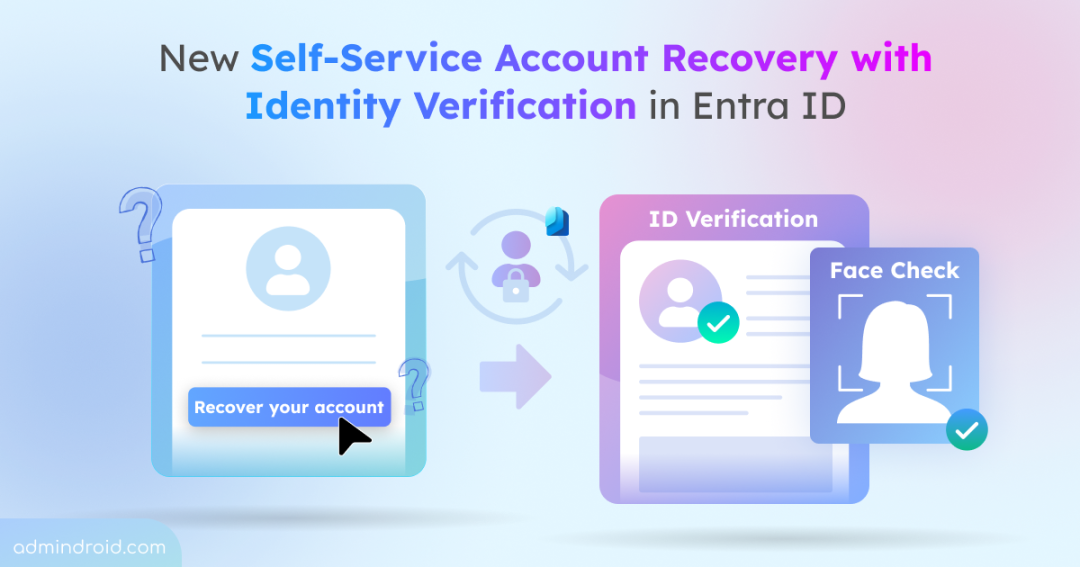
Microsoft has quietly rolled out a new self-service Account Recovery (Preview) experience in Microsoft Entra ID. This feature aims to simplify how users regain access to their accounts when they lose access to all their authentication methods.
Although the feature isn’t fully functional yet, and official documentation is still pending, the preview already shows Microsoft’s intended direction. The goal is to provide self-service account recovery (SSAR) by integrating trusted third-party identity verification (IDV) to securely confirm a user’s identity using ID scans, biometrics, and other checks.
Why This New Account Recovery Model in Entra ID?
Today, users rely on multi-factor authentication methods such as push notifications, passcodes, hardware tokens, and SMS. They also depend on Self-Service Password Reset (SSPR) when they forget their password.
But what if a user loses all methods in scenarios like phone stolen, authenticator wiped, SIM changed or email used for SSPR no longer accessible? In such cases, users hit a dead end. The only fallback is the helpdesk, which must manually verify the user’s identity.
This approach has two major problems:
- Security Risk – Helpdesk verification relies on trust, which can be exploited through social engineering.
- Operational Cost – Microsoft reports that up to 50% of helpdesk volume comes from account lockouts.
To bridge these gaps, Microsoft’s new self-service account recovery (SSAR) experience introduces identity verification during recovery. This allows users to securely prove their real-world identity using a trusted identity verification without relying on helpdesk intervention.
While SSPR lets users reset their password using the methods they still have, SSAR is used when all methods are lost and the user must fully prove their identity again. In short, SSPR supports password resets when at least one method is available, whereas SSAR enables complete identity recovery through a stronger, identity-proofing process.
How Does the New Self-Service Account Recovery Model Works?
Microsoft confirms that account recovery integrates with trusted third-party identity verification providers. These providers perform government ID document verification, biometric liveness checks, and other high-assurance methods.
Once the IDV process is completed, the user receives a Verified ID credential, which is presented back to Microsoft Entra ID. Entra validates the credential’s authenticity and checks that identity attributes (such as first name and last name) match the directory record without exposing sensitive personal information.
In short, this model proves who you are, not just whether you control a device, dramatically reducing the risks of spoofing and account takeover. It enables secure self-service account recovery while delivering a frictionless user experience without introducing vulnerabilities to evolving cybersecurity risks.
What’s Included in the Self-Service Account Recovery Experience
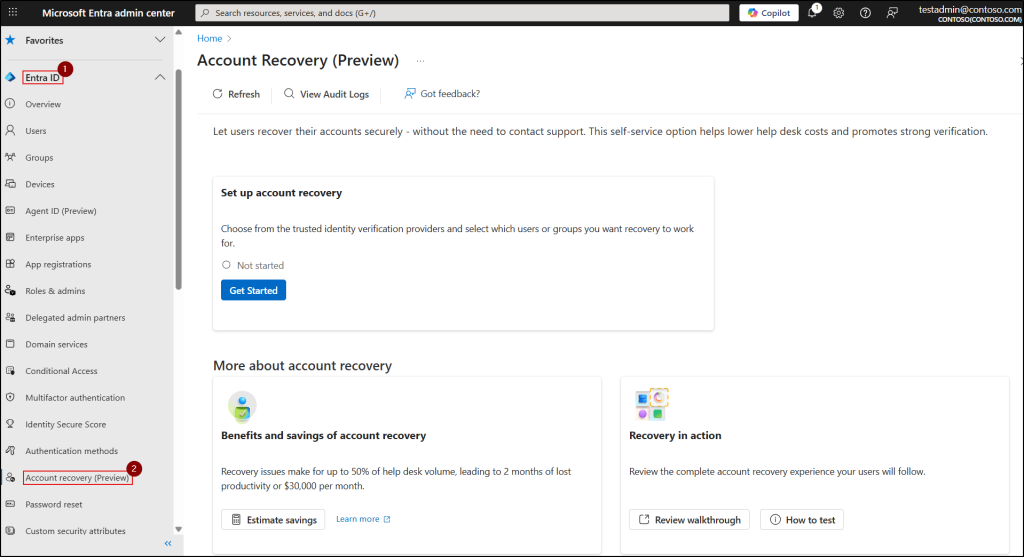
The new ‘Account Recovery (Preview)’ wizard is available under the Entra ID section in the Entra admin center. Let’s explore each feature associated with this self-service account recovery.
- Set up self-service account recovery
- Calculate the benefits of new account recovery
- See the new account recovery in action
Note: This feature is still being built out, and Microsoft is actively working to make the full experience available soon.
Set Up Self-Service Account Recovery in Entra Admin Center
The setup wizard in ‘Account Recovery (Preview)’ introduces a structured and guided approach for configuring the new identity-verified account recovery flow. You can start by clicking the Get Started button in the ‘Set up account recovery’ tile.
Step1: Choose a Recovery Mode
The setup begins with selecting a recovery mode. You will be presented with two options.
- Evaluation mode – Allows you to test the identity verification flow without enabling real account recovery
- Production mode – Enables full recovery functionality based on identity verification providers selected in the upcoming steps.
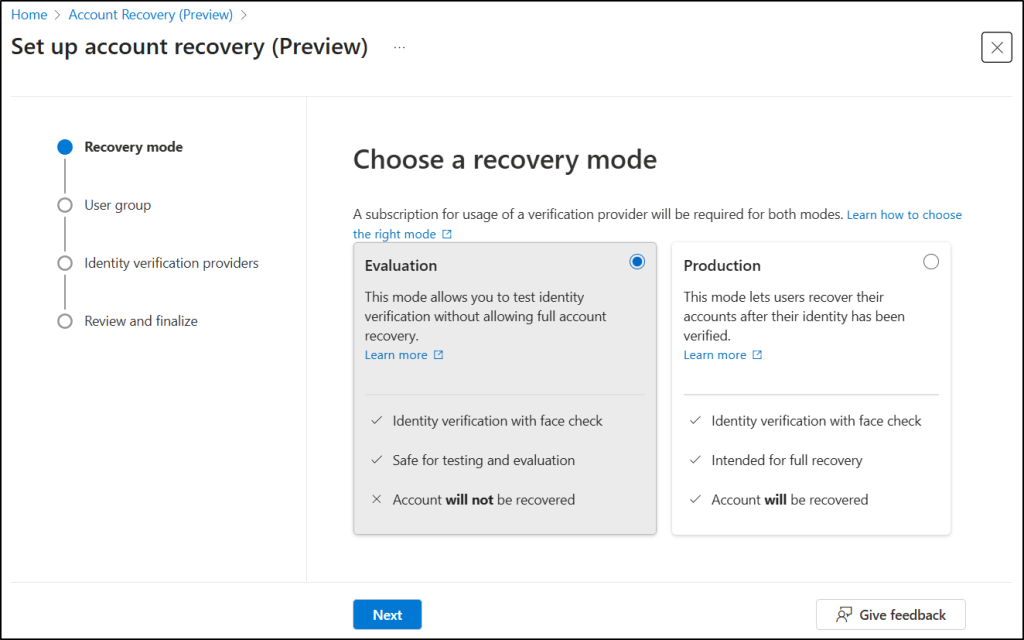
After selecting the appropriate mode, proceed to the next step.
Step 2: Select Users and Groups
In the next step, you define the users who can participate in the new account recovery experience. The wizard allows you to include or exclude specific groups, making it easy to test the feature with a limited audience before rolling it out more broadly. You can update the group and user details at any time. Once the target groups are chosen, you can continue to the next step.

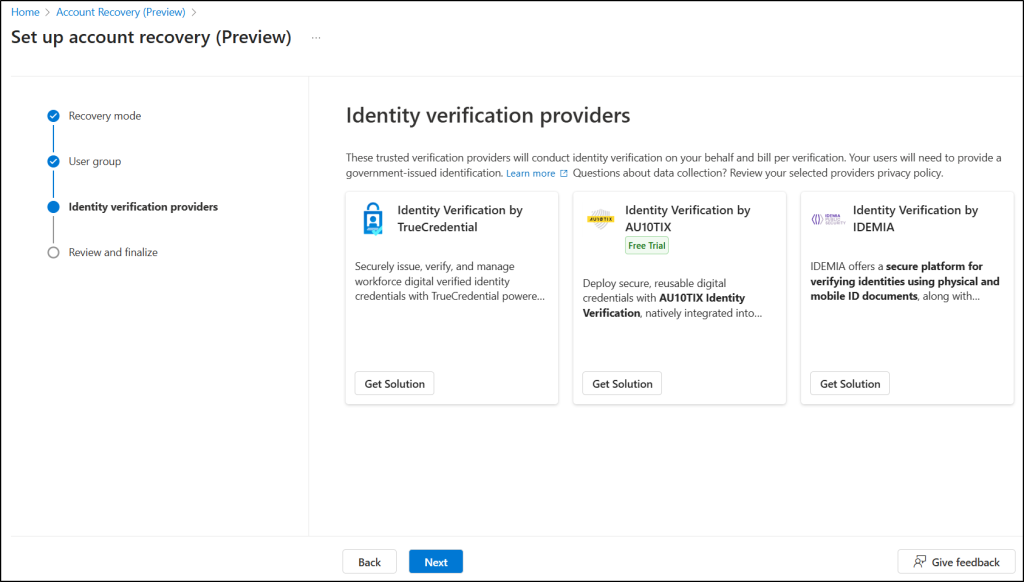
Step 3: Configure Identity Verification Providers
The wizard then prompts you to select a trusted identity verification (IDV) provider that will perform document proofing and biometric checks during account recovery. However, a subscription is required. If the selected identity verification provider isn’t linked to an Azure subscription in your tenant, you will see this message:
“Subscription required. The selected identity verification provider isn’t linked to an Azure subscription for your tenant. To use account recovery, purchase and configure the provider in the Microsoft Security Store.”
Once the required subscription is set up and the provider is configured, you can select an IDV provider based on your country and the type of identity document. After selecting the provider, you can proceed to the final step.
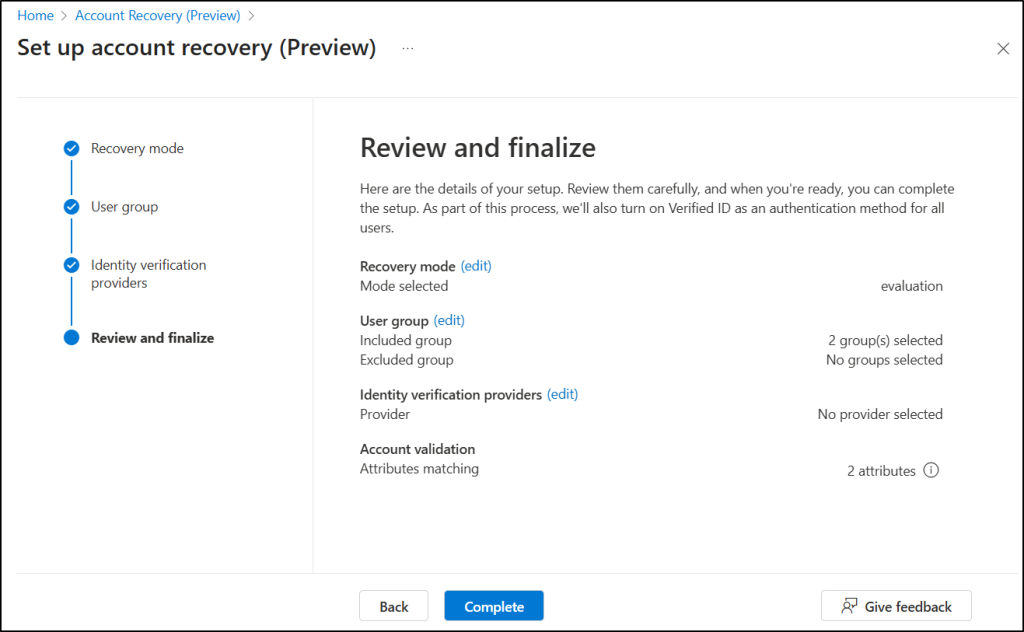
Step 4: Review and Finalize
The final screen provides a summary of your configuration, including the selected recovery mode, assigned user groups, identity verification provider status, and account validation attributes. Once everything looks correct, you can click Complete to finish the setup.
Built-in Calculator to Find the Savings on Account Recovery
Microsoft states that account recovery issues can potentially lead to two months of lost productivity or costing an organization up to $30,000 per month. To help organizations understand the impact, the preview includes a built-in savings calculator that estimates the operational benefits of using self-service account recovery.

- Instead of simply showing numbers, this tool helps you gain insights into how much time and cost your organization could save by moving away from traditional helpdesk-driven recovery.
- By comparing current helpdesk dependency with the projected efficiency of the new recovery model, the calculator provides a clear picture of potential monthly savings and productivity improvements.
How End Users Can Perform Self-Service Account Recovery in Entra ID
Once you’ve configured account recovery, you’ll be able to test it out in the sign-in experience. If a user cannot access any of their authentication methods, the sign-in page will guide them into the recovery flow.
- Start the sign-in process. Select ‘Other ways to sign in’ and choose Recover your account.
- Wait while the system checks your account’s eligibility for recovery based on your organization’s policies.
- Proceed to the identity verification provider (IDV) you are redirected to by your organization.
- Upload or scan your government-issued ID for document verification and fraud detection as part of the IDV’s identity verification process.
- Perform the requested biometric checks, such as liveness detection and facial verification, to confirm physical presence.
- Receive the Verified ID credential issued after successful identity proofing.
- Present your Verified ID credential back to Microsoft Entra ID when prompted.
- Wait while Entra matches the verified identity attributes against your directory profile.
- Use the Temporary Access Pass provided to you and follow the guided steps to re-register your authentication methods.
After an account recovery is completed, its audit record is stored in a dedicated section within the Entra portal. Keeping recovery events separate from other audit logs makes it easy to see who initiated the recovery, the status, timestamp, and other related details. You can view this dedicated audit report under the View Audit Logs tab on the Account Recovery (Preview) page.
Closing Lines
This new account recovery with identity verification will significantly reduce helpdesk workload and lower account lockout downtime. It will also deliver a streamlined recovery process fully integrated with the Entra Verified ID ecosystem.
As the preview matures and identity verification partners become available, this will likely become one of the most impactful enhancements to Entra’s self-service capabilities. We’ll update you once the feature becomes fully operational.
What are your thoughts on this new recovery model? Will it be useful for your organization, and do you plan to adopt it? Share your thoughts in the comments and stay tuned!