Imagine you’re in a Microsoft Teams meeting. Someone shares a link, another asks for a file, and a new name appears in the chat. You respond without hesitation. But do you really know who’s on the other side?
Is that person an internal colleague? A trusted external partner? Or a guest with limited access?
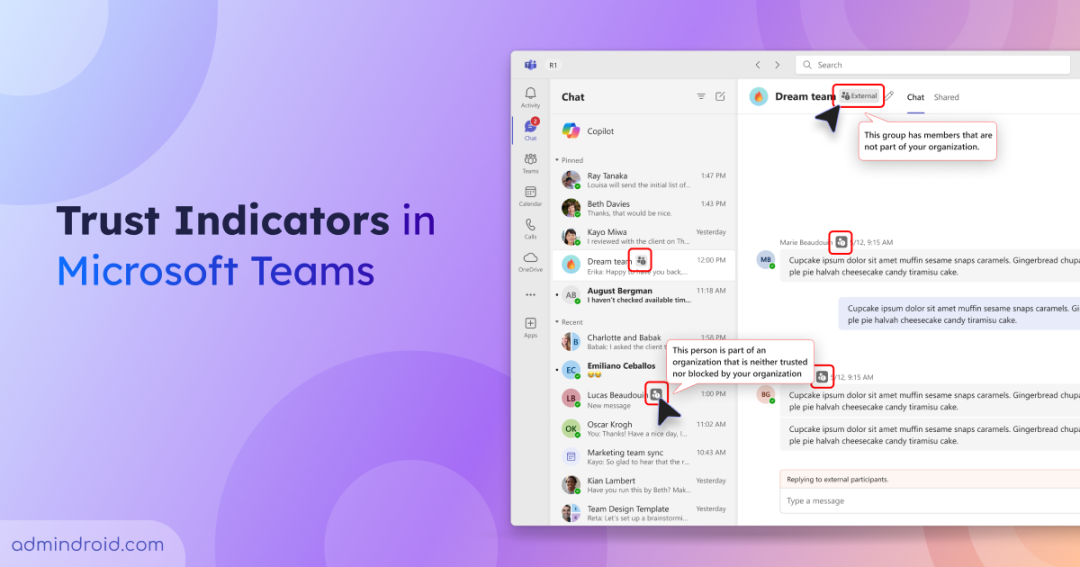
That’s where Microsoft Teams Trust Indicators come in! It helps users and admins quickly identify external & anonymous users and collaborate securely to prevent accidental data exposure.
Rollout Timeline:
Microsoft is introducing Trust Indicators gradually across tenants:
- Public Preview: Late September 2025 to late November 2025.
- General Availability: Expected between mid-February and early March 2026.
What are Trust Indicators in Microsoft Teams
Trust Indicators are visual labels and icons displayed next to users or group chats in Microsoft Teams to clearly identify people outside the organization. These indicators help distinguish between internal users, external users, guests, and anonymous participants across Teams collaboration.
Different Variants of Trust Indicators
To adapt to different user interfaces and screen sizes, Trust Indicators appear in multiple visual formats.
- Full badge (icon + full text + label)
- Truncated badge (icon + label)
- Icon-only (icon-only)

Types of MS Teams Trust Indicators
Microsoft Teams uses different types of Trust Indicators to represent various external and identity scenarios. These visual labels appear next to usernames and make it easy for users to quickly understand who they’re interacting with.
Below is a simple overview of the Trust Indicators available in Microsoft Teams:
| Badge Name | Applicable Scenarios |
External – Familiar: External users trusted by the organization.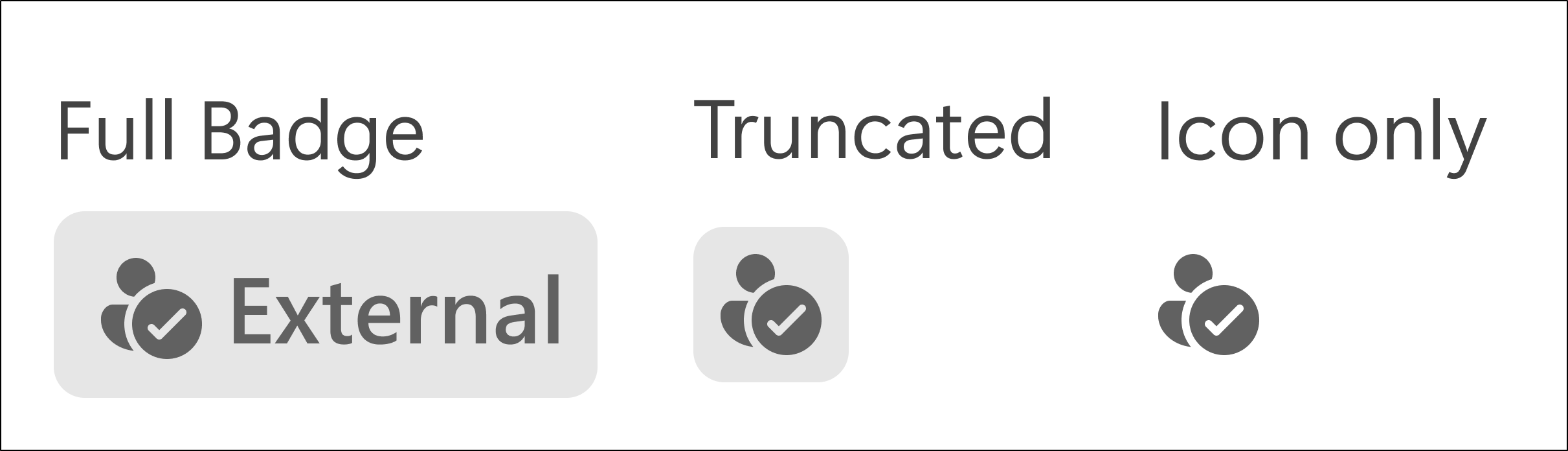 | This appears when the user, 1. Is a part of a trusted external organization. 2. Is a member of a shared channel. 3. Is from a cross-cloud organization. 4. Has a phone number added as a contact. 5. Uses the trusted ACS application. |
External – Unfamiliar: External users who are not explicitly trusted by your organization. 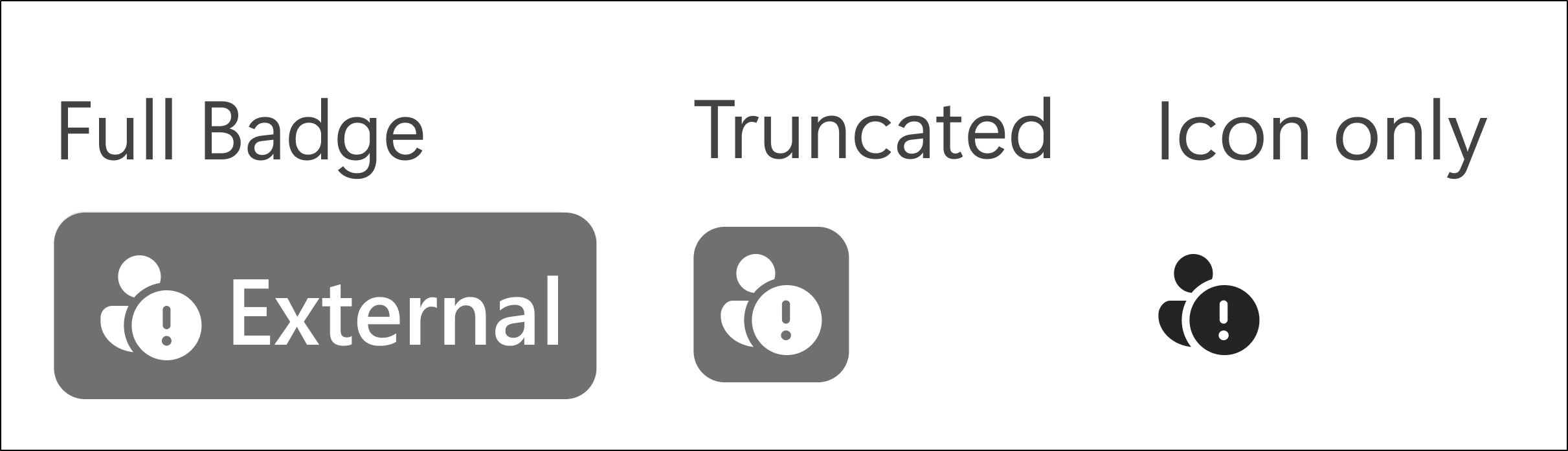 | Displayed when the user, 1. Is from a blocked organization. 2. Outside your organization without an explicit allowlist or blocklist. 3. From an organization that blocked your org. 4. Uses an unmanaged or personal account. 5. Is reaching from a number not in your contacts. 6. Is an email-based user without Microsoft Teams. |
Guest: External user added as a Microsoft Entra B2B guest. 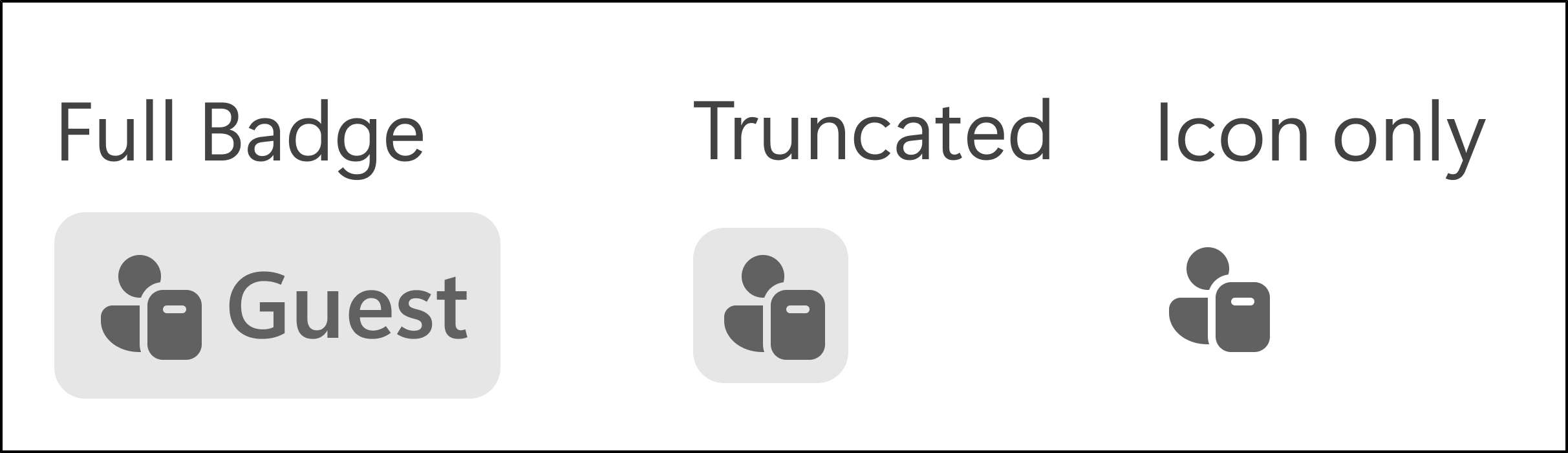 | This label appears for a user who was added as a Microsoft Entra B2B guest in your organization. |
Unverified: An anonymous user whose identity Microsoft Teams cannot verify. | It appears when, 1. Someone joins a meeting anonymously without signing in. 2. Uses an ACS application which was not trusted by your organization. |
Group Indicator: The presence of at least one external user in a group chat or meeting chat. 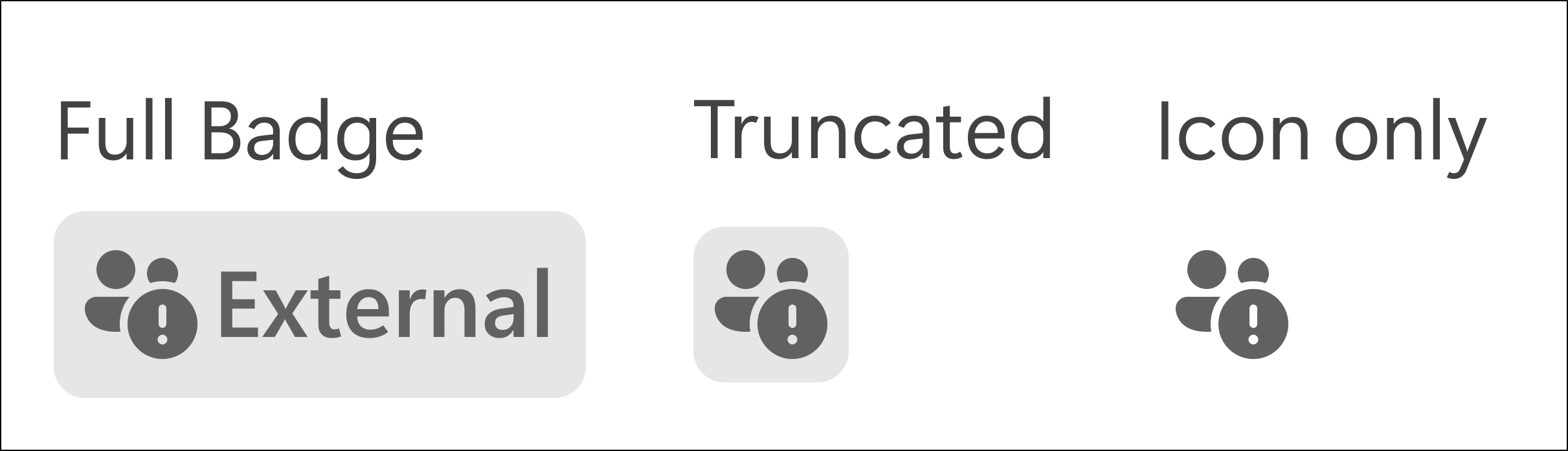 | It appears when a chat or meeting includes users labeled as External (Familiar/Unfamiliar), Guest, Unverified, or Email Verified. |
Email Verified: A user who has verified ownership of an email address. 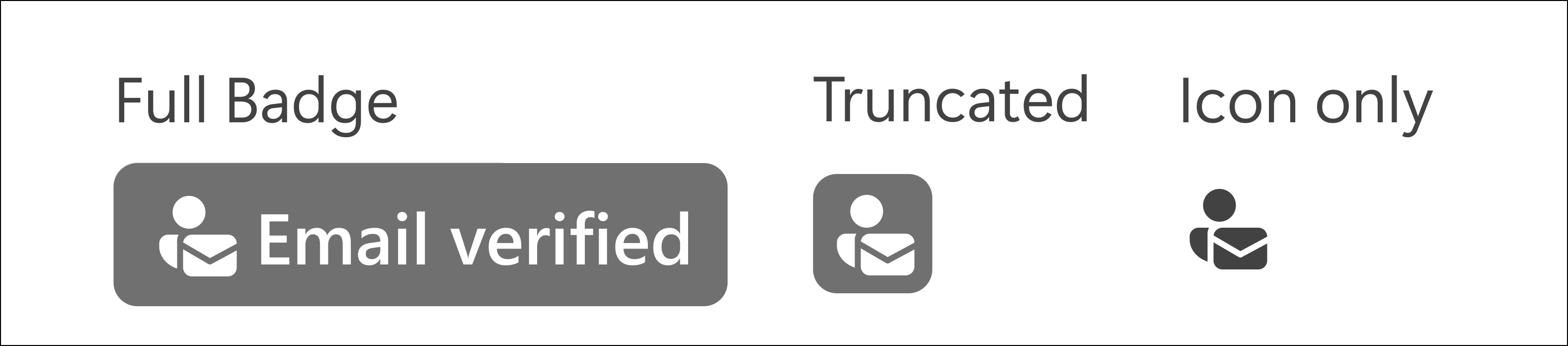 | It displays when a participant joins a meeting using a one-time passcode (OTP) sent to their email. |
| Multitenant Organization (MTO) Label: Users from another organisation have a multitenant trust relationship with your tenant. | MTO users are not labeled by default. Labels can be enabled explicitly if admins enable them. |
Supporting Banners:
In addition to trust badges, Microsoft Teams also introduces supporting banners to reinforce awareness during collaboration:
- Red banner: Appears when untrusted external users are present.

- Grey banner: Appears when all external users are from trusted organizations.

These banners notify users that files, messages, or data may be shared with external participants, which acts as a real-time visual checkpoint.
Who Benefits from Trust Indicators in Microsoft Teams?
Microsoft Teams Trust Indicators are especially useful for:
- Organizations that rely heavily on external collaboration and federation, including cross-tenant communication.
- Teams working with vendors, suppliers, and partners across organizational boundaries.
- Users collaborate in shared channels, where members from different organizations work together in a single space.
- End users who frequently share files, links, or messages in mixed internal–external conversations.
- IT and security admins are responsible for controlling external access and securing B2B collaboration across their organizations.
Best Practices for Secure External Collaboration in Microsoft Teams
To make the most of Trust Indicators, organizations should encourage users to:
- Always check trust badges before sharing files or sensitive links.
- Avoid sharing confidential data in chats with unfamiliar or unverified users.
- Create granular external access policies for specific users or groups to control broader external collaboration.
- Use Teams private channels or restricted sharing where appropriate.
- Remove or restrict external users once collaboration ends.
- Regularly audit shared channel membership, especially for prolonged inter-organizational projects.
Beyond these practices, admins should regularly review Microsoft Teams external users and maintain a well-defined external sharing security checklist to proactively reduce the risk of unintended data exposure.
Alongside these administrative practices, Trust Indicators add an extra layer of awareness during everyday collaboration. By helping users recognize external, guest, and unverified participants before they share, Trust Indicators enable safer external collaboration without slowing productivity.
In a workspace where conversations move fast, and files are shared instantly, knowing who you’re interacting with isn’t just helpful—it’s critical!