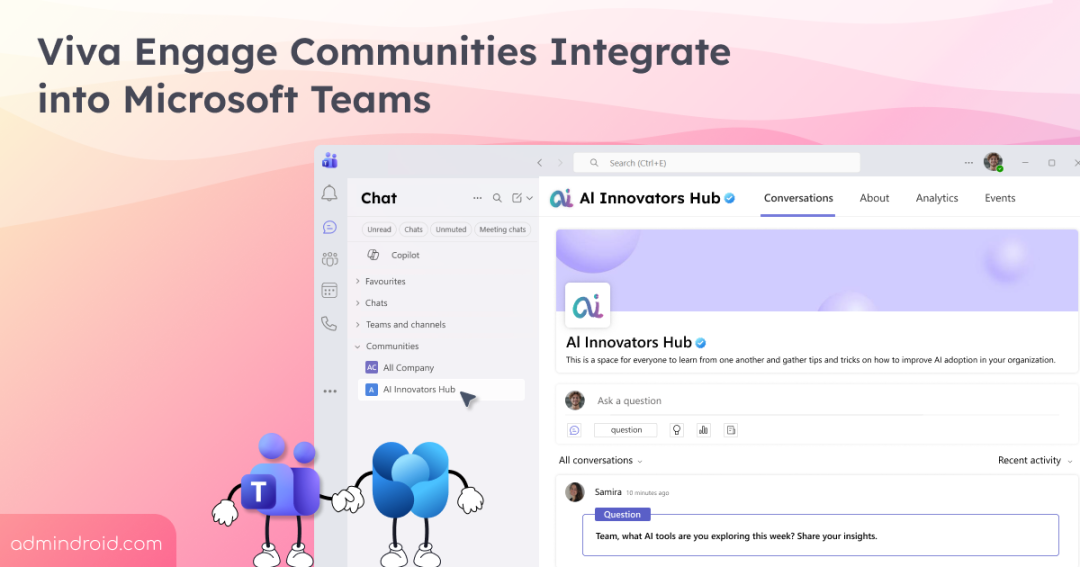
Microsoft has started rolling out Viva Engage communities into Microsoft Teams as part of a public preview. Starting in April 2026, every Microsoft Teams user with Viva Engage access will wake up to find a new “Communities” section nestled in their Teams interface. No advance consent is required. No opt-in dialog. Just a new feature, enabled by default, ready to transform how your organization communicates.
Is this integration a practical step toward encouraging Viva Engage usage within daily workflows? Or does it contribute to Teams sprawl, changing how users navigate an already busy collaboration hub? Let’s take a closer look at what this update is about!
Reason Behind Viva Engage Integration into MS Teams
Over the past few updates, it has become increasingly clear that Microsoft is taking a gradual and deliberate approach to integrating Viva Engage into everyday MS Teams work experiences. Microsoft is intentionally bringing Engage closer to where users already collaborate in Teams, making community interactions easier to access.
By integrating communities into Teams, Microsoft aims to:
- Make asynchronous, organization-wide conversations easier to discover.
- Encourage leadership, communication, and engagement.
- Help employees learn, share ideas, and connect beyond project-based collaboration.
In short, engage communities are no longer optional or hidden; they’ll sit right alongside chats, meetings, and channels in Teams.
When Will Viva Engage Communities in MS Teams Change Happen
The Viva Engage integration in Microsoft Teams will become generally available worldwide between April and May 2026. All Microsoft Teams users who already have access to Viva Engage will be able to use communities in Teams automatically. No additional Microsoft Teams license is required to use this experience.
How Viva Engage Communities Appear in Microsoft Teams
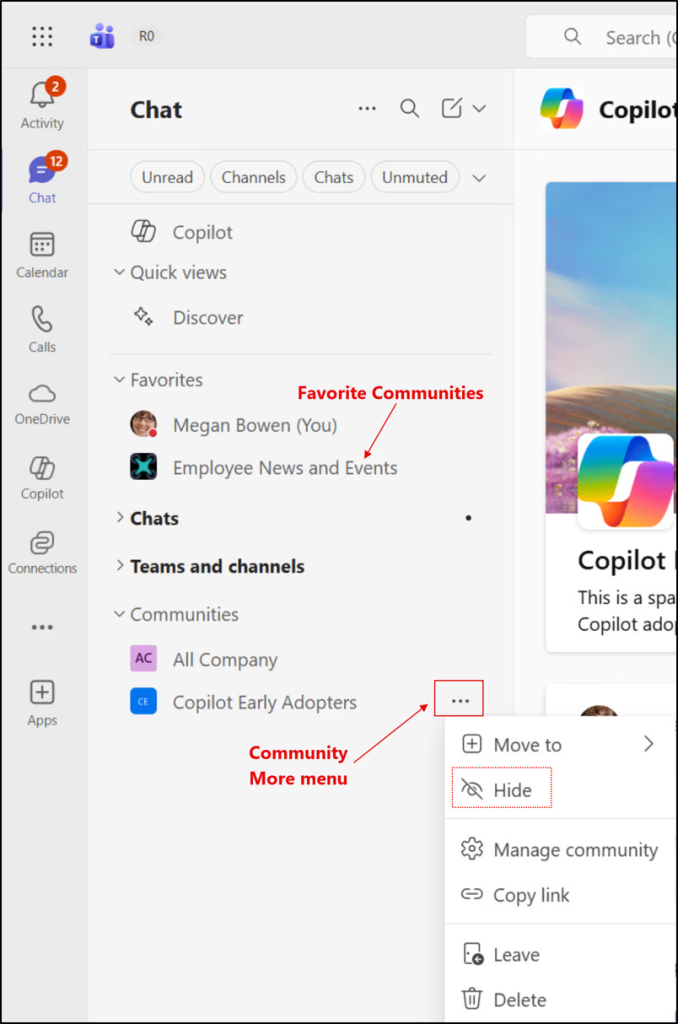
Once enabled, communities will appear in the Teams left navigation. Depending on your Teams layout, communities will appear as:
- Unified view: A new section inside the Chat app
- Split view: A new section inside the Chats and Channels app
Existing Viva Engage community memberships will sync automatically into Teams, so users do not need to rejoin their communities. Communities marked as favorites in Viva Engage will also appear in the Teams Favorites section.
Communities are designed to feel native to Teams, with familiar navigation, unread indicators, and a consistent layout. Users can scroll their community feed, react to posts, comments, and create new content without leaving Teams.
Notifications and Activity Feed Experience
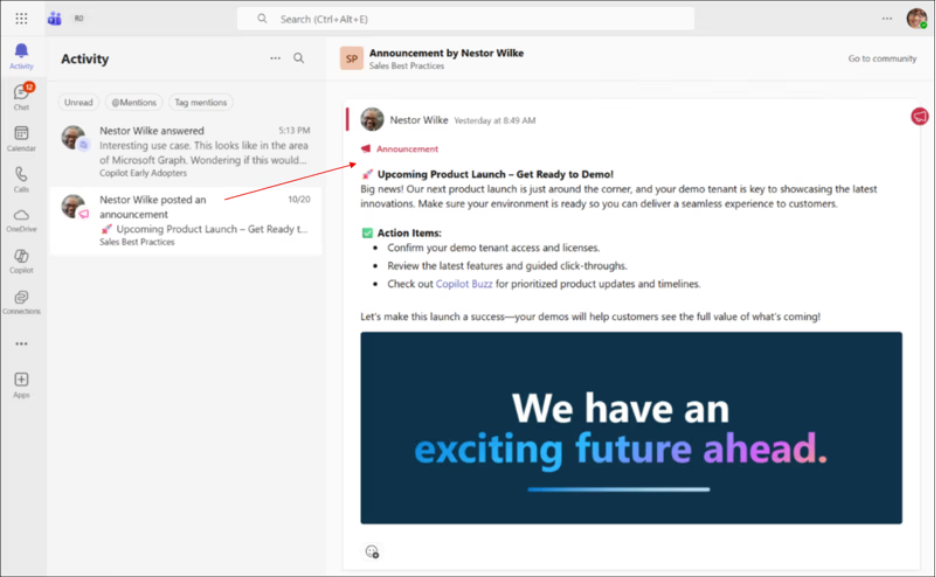
Viva Engage community notifications such as announcements, replies, and @mentions will surface directly in the Teams Activity feed. Selecting a notification opens the related community post, making it easy to respond or catch up without leaving Teams. Unread community activity is clearly highlighted, so users can quickly see what’s new.
It’s worth noting that earlier delays in profile photo updates across Microsoft apps could result in temporary photo mismatches between Teams and Viva Engage.
Community Participation and Content Types
Users can fully participate in Viva Engage communities directly from Teams. This includes:
- Posting discussions, questions, praise, and polls.
- Reacting to posts and replying to conversations.
- Using scoped community search to find relevant discussions.
- Participating in community events by asking questions, upvoting contributions, or watching sessions live or on demand.
- View and join upcoming, live, or past events directly from the Events tab.
Communities support a mix of content formats, including discussions, Q&A, rich media posts, and longer articles. This allows teams to share knowledge in formats that suit different communication needs.
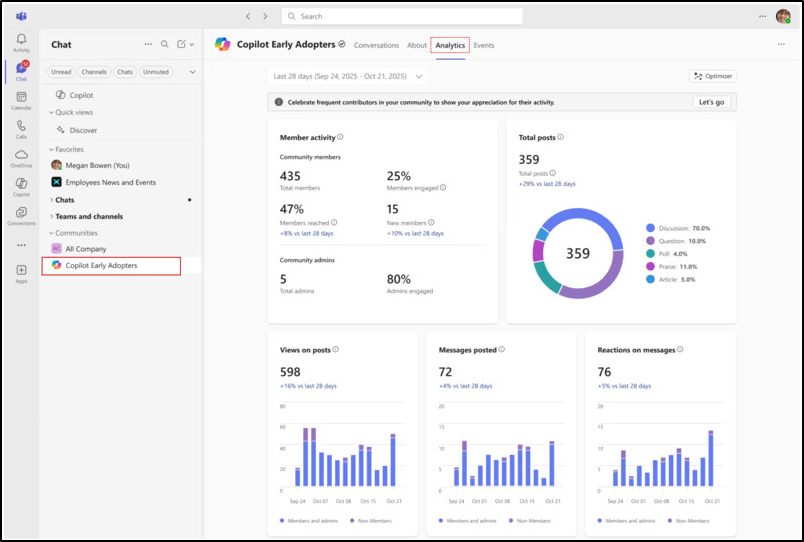
Apart from this, Community analytics help admins and communicators understand engagement. By opening the Analytics tab in a community, users can view activity such as posts, replies, member participation, and overall engagement.
AI Capabilities and Knowledge Discovery
There’s no doubt this integration will increase Viva Engage usage. Communities are now unavoidable. They sit next to chats and channels, and notification surface alongside meetings and messages. That’s great for leadership engagement and knowledge sharing. But it can also introduce noise if communities are poorly governed or overused. Without clear purpose, communities risk becoming something users simply stop paying attention to.
How to Disable Viva Engage Experiences in Microsoft Teams
From an admin standpoint, the change is both simple and uncomfortable. The feature is on by default, but it can be disabled from the Teams admin center under Viva Engage settings.
To disable the feature, follow these steps:
- Sign in to the Teams admin center.
- Go to Settings & policies in the left navigation.
- Select Global (Org-wide default) or a Custom policy for specific users or groups.
- Open the Messaging section.
- Locate Viva Engage experiences in Teams and toggle the setting OFF.
- Select Save.
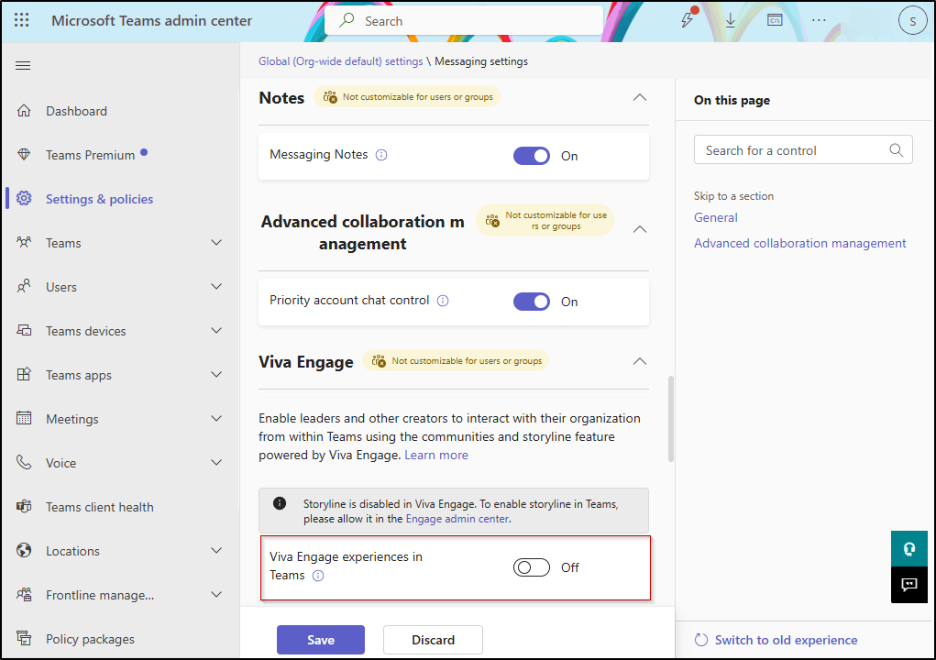
After the setting is disabled, Viva Engage communities and storylines will no longer appear in Microsoft Teams as per the configured Teams messaging policy.
Microsoft has intentionally kept this control simple, encouraging organizations to evaluate the experience through real usage. For admins, the key challenge is setting governance early, so visibility leads to engagement, not noise.
This ‘communities in Teams’ update is less about technology and more about the future. Companies comfortable with open discussion and leadership will likely welcome it. Organizations that rely heavily on structured, top-down communication may struggle.
Viva Engage in Teams will quickly reveal how ready an organization truly is for open dialogue. Feel free to reach us through the comment section, if you have any queries.