Imagine an Active Directory domain with multiple GPOs, linked at different levels like site, domain, and OU. Everything appears to be configured correctly—until a policy setting fails to apply to a user or computer as expected, and your confidence starts to fade.
You may already suspect the usual reasons—security filtering, inheritance, WMI filters, or precedence. The real challenge is identifying which GPO influenced the outcome and how that final decision was made. With multiple policies in play, that answer isn’t always obvious.
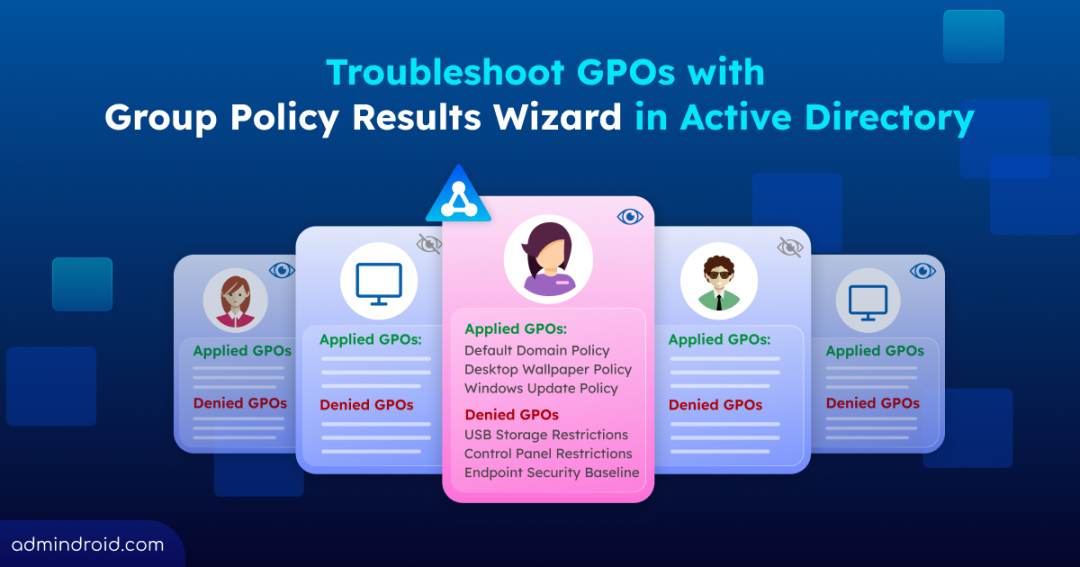
This is exactly what the Group Policy Results Wizard is designed for. It shows the truth of what actually happened during Group Policy processing, which GPOs were applied, which were denied, and why.
In this blog, we’ll explore the Group Policy Results Wizard and how it helps untangle complexity in GPO troubleshooting, without trial-and-error frustration.
What is the Group Policy Results Wizard in Active Directory
The Group Policy Results Wizard is built on the concept of the Resultant Set of Policy (RSoP). It is a mechanism designed specifically to help with Group Policy Objects implementation and troubleshooting.
At its core, the wizard uses a query-based engine. It evaluates all existing policies by factoring in GPO link order, precedence, security filtering, WMI filters, inheritance, enforcement rules, and even loopback processing. It then reports the final outcome, giving a clear picture of the actual Group Policy settings applied to a specific user and computer.
Because the report reflects real policy processing, the target user must have logged on to the target computer at least once, and that computer must be reachable. The wizard gathers processing data from the system itself, ensuring the results are accurate and based on real execution, not assumptions.
Prerequisites for Running the Group Policy Results Wizard in Active Directory
Before running the policy results wizard, ensure the following requirements are in place:
- Make sure you have access to a domain controller or a computer with Group Policy management tools installed.
- In case of a workstation, install RSAT: Group Policy Management Tools.
- In case of a member server, install the Group Policy Management feature.
- You must have read security permissions on the relevant Active Directory objects (users and computers for which GPO results must be validated).
- Members of Domain Admins or Enterprise Admins typically have these permissions by default.
- For other users, the Generate Group Policy Results (logging) permission can be delegated using the Delegation Wizard on the OU or container that contains the target user and computer objects.
- To collect data from a remote computer, ensure the required inbound Windows Firewall rules for Group Policy Results are enabled. The following built-in firewall rules must be allowed on the target computer.
- Remote Event Log Management (RPC-EPMAP)
- Remote Event Log Management (NP-In)
- Remote Event Log Management (RPC)
- Windows Management Instrumentation (WMI-In)
Different Ways to Generate a Group Policy Results Report
You can generate Group Policy Results data in three different ways, depending on how you prefer to work:
- Troubleshoot GPOs with the Group Policy Management console
- Get Group Policy Results report using Resultant Set of Policy snap-in
- Generate GPO results data using Windows command line
Troubleshoot Group Policy Objects in Active Directory with GPMC
Follow the steps below to generate a Group Policy Results report for a specific user and computer using GPMC.
- Open the Group Policy Management Console (GPMC) by going to Windows Administrative Tools → Group Policy Management or simply run gpmc.msc from the Run dialog.
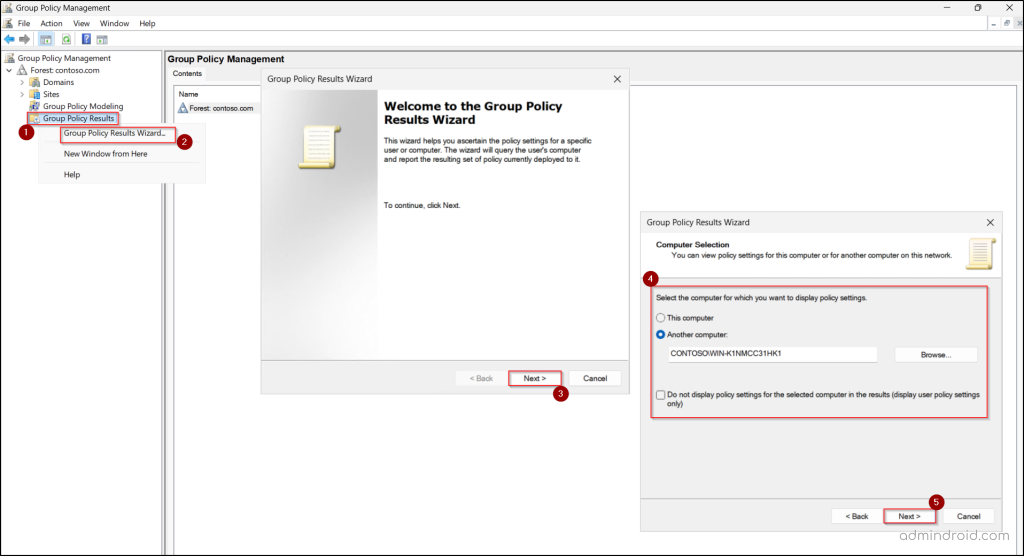
- In the left pane, right-click Group Policy Results and select Group Policy Results Wizard.
- Click Next on the welcome screen.
- On the Computer Selection page, choose the computer for which you want to analyze the GPO using the following options.
- This computer – Select this option to check GPOs applied to the logged-in computer.
- Another computer – Select this option to troubleshoot GPOs for a different computer. Click Browse, search for the computer, and select it.
- If you don’t want to include computer policy settings in the report, select “Do not display policy settings for the selected computer in the results” and click Next.
- Then, choose the user account for which you want to check the GPO application using the following options.
- Current user – Generates results for the currently logged-in user. This option will be unavailable if you selected a different computer in the previous step.
- Select a specific user – Choose a different user account to analyze.
- Select Do not display user policy settings in the results to skip checking the user configurations entirely. If you previously chose to exclude computer settings, this option will be unavailable, since excluding both policies would make the results invalid. Then, click Next.
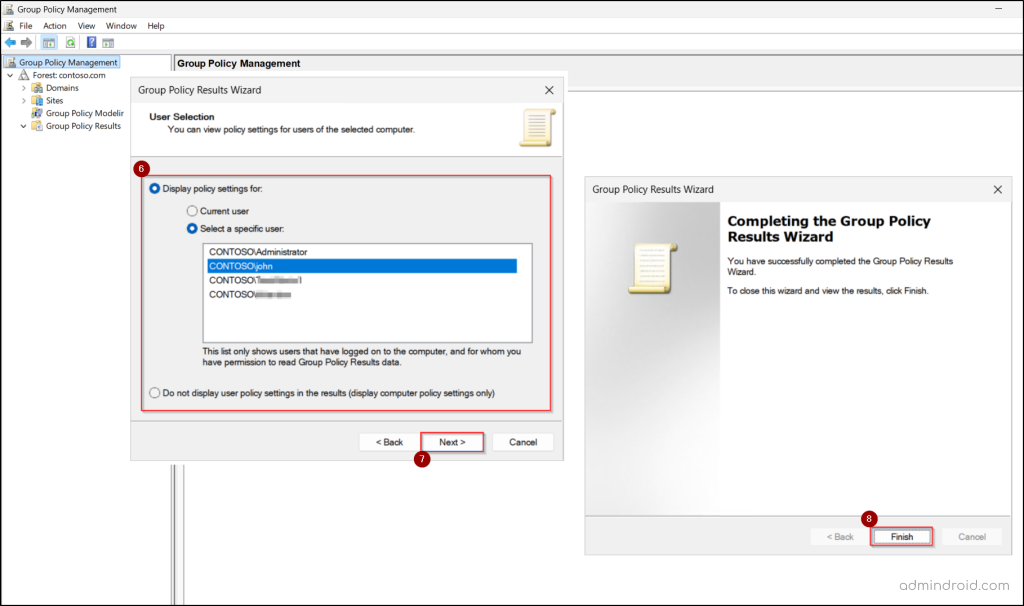
- Review your selections on the Summary of Selections page and click ‘Next’.
- Then click Finish to generate the RSoP report.
If needed, you can refresh the query to re-run the results and view updated policy processing. The wizard also lets you name the report and save the results in HTML or XML format for easy sharing. These actions can be performed by simply right-clicking the results and selecting the appropriate option.
Overview of the Group Policy Results Report
Once the wizard completes, the results are displayed in the right pane. This report gives you a complete picture of how Group Policy was processed for the selected user and computer.
Summary and Details
This section provides general details about the selected user and computer, along with their component status and the last policy refresh time. It also comes with options to show or hide specific policy details as needed.
The result shows all policy settings applied to the user and computer, highlighting the winning GPO for every setting. This makes it easy to understand which policy took precedence and why an expected setting may have been overridden.
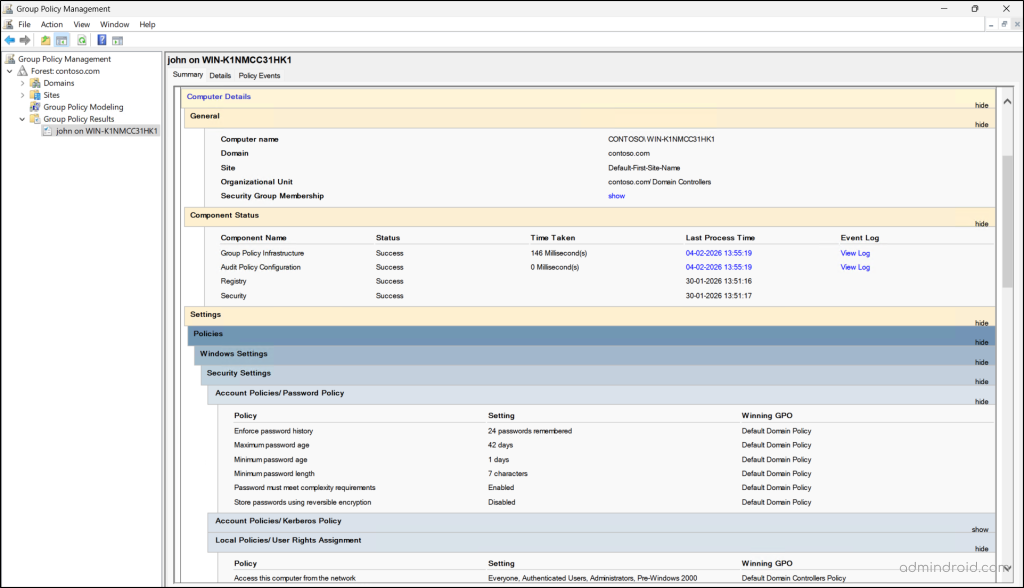
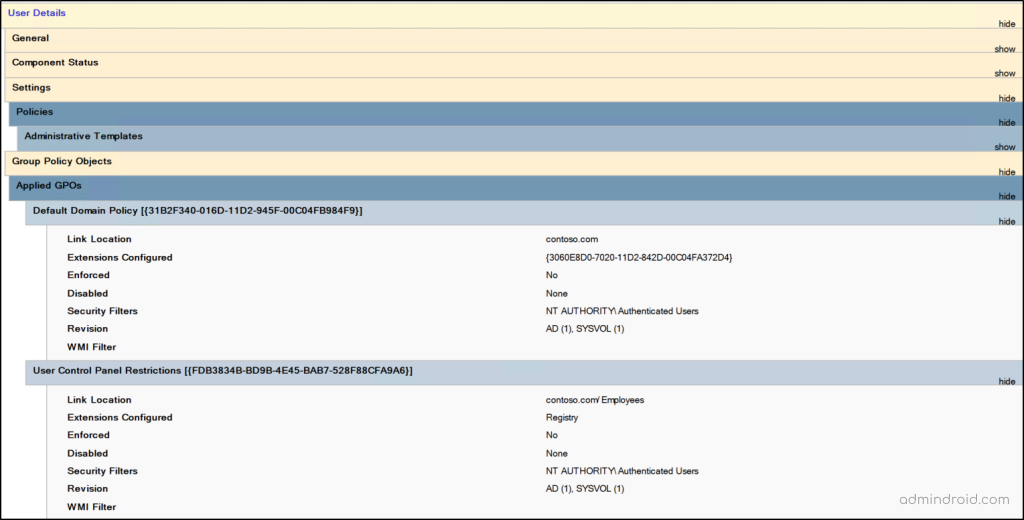
It also breaks down the results into two key areas:
Applied GPOs: List the Group Policy Objects that were successfully processed and enforced during the user’s or computer’s most recent policy refresh or logon. Each entry includes details such as the link location, enforcement status, whether the GPO is disabled, security filtering, revision information, and any associated WMI filters.
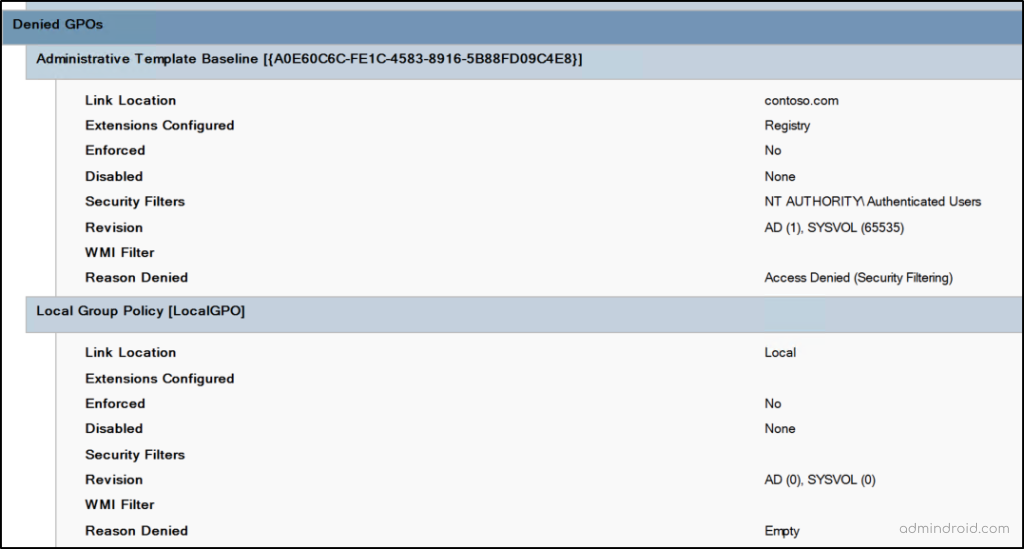
Denied GPO: Shows the GPOs that were evaluated but not applied. It also includes key details such as link location, enforcement, filtering, WMI conditions, and revision info, along with the exact reason the policy was skipped, helping you quickly identify what prevented the policy from applying.
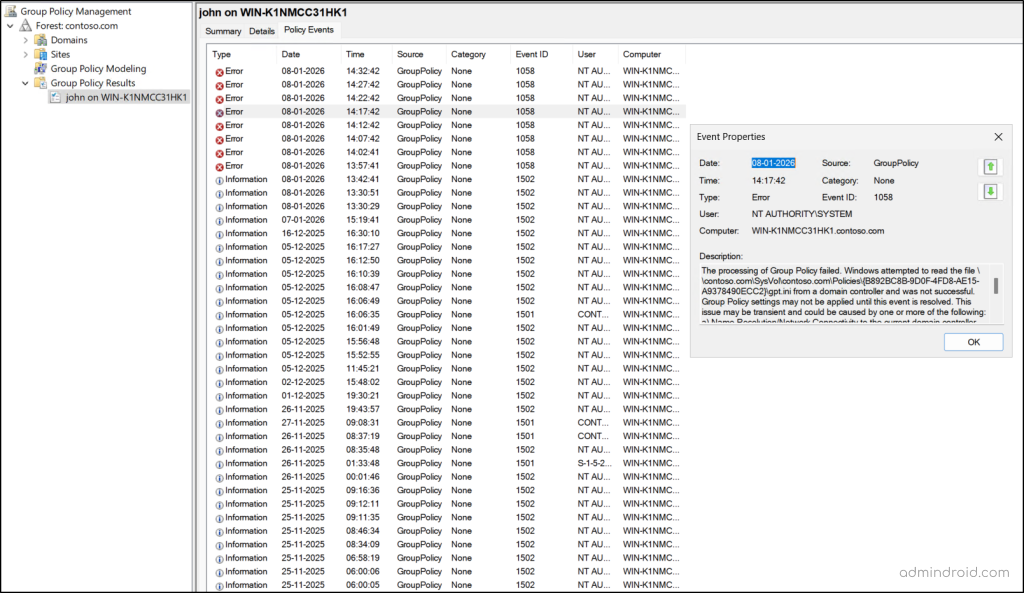
Policy Events
The Policy Events tab captures the events generated during Group Policy processing. It shows when policy evaluation started and completed, along with any warnings or errors encountered. This is especially useful for identifying processing delays, failures, or intermittent issues that don’t immediately appear in the settings view.
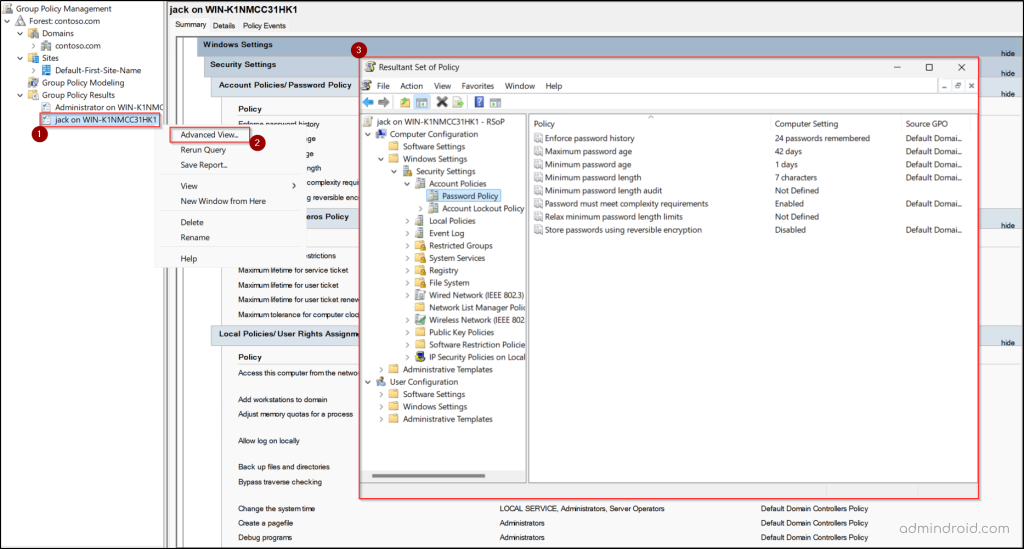
Handy Tip: For deeper analysis, you can open Advanced View, which displays the results in a detailed configuration-style format.
Get Group Policy Results Report Using Resultant Set of Policy snap-in
You can also generate Group Policy Results using the Resultant Set of Policy (RSoP) snap-in in Microsoft Management Console (MMC). This method is useful when you want a clean, configuration-focused view of the policy settings that are in effect on a specific user or computer.
Unlike the Group Policy Results Wizard in GPMC, the MMC RSoP view does not display denied GPOs or filtering details. Instead, it focuses purely on the final set of settings applied to the object, similar to the Advanced view in the Group Policy Results Wizard.
Follow the steps below to generate the Resultant Set of Policy report:
- Open the “Run” dialog box and enter mmc to launch the Microsoft Management Console.
- From the File menu, select Add/Remove Snap-in.
- In the Available snap-ins list, select Resultant Set of Policy, click Add, and then hit OK.
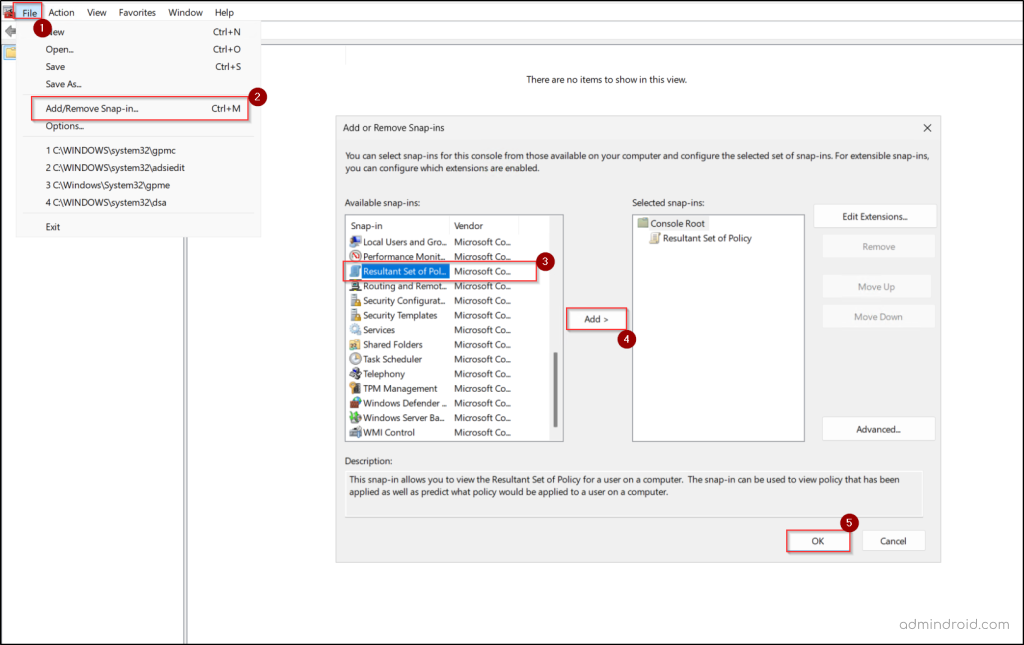
- The Resultant Set of Policy snap-in now appears under Console Root.
- Right-click ‘Resultant Set of Policy’ from the left pane and select Generate RSoP Data.
- In the Resultant Set of Policy Wizard, click Next.
- Choose “Logging mode”, then click Next.
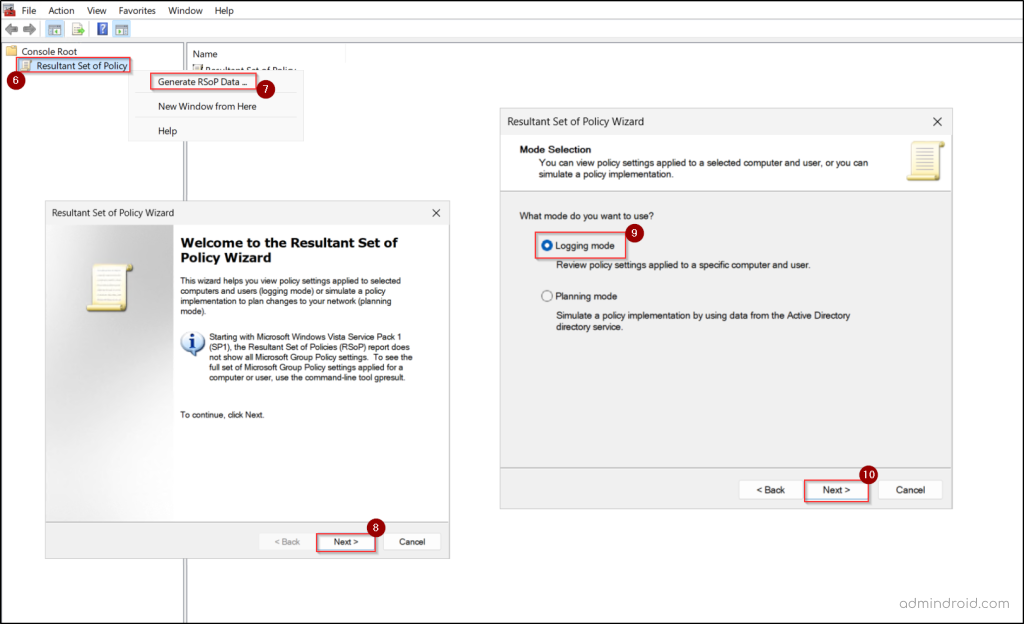
- Select the computer and user you want to analyze.
- Review your selections and click Finish to generate the results.
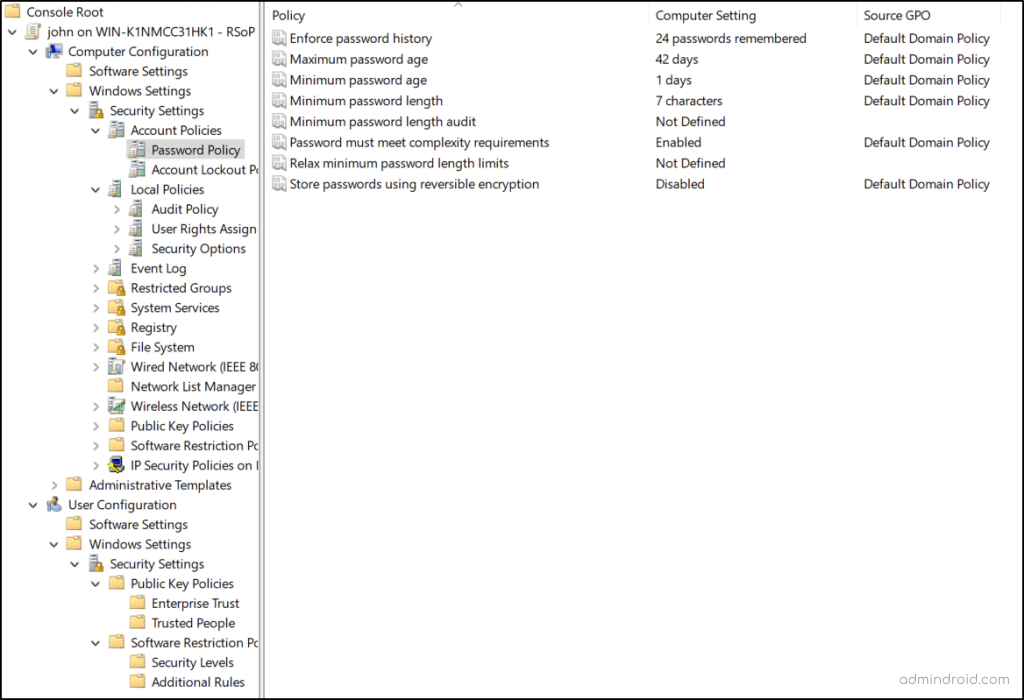
Once processing completes, the results open in a settings breakdown view. Each policy setting shows the Source GPO, clearly indicating which GPO applied that setting for the object. This view helps you quickly see which GPO applied each setting, without manually checking inheritance or precedence.
Generate Group Policy Resultant Set of Policy Using Command Line
If you want a quick way to check which Group Policy settings are applied, Windows’ built-in command line tool makes it easy. Using the gpresult command, you can view the actual Resultant Set of Policy (RSoP) applied to a computer and user based on real policy processing. This approach is ideal for fast verification and basic troubleshooting, without opening any Group Policy consoles or running wizards.
Run the following built-in Windows command from either PowerShell or Command Prompt to generate the Resultant Set of Policy (RSoP) reports.
|
1 |
gpresult /r /s <computername> /user <username> |
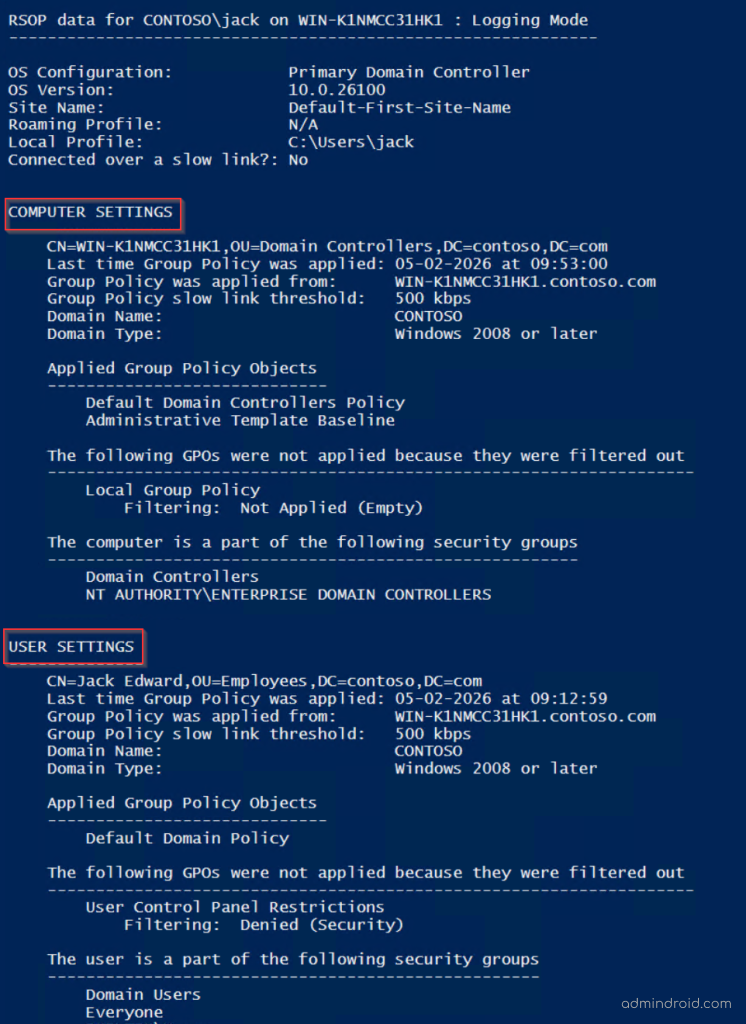
Here, replace <computername> and <username> with the name of the computer and user for whom you want to check GPO. This view shows all applied and denied GPOs for the specific user and computer, along with their group memberships.
To retrieve policy results for a specific user on the current computer, you can execute the command below.
|
1 |
gpresult /r /user <username> |
To generate the Resultant Set of Policy for a remote computer using PowerShell, run the command below.
|
1 |
gpresult /r /s <computername> |
This retrieves Group Policy results for the specified computer and the user context under which the command is executed.
Generate a Detailed Group Policy Results Report
By default, gpresult /r provides a summary view of applied and denied GPOs. To obtain more details, you can export the result to an HTML report using the cmdlet below.
|
1 |
gpresult /s <computername> /user <username> /h <FilePath> |
The HTML report provides a structured, easy-to-read view, similar to the summary and details view from the wizard, making it ideal for sharing, audits, or deeper analysis. You can also use the available parameters in combination to retrieve specific results based on your troubleshooting needs.
User Perspective of Troubleshooting Active Directory Group Policy Settings
So far, we’ve discussed how administrators (or users with the appropriate delegated permissions) can troubleshoot the Group Policy application. But this raises an important question: can an end user view the policy settings applied to them?
The answer is yes—to a limited extent. End users can view the User Configuration policies applied to their account. However, Computer Configuration policies remain hidden, since viewing those requires administrative privileges on the system.
- Users can get the Resultant Set of Policy report by entering
rsop.mscin the Run (Windows + R) window. This will display the User Configuration policies currently applied to the user. - They can also use the following command to view the user-specific policy details.
|
1 |
gpresult /r |
- For a more detailed and shareable view, they can export the results in HTML format using the following command.
|
1 |
gpresult /h <FilePath> |
Group Policy Modeling (Planning Mode)
By now, you should have a solid understanding of how to troubleshoot Group Policy behavior in Active Directory using the Group Policy Results Wizard. But as useful as troubleshooting is, the real goal is to avoid reaching that stage in the first place. And that starts with better planning.
At the core of everything we’ve discussed is the Resultant Set of Policy (RSoP). RSoP works in two distinct modes, each serving a different purpose:
- Logging mode
- Planning mode
So far, we’ve focused heavily on logging mode. It tells you how Group Policy actually behaved for a user or computer after policies were processed. That visibility is essential when something breaks. But what if you could answer policy questions before they break anything?
That’s where planning mode comes in. Group Policy Modeling is designed to help you stay ahead of problems rather than react to them. It is used to simulate the application of GPOs within a domain. It allows administrators to test how policies would apply to a user or computer by changing variables such as group membership, WMI filters, OU placement, or loopback processing — all without affecting the live production environment. This mode is typically used to answer “What would happen if…?” scenarios.
Below are the key differences that matter most when choosing between the two modes in RSoP.
| Aspect | Group Policy Modeling (Planning Mode) | Group Policy Results (Logging Mode) |
| Core Idea | “What would happen if…?” | “What actually happened?” |
| Primary Goal | Plan and validate policy behavior before changes | Troubleshoot real policy application issues |
| Best Time to Use | Before deploying or modifying GPOs | After a user reports a policy problem |
| How It Works | Simulates policy processing based on inputs | Collects data from actual logon sessions |
| Local Policy Processing | No | Yes |
| Requires User Logon | No | Yes |
| Uses Real Log Data | No | Yes |
| Supports Hypothetical OU / Group Membership Changes | Yes — ideal for testing & restructuring | No |
To put it simply, logging mode helps you troubleshoot issues after they occur; while planning mode helps you prevent issues before they occur.
Common Troubleshooting Errors
Below are some of the most common messages you may encounter when troubleshooting the Group Policy Objects in Active Directory.
1. INFO: The user “<username>” does not have RSoP data
This message appears when you attempt to generate the Resultant Set of Policy (RSoP) data using command-line tools for a user who has never logged on to the selected computer.
Since Group Policy Results is based on real policy processing, the wizard can only report data from an actual logon or policy refresh session.
Fix: Ensure the target user has logged on to the target machine at least once and then rerun the report.
2. The RPC server is unavailable
This error typically occurs in the Group Policy Results Wizard when the target computer cannot be contacted during data collection. It may be caused by network connectivity issues, firewall restrictions, or the remote machine being powered off.
Fix: Verify that the target machine is online and that the Windows Management Instrumentation service is running. Also, ensure remote management and firewall rules allow the connection.
3. The RSoP snap-in was unable to generate the computer’s data due to insufficient permissions
This error typically occurs when a user attempts to open the Resultant Set of Policy snap-in without having administrator privileges on the target computer. Since computer-level policy data requires elevated access, the snap-in cannot generate the report for computer configurations.
Fix: Run the console as an administrator or use an account with the required permissions.
Final Thoughts
When Group Policy behavior doesn’t line up with expectations, the fastest way forward is clarity. The Group Policy Results Wizard provides exactly that—real insight into how policies were processed for a user or computer. Instead of piecing together links, filters, and inheritance by hand, you get a clear outcome you can trust. Used consistently, the wizard helps you verify changes, resolve issues faster, and move on without second-guessing.
If you have any questions or insights to share, please add them in the comments below. We are happy to help!