RC4 has long been identified as a cryptographically weak encryption algorithm, and Microsoft has recommended phasing it out for years. However, it continues to appear as a fallback in many Active Directory environments. Legacy accounts, outdated service configurations, and applications requesting RC4-based Kerberos tickets can silently keep it active without admins realizing it.
When RC4 usage goes unnoticed, it increases the risk of attacks such as Kerberoasting, where attackers can more easily extract and crack service account credentials. This makes identifying and addressing RC4 usage a critical part of strengthening your Active Directory security posture.
In this blog, we’ll explore,
- What is RC4 and why it should be disabled?
- How Kerberos authentication uses RC4 in Active Directory?
- Pre-requisites for detecting RC4 usage in Active Directory
- How to identify RC4 encryption in Kerberos tickets?
- Disable RC4 encryption for Kerberos ticket generation
- Considerations and best practices for RC4 removal
- Common errors and fixes while auditing Kerberos events
- Frequently asked questions
What is RC4 and Why it should be disabled?
RC4-HMAC is an old encryption algorithm used to protect data as it moves across the network. It was created in 1987 by Ronald Rivest, and the name originally stood for “Rivest Cipher” (often informally called Ron’s Code).
RC4 works as a stream cipher, meaning it encrypts data one piece at a time. In Active Directory, RC4 is more often used to encrypt Kerberos authentication tickets, mainly for backward compatibility with older systems. While it was fast and popular years ago, security research has shown that RC4 has serious weaknesses by modern standards.
Below are the key security risks that make RC4 unsafe and why it should be disabled.
Easy Password Cracking
When Kerberos uses RC4, tickets are encrypted with the user’s NTLM password hash, allowing attackers to crack them offline without detection. It means a single stolen ticket can eventually expose the entire account.
Kerberos Downgrade Attacks
Even in environments that support strong encryption like AES, if RC4 remains enabled, Kerberos will use RC4 whenever AES cannot be negotiated, leaving authentication exposed to legacy risks.
Pass-the-Hash Attacks
Because RC4 relies on NTLM password hashes, attackers can reuse captured hashes to authenticate as a user without ever knowing the actual password. It makes the lateral movement across systems fast and difficult to detect.
Man-in-the-Middle Exploitation
RC4’s known statistical weaknesses allow attackers who can intercept traffic to analyse, replay, or manipulate encrypted Kerberos data, undermining the integrity of the authentication process itself.
Compliance and Audit Failures
RC4 fails to meet modern security standards such as ISO, SOC 2, PCI-DSS, and NIST, meaning environments that still allow RC4 may face compliance gaps.
Privilege Elevation Risk
The disclosure of CVE-2022-37966 (Windows Kerberos RC4-HMAC Elevation of Privilege Vulnerability) reinforced the inherent risks of RC4 in Kerberos authentication. The vulnerability exposed weaknesses in RC4 handling that could potentially be exploited for privilege escalation. It prompted Microsoft to update Kerberos to prefer AES over RC4 by default.
However, RC4 can still be negotiated if accounts do not support AES, and Microsoft has announced plans to deprecate RC4 by default on domain controllers by the end of Q2 2026, making proactive remediation essential.
How Kerberos Authentication Uses RC4 in Active Directory?
Kerberos authentication protocol relies heavily on encryption to prove identity, protect credentials, and securely grant access to services. Every authentication step involves encrypted data, and the strength of that encryption directly impacts your Active Directory security. To understand how RC4 is encoded within Kerberos tickets, it’s essential to explore the scenarios that still allow it in Active Directory environments.
RC4 is commonly observed in the following situations:
- Older user or service accounts created before AES was consistently enforced.
- Service accounts (such as SQL Server or IIS) whose passwords haven’t been reset since AES encryption became standard.
- Cross-domain trusts or legacy integrations where Kerberos fall backs to the weakest mutually supported encryption type.
- Applications or services that explicitly request RC4, often for backward compatibility.
Prerequisites for Detecting RC4 Usage in Active Directory
To identify RC4 usage in Active Directory, ensure the following prerequisites are met before you begin. These include:
1. Required Permissions to View Kerberos RC4 Usage
To audit and detect RC4 usage in Active Directory, you must use an account with sufficient privileges, such as:
- A member of the Domain Admins group, or
- An account with delegated permissions to:
- Manage or modify Group Policy Objects (GPOs) (Edit settings, delete, and modify security permissions).
- Read Security Event Logs on all domain controllers in the Active Directory environment.
2. Enable Kerberos Service Ticket Auditing Via Group Policy
By default, Windows does not log the encryption details required to identify weak or legacy ciphers such as RC4 without enabling advanced audit policies. To capture this information, Kerberos service ticket auditing must be enabled on all domain controllers.
Follow these steps to enable auditing of Kerberos service tickets for RC4 detection.
- Open the Group Policy Management Console (GPMC) by navigating through Server Manager → Tools → Group Policy Management or run gpmc.msc from the Run dialog.
- Expand your forest and select the domain you want to modify.
- Right-click the Default Domain Controller Policy or any appropriate GPO and select Edit.
- If you want to create a new GPO instead, right-click the appropriate container, select Create a GPO in this domain, and Link it here, give it a clear name, and click OK.
- In the GPO Editor, navigate to: Computer Configuration → Policies → Windows Settings → Security Settings → Advanced Audit Policy Configuration → Audit Policies → Account Logon.
- Double-click the following audit policies, enable the Configure the following events option, select the Success checkbox, and click OK.
- Audit Kerberos Authentication Service
- Audit Kerberos Service Ticket Operations
Note: The policy will apply during the next Group Policy refresh. To enforce it immediately, run gpupdate /force on the domain controllers.
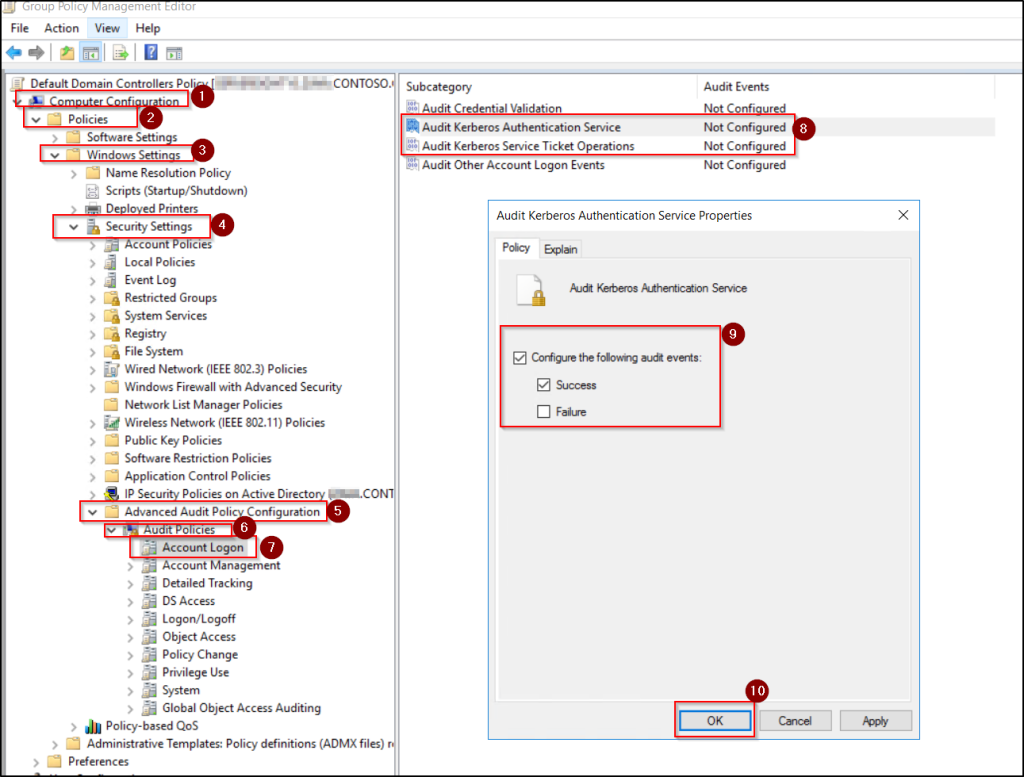
Once this policy is in effect and applied, domain controllers will begin logging detailed Kerberos service ticket events including encryption types, allowing you to accurately identify RC4 usage in the next step.
How to Identify RC4 Encryption in Kerberos Tickets?
RC4 typically surfaces in Active Directory environments that have evolved over many years. There are multiple ways to identify RC4 usage, and in practice you’ll usually combine:
1. Audit Kerberos Event Logs Via Active Directory Event Viewer
By auditing specific Kerberos event logs and reviewing their encryption fields, you can reliably identify where RC4 is still being negotiated in your environment. Below are the steps to identify RC4 usage using Event Viewer.
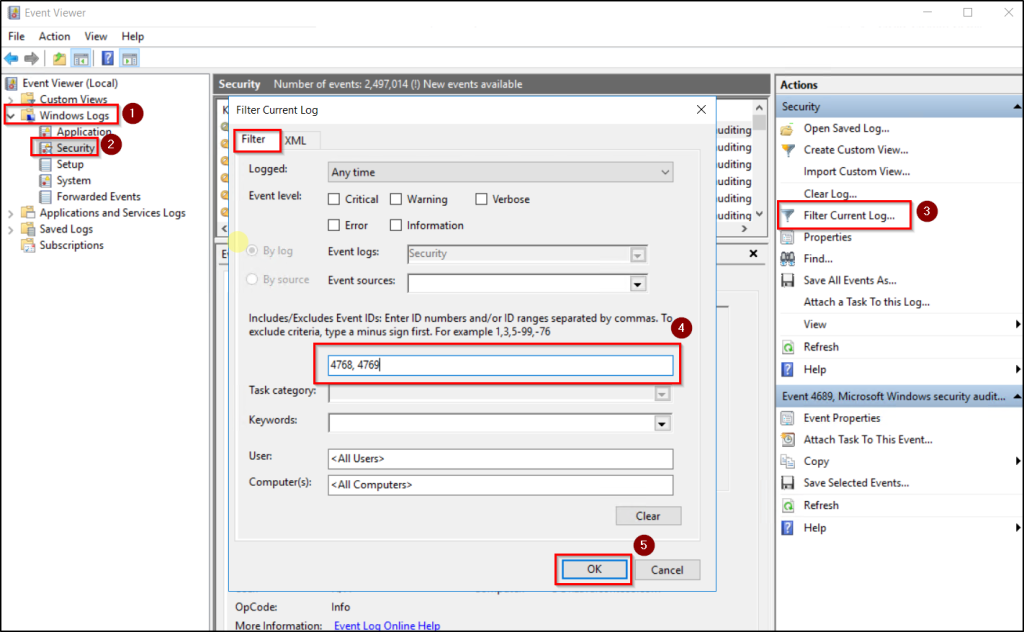
- Open Event Viewer on a Domain Controller and navigate to Windows Logs → Security.
- Filter the Security log by clicking Filter Current Log and enter the following event IDs and click OK:
- 4768 – Kerberos Authentication Service (TGT request).
- 4769 – Kerberos Service Ticket request.
- Open a specific event and review the following fields:
- Ticket Encryption Type or Session Encryption Type: A value of 0x17 in these fields indicates RC4-HMAC usage.
- Account Name, Service Name (SPN), and Client Address: These attributes help to identify the user, service account, or application responsible for RC4 usage.
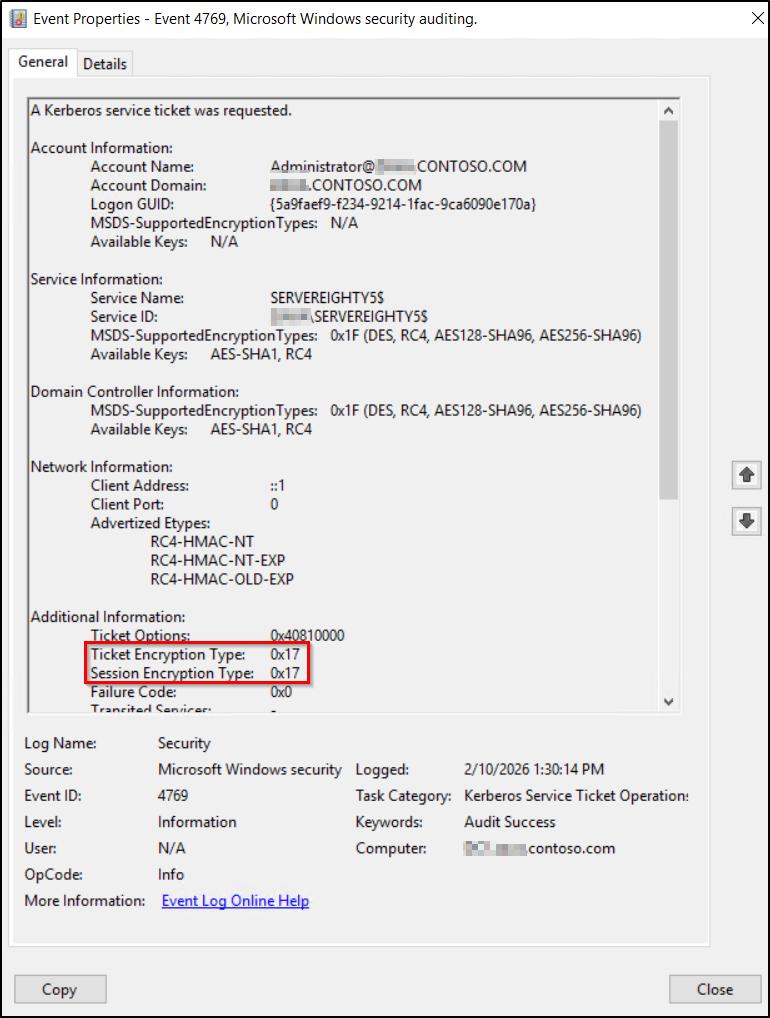
Tip: You can also check encryption field like msDSSupportedEncryptionTypes or Advertised Etypes to determine if RC4 is supported or used.
New Kerberos KDC Audit Events Introduced in Recent Windows Updates
Recent Windows updates (for Windows Server 2012 and later domain controllers) introduced nine new Kerberos KDC service audit events to improve visibility into legacy encryption usage, especially RC4.
The newly added audit event IDs are: 201, 202, 203, 204, 205, 206, 207, 208, and 209.
These events are logged by the Kerberos Key Distribution Center (KDCSVC) and provide deeper insight into:
- Which users and service accounts lack AES keys?
- Which applications or services still request RC4-encrypted tickets?
- Accounts that may be impacted by future RC4 enforcement or disablement?
Together with Event IDs 4768 and 4769, these new audit logs significantly improve your ability to proactively detect and remediate RC4 dependencies before enforcement changes take effect.
2. Identify RC4 Usage in Kerberos Tickets Using PowerShell
While Event Viewer works for spot checks, PowerShell makes it easier to analyze RC4 usage at scale. Instead of opening individual events, you can query Kerberos authentication data in bulk and quickly identify which accounts and tickets are still relying on RC4 encryption.
Microsoft provides a set of PowerShell scripts designed especially to analyze Kerberos events on domain controllers and extract encryption-related details. These scripts help you answer two critical questions:
- Which accounts still have RC4 keys available?
- Where is RC4 actually being used in Kerberos authentication?
Step 1: Download the Kerberos PowerShell Scripts
Microsoft publishes these scripts as open source in the Kerberos-Crypto GitHub repository. Download the following files:
- List-AccountKeys.ps1 – Lists the encryption keys available for accounts based on Kerberos events.
- Get-KerbEncryptionUsage.ps1 – Analyzes Kerberos ticket usage and reports which encryption types are being used.
Step 2: Enumerate Available Encryption Keys for Accounts
- Open a PowerShell session as an administrator on a domain controller or connect remotely to a domain controller using Enter-PSSession from a management workstation.
- Run the following command to list all accounts and their key types found in the past 90 days:
|
1 |
.\List-AccountKeys.ps1 |
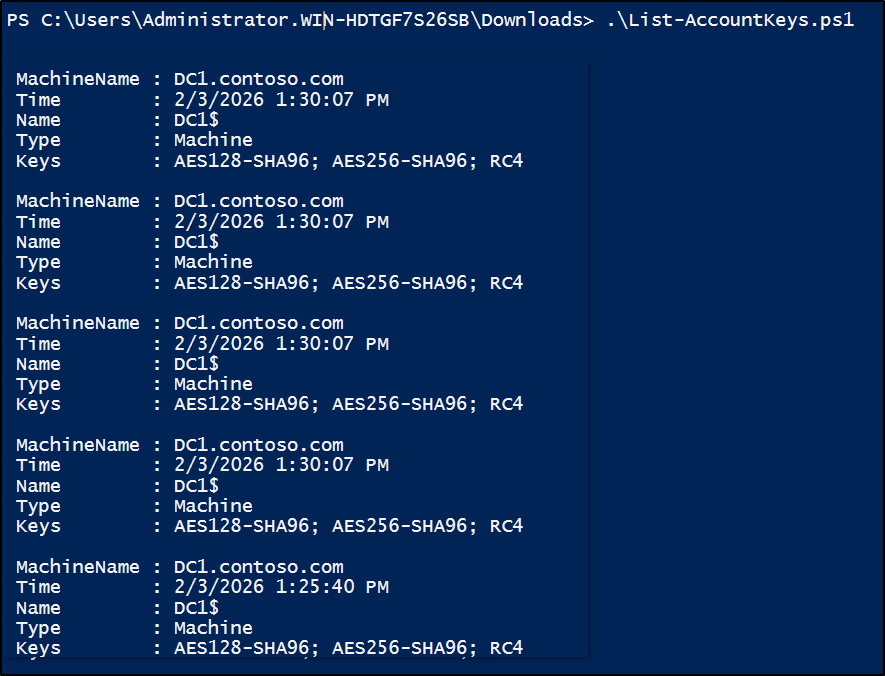
This script scans Kerberos authentication events and lists the encryption keys available for each account, such as AES-SHA1 or RC4. This helps identify accounts that are still capable of using RC4, even if they aren’t actively using it yet.
Step 3: Identify Kerberos Tickets Using RC4
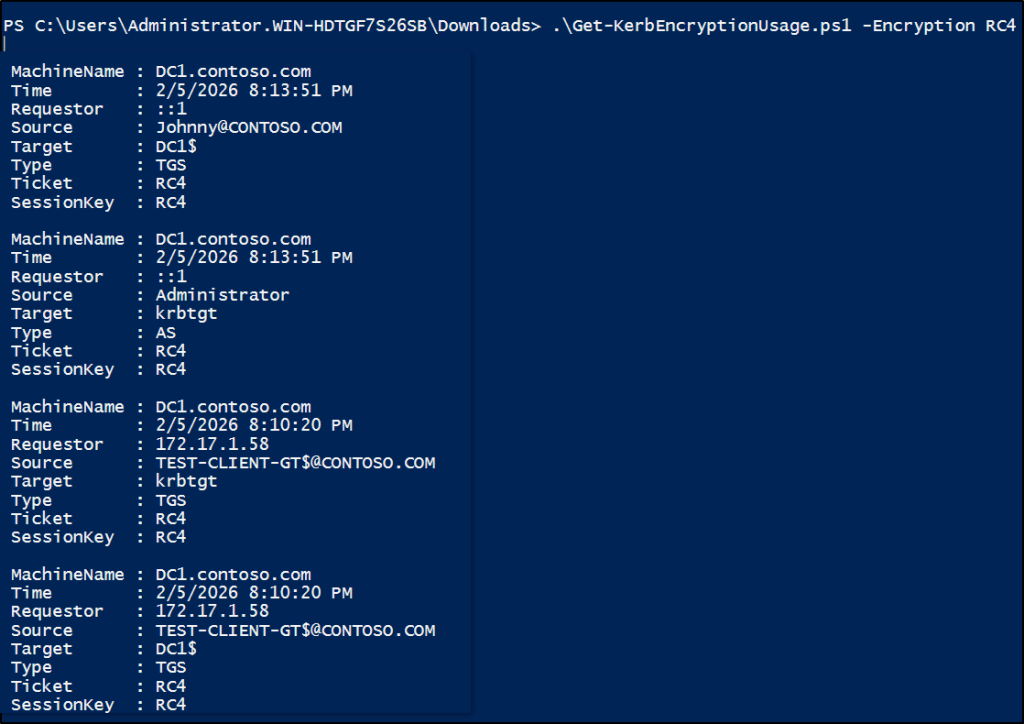
To focus specifically on RC4 usage, execute the Get-KerbEncryptionUsage.ps1 script with Encryption parameter as shown below.
|
1 |
.\Get-KerbEncryptionUsage.ps1 -Encryption RC4 |
This script will list all requests seen in the past 30 days and highlights Kerberos tickets that were issued using RC4. It helps you to pinpoint affected users, service accounts, and applications.
Disable RC4 Encryption for Kerberos Ticket Generation
Once RC4 usage is identified, disabling it ensures Kerberos tickets are issued using strong, compliant encryption only. Follow any one of the methods below to disable RC4 encryption for Kerberos ticket generation.
Primary Enforcement Methods to Disable RC4
There are few primary methods that explicitly disable RC4 at the domain or operating system level. Below are the two recommended methods by Microsoft for organization-wide hardening. It provides centralized enforcement to prevent RC4 usage across the environment.
a) Disable RC4 using Group Policy
b) Disable RC4 via registry setting
a) Disable RC4 Using Group Policy (Recommended)
Use Group Policy method to centrally control which Kerberos encryption types are allowed across domain-joined systems. Follow the below steps to explicitly allow AES encryption types and eliminate RC4 at scale.
- Open Group Policy Management Console (GPMC) and expand your forest, then expand the domain you want to modify.
- Navigate to the Domain Controllers OU or the container where the GPO is linked and right-click the appropriate GPO, select Edit.
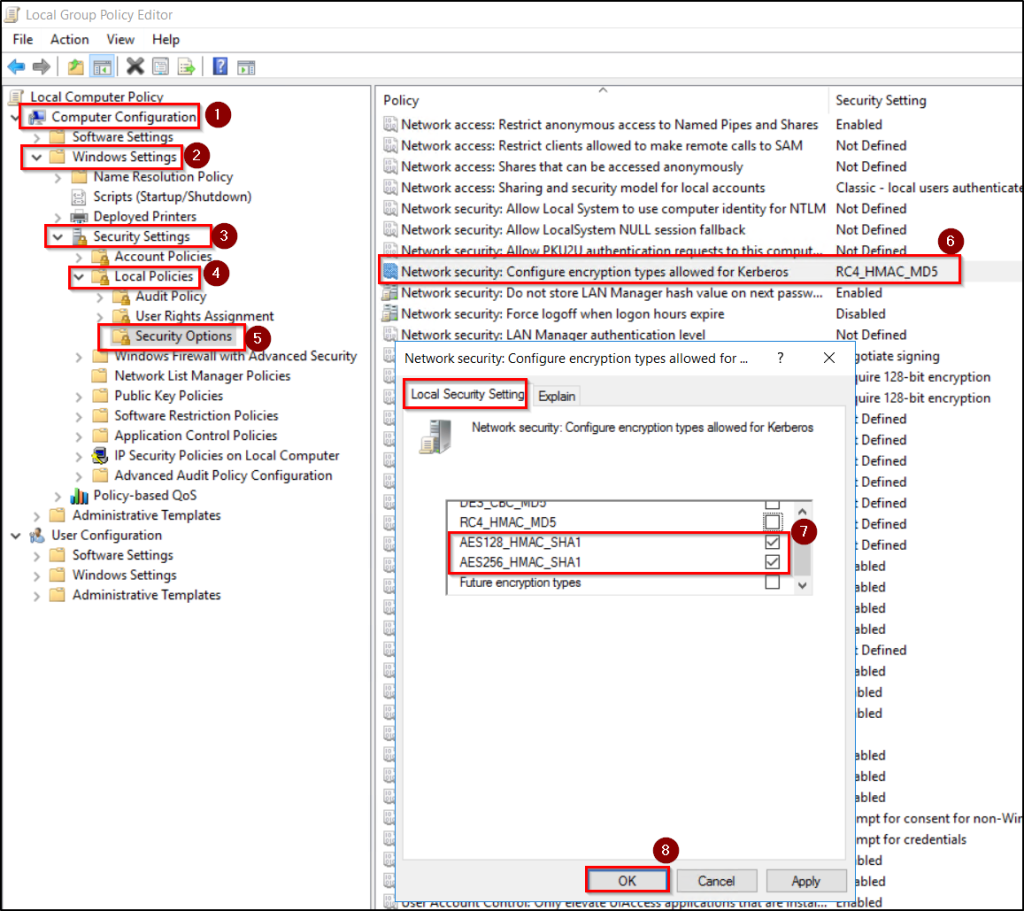
- In the GPO Editor, navigate to Computer Configuration → Windows Settings → Security Settings → Local Policies → Security Options.
- Open Network security: Configure encryption types allowed for Kerberos.
- Select the Define these policy settings checkbox.
- Then, deselect RC4 and select AES128_HMAC_SHA1 and AES256_HMAC_SHA1 values.
- Click Ok to apply the policy and allow it to replicate.
b) Disable RC4 Via Registry Setting
If you want to prevent Kerberos from using RC4 at the operating system level, you can disable RC4 through the Windows registry. Follow the below steps to ensure that the system does not allow RC4 as a supported encryption type during Kerberos authentication.
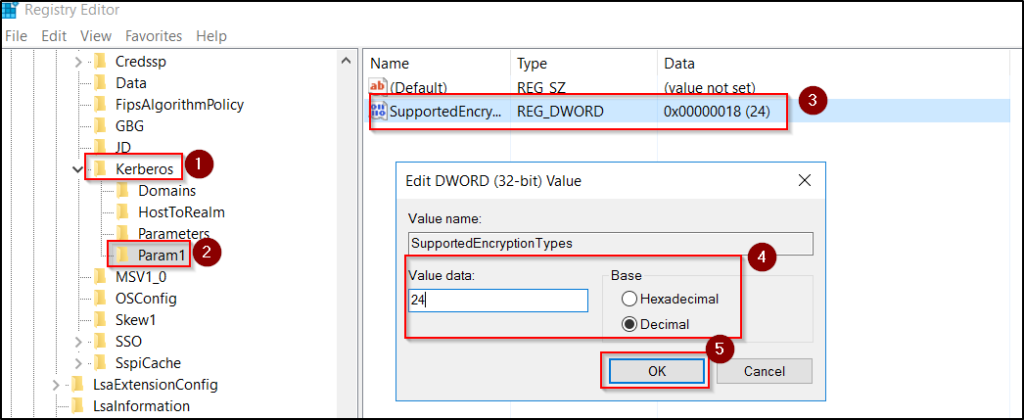
- Open Registry Editor by clicking Start → Run, type regedit, and press Enter.
- Navigate to the following path: HKEY_LOCAL_MACHINE\System\CurrentControlSet\Control\Lsa\Kerberos\Parameters
- If the Parameters key does not exist, right-click Kerberos, select New → Key, and name it Parameters.
- Right click the existing or newly created Paramaters key and select New → DWORD (32-bit) Value and name the new value as SupportedEncryptionTypes.
- Double-click value and set the value data to 24 in decimal to support AES-only.
- Click OK and restart the domain controller for the changes to take effect.
Scenario-Based Remediation Methods to Remove RC4 Usage
The scenario-based methods address specific configurations where RC4 may still be negotiated due to trust relationships or account-level encryption settings. Even after applying domain-wide controls, RC4 can persist in certain scenarios. The following remediation steps help eliminate those remaining dependencies and ensure complete AES enforcement.
a) Disable RC4 in Domain and Trust Relationships
b) Disable RC4 for Service Accounts using PowerShell
c) Disable RC4 via account-level encryption settings
a) Enable AES in Domain and Trust Relationships
RC4 is commonly used in cross-domain or legacy trust scenarios where AES is not explicitly enabled. Use the following steps to update trust properties and ensure AES is supported and used during cross-domain Kerberos authentication.
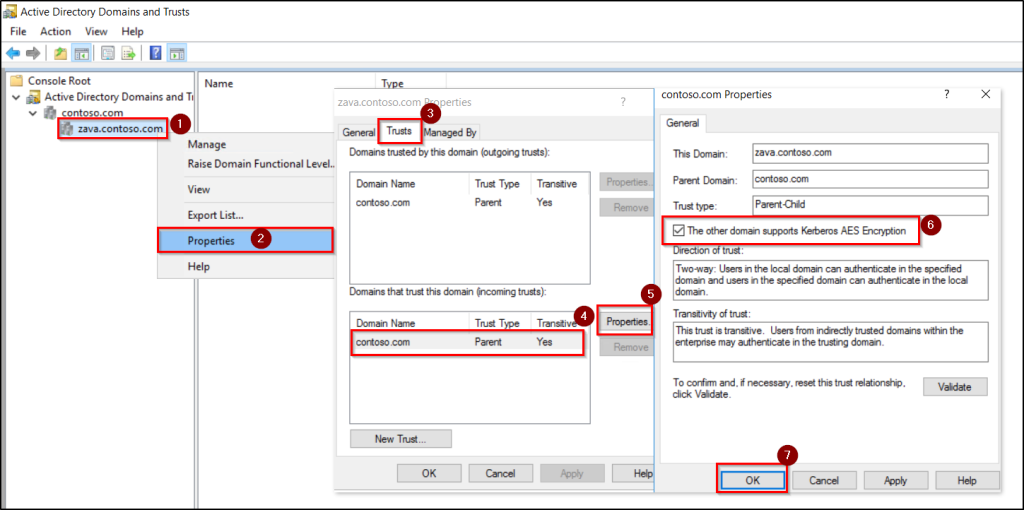
- Open Active Directory Domains and Trusts by navigating through Server Manager → Tools or run domain.msc from the Run dialog.
- Right-click the domain and select Properties.
- Go to the Trusts tab under Domains that trust this domain (incoming trusts), select the trusting domain.
- Click Properties and enable “The other domain supports Kerberos AES Encryption”.
- Click Ok to save the changes.
b) Disable RC4 for Group Managed Service Accounts Using PowerShell
Service accounts are a common source of RC4 usage, especially older accounts that were never updated to support AES. Follow the below steps to ensure service accounts use only strong AES encryption, preventing RC4-encrypted ticket issuance.
- Open PowerShell with sufficient Active Directory permissions.
- Run the following command, replacing <ServiceAccountName> with your service account name:
|
1 |
Set-ADServiceAccount -Identity "<ServiceAccountName>" -KerberosEncryptionType AES128, AES256 |
This explicitly allows only AES encryption and removes RC4 from Kerberos negotiation. Verify the change by reviewing the account’s msDS-SupportedEncryptionTypes attribute or by monitoring Kerberos audit logs as mentioned above.
c) Configure Account-Level Kerberos Encryption Settings
For specific user or service accounts, encryption types can be controlled directly to prevent RC4 usage. The below steps are used to restrict Kerberos encryption at the account level and eliminate RC4 negotiation for targeted identities.
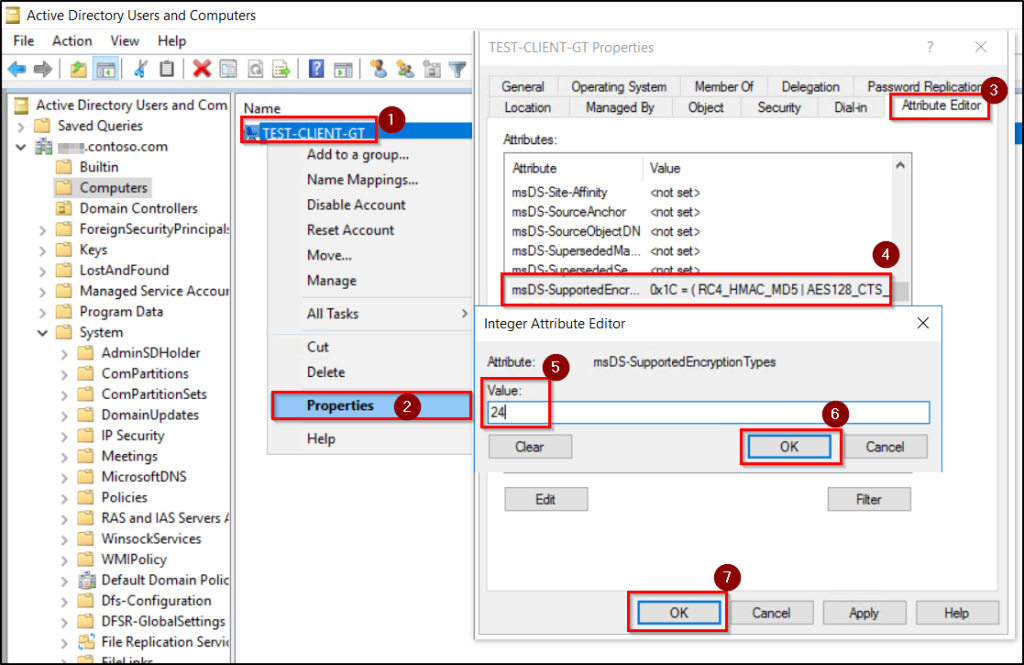
- Open Active Directory Users and Computers.
- Now right-click the specific user, computer or gMSA account. Open the account properties and go to the Attribute Editor tab.
- If the Attribute Editor tab is not visible, select View → Advanced Features, then reopen the account properties.
- Scroll and select msDS-SupportedEncryptionTypes, then set it to AES128 and AES256 values only.
- Click OK twice to apply the changes.
Considerations for RC4 Removal and Kerberos Hardening Best Practices
Before and after disabling RC4, follow these best practices to avoid any confusion and ensure a smooth transition to AES-only Kerberos encryption.
- Clear existing Kerberos tickets after changes: Cached Kerberos tickets may continue using RC4 even after policies are updated. To force ticket renewal and validate your new AES-only configuration, purge existing tickets using the following PowerShell command on affected systems: klist purge.
- Enforce AES for all new accounts by default: Configure msDS-SupportedEncryptionTypes on new user and service accounts to include only AES to prevent RC4 from reappearing.
- Disable RC4 at the domain level only after thorough validation: Once you have confirmed there are no legacy dependencies, configure the registry value HKEY_LOCAL_MACHINE\System\CurrentControlSet\Services\KDC\DefaultDomainSupportedEncTypes on all domain controllers and set it to 0x38 (AES-only).
- Update device-level Kerberos policies: Windows Server 2003 was the last version without AES support and is now out of support. So, migrate to any such systems that support AES-SHA1. For older accounts created before AES support, reset passwords to generate AES keys. If an account does not support SHA-1, temporarily allow RC4 until it can be upgraded or remediated.
- Start remediation before RC4 is forcibly disabled: Enable AES across computers, accounts, and trusts early, then analyse Event ID 4769 logs to confirm RC4 is no longer used.
- Regenerate legacy keytab files: Keytabs created before AES support often contain only RC4 keys and must be regenerated to avoid service failures.
- Verify KRBTGT ticket encryption: Confirm that TGTs are issued using AES; if RC4 is still observed, review the pwdLastSet attribute and reset KRBTGT account password/RODC configuration.
- Plan RC4 remediation across the entire forest: Co-ordinate OS and configuration updates across all domains. Proactively test for cross-domain trust issues before enforcement. Then, apply changes in phased, domain-by-domain rollouts to minimize authentication impact.
Common Errors and Fixes When Auditing Kerberos Events
The following are common issue while reviewing Kerberos audit events.
- Error: Event Viewer cannot open the event log or custom view. Verify that the Event Log service is running or the query is too long. The array bounds are invalid (1734).
This error typically occurs when you attempt to audit Kerberos logs in the Event Viewer.
Fix: Enable Kerberos auditing through Group Policy before attempting to view the events.
- Error: Attempting to run script on Windows version 10.0.20348.0 which doesn’t have the new event metadata. Updates are available for this machine and attempt again.
This error typically occurs when you try to execute the Microsoft RC4 auditing script on a Domain Controller that does not have the required Windows security updates installed. The script depends on newer Kerberos event metadata that is only available after updates are applied.
Fix: Install the latest Windows Server cumulative updates on the Domain Controller to add the required Kerberos event metadata. After updating, reboot if required, and re-run the script.
Frequently Asked Questions on Auditing RC4 Usage
Here are some frequently asked questions and clear answers to safely identify risks and avoid authentication issues before disabling RC4 in Active Directory.
1. What should be checked before disabling RC4 to avoid breakage?
Before disabling RC4, check two key areas to avoid breakage.
- Trust relationships: Cross-domain or legacy trusts may fall back to RC4 if AES is not enabled on both sides. Ensure all trusts are explicitly configured to support Kerberos AES encryption.
- Service accounts (including managed service accounts such as gMSAs): Older accounts may not have AES keys generated. Reset the account password or explicitly configure AES encryption to regenerate the required keys.
Finally, review Kerberos audit events to confirm no users, services, or apps are still requesting RC4 before AES enforcement.
2. What happens if a service account doesn’t have AES-SHA1 keys?
Service accounts missing AES keys are flagged in the Windows System Event Log with Event ID 202 or 207, indicating they may fail when AES-only Kerberos is enforced.
The recommended approach is to reset the service account password on a modern Windows domain controller. This automatically regenerates Kerberos keys for all supported encryption types, including AES.
3. Why am I still seeing RC4 usage in my environment even after enabling AES?
Older keytab files may contain only RC4 credentials, preventing systems from negotiating stronger encryption. Non-Windows devices and third-party applications frequently default to RC4 unless AES is explicitly enabled.
In some cases, AES may be disabled on Windows systems through Group Policy or registry settings, forcing Kerberos to fall back to RC4. Additionally, legacy platforms such as Windows Server 2003 or Windows XP only support RC4 and will continue to trigger its use until they are retired.
4. PowerShell script – List-AccountKeys.ps1 shows AES, but Event 4769 still logs RC4 (0x17). Which should I trust?
Event ID 4769 with encryption type 0x17 confirms RC4 usage. This usually happens if passwords are old or accounts are used by legacy/non-Windows systems. For affected users, temporarily set msDS-SupportedEncryptionTypes to 28 (AES+RC4), then perform dual password resets to ensure AES keys are generated. Purge Kerberos tickets (klist purge) and verify RC4 is no longer in use.
Next, set msDS-SupportedEncryptionTypes to 24 (AES only) and rotate the krbtgt password twice to flush RC4 keys. Waiting 7 days is recommended because Kerberos tickets have a default lifetime (usually 7–10 days), and this ensures all old RC4-based tickets have expired before fully disabling RC4 on domain controllers.
Final Thoughts
When it comes to disabling RC4, preparation is everything. Auditing clients, servers, and Kerberos settings gives you a clear picture of where RC4 is still in use. Validating remediation steps in a controlled environment ensures authentication and communication continue without disruption. Taken together, these steps let you move to modern ciphers confidently, without second-guessing or unexpected breakage.
If you have questions or doubts, drop them in the comments below, we’re happy to help!