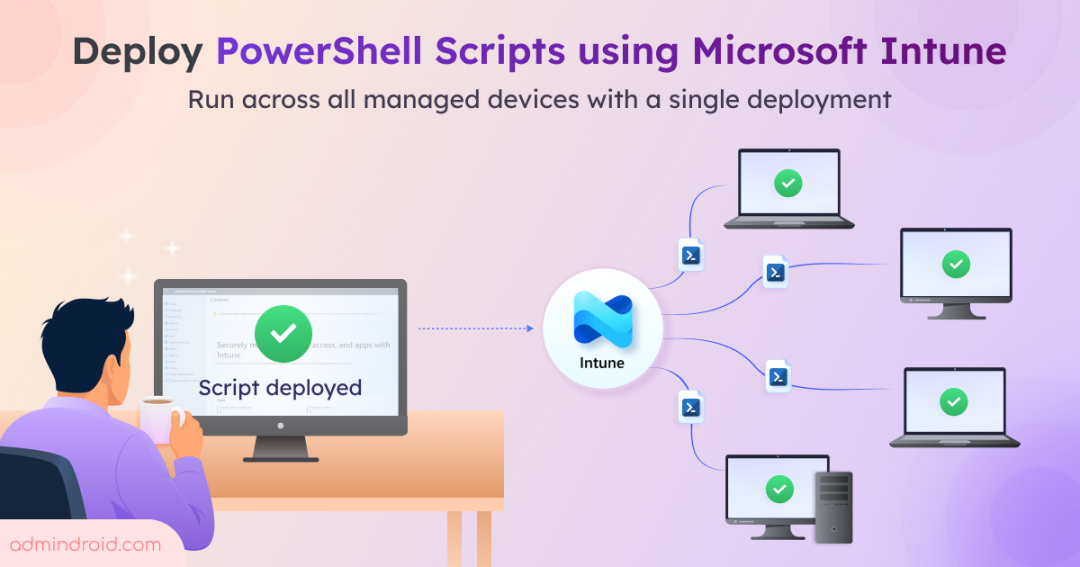
If you manage hundreds of Windows devices, you’ve probably come across situations where you need to run the same PowerShell script across all of them. Whether it’s creating a folder, updating a registry key, or changing a local setting, doing it manually on every device is tedious, time-consuming, and it’s easy to miss a few. On top of that, verifying whether the script actually ran on every device can be another challenge.
Microsoft Intune makes this process simple by letting you deploy PowerShell scripts remotely from a central location. With just a few clicks, you can automate administrative tasks across your managed Windows devices and monitor the execution status of each deployment. Before we get started, let’s take a look at the different ways Microsoft Intune lets you deploy PowerShell scripts.
Different Ways to Deploy PowerShell Scripts in Microsoft Intune
Microsoft Intune provides three primary methods for deploying PowerShell scripts to Windows devices. Let’s take a quick look at each deployment method.
- Platform scripts: Deploys PowerShell scripts that run once on targeted Windows devices. This method is ideal for configuration changes or administrative tasks that only need to be executed a single time.
- Remediations: Uses paired detection and remediation scripts to continuously monitor device compliance. It periodically checks for issues and automatically runs a remediation script whenever a problem is detected.
- Win32 Applications: Packages PowerShell scripts as Win32 applications, enabling advanced deployment capabilities such as detection rules, dependencies, installation parameters, and uninstall support. This method is best suited for complex deployment scenarios.
Among these, Platform Scripts offer the simplest and quickest way to deploy PowerShell scripts to your managed Windows devices. In this blog, we’ll walk through the step-by-step process of deploying PowerShell scripts using Platform Scripts in Microsoft Intune. We’ll cover the other deployment methods, Remediations and Win32 Applications, in future blogs.
What Are Platform Scripts in Microsoft Intune?
Platform scripts are a built-in scripting feature in Microsoft Intune that enables you to execute custom PowerShell scripts on managed Windows devices. They are primarily used to perform lightweight, one-time administrative and configuration tasks that aren’t available through native Intune policies.
Platform Scripts rely on the Intune Management Extension (IME) to execute PowerShell scripts on Windows devices. When a PowerShell script is assigned to a supported device, the IME is automatically installed if it isn’t already present. It downloads the assigned script, executes it on the device, and reports the execution status back to Microsoft Intune, enabling admins to monitor the deployment.
Prerequisites for Intune PowerShell Script Deployment
Before deploying PowerShell scripts in Microsoft Intune, ensure the following prerequisites are met:
- Device requirements: Devices must be enrolled in and managed by Microsoft Intune and be Microsoft Entra joined or Microsoft Entra hybrid-joined.
- OS Requirement: Devices must be running Windows 10, version 1607 and later.
- Role requirement: You must have an Intune Administrator role or a higher privileged role with permission to deploy scripts.
How to Run PowerShell Scripts on Windows Devices Using Microsoft Intune
Once the prerequisites are met, follow the steps below to deploy a PowerShell script in Intune.
- Sign in to the Microsoft Intune admin center.
- Navigate to Devices –> By platform –> Windows –> Manage devices –> Scripts and remediations.
- Under Platform Scripts, click + Add. Enter a descriptive name for the script and, optionally, provide a description. Then, click Next.
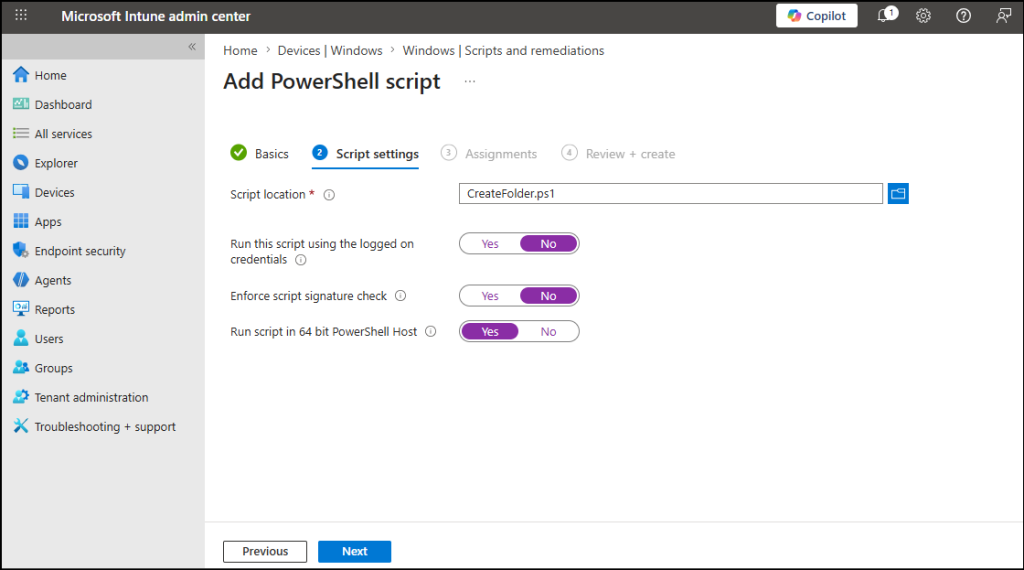
- On the Script settings page, configure the following options, and click Next.
- Script location: Click the browse icon and select the PowerShell script you want to deploy. Ensure that the script does not contain passwords, personal data, or other sensitive information, as admins with appropriate permissions can view its contents.
- Run this script using the logged-on credentials: Set this option to ‘No’ if the script should run in the SYSTEM context (recommended for administrative tasks). Set it to ‘Yes’ only if the script needs to run in the context of the signed-in user.
- Enforce script signature check: Leave this setting as ‘Yes’ if the script needs to be digitally signed by a trusted publisher. Otherwise, change it to ‘No’ to allow unsigned scripts to run.
- Run script in 64-bit PowerShell host: Set this option to ‘Yes’ to run the script in the 64-bit PowerShell host on 64-bit devices. On 32-bit devices, the script automatically runs in the 32-bit PowerShell host. Set it to ‘No’ to always run the script in the 32-bit PowerShell host, even on 64-bit devices.
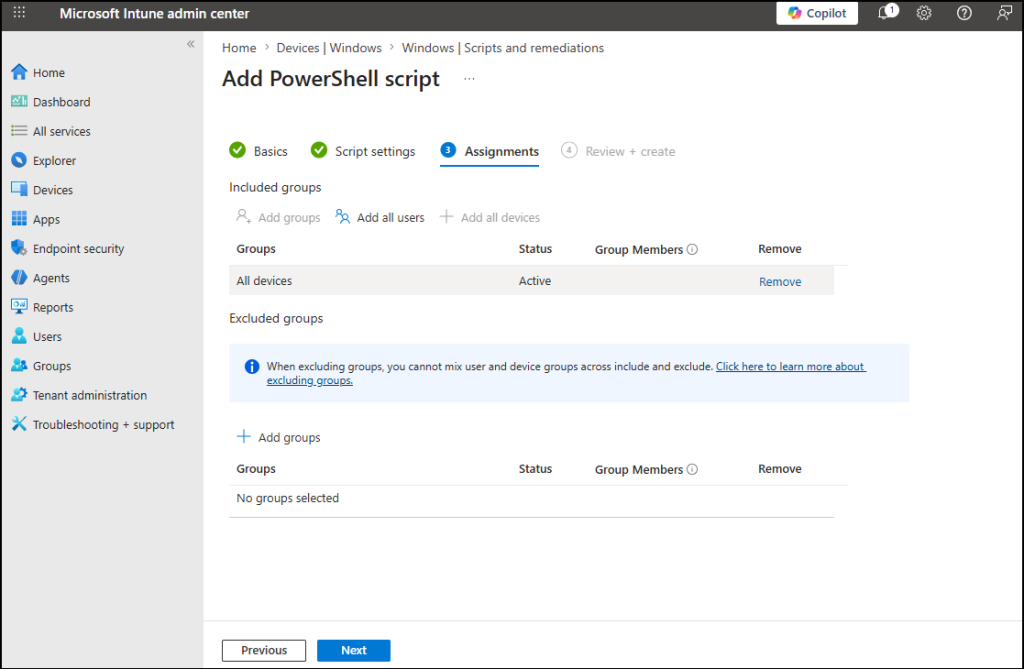
- Under Assignments, choose whether to deploy the script to All users, All devices, or specific Microsoft Entra security groups. You can also exclude specific groups from the deployment. Then, click Next.
- Use device assignments when you want the script to be deployed to specific managed devices, regardless of who signs in to them.
- Choose user assignments when you want to target the managed devices used by specific users.
Note: Scripts can be assigned to Microsoft Entra device security groups or user security groups. However, Microsoft Entra registered (Workplace Joined) devices support only device group assignments; user group assignments are ignored.
- Review the configurations and click Create to deploy the PowerShell script to the assigned devices.
How to Make an Intune PowerShell Script Run Immediately?
By default, Intune devices check in approximately every 8 hours, so the PowerShell script may not run immediately after deployment. To apply the script as soon as possible, you can manually force Intune sync on Windows devices using one of the following methods:
- Sync one or a few devices: Sign in to the Microsoft Intune admin center, then navigate to Devices –> Windows –> select the target device –> Sync.
- Sync multiple devices: Sign in to the Microsoft Intune admin center –> Devices –> Bulk device actions. Select the OS, Device type, and Sync as the device action. Choose the target devices, then review the configuration and click Create to initiate the sync request.
How to Monitor Script Execution for Intune Platform Scripts?
To verify whether a Platform script has been deployed and executed successfully, follow the steps below:
- Go to the Devices page in the Intune admin center.
- Navigate to Windows –> Scripts and remediations –> Platform scripts.
- Select the deployed script to open its Overview page, where you can view a summary of the deployment status.
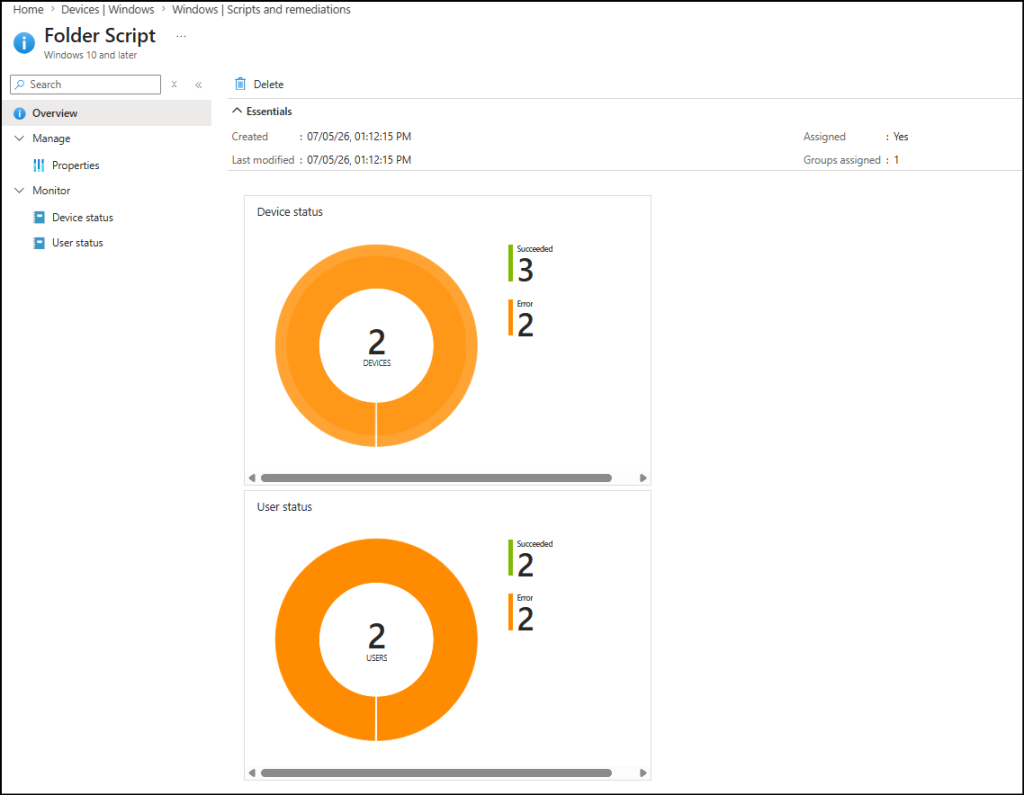
- To view detailed execution results, under the Monitor section, select Device status or User status. These views show the execution status of the script for each targeted device or user.
These reports only indicate whether the script execution Succeeded or Failed. They don’t provide the reason for a failure or confirm whether the script made the intended changes on the target device.
To investigate such issues, follow these steps:
- Review the Intune Management Extension (IME) logs: Verify the IntuneManagementExtension.log file on the affected local device under C:\ProgramData\Microsoft\IntuneManagementExtension\Logs. You can use this log to review the script download, execution, and any errors encountered during execution.
- Check local storage of uploaded Intune scripts (if the script is still running or hasn’t been cleaned up): During execution, Intune stores the downloaded script and related files under: C:\Program Files (x86)\Microsoft Intune Management Extension\Policies\Scripts. After the script executes successfully, Intune removes the script files and execution results from this location.
- Review Intune Management Extension registry for scripts: Although the script files are removed after execution, Intune retains the script assignment and execution metadata in the following registry location: HKLM\SOFTWARE\Microsoft\IntuneManagementExtension\Policies\<UserGUID>\<ScriptGUID>. If the registry entry is missing, the policy may not have reached the device.
Troubleshooting Platform Script Failures in Microsoft Intune
While monitoring script execution, you may encounter some common issues. The following table outlines their possible causes and resolutions.
| Issue | Troubleshooting Hints |
| The script isn’t executing on the target device. | Verify that the device is Microsoft Entra joined or Microsoft Entra hybrid-joined (not just Microsoft Entra registered). Confirm that the Microsoft Intune Management Extension (IME) is installed on the device under %ProgramFiles(x86)%\Microsoft Intune Management Extension. |
| The device isn’t processing Platform Scripts as the Microsoft Intune Management Extension service is not running. | Verify that the Microsoft Intune Management Extension service is available by running the PowerShell command: Get-Service -Name IntuneManagementExtension. If you receive the error Get-Service : Cannot find any service with service name ‘IntuneManagementExtension’, it indicates that the IME is not installed. Review the prerequisites for Intune Management Extension on Windows and ensure the device meets them. If the service exists, verify its status. If the service is Stopped, start it by running Start-Service -Name IntuneManagementExtension. After starting the service, sync the device from the Company Portal app or the Settings app to trigger policy retrieval and script execution. |
| The script shows successful execution, but no changes appear on the device. | Verify that the script is running in the correct execution context. If it requires admin privileges, configure it to run as SYSTEM. If it needs access to the signed-in user’s profile, configure it to run using the logged-on user’s credentials. Also, review the IntuneManagementExtension.log for script errors or logic issues. |
| The updated script doesn’t run again after making you modify it. | Ensure you’ve saved the updated script in the Platform Script deployment. If it still doesn’t execute, sync the device. If necessary, create a new Platform Script deployment and assign it to the required devices. |
| The script hasn’t been run on a specific user’s device. | Ask the user to manually sync their devices from the Company Portal app or the Settings app on their Windows device. |
What Admins Should Know About Intune Script Deployment
Here are the key things admins should keep in mind about Platform Scripts in Microsoft Intune.
- Platform Scripts are designed for one-time tasks. Once a script runs successfully, Intune doesn’t run it again on the same device unless you update the script content. When the script is modified, Intune treats it as a new version and executes it again during the next device check-in.
- Scripts have a 30-minute execution limit. If a script takes longer than 30 minutes to complete, Intune marks the deployment as Failed.
- Failed scripts are retried automatically. If a script doesn’t complete successfully, Intune retries it up to three times during subsequent device check-ins.
- Platform Scripts aren’t supported on Windows 10 Home, Surface Hub, or Windows devices running in S mode.
- Ensure the device’s system clock is accurate. If the device date and time are significantly out of sync (for example, by several months or years), script deployment and execution may fail.
Wrapping Up
That’s it! We hope this guide has helped you understand how to deploy PowerShell Platform Scripts in Microsoft Intune. In our upcoming blogs, we’ll explore Intune Remediations and deploying PowerShell scripts as Win32 applications. If you have any questions, feedback, or experiences to share, let us know in the comments below. We’d love to hear from you. Stay tuned for more blogs!