Device identities sit at the center of many security and access decisions in Microsoft Entra ID. Given their role in maintaining secure access, organizations need dependable ways to manage and protect device identities throughout their lifecycle.
However, one gap has always existed. If a device was accidentally deleted, there was no way to recover it⚠️. The device was permanently removed, which could disrupt user access, affect device-based policies, and require administrators to manually re-enroll and reconfigure the device.
Microsoft is now addressing this limitation with the introduction of Device Soft Delete in Entra ID. In this blog, we’ll take a quick look at how Device Soft Delete works and what it means for device management and recovery.
Device Soft Delete in Microsoft Entra ID
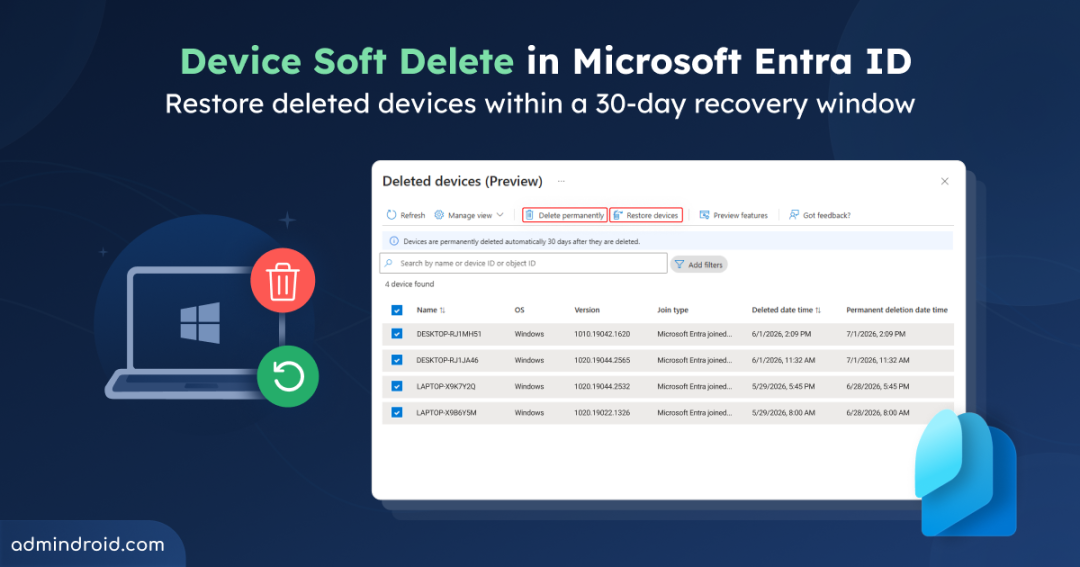
Device soft delete in Microsoft Entra ID is a new device recovery capability that allows deleted devices to be restored within a 30-day window.
With this new feature, Microsoft is adding a recovery layer to device management in Entra ID. It helps reduce the impact of accidental deletions and ensures that important device-related data is not lost permanently.
This feature is currently in public preview and only supports device types like Microsoft Entra joined devices and Microsoft Entra registered devices.
What Happens When a Device is Soft Deleted in Entra ID?
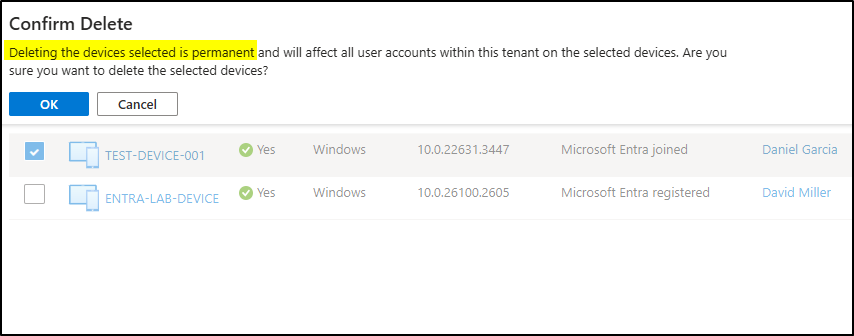
As mentioned earlier, accidentally deleted devices aren’t permanently removed and can be restored. However, it was observed that when a device is deleted from the Entra admin center, the UI still displays a warning indicating that the deletion is permanent.
This is because the portal messaging has not yet fully aligned with the soft delete behavior during the preview stage. In reality, the device is not immediately removed from the directory.
When a device is soft deleted, Azure Device Registration Service (ADRS) first removes its authentication access and signs it out. After that, the device is moved to a soft-deleted container instead of being fully removed from the directory.
While a device is in the soft deleted state:
- Key information associated with the device such as BitLocker recovery keys, LAPS passwords, and the device’s unique identifiers is retained.
- The device cannot sign in or access any Microsoft Entra ID–protected resources.
- Administrators cannot manage or update the device anymore.
- It will not show up in the Entra admin center, Intune, or Graph results.
- Searching for the device returns a “not found” response.
- The same Device ID cannot be reused until the device is restored or permanently deleted.
- It still counts as a directory object, but with lower impact compared to active devices.
If nothing is done, the device stays in this state for 30 days and is then permanently deleted. In hybrid environments with Microsoft Entra Connect, soft delete helps prevent duplicate devices. If a device is accidentally removed from the sync scope, it can be automatically restored during the next sync.
How to Restore an Accidentally Deleted Device in Entra ID?
To soft delete, view, and restore devices in Entra ID, make sure you are assigned one of the following roles: Cloud Device Administrators, Intune Administrators, and Global Administrators.
View & Restore Soft Deleted Devices Using Microsoft Graph PowerShell
To retrieve the list of soft-deleted devices using PowerShell, run the following cmdlet:
|
1 |
Get-MgBetaDirectoryDeletedItemAsDevice |

This will return details of all soft-deleted devices, including properties such as DeletedDateTime, Id, AccountEnabled, AlternativeNames, ApproximateLastSignInDateTime, ComplianceExpirationDateTime, DeviceCategory, DeviceId, DeviceMetadata, DeviceOwnership, and DeviceVersion.
From the above cmdlet, identify the required device and copy its Id value. You can then restore the device using the following cmdlet:
|
1 |
Restore-MgBetaDirectoryDeletedItem -DirectoryObjectId <DeviceId> |
View & Restore Soft Deleted Devices Using Microsoft Graph API
To retrieve all soft-deleted devices using Microsoft Graph API, you can query the deleted items endpoint as shown below:
|
1 |
GET https://graph.microsoft.com/beta/directory/deletedItems/microsoft.graph.device |
Now, to restore a soft-deleted device, use the Microsoft Graph API restore endpoint and pass the device object ID in the request URL:
|
1 |
POST https://graph.microsoft.com/beta/directory/deletedItems/{id}/microsoft.graph.device/restore |
View & Restore Soft Deleted Devices Using Entra Admin Center
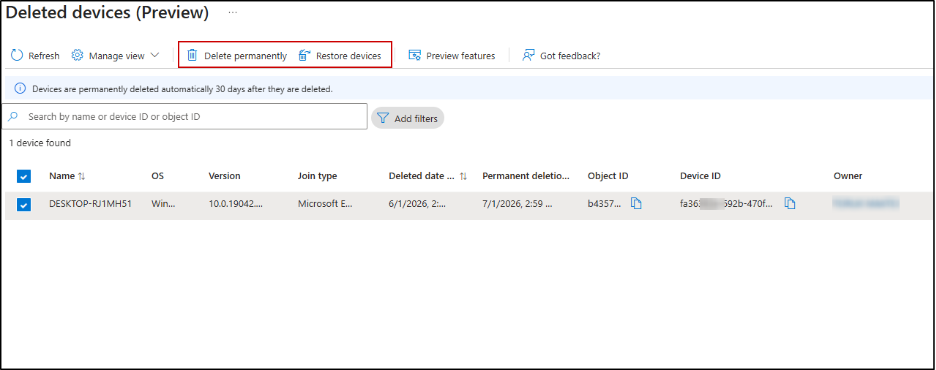
Microsoft has mentioned that UI option to restore devices isn’t available during public preview and will be introduced with General Availability. However, there’s already a direct URL you can use to access soft-deleted devices and restore them from the Microsoft Entra admin center. Special thanks to Daniel Bradley for spotting and sharing this:
https://entra.microsoft.com/#view/Microsoft_AAD_Devices/DeletedDevices.reactview
Closing Thoughts
Device soft delete in Microsoft Entra ID adds an important safety layer to device management. Instead of permanent loss, administrators now get a recovery window to restore deleted devices and avoid unnecessary disruptions.
As this capability evolves from preview to general availability, it will further strengthen device lifecycle management in Entra ID and bring more control and flexibility for administrators handling large-scale environments. To extend visibility further, administrators can also use Microsoft Entra audit logs to identify who soft deleted, restored, or modified device objects for better governance and troubleshooting.
Thanks for reading. For more queries, feel free to reach out to us through the comments section.