Even a service that serves no operational purpose on domain controllers can become a security risk. That’s the reality of the Windows Print Spooler service, which is enabled by default on Windows clients and Windows Server. Leaving this background process active opens a direct path for attackers to achieve remote code execution and privilege escalation on your most critical servers.
To reduce the attack surface, Microsoft recommends disabling the Print Spooler service on domain controllers as part of Active Directory security hardening. In this blog, you’ll learn what the Print Spooler service is, why it should be disabled on domain controllers, and the different methods to disable Print Spooler securely.
What is the Print Spooler Service in Active Directory?
In the early days of computing, sending a document to a printer would pause a user’s workflow until the print job was finished. To overcome this productivity bottleneck, Microsoft introduced the Print Spooler, a built-in Windows service that manages print jobs and printer communication in the background.
It queues and processes print jobs one by one, allowing users to continue working instead of waiting for each print job to finish. The Print Spooler also performs printer pruning by automatically removing stale or unavailable published printer objects, keeping the printer directory up to date.
Why Disable the Print Spooler Service on Active Directory Domain Controllers?
Print Spooler comes with its own history of failures and attack surface, making it a risky service to leave running on domain controllers and tier 0 systems where printing isn’t required. One of the most notable examples is PrintNightmare (CVE-2021-34527 and CVE-2021-1675), which exposed a flaw in the Print Spooler service that attackers could exploit to load a malicious printer driver.
Because the Print Spooler runs with SYSTEM privileges by default, successful exploitation can give attackers the highest level of privileges on the Active Directory server. On a domain controller, this could lead to a complete Active Directory compromise, enabling privilege escalation, lateral movement, and further attacks across the network. That’s why every domain controller should have the Print Spooler service disabled. Now, let’s explore how to disable the Print Spooler service on domain controllers.
Prerequisites for Disabling the Print Spooler Service
The following permissions are required to disable the Print Spooler service.
- Domain Admin privileges, or
- An account with Group Policy editing permissions (if using Group Policy to disable the service).
Note: Before disabling the Print Spooler, ensure your domain controllers aren’t hosting or sharing printers. If they are, migrate those services to a dedicated print server. It’s also recommended to disable the Print Spooler on all domain controllers.
How to Disable the Print Spooler Service on Domain Controllers
Depending on your Active Directory environment and management requirements, you can choose from several approaches to enforce this configuration. The following sections walk you through each method.
- Disable the print spooler on DCs via group policy (Recommended)
- Disable the print spooler with PowerShell
- Disable the print spooler via service manager
- Disable the print spooler using registry editor
1. Disable the Print Spooler on Domain Controllers Using Group Policy Object
Group Policy is the recommended method to disable the print spooler service. Unlike disabling the service locally, configuring Group Policy object centrally enforces the setting across all domain controllers linked to the target OU. The policy is automatically reapplied during every Group Policy refresh, ensuring the Print Spooler service remains disabled even if it’s accidentally re-enabled.
Follow the steps below to disable the Print Spooler service using GPO in Active Directory.
- Open Group Policy Management console by selecting it from Server Manager → Tools → Group Policy Management.
- Expand Forest, navigate to the Domain Controllers OU, right click it, and select Create a GPO in this domain, and Link it here.
- Name the GPO (for example, DisablePrintSpoolerService) and click OK.
- Right-click the newly created GPO and select Edit.
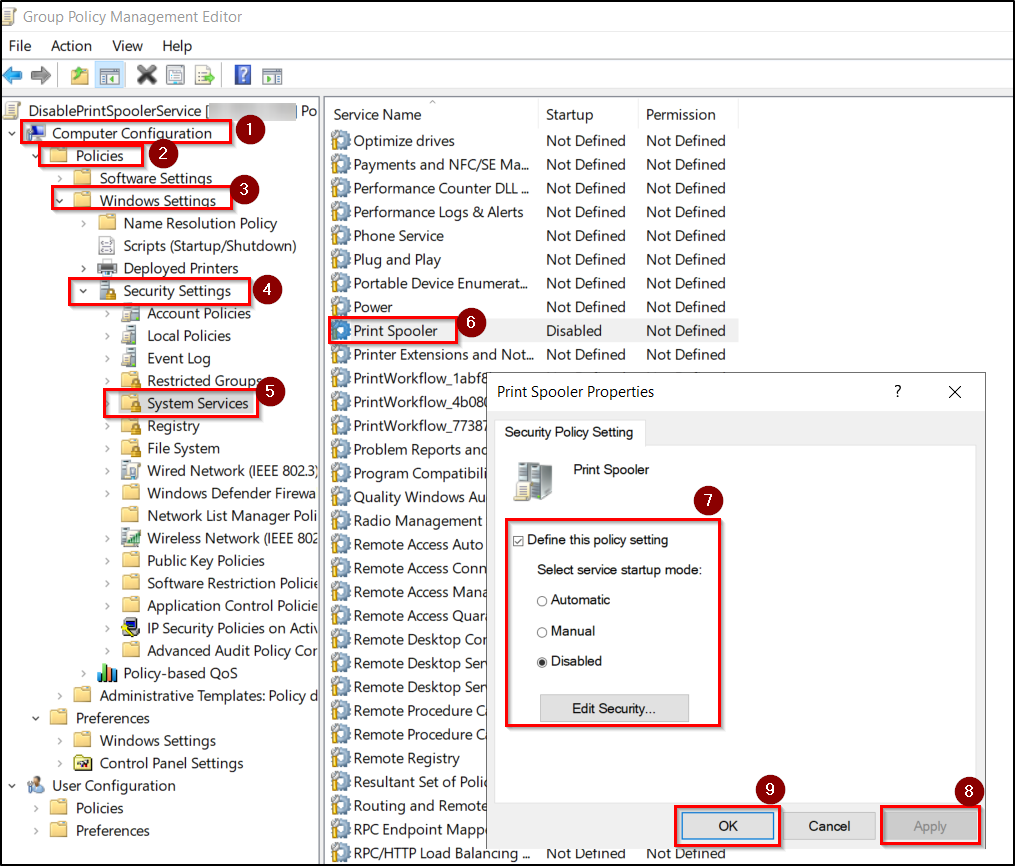
- Navigate to: Computer Configuration → Policies → Windows Settings → Security Settings → System Services.
- Locate and double-click Print Spooler and select Define this policy setting checkbox.
- Set the Startup mode to Disabled, then click Apply and OK.
- Open Command Prompt and run the following command to apply the policy immediately: gpupdate /force.
You can verify that the policy has been applied successfully using Group Policy Results. This wizard will show what settings a GPO has applied.
2. Disable the Print Spooler Service Using PowerShell
PowerShell is another way to disable the Print Spooler service on one or more domain controllers.
Disable the Print Spooler on a Specific Domain Controller
Use the following PowerShell cmdlets to permanently stop the Print Spooler service and prevent it from starting automatically on a specific domain controller.
|
1 |
Stop-Service -Name Spooler -Force |
|
1 |
Set-Service -Name Spooler -StartupType Disabled |
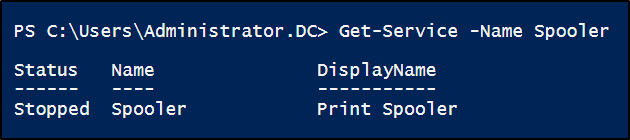
After applying the change, you can run the following command to verify that the Print Spooler service is stopped and disabled on the current domain controller:
|
1 |
Get-Service -Name Spooler |
Disable the Print Spooler on All Domain Controllers
Run the following PowerShell snippet to stop and disable the Print Spooler service on all domain controllers in your Active Directory domain.
|
1 2 3 4 5 6 7 |
Get-ADDomainController -Filter * | ForEach-Object { Invoke-Command -ComputerName $_.HostName -ScriptBlock { Stop-Service -Name Spooler -Force -ErrorAction SilentlyContinue Set-Service -Name Spooler -StartupType Disabled } } |
Although you can use this method to update all domain controllers, it applies the change only once. Unlike Group Policy, it doesn’t continuously enforce or automatically reapply the configuration.
3. Disable the Print Spooler Using Service Manager
If your goal is to disable the Print Spooler service on a specific domain controller, you can also use the Services console. This configuration applies only to the local domain controller, and admins can modify it manually at any time.
Follow the steps below to disable the Print Spooler service in Active Directory using the Services console.
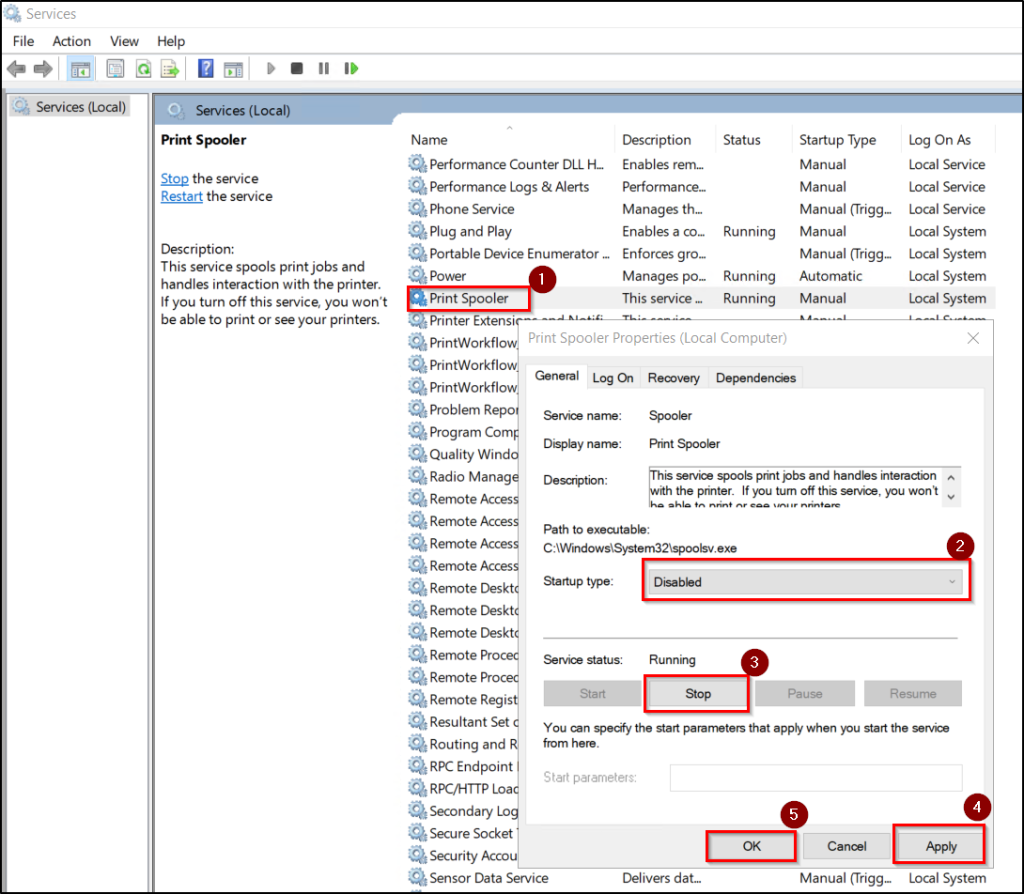
- Press Win + R, type services.msc, and press Enter.
- In the Services window, locate and right-click Print Spooler, then select Properties.
- Under Startup type, select Disabled.
- Under Service status, click Stop.
- Click Apply, and then OK to save the changes.
4. Disable the Print Spooler Using Registry Editor
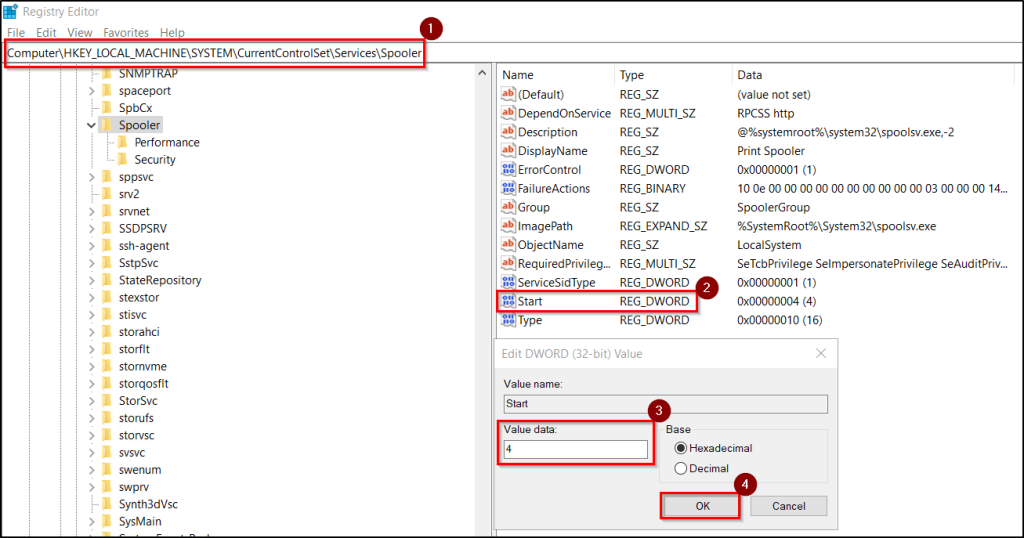
Registry Editor provides another way to disable the Print Spooler service on a local domain controller. This method modifies the service’s startup configuration directly in the Windows Registry and requires a server restart for the change to take effect.
To disable the Print Spooler service through the Registry Editor, use the following steps.
- Open Registry Editor by searching for regedit in the Start menu and selecting Run as administrator.
- Navigate to the following registry key:
HKEY_LOCAL_MACHINE\SYSTEM\CurrentControlSet\Services\Spooler
- In the right pane, double-click the Start registry value.
- Change the Value data to 4 (Disabled).
- Click OK and close Registry Editor.
- Restart the domain controller for the change to take effect.
Best Practices to Prevent Print Spooler Vulnerabilities
In addition to disabling, implement the following best practices to reduce the risk of Print Spooler vulnerabilities across your environment.
- Keep Windows Servers up to date: Install the latest Windows security updates to stay protected against vulnerabilities. Security updates help block attackers from exploiting security flaws.
- Configure Point and Print restrictions: Enable Point and Print Restrictions through Group Policy (Computer Configuration → Policies → Administrative Templates → Printers → Point and Print Restrictions) to ensure only administrators can install or update printer drivers. This helps prevent attackers from installing malicious printer driver DLLs.
- Remove unused printer drivers: Regularly review and remove unused or outdated printer drivers from print servers. Unnecessary drivers increase the attack surface and may expose systems to vulnerable or untrusted printer drivers.
- Keep domain controllers free of print services: Domain controllers should not host the print server role, shared printer queues, or locally installed printers. Move printing functionality to a dedicated print server to keep domain controllers focused on Active Directory services and minimize the attack surface.
- Disable inbound remote printing: On domain controllers where the Print Spooler service cannot be disabled due to operational requirements, configure Computer Configuration → Policies → Administrative Templates → Printers → Allow Print Spooler to accept client connections to Disabled. This configuration blocks inbound remote printing requests and reduces the remote attack surface.
- Regularly verify Print Spooler compliance: Regularly verify that all domain controllers have the Print Spooler service stopped and its startup type set to Disabled. Monitor Event ID 7040 to detect changes to the Print Spooler service startup type. Include this check and set up alerts in your regular Active Directory or Tier-0 security reviews to identify configuration drift.
That’s it! Disabling the Print Spooler service is one of the Active Directory security best practices for domain controllers. It helps minimize attack vectors and strengthen your Active Directory environments. If you have any questions or suggestions, feel free to share them in the comments below.