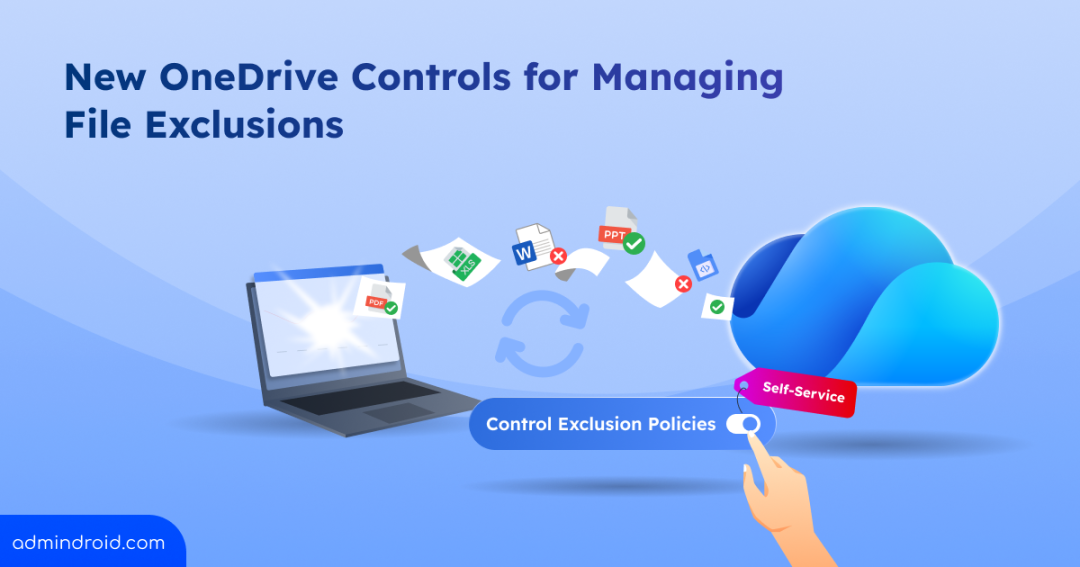
OneDrive allows organizations to exclude specific file types from syncing. However, users currently have no control over these exclusions. Commercial OneDrive users can view the file types excluded by their organization but cannot modify the exclusion list themselves.
Also, frequently changing temporary files such as .db-wal can continue syncing to OneDrive even when they have little value as standalone cloud files, adding unnecessary sync activity.
Microsoft is changing this experience by introducing self-service OneDrive file-level exclusions on Windows and macOS and adding .db-wal files to OneDrive’s default exclusion list. Let’s see what’s changing in OneDrive file syncing, how these new exclusions work, and how admins can control them.
What’s Changing in OneDrive File Syncing?
To give users more flexibility over file exclusions and reduce unnecessary syncing of frequently changing application files, Microsoft is introducing two key changes to OneDrive file syncing:
Self-Service Capability in OneDrive’s File-Level Exclusion
File-level exclusion lets OneDrive skip syncing specific file types to the cloud while keeping those files on the local device. Currently, this is entirely admin-managed, organizations configure exclusions through Group Policy or similar methods, and users have read-only visibility into that list.
After this rollout, Self-service service file-level exclusion will be enabled by default, letting users to add and remove their own file exclusions without depending on IT for every change.
However, self-service does not override administrative controls. Users cannot remove exclusions configured by admins through Group Policy or other organizational policy mechanisms.
Note: Folder-level self-service exclusions are not included in this release. This update applies to file-level exclusions only.
With these changes, users gain more flexibility over their own sync behavior. Now, let’s see how admins can manage the new self-service experience.
Prevent Users from Managing File-Level Exclusions with OneDrive Policy
Organizations that want to preserve the existing administrator-managed experience can enable DisableChangesToODIgnoreList. This is particularly useful when admins need consistent file exclusion settings across managed devices or want to prevent users from changing exclusions that are part of organizational governance requirements.
When this policy is enabled:
- Users cannot add or remove their own file-level exclusions.
- The self-service file exclusion experience is hidden from users.
- Administrators continue to manage file exclusions centrally.
- Users cannot remove exclusions configured through Group Policy or other organizational policy mechanisms.
If the policy is not enabled, the new self-service experience remains available by default, allowing users to manage their own file-level exclusions.
Keep Default-Excluded File Types Syncing in OneDrive
Microsoft will add .db-wal files to the existing default exclusion list, so newly created .db-wal files will be excluded from OneDrive sync by default.
.db-wal files are temporary database files that can change frequently. Excluding them can reduce unnecessary sync activity and keep transient application data from being uploaded to OneDrive.
However, if an application or line-of-business workload requires .db-wal files to sync from a OneDrive-synced location, admins can configure DisableDefaultODIgnoreList to disable Microsoft’s built-in default exclusion list.
Why exclude .db-wal files from OneDrive sync?
- Reduce sync activity: Avoid syncing frequently changing temporary database files.
- Keep transient data local: Prevent temporary application data from being uploaded unnecessarily.
- Save cloud storage: Avoid storing files with little standalone value.
- Improve sync efficiency: Reduce unnecessary background synchronization.
When this policy is enabled:
- Microsoft’s default file exclusion list is disabled.
- .db-wal files can continue syncing to OneDrive.
- Applications that depend on these files can continue using OneDrive synchronization without being affected by the new default exclusion.
Important: The October 5 change applies to newly created .db-wal files. Existing .db-wal files that are already syncing to OneDrive will not be affected.
OneDrive File Exclusion Rollout Timeline
The OneDrive file exclusion changes will roll out on the following timelines:
- File-level exclusion self-service: Early August–early September 2026
- .db-wal default exclusion: October 5, 2026
Recommended Actions for OneDrive Administrators
- Review existing OneDrive policies: Check your current Group Policy and OneDrive sync configurations for existing file exclusions or related restrictions before introducing the new policies.
- Decide who should manage file exclusions: Determine whether your organization wants users to manage their own exclusions or prefers centralized administrative control. If consistent sync settings are required across managed devices, consider enabling DisableChangesToODIgnoreList.
- Identify .db-wal dependencies: Check whether business applications or workloads create .db-wal files in OneDrive-synced locations and determine whether those files need to sync to OneDrive.
- Choose the right default exclusion behavior: If .db-wal files need to continue syncing, enable DisableDefaultODIgnoreList before October 5, 2026. Otherwise, allow the new default exclusion to reduce unnecessary synchronization.
- Pilot the policies: Test the policies with a small group first and verify both the user experience and actual sync behaviour before deploying them broadly.
That’s it! This update gives users more control over file exclusions while keeping key administrative controls intact. The .db-wal exclusion will happen by default, with no action needed unless your organization needs these files to sync.
Before the rollout, decide whether you want full self-service or centralized control, then enable the appropriate policy needed. If you have any doubts about the new OneDrive file exclusion controls, share them in the comments, we’d be happy to help.