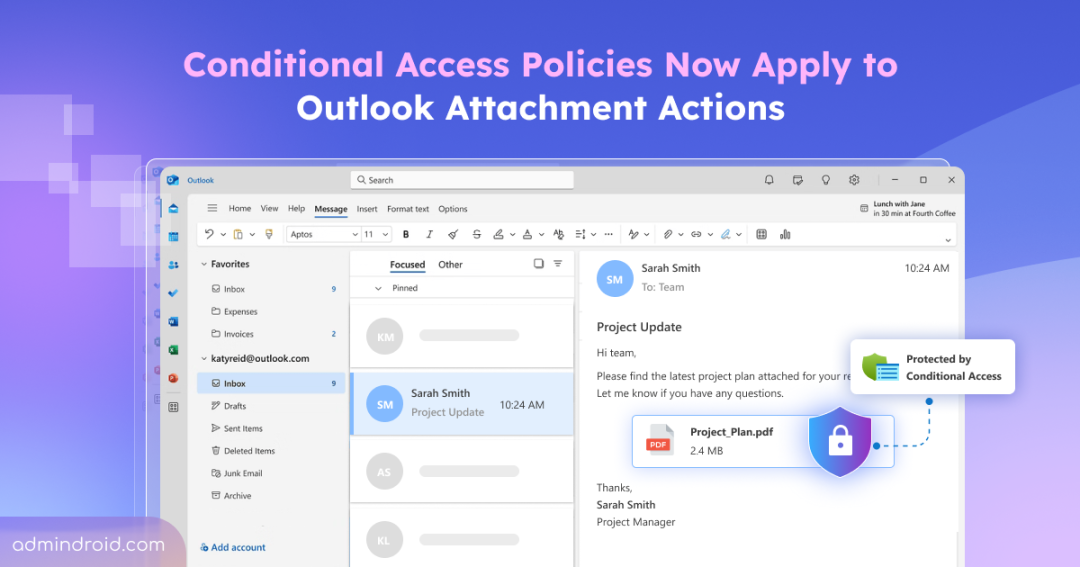
Until now, applying restrictions to Outlook attachment typically involved combining an OWA mailbox policy with Conditional Access. Admins could use this approach to restrict attachment access based on conditions such as device compliance, location, or network.
That works, but it means maintaining two pieces side by side: a mailbox policy assigned to users, and a CA policy that only signals Exchange Online to apply the restriction rather than enforcing it itself.
With the recent update, Microsoft introduced a separate application configuration for Outlook attachments, allowing Conditional Access to enforce security and access controls directly on attachment operations. In this blog, let’s look at how the app works and what admins should check before users start reporting broken attachments.
New OwaDownloadAttachment App for Outlook Attachments in Conditional Access
As part of its security initiatives, Microsoft added an internal application configuration for Outlook attachments named OwaDownloadAttachments. With this new application, standard security and authentication flows for attachments are now handled separately from the mailbox.
Here’s what that means in practice. If a CA policy applies to the attachment app and a targeted user doesn’t satisfy it, that user is blocked from downloading, previewing, or uploading classic attachments, including inline images. This happens even though they can still open and read the mail.
The rollout is currently available across Outlook Web and the New Outlook. This new configuration also changes where Conditional Access policies are evaluated for Outlook attachments, making it important to understand how existing policies will apply.
How Do Existing Conditional Access Policies Apply to Outlook Attachments?
The new OwaDownloadAttachments application follows the Conditional Access policies that are scoped to Exchange and Office cloud applications by default. This means your existing Conditional Access policies can now control Outlook attachment operations without requiring you to create a new policy specifically for attachments.
But there’s an important exception to understand that excluding Exchange Online or Office cloud application from a Conditional Access policy does not automatically exclude Outlook attachments.
Let’s understand this with an example. Imagine, you have a Conditional Access policy that requires users to access Microsoft 365 only from a compliant device. You’ve intentionally excluded Exchange Online resource from this policy because you don’t want it to restrict mailbox access.
A user accessing Outlook from a non-compliant device may still be able to:
- Sign in to Outlook.
- Open their mailbox.
- Read and respond to emails.
However, when the same user tries to preview or download an Excel attachment, the attachment operation can be blocked. This happens because OwaDownloadAttachments is still within the scope of the Conditional Access policy.
So, an Exchange Online exclusion doesn’t necessarily mean “no Conditional Access for Outlook attachments.” If you want an Outlook attachment application to be exempt from a Conditional Access policy, you must explicitly exclude OwaDownloadAttachments from that policy.
This change may look small from an admin’s perspective, but it can create a noticeable change in the user experience. That can quickly turn into the familiar “Outlook is broken” support ticket, even though Outlook itself is working as expected.
To avoid unexpected disruption, now is a good time to prepare your tenant for the new internal application configuration for Outlook attachments.
How to Prepare Your Tenant for Outlook Attachment Conditional Access
Before changing anything in Microsoft Entra, first understand how the new attachment application fits into your existing Conditional Access strategy.
For most organizations, no new Conditional Access policy is required. The new attachment application automatically comes under policies scoped to Exchange and Office cloud applications.
The important question is whether that default behavior matches what you intended when those policies were created. To verify that, work through the following steps:
- Review existing Conditional Access policies
- Decide whether attachments should follow the same CA policies
- Create a service principal for OwaDownloadAttachments
- Exclude OwaDownloadAttachments when required
Step 1: Verify Your Existing Conditional Access Policies
Go through the Conditional Access policies that target Exchange and Office cloud applications and check whether their conditions make sense for attachment operations as well. Pay particular attention to policies that:
- Require a compliant device.
- Restrict access based on location or network.
- Require specific authentication controls.
- Target specific users or groups.
- Explicitly exclude Exchange Online.
The last one deserves special attention. As the exclusion does not automatically apply to Outlook attachments, the user may therefore be able to access their mailbox while the same policy still blocks them from downloading, previewing, or uploading an attachment.
Since identifying all Conditional Access policies along with their targeted resources is not straightforward in the Microsoft Entra admin center, use the PowerShell script below to export this information.
Download the
ExportCAPolicies.ps1 script to list all Conditional Access policies, including their included and excluded resources and other policy details.
Step 2: Decide Whether Attachments Should Follow the Same Policy
Once you’ve reviewed your policies, decide whether the default behavior is what you want.
If you want your existing Conditional Access requirements to apply to Outlook attachments, you don’t need to do anything further. If you want attachment operations to be treated differently from mailbox access, you can explicitly manage the OwaDownloadAttachments application in Conditional Access.
For example, you may have a policy where Exchange Online is excluded because you don’t want it to restrict mailbox access. If attachments should also be exempt from that policy, you need to explicitly exclude OwaDownloadAttachments.
And this is where there’s one additional setup step is required: the attachment application must have a service principal in your tenant before you can select it for exclusion.
Step 3: Create the OwaDownloadAttachments Service Principal
Microsoft doesn’t automatically create a service principal for this application in every tenant. If you want to manage the application separately in Conditional Access, you need to create one first using Microsoft Graph Explorer.
You’ll need the Cloud Application Administrator or Global Administrator role to perform this setup.
1. Open Microsoft Graph Explorer and sign in with an administrator account.
2. Set the HTTP request method to POST and enter the following API in the HTTP request URL.
|
1 |
https://graph.microsoft.com/v1.0/servicePrincipals |
3. Enter the application ID as follow in the Request body.
|
1 |
{ "appId": "e4f2bb2d-a4d0-4eab-aac6-a8b83471cf64" } |
Make sure the required Application.ReadWrite.All permission has been consented to.
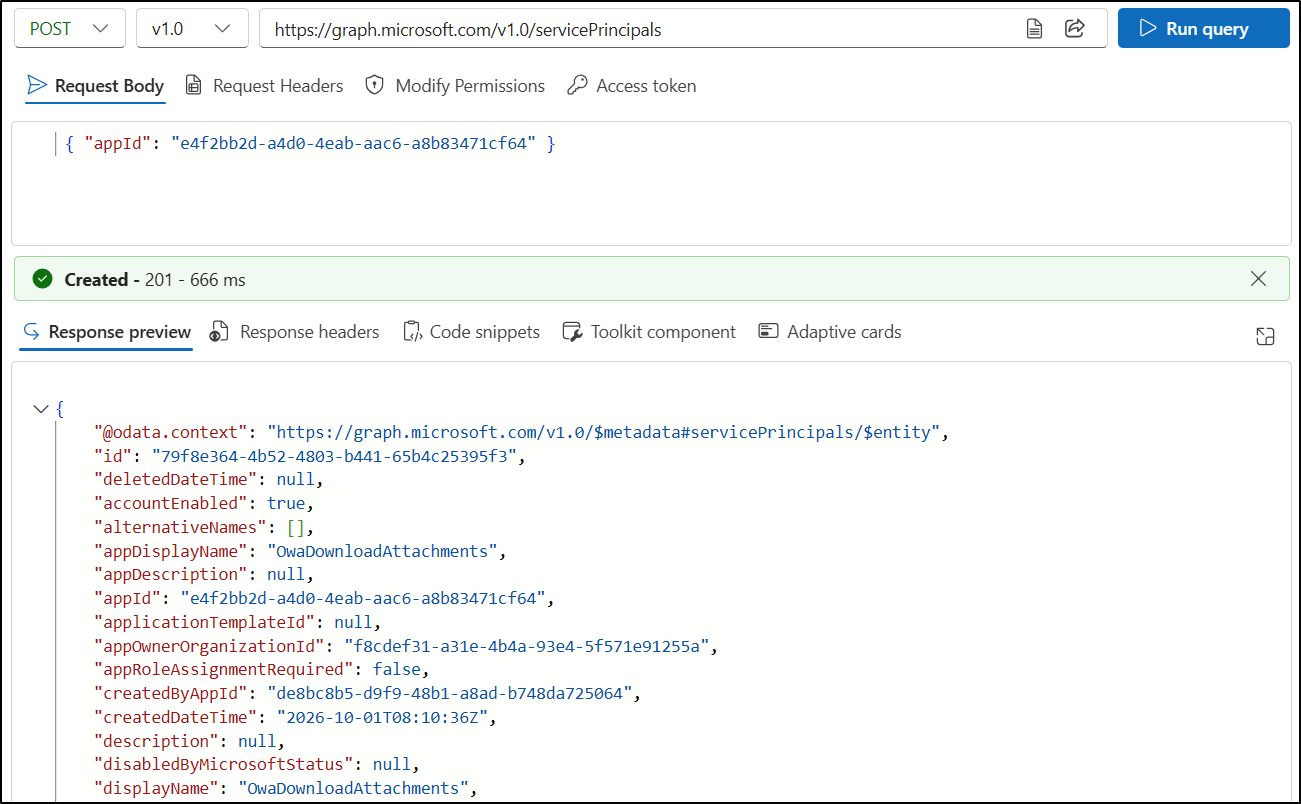
If the request is successful, Microsoft Graph returns 201 Created, and the service principal appears with the display name OwaDownloadAttachments.
If Microsoft Graph reports that the service principal already exists, you don’t need to create it again. You can proceed to configuring your Conditional Access policy.
Step 4: Exclude Outlook Attachments from a Conditional Access Policy
Once the service principal exists, you can explicitly exclude the attachment application from a policy.
- Open the Microsoft Entra admin center and go to Entra ID -> Conditional Access -> Policies.
- Select the policy you want to modify and choose View or Edit.
- Open Target resources.
- Under Exclude, choose Select resources.
- Search for OwaDownloadAttachments.
- Select the application and save the policy.
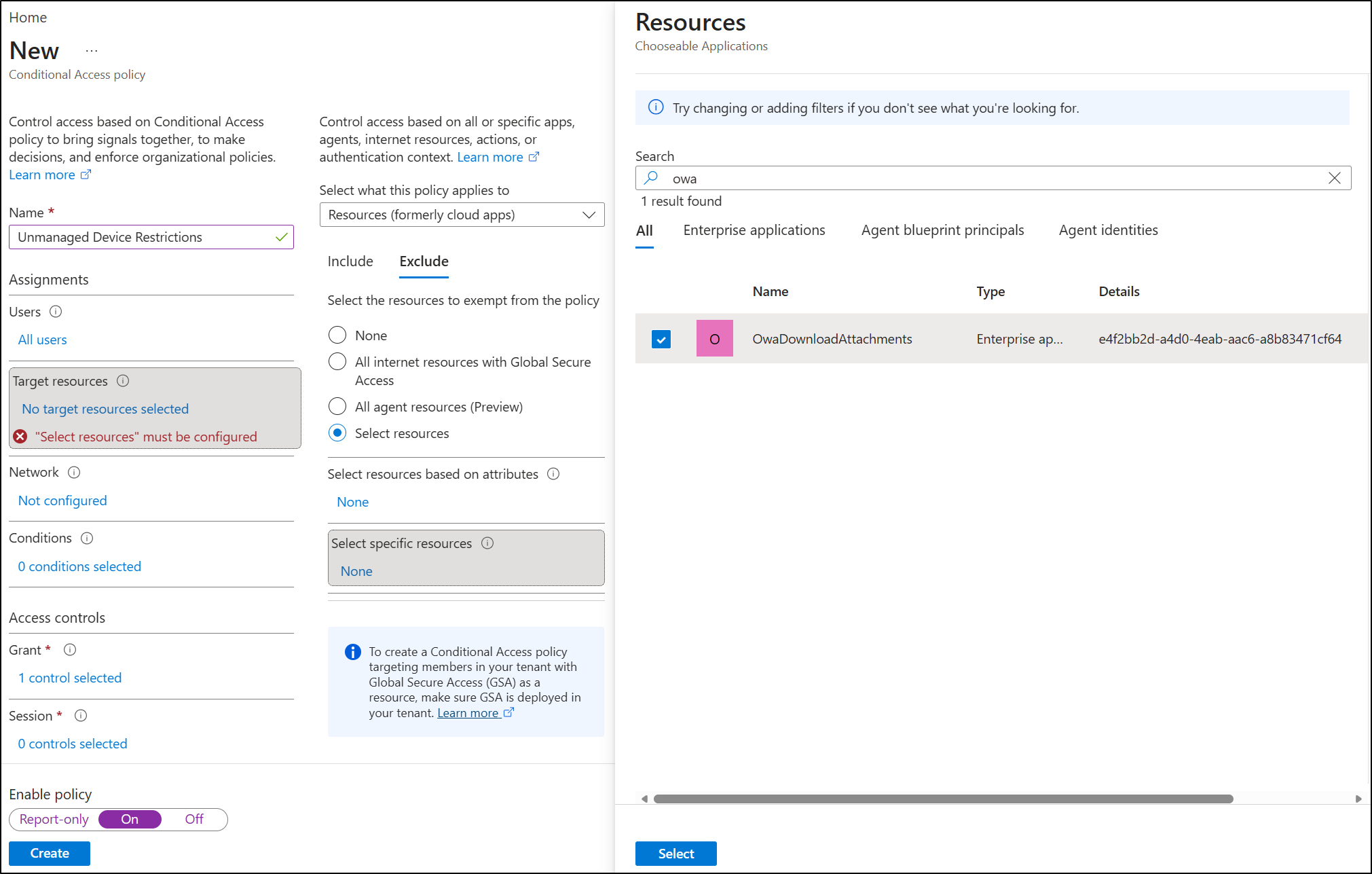
The exclusion applies only to that Conditional Access policy. If multiple policies need to exempt attachment operations, you’ll need to configure the exclusion in each applicable policy.
But the configuration change is only one part of the rollout. Update your internal documentation and help desk guidance and notify users if your Conditional Access policies are likely to affect attachment access. This will help support teams distinguish a policy-enforced attachment block from a genuine Outlook issue and reduce confusing “Outlook is broken” tickets.
What Is Still Coming for Outlook Attachment Policies in Microsoft 365?
The initial rollout isn’t the end of Microsoft’s work on Conditional Access for Outlook attachments. Microsoft has identified two follow-up enhancements that are expected in the coming weeks.
- User sign-in prompt for remediation – Microsoft is working on a capability to prompt users to sign in again when reauthentication may restore attachment functionality. The experience will depend on the applicable Conditional Access policy. If the user still doesn’t satisfy the policy requirements, signing in again won’t bypass the policy, and attachment operations will remain blocked.
- Continuous Access Evaluation – Microsoft plans to add CAE support in a future update. Until then, admins shouldn’t assume that CAE capabilities available for other Microsoft 365 applications also apply to OwaDownloadAttachments.
The introduction of OwaDownloadAttachments gives Conditional Access a dedicated control point for Outlook attachment operations. Review your current Conditional Access settings and test your tenant to make sure the new behavior aligns with your organization’s access requirements.
We hope this blog helped you understand the change and prepare your tenant for the new Outlook attachment controls. If you have any questions or run into unexpected attachment access issues, feel free to share them in the comments.