Whenever users share important documents, files, or folders from SharePoint or OneDrive, they select the recipients and set the required access permissions before sending the link. If they need to update access later, they may have to create and share a new link, which can lead to multiple links for the same file. Managing different sharing links can make these changes harder to track.
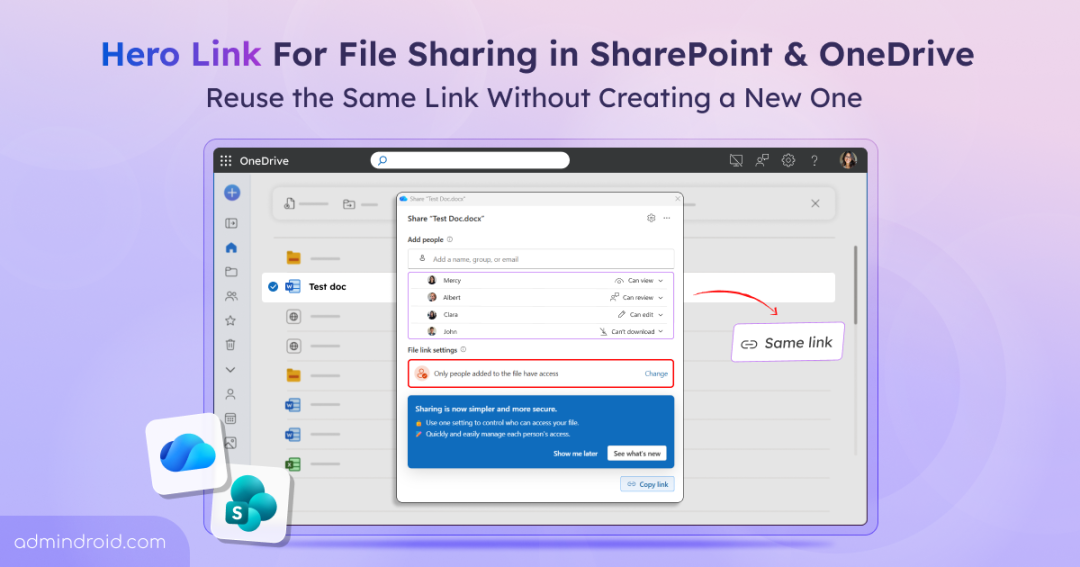
Microsoft addresses this with hero link, a new sharing experience in SharePoint and OneDrive. It gives each file or folder a primary sharing link that users can update as access requirements change. In this blog, let’s explore about hero link and how they simplify file sharing in SharePoint and OneDrive.
What is Hero Link in SharePoint and OneDrive
A hero link is the primary sharing link associated with a file or folder in SharePoint or OneDrive. It provides a single, persistent URL across standard sharing actions that includes copying a link, sharing through email, and copying the URL from the browser’s address bar.
With hero link, users can update the primary link’s audience and permissions without generating a new URL or asking recipients to replace the link they already have. The existing link reflects the updated access, so recipients can continue using the same link.
For example, suppose you share a project document with a colleague, but another team member later needs access. You can update the hero link’s audience, subject to your organization’s sharing policies, rather than creating and sharing another link.
Now, let’s see how to access the SharePoint hero link.
How to Share Files and Folders Using Microsoft 365 Hero Links
The updated sharing dialog brings access settings together in one place for a simpler sharing experience. First-time users can follow a short tutorial to get started and revisit it whenever needed. Follow these steps to share a file or folder.
- Sign in to the SharePoint or OneDrive using your work or school account.
- Select a file or folder and click Share to open the sharing dialog.
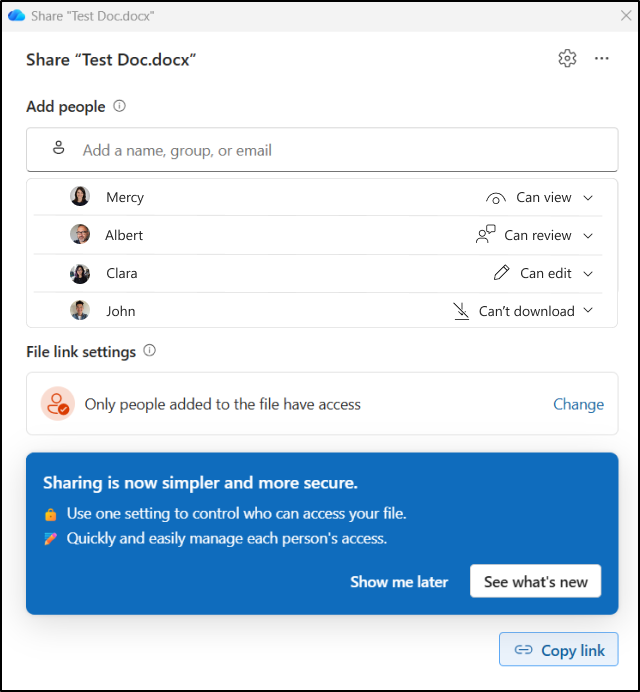
- Enter the names or email addresses of the people you want to share the file with.
- Then, select the permission level they need, such as Can view, Can edit, Can review, or Can’t download. The available options depend on your tenant and site settings.
- Under the File link settings, select Change to review the available audience options.
- Only people added to the file have access: This is the default permission where only people explicitly granted access can open the file.
- People in your org with the link: Anyone in your organization who has the link can open the file.
- Anyone: Anyone with the link can open the file. This option is available only when anonymous sharing is enabled.
- Once the sharing settings are configured, you can share the file through email or copy the link using Copy link.
If you need to change who can access the file later, return to the sharing dialog and update the Hero link’s settings.
Manage File Sharing Settings of OneDrive Hero Link
The sharing dialog provides two advanced actions to help manage Hero links:
- People with edit access can reshare: Allows users who have edit access to update file link settings and add other people. Enable only when trusted editors need sharing control.
- Apply folder access changes to this item: Updates the file’s access permissions to reflect changes made to its parent folder.
- Reset link: Use this option if a Hero link has been exposed or misused. It generates a new URL and invalidates the old one, preventing people from using the old link to access the file. Share the new URL with intended recipients who need link-based access.
- Remove access: Use this option when you want to revoke access granted through the Hero link. It removes permissions associated with the link, except the owner’s access. This action does not restore permission inheritance for the item.
Hero Link vs. Previous Sharing Links in Microsoft 365
To understand the differences better, let’s compare how sharing links worked before Hero Links and how they work now.
| Feature | Previous sharing experience | Hero Link experience |
| Links per item | Multiple sharing links could exist for the same file or folder. | One primary sharing link is used across standard sharing actions. |
| Changing access | Changing the audience or permissions could involve creating and sharing a new link. | Update the audience or permissions on the same link. |
| Copy link, email, and browser URL | These actions could produce different links. | These actions lead to the same primary link. |
| Default audience | Depends on the tenant’s or site’s default link settings. | Defaults to people already added to the file or folder. |
| Managing access | Sharing and access management could involve separate views. | Sharing and access management are combined in one dialog. |
Key Considerations to Remember When Using Hero Links
Hero links simplify file sharing, but there are a few important considerations to keep in mind. Here are the key points to remember.
- Changes to link access affect everyone using it: Widening the audience can grant access to additional people wherever the same link has been shared, including email messages, Teams chats, and other locations. Review the intended audience before applying changes.
- Existing sharing links still work: Existing links appear under Other sharing links and must be removed manually if they are no longer needed. Some links, such as those with expiration settings, may remain separate.
- Permission inheritance changes: Creating the first Hero link breaks the file or folder’s permission inheritance from the document library. Review item-level permissions when needed.
- Sharing policies still apply: Hero link follows your tenant’s and site’s sharing restrictions. For example, users can select the Anyone audience only if anonymous sharing is allowed.
- Default settings require admin planning: Admins can configure DefaultMainLinkScope per site collection or OneDrive account using SharePoint Online PowerShell. A tenant-wide setting is not currently available.
That’s all! I hope this blog helped you understand Hero links in SharePoint and OneDrive. If you have any questions or experiences to share, let us know in the comments section. Stay tuned for more blogs!