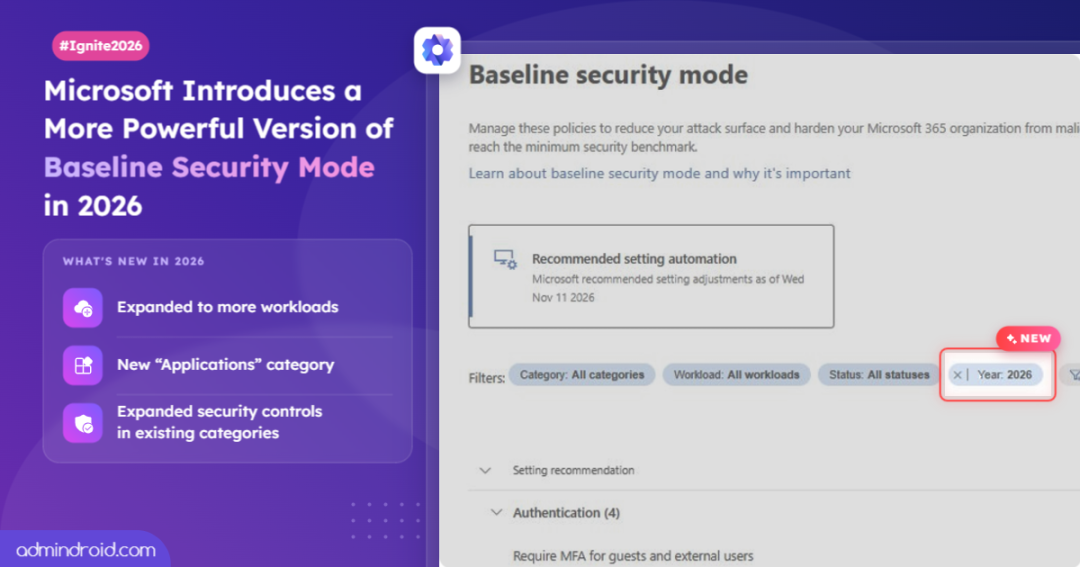
Baseline Security Mode (BSM) was introduced at Ignite 2025 as Microsoft’s step toward a secure-by-default ecosystem. It gave admins a single place to apply Microsoft-recommended security settings across Microsoft 365 and Entra, so the tenant is secure by default.
Now, at Ignite 2026, BSM builds on that foundation with 24 new settings, more workload support, and coverage extending to Azure and Windows.
Let’s explore what’s new and how these updates help organizations strengthen their security foundation.
What’s New in Microsoft Baseline Security Mode 2026
BSM 2026 is now generally available, apart from the features marked Private Preview below. It’s rolling out in phases across all supported Microsoft 365 cloud environments.
Here are the key new features included in this release:
- 24 New Baseline Policies:On top of the 20 existing baseline policies, this release introduces 24 additional settings across Authentication, Devices, and Applications.
- New “Applications” Category: BSM now has a fourth category, Applications, alongside Devices, Files, and Authentication.
- Expanded Workload Support: Baseline Security Mode (BSM) initially covered 5 core workloads: Office, SharePoint, Teams, Exchange, and Microsoft Entra. It now extends to 5 more: Intune, Purview, Dynamics 365, Azure (Private Preview), and Windows (Private Preview).
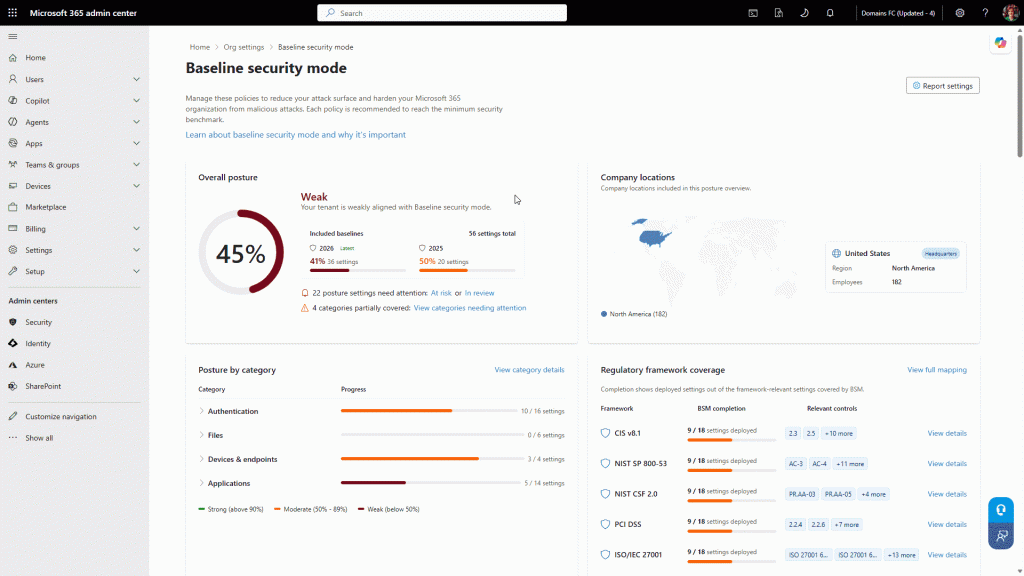
- Management enhancements (Private Preview): A dashboard, downloadable reports, regulatory framework mapping, and Multi-Geo views make BSM easier to manage.
Here’s how the settings break down by category:
| Category | Existing number of settings | Number of settings added | Total |
| Authentication | 12 | 4 | 16 |
| Devices | 2 | 4 | 6 |
| Files | 6 | – | – |
| Applications | – | 16 | 16 |
| Total | 20 | 24 | 44 |
Now, let’s look at each update in detail, starting with the new settings added to the existing BSM categories.
Authentication and Device Security Settings in BSM 2026
Baseline Security Mode 2026 adds 8 new settings to the Authentication and Devices categories. No new settings have been added to the Files category.
Authentication: 4 new security settings are added in this category to strengthen identity and access protection across Microsoft 365 and Entra.
- Don’t allow Microsoft 365 trial tenants to federate with your organization -Trial tenants are easy to create, so blocking federation with them reduces the risk of unwanted external trust.
- Block external apps from using pre-authenticated tokens to access OneDrive and SharePoint content – Stops external applications from reaching files through pre-authenticated tokens.
- Enable Continuous Access Evaluation (CAE) – Lets Entra revoke access almost immediately when a user’s conditions change, such as account disablement or a password reset.
- Require MFA (multi-factor authentication) for guests and external users – Makes guests and external users verify their identity with MFA before they reach organizational resources.
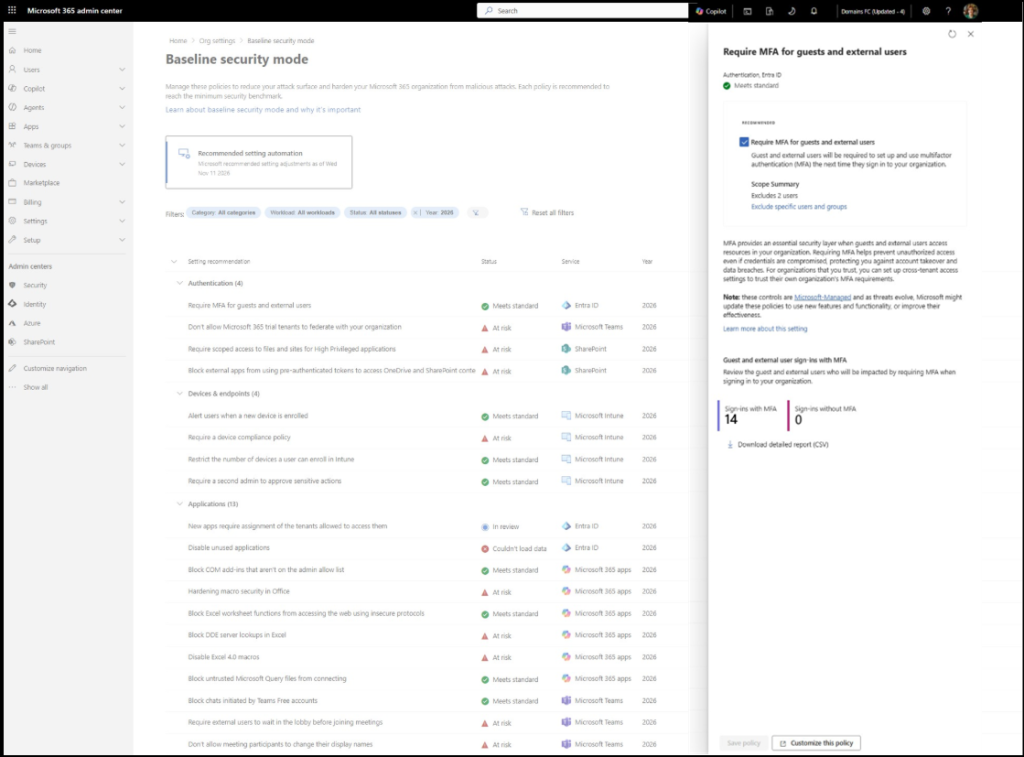
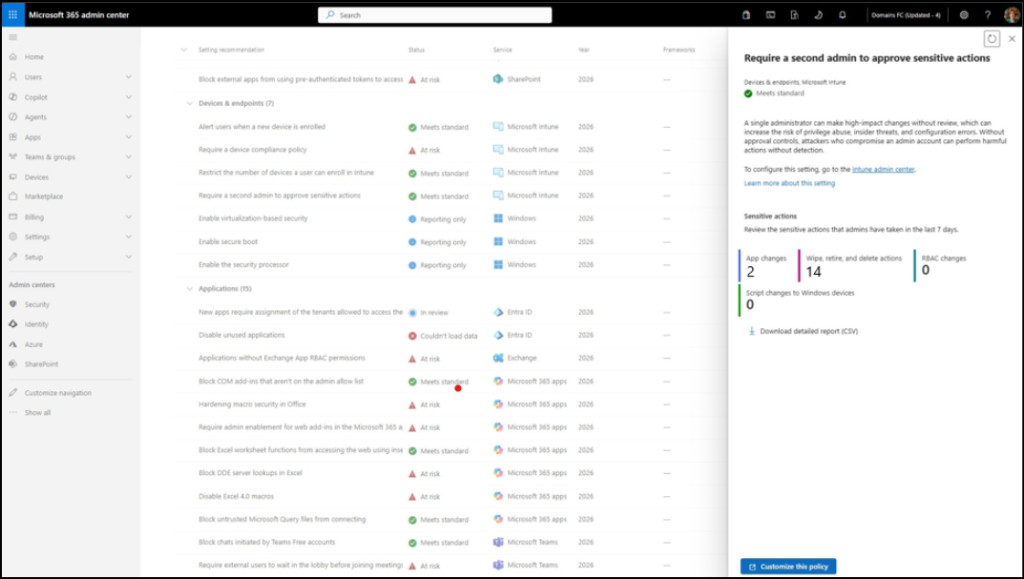
Devices & Endpoints: BSM 2026 adds 4 new security settings under Devices and Endpoints, extending Microsoft Intune device management and endpoint security capabilities.
- Alert users when a new device is enrolled – Notifies users whenever a device is enrolled in their name, so they can spot unexpected enrollments.
- Require a device compliance policy – Marks devices that have compliance policy as noncompliant, instead of treating them as compliant by default.
- Restrict the number of devices a user can enroll – Caps enrollments per user, so one account can’t enroll an unlimited number of devices.
- Require a second admin to approve sensitive actions – Adds multi-admin approval for sensitive Microsoft Intune actions like device wiping, so no single admin can make the change alone.
Next, let’s look at the new Applications category.
Applications Security Control in Baseline Security Mode
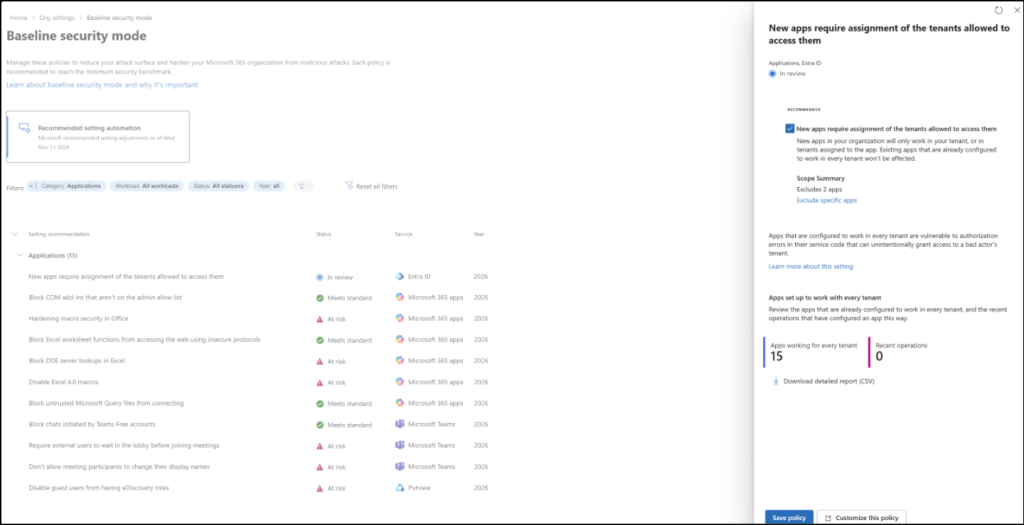
Apps often have broad access to organizational data, so excessive permissions and insecure configurations are a real risk. The new Applications category adds 16 settings that limit that access and tighten app configurations.
Microsoft Entra:
- New apps require assignment of the tenants allowed to access them – Lets admins choose which tenants can access newly registered apps, limiting cross-tenant use.
Purview
- Disable guest users from having eDiscovery roles – Blocks default privileged role assignments to external guests, limiting unauthorized access to sensitive content. Existing assignments remain unaffected.
- Block new guests from being assigned eDiscovery roles – Stops eDiscovery admins from assigning eDiscovery roles to new guest accounts, since these roles can search and export Microsoft 365 data. Existing guests keep their access.
Dynamics 365
- Block apps and flows from connecting to external tenants – Stops Power Platform apps and Power Automate flows from using Entra authentication to reach external tenants without authorization.
Exchange Online
- Block applications without Exchange RBAC permissions – Finds apps with unrestricted Exchange access and replaces their Entra permissions with scoped RBAC permissions, limiting mailbox access and data exposure.
Microsoft Office
- Block COM add-ins that aren’t on the admin allow list – Allows only administrator-approved COM add-ins to run in Microsoft 365 apps, , keeping untrusted add-ins out and giving admins central control.
- Harden macro security in Office – Adds runtime checks, stricter signatures for always-loaded macros, and tighter publisher trust, making it harder for malicious VBA macros to run.
- Block Excel worksheet functions from accessing the web using insecure protocols – Stops worksheet functions from pulling external data over protocols like HTTP, which risk interception or tampering.
- Block DDE server lookups in Excel – Turns off legacy Dynamic Data Exchange (DDE) lookups, which attackers can abuse to run commands or reach external data without macros.
- Disable Excel 4.0 macros – Turns off legacy XLM (XL4) macros to reduce the risk of malicious macros. Existing automation can move to VBA, which has stronger security controls.
- Block untrusted Microsoft Query files from connecting – Stops Mark of the Web (internet-downloaded) Query files (.iqy, .oqy, .dqy, .rqy) from making external data connections. Applies only to these types.
SharePoint and OneDrive
- Block creation and editing of classic pages in SharePoint sites – Prevents users from creating or editing classic pages, reducing outdated-framework and script-injection risks.
- Block third-party applications that use HPA permissions to files and sites in SharePoint and OneDrive – Blocks third-party apps using High-Privileged-Access (HPA) permissions to SharePoint and OneDrive unless scoped or admin-approved.
Microsoft Teams
- Require external users to wait in the lobby before joining meetings – Lets organizers verify external attendees and admit only invited participants.
- Don’t allow meeting participants to change their display names – Prevents anyone from renaming themselves mid-meeting to impersonate an executive, organizer, or colleague.
Next, let’s look at how BSM extends to Azure and Windows. Both are in Private Preview, while Intune, Purview, and Dynamics 365 support is already generally available.
Azure Baseline Settings in BSM (Private Preview)
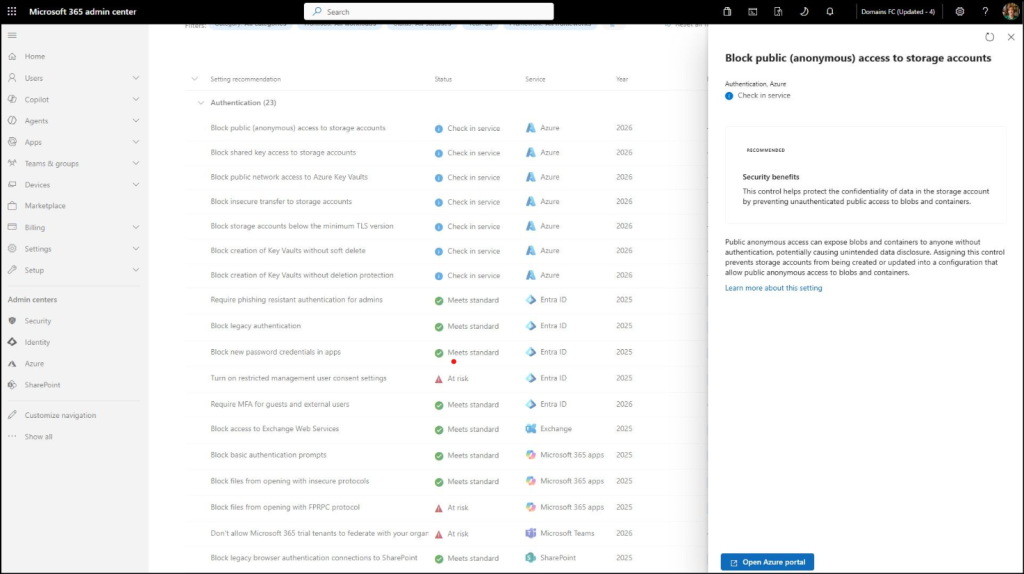
BSM adds 7 Azure settings, 4 for Storage and 3 for Key Vault. They protect two common targets: data in storage accounts and secrets in key vaults. The settings are Azure Policy-based, so admins can check the impact before enforcing them.
Azure Storage Security Settings
- Block insecure transfer to storage accounts – Rejects unencrypted HTTP connections, so data in transit can’t be intercepted or tampered with.
- Block public (anonymous) access to storage accounts – Stops anonymous access to blobs and containers, so nothing in storage can be read without authentication.
- Block storage accounts below the minimum TLS version – Enforces a minimum TLS version, shutting out outdated protocols that expose data transfers to attacks.
- Block shared key access to storage accounts – Disables Shared Key authorization, reducing reliance on account access keys and moving access to identity-based authentication.
Azure Key Vault Security Settings
- Block public network access to Azure Key Vaults – Keeps vault endpoints off untrusted networks by disabling public access.
- Block creation of Key Vaults without soft delete – Requires soft delete, so deleted vaults and their keys, secrets, and certificates can be recovered during the retention period.
- Block creation of Key Vaults without purge protection – Requires purge protection, so a deleted vault can’t be permanently erased during the retention period.
Windows Baseline Protection in BSM (Private Preview)
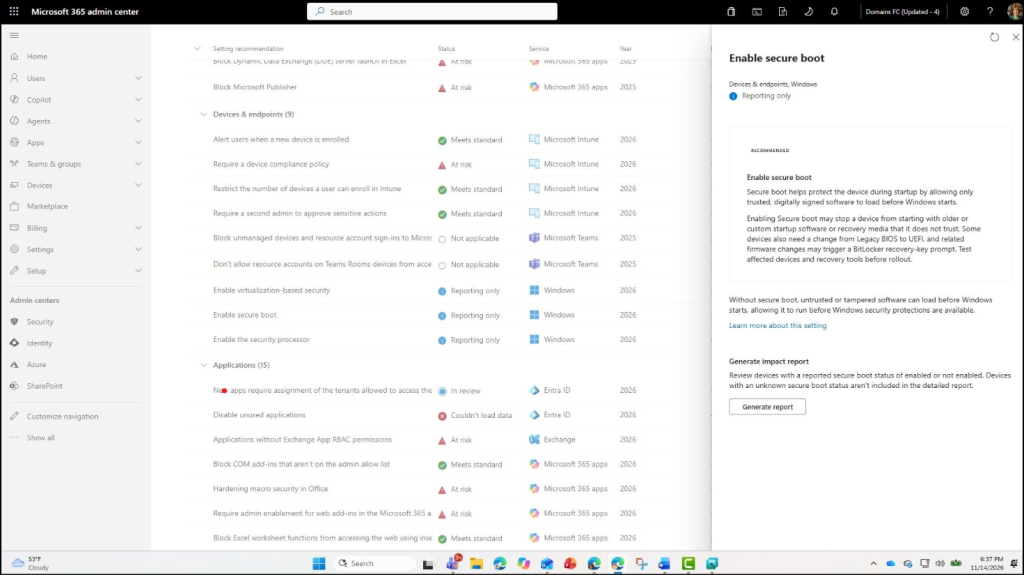
Windows baseline protection sets 8 security requirements for a device. BSM brings three of them into the admin center in Private Preview.
Available in BSM (Private Preview):
- Require a security processor – Uses a Trusted Platform Module (TPM) to keep credentials and cryptographic keys protected in hardware.
- Enable Secure Boot – Verifies boot components before they load, so untrusted software can’t run during startup.
- Enable Virtualization-Based Security (VBS) – Uses virtualization to isolate critical Windows processes and security operations from the rest of the system.
Also part of Windows baseline protection:
- Enable Memory Integrity – Builds on VBS to block malicious code from running in the kernel.
- Allow only signed drivers – Checks every driver’s digital signature, so tampered or unknown drivers can’t load.
- Allow only Windows-certified drivers – Allows only drivers that meet Windows hardware signing requirements.
- Restrict kernel debugging – Stops tools from bypassing Windows security protections.
- Block vulnerable drivers – Stops known vulnerable drivers from loading, since they can weaken Windows security.
New BSM Dashboard, Reporting, and Compliance Features
BSM 2026 also adds 4 admin-focused features to make BSM easier to manage. These are currently in Private Preview.
- Action-Oriented Dashboard: Shows your BSM security posture in one place and highlights the settings that need attention, so admins can prioritize fixes.
- Downloadable Security and Compliance Reports: Lets admins download security and compliance reports to share BSM progress with stakeholders and use in reviews.
- Regulatory Framework Mapping: Shows how each BSM setting relates to regulatory frameworks and compliance requirements. BSM doesn’t guarantee compliance, and organizations remain responsible for their own obligations.
- Geo Locations (for Multi-Geo tenants): Shows BSM security posture by location.
What’s Next for Baseline Security Mode
Microsoft plans to make BSM 2025 settings the default configuration for all new Microsoft 365 tenants. It strongly encourages existing Microsoft 365 and Entra customers to opt in to them. It also plans to bring BSM to on-premises servers through On-Premises Baseline Security Mode, starting with:
- Exchange Server
- SharePoint Server
- Skype for Business Server
The aim is a validated, secure-by-default configuration from the first deployment, with fewer settings for admins to configure manually. Watch for updates on the Azure, Windows, and management features still in Private Preview.