Many Microsoft 365 tenants still operate with weak or outdated security configurations, often because admins delay enforcement, rely on legacy settings, or simply avoid changes that could disrupt users. This creates a massive gap between what organizations should enforce and what they actually configure in their environment.
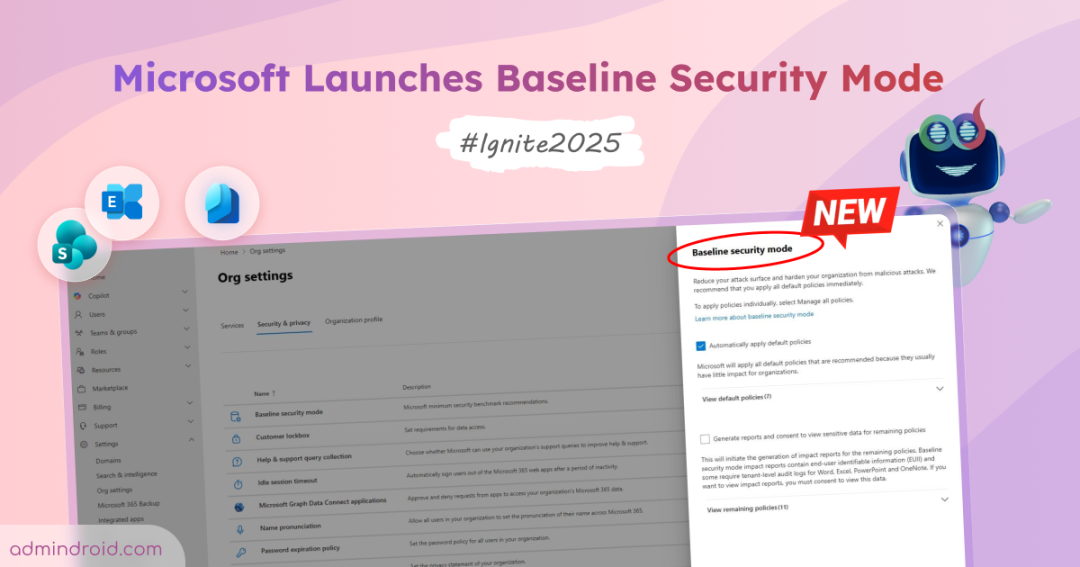
At Microsoft Ignite 2025, Microsoft introduced Baseline Security Mode (BSM) to close this gap. This new capability establishes a mandatory security baseline that ensures every tenant meets a minimum level of protection, whether or not the admin has explicitly configured it. Instead of leaving critical security choices optional, Microsoft is shifting core protections into an enforced, secure-by-default model.
In this blog, we’ll break down what Baseline Security Mode includes, what it replaces, and what it means for your tenant going forward.
What is Microsoft Baseline Security Mode (BSM)?
Microsoft Baseline Security Mode (BSM) is a new tenant-wide security baseline that automatically applies Microsoft’s essential protection settings for you. Instead of relying on admins to configure every security control manually, BSM ensures every organization starts with a strong, modern security foundation by default.
Introduced as part of Secure Future Initiative (SFI), BSM uses Microsoft’s real-world security insights to enforce a minimum level of protection across your environment. When it’s enabled, the tenant gets a set of secure-by-default configurations that block outdated behaviors and turn on key security controls that many organizations still miss.
As part of its first rollout, BSM includes 20 baseline policies across 5 major Microsoft services. These policies replace scattered or PowerShell-only configurations with a consistent, enforced security baseline for every tenant.
Rollout of Microsoft Baseline Security Mode
Microsoft is introducing Baseline Security Mode (BSM) through a phased rollout rather than a single release. General availability begins in November 2025, with additional baseline configurations planned as part of future updates.
BSM is opt-in during this initial phase, giving admins the flexibility to enable it when ready. As new controls are added in future phases, Microsoft will issue advance Message Center notifications so organizations can prepare before changes take effect.
Baseline Security Mode will be available across all Microsoft 365 subscriptions and plans. This gives every tenant access to the same standardized security foundation.
In this first phase, Microsoft is focusing on 3 core security areas:
- Authentication – Includes 12 configuration settings that block weak or outdated authentication methods.
- Files – Provides 6 configurations that limit risky file behaviour and enforce safer document handling.
- Room devices – Offers 2 configurations that allow only managed & compliant devices to connect.
These security settings extend across 5 major Microsoft 365 services such as Office, Exchange, Teams, SharePoint/OneDrive, and Entra. And together, they establish the initial layer of Microsoft’s new secure-by-default model.
How to Enable Microsoft Baseline Security Mode in Microsoft 365 Admin Center?
Before you begin, ensure that you are signed in as a Security Administrator or Global Administrator. Also ensure your tenant has access to BSM (the rollout may appear gradually).
Once it’s available, you can follow the below procedure to enable Microsoft Baseline Security Mode:
- Sign in to the Microsoft 365 admin center.
- Navigating to Settings → Org settings and switch to Security & Privacy tab.
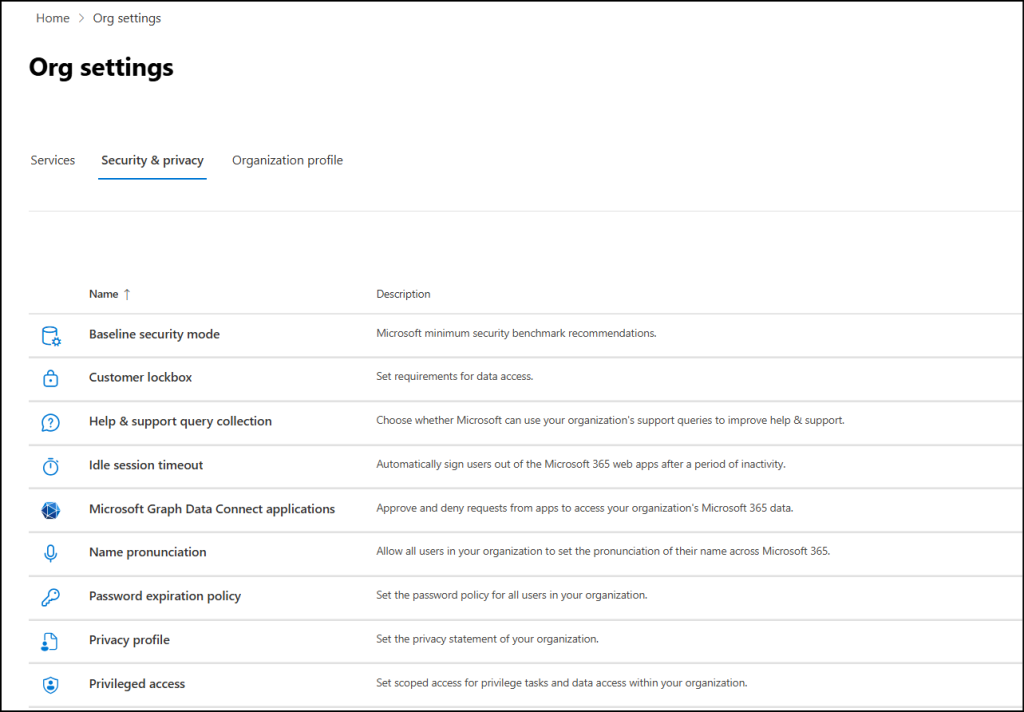
- Here, click Baseline Security Mode and now you can see two options available here.
- Automatically apply default policies – When you turn on this option, Microsoft applies 7 default baseline controls right away. These are low-impact policies that Microsoft considers safe for most organizations, so they don’t require any simulation or review before being enabled. You can expand the drop-down to see the full list of these default policies.
- Generate to report and consent to view sensitive data for remaining policies – Choosing this option runs the remaining 11 policies in simulation mode and generates an impact report. The report may include end-user identifiable information (EUII) and relies on tenant-level audit logs for Word, Excel, PowerPoint, and OneNote. You must provide consent to access this data. You can also expand the drop-down here to view all remaining policies that are included in the report.
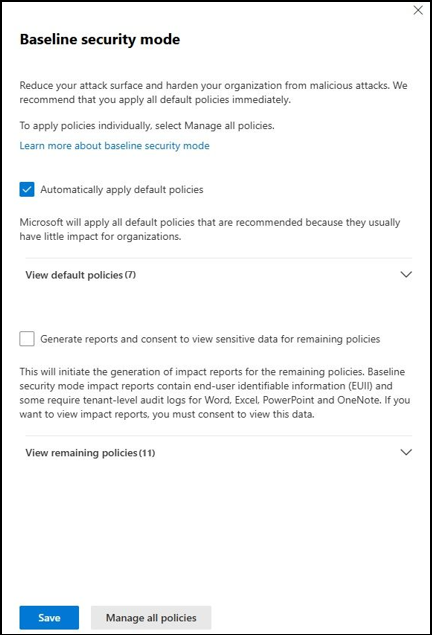
- Choose the option you want to proceed with, then click Save to apply your changes.
That’s it! Microsoft will automatically evaluate and apply the baseline configurations on an ongoing basis. In the Overview page, you can also view BSM insights, including the Progress to Meet Standard scale, which shows:
- How many policies are currently applied
- Your tenant’s progress toward the full baseline
- Comparison against the baseline standard
Practical Ways to Use Baseline Security Mode in Your Tenant
Now that we’ve seen how to enable BSM, let’s get into know how to use it effectively.
- Use built-in policy sets: BSM includes predefined policies that apply modern security controls across your tenant. For example:
- Require Phishing-resistant MFA for admins policy enforces strong authentication (FIDO2, passkey, etc) for all admin accounts. So, in such cases, you can make use of exclude capability, and exclude specific users or service accounts temporarily if needed (e.g., testing, business-critical workflows).
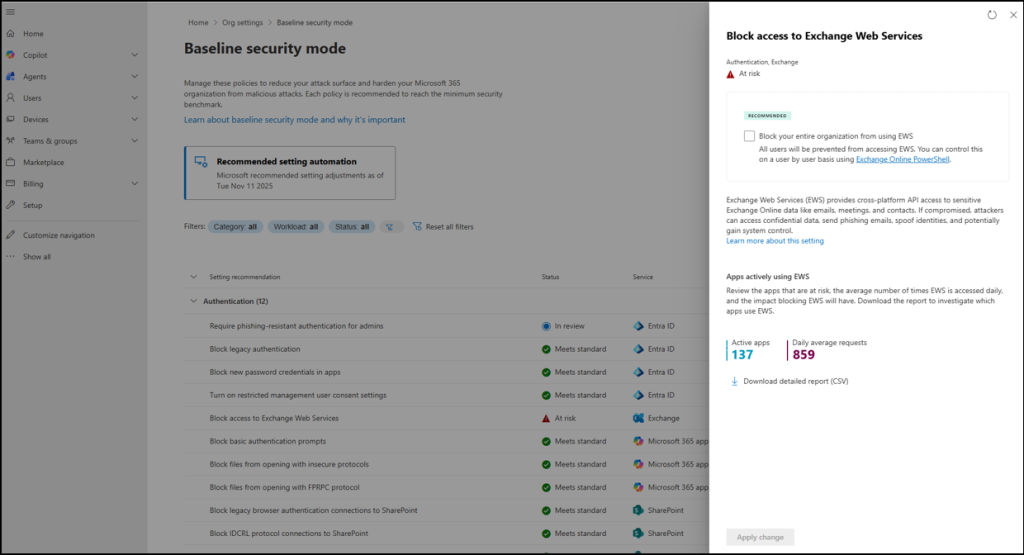
- Another example: Block access to Exchange Web Services – For settings like this, avoid enforcing the block immediately. First, use the built-in insights to identify which apps are still using EWS or legacy authentication. In the Consent or telemetry tab, you can view active apps, daily request patterns, and download CSV reports. After app owners migrate to modern protocols, you can safely enforce the block.
- Run simulation / impact review before enforcement:
- BSM policies support a monitor-only or report mode. This lets you preview the impact before enforcing anything. So, use the generated impact reports to observe which users, apps or devices will be affected in beforehand.
- The reports may display end-user identifiable information (EUII) and require tenant-level audit logs.
- If you find critical dependencies (e.g., legacy apps, unsupported workflows), schedule a pilot group, or add them to exclusions.
Remember: BSM isn’t a “set and forget” feature, Microsoft will continuously add new policies and update existing ones regularly under the secure-by-default journey. You can disable, re-enable, or enable individual settings for a limited period to observe their behaviour and impact in your environment.
Security Areas and Policies Covered by Baseline Security Mode
Baseline Security Mode groups its protection into three core security areas:
- Authentication policies in Baseline Security Mode
- File protection policies in Baseline Security Mode
- Room device security controls in Baseline Security Mode
Each area addresses a different set of risks inside Microsoft 365. Instead of leaving these controls optional or scattered across multiple portals, BSM enforces a consistent security baseline using a defined set of policies.
Each area includes its own policy bundle. These policies either restrict unsafe actions, block legacy components, or enforce secure alternatives. Below is a clear breakdown of what BSM covers in each of the three areas and how these policies strengthen your environment.
1. Authentication Policies in Baseline Security Mode
Authentication determines who can access your Microsoft 365 environment. Weak or outdated sign-in methods are a common entry point for attackers.
BSM strengthens authentication by eliminating insecure methods, blocking legacy protocols, and enforcing modern defaults. It applies 12 authentication-related policies, including:
- Require phishing-resistant authentication for admins – This setting enforces phishing-resistant MFA for admin accounts. Since admin accounts are highly privileged and are prime targets, enabling it blocks unauthorized access and aligns with Entra security best practices.
- Block legacy authentication – Disables the legacy protocols that don’t support MFA to reduce credential stuffing and password spray attacks. For better security, you can migrate users to modern authentication methods instead.
- Block new password credentials in apps – Prevents adding password-based credentials to apps to reduce unauthorized access and credential compromise. This is to make you move to more secure methods
- Turn on restricted management user consent settings – This is a default policy in BSM. It updates the Microsoft Entra user consent settings to restricts users from granting consents to apps in your tenant or to Microsoft 365 certified apps. This allows the organization to control which essential apps and add-ins can be approved for users.
- Block access to Exchange Web Services – By restricting access to EWS, you can stop attackers from exploiting it to access sensitive data, send phishing emails, spoof identities, or take over accounts, thereby enhancing Exchange security.
- Block basic authentication prompts – Disables outdated basic authentication prompts by default, that transmits credentials in a way that could be easily intercepted or stolen. Thus, it locks down credential theft, phishing attacks, and access attempts made over unsecured networks.
- Block files from opening with insecure protocols – This default policy restricts users from opening files over insecure protocols like HTTP and FTP. This helps prevent attackers to access sensitive file content and reduces man-in-the-middle attacks.
- Block files from opening with FPRPC protocol – This default policy restricts file access through the outdated FrontPage Remote Procedure Call protocol. Thus, it closes the path for attackers to execute malicious commands or compromise systems.
- Block legacy browser authentication connections to SharePoint – Blocks legacy authentication for all apps to reduce brute-force and phishing attacks. This also provides reports that show the resources accessed, along with the date and time. Keep in mind that it may take up to 24 hours for the policy to fully take effect.
- Block IDCRL protocol connections to SharePoint – Prevents users from using legacy Identity Client Runtime Library protocol to access SharePoint and OneDrive resources. Similar to the previous policy, it works in the same way, generate reports, and may take up to 24 hours to take effect.
- Don’t allow new custom scripts in OneDrive and SharePoint sites – Blocks the addition of new custom scripts in SharePoint and OneDrive sites permanently. This prevents unwanted changes to site behaviour and keeps actions within the supported SharePoint framework.
- Remove access to Microsoft Store for SharePoint – This default policy overrides the default setting that allows users to access applications from SharePoint Store that offers M365 apps, Dynamics 365 and Power Platform. By enforcing this, you can ensure that app installations stay aligned with organizational policies.
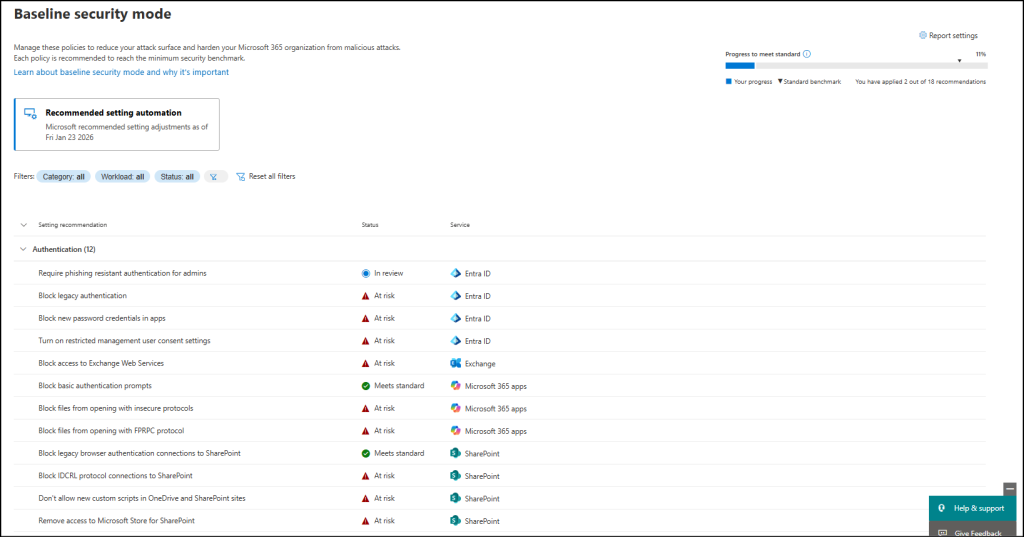
BSM provides granular control and visibility for each configuration setting. When needed, you can review detailed telemetry to understand its impact and also exclude specific users or applications.
2. File Protection Policies in Baseline Security Mode
Files are one of the most common ways attackers deliver malware, macros, and malicious scripts. Older file formats and legacy components often bypass modern protections.
BSM applies 6 file protection policies to secure file activity across SharePoint, OneDrive, and Teams:
- Open ancient legacy formats in Protected View and disallow editing – This is a default policy of BSM. It allows users to view old file formats like legacy Word, Excel, and PowerPoint in Microsoft 365 apps without enabling editing. This enables users to safely access content without risking memory corruption or exposure to malicious code.
- Open old legacy formats in Protected View and save as modern format – This default policy lets users view old file formats in Protected View and save them in modern formats. Opening legacy files this way minimizes the risk of malicious code execution while still allowing users to safely edit the content.
- Block ActiveX controls in Microsoft 365 apps – This setting lets admins block ActiveX controls via the Admin Center, which users could previously enable/disable in the Trust Center. By default, ActiveX is turned off to protect against harmful scripts and malware.
- Block OLE Graph and OrgChart objects – This is also a default policy of BSM. It prevents Microsoft 365 apps from loading OLE Graph and OrgChart objects and protects users from known exploitation techniques.
- Block Dynamic Data Exchange (DDE) server launch in Excel – Stops Excel from launching DDE servers that pull data from external sources and prevents attackers from running malicious code into Excel.
- Block Microsoft Publisher – To align with Microsoft’s support strategy, Microsoft Publisher will be disabled, ahead of its removal from Microsoft 365 in October 2026.
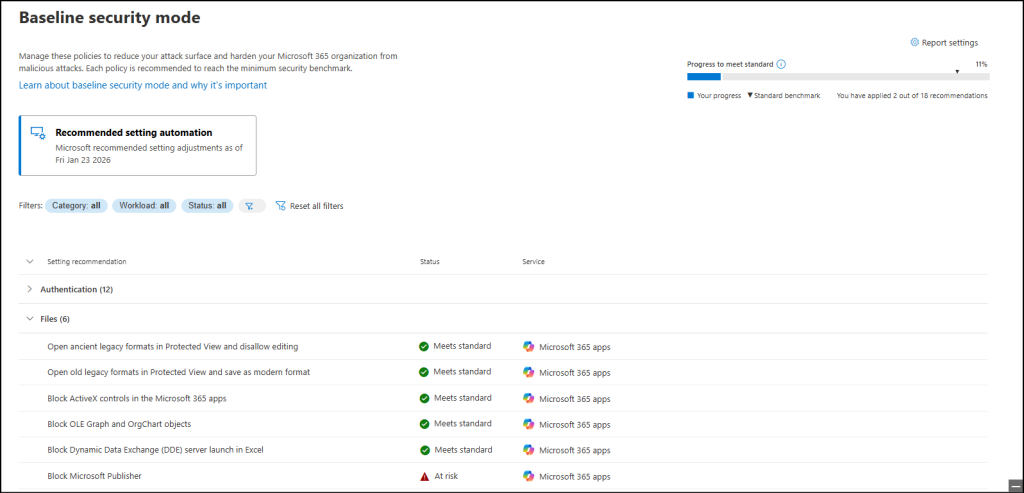
When you consent to view detailed telemetry, BSM shows analytics on how often these file types appear in your tenant (28-day usage). This visibility helps you evaluate risk, identify legacy workflows, and improve overall OneDrive and SharePoint security without disrupting normal work.
3. Room Device Security Controls in Baseline Security Mode
Room devices (like Teams Rooms systems) often run with elevated access but don’t need broad permissions. Attackers can abuse these accounts if not properly secured.
BSM hardens this area by enforcing modern device requirements and removing unnecessary access. It includes controls such as:
- Block unmanaged devices and resource account sign-ins to Microsoft 365 apps – To safeguard against unauthorized access, this policy restricts sign-ins from unmanaged devices and resource accounts to Microsoft 365 apps.
- Don’t allow resource accounts on Teams Rooms devices from accessing Microsoft 365 files – Allows only compliant, organization-managed Teams Room devices to sign in to Microsoft 365 apps and blocks the misuse of resource accounts on unmanaged devices.
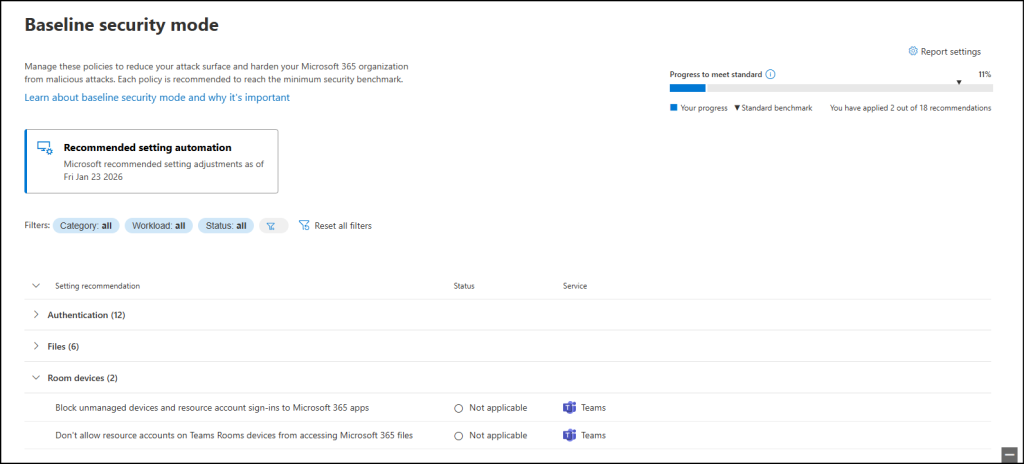
These policies reduce the risk of misuse and ensure meeting room devices stay limited to their intended functions, thus helps maintaining strong Teams security.
This is just the beginning! With this first milestone, Baseline Security Mode delivers the initial secure-by-default controls for Microsoft 365 and Entra. Microsoft has also confirmed that upcoming phases will extend Baseline Security Mode across Purview, Intune, Dynamics 365, Azure, and more.
As Microsoft continues adding new controls, the baseline will become a stronger foundation for day-to-day security operations. For now, this first phase gives organizations a predictable starting point and a clearer path toward eliminating legacy risks. The earlier you adopt it, the easier it becomes to adapt to the upcoming stages of enforced secure-by-default standards.
Stay tuned for more updates on upcoming features and rollouts!