Lifecycle Workflows already automated employee onboarding, role changes, and offboarding for employees, and Agent IDs even got their own lifecycle policy. Guests, though, had no lifecycle policy or workflows of their own.
Guest accounts tend to outlive the work they were invited for. Cleaning them up meant using separate options, such as access reviews that remove inactive guest users and access package lifecycle settings, one group or package at a time.
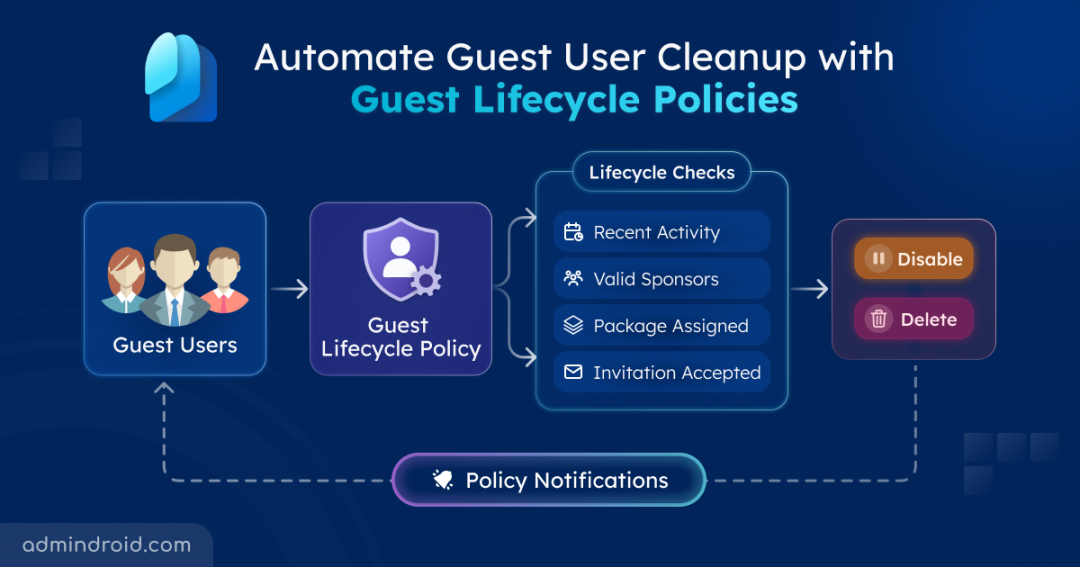
Guest lifecycle policies (Preview) change that! The rules are set once, and Entra then finds the guests who no longer qualify, notifies the sponsors, and disables or deletes the accounts automatically.
Preview note: Guest lifecycle policies are in preview. They need an Entra ID Governance license and a connected Azure subscription for the guest add-on meter.
Difference Between Lifecycle Workflows vs Lifecycle Policies
Before getting into the setup, let’s sort out the confusion between the two, since both sit in the same section of the Entra admin center.
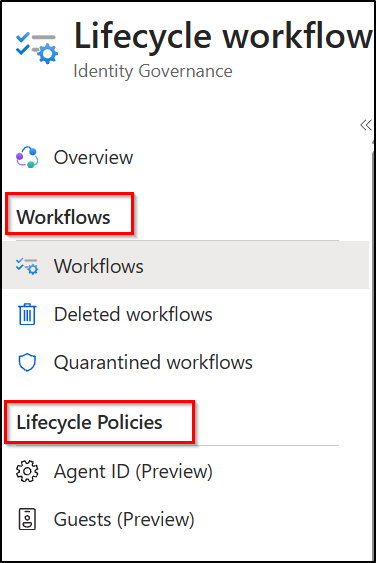
Lifecycle Workflows is the broader management experience, and Workflows & Lifecycle Policies are separate capabilities within it.
- A lifecycle workflow defines a sequence of tasks that run when its execution conditions are met.
- For example, when an employee joins, for example, a workflow can assign access, send notifications, and perform other onboarding tasks for new Microsoft 365 users.
- A lifecycle policy works differently. Instead of running tasks for an identity event, it evaluates rules to check whether an identity still meets specific lifecycle requirements. When one doesn’t, the policy takes the configured enforcement action.
- The Lifecycle Policies section currently includes dedicated policies for cleaning up inactive Agent IDs and for guest users (Preview).
Workflows can also cover guest users, though that needs the guest add-on, so policies aren’t replacing that capability. They’re a separate, purpose-built way to evaluate guest-specific requirements at scale.
What Are Guest Lifecycle Policies in Entra ID?
Guest lifecycle policies are a new capability within Lifecycle Workflows. This automates the governance of external guest accounts without manually identifying and cleaning up accounts that no longer require access.
Administrators can configure policies based on different lifecycle conditions, such as:
- Whether a guest has signed in recently.
- Whether the guest’s sponsor has confirmed the continued access requirement.
- Whether the guest has the required number of sponsors.
- Whether the guest still has an active access package assignment.
- Whether an invited guest has completed the redemption process.
When a guest fails these checks, the sponsor and guest are notified, and the account is then disabled or deleted, depending on how the policy is set.
For example, take an organization with hundreds of external consultants, vendors, and partners. Some accounts belong to active projects, while others were left behind once the collaboration ended.
A lifecycle policy can be created to target just the consultants, check their recent activity and sponsor accountability, and disable or delete the accounts that miss the requirements.
Key Rules Available in Guest Lifecycle Policies
Before creating a policy, let’s understand the rules available in the lifecycle policy and how they help identify guests who require attention.
Rules are what a policy actually checks. A guest who fails a rule becomes noncompliant, and the action set on the policy takes over from there. Microsoft provides five configurable rules.
1. Sponsor Attestation (Periodic Attestation): Every guest has a sponsor, the person responsible for that external account. This rule asks the sponsor to confirm periodically that the guest still needs access, which sponsors do in My Access under Sponsored guests. The default is 90 days, adjustable from 30 to 365.
2. Guest Activity Requirement: This checks whether the guest has actually been using the account, and signing in to the tenant counts. The default is 90 days, adjustable from 30 to 730, so a guest silent for 120 days fails a 90-day requirement.
3. Invitation Redemption Requirement: Some invitations never get accepted, leaving guests in the directory as PendingAcceptance. This rule gives them a window to accept, 30 days by default (1 to 30), and starts their deletion once it passes.
4. Access Package Assignment Requirement: When a guest’s last access package assignment ends, this rule begins the disable or delete process. It’s off by default, and it applies to all guests, not only those governed through entitlement management.
5. Minimum Sponsor Count (Sponsor must be present): A guest with no sponsor is a quiet problem, because sponsors receive the reminders. This rule requires a set number of sponsors per guest, 1 by default and up to 5. A group added as a sponsor counts as one.
How to Create Guest Lifecycle Policies in Microsoft Entra ID
Before starting, make sure these are in place:
- Licensing: The tenant must have a Microsoft Entra ID Governance license.
- Billing: A connected Azure subscription is required for the guest add-on meter. Guest governance uses the monthly active users (MAU) billing model.
- Permissions: Lifecycle Workflows Administrator or Global Administrator.
Step 1: Create the policy:
- Sign in to the Microsoft Entra admin center.
- Go to ID Governance > Lifecycle Workflows > Lifecycle Policies > Guests (Preview)
- Select Create policy.
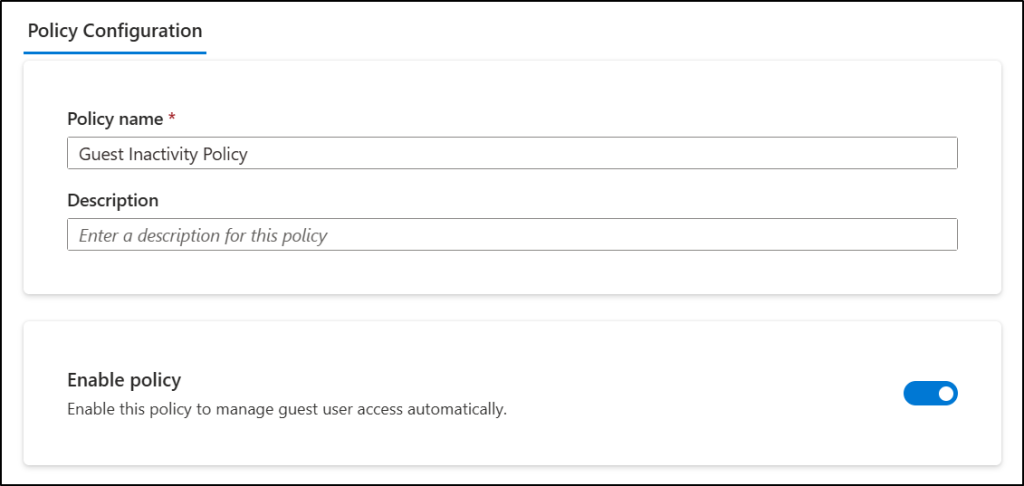
- Add a unique name and a description of the guests it covers.
- Use the Enable policy toggle to enable or disable the policy. Keep it enabled when ready for evaluation and enforcement.
Step 2: Define the policy scope:
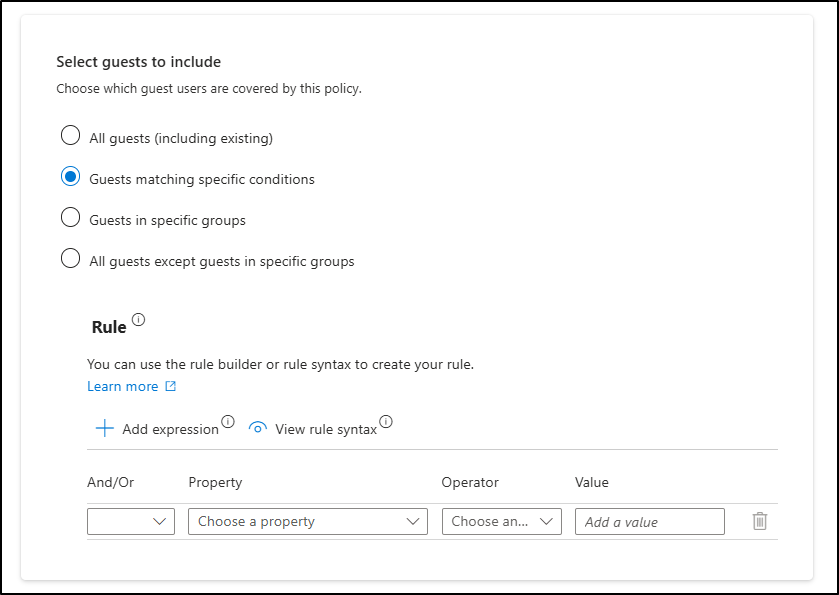
Only accounts with userType set to Guest are evaluated; however, the guest was created or invited. The scope can then be narrowed in four ways:
- All guests (including existing) – This applies to all guests, including those already in the tenant, regardless of how they were invited.
- Attribute-based scope: Guests matching specific conditions – Includes guests matching specific supported user attributes.
- Group-based scope: Guests in specific groups – Includes guests who are direct members of selected groups.
- Group exclusions: All guests except guests in specific groups – Excludes guests who are direct members of specified groups.
For example, to enforce inactivity requirements on the “consultants” group but not on the “strategic partners” group, a group-based scope targeting only the “consultants” group is enough, since “partners” aren’t in it and stay out of the policy.
Important: Note that group conditions evaluate direct membership only, not nested groups. Also, exclusion from one policy doesn’t prevent a guest from matching another policy.
Step 3: Configure Policy Rules:
After defining which guest accounts the policy should cover, decide what lifecycle requirements those guests must meet.
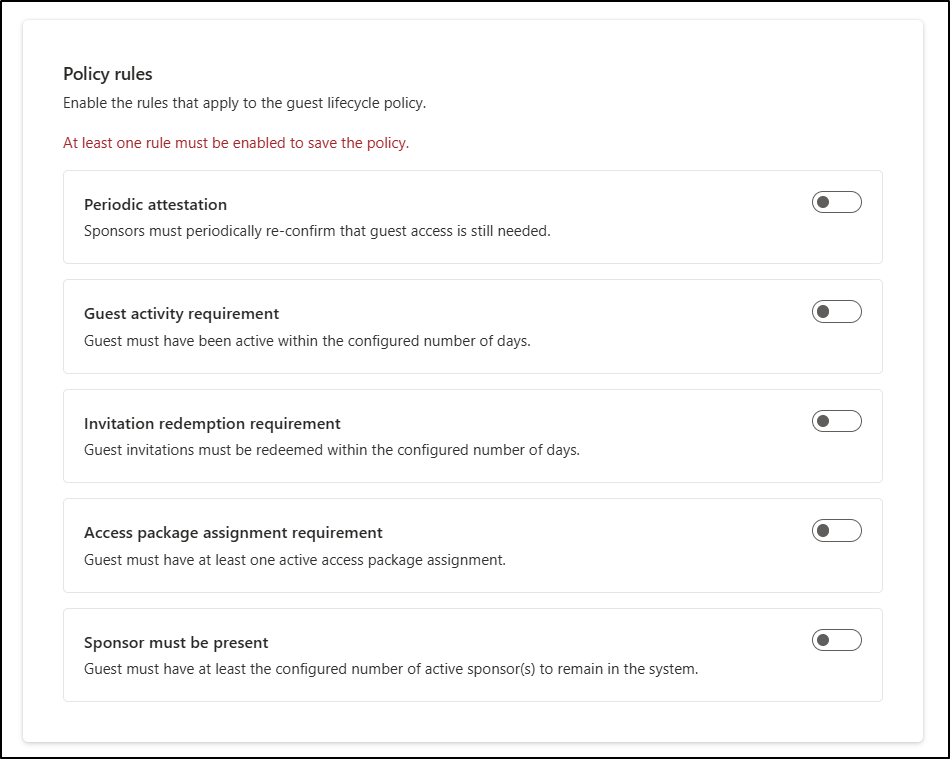
The Policy Rules section offers the 5 rules covered above. Switch on the toggle for each rule the policy needs, leave the others off, and set a value for each one that’s on:
- Set a value for each rule that’s on:
- Sponsor attestation: how often the sponsor must reconfirm, in days (30–365)
- Activity requirement: how many days of inactivity are allowed (30–730)
- Guest redemption: how many days an invited guest has to accept (1–30)
- Access package assignment expiration: only the toggle, no value to set
- Minimum sponsor count: how many sponsors each guest must have (1–5)
For example:
- An inactivity-focused policy can enable the Guest activity requirement and set it to 90 days.
- A policy focused on sponsor accountability can enable Periodic attestation, and Sponsor must be present, with a 90-day attestation interval and at least one sponsor.
At least one rule must be on to save the policy, and several can be combined.
Step 4: Choose the action:
Next comes what should happen when a guest fails the requirements:
- Delete the account
- Disable the account
- Disable, then delete: Disables the account immediately and deletes it after a configured grace period.
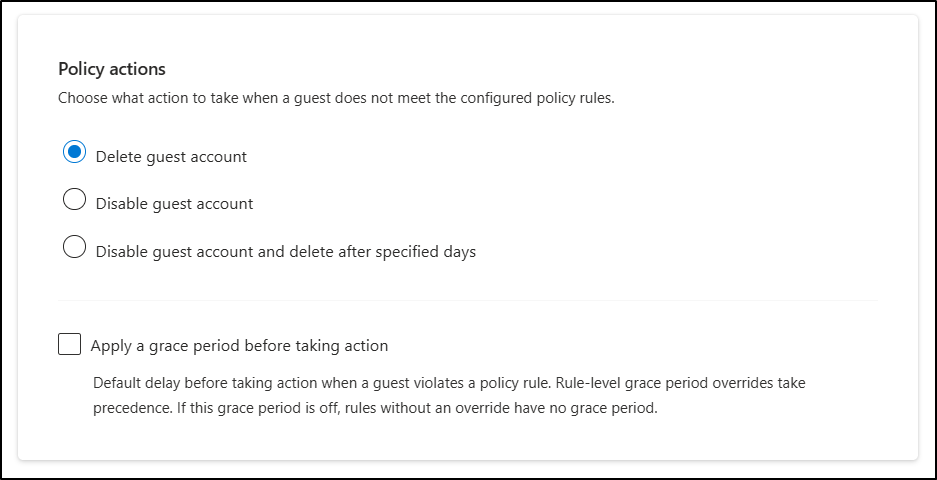
Tip: There’s also a separate enforcement grace period. When set, it delays the first action after a guest becomes noncompliant, giving the sponsor or guest time to respond. The default is 7 days, with a minimum of 1.
Step 5: Configure notifications:
Notifications keep sponsors and guests informed as an account approaches enforcement or has already been affected. There are three:
- Pre-action notification: Sent to the guest and sponsor when the guest becomes noncompliant and a grace period is configured.
- Disable notification: Sent to the sponsor when the guest account is disabled.
- Delete notification: Sent to the sponsor when the guest account is deleted.
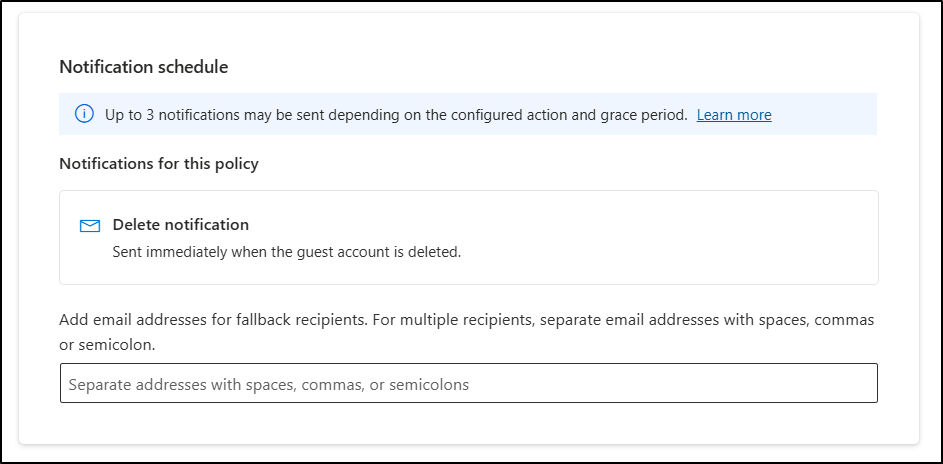
Priority and limits: A tenant can have up to 20 guest lifecycle policies, so more than one policy can match the same guest. A guest still belongs to only one policy at a time, though: the policy with the highest precedence is enforced, and the others aren’t evaluated. Precedence also matters when a deleted policy is restored from the Deleted Policies tab. It comes back disabled and at the lowest priority, so it needs a review and a fresh enable before it applies to anyone again.
Finally, review the scope, rules, actions, notifications, and priority, then create the policy and enable it when ready.
What Happens After the Policy is Enabled?
Once enabled, the policy is evaluated once a day, and each run goes through five stages:
- Scope evaluation: Finds the guests that match the policy’s scope and aren’t covered by its exclusions.
- Rule evaluation: Checks each guest against the enabled rules and marks them as compliant or noncompliant.
- Enforcement: Initiates the configured action for noncompliant guests, subject to any configured grace period.
- Notifications: Sends pre-action, disablement, or deletion notifications to the configured recipients, based on the enforcement stage.
- Status tracking: Updates guest compliance information and policy processing details, allowing administrators to monitor guests in scope, their compliance states, and the policies assigned to them.
Guest Lifecycle Policies add another layer by automatically evaluating external identities against defined lifecycle requirements and enforcing the configured actions when those requirements aren’t met.
For organizations managing large external guest populations, this provides a more consistent approach to guest account governance.
Employees, and now agents, have had lifecycle automation for a while. Guests finally have theirs! Since the feature is in preview and enforcement involves disabling and deleting accounts, a small pilot group is the safest place to start, with scope, rules, and priority checked there before the policy goes tenant-wide.